Tutorial
What you will learn and what you need
WordPress is the software behind a very large share of the websites you visit. Blogs, company sites, news outlets, online shops, portfolios and membership communities all run on it. This guide explains what it actually is, where it came from, how it works under the hood, what it costs, and when you should pick something else.
You do not need any technical background. You do not need to install anything to read this. By the end you will be able to:
- Explain the difference between WordPress.org and WordPress.com, which confuses almost every beginner.
- Describe what “open source” and the GPL licence mean for you in practice.
- Follow what happens when someone loads a WordPress page.
- Tell themes, plugins and blocks apart.
- Decide what you can build, what hosting you need, and what the real costs are.
- Judge whether WordPress is the right tool for your project.
Numbers such as market share, version numbers and prices change. Where this guide mentions them, it tells you where to check the current figure instead of asking you to trust a snapshot.
Treat this as the foundation tutorial. When you are ready to act, the follow-ups are choosing a domain and launching your site. Those tutorials assume you have read the concepts here.
WordPress in one paragraph
WordPress is free, open source software for creating and managing websites. You install it on a web server, and it gives you an administration area where you write posts, build pages, upload images, and change how the site looks, all from a browser. Visitors see the finished pages. You never have to edit raw code to publish something, but the code is open, so developers can change almost anything.
The technical label is a content management system, or CMS. A CMS separates the content (your words and images) from the design (how it is displayed) and from the machinery (how pages are assembled and delivered). That separation is the whole idea. You can change the design without rewriting your articles, and you can add a feature without touching either.
A short history of WordPress
WordPress began in 2003. Matt Mullenweg and Mike Little released the first version on 27 May 2003. It was a fork of an earlier blogging tool called b2/cafelog, written by Michel Valdrighi, whose development had stalled. A fork means taking an existing open source project and continuing it separately. That is only possible because of the licence, which the next sections cover.
The early releases were blogging software. The core pieces were posts in reverse chronological order, categories, comments and a simple theme system. Plugins arrived early and became the main way the ecosystem grew, because anyone could add features without touching the core.
Key milestones
The table lists milestones that are well documented on wordpress.org and in the project’s release archive. For exact dates and the current version, check the WordPress releases archive on wordpress.org.
| Period | What happened | Why it mattered |
|---|---|---|
| 2003 | First release, forked from b2/cafelog | A free, easy blogging platform with a permissive licence |
| 2005 | Pages and a more flexible theme system arrive; Automattic is founded | WordPress becomes usable for ordinary sites, not only blogs |
| 2010 | WordPress Foundation set up; custom post types introduced in 3.0 | Developers can model any content type, such as products or events |
| 2018 | WordPress 5.0 ships the block editor | Editing moves from a single text box to blocks |
| 2022 | WordPress 5.9 brings the Site Editor and block themes | The whole site, not only posts, can be edited with blocks |
| 2023 onward | Patterns, synced patterns, a command palette and design tools mature | Block-based design becomes the main workflow |
Two shifts stand out. First, WordPress evolved from a blog tool to a general website platform. Second, from version 5.0 onward, editing changed from a classic text editor to the block editor, which is the subject of our block editor tutorial. Old tutorials written before 2018 describe a very different screen.
WordPress.org versus WordPress.com
This is the single most important distinction for a newcomer, and the names make it worse. Two different things are called WordPress.
WordPress.org: the software
WordPress.org is the home of the open source software. You can download WordPress there for free, read the documentation, browse the official theme and plugin directories, and find the support forums. It is run by the open source project and its volunteer community, with the non-profit WordPress Foundation holding the trademarks.
When people say “self-hosted WordPress”, they mean this: you take the software from WordPress.org, install it on a hosting account you pay for, and you own and control everything. This is the version most tutorials, including this site’s, mean by “WordPress”.
WordPress.com: a hosted service
WordPress.com is a commercial service run by Automattic, a company co-founded by Matt Mullenweg. It runs WordPress software for you and sells hosting and plans. You sign up, pick a plan, and the platform handles servers, updates and backups. The trade-off is that what you can do depends on the plan. Installing your own plugins and themes, for example, has historically required a higher-tier plan. Check the current plan comparison on WordPress.com because plan features change.
Comparison
| Question | WordPress.org (self-hosted) | WordPress.com (hosted) |
|---|---|---|
| What is it? | Free software you install yourself | A paid and free hosted service built on the software |
| Who runs the server? | You, or the host you choose | Automattic |
| Plugins and themes | Install anything from anywhere | Depends on the plan |
| Maintenance | Your responsibility, or your host’s if managed | Mostly handled for you |
| Control and portability | Full; you can move hosts | Limited by plan, though export is available |
| Best for | Anyone who wants flexibility and ownership | Someone who wants zero server work |
Neither is wrong. If you want to write and never think about servers, a hosted plan is reasonable. If you want freedom to add features, change hosts, or build something unusual, self-hosting is the usual route. You can start on one and move to the other later because content can be exported and imported, though moving takes planning.
Do not confuse WordPress.com with a “WordPress hosting” product from another company. Many hosts sell managed WordPress hosting, and that is still the self-hosted WordPress.org software, just installed and maintained for you. Our guide to xCloud WordPress hosting is one example of how a managed setup looks.
Open source and the GPL, in plain words
WordPress is released under the GNU General Public License, version 2 or later, usually shortened to GPL. You do not have to read the licence to use WordPress, but understanding its effects clears up many common questions.
What the licence gives you
The GPL is built around four freedoms: to run the software for any purpose, to study how it works and change it, to redistribute copies, and to distribute your modified versions. In practice for a site owner this means:
- You never pay a licence fee to use WordPress itself, on one site or a thousand.
- No company can switch off your copy or force you to subscribe.
- You can hire any developer, agency or freelancer to modify it, because nobody holds exclusive rights to the code.
- You can move your site to another host without asking permission.
What “free” does and does not mean
Free here refers to freedom more than price, though the core software is also free of charge. Free software can still be sold. Many plugins and themes are sold commercially and are still GPL-compatible. Paying for a premium plugin typically buys support, updates and features, not a different kind of licence. The seller’s own terms decide how many sites you can receive updates and support for.
The GPL is a “copyleft” licence. If someone distributes software derived from WordPress, the derived work must also be offered under compatible GPL terms. The wider community generally treats themes and plugins that run inside WordPress as derivative works, which is why the official directories only accept GPL-compatible code. If you are building a product on WordPress, ask a qualified lawyer, because the licence has nuances this guide does not settle.
Why open source matters for you
The practical benefit is resilience. Even if a company behind a plugin vanishes, the code remains, and others can maintain it. The practical risk is quality variance. Anyone can publish a plugin, so you must vet what you install. Our guide on how to vet a WordPress plugin before you install it gives a checklist you can reuse.
How a WordPress site actually works
A WordPress site is made of a few parts that cooperate. Knowing them helps with every later decision: hosting, speed, security and troubleshooting.
The four ingredients
- The web server. Software such as Apache, Nginx or LiteSpeed receives a visitor’s request and hands it to PHP.
- PHP. WordPress is written mostly in PHP, a server-side programming language. PHP runs the WordPress code and builds the page.
- The database. WordPress stores your content, settings and users in a MySQL or MariaDB database. Posts, pages, comments, menus and options all live there.
- The files. The WordPress core files, your theme, your plugins and your uploaded media sit in the file system on the server.
The official requirements page on wordpress.org lists the PHP and database versions the current release recommends. Check it before choosing a host, because hosts running outdated versions cause avoidable problems. Our article on PHP versions and WordPress performance explains why the version matters.
What happens when a page loads
Imagine a visitor opens your About page.
- The browser asks your server for the address.
- The web server passes the request to PHP, which starts WordPress.
- WordPress works out which content was requested, using the address and your permalink settings.
- It queries the database for that page’s content and any settings it needs.
- It loads the active theme, which decides the layout, and any plugins that add features to the page.
- It assembles HTML and returns it to the browser, which then fetches images, styles and scripts.
This is called dynamic page generation. Every request does real work, which is why caching matters: a cache stores the finished HTML so the server can skip steps two to five for repeat visitors. Our guides to caching plugins and the broader WordPress speed optimization guide cover that in depth.
Front end and back end
The front end is what visitors see. The back end, called the dashboard or admin area, is where you log in to manage things. By default you reach it by adding /wp-admin/ to your site’s address. The admin menu on the left lists areas such as Posts, Media, Pages, Comments, Appearance, Plugins, Users, Tools and Settings. Exact labels and extra items vary with your version and installed plugins, so use the labels on your own screen as the source of truth.
Where things live
If you ever open the site’s folder, you will see a few names that appear in every WordPress tutorial:
| Name | What it holds |
|---|---|
wp-admin | Core code for the dashboard |
wp-includes | Core code shared across the system |
wp-content | Your themes, plugins and uploads, the part that is yours |
wp-config.php | The configuration file with database connection details |
The rule of thumb is simple: never edit core files, because updates overwrite them. Everything you customise belongs in wp-content, or in settings stored in the database.
Posts, pages and other content types
WordPress organises content into types. Two come built in and you will use them on day one.
- Posts are dated entries that appear in a feed, newest first. Blog articles, news items and announcements are posts. They can be sorted with categories and tags.
- Pages are standalone and not tied to a date. An About page, a Contact page and a Services page are typical. Pages can be arranged in a hierarchy, for example a parent page with child pages.
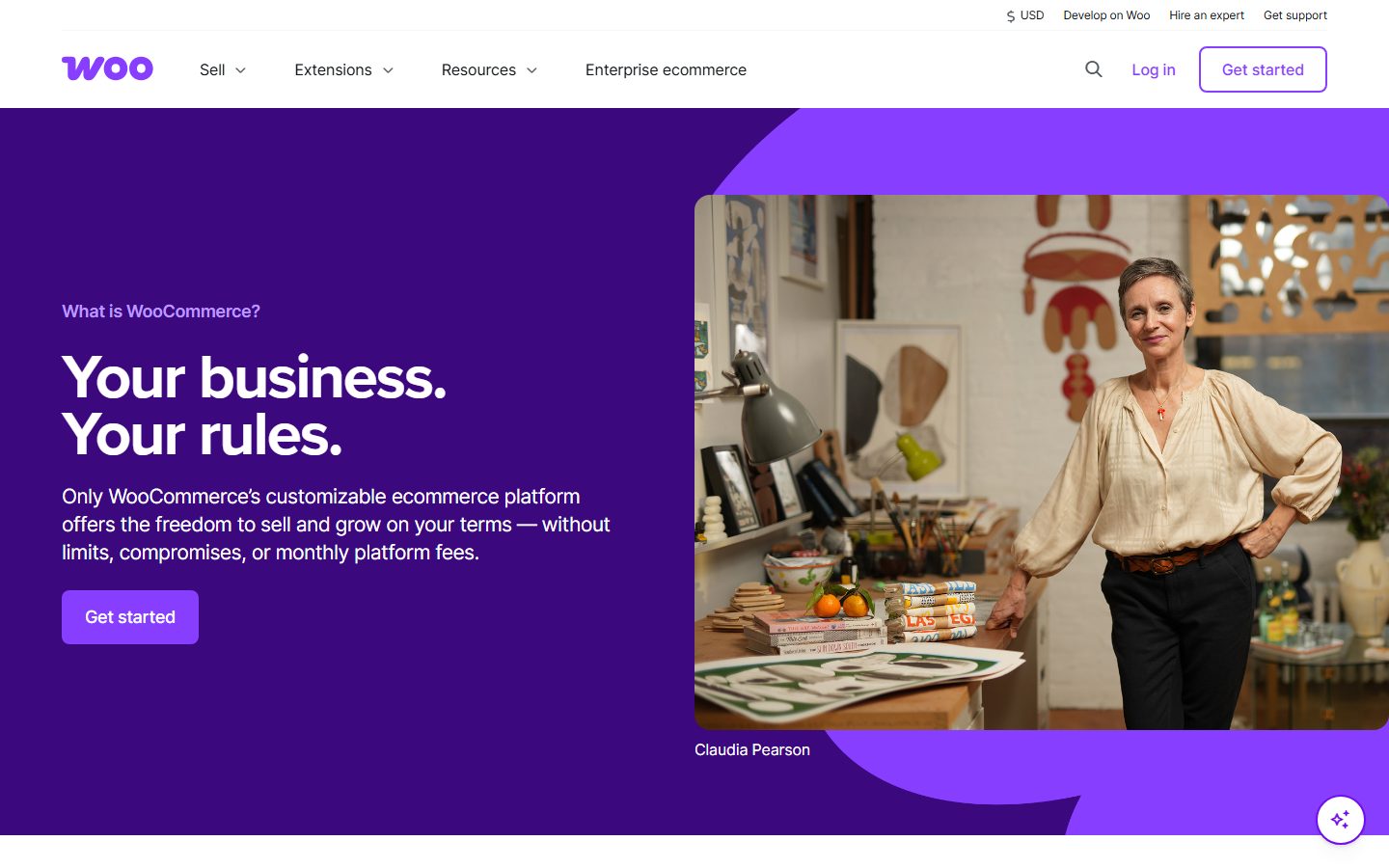
Beyond these, WordPress supports custom post types, which developers or plugins register to represent other kinds of content: products, events, recipes, portfolio items, job listings. This very site uses one for its tutorials. A shop plugin such as WooCommerce adds products this way. You will also meet taxonomies, the grouping systems. Categories and tags are the built-in taxonomies, and custom ones can be added.
Media, comments and menus
The Media Library stores images, documents, audio and video you upload. WordPress generates several image sizes automatically. Comments let visitors respond to posts, and because they attract spam you should decide early whether to use them. Our guide on how to stop WordPress spam explains the options. Menus are the navigation lists in your header and footer, which you build from pages, posts, categories and custom links.
Users and roles
WordPress has a built-in role system. Each account is assigned a role that decides what it can do. The standard roles are Administrator, Editor, Author, Contributor and Subscriber. On a multisite network there is also a Super Admin. Roughly, administrators control everything, editors manage all content, authors publish their own posts, contributors write posts but cannot publish them, and subscribers can only manage their profile.
The principle to follow is least privilege: give every person the lowest role that lets them do their job. Our article on WordPress user roles and least privilege walks through choosing correctly.
Themes, plugins and blocks: three ways to change a site
Beginners often mix up these three. They answer different questions: what does the site look like, what can it do, and how is each page’s content built.
Themes control appearance
A theme sets the design: layout, typography, colours and the templates that produce each kind of page. You can switch themes without losing your posts and pages, though some theme-specific features and settings may not carry over. The official directory at wordpress.org/themes lists thousands of free themes, and commercial themes are sold elsewhere.
There are two kinds of theme, and the difference matters.
| Type | How you customise it | Notes |
|---|---|---|
| Classic theme | The Customizer, widgets, and theme options screens | Built on PHP template files; widely supported and still common |
| Block theme | The Site Editor, with blocks, templates and styles | Built on HTML templates and a theme.json file; the modern direction of WordPress |
If you are starting fresh, a block theme gives you the full set of modern tools. See our roundup of the best block themes and the notes on the fastest WordPress themes for places to start. WordPress ships with default themes named after years, such as the “Twenty Twenty-Five” family, so a fresh install always has something to use.
Plugins add functionality
A plugin is a package of code that adds a feature: a contact form, search engine optimisation tools, caching, backups, security, a shop, a membership system. Plugins hook into WordPress at defined points, so you can add features without editing core files. The official directory at wordpress.org/plugins holds a very large catalogue of free plugins, and many companies sell premium ones.
Plugins are the source of WordPress’s flexibility and also of most of its problems. Each one adds code that can slow the site, conflict with others, or contain security flaws. A sound habit is to install fewer plugins, from reputable authors, and remove the ones you no longer use. We have guides to choosing plugins, finding plugins you can delete and fixing plugin conflicts.
Blocks structure content
A block is one unit of content in the editor: a paragraph, a heading, an image, a list, a button, a table, a video. You build a page by stacking and nesting blocks. Blocks can be rearranged, styled and saved as reusable layouts called patterns. Plugins can add new blocks, and themes control how blocks look.
The easy memory aid:
- Theme: the look of the whole site.
- Plugin: an extra capability.
- Block: a piece of content on a page.
Our dedicated block editor tutorial goes through blocks, patterns and templates in detail.
Page builders and where they fit
Besides the built-in block editor, third-party page builders such as Elementor and Bricks provide their own visual editing interfaces. They are plugins or themes that replace or extend the editing experience, usually with more design controls and some extra features. The built-in editor is the default and the lowest-risk starting point, because it needs no extra software. Page builders can be worthwhile when you need design controls the core editor does not offer, though they add code and a dependence on that vendor. If you are weighing them up, our comparison of WordPress page builders and the Bricks versus Elementor article set out the trade-offs.
What you can build with WordPress
WordPress began with blogs but the range is now wide. Because of themes, plugins and custom post types, the same core supports very different sites.
| Project | How WordPress handles it | Typical extras |
|---|---|---|
| Blog or magazine | Built in: posts, categories, authors, comments | SEO plugin, newsletter signup |
| Business or brochure site | Pages and menus with a block theme | Contact form, analytics, map |
| Portfolio | Pages, galleries and sometimes a custom post type | Image optimisation |
| Online shop | A commerce plugin such as WooCommerce, FluentCart or SureCart | Payment gateway, shipping and tax rules |
| Membership or course site | Membership or learning plugins with restricted content | Payments, email, drip content |
| Booking site | A booking plugin with calendar and payments | Email reminders, calendar sync |
| Directory or listings | Custom post types plus a directory plugin | Search filters, maps |
| Multilingual site | A translation plugin | Language switcher, translated SEO fields |
| Headless site | WordPress as a content backend, delivered through its REST API to another front end | A front-end framework and extra hosting |
Further reading for the most common branches: the WordPress ecommerce guide, the membership plugins roundup, booking plugins, form plugins and multilingual plugins. If you want to add your own content structures, see custom post types: plugin or code and the Advanced Custom Fields guide.
Multisite
WordPress can run many sites from one installation. This feature is called Multisite, and it is turned on through configuration rather than being active by default. It suits networks such as a university with department sites, though it adds complexity. Most single-site owners should not use it.
WordPress and the REST API
WordPress exposes a REST API, a standard way for other software to read and write its content using web requests. That is what lets mobile apps, JavaScript front ends and automation tools talk to a WordPress site. If you are curious, the developer documentation at developer.wordpress.org covers it. Newer additions around AI tools connect through related interfaces, and our explainers on the REST API versus MCP and the Abilities API show how that fits in.
Hosting basics
To run self-hosted WordPress you need a place on the internet where PHP and a database run all the time. That is web hosting. The choice affects speed, security, support and price more than almost any other decision.
Types of hosting
| Type | What it is | Good for | Watch out for |
|---|---|---|---|
| Shared hosting | Many sites share one server’s resources | Small sites, low budgets, first projects | Neighbouring sites can affect your performance; limited control |
| Managed WordPress hosting | The host tunes servers for WordPress and often handles updates, backups and caching | People who want less maintenance | Often higher monthly price; some plugins may be restricted |
| VPS or cloud server | A virtual server with dedicated resources that you or a panel manage | Growing sites, developers, agencies | You are responsible for configuration and security unless a service manages it |
| Dedicated server | An entire physical machine | Very large or specialised sites | Cost and administration burden |
| Hosted platform (WordPress.com) | A service that runs WordPress for you under its plans | Writers who want no server work | Feature limits depend on plan |
For a comparison of managed and self-run options see managed versus VPS WordPress hosting and the best WordPress hosting by use case.
What to look for in a host
- Current PHP and database versions, matching the recommendations on wordpress.org.
- HTTPS support with free certificates, so your site loads over a secure connection.
- Backups, ideally daily, stored away from the server, with a clear restore process.
- Staging environments, a private copy for testing changes. Our staging site guide explains the workflow.
- Support quality, including whether the support staff know WordPress.
- Clear renewal pricing. Introductory prices often rise on renewal, so read the terms.
- Easy export and migration, so you are never locked in. See migrating WordPress to a new host.
Domains and DNS
A domain name is your site’s address, like example.com. You register it through a registrar, usually for a yearly fee, and point it at your hosting through DNS settings. Domain and hosting are separate purchases, even when one company sells both. Choosing the name is a decision worth slowing down for, and our tutorial on picking a domain covers it step by step.
Installing WordPress, at a glance
You do not have to install by hand. Most hosts offer a one-click installer or arrive with WordPress already installed. For those who want the manual route, the official installation guide on wordpress.org describes it: create a database, upload the files, and run the setup screen that asks for your site title, an admin username, a strong password and an email address.
When setup finishes, you log in at /wp-admin/. A few first-run checks pay off:
- Open Settings and set the site title, tagline, time zone and date format.
- Open the permalink settings and choose a readable structure. Our note on permalink structure and SEO explains the choice, and changing it later needs redirects.
- Check that the site loads over HTTPS.
- Delete the sample content the installer may have created.
- Look at Tools and then Site Health, if present on your version, for warnings about PHP or database versions.
The full launch sequence, from domain to publishing, lives in our launch your site tutorial.
What WordPress really costs
The software is free. Running a site is not, and the costs fall into a few buckets. WPMusk has not tested or priced specific providers for this guide, so the table lists the categories and what drives them, not specific amounts. Check live prices before you commit.
| Cost | Frequency | What drives the price |
|---|---|---|
| Domain name | Yearly | The extension, such as .com, and the registrar; renewal can differ from the first-year price |
| Hosting | Monthly or yearly | Type of hosting, resources, number of sites, support level |
| Theme | Free or one-time or yearly | Free themes cover most needs; premium themes add features and support |
| Plugins | Free or yearly | Premium plugins usually charge for updates and support, often per site |
| Monthly | Business mailboxes and transactional email services | |
| Backups and security | Often bundled, sometimes extra | Off-site storage, scanning, retention |
| Payment fees (shops) | Per transaction | Set by your payment provider, not by WordPress |
| Your time or a developer’s | Ongoing | Setup, design, maintenance and fixes |
Where beginners overspend
- Buying several premium plugins that overlap in function.
- Paying for a page builder and a premium theme when a block theme would suffice.
- Choosing the largest hosting plan before there is traffic to justify it.
Where beginners underspend
- Skipping off-site backups, which makes a failure far more expensive than the backup would have been.
- Using the cheapest host with no staging and slow support.
- Ignoring maintenance, which is the cause of most hacked sites.
For plugins specifically, free is often enough to start. If you do want to compare costs in a category, our guides to backup plugins and security plugins show where free tiers end.
A tour of the WordPress dashboard
Seeing the admin area once makes everything above concrete. After you log in at /wp-admin/, you land on the Dashboard, a landing screen with panels showing site status, recent activity and news. Down the left side runs the admin menu. The names below are the standard core areas. Plugins add their own entries, and some labels differ slightly between versions, so treat this as a map rather than a script.
| Menu area | What you do there |
|---|---|
| Posts | Write and manage blog posts, categories and tags |
| Media | Upload and organise images, documents and video |
| Pages | Create standalone pages such as About and Contact |
| Comments | Approve, reply to, or delete visitor comments |
| Appearance | Choose themes; on block themes this is also where you open the Site Editor |
| Plugins | Install, activate, update and delete plugins |
| Users | Add people, assign roles, edit your own profile |
| Tools | Import and export content, Site Health, and other utilities |
| Settings | General, Writing, Reading, Discussion, Media and Permalinks options |
The settings worth knowing on day one
- General. Site title, tagline, site address, administration email, time zone, date format and the default role for new users. Leave the default role at the lowest level unless you have a reason.
- Reading. What your homepage shows (your latest posts or a static page), how many posts appear in feeds, and the search engine visibility option mentioned earlier.
- Discussion. Whether comments are allowed, whether they need approval, and how links in comments are handled.
- Permalinks. The URL structure for posts and pages.
Site Health
WordPress includes a Site Health tool under the Tools area. It runs checks and lists recommendations, such as an outdated PHP version, inactive plugins that should be removed, or a missing scheduled-task system. It will not fix everything, but it is a free early warning, and the messages are written for non-experts. Check it after every major change.
Updates and versions: what the numbers mean
WordPress versions look like 6.x. A change of the second number marks a major release with new features. Minor releases, such as 6.x.1, mostly deliver security and bug fixes. The project has historically backported security fixes to older branches, but you should not rely on that. Running the current major version, or one that still receives security updates, is the safe course.
By default, recent WordPress versions apply minor and security updates automatically, and you choose whether major updates happen automatically or manually. Plugins and themes can also be set to update automatically from their entries in the admin. The trade-offs are real: automatic updates close security holes quickly, but an update can occasionally break a site, particularly one with a custom setup. Our auto-updates risk guide shows how to decide per site. A safe pattern is to test updates on a staging copy first. See the staging site guide.
A safe update routine
- Confirm a recent, restorable backup exists.
- Read the changelog of anything that is a major update.
- Update on staging first if the site earns money or is hard to fix.
- Update plugins one at a time for critical sites, and check the front end after each one.
- If something breaks, roll back from the backup rather than guessing.
Check that it worked by loading the homepage, a post, a form and, if relevant, the checkout, while logged out.
Themes in more detail: what to look for
Choosing a theme is the first design decision most people make, and it is easy to choose badly. The themes directory shows ratings, the number of active installations, the last update and a live preview. Beyond that, ask these questions.
- Is it maintained? A theme not updated in a long time may not work with current WordPress or PHP versions.
- Is it a block theme? If you want the Site Editor and block-based design, this is essential.
- Is it light? Heavy themes bundle many scripts and features you will never use.
- Does it declare accessibility support? The directory has an accessibility-ready tag which indicates the theme has passed additional review, though that tag does not guarantee your final site is accessible.
- Can you leave it? A theme that stores your content in custom shortcodes or proprietary structures makes switching painful. Themes that stick to standard blocks are the easiest to leave.
Child themes
A child theme inherits everything from a parent theme and lets you add changes in a separate folder, so parent updates do not erase your customisations. Block themes often reduce the need for child themes, because most changes can be made in the Site Editor and saved in the database. For classic themes, a child theme remains the standard approach for code changes.
Plugins in more detail: a sensible way to choose
With so many plugins available, a repeatable process saves you from regret. Before installing a plugin on a live site, run through these checks on its directory page.
- Last updated. Recent updates suggest ongoing maintenance.
- Tested up to. The page states the latest WordPress version the author has tested with.
- Active installations and ratings. Useful signals, though not proof of quality.
- Support forum. Look at whether the author answers questions.
- Requirements. Check the minimum PHP and WordPress versions.
- Scope. Does it do one job well, or ten jobs poorly?
Test new plugins on a staging copy, not on the live site. If you later want to remove it, deactivate it, delete it from the Plugins screen, and check whether it left database tables or settings behind. Our guide to vetting a plugin extends this checklist.
Premium plugins and licences
Premium plugins are sold outside the directory and usually need a licence key to receive updates and support. Buy from the developer’s own site or a trusted marketplace. Avoid copies from unofficial sources: these are a common route for malware, and the missing licence means no legitimate updates.
Content, media and the editor: a first look
You will spend most of your time in the editor. When you create a post or page, WordPress opens the block editor. You click the plus button or type a slash to add a block, type your content, and use the settings sidebar to adjust the selected block or the whole document. The post settings include the permalink slug, featured image, categories, tags, excerpt and publish date.
Draft, schedule, publish
Content has a status. A draft is saved but invisible to visitors. Pending review is waiting for an editor. Scheduled publishes automatically at a chosen time. Published is live. Private is visible only to logged-in users with permission. WordPress also saves revisions of your content automatically, so you can compare and restore earlier versions from the editor’s revision tools.
Images and accessibility
When you add an image, write alternative text that describes its purpose for people who cannot see it. Decorative images can be given empty alternative text. Avoid uploading huge photographs directly from a camera, since WordPress will store them at full size. Resize and compress first. Our articles on image SEO and AI-assisted alt text cover this.
The complete tour of blocks, patterns and templates is in the block editor tutorial.
Privacy, legal basics and responsibility
Running a website makes you responsible for how it handles visitors’ data. The legal requirements depend on where you and your visitors live, so this guide cannot give legal advice. It can give a practical outline of what WordPress offers and what you still need to decide.
- Privacy policy. WordPress includes a Privacy section under Settings and a draft policy page to start from. You must complete it to reflect what your site actually collects.
- Cookies and tracking. If you use analytics, advertising or embedded media, you may need consent mechanisms. Requirements vary by region.
- Personal data tools. WordPress core provides tools under Tools to export and erase personal data on request, to help with requests from users.
- Forms and email lists. Collecting addresses carries rules on consent and unsubscribing. Our guides to email marketing in WordPress and Mailchimp alternatives address the tooling, not the law.
- Commerce. Shops have tax, refund and consumer-protection rules. See the tax setup guide for an overview of how the settings work.
Ask a qualified professional about obligations in your jurisdiction. Treat anything that relates to law as a question for them.
A glossary of WordPress terms
These words appear throughout WordPress tutorials. Skim the table now and return to it when you meet an unfamiliar term.
| Term | Meaning |
|---|---|
| Core | The WordPress software itself, as distributed from wordpress.org |
| Dashboard | The admin area behind /wp-admin/ |
| Block | One unit of content in the editor |
| Pattern | A saved arrangement of blocks you can insert anywhere |
| Template | A layout that decides how a type of page is displayed |
| Shortcode | A short bracketed tag that a plugin turns into content, a legacy method that still appears |
| Widget | A small content block placed in a sidebar or footer area, used mainly by classic themes |
| Hook | A point in the code where plugins and themes can add or change behaviour |
| Slug | The URL-friendly part of an address that identifies a post or page |
| Permalink | The permanent URL of a piece of content |
| Taxonomy | A way to group content, such as categories and tags |
| Staging site | A private copy of your site used to test changes |
| Multisite | A feature that runs several sites from one installation |
| REST API | A standard interface that lets other software read and write site content |
| wp-config.php | The configuration file with database details and constants |
| Cron | The scheduled-task system that runs jobs such as scheduled posts and update checks |
How to decide, in five questions
If you still feel unsure, answer these in order. They turn the whole guide into a short decision.
- Do I want to own and be able to move my site? If yes, choose self-hosted WordPress.org software.
- Am I willing to do or pay for maintenance? If yes, self-host on a good plan. If not, choose managed hosting or a hosted platform.
- Do I need features beyond pages and posts? Shops, memberships, bookings and directories are all plugin territory, where WordPress is strong.
- Is the site a custom application? If so, evaluate purpose-built software.
- Will it grow? WordPress scales from a single page to a very large publication, which makes it a low-regret starting point for most growing projects.
Security: the honest picture
WordPress powers a large number of sites, which makes it a frequent target. The core software is maintained by a security team and receives security fixes quickly. In practice, most compromised sites are hacked through something else: an outdated or abandoned plugin or theme, a weak or reused password, or a poorly managed server. Security is therefore mostly a matter of habits.
The habits that matter
- Keep everything updated. That means WordPress core, themes and plugins. Updates frequently contain security fixes. Read our guide to auto-updates and their risks to decide what to automate.
- Use strong, unique passwords and a password manager.
- Turn on two-factor authentication for administrator accounts. See two-factor authentication for WordPress.
- Limit who has admin access and remove accounts for people who left.
- Install only what you need from sources you trust, and delete unused plugins and themes rather than just deactivating them.
- Keep off-site backups that you have actually tested by restoring.
- Use a host that isolates accounts and keeps server software current.
The full checklist is in our WordPress security guide. If something already went wrong, follow the steps in hacked WordPress site recovery.
Before you update plugins or change themes on a live site that matters, take a backup first. A backup you have never tested is a hope, not a plan. The tutorial on building a backup routine shows how to set one up and check it.
Do you need a security plugin?
A reputable security plugin can add a firewall, malware scanning and login protection, but it does not replace updates and good habits. Evaluate it like any other plugin: it runs code on your site too. Our comparisons of security plugins and Wordfence alternatives help you choose.
Maintenance: the ongoing work
A WordPress site is not finished when it launches. It is a living system that needs regular care, which is the price of the flexibility. A manageable routine looks like this.
| How often | Task |
|---|---|
| Weekly | Review and apply updates; check that backups ran; clear spam comments |
| Monthly | Test a backup restore on a staging copy; review user accounts; scan for broken links |
| Quarterly | Audit plugins and remove unused ones; review speed and Core Web Vitals; check forms and checkout flows |
| Yearly | Renew domain and hosting; review whether your host and plan still fit |
The longer version is in the WordPress maintenance checklist. If you manage several sites, tools for managing multiple sites save time.
Performance and search visibility
Because WordPress generates pages dynamically, a poorly configured site can be slow. The usual causes are slow hosting, too many or heavy plugins, large unoptimised images, and no caching. The good news is that the fixes are well understood.
- Choose decent hosting and a current PHP version.
- Use a lightweight theme and avoid piling on plugins.
- Compress images and serve modern formats. See image optimisation with WebP and AVIF.
- Use page caching and, where appropriate, object caching.
- Measure with real tools such as PageSpeed Insights. Our Core Web Vitals guide explains the metrics.
For search engines, WordPress produces clean HTML and has sensible defaults, but it does not do your SEO for you. Titles, headings, internal links, site speed and good content all still matter. Start with the WordPress SEO guide and the tutorial on writing title tags. If speed is your priority, work through the speed-up tutorial.
The WordPress community and how the project is run
WordPress is not a single company’s product. It is developed in the open by contributors, many of them volunteers and many employed by companies that build businesses around it. The coordination happens on the Make WordPress blogs at make.wordpress.org, where teams for core, design, documentation, accessibility, polyglots (translation), support, themes, plugins and more publish plans and meeting notes.
Release cycle
Major releases are published on a roughly regular schedule a few times a year, and minor releases deliver security and bug fixes in between. Release candidates are published in advance so developers can test. The make.wordpress.org core blog publishes the schedule for each cycle, so you can see what is coming and when.
How to get help
- Official documentation at wordpress.org/documentation, which includes user guides.
- Support forums at wordpress.org/support, where volunteers answer questions about core and about plugins and themes hosted in the directory.
- Developer Resources at developer.wordpress.org for code references and handbooks.
- Local meetups and WordCamps, community-organised events listed on wordpress.org and in the WordCamp central directory. Many are inexpensive and many have recordings online.
- WordPress.tv, the community’s video archive of talks.
Contributing
You do not need to be a developer to contribute. Documentation, translation, support, design feedback, testing and event organising all count. The Make WordPress site lists how to join each team. Contributing is also a good way to learn.
Accessibility and the broader mission
WordPress core aims to meet the Web Content Accessibility Guidelines at level AA for the admin and the default themes, and the project maintains accessibility-ready standards for themes in the directory. That does not guarantee that your finished site is accessible, since content, colours and plugins also matter, but it gives you a good base.
WordPress alternatives and how they compare
WordPress is not the only way to build a website. Choosing well means understanding what the alternatives trade away. The categories below describe typical trade-offs, not verdicts on any specific product.
| Option | What it is | Strengths | Trade-offs |
|---|---|---|---|
| Hosted site builders | All-in-one services where design, hosting and support come from one company | Fast to start, no server work, one bill | Less flexibility; moving your site elsewhere is difficult; features depend on the vendor |
| Hosted shop platforms | Services focused on selling products | Commerce built in, hosted checkout | Monthly fees and transaction costs; content features are secondary |
| Other open source CMSs | Self-hosted systems such as Drupal, Joomla or Ghost | Some are stronger for complex content models or for publishing | Smaller plugin ecosystems and talent pools than WordPress |
| Static site generators | Tools that build plain HTML files from templates and content files | Very fast, very small attack surface, cheap hosting | Editing is more technical; dynamic features need extra services |
| Headless CMS | A content backend with a separate front end | Flexible delivery to many channels | Needs developers; higher build and hosting complexity |
| Custom application | Software built for one purpose | Exactly what you need | Expensive to build and maintain |
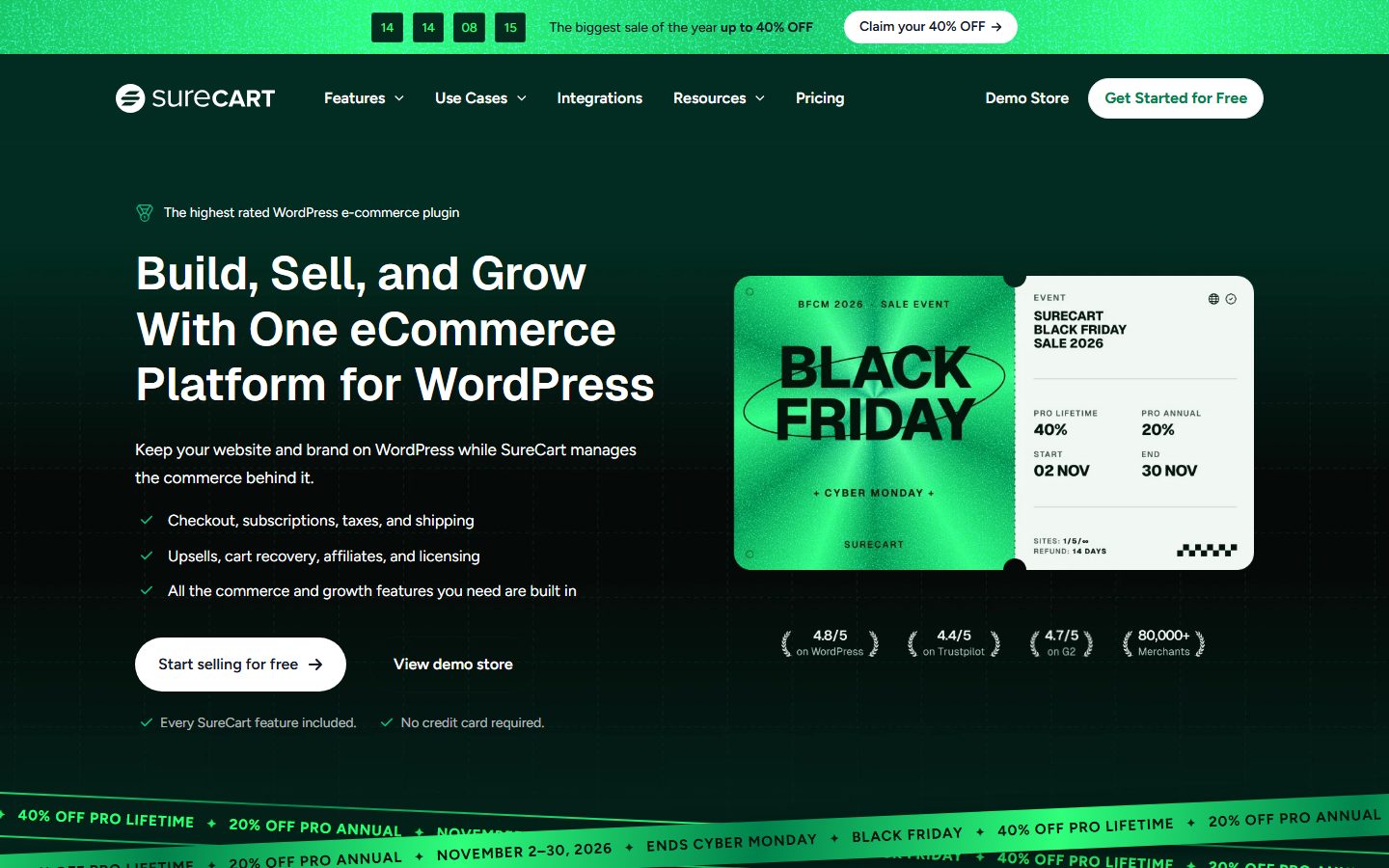
Many shop owners also ask whether to use WordPress at all for selling. Our articles on WooCommerce alternatives and WooCommerce versus FluentCart versus SureCart cover the commerce side within WordPress.
When WordPress is not the right tool
Recommending WordPress for everything would be dishonest. Consider another route in these situations.
- You want zero maintenance and a single project. If you have no appetite for updates and backups, a hosted builder or a managed plan with everything handled may serve you better. The cost is less control.
- You need a complex web application. Software with custom user workflows, heavy real-time features or strict data-processing logic is usually better built as a purpose-made application, even if WordPress can sometimes be stretched to do it.
- Your site is a handful of static pages that rarely change. A static site can be simpler, faster and safer than a dynamic CMS.
- You have strict compliance or security requirements that demand tightly controlled software. WordPress can be hardened, but you must own that work.
- Your team has no one to maintain it. A neglected WordPress site is a liability. A neglected static site is less risky.
- You need extreme scale from day one. WordPress can be scaled with caching and good infrastructure, but that takes engineering.
A quick decision table
| If your priority is… | Lean toward |
|---|---|
| Ownership and portability | Self-hosted WordPress |
| Zero server work | A hosted platform or fully managed hosting |
| Content-heavy site that will grow | WordPress |
| A shop with deep content marketing | WordPress with a commerce plugin |
| A tiny, unchanging site | Static HTML or a static site generator |
| A custom web application | A purpose-built application |
Your first week with WordPress
If you decide to proceed, this sequence keeps you from getting lost. It follows the order in which decisions depend on each other.
- Decide the goal. Write one sentence on what the site is for and who it serves. Everything else follows from it.
- Pick a domain. Use the domain tutorial.
- Choose hosting that fits your size and comfort level, with current PHP, HTTPS, backups and staging.
- Install WordPress using the host’s installer and log in at
/wp-admin/. - Set the basics in Settings: title, time zone, permalinks.
- Choose a theme, ideally a block theme from the official directory.
- Create the core pages: Home, About, Contact, and any policy pages you are legally required to publish.
- Add only the plugins you need, such as a form, SEO, caching and backups.
- Set up backups and test a restore before you publish anything important.
- Check the site on a phone and with the keyboard only, to spot layout and accessibility problems.
- Publish and tell people, then schedule your weekly maintenance.
Check that it worked: open your site in a private browser window, confirm it loads over HTTPS, click every menu item, submit your contact form, and confirm the email arrives. Nothing here needs a technical background, only patience.
Common beginner mistakes
| Symptom | Likely cause | Fix |
|---|---|---|
| You signed up at WordPress.com but cannot install a plugin | Your plan does not allow it | Check the plan features, upgrade, or move to self-hosted WordPress |
| The site is slow | Slow hosting, heavy plugins or large images | Measure first, then fix the biggest cause; see the speed guides linked above |
| A change vanished after an update | You edited a theme or plugin file directly | Use child themes, the Site Editor or a custom plugin for changes |
| White screen or “critical error” after installing a plugin | A plugin conflict or incompatible PHP version | Deactivate the plugin by renaming its folder or via recovery mode, then investigate |
| Hundreds of spam comments | Open comments with no filtering | Enable moderation and an anti-spam tool, or disable comments |
| Site hacked | Outdated plugin, weak password or compromised account | Restore a clean backup, update everything, change all passwords, then investigate |
| Old links now show “page not found” | Permalinks or slugs changed without redirects | Add 301 redirects; see our redirect guide |
| Pages not appearing in Google | Search engines discourage setting is on, or new site not yet crawled | Untick the setting under Reading, submit a sitemap in Search Console |
That last row deserves emphasis. WordPress has a setting named Discourage search engines from indexing this site under the Reading settings. It is useful during development and a quiet disaster if left on after launch. Our guides to Google Search Console and XML sitemaps help you confirm Google can see your site.
Recap checklist
- WordPress is free, open source software; WordPress.org is the software, WordPress.com is a commercial hosted service.
- The GPL means you can use, change and move your site freely.
- A WordPress site is PHP, a database, files and a web server working together.
- Themes control the look, plugins add features, and blocks build the content.
- Hosting, a domain, and your time are the real costs.
- Updates, strong passwords, two-factor authentication and tested backups prevent most disasters.
- WordPress is a strong default, but not the right tool for every project.
What to do next
- Read The block editor explained for beginners so you can build pages confidently.
- Follow the domain tutorial, then launch your site.
- Set up a backup routine before you publish.
- When you have content online, improve it with title tags and the speed-up tutorial.
- Selling products? Use the WooCommerce checklist.
FAQ
Is WordPress really free?
The software is free to download, use and modify. You still pay for hosting and a domain, and you may pay for premium themes, plugins, email and services. The total depends on your choices.
What is the difference between WordPress.org and WordPress.com?
WordPress.org distributes the open source software that you install on your own hosting. WordPress.com is a commercial hosted service from Automattic that runs WordPress for you under paid and free plans. See the comparison table in this guide.
Do I need to know how to code?
No. You can build and run a site with themes, plugins and the block editor without writing code. Knowing a little HTML and CSS helps with advanced customisation, but it is optional.
Is WordPress secure?
The core software is actively maintained and patched. Most breaches come from outdated plugins and themes, weak passwords or poor hosting. Staying updated and following the habits above removes most of the risk.
How much of the web uses WordPress?
Technology survey sites such as W3Techs publish current estimates, and they have reported that WordPress runs a large share of all websites, over a third by their measure in recent years. The figure changes, so check the live number rather than relying on this guide.
Can I move my site to another host later?
Yes. Because it is open source and your data sits in files and a database you can export, you can migrate hosts. A good host offers tools or help. See our migration guide.
Are free themes and plugins safe?
Items in the official directories are reviewed for guideline compliance, but review does not guarantee quality or ongoing maintenance. Check the last update date, active installations, ratings, and support responses. Avoid pirated “nulled” premium plugins, which commonly contain malware.
How many plugins is too many?
There is no magic number. What matters is the quality and weight of each plugin. A site with a few poorly written plugins can be slower than one with many lean ones. Remove anything you do not use.
What is a block theme?
A block theme builds its templates from blocks, and you edit them visually in the Site Editor. It uses a theme.json file to define styles. The block editor tutorial explains this in detail.
Do I need a page builder?
Not necessarily. The built-in block editor handles a large range of layouts. Page builders offer more design controls and add dependence on one vendor, so evaluate whether you need them.
Can WordPress run an online shop?
Yes, with a commerce plugin such as WooCommerce, FluentCart or SureCart. Read the ecommerce guide before choosing.
Will WordPress be good for SEO?
It gives you a solid technical base, but rankings depend on your content, structure and site quality. WordPress makes SEO tasks easier without doing them for you.
What should I learn first?
Learn the dashboard, then the block editor, then how to keep the site updated and backed up. After that, explore plugins and design as your needs grow.
Let your AI assistant do this for you
Open the ready prompt with step‑by‑step instructions for running it through NibWP.