A slow WordPress site loses visitors, ranks worse and converts less. Yet most advice on the subject is a pile of tips: install this plugin, tick that box, buy a faster plan. Some of it helps, some does nothing, and some breaks your site. Without a method you end up changing ten settings at once and learning nothing.
This guide gives you the method. WordPress speed optimization comes down to a sequence: measure, find the real bottleneck, fix the biggest cause first, and check that it worked. You will learn what actually makes WordPress slow, which fixes matter most, which are marginal, and how to avoid breaking things. It covers hosting, caching, images, scripts, fonts, the database, plugins, themes, PHP, CDNs and WooCommerce, and it links to deeper guides on each.
We do not promise a specific score or load time. Every site differs: your theme, plugins, content and host decide the result. What we can promise is a process that finds your problem instead of guessing.
Key takeaways
- Measure first with lab and field data, and change one thing at a time. Without a baseline you cannot tell what helped.
- The usual big wins are a fast server response (hosting and page caching), properly sized images, and less JavaScript and CSS on each page.
- More plugins do not always mean slower, but heavy, badly written ones do. Audit by measurement, not by count.
- Caching and optimisation plugins can break layouts and checkout. Test logged-out and logged-in, desktop and mobile, and carts and forms.
- Speed work is maintenance, not a one-off. New plugins, content and tracking scripts erode it over time.
Why WordPress sites get slow
WordPress builds each page dynamically. A request reaches the server, PHP runs WordPress core, the theme and plugins, the database is queried, HTML is assembled and sent. The browser then downloads and runs CSS, JavaScript, fonts and images. Slowness can come from any stage.
The two halves of page speed
- Server side: how fast the first byte of HTML arrives. This depends on hosting, PHP version, caching, database health and plugin code.
- Browser side: how fast the page renders and becomes usable. This depends on page weight, images, fonts, CSS, JavaScript, third-party scripts and layout choices.
Many site owners fix the wrong half. Compressing images does nothing if the server takes two seconds to respond. A faster server does not help if the page loads a megabyte of JavaScript and a 3 MB hero image.
Common root causes
- Cheap or overloaded shared hosting with slow response times.
- No page caching, so PHP and the database run on every request.
- Large, unoptimised images, often much bigger than their display size.
- A heavy theme or page builder output with large DOMs and many assets.
- Plugins that load scripts and styles on every page, even where unused.
- Third-party scripts: tracking, chat widgets, ad code, embedded videos, social feeds.
- Web fonts loaded from external servers in many weights.
- An outdated PHP version.
- A bloated database, especially autoloaded options.
- Misconfigured or stacked caching and optimisation layers.
Step 1: Measure before you change anything
Speed work without measurement is guesswork. Set a baseline first.
Lab data and field data
Lab data comes from a test run in a controlled environment, such as the Lighthouse test inside PageSpeed Insights. It is repeatable and gives diagnostics, but it is a simulation. Field data comes from real visitors, such as the Chrome User Experience Report shown at the top of PageSpeed Insights, and in Search Console’s Core Web Vitals report. It reflects real devices and networks, but it only exists if your site has enough traffic, and it lags by weeks.
Use both. Field data tells you whether there is a real problem. Lab data helps you find the cause and check a fix quickly. If the two disagree, trust the field data for the verdict. Our guide to reading PageSpeed Insights for WordPress walks through each part of the report.
Which metrics matter
- TTFB (time to first byte): how long the server takes to begin responding. A diagnostic that points to hosting, caching and PHP.
- LCP (Largest Contentful Paint): when the main content appears. Google’s “good” threshold is 2.5 seconds or less.
- INP (Interaction to Next Paint): how quickly the page responds to taps and clicks. The “good” threshold is 200 milliseconds or less.
- CLS (Cumulative Layout Shift): how much the layout jumps. “Good” is 0.1 or less.
LCP, INP and CLS are the Core Web Vitals. Thresholds can be revised, so confirm current values on Google’s documentation. The deep dive is in Core Web Vitals for WordPress: fix LCP, INP and CLS.
How to run a fair test
- Test the page types that matter: the home page, a post, a category page, a product page, the cart and checkout.
- Test mobile first. Most traffic and Google’s mobile-first indexing make it the priority.
- Run each test several times. Single results vary.
- Test logged out. Logged-in pages bypass most caches and look slower than visitors see.
- Record the results in a spreadsheet with the date and what you changed.
- Change one thing at a time, then re-test.
The free diagnostic toolkit: what each tool answers
Different tools answer different questions. Using the wrong one is how people spend a week fixing something that was not the problem.
| Tool | Data type | The question it answers | What to know before you trust it |
|---|---|---|---|
| PageSpeed Insights | Field data on top, lab data below | Is there a real problem, and which element or script is behind it? | Field data needs enough traffic; lab results vary between runs |
| Search Console Core Web Vitals report | Field data from the Chrome User Experience Report | Which groups of URLs fail, on mobile or desktop? | Google says group values reflect the last 28 days, similar pages are grouped, and a group’s status is its worst metric |
| Chrome DevTools and Lighthouse | Lab data | What is on the main thread, which image is the LCP element, what blocks rendering? | web.dev says INP cannot be measured in the lab, so Total Blocking Time is used as a proxy |
| Query Monitor plugin | Server-side, per request | Which database queries, hooks, HTTP calls and scripts a page uses, and which plugin or theme caused them | Output is shown to administrators by default and the plugin adds a small overhead, so use it on staging when you can |
| Host resource graphs | Server load over time | Are CPU, memory or PHP workers hitting limits at peak? | Names and detail vary by host |
Using Query Monitor to find a slow plugin
Query Monitor’s wordpress.org listing says it shows database queries with alerts for slow, duplicate and erroring ones, PHP errors, hooks, enqueued scripts and styles, HTTP API requests with timing, and that you can narrow most output by plugin or theme. That makes it a good first tool for the server side of a slow page.
- Install it on a staging copy and activate it.
- Load the slow page while logged in as an administrator. A toolbar entry shows totals.
- Open the database queries panel and group the queries by component. A plugin that owns many queries or one very slow query is a suspect.
- Open the HTTP API calls panel. A page that waits on a remote licence or update server shows up as a slow outbound request.
- Open the scripts and styles panels and note which plugins load assets on pages where they are not needed.
- Disable the suspect on staging, reload and compare.
Remember that a logged-in view bypasses page caching, so what you see is the uncached path. That is exactly what you want for finding server-side cost, and exactly what you do not want when judging what visitors experience.
Step 2: Fix the foundation, hosting and server response
If the server is slow, nothing in the browser can fully compensate. Check your TTFB on an uncached page and a cached page. A big gap between them means caching is doing the heavy lifting and the raw server is slow. A slow response even when cached suggests a weak host or a network problem.
What to look for in hosting
- A current PHP version with the option to switch easily.
- Server-level page caching or a clear way to add it.
- Object caching support (Redis or Memcached) if your site is dynamic.
- Fast storage and adequate CPU and memory for your traffic, not just a high visitor claim.
- A data centre location close to most of your visitors, or a CDN to make up for it.
- Staging, backups and the ability to see resource usage.
Hosting types in short
| Type | Good for | Watch out for |
|---|---|---|
| Basic shared hosting | Small, low-traffic sites on a tight budget | Noisy neighbours, strict limits, slow response under load |
| Managed WordPress hosting | Owners who want caching and updates handled | Restrictions on plugins and settings; cost |
| VPS or cloud server | Control and performance for the technically comfortable | You manage security, updates and tuning, unless you use a management panel |
| Dedicated server | Very high traffic or special requirements | Cost and complexity |
Before you move hosts, rule out cheaper causes. A migration is a lot of work, so make sure the server is really the bottleneck. And do not choose a host from a “fastest hosting” ranking without checking whether the author measured anything or simply collected affiliate commissions.
PHP version
Newer PHP versions generally run WordPress faster and receive security fixes, while old versions lose support. Upgrading is usually a quick win, but it can break outdated plugins and themes. Test on staging first, as explained in PHP versions and WordPress performance: upgrade safely.
A hosting checklist: what to confirm on the provider’s own pages
WordPress’s own requirements page recommends PHP 8.3 or greater, MariaDB 10.11 or greater or MySQL 8.4 or greater, HTTPS support, and Apache or Nginx. It also says WordPress still works with PHP 7.4 and older MySQL versions, but warns that those versions have reached end of life and may expose your site to security vulnerabilities. Use that page as the baseline when you read any host’s documentation.
| Question | Why it matters | Where to find the answer |
|---|---|---|
| Which PHP versions can I choose, and can I switch per site? | Lets you move to a supported version and roll back if a plugin breaks | The host’s dashboard or documentation |
| Is there server-level page caching, and how do I clear it? | Avoids stacking a second page cache and tells you how to purge after updates | The host’s caching documentation |
| Is an object cache available, and is it free or an add-on? | Matters for logged-in and dynamic sites, less for static blogs | The plan comparison and caching documentation |
| Is there a CDN or edge caching, and what is cached? | Changes what you configure in a plugin or in Cloudflare | The caching documentation |
| What limits apply to PHP workers, memory and concurrent visitors? | Decides how the site behaves in a traffic spike or a sale | Plan details and support |
| Is there staging, and how do I push changes live? | You need a safe place to test every change in this guide | The dashboard |
| Where are the data centres, and can I pick one near my visitors? | Affects time to first byte for distant audiences | The data centre list |
How two managed platforms describe their caching
Kinsta’s documentation lists its caching options under Sites → sitename → Caching in MyKinsta: server caching, which it also calls full-page caching, edge caching, a CDN and a Redis add-on for the object cache. It says Clear all caches clears the server, CDN and edge caches, plus Redis if enabled. It adds that theme or plugin caching is managed separately and recommends clearing any theme or plugin cache first.
Cloudways publishes its own free cache plugin, Breeze, and the Breeze listing on wordpress.org says it has built-in support for Varnish and can purge Varnish automatically when you change content. Cloudways’ own articles describe Breeze and Redis as separate caching systems, and sources disagree about which layers are enabled by default on a new server. Check the Manage Services screen on your own server rather than assuming.
The lesson is not that one platform is better. It is that each platform has its own caching layers, and the first job on any host is to learn which ones exist, which are on, and how to clear them. Our caching plugin comparison and PHP version guide help with the next steps.
Step 3: Add caching, the biggest single lever for most sites
Caching stores the finished result so WordPress does not rebuild it for every visitor. There are several layers, and they do different jobs.
Page cache
A page cache saves the complete HTML of a page and serves it without running PHP or hitting the database. For mostly static content (blogs, brochure sites, documentation) this is usually the largest single improvement in server response time. It can be provided by the host, by a plugin, or by a server layer such as the web server or a CDN.
Browser cache
Cache headers tell the visitor’s browser to keep static files (images, CSS, JavaScript, fonts) for a period, so repeat visits are faster. Most caching plugins and hosts set these for you.
Object cache
An object cache, typically Redis or Memcached, stores the results of database queries between requests. It helps dynamic sites with logged-in users, memberships or shops, where page caching cannot serve everything. On a simple, fully page-cached blog it often adds little. See Redis object cache for WordPress: when it helps before adding it.
CDN and edge cache
A content delivery network serves static files, and sometimes full pages, from locations near the visitor. It reduces latency and offloads your server. Cloudflare for WordPress: setup, rules and pitfalls covers one popular option in detail, including mistakes that cause stale pages.
Choosing a caching plugin
If your host provides page caching, adding another full-page cache plugin on top can cause conflicts. Check first. If you need a plugin, compare features, cost and how it handles exclusions. Our comparison of caching plugins and the list of WP Rocket alternatives cover the choices, free and paid.
Caching mistakes that cause real damage
- Caching cart, checkout and account pages. Shoppers see each other’s carts or empty carts. Make sure these are excluded.
- Two page caches at once. Host cache plus a plugin cache plus a CDN page cache creates stale content that is hard to clear.
- Forgetting to purge. After a change, the old version still shows. Learn how your setup purges on update.
- Caching pages with personal content or nonces. Forms may fail with “link expired” errors.
- Testing only while logged in. You will not see what visitors get.
What WordPress core already does, and what Performance Lab adds
Before you add plugins, know what core does. It changes between releases, so check the release notes for your version.
- Lazy loading and priority for images. The WordPress core team’s developer notes say core stopped lazy-loading the first content image in 2021, and that WordPress 6.3 added automatic
fetchpriorityfor the first large image. The function never returns bothfetchpriority="high"andloading="lazy"for the same image, and it does not override attributes you set yourself. A theme or builder that sets its own attributes can still defeat this, and core developers have reported edge cases, such as an image inside a collapsed navigation overlay receiving high priority by mistake, so inspect your own HTML. - Speculative loading. The core team’s post on WordPress 6.8 says speculative loading is enabled by default on the front end using prefetch with conservative eagerness, except for logged-in users or sites without pretty permalinks. A filter named
wp_speculation_rules_configurationchanges the mode and eagerness or switches it off. The gain is small and cheap, but it is worth knowing it exists if a firewall or analytics tool reports extra requests. - Supported software. WordPress’s requirements page sets the baseline described in the hosting checklist above.
The Performance Lab plugin bundles features the WordPress Performance Team is developing for possible inclusion in core. Its listing names feature plugins for modern image formats, speculative loading, image placeholders, an instant back and forward option, and others that depend on a component called Optimization Detective. It requires WordPress 6.9 or higher and PHP 7.4 or higher, features are enabled individually under Settings → Performance, and the FAQ describes the plugin as mostly a beta testing tool and says using it carries inherent risks. Try it on staging, enable one feature at a time and re-measure.
Caching and optimization plugins: what each vendor documents
This section summarizes what each vendor’s own pages state, so you can compare like with like. It is not a ranking and it contains no speed claims, because WPMusk has not benchmarked any of these products. Our caching plugin comparison and WP Rocket alternatives go deeper on selection.
WP Rocket
WP Rocket’s features page lists page caching that generates static HTML and clears it when content changes, cache preloading from detected sitemaps, file optimization covering minify, combine, CSS delivery, defer and delay of JavaScript, lazy loading for images, CSS background images, videos and iframes, and a feature called Critical Image Optimization that detects and prioritizes the LCP element and excludes it from lazy loading. It also lists database cleanup, CDN integration, its own CDN service, a Cloudflare add-on and exclusion of sensitive ecommerce pages from the cache.
On the WP Rocket homepage, open the Features menu in the top navigation and compare its list with the paragraph above. Ignore any banner claims and note only what each feature does.

FlyingPress
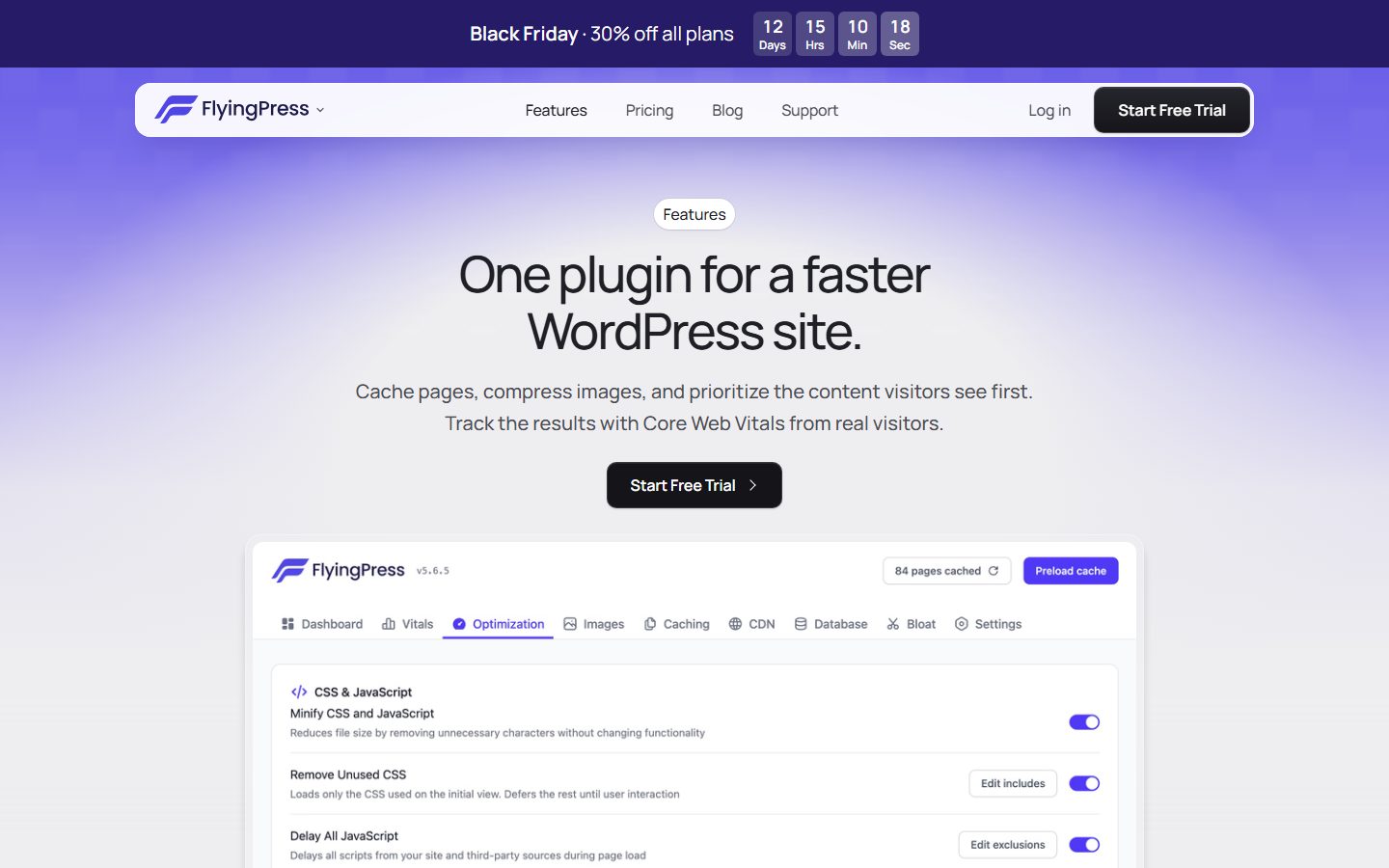
FlyingPress’s homepage lists page caching, page optimization, object caching through Redis on supported hosts, image optimization that serves WebP or AVIF, and tracking of Core Web Vitals from real visitors. Its features page shows a dashboard with tabs for Dashboard, Vitals, Optimization, Images, Caching, CDN, Database, Bloat and Settings.
On the FlyingPress features page, look at the Optimization panel in the screenshot. It shows toggles for minifying CSS and JavaScript, removing unused CSS and delaying all JavaScript, each with an exclusions or includes button. Those are the aggressive options this guide says to enable one at a time.
LiteSpeed Cache
The LiteSpeed Cache listing separates general features from exclusive ones. General features listed include browser cache support, object cache, database cleaning, image optimization, minification, critical CSS, lazy loading and delayed or deferred JavaScript. The exclusive features, including server-level page caching, ESI and REST API caching, require a LiteSpeed server, a LiteSpeed-powered host or QUIC.cloud CDN. Confirm which you have before you rely on its page cache.
WP Fastest Cache
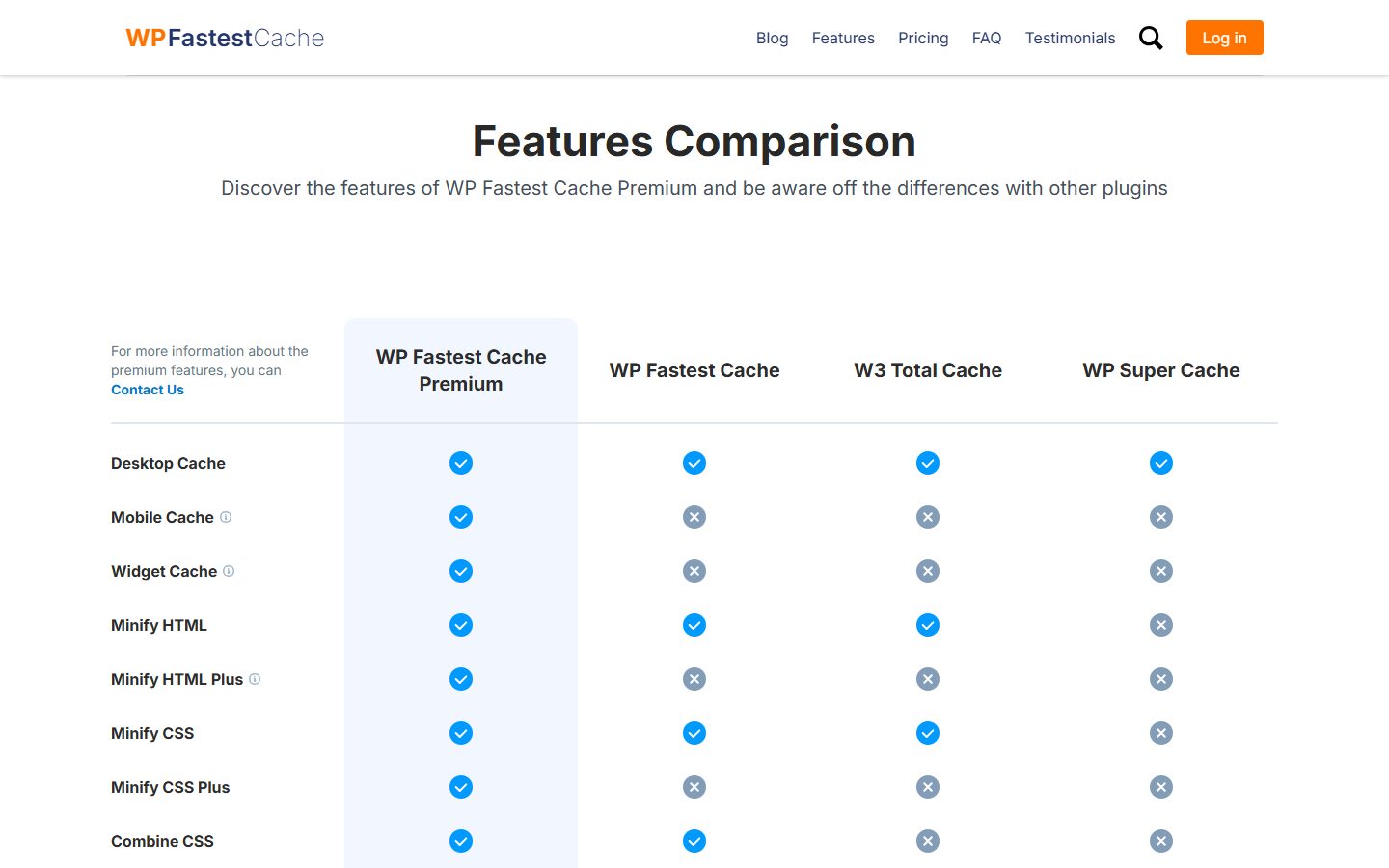
WP Fastest Cache’s wordpress.org listing names page caching, minifying HTML and CSS, gzip compression, browser caching, combining CSS and JavaScript and disabling emoji among free features. It lists mobile cache, widget cache, additional minification, deferring JavaScript, image optimization, WebP conversion, database cleanup, lazy loading and delaying JavaScript as premium features. Its own site publishes a comparison with other caching plugins, which is useful for seeing its feature list but is written by the vendor.
Open the WP Fastest Cache features comparison page and read it as a feature checklist for that product. Treat the columns for other plugins as the vendor’s view and confirm them in each plugin’s own documentation.
Perfmatters
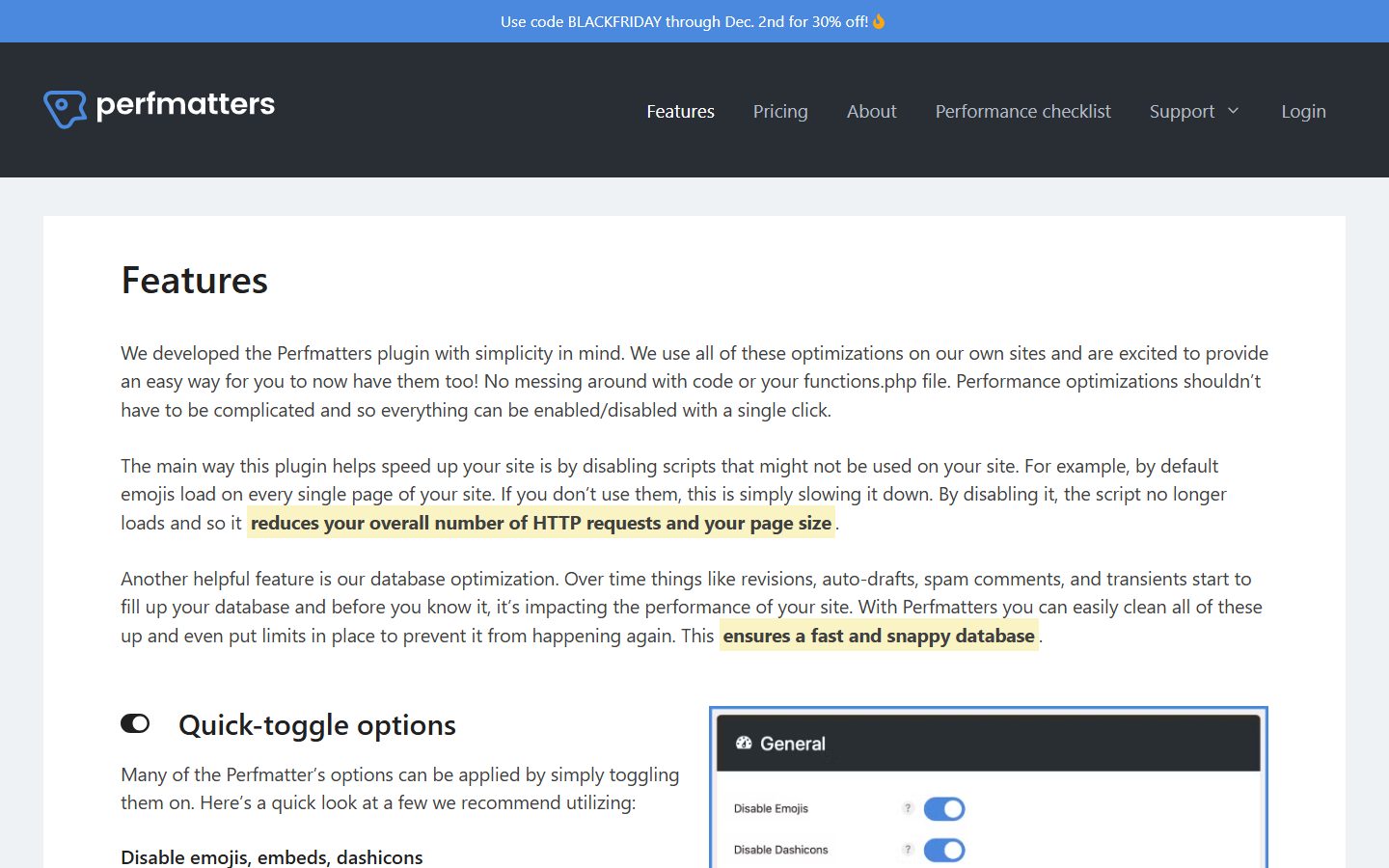
Perfmatters describes itself as a performance plugin that works alongside your caching plugin, not as a caching plugin. Its features page says the main way it helps is by disabling scripts you do not use, such as emojis, embeds and Dashicons, and its documentation links cover disabling scripts per post or page, delaying JavaScript, removing unused CSS, lazy loading and hosting analytics locally. It also lists database optimization.
On the Perfmatters features page, look at the Quick-toggle options box. It shows how single switches such as disabling emojis and Dashicons are presented, which is the typical pattern for this type of plugin.
NitroPack
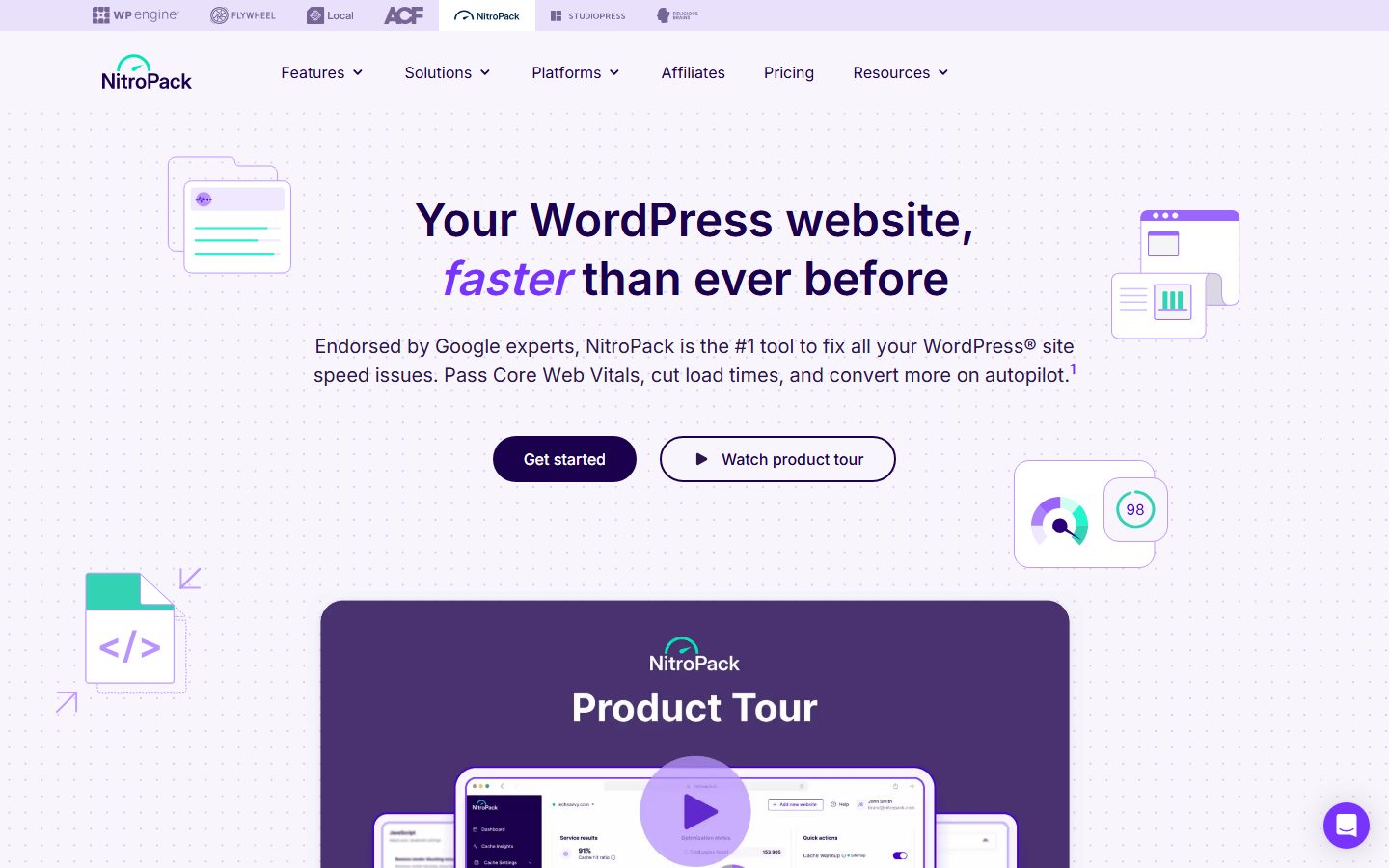
NitroPack presents itself as an all-in-one speed service. Its homepage says it optimizes copies of your files so the originals stay unchanged, offers a built-in CDN, and automates caching, image and video optimization, font handling and code optimization, using cloud processing that offloads your server. Its homepage also makes strong claims about endorsements, rankings and passing Core Web Vitals. Treat those as marketing, and test on your own site.
On the NitroPack homepage, use the Watch product tour button or the Features menu to see the dashboard. Decide whether a hosted service that processes your files fits your privacy and control requirements.
| Product | What it is | Page cache | Asset optimization | Check before you buy |
|---|---|---|---|---|
| WP Rocket | Premium all-in-one plugin | Yes, per its features page | Minify, defer, delay JS, lazyload, LCP image handling | Plan and site limits; exclusions for your plugins |
| FlyingPress | Premium all-in-one plugin | Yes | Remove unused CSS, delay JS, images, CDN tab | Redis availability on your host; trial results |
| LiteSpeed Cache | Free plugin | Server-level only on LiteSpeed | Minify, critical CSS, lazy load, image optimization | Whether your host runs LiteSpeed |
| WP Fastest Cache | Free plugin with a premium version | Yes, free | Basic free, more in premium | Which features are premium |
| Perfmatters | Complement to a cache | No | Script control, unused CSS, delay JS, lazy load | Which feature set overlaps with your cache plugin |
| NitroPack | Hosted optimization service | Yes, via its cloud service | Broad, automated | Data handling and what happens if you cancel |
Rules for combining them
- Run one page cache. If your host provides one, use the host’s and keep plugin cache features off.
- Enable each optimization once. If your cache plugin delays JavaScript, do not turn the same option on in a second plugin.
- Keep a note of every toggle you change, so a regression can be traced.
- After every change, test the cart, contact forms, menus and search, logged out and on a phone.
Step 4: Optimise images
Images are often the heaviest part of a page and the usual cause of a poor LCP. Four rules cover most of the gain.
- Serve the right dimensions. Do not upload a very wide photo to display it in a narrow column. WordPress generates several sizes and adds
srcset, so use the correct size in your blocks and templates. - Use modern formats. WebP and AVIF are usually much smaller than JPEG or PNG at similar quality. Keep a fallback where needed.
- Compress sensibly. Visible quality loss is not worth a few kilobytes. Test.
- Lazy-load below-the-fold images, but not the main one. Lazy loading your hero image delays LCP. The image that appears first should load eagerly, and ideally be prioritised.
Set explicit width and height (or aspect ratio) so the browser reserves space, which prevents layout shift. Replace animated GIFs with video where possible. Full details, including tool choices, are in optimising images in WordPress: WebP, AVIF and lazy loading.
Video and embeds
Embedded videos, maps and social feeds load heavy third-party code. Use a click-to-load placeholder (a “facade”) so the heavy code only loads when someone clicks. Do not autoplay large background videos unless they are essential, and if you do, compress them and provide a still image placeholder.
The LCP image, image services and CDNs
web.dev’s guide to optimizing Largest Contentful Paint says sites should aim for an LCP of 2.5 seconds or less for at least 75 percent of page visits, and states: “Never lazy-load your LCP image”. It recommends fetchpriority="high" for likely LCP images but warns that setting high priority on more than one or two images makes the hint unhelpful. It also splits LCP into four parts and gives guideline shares, not strict rules: time to first byte at about 40 percent, resource load delay under 10 percent, resource load duration at about 40 percent and element render delay under 10 percent. That split is a useful diagnostic. If most of your time is in the first part, fix the server. If most is in load duration, fix the image.
Image services
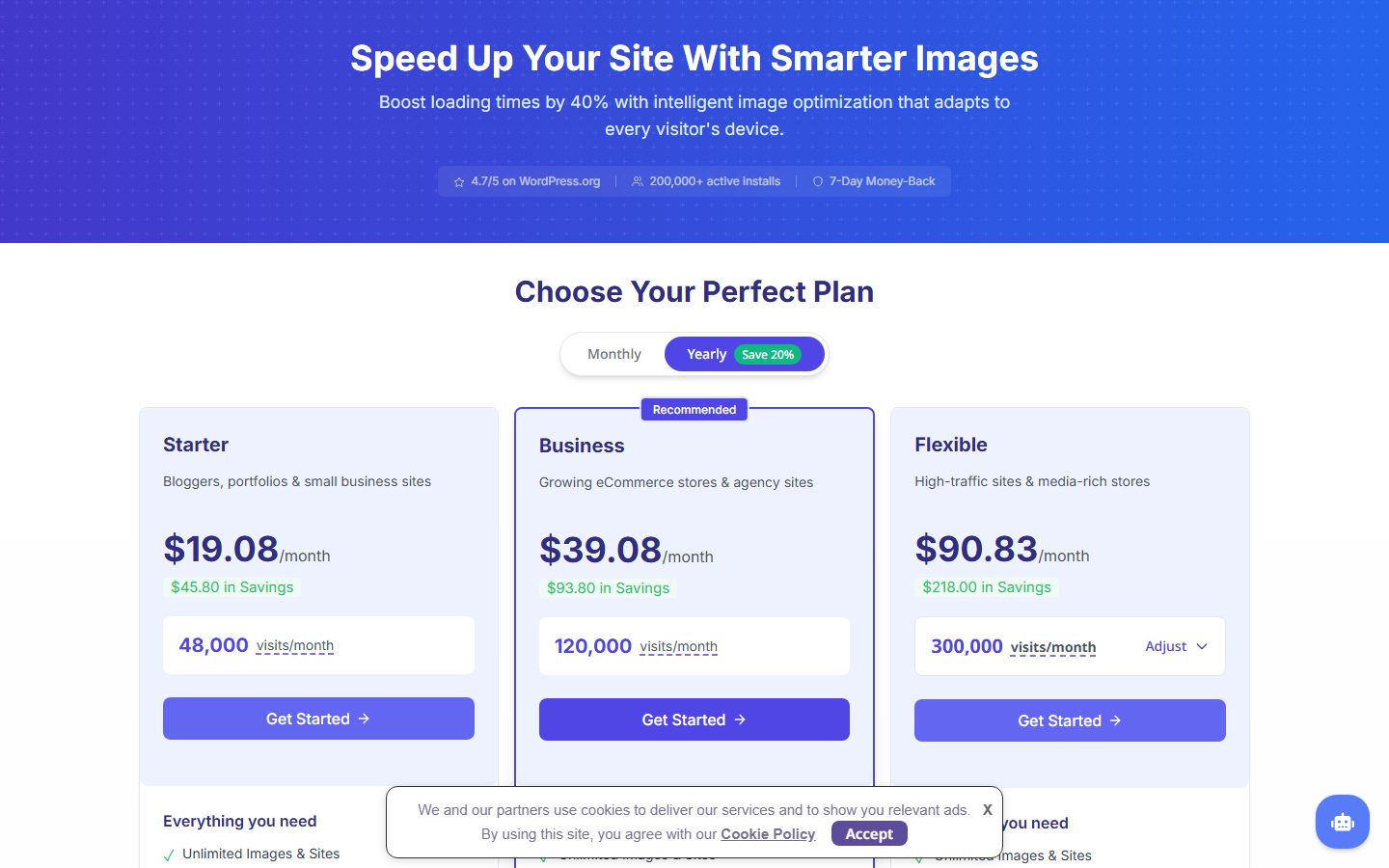
Optimole’s wordpress.org listing describes a plugin that replaces image URLs with cloud-based ones, leaving the originals on your server, delivers them through a CDN, resizes them for each visitor’s device, converts to WebP and AVIF and provides lazy loading. It says its free plan applies to sites with up to 2,000 visits a month and that the number of images is not capped, so its pricing scales with visits, not images. Our image optimization guide compares this approach with converting images on your own server.
On the Optimole pricing page, look at how the plans are organized by visits per month, not by image count. That is the number to estimate for your site before you compare plans.
Cloudflare and edge caching
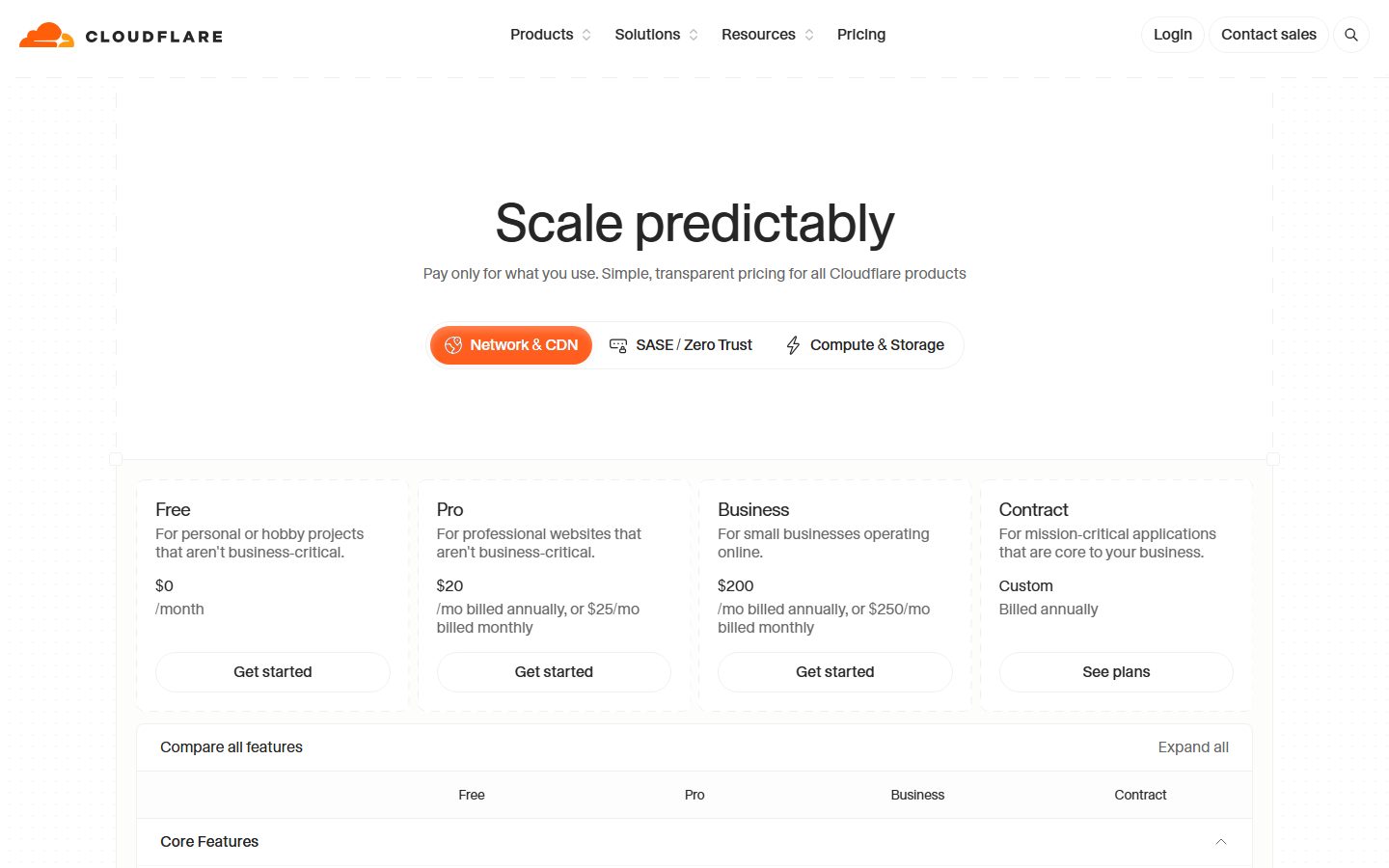
Cloudflare’s documentation says Automatic Platform Optimization for WordPress allows Cloudflare to serve your entire WordPress site from its edge network by caching dynamic content with Workers, and that it requires the Cloudflare for WordPress plugin. The page does not state a required plan, so check Cloudflare’s pricing page before you plan around it. Our Cloudflare setup guide covers rules and pitfalls.
On Cloudflare’s pricing page, notice the tabs for Network and CDN, SASE and Zero Trust, and Compute and Storage, and the Free, Pro, Business and Contract columns. Use the Compare all features panel to see what each plan includes before you decide.
If you enable edge caching, add it to your cache-purge routine. A change you make in WordPress has to clear the plugin cache, the host cache and the edge cache, and one forgotten layer is the usual cause of “I updated the page but I still see the old one”.
Step 5: Reduce and defer CSS and JavaScript
After images, scripts are the next big cost. Browsers must download, parse and run JavaScript, and large bundles hurt INP on mid-range phones.
What to do
- Minify and combine carefully. Minification removes whitespace and is generally safe. Combining files matters less on HTTP/2 and HTTP/3 and can cause problems, so test it before keeping it on.
- Defer non-critical JavaScript. Use
deferso scripts do not block rendering. - Remove unused CSS and JS. Many plugins load their assets on every page. Disable them where not needed, using the plugin’s own settings or an asset manager.
- Generate critical CSS. Inlining the CSS needed for the first view and loading the rest later can improve rendering, but it is an easy place to introduce flashes of unstyled content. Test on real pages.
- Delay third-party scripts. Chat widgets, analytics extras, heatmaps and ad code can be loaded after interaction or after a delay. The trade-off is that they start later.
Be careful with “delay JavaScript” options
Delaying all JavaScript until first interaction can make the page appear fast in a test while breaking sliders, menus, forms, consent banners and checkout. Delay selectively, and exclude scripts that the visible page depends on. Check the site on a phone, with a real tap, after every change.
Cut third-party scripts
Every tag you add has a cost: tracking pixels, A/B tools, live chat, social buttons. List them, ask what each is worth, and remove those nobody uses. A tag manager can hide this, and old tags often stay long after the campaign ended. This is the cheapest kind of optimisation, because removing code is free.
Step 6: Fonts
Fonts block text rendering and can cause layout shift. Improvements that matter:
- Host fonts on your own domain, which avoids an extra connection and helps with privacy compliance in some regions.
- Use only the weights and styles you actually use.
- Use WOFF2 and subset to the character sets you need.
- Set
font-displayto a value such asswaporoptionalso text is visible while fonts load, and preload the one or two fonts needed above the fold. - Consider system fonts if branding allows. They cost nothing to load.
Our step-by-step in self-hosting fonts in WordPress for speed and privacy covers the process.
Step 7: Theme and page builder weight
Your theme sets the baseline. A lightweight theme ships little CSS and JavaScript and produces clean HTML. A heavy multipurpose theme or a builder that produces deep nested markup adds weight to every page, regardless of caching. Large DOM size slows rendering and interactions on phones.
If you suspect your theme, test a default block theme on staging with the same content and compare. If the difference is big, a theme or builder change may be the largest improvement available, though also the most work. Read what makes a WordPress theme light for the criteria that matter. Block themes and lean builders are generally lighter than older, feature-stuffed themes, but verify against your content.
Step 8: Plugins, audit by measurement
“Fewer plugins” is a decent rule of thumb but a poor diagnosis. One badly written plugin can cost more than twenty light ones. What matters is what each plugin does on each request.
How to audit plugins
- List all active plugins and note what each is for. Remove what is unused, and delete inactive ones.
- Use a profiling tool or your host’s performance monitoring to see which plugins add the most query time or PHP time. Query-monitoring plugins can help on staging.
- Check which plugins load CSS and JS on pages where they are not needed.
- Test by disabling suspects on staging and comparing before and after.
- Replace heavy plugins with lighter ones, or with core features, where possible.
Common heavy offenders
Without naming brands, the categories to watch are: page builders and add-on packs, sliders, related-posts plugins that query the database on every view, statistics plugins that write on every request, security plugins with real-time scanning on shared hosting, social feed plugins, and backup plugins that run during peak hours. Verify by measuring, since the same plugin can behave differently on different setups.
Admin speed
A slow dashboard hurts you even if visitors are fine. It is often caused by too many plugins running admin code, heartbeat requests, remote calls to licence servers, or a bloated options table. See why your WordPress admin is slow and how to fix it.
Step 9: The database
A healthy database keeps queries fast. Over time, WordPress sites accumulate post revisions, expired transients, spam comments, orphaned metadata and large autoloaded options.
What matters most
- Autoloaded options. WordPress loads all autoloaded options on every request. If plugins stuff large data there, every page pays for it.
- Transients. Expired transients should be removed. Without an object cache they sit in the options table.
- Revisions. Limiting revisions per post keeps tables smaller.
- Orphaned data from deleted plugins. Be careful: removing data a plugin still needs can break it.
- Indexes and table engine. Modern hosts use InnoDB. Large custom tables may need indexes added by a developer.
Always take a backup before cleaning. The safe process is in how to clean your WordPress database safely. Do not run cleanup plugins blindly with every box ticked.
Step 10: WooCommerce and dynamic sites
Shops are harder to speed up because cart, checkout and account pages cannot be cached like normal pages, and product queries and filters are expensive. Priorities for stores:
- Exclude cart, checkout and account pages from the page cache, while caching shop and product pages.
- Use an object cache so repeated queries are cheaper.
- Limit scripts and styles loaded outside shop pages.
- Watch the cart fragments request and related AJAX calls that run on every page in some setups.
- Optimise product images, and avoid heavy filtering plugins that run complex queries.
- Keep the database tidy, since orders, sessions and meta grow quickly.
The full list is in the WooCommerce speed checklist: 20 fixes that matter. If you use AI tools to audit a store, managing a WooCommerce store with an AI agent explains how to do so safely.
Step 11: Mobile, layout shift and responsiveness
Most visitors are on phones with slower CPUs and variable networks. Test on a real mid-range phone if you can, or use throttled lab settings. Typical mobile problems include oversized images, huge DOMs, heavy sliders, pop-ups and sticky bars that cause shifts, and cookie banners that load late and push content down.
Fix layout shift by reserving space for images, ads, embeds and banners, and avoid injecting content above existing content after load. Make interactions snappy by shipping less JavaScript and avoiding long tasks. For specifics, see the Core Web Vitals guide.
Troubleshooting: symptom, likely cause and fix
| Symptom | Likely cause | What to do |
|---|---|---|
| High TTFB on every page, cached or not | Weak or overloaded server, or a network problem | Check host resource graphs and time to first byte from more than one location; consider a better plan only after ruling out the cheaper causes. |
| Fast when cached, slow when uncached | Page cache works but PHP and database are slow | Use Query Monitor on staging to find heavy queries and plugins; consider an object cache. |
| LCP is poor but TTFB is fine | Hero image too large, lazy-loaded or discovered late | Identify the LCP element, remove lazy loading from it, resize and convert it, and set priority on one image only. |
| Layout jumps while loading | Images without dimensions, late banners, font swap | Set dimensions, reserve space and preload the main font. |
| Menus or forms break after an optimization | Delayed or combined JavaScript | Turn the last change off, add the needed script to the exclusions list and retest. |
| Old content still shows after an update | A cache layer was not purged | Clear plugin, host and edge caches in that order, as the host documents. |
| Cart shows the wrong items or checkout errors | Cart or checkout pages are being cached | Exclude cart, checkout and account pages and test as a logged-out visitor. |
| Dashboard is slow, front end is fine | Admin-side plugin work, remote calls or a large options table | See the admin speed guide. |
| Lab score is good but field data is poor | Real devices and networks are slower than the lab profile | Test on a mid-range phone and reduce third-party scripts. |
| Score got worse after an update | A new plugin version, tag or setting | Check your change log, roll back on staging and retest. |
A worked walk-through: turning one report into a plan
Imagine you run PageSpeed Insights on a typical blog post. The report names the LCP element as the featured image, the field data section shows that LCP fails on mobile, and the diagnostics list a lazy-loaded image above the fold. No numbers are needed to decide what to do. The reasoning goes like this.
- The element is an image, so the fix is likely in the image, not the server. Confirm by comparing your time to first byte on a cached copy of the page with the whole LCP time.
- The image is lazy-loaded, which web.dev says never to do for the LCP image. Remove lazy loading from it, in the theme setting, block or plugin that added it.
- Check the file. Does it display at the size you uploaded? Is it WebP or AVIF? Replace it with a correctly sized file.
- Set priority. Add high fetch priority to this one image, or let WordPress core do it if your theme does not interfere.
- Retest the lab report, record the change in your log, and check the field data after a few weeks, since Search Console uses a 28-day window.
Then repeat for the next template. The point of the exercise is that the report gives you a specific object to fix, which is why it beats installing another plugin.
A prioritised speed plan
If you do not know where to start, use this order. It puts big, low-risk gains before fragile tweaks.
- Measure the baseline (mobile, key templates, lab and field).
- Back up and create a staging site.
- Update PHP to a supported version after testing.
- Make sure page caching is working (and only once).
- Fix the LCP image: right size, modern format, not lazy-loaded, preloaded if needed.
- Compress and resize other images, enable lazy loading below the fold.
- Remove unused plugins and third-party scripts.
- Defer or remove unneeded JavaScript and CSS, one change at a time.
- Self-host and trim fonts.
- Add a CDN if your audience is geographically spread.
- Add an object cache if you have dynamic pages or heavy queries.
- Clean the database after a backup.
- Re-test, record results, and schedule a recheck.
Speed fixes compared: effort, impact, risk
| Fix | Typical impact | Effort | Risk of breakage |
|---|---|---|---|
| Page caching | High for server response on public pages | Low | Medium (carts, forms, stale content) |
| Better hosting | High if the server is the bottleneck | Medium to high | Low to medium (migration) |
| Image resizing and WebP or AVIF | High for LCP and page weight | Low to medium | Low |
| Removing unused plugins and scripts | Medium to high | Low | Low to medium |
| PHP upgrade | Medium | Low | Medium (compatibility) |
| Deferring and delaying JavaScript | Medium, can help INP and LCP | Medium | High (broken features) |
| Critical CSS | Medium for render speed | Medium | Medium to high (flashes) |
| Self-hosting and trimming fonts | Low to medium | Low | Low |
| CDN | Medium for distant visitors | Medium | Medium (cache rules) |
| Object cache | Medium for dynamic sites, small for static | Medium | Low to medium |
| Database clean-up | Low to medium, high if autoload is bloated | Medium | Medium (data loss if careless) |
| Changing theme or builder | Potentially high | High | High |
Common WordPress speed optimization mistakes
- Chasing a perfect score. A 100 in a lab test is not the goal. Real visitor experience and Core Web Vitals field data are.
- Installing several optimisation plugins. They overlap and conflict.
- Optimising only the home page. Posts, product pages and checkout often behave very differently.
- Lazy-loading everything. Including the hero image hurts LCP.
- Enabling every toggle. Features like combine, delay and remove unused CSS are aggressive. Turn on one, test, then move on.
- Testing while logged in. You see uncached pages and admin bar overhead.
- Ignoring mobile. Desktop results flatter your site.
- Skipping backups and staging. Optimisation plugins rewrite how assets load. Mistakes happen.
- Believing speed claims. Plugin and host marketing often cites best-case numbers. Measure your own site.
- Forgetting maintenance. New plugins, tracking tags and content slowly undo the work.
Realistic scenarios
A blog with a slow first load
Run PageSpeed Insights on a typical post. If LCP is an image, resize, convert and prioritise it. If TTFB is high even on repeat requests, check for page caching and consider hosting. If INP is poor, look at third-party scripts and slider plugins. Most blogs reach good results with caching, images and fewer scripts.
A brochure site built with a heavy page builder
The DOM is large and many assets load. Start by removing unused add-ons, then use the builder’s own performance settings, then trim fonts and images. If results are still poor, a lighter template approach or theme may be the honest answer.
A WooCommerce store with slow checkout
Cache product pages and keep checkout uncached. Use an object cache, check for plugins hooking into checkout, and look at payment gateway scripts. Test the full purchase flow after each change. Use the WooCommerce checklist as your guide.
A site with fast pages but a slow dashboard
The front end is cached, but the admin is not. Look at the database (autoload), plugin admin code and remote calls. Start with the admin speed guide.
Using AI tools to help with speed audits
AI assistants are useful for reading reports, not for replacing measurement. You can paste a PageSpeed report into a chat tool and ask for a plain-English prioritised list, or paste your plugin list and ask which categories typically add front-end weight. Treat the answers as hypotheses. A model cannot measure your site, and it can be wrong about specific plugins and versions. If you want ready-made audit prompts, see 25 AI prompts for WordPress maintenance and audits. Connected agents that can read your site’s plugin and settings data directly exist as well. NibWP, which markets itself as an MCP layer for WordPress, lists speed and Core Web Vitals fixes among its capabilities, as one option. If you try any such tool, keep it read-only first and apply changes yourself on staging. The background is in the complete guide to AI and MCP for WordPress.
Speed work by type of site
| Site | Usual bottleneck | Start with | Watch out for |
|---|---|---|---|
| Blog or news site | Images, ads and third-party scripts | Page cache, LCP image, ad slot sizes | Autoplay embeds and heavy related-posts widgets |
| Brochure site on a page builder | Large DOM and unused builder assets | Remove unused widgets, trim fonts and images | Sliders and background videos in the hero |
| Online store | Uncacheable cart and checkout, many scripts | Object cache, script limits, product image size | Cached cart pages and slow payment scripts |
| Membership or course site | Logged-in users bypass page cache | Server speed, object cache, database | Testing only while logged out |
| Multisite network | Shared plugins and one shared database | Network-wide plugin audit, caching at server level | One site’s plugin slowing every site |
| Agency portfolio of client sites | Inconsistent setups | A standard stack, baseline and monthly report | Clients adding scripts without telling you |
For agencies and teams: make speed repeatable
- Standardize the stack. Pick one cache approach per host type, document the settings and keep them in a shared note.
- Baseline at handover. Record PageSpeed Insights and Search Console status for each key template on the day you hand a site over.
- Report in plain language. Show one table per site: template, metric, status, change made, next step.
- Control the tags. Agree who may add tracking scripts and require a note on what each one is for.
- Schedule the re-check. Put the monthly test in a calendar, not in someone’s memory.
A publishing checklist for editors
Content decays speed faster than code. Give editors a short checklist they can follow without technical knowledge.
- Resize an image to the size it will display before uploading it, and use a descriptive file name.
- Add alt text to every image that carries meaning.
- Avoid autoplay video and large GIFs. Use a still image with a click-to-play video.
- Do not paste tracking or embed code into a post without asking whoever owns the tag list.
- Preview the page on a phone before publishing.
Our speed-up tutorial gives beginners a simple version of the same advice, and our backup routine tutorial covers the safety net you need before you change anything.
Guide map
This pillar guide gives the overview. Use the articles below when you want to go deeper into one topic.
- Core Web Vitals for WordPress: how to diagnose and fix LCP, INP and CLS with WordPress-specific causes.
- Best WordPress caching plugins compared: features, trade-offs and when each type of plugin fits.
- WP Rocket alternatives: free and paid options if you want to replace or avoid a premium all-in-one plugin.
- Optimise images in WordPress: formats, compression, sizing and lazy loading done correctly.
- Clean your WordPress database safely: revisions, transients and autoloaded options without breaking anything.
- WooCommerce speed checklist: twenty fixes that matter for stores, carts and checkout.
- Cloudflare for WordPress: setup, caching rules and the pitfalls that cause stale or broken pages.
- Redis object cache for WordPress: when persistent object caching helps and when it does not.
- Fastest WordPress themes: what makes a theme light and how to evaluate one.
- Slow WordPress admin fix: the usual causes of a sluggish dashboard and how to test them.
- PHP versions and WordPress performance: how to upgrade safely and what to check first.
- Read PageSpeed Insights like a pro: understand lab and field data and the audits that matter.
- Self-host fonts in WordPress: faster loading and better privacy with fewer font requests.
Maintenance routine to keep your site fast
Speed decays. Build a light routine so it does not.
- Monthly: run PageSpeed Insights on key templates, check Search Console’s Core Web Vitals report, review newly added plugins and scripts.
- After every major change: new plugin, theme update, new tracking tag, redesign. Re-test the affected pages.
- Quarterly: audit plugins, check the database size and autoloaded options, review image sizes in new content, check PHP version support.
- Yearly: reconsider hosting, theme and builder against your growth.
Set rules for editors too. Many slowdowns come from content: giant uploaded images, auto-playing embeds, and pasted tracking scripts. A short publishing checklist protects the work you did.
How to decide where to spend your effort
Use the data to choose.
- High TTFB: hosting, page caching, PHP version, heavy plugins, database.
- Poor LCP with a fast TTFB: the hero image, render-blocking CSS, fonts, lazy-loading mistakes.
- Poor INP: JavaScript weight, third-party scripts, sliders, large DOM.
- Poor CLS: images without dimensions, late-loading banners, ads, fonts swapping.
- Fast public pages but slow logged-in experience: object cache, admin plugins, database.
- Fast in the lab, poor in field data: real-world devices and networks, third-party scripts, geography. Consider a CDN and lighter pages.
A 30-day plan
| Week | Focus | Actions | Output |
|---|---|---|---|
| 1 | Measure and protect | Test key templates on mobile, record field and lab data, back up, create staging | A baseline spreadsheet |
| 2 | Server and caching | Check PHP version and host caching, make sure there is one page cache, test cart and forms | A documented cache setup |
| 3 | Images and scripts | Fix the LCP image, resize and convert others, remove unused plugins and tags, defer carefully | A change log with before and after results |
| 4 | Fonts, database and routine | Self-host and trim fonts, clean the database after a backup, schedule monthly re-tests | A maintenance calendar |
After the 30 days, check Search Console again. Because its report uses a 28-day window, a month is the earliest point at which most of the change should be visible.
FAQ
What is the fastest way to speed up a WordPress site?
For most sites, enabling reliable page caching, resizing and compressing images, and removing unused plugins and scripts give the largest gains for the least risk. Measure first so you know which applies. If your server responds slowly even with caching, hosting is the next thing to examine.
Do I need a caching plugin?
Only if your host does not already provide page caching. Many managed hosts include it, and adding a second page cache can cause conflicts. Check your host’s documentation, then add a plugin only for the features you lack, such as browser cache headers or asset optimisation.
How many plugins is too many?
There is no safe number. What matters is the cost of each plugin. A few heavy plugins can slow a site more than dozens of light ones. Audit by measurement: remove what you do not use, and test the rest on staging with and without.
Does a CDN make WordPress faster?
It usually helps visitors far from your server by serving static files, and sometimes pages, from nearby locations. It helps less if your audience is local and your server is already close. A misconfigured CDN can serve stale or broken pages, so test rules for logged-in users and carts.
Why is my site fast in PageSpeed Insights but slow for users?
Lab tests simulate a device and network, while real visitors vary. Slower phones, poor connections, ad and tracking scripts, and distance from the server can make real experience worse. Check the field data section and Search Console, and test on a real mid-range phone.
Will optimising speed improve my SEO?
Page experience is one of many signals, and the effect of speed alone is usually modest compared with content relevance. Speed does help users, reduces bounce and supports conversions, and poor Core Web Vitals can hold back otherwise strong pages. Treat it as one part of the wider plan in the WordPress SEO guide if you have one on the site, and focus first on content.
Is it safe to use “delay JavaScript” and “remove unused CSS”?
They can be effective, but they are among the settings most likely to break layouts, menus, forms and checkout. Turn them on one at a time, exclude scripts the page needs immediately, and test on mobile with real taps, logged in and out, before keeping them.
How often should I test my site speed?
Monthly for most sites, and after any significant change to plugins, theme, hosting or tracking. Shops and high-traffic sites may add weekly checks. Keep a simple log of scores and changes, so you can link a drop to its cause.
Which free tools should I start with?
PageSpeed Insights and Search Console for field and lab data, Chrome DevTools for the page itself, and Query Monitor on staging for server-side cost. All four are free, and together they cover both halves of page speed.
Which PHP version should I run?
WordPress’s requirements page recommends PHP 8.3 or greater and warns that PHP 7.4 has reached end of life. Choose the highest version your host offers that your plugins support, and test on staging first.
What is speculative loading in WordPress?
It is a feature from WordPress 6.8 that, according to the core team, prefetches likely next pages with conservative eagerness for logged-out visitors on sites with pretty permalinks. It is on by default, can be changed with a filter and is not a substitute for caching or optimization.
Should I install Performance Lab?
Only on staging first, and only if you want to test upcoming core features. Its listing calls it mostly a beta testing tool and notes inherent risks. Enable one feature at a time and measure.
Can I use more than one optimization plugin?
Combining a cache plugin with a script-control plugin is common, because they do different jobs. Running two plugins that both minify, delay JavaScript or build a page cache usually causes conflicts. Decide which plugin owns each feature and turn it off in the other.
Does the choice of host matter more than plugins?
When time to first byte is poor even on cached pages, yes, because plugins cannot fix a slow server. When the server is fine and the page is heavy, plugins and content matter more. Measure first so you know which case you are in.
How do I know if my caching is working?
Open your page in a private window, view the response headers in your browser’s network panel and look for cache headers your host or plugin documents. Compare time to first byte on a first and a second load. If nothing changes, ask your host which cache is active.
Conclusion and next steps
WordPress speed optimization is not a plugin you install. It is a loop: measure, find the bottleneck, change one thing, check the result. Hosting and page caching fix the server side. Images, scripts and fonts fix the browser side. Plugin, theme and database hygiene keep both in check over time.
Start today with three steps. Run PageSpeed Insights on your mobile home page and a typical post, and record the numbers. Take a backup and a staging copy. Then fix the single biggest issue the data shows, and re-test. When you need depth, use the guide map above, beginning with Core Web Vitals and caching. Revisit your numbers every month, and your site will stay fast as it grows.
Keep reading
Core Web Vitals for WordPress: Fix LCP, INP and CLS
Fix core web vitals wordpress problems step by step: find your real LCP, INP and CLS bottlenecks, then apply the fixes that actually move each score.
Best WordPress Caching Plugins Compared
Compare the best WordPress caching plugins by hosting, budget and workflow: WP Rocket, FlyingPress, LiteSpeed Cache, W3TC, free options and how to test them.
WP Rocket Alternatives: Free and Paid Options
Compare the best wp rocket alternatives, free and paid, by what each one replaces, where it falls short, and how to switch without breaking your site.
Optimize Images in WordPress: WebP, AVIF and Lazy Loading
Learn how to optimize images wordpress sites rely on: resize, compress, convert to WebP or AVIF, and lazy load correctly without hurting your LCP.
Clean Your WordPress Database Safely: Revisions, Transients, Autoload
How to clean wordpress database clutter safely: revisions, transients, autoload bloat, spam and orphaned data, with backups and checks at every step.
WooCommerce Speed Checklist: 20 Fixes That Matter
Want to speed up WooCommerce? Work through 20 practical fixes, from hosting and caching to cart fragments, HPOS and checkout, in the right order.
Cloudflare for WordPress: Setup, Rules and Pitfalls
A practical Cloudflare WordPress setup guide: DNS, SSL mode, caching rules, APO, security settings and the pitfalls that break logins and carts.
Redis Object Cache for WordPress: When It Helps
Redis object cache WordPress guide: what it caches, when it truly helps, how to install it safely, how to verify it works and when to skip it.
Let your AI assistant do this for you
Open the ready prompt with step‑by‑step instructions for running it through NibWP.