Tutorial
What you will learn, and what you need
A title is the first thing a searcher reads about your page. In a list of ten results, it is often the only thing they read before deciding. This tutorial teaches you how to write titles and meta descriptions that are accurate, specific and worth clicking, how to set them up so they scale across a whole WordPress site, and how to check whether your changes helped.
It is a writing and workflow tutorial. It does not promise rankings, and nothing here is a trick. Titles help searchers choose, and they help search engines understand what a page is about. Doing them well is cheap, and most sites do them badly or leave them on defaults.
You need:
- A WordPress site with at least a few published pages or posts.
- An SEO plugin, or the willingness to install one. Yoast SEO, Rank Math, All in One SEO and Slim SEO are common choices. If you have none, compare them in our SEO plugin roundup.
- A free Google Search Console account with your site verified. The Search Console guide shows how to set it up.
- About an hour for the first pass, then short, regular sessions.
Before you change titles across a site, make a record of the old ones. Export them or copy them to a spreadsheet, and take a backup. If a change goes badly you want to be able to undo it. See the backup routine tutorial.
A note on evidence. Where this tutorial states how Google behaves, it follows Google Search Central documentation, and says so. Where it gives writing advice, that is craft and judgement, not a measured result. WPMusk has not run click-through experiments, and you should not trust anyone who quotes a universal percentage lift from a formula. Your audience is your own, which is why the testing section shows you how to find out for yourself.
Title tags and meta descriptions: what they are
The title tag is the <title> element in a page’s HTML head. Browsers show it on the tab. Search engines read it. Google uses it, among other things, to build the clickable blue line in a search result, which it calls the title link.
The meta description is a <meta name="description"> element in the same head. It is a short summary of the page. Search engines may use it to build the snippet, the grey text beneath the title link.
<head>
  <title>How to Repot a Monstera: 6 Steps for Healthy Roots</title>
  <meta name="description" content="Repot a monstera without shocking it. Learn when to repot, which pot size to choose and how to loosen the roots.">
</head>
Three related things are easy to confuse. Keep them apart.
| Thing | Where it lives | What it does |
|---|---|---|
| Title tag (SEO title) | The <title> element | Main input for the title link in search results and the browser tab |
| Page heading (H1) | The visible heading in the page body | What visitors read once they arrive. Google can also use it when building a title link |
| Meta description | A meta element in the head | A candidate for the snippet shown under the title link |
| Site name | Separate element in results | Google shows the site name separately from the page title link |
The title tag and the H1 can be identical, and often are on a simple site. They do different jobs. The title competes in a list of results with a few words of space. The H1 greets someone who has already clicked, so it can be longer, warmer and more conversational.
How Google decides what to show
This is the single most misunderstood part of the topic. You write a title tag. Google decides what to display. Understanding that process saves you hours of frustration.
Title links are generated, not copied
Google’s documentation on title links says the generation is fully automated and considers both the page content and references to it across the web. Its listed sources include the <title> element, the main visual title on the page, heading elements such as the H1, og:title meta tags, other large and prominent text, other text on the page, anchor text on the page and in links pointing to it, and WebSite structured data.
In practice the <title> element is the main source. In a 2021 post about titles, Google said title elements are used around 87 percent of the time, and advised: "Focus on creating great HTML title elements. Those are by far what we use the most." That figure is Google’s own, from that post, and it may have changed since. The takeaway is stable: write a good title element and, in most cases, it will be what searchers see.
When Google rewrites your title
Google’s documentation lists the problems that make it look elsewhere. If your title matches one, it may be replaced by text from anchors, the page, or other sources:
| Problem | What it looks like | What to do |
|---|---|---|
| Empty or half-empty title | A template leaves a leading delimiter and no main text, such as " | My Site" | Fix the template so a missing field falls back to the page title |
| Obsolete title | A title that says "2020" while the visible heading says "2021" | Keep dates in titles in sync with the page, or leave them out |
| Inaccurate title | A static title that does not match dynamic page content | Make titles reflect what is actually on the page |
| Micro-boilerplate | Many pages share one title and omit the detail that distinguishes them | Add the distinguishing detail to each title |
| No clear main title | Several headings with equal prominence | Make one heading, ideally the first H1, clearly the main one |
| Language or script mismatch | Title in a different language or writing system from the content | Match the title to the page language |
| Duplicated site name | The site name in your title repeats the site name Google already shows | Google may drop it from the title link. Consider trimming it yourself |
Google also states it does not manually change title links for individual sites. Changes can take days to weeks to appear, because the page must be recrawled and reprocessed. You can request a recrawl in Search Console.
What to do when you see a rewrite
- Compare the title Google shows with your title tag. Search for your page by its exact title or use the
site:operator and read the result. - Check whether your title has one of the problems in the table above. Fix those first.
- If your title is fine, ask whether Google’s version fits this particular query better. Google’s own guidance suggests exactly that. Titles can differ by query, because Google builds results for what was searched.
- Do not fight every rewrite. Concentrate on pages where the title is wrong or where a rewrite visibly hurts clicks.
Meta descriptions are even less guaranteed
Google says snippets are generated automatically, mainly from page content, and are designed to preview the part of the page that best relates to a specific search. It may use your meta description when it "might give users a more accurate description of the page." So the same page can show different snippets for different searches, and your carefully written description may not appear at all.
That does not make descriptions pointless. A good description is a strong candidate when it summarises the page well, it gives you control in the cases where Google does use it, and it is also what many social and sharing tools fall back on. Write one for every page that matters, and accept that Google may choose text from the page instead.
Google also gives you controls over snippets: the nosnippet meta tag prevents a snippet being shown, max-snippet:[number] sets a maximum length, and the data-nosnippet attribute excludes parts of the page. Most sites never need them, but they are worth knowing if you publish content you do not want quoted in results.
Length: why characters are only a guide
Every SEO plugin shows a green or red length bar. Treat it as a rough guide, because the real limit is not a character count.
Google’s documentation says long titles are truncated in results "typically to fit the device width." For meta descriptions, Google says "there’s no limit on how long a meta description can be," but that results truncate it, typically to fit the device width. In other words, the limit is based on how much horizontal space the text takes up in pixels, not how many characters it has. A title full of narrow letters such as i and l fits more characters than one full of wide letters such as W and M, and mobile and desktop results can cut at different points.
| Approach | Reliable? | How to use it |
|---|---|---|
| Fixed character limit | Rough only | Use your plugin’s length indicator as a starting point, not a pass or fail test |
| Pixel width preview | Better | Some plugins and tools preview a result on desktop and mobile. Use that preview when it is available |
| Front-load the important words | Reliable habit | Put the main topic and the benefit first, so truncation costs you the least |
| Check the live result | Ground truth | Search for your page and see what is really displayed on a phone and a desktop |
A good working rule that does not depend on a number: write the shortest title that says what the page is and why it is worth clicking, put the essential words first, and then look at it in a preview. If the end gets cut off, the title should still make sense without it.
For descriptions, use the space to complete the sentence the title started. Write one or two clear sentences that sum up the whole page, and make the first sentence stand alone in case the rest is cut. Google’s guidance also says to avoid descriptions that are just long strings of keywords, because they do not give users a clear idea of the page.
Check that it worked
- Open a few of your pages in the plugin’s snippet preview and note which ones are cut off.
- Search for those pages on your phone and compare the live result with the preview.
Search intent: the first decision
Before you choose a single word, decide what the searcher wants. A title that perfectly describes your page can still fail if it promises something the searcher did not come for.
| Intent | The searcher wants | Titles that fit | Typical page |
|---|---|---|---|
| Informational | To learn or understand | "What is…", "How to…", a clear explanation or guide | Guide, tutorial, glossary |
| Navigational | To reach a known site or page | The brand or page name, clearly | Home, login, contact |
| Commercial | To compare before buying | "Best…", "X vs Y", "Review" | Comparison, review |
| Transactional | To buy or sign up | Product name, key attribute, price or offer where accurate | Product, pricing, category |
The simplest way to check intent is to search for your target phrase and look at what already ranks. If page one is all step-by-step tutorials and you have written a sales page, your title will be competing with the wrong promise. Match the format of the results, then make yours more specific or more useful. Long-tail keyword research helps you find phrases where intent is clear.
One page, one main intent
If two of your pages target the same phrase with the same intent, they compete with each other and their titles blur. Give each page its own job. When you find overlap, merge the pages, redirect one to the other with a proper 301 (see the redirects guide), or sharpen each page to a different intent. Internal linking can then signal which page is the main one.
Write a one-line promise first
Before the title, write one sentence: "This page helps [who] do [what] so that [outcome]." Then check that the title communicates the "what" and hints at the outcome. If you cannot write the sentence, the page itself lacks focus, and no title will fix that.
Keywords in titles without stuffing
Your title should contain the words a searcher would use, because those words tell both people and search engines what the page covers. Google’s guidance puts the balance clearly: a few descriptive terms are helpful, but repeating the same words or phrases does not help users and can make results look spammy.
A practical placement method
- Choose one primary phrase that matches the page’s intent. Use the natural wording, not an awkward exact-match version.
- Put it near the front of the title when it reads naturally. The start of a title survives truncation.
- Add one qualifier that makes the page specific: a number, a year that you will maintain, an audience, a benefit, or a format such as "checklist" or "guide".
- Stop. A second and third keyword variation in the same title adds noise, not relevance.
| Weak | Why it fails | Stronger |
|---|---|---|
| Running Shoes | Best Running Shoes | Buy Running Shoes Online | Repeats the phrase three times and says nothing specific | Trail Running Shoes for Wide Feet: What to Look For |
| Home | Vague. Google’s guidance specifically warns against labels such as "Home" | Acme Plumbing: Emergency and Routine Repairs in Leeds |
| Blog Post | Describes nothing | How to Bleed a Radiator in Five Minutes |
| Product Page – Shop | Template leftovers, not a title | Linen Duvet Cover, Double, Stone Grey |
The examples above are illustrative wording, not data. They show a pattern: strong titles name the thing and add the detail that separates it from every similar page.
Where synonyms belong
Search engines understand that people use different words for the same idea. Use your primary phrase in the title, and let synonyms and related terms appear naturally in the description, the H1 and the body. That gives the page full coverage without making the title read like a list.
Do not use the keyword if the page does not deliver
Google’s rewrite rules include inaccurate titles. If a title promises "Free templates" and the page offers a paid bundle, searchers bounce and Google may rewrite the title. Accuracy protects both clicks and trust. For a wider view of what costs traffic, see the SEO mistakes guide.
Formulas that make titles worth clicking
A formula is a starting structure, not a magic spell. Use it to get a first draft, then edit it until it sounds like a person wrote it. These patterns are common because they answer a searcher’s silent question: "Is this the thing I need, and is it any good?"
| Formula | Pattern | Best for | Example |
|---|---|---|---|
| How to, with a result | How to [do thing] [with outcome or constraint] | Tutorials | How to Set Up WooCommerce Shipping Zones Without Guesswork |
| Numbered list | [Number] [things] for [audience or goal] | Roundups and tips | 7 Checks to Run Before You Launch an Online Shop |
| Question | [Question the searcher asks]? | Informational pages | Do You Need an SSL Certificate for a Small Site? |
| Comparison | [A] vs [B]: [deciding factor] | Commercial research | Block Themes vs Classic Themes: Which Suits a New Site? |
| Best-for | Best [category] for [use case] | Recommendations | Best Backup Plugins for Small Business Sites |
| Checklist or template | [Topic] checklist: [what is included] | Practical resources | Website Launch Checklist: 25 Things to Confirm |
| Mistakes and fixes | [Number] [topic] mistakes and how to fix them | Troubleshooting | Five Permalink Mistakes That Cause 404 Errors |
| Specific product | [Product], [key attribute], [variant] | Ecommerce | Merino Wool Beanie, Charcoal, One Size |
Edit for specificity
Run each draft through four questions:
- Is it true? Never promise a result, number or freebie the page does not deliver.
- Is it specific? Replace "tips" with a count, "guide" with the audience, "best" with the use case.
- Is the main phrase early? If it reads naturally, move it forward.
- Would you click it? Read it aloud next to nine other results.
Years, numbers and brackets
- Years. A year can signal freshness, but it is a promise to maintain. Google’s documentation names obsolete titles, with a stale year, as a reason it rewrites. If you add a year, update the page and title together each year, or leave the year out. Our guide to refreshing old content shows a safe process.
- Numbers. A number makes a list concrete. Make sure the page has exactly that many items, and update the title if you add or remove some.
- Brackets or parentheses. Short qualifiers such as "(with checklist)" can add clarity. Use only true ones, and do not stack them.
- Power words. Words such as "proven" or "ultimate" are cheap. Replace them with evidence or detail. "Tested" and "proven" in particular imply claims you must be able to back up.
Resist clickbait
A title that withholds the point, exaggerates, or promises a secret may earn a click and lose the visitor. It also tends to be inaccurate, which Google treats as a reason to rewrite. The aim is a click from someone who gets what they came for.
Writing meta descriptions that earn the click
A meta description is a very short advertisement for the page, written for a human who is scanning. Google may or may not use it, but writing a good one forces clarity, and it is the version you control.
A simple structure
- Open with what the page gives the reader. Lead with the benefit or the answer.
- Add one concrete detail. A number of steps, a tool, a time estimate you can justify, a location, a price where accurate.
- Close with a gentle prompt. "Learn how", "See the steps" or "Compare the options" is enough. Do not shout.
Repot a monstera without shocking it. See when to repot, how to choose a pot size and how to loosen compacted roots.Per Google’s guidance, include useful details where they apply, such as author, publication date, price or manufacturer, clearly separated. For database-driven sites with thousands of pages, programmatic descriptions are acceptable as long as they stay readable and varied.
Rules that matter
- Unique per page. Google notes that identical or similar descriptions on every page are not helpful when individual pages appear in results. Use a site-level description on the home page and aggregation pages.
- Summarise the whole page, not one anecdote or a vague line.
- No keyword lists. Google says descriptions made of long strings of keywords do not give users a clear idea of the page.
- Match the page language.
Meta descriptions for product and category pages
For a store, use a template that pulls in the product name, a key attribute and a short fact, such as material or compatibility. Category descriptions should say what range is covered and what makes it useful, for example sizes, brands or delivery information. If you run a shop, the WooCommerce checklist tutorial covers the setup that these pages depend on, and product page conversion covers what visitors see after the click.
Brand names and separators
Your brand name builds recognition and trust, but it also uses precious space. Google’s documentation gives direct guidance: brand titles concisely. The home page title can include more of a site description. Other pages should usually include only the site name, placed at the start or end and separated from the rest with a delimiter such as a hyphen, colon or pipe.
| Pattern | Example | When to use |
|---|---|---|
| Page title, then brand | How to Repot a Monstera | Leaf Studio | Default for most content. The topic comes first |
| Brand, then page title | Leaf Studio: How to Repot a Monstera | When the brand is the main draw, for example a well-known publication |
| Home page | Leaf Studio: Houseplants and Plant Care for Small Spaces | The home page can carry a short description of the site |
| No brand | How to Repot a Monstera | When space is tight and the brand is already clear in the result |
Site names are separate
Google’s site name documentation says the site name is a separate element in search results, distinct from the page-specific title link. You can state a preferred site name by adding WebSite structured data to your home page, with a required name and url, and an optional alternateName. Google also notes that if the site name in your title repeats the site name it already shows, it may omit it from the title link. So a long brand suffix on every title can end up wasted. If your plugin supports schema output for the home page, it can handle this; our schema markup guide explains how.
Choose a separator and stick with it
Pick one delimiter and use it everywhere. Pipes, hyphens, colons and en dashes all work. Consistency matters more than the choice. Avoid decorative symbols that may not render in every font and look noisy in results.
Check that it worked
- Your brand appears at the same end of every title.
- Important keywords come before the brand.
- The home page title describes the site, and inner pages are more compact.
The H1, the title and the rest of the page
Because Google can use the H1 and other prominent text when it builds a title link, the title tag should not contradict the page. Google’s documentation recommends making the main title clear and distinct, for example with the largest, most prominent styling or as the first visible H1. If a page has several headings with the same prominence, Google may use the first one.
- Give every page exactly one clear H1. Most WordPress themes output the post title as the H1 automatically. Check with a quick inspection of the page.
- Keep the H1 and the title closely related. They do not have to match word for word.
- Use the block editor’s heading levels in order. If you want a refresher, the block editor tutorial covers headings.
- Do not put decorative text in the largest heading style above the real title, or Google may treat it as the main title.
Also check the permalink. A short, readable URL reinforces the topic and shows in results. See the permalink structure guide before changing any live URLs, because changing them needs redirects.
A worked example: rewriting a weak title step by step
The example below is invented for illustration. It is not a case study and no result is claimed. It shows the thinking, so you can repeat it on your own pages.
Imagine a small site that sells indoor plants and has a post whose title tag reads: Plant Care Tips | Plant Care | Leaf Studio. The post is actually a walkthrough of repotting a monstera. The meta description field is empty.
Step 1: diagnose
- The title repeats "plant care" and never mentions monstera or repotting, which is what the page is about.
- It reads like a category label, so it would also fit a dozen other pages on the site.
- The description is empty, so Google will build the snippet from page text.
Step 2: decide the intent and the promise
Someone searching about repotting a monstera wants instructions. The format that fits is a how-to. The one-line promise: "This page helps new plant owners repot a monstera so the roots stay healthy."
Step 3: draft three options
How to Repot a Monstera: Step-by-Step Guide | Leaf StudioRepotting a Monstera: When, Which Pot and How | Leaf StudioHow to Repot a Monstera Without Damaging the Roots
Option one is safe and clear. Option two promises three specific things the page must cover. Option three drops the brand to save space and leads with a specific concern. All three put the primary phrase first. The choice depends on what the page truly contains: if it does cover timing, pot choice and the process, option two is the most informative.
Step 4: write the description
Repot a monstera without shocking it. See when to repot, how to choose a pot size and how to loosen compacted roots. It opens with the benefit, names three things the page covers, and ends without hype.
Step 5: check against the rules
- Accurate? Every promise appears on the page.
- Distinct? No other page on the site has this title.
- Consistent? The H1 is "How to repot a monstera", closely related to the title.
- Brand? Short, at the end, with the site’s usual separator.
- Preview? The mobile and desktop previews do not cut off the key words.
Step 6: log and measure
Record the date, the old title, the new title, and the Search Console baseline for the page. Wait a comparable period, then compare CTR and position as described earlier. Whatever the outcome, you learn something about your own audience, which is worth more than a rule of thumb from someone else’s site.
Titles beyond search: browser tabs, social sharing and internal use
The title tag shows up in more places than Google. Knowing them helps you decide how much polish each deserves.
- Browser tabs and bookmarks. Tabs are narrow, so the start of the title is what people see. This is another reason to front-load the topic and keep the brand at the end.
- Social sharing. Many platforms read Open Graph tags such as
og:titleandog:descriptionwhen a link is shared. Google also listsog:titleas one of the sources it may use when generating title links, so keep it consistent with your title tag. Most SEO plugins output these tags and let you set a separate social title and description when you want one. A social title can be warmer and more conversational than a search title, because the context is a friend’s feed rather than a results list. - Your own analytics. Analytics tools usually report page titles. Distinct, descriptive titles make your reports easier to read, which is a useful side effect of the audit work.
- Internal search and navigation. If your theme or plugin lists pages by title, clear titles help visitors find the right page.
- Accessibility. A descriptive title helps screen reader users orient themselves when a page loads, and helps anyone with many tabs open. A clear, unique title on every page is a basic accessibility practice.
Treat the search title as the primary version and derive the others from it. When you need a separate social title, keep it truthful and consistent with the page. If you sell products, product images and structured data also influence how your pages look when shared and in results; the schema guide and the image SEO guide cover them.
Setting titles in WordPress with an SEO plugin
WordPress can output a title tag by itself once the theme supports it. SEO plugins add two big things: a field per page to write a custom title and description, and templates that build titles automatically for whole sections of the site. The templates are where most of your leverage is, because a good template improves hundreds of pages at once. Compare the options in the SEO plugin roundup, or look at alternatives to Yoast SEO.
The template idea
A title template is a pattern made of fixed text and variables. A variable is a placeholder, such as the post title, the separator or the site name, which the plugin fills in for each page. A typical pattern is: post title, separator, site name. Change the pattern once and every page that uses it updates. Every plugin has its own variable syntax, so use the variable picker in the plugin rather than typing from memory.
| Level | What it controls | When to override |
|---|---|---|
| Site-wide default | Separator, site name, home page title | Rarely. Set it once |
| Content type template | All posts, all pages, all products | When one type needs a different pattern, such as products with an attribute |
| Archive and taxonomy template | Category, tag and product category pages | When the default text is generic and category pages matter for search |
| Individual page field | One specific page or post | For key pages where you want a hand-written title and description |
The approach that scales: set sensible templates first, then hand-write titles and descriptions for the pages that matter most, such as the home page, top landing pages, best sellers and your highest-traffic posts.
Yoast SEO
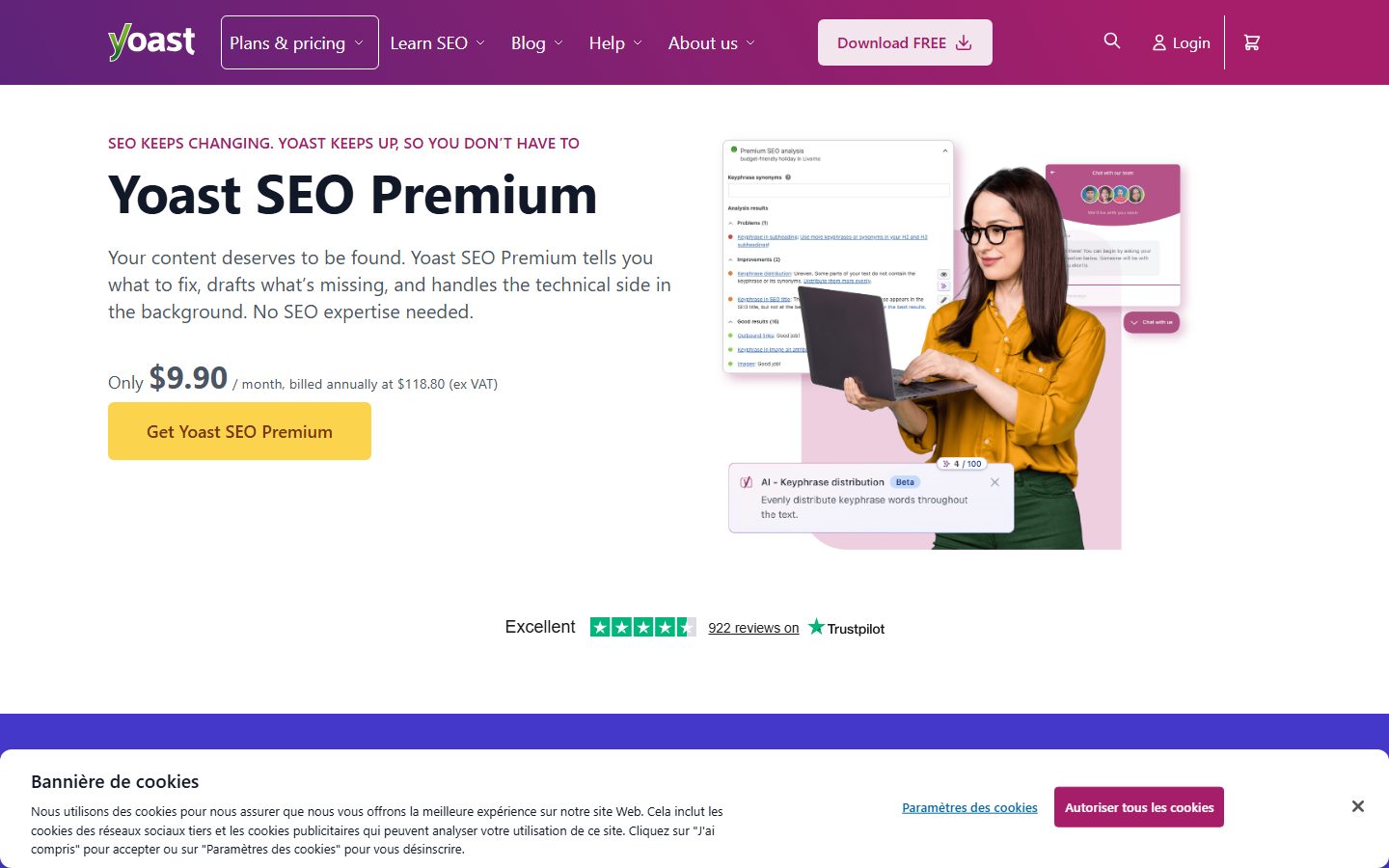
Yoast SEO provides a snippet editor on each post and page, where you write the SEO title and meta description and see a preview. It also has templates for content types and archives in its settings, which use variables and a separator you choose. Open the plugin’s settings from the admin menu, find the section for content types, and set the pattern for posts and pages. Use the variable picker inside the field. Yoast also offers a preview of how the result may look on mobile and desktop. Labels differ between versions and between the free and premium editions, so follow what you see on screen.
Rank Math
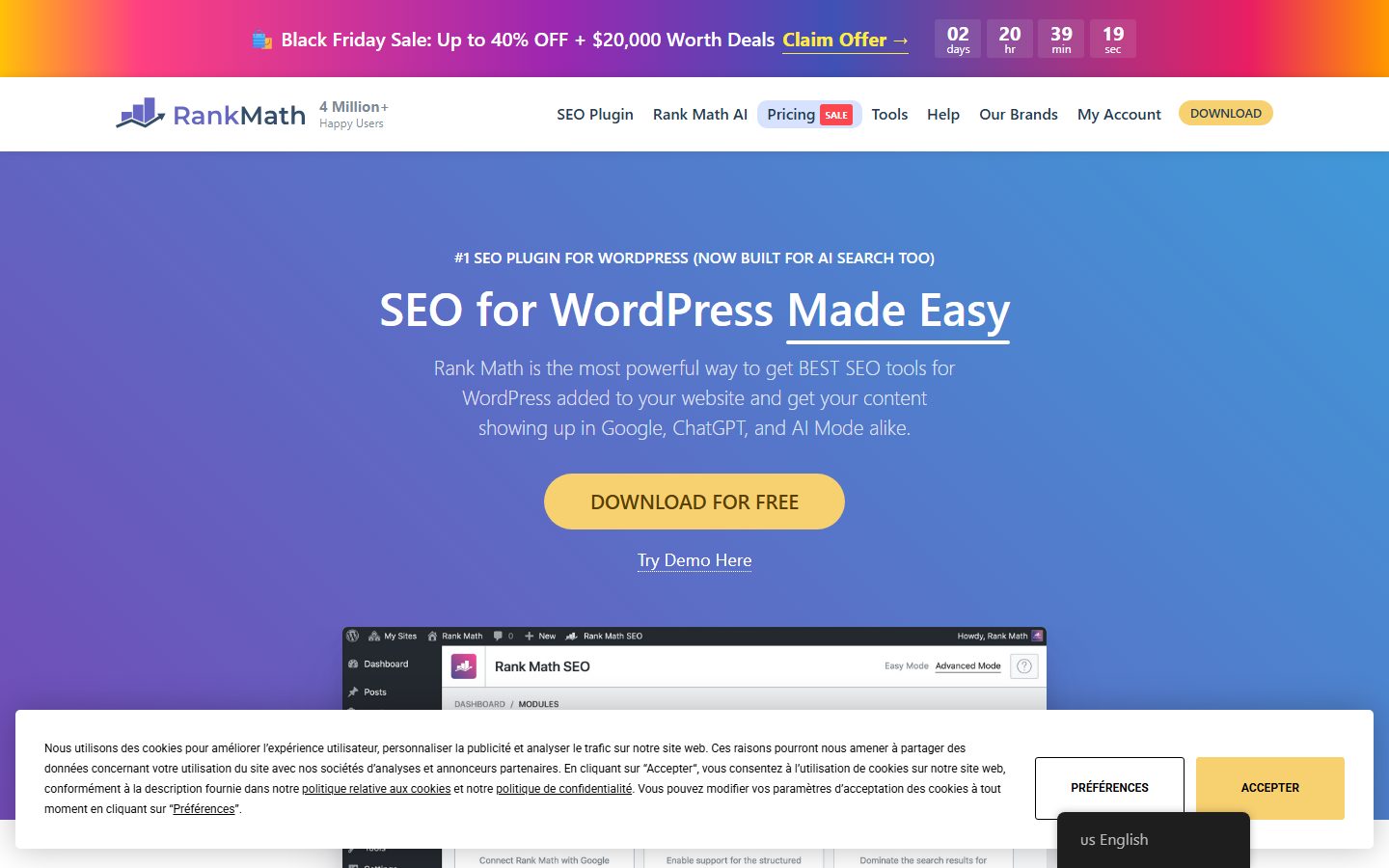
Per Rank Math’s documentation, its title and description templates live under Rank Math SEO > Titles & Meta. The page is organised into sections including Global Meta, Homepage, Authors, Misc Pages and Post Types. In the Posts section, Single Post Title and Single Post Description set the default templates for all posts, with sample templates pre-filled. Fields accept static text, variables or both, a dropdown lets you browse variables, and a live preview below the field shows the result. The %sep% variable inserts the separator. The settings are defaults, and you can override them on each post. Turning on Add SEO Controls adds the Rank Math meta box to posts.
Rank Math also has a Bulk Editing option in the Posts section with three modes: Disable, Enabled (read and write) and Read Only. In Enabled mode, the post list shows SEO Title and SEO Description columns with pencil icons so you can edit many posts at once. Search traffic data in the SEO Details column needs a premium plan and connected Analytics, according to the documentation. That bulk view is useful for the audit workflow later in this tutorial.
Slim SEO
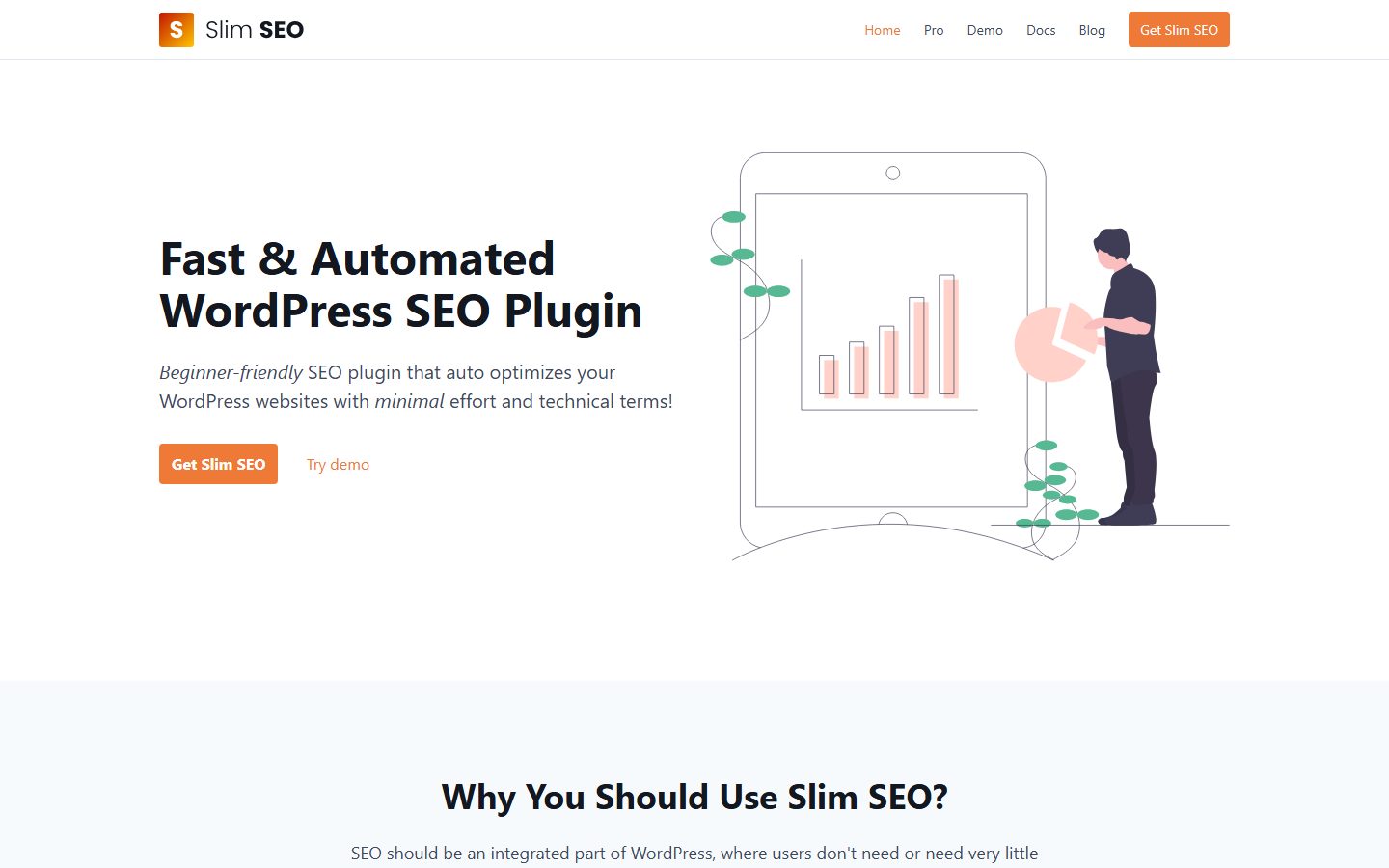
Slim SEO takes a different approach. According to its WordPress.org listing, WordPress handles the title tag once the theme supports title-tag, and the plugin works from the defaults: the home page uses the site title and description, single posts and pages use the post or page title followed by the site title, and other pages use the page title then the site title. The meta description is generated from the post excerpt, or from the post content if there is no excerpt. For categories, tags and custom taxonomies it uses the term description.
You can override both per post or page in a meta box below the editor, and the post list shows a small indicator when a post has a manual title or description. The listing also describes AI generation buttons and a bulk option on a Tools tab, where you choose post types and taxonomies and can keep existing values. The listing does not describe a template system for titles, so if you need pattern-based control across content types, check the plugin’s current documentation or compare it with Yoast or Rank Math. This is a good example of a design choice: a minimal plugin gives you sensible automatic output and manual overrides, while a fuller plugin gives you templates and a lot more settings.
All in One SEO
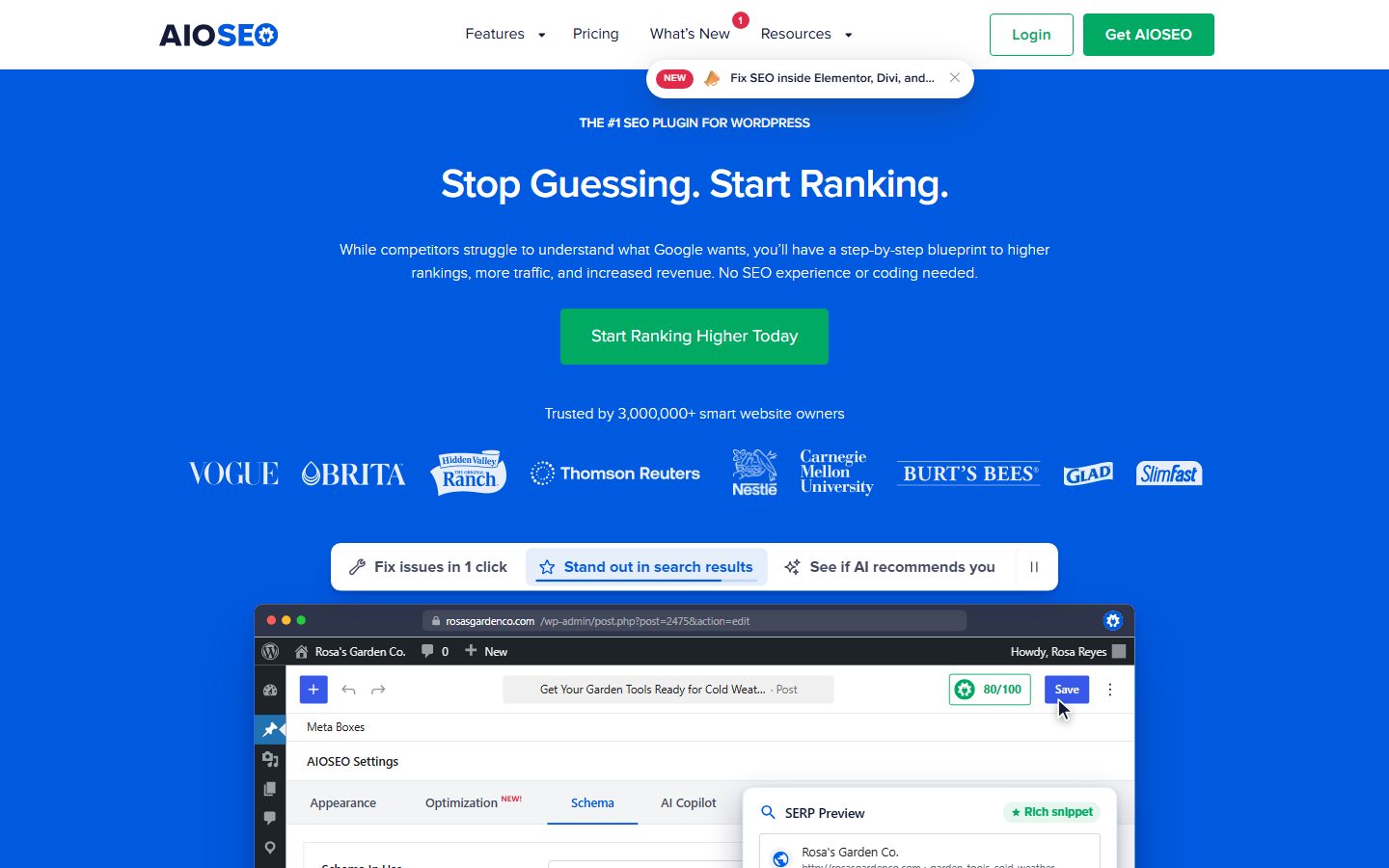
All in One SEO is another widely used option with title and description templates and per-page fields. Check its documentation for the current labels, because settings screens change between versions.
Rules for any plugin
- Use only one SEO plugin. Two plugins writing title tags create duplicates and conflicts. If you switch, follow the plugin’s migration guidance and check a few pages afterwards.
- Test the template on odd pages such as search results, 404 pages, empty categories and pages with very long titles. A broken template creates the half-empty titles Google’s documentation warns about.
- Make sure the theme supports the title tag. A theme that hard-codes its own title can double up with the plugin. View the page source and check there is exactly one
<title>element. - Watch your cache. After changing titles, clear your page cache and CDN cache, then re-check the source. See the caching plugin comparison.
- Keep noindex pages out of your title work. Pages you have asked search engines not to index will not show in results. Google notes that robots.txt blocks crawling but may not prevent indexing, and that you should use a
noindexrule to keep a page out of the index.
Check that it worked
- Open a post, view source, and search for
<title>. There is one, and it matches your template. - Repeat for a page, a category archive and, if you run a shop, a product and a product category.
- Your home page has a hand-written title and description.
Special cases: archives, products, pagination and the home page
Default templates tend to be weakest on pages that are not ordinary posts. Review these types deliberately.
| Page type | Common weakness | Better approach |
|---|---|---|
| Home page | Just the site name, or a generic tagline | Brand plus a short description of what the site offers and for whom |
| Category and tag archives | Title is only the term name, often with identical descriptions | Name the topic and what the visitor will find, and write a real term description for important categories |
| Product pages | Product name only, or manufacturer boilerplate | Name, key attribute and variant. See image SEO for the product photos that support it |
| Product categories | Name only | What the range covers and a reason to browse it |
| Paginated archives | Page 2, 3 and so on share one title | Add the page number so titles are distinct, which avoids the micro-boilerplate pattern Google describes |
| Author pages | Auto-generated, thin | Add a real bio and a descriptive title, or keep them out of the index if they add nothing |
| Search results and 404s | Sometimes indexed by accident | Keep them out of the index and out of your audit |
Because Google names micro-boilerplate as a reason to rewrite titles, pages that differ only slightly deserve titles that show the difference. A set of similar pages that all share one title is an easy fix with a variable that includes the distinguishing detail.
Testing whether a change worked, with Search Console
Do not guess. Search Console records how often your pages appeared in Google and how often people clicked. It lets you compare a page before and after a title change. For setup, see the Search Console guide.
The metrics
Per Google’s help documentation, the Performance report offers these metrics, which you toggle above the chart:
| Metric | Meaning | Use for title testing |
|---|---|---|
| Clicks | How often someone clicked a link from Google to your site | The outcome you want |
| Impressions | How often a link to your site appeared in results | Tells you whether you had enough exposure to judge |
| CTR | Clicks divided by impressions | The main measure of title appeal |
| Average position | The topmost position your link held, averaged across the queries where it appeared | Tells you whether the ranking moved during the test |
The table of results can be grouped by tabs including Queries, Pages, Countries, Devices, Search appearance and Dates, and the report has a date range filter and a search type filter. To find the Performance report, go to Search Console and open the Performance report for Search. Google’s help pages also describe advanced filtering and comparison of date ranges. Look there for the exact steps in your interface, because the labels change.
A before-and-after method
- Pick pages with enough impressions. A page with only a handful of impressions gives you noise. Choose pages that already appear often but have a low click-through rate for their position.
- Record the baseline. Note clicks, impressions, CTR and average position for the page over a set period, for example the last several weeks. Save a screenshot or an export.
- Change one thing. Alter the title, not the title and the content and the internal links. If several things change, you will not know what worked.
- Write down the date and the old and new titles in a log.
- Request reindexing of the page in Search Console if you want Google to notice sooner. Google says changes to title links can take from a few days to a few weeks to appear, because the page has to be recrawled and reprocessed.
- Wait for a comparable period. Use the same length of time and, as far as you can, the same kind of days. Weekly cycles and seasonality affect clicks.
- Compare CTR and position together. If CTR rose and position held steady, the title probably helped. If position fell, a CTR change may be a side effect, not a title effect.
- Decide, keep or revert, and log the result.
Reading results honestly
- CTR depends on position. A page moving from position 8 to position 4 will usually get more clicks regardless of its title.
- Averages hide differences. Look at the specific queries for the page. A title may work for one query and not another. Use the Queries tab filtered to the page.
- Google may not show your title. Check the live result. If Google was rewriting before and after, your change tested nothing.
- Search Console has known data issues at times. Google publishes a page of data anomalies. If your test window overlaps a logged issue, treat the numbers with care.
- Do not over-read small samples. A difference in a few clicks is not a result.
Avoid changing many titles at once if you want to learn from it. A site-wide template change is fine when the old template was clearly broken, but it will not tell you which part of the change helped. For learning, change a few similar pages and keep a few similar pages as a comparison group.
Be aware that you cannot run a true controlled A/B test on a title with Google’s tools alone. What you can do is staged, logged before-and-after comparisons, which are imperfect but far better than guessing. If you use tools that promise SEO split testing, read their method carefully before trusting the results.
Check that it worked
- You have a log with page, date, old title, new title and baseline numbers.
- You know your decision rule in advance, for example "keep if CTR improves at similar position over the same period."
Auditing titles and descriptions at scale
For a site with more than a few dozen pages, you need a repeatable audit. Do it once properly, then repeat it every few months. It pairs well with a content review; see the maintenance checklist and refreshing old content.
Step 1: collect the data
- Export the list of your published URLs with their current titles and descriptions. A crawler, your SEO plugin’s bulk view, or an export plugin can do this. In Rank Math, enabling Bulk Editing in the Posts section adds SEO Title and SEO Description columns to the post list.
- From Search Console, export clicks, impressions, CTR and position by page. Google notes that exported values shown as a tilde or dash are exported as zeros, so keep that in mind when reading a spreadsheet.
- Join the two lists by URL in a spreadsheet.
Step 2: flag problems
| Check | How to find it | Fix |
|---|---|---|
| Missing titles or descriptions | Blank cells | Write them, starting with the highest-traffic pages |
| Duplicate titles | Sort or use a duplicate highlighter | Make each distinct, adding the detail that differs |
| Duplicate descriptions | Same | Write unique ones, or remove a copied one |
| Titles with no main phrase | Read the list | Rewrite around the page’s primary topic |
| Over-long titles | Character count as a rough filter, then check pixel previews | Trim and front-load the main words |
| Very short or vague titles | Sort by length | Add the specifics and a qualifier |
| Stale years or numbers | Search the sheet for years and digits | Update, or remove the year |
| Template leftovers | Look for stray separators and variable text | Fix the template |
| Brand repeated or too long | Look at title endings | Shorten the brand part |
| Low CTR for the position | High impressions, low CTR in the joined data | Rewrite, then test |
Step 3: prioritise
- Pages with many impressions and a low CTR. These are the likeliest wins. People see them but do not click.
- Pages that matter to revenue, even with modest traffic.
- Template-level problems, because one fix helps many pages.
- The long tail, last, in batches.
Step 4: rewrite in batches and log
Work through 10 to 20 pages per session, using the formulas and checks from earlier. Log each change. If you use AI to draft options, treat the output as a first draft: check accuracy and specificity, remove claims the page does not support, and read our guide to using AI for SEO-safe content. If an AI agent edits titles in bulk through the WordPress admin, work on staging first, as explained in the AI agent staging workflow.
Step 5: schedule the next audit
Set a reminder for a few months ahead. Compare the new CTR numbers with the baseline from the same pages. As content changes, titles can drift from what the page says, and Google’s rewrite triggers include obsolete and inaccurate titles.
If search visibility in AI-driven answer experiences matters to you, titles and clear page purposes still help, but treat any specific tactic as unproven until you can measure it. Our AI search visibility guide discusses what is known and what is not.
Common mistakes and how to fix them
| Mistake | Why it hurts | Fix |
|---|---|---|
| Leaving the default title pattern everywhere | Pages look alike and say little | Set templates, then hand-write the key pages |
| Keyword stuffing | Reads as spam. Google’s guidance says repetition does not help users | One primary phrase, one qualifier |
| The same title on many pages | Google can replace it with details from the page, and searchers cannot tell the pages apart | Add the distinguishing detail to each title |
| Vague titles such as "Home" or "Blog" | Google’s guidance names them as unhelpful | Describe the page and the site |
| A long brand name taking half the title | Pushes useful words out of view and may be dropped by Google | Keep the brand short and at one end |
| Promising what the page does not deliver | Bounces, and a rewrite risk | Make the title accurate |
| Stale years and numbers | Obsolete titles are a documented rewrite trigger | Keep them in sync or drop them |
| Ignoring intent | You attract the wrong click | Check what already ranks and match the format |
| Changing titles on pages that already rank well without a reason | You risk a loss for no evidence of gain | Start with pages that have low CTR for their position |
| Two SEO plugins or a theme that duplicates the title | Duplicate or conflicting title elements | Use one plugin and check the page source |
| No description at all on key pages | You leave the snippet entirely to Google | Write one for the pages that matter |
| Changing a URL while editing the title | Breaks links and rankings without redirects | Only change URLs deliberately, with 301 redirects |
| Expecting instant results | Google needs time to recrawl and reprocess | Allow days to weeks before judging |
| Treating the plugin’s green light as proof | The score checks simple rules, not quality or intent | Read the title as a searcher would |
For a broader checklist, use the SEO launch checklist, and see the WordPress SEO guide for the bigger picture.
Recap checklist
- Install one SEO plugin and confirm there is exactly one title element in the page source.
- Set a separator and a short, consistent brand pattern.
- Set templates for posts, pages, categories and, if you have a shop, products.
- Write a hand-crafted title and description for the home page and top pages.
- For each page, decide intent first and match the format of what already ranks.
- Put the primary phrase early, add one qualifier, and stop.
- Use formulas as drafts, then edit for truth and specificity.
- Write descriptions that summarise the page and open with the benefit.
- Keep the H1 and title clearly related, with one clear main heading.
- Preview on mobile and desktop, and check the live result.
- Log changes and test with Search Console, changing one thing at a time.
- Audit at scale every few months, prioritising high-impression, low-CTR pages.
What to do next
- Make sure the rest of your launch is sound with the launch tutorial, and keep your site safe with the backup routine.
- If you sell online, set up your shop correctly with the WooCommerce checklist, then apply the product title ideas above.
- Speed affects how people experience the click. See the speed-up tutorial.
- Fix the structure behind the titles with internal linking, the XML sitemap guide and the full SEO guide.
- Learn to write and format pages in the block editor tutorial.
FAQ
What is the difference between a title tag and a meta description?
The title tag is the page’s title in the HTML head, and Google uses it as the main input for the clickable title link. The meta description is a short summary in the head that Google may use for the snippet under it. The title is more influential and more reliably used, while the description is a candidate that Google may replace with text from the page.
How long should a title tag be?
There is no single number that is correct for every page. Google says long titles are truncated, typically to fit the device width, so the real limit depends on pixel width, not characters. Keep titles concise, put the important words first, use your plugin’s preview as a guide, and check the live result on mobile and desktop.
How long should a meta description be?
Google says there is no limit on how long a description can be, but results truncate it to fit the device width. Write one or two clear sentences that summarise the page, and make the first sentence stand on its own.
Why does Google show a different title from the one I wrote?
Google generates title links automatically and may use other sources such as headings, anchor text or other page text when it judges the title element does not describe the page well. Documented triggers include empty or half-empty titles, obsolete titles, inaccurate titles, repeated boilerplate, no clear main title, language mismatch and a duplicated site name. Fix those and your title is more likely to be used. Google may also choose a different title because it suits a particular query better.
Does the meta description affect rankings?
Google’s documentation describes the meta description as an input for snippets, not as a ranking instruction. Its value is in helping searchers decide to click and in giving Google an accurate summary to show. Write it for people.
Should I include my brand name in every title?
Usually a short brand at the start or end is fine, as Google’s guidance on branding suggests, with a delimiter such as a pipe, hyphen or colon. Keep it concise so it does not push out descriptive words. Google may omit a repeated site name from the title link anyway, since it shows the site name as a separate element.
Should I put the year in my titles?
Only if you will update the page and title every year. Google lists obsolete titles, such as an old year in the title while the page shows a newer one, as a reason it may rewrite. If you cannot commit to maintenance, leave the year out.
How many keywords should a title have?
One primary phrase, written naturally, plus a qualifier that makes the page specific. Google advises against repeating the same words and phrases, which does not help users and can look spammy. Use related terms in the description and body.
How long until a new title shows in Google?
Google says changes can take a few days to a few weeks, because it has to recrawl and reprocess the page. You can request a recrawl in Search Console. Judge results only after a comparable period.
Can I edit titles in bulk in WordPress?
Yes. Templates in your SEO plugin change many pages at once. Some plugins also offer bulk editing screens. For example, Rank Math’s Bulk Editing option adds SEO Title and SEO Description columns to the post list, and Slim SEO’s listing mentions a bulk generation option on its Tools tab. Back up and log changes first.
Do I need a plugin to set title tags?
Not strictly. WordPress outputs a title tag when the theme supports it. A plugin gives you per-page fields, templates, previews and bulk tools, which is why most sites use one. Use only one.
What is a good click-through rate?
It depends heavily on position, query type and search features on the results page, so any universal benchmark is misleading. Compare your own pages against themselves over time and against other pages at a similar position.
Can I use AI to write titles?
You can use it to draft options, but you are responsible for accuracy. Check that each title matches the page, avoid invented claims, and keep the text specific. See our guide on AI content and SEO safety.
Should I change titles on pages that already perform well?
Not without a reason. Start with pages that have plenty of impressions but a weak CTR for their position, or where the title is clearly wrong. For well-performing pages, any change is a risk you should be able to justify and measure.
Do title tags matter for pages that are not in search results?
Yes, a little. The title still shows in browser tabs, bookmarks and some sharing contexts. But pages that you do not want indexed should use a noindex rule, which is the way Google says to keep a page out of the index, not a robots.txt block.
Let your AI assistant do this for you
Open the ready prompt with step‑by‑step instructions for running it through NibWP.