Bricks is a theme-based visual builder with an unusually deep native toolset (query loops, conditions, interactions, popups, forms, WooCommerce templates) sold at a low flat price, including a lifetime option. The trade-offs are that it is a theme rather than a plugin, its AI features are labelled experimental, and several of its most interesting 2.4 additions are still opt-in. This verdict rests on the vendor's own documentation, not on our own benchmarks.
Quick verdict: who Bricks is for, and who it is not for
Bricks is a visual site builder for self-hosted WordPress that is delivered as a theme. On its homepage the vendor describes it as an “innovative, community-driven, visual site builder theme” for building “unique, performant, and scalable websites” without code. Read as a product on paper, it is one of the most feature-complete builders you can buy for a flat fee: a query loop builder, element conditions, an interactions system, a popup builder, a form builder, a WooCommerce builder and a growing set of AI abilities are all listed as included on every plan.

Our judgement, based on the documented design rather than hands-on measurement, is that Bricks fits three kinds of people well:
- Freelancers and small agencies who build many client sites and want a predictable per-year cost, or a one-time lifetime licence, instead of paying per seat or per feature.
- Developers and technically minded designers who want to work with real CSS concepts (Flexbox, Grid, classes, variables) in a visual interface, and who value hooks, filters and a documented developer schema.
- Builders of dynamic sites: directories, listings, custom-post-type driven sites, membership or WooCommerce sites where query loops, custom fields and conditions do most of the work.
It is a weaker fit for:
- Teams that need to keep their content portable. Because Bricks is a theme with its own element tree, leaving it means rebuilding layouts. This is true of most page builders, but it is worth stating plainly.
- Complete beginners who want a guided, template-first workflow. The documentation is thorough, but the tool exposes many concepts, and the learning curve is real.
- Anyone who needs a production-ready AI site builder today. The vendor itself marks its AI abilities as “Experimental” and advises keeping them off on production sites.
- Sites that must stay on the block theme and Site Editor path. Bricks replaces the theme layer; if your strategy is built around core block themes, see our guide to the best block themes for WordPress first.
The rest of this review explains why, product area by product area, and gives you a one-day plan to test the claims on your own site.
How we researched this review, and a disclosure
WPMusk has not run hands-on benchmarks of Bricks for this review. Everything below is based on the vendor’s own documentation, its pricing page, its changelog, the Bricks Academy, and a small number of third-party sources, all read in November 2026. Where a claim comes from the vendor, we say so (“according to the documentation”, “the pricing page lists”). Where we could not verify something, we say that plainly and tell you where to check. We do not quote scores, timings or file sizes of our own because we do not have any.
Disclosure: the WPMusk website itself is built with Etch and Automatic.css, not Bricks. We use a different tool, so this is a review of a competing builder written by a publisher that has chosen another path. We have no affiliate relationship with Bricks and nothing on this page is a paid placement. For our view of the tool we do use, see our Etch review.
What Bricks is and who makes it
Bricks (bricksbuilder.io) is a commercial WordPress theme that includes a front-end visual builder. The homepage calls it a “visual site builder theme” for “self-hosted WordPress”. It is not available on wordpress.org; it is purchased from the vendor, and the pricing page says license activation is tied to each site URL.
The homepage and academy call it “community-driven”. The Academy links to a community forum at forum.bricksbuilder.io, and the vendor runs an add-ons directory and a “Bricks Expert Listing” for agency-tier customers. We did not find a published user count on the homepage, so we do not repeat one. As of the vendor’s changelog at the time of writing, the current release is Bricks 2.4.5, published November 3, 2026, and the site banner on the pricing and design pages announces the same version.
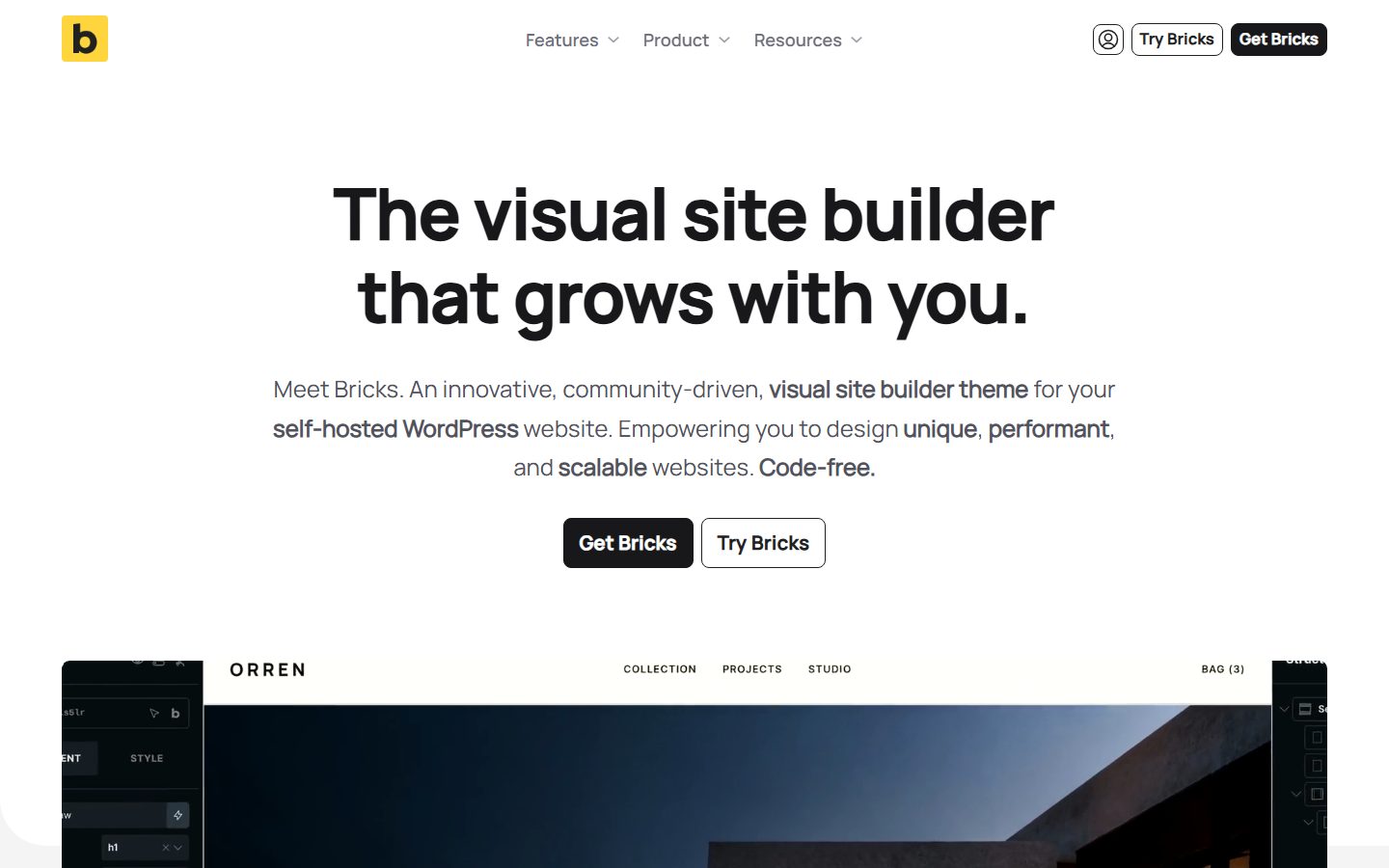
Look at the hero text in the screenshot above: the word “theme” is part of the product description. That framing matters for everything that follows, because it determines how Bricks interacts with the rest of your site.
Key facts at a glance
The table below collects the facts we could verify from the vendor’s own pages. Anything we could not verify is marked as such.
| Item | What the vendor documents |
|---|---|
| Product type | WordPress theme with an integrated visual builder, for self-hosted WordPress |
| Current version | 2.4.5 (November 3, 2026), per the changelog |
| Plans | Starter (1 site, USD 79/year), Business (3 sites, USD 149/year), Agency (unlimited sites, USD 249/year), Ultimate Lifetime (unlimited sites, USD 599 one-time) |
| Features per plan | All plans include the full feature set: all 149 elements, Query Loop Builder, Menu Builder, Popup Builder, WooCommerce Builder, Conditions and Interactions |
| Support | Technical support by email and forum, for the subscription term (or lifetime on the lifetime plan) |
| Refunds | 60-day money-back guarantee on the initial purchase |
| Local and staging sites | Do not count toward the site limit |
| After a subscription lapses | You can keep editing your sites, but you lose updates, support and community templates |
| PHP and memory | The Academy requirements page says PHP 5.4 or higher, WordPress memory limit at least 64 MB (512 MB recommended), upload limit at least 64 MB |
| Minimum WordPress version | Not stated on the requirements page we read; check the installation guide |
| Browsers | Current Chrome, Firefox, Safari or Edge for the builder |
| AI | “AI Abilities”, introduced with Bricks 2.4, labelled Experimental; works through an external AI client |
One caution on the requirements row: PHP 5.4 is the figure printed on the Academy page, and it is almost certainly out of date as a practical recommendation. You should run a currently supported PHP version regardless of what a minimum says, and you should confirm the minimum WordPress and PHP versions for your target release in the installation guide before you buy.
How Bricks works: a theme, not a plugin
Most popular page builders are plugins that sit on top of whatever theme you run. Bricks inverts this. You install Bricks as your active theme and build the header, footer, archives, single templates and page content inside its builder. The vendor’s Getting Started series in the Academy lists a 13-step path: installation and setup, interface tour, settings and defaults, first page, theme styles, an intro to templates, building a header template, query loops and dynamic data, a blog post template, global classes, responsive basics, and next steps.
Analysis, based on the documented design: the theme architecture has a few consequences worth understanding before you commit.
- The whole site shares one system. Header, footer, archives and single templates are all built with the same elements, classes and variables, so global styling is consistent.
- Switching away is a larger change. If you stop using Bricks, you do not just deactivate a plugin; you change your theme and rebuild layouts. Content in the post editor remains, but layout does not carry over.
- The block editor remains for content. The Academy lists Gutenberg among its integrations, and the design page says palettes carry over to the WordPress block editor, which suggests you can still write posts there while Bricks handles layout. Check the integration article for what exactly is shared.
- Child themes and hooks are first-class. The Academy has a Developer section with guides, custom elements, controls, functions, dynamic data, hooks and filters, and a schema reference. For teams that extend a builder with code, this is a strong signal.
If you are still deciding between builder architectures in general, our page builders compared guide lays out the plugin, theme and block-based approaches side by side, and the Bricks vs Elementor comparison covers the most common head-to-head.
The editing experience
We have not used the 2.4.5 builder for this review, so we describe the editing model as the vendor documents it rather than as we felt it. According to the Academy and feature pages, the builder is a front-end editor with a structure panel, a canvas you can drag elements across, and per-element Content and Style tabs. Several documented details are worth noting:
- Drag-and-drop on canvas and structure panel. The design page says elements can be rearranged on either.
- A searchable dynamic data picker. A lightning-bolt icon appears in element content and style settings and opens a searchable dropdown of dynamic data.
- Builder Browser (2.4). According to a search summary of the 2.4 notes, a new Builder Browser provides one place to manage templates, components and post types enabled for Bricks. We could not load the full 2.4 release page, so treat that detail as secondary and check it in the release notes.
- Customizable builder layouts and interface profiles. Also from secondary summaries of 2.4; verify before you rely on them.
- Paste HTML and CSS. The Academy documents an “HTML and CSS to Bricks” feature: when you paste HTML or CSS into the builder, it detects the content and converts it. Tags map to native elements (a section becomes a Section, a div a Div), classes become global classes, and variables defined in :root become global variables. The vendor calls the output a “structural starting point” that may need manual adjustment.
- Granular permissions. The components documentation says creating, editing, deleting and inserting components, setting instance values, and importing or exporting each require separate builder permissions. That is useful for agencies handing a site to a client.
The paste-to-convert feature deserves a closer look because it shapes the workflow. Per the documentation, only simple media queries that exactly match a configured breakpoint map to that breakpoint’s controls; compound conditions and unmatched widths stay in custom CSS. Scripts and external stylesheet links are not executed on paste; scripts go into a Code element which “must be reviewed and signed before it runs”. That is a thoughtful security stance, and it also means pasted JavaScript does not magically work.
Design system: classes, variables, theme styles and components
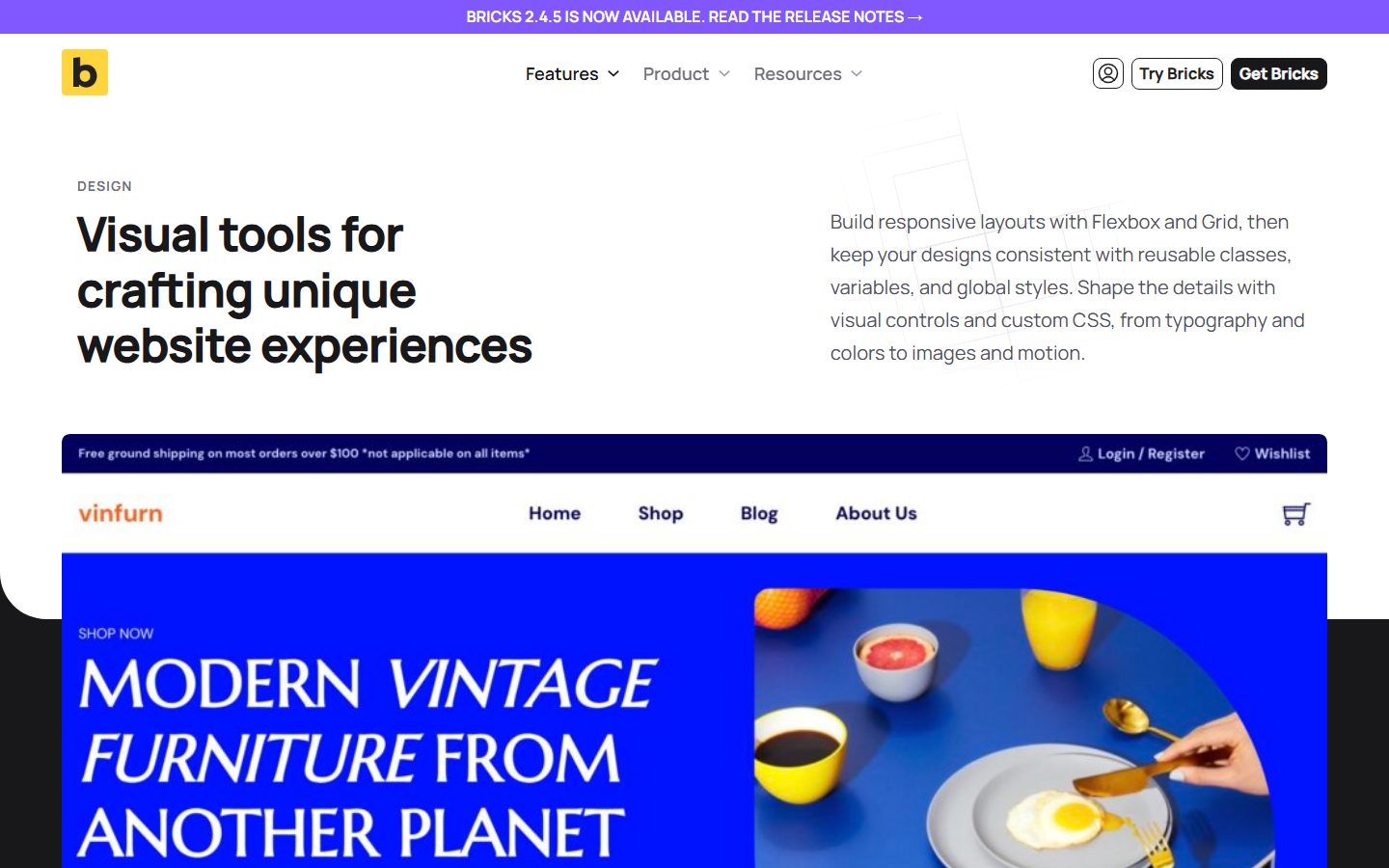
The design page frames Bricks as a layout tool built on Flexbox and CSS Grid, then keeping “designs consistent with reusable classes, variables, and global styles”. Here is what the vendor documents, area by area.
Global classes and the Class Manager
You can create classes that reuse styles across the site, including pseudo-classes and custom selectors. The Class Manager organises them and lets you edit a class’s custom CSS without first finding an element that uses it. A feature marked experimental, CSS Sync, can link global classes to the visual controls. A secondary summary of the 2.4 release mentions bi-directional syncing between custom CSS and style controls, which is consistent with this, but we could not confirm the details on the official release page.
CSS variables and the Variable Manager
Variables hold reusable values such as spacing and typography; updating one changes every place it is used. The Variable Manager shows palette colours alongside variables, and unneeded variables go to a trash before permanent deletion. This is a meaningful safety net for large design systems.
Theme styles
Shared defaults for typography, colours, layouts and elements can be applied site-wide or to selected pages and templates. You can search theme style settings, filter for modified values, and open a fullscreen CSS editor.
Colour, fonts, fluid scales
The design page lists a Color Manager with light and dark modes, HSL-based variables, and generated shades and utility classes; palettes carry over to the WordPress block editor. A Font Manager covers Google Fonts, Adobe Fonts, custom uploads and variable fonts. Fluid typography and spacing scales generate CSS variables and utility classes.
Responsive breakpoints
You can copy or move styles between breakpoints for an element, a class or several selected elements, merge or replace existing styles, or reset only the current breakpoint. That level of control over breakpoint inheritance is important on complicated layouts.
Components
The Academy’s components article describes a component as a saved element tree with one root. The definition is stored separately from page content, and each instance stores only its own overrides, selected variant and slot children. Editing the main component updates every instance. Properties expose instance-level controls: you create a property (text, rich text, icon, image, image gallery, link, select, toggle, query loop, or global classes) and then connect it to a compatible control inside the component. Variants let one component carry different looks while sharing content, structure and properties; each variant stores only the settings changed while it is selected.
The same page lists real limitations: you cannot save Template or Query Filter elements as components, imported components with duplicate IDs are skipped, and instances that point at a deleted component are skipped on the front end. We could not read the section on slots because the page was truncated, so check the Academy for how slot content works before planning a component-heavy build.
A useful comparison point: the Etch side of our own stack leans on a separate CSS framework, and we cover that approach in our Automatic.css framework guide. Bricks users often do the same, and the ecosystem section below covers that.
Dynamic data, query loops, custom fields and conditions
This is where Bricks makes its strongest claims, and where the documentation is most detailed.
Dynamic data
According to the dynamic data page, sources include post titles, IDs, dates, featured images, authors, categories, tags and custom fields. Custom field integrations named on the page are Advanced Custom Fields, Meta Box, JetEngine, Toolset, Pods and ACPT, with nested groups, repeaters and date fields supported. Filters transform field output for the context in which it is displayed. Two advanced tags stand out for developers: {echo:functionName} renders the output of a PHP function, and {do_action:hook_name} runs a WordPress action hook. Both are powerful and both belong behind sensible permissions; treat them as developer tools, not client-editable ones.
Query loops
The query loop page says the Query Loop Builder lets you “visually query your database” and that you “can write your own PHP query, too”. Documented capabilities include:
- Loops over posts, users, categories, media, shopping cart items, and custom PHP or REST API data.
- Host elements including div, block, container, section, slider, accordion and map, plus nestable slider and accordion.
- Basic settings for content type, order and result count; include or exclude multiple authors; taxonomy and meta queries.
- Global Queries and a Query Manager, so a query is defined once and reused.
- AJAX sorting, filtering and live search, with facets over taxonomy terms, post fields or custom fields and configurable comparisons such as “greater than”.
- Infinite scroll, load-more with loading animations, and numbered pagination.
- Loops over repeater or flexible content fields.
We could not find documentation of nested loops on the feature page itself, so if you plan loop-inside-loop layouts (for example, a category list that renders its own posts), confirm the supported pattern in the Academy’s query loop article before building around it. The release notes also show query filter fixes in 2.4.4 and 2.4.5, which tells you the filtering layer is under active development; test your exact filter combination on the current version.
Element conditions
The conditions page says conditions are “designed to help you show/hide content based on a wide range of fully customizable conditions”. The marketing copy mentions posts, users, date and time, and dynamic data as criteria. Multiple conditions can be combined with “and” and “or” logic. Developers can add custom groups with the bricks/conditions/groups filter and extend operands through the Element Conditions API. The Academy summarises element conditions as showing or hiding content by role, device or custom logic.
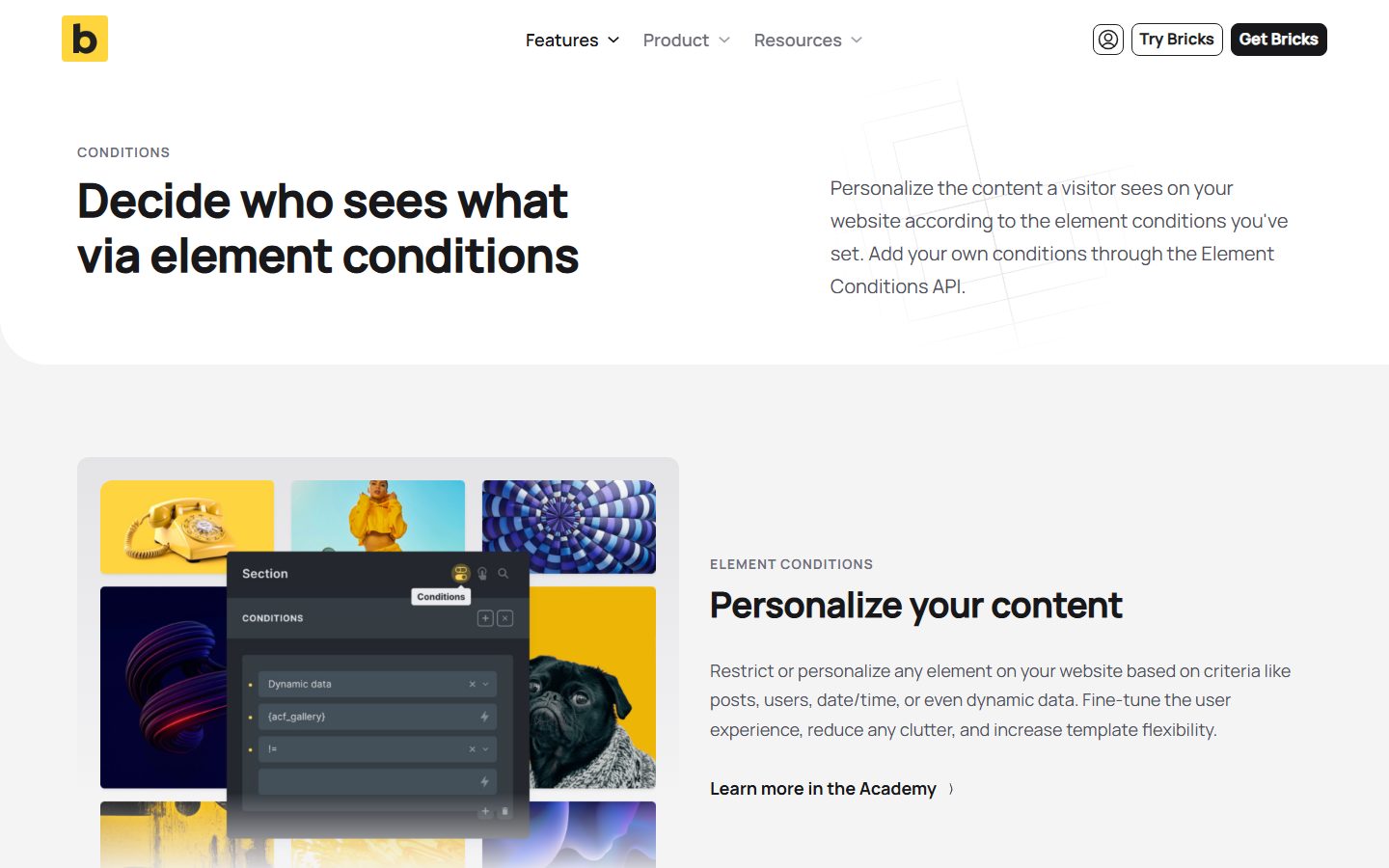
In the screenshot, notice the condition panel on a Section: a dynamic data condition that references an ACF gallery tag, with a comparison operator. This is the typical pattern: render a gallery section only when the field is not empty.
We did not find a complete list of built-in condition types on the marketing page, so the exact groups available (and whether they include things like WooCommerce cart state or user roles) are something to check in the Academy’s Element Conditions article. Also note that conditions hide content in the rendered output; they are a presentation tool, not an access-control system, and you should not rely on them to protect sensitive content.
Interactions, popups and menus
The interactions page says each interaction has a trigger, an action and a target, all configured through a visual interface “without touching a single line of code”.
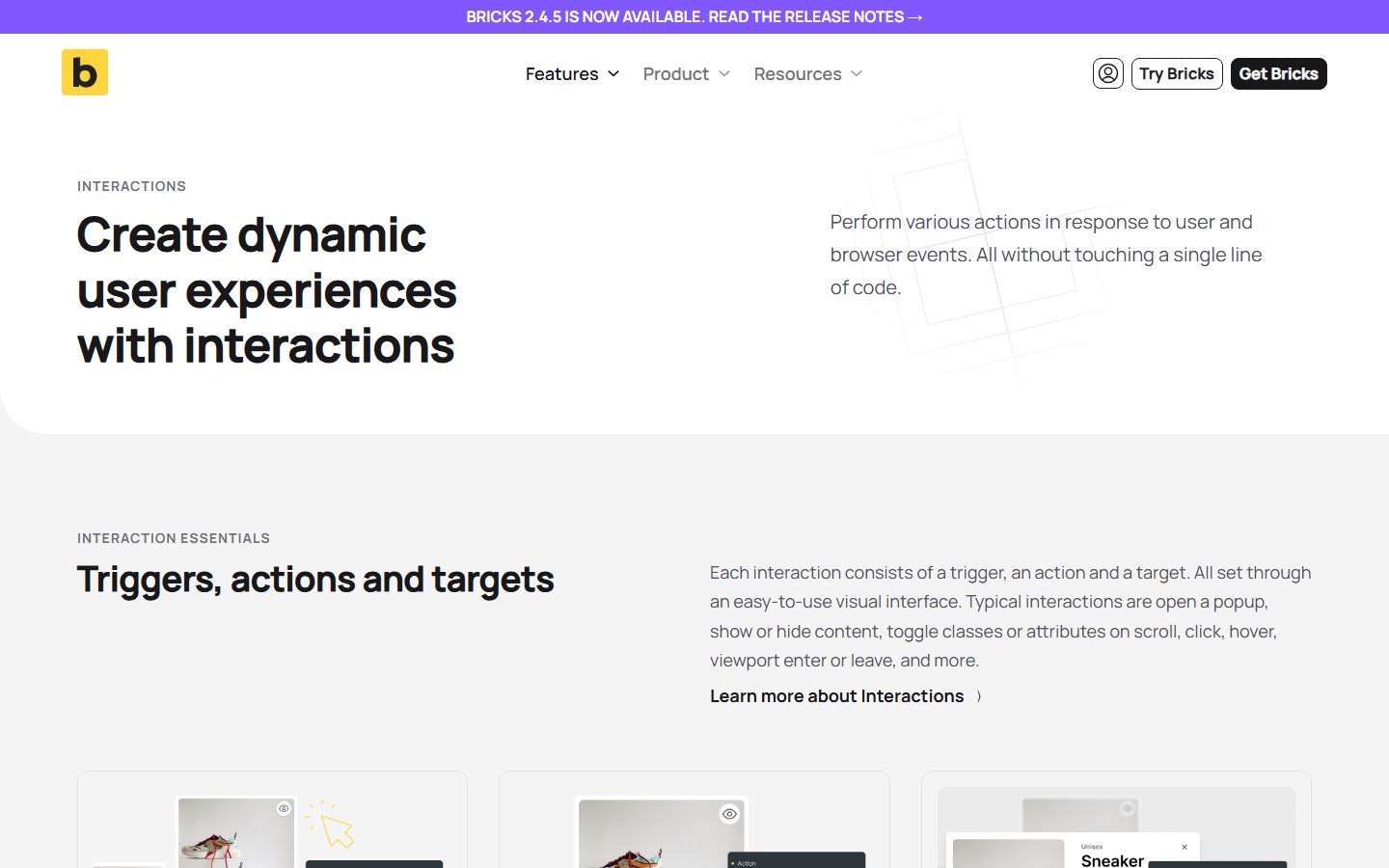
- Triggers: clicks, hovers, scrolling or viewport entry; filter submit and WooCommerce cart changes can also trigger interactions.
- Actions: show or hide an element or popup; set, remove or toggle attributes; run animations; load query loop results.
- Targets: the element itself, a custom CSS selector, or a popup.
- Viewport interactions: set the percentage of an element that must be visible, adjust the detection boundary with root margin, and target a different element.
- Interaction conditions: can be based on browser storage (window, sessionStorage or localStorage), so an interaction runs only when a stored value matches.
The popup builder page lists triggers (click, hover, focus, blur, mouse enter and leave, mouse leaving the window, viewport enter and leave, scroll, content loaded, and showing and hiding the popup) and display conditions (entire website, home page, custom post types, archives, search results, error page, individual page). A bricks/popup/open JavaScript event fires when a popup opens. The 2.4.5 release notes mention a regression affecting AJAX popups that was fixed in that release, which is a reminder to test popups after every update.
The marketing page also names a Menu Builder with the tagline “Navigate with ease”, but the page we read gave no detail, so see the Academy’s menu builder article for the specifics. Our accessibility section below returns to menus.
Forms, WooCommerce and other integrations
Forms
According to the forms page, the native form element supports these field types: email, text, textarea, telephone, number, URL, checkbox, select, radio, password, remember me, and datepicker. After submission you can send emails, redirect visitors, create posts, and connect to other tools, and you can combine actions into one workflow. Conditional logic runs actions based on submitted values (the example given is a mailing list signup that runs only if a consent checkbox is ticked). Custom actions can send submission data to external URLs such as CRMs, Zapier, Make, Google Sheets, Slack or internal APIs. Mailchimp and SendGrid integrations add contacts. Spam protection options are Google reCAPTCHA v3, hCaptcha and Cloudflare Turnstile. Submissions can be saved to the database.
Two interesting extras: forms can create and update posts, mapping fields to titles, content, taxonomies and custom fields (a front-end submission workflow), and forms can power custom login, registration and password reset. The forms page does not mention file uploads, so if you need them, confirm in the Academy. The changelog also lists “security fixes for the Form element” in 2.4.3, so keep Bricks updated if you use front-end post creation.
If your forms need CRM-level logic, entries management or payments, you may still prefer a dedicated plugin; our comparison of Fluent Forms and Gravity Forms is a useful reference for what a dedicated forms plugin offers beyond a builder’s native form.
WooCommerce
Per the WooCommerce Builder page, Bricks lets you “visually customize shop, product, cart, checkout, and account experiences”. The documented pieces are:
- A Setup Wizard that checks your store layout and can create or repair Bricks layouts for shop, product, cart, checkout and account pages.
- Product archives with custom layouts, sorting and filters, including attribute and stock availability filters (stock filtering can account for individual variations).
- Single product layouts and variation swatches (colour swatches, image buttons, custom labels).
- Separate templates for product pages, archives, cart, checkout and accounts, with the classic template workflow still supported.
- Dozens of WooCommerce elements across product, archive, cart, checkout and account groups.
The newer pieces are marked experimental on the page: Cart v2, Checkout v2 (with a multi-step flow and custom step navigation), Account Page v2, and a Mini Cart Builder (offcanvas, dropdown or popup, with AJAX quantity updates). The page notes that advanced modular elements must be enabled in Bricks settings, after which cart, checkout and account screens can be edited as states on their assigned page. Release notes for 2.4.3 mention compatibility with WooCommerce 11.2.0, and 2.4.4 and 2.4.5 include fixes for Checkout v2 and Account v2.
Analysis: checkout is the most revenue-critical page on a store, and the vendor’s own labelling of the modular checkout as experimental is the signal to take seriously. The classic template route is documented as still supported, and it is the lower-risk path for production stores. Whichever route you take, test a full purchase with your actual payment gateway on staging. For store operations beyond layout, see our overview of AI tools for WooCommerce store management.
| WooCommerce area | Status per the vendor page | What to verify yourself |
|---|---|---|
| Shop, archive and single product templates | Documented as standard; classic workflow supported | Variation handling, swatches, your attribute filters |
| Cart v2 | Experimental | Empty and filled states, coupons, shipping estimates |
| Checkout v2 | Experimental | Your payment gateways, required fields, multi-step behaviour |
| Account Page v2 | Experimental | Login, lost password, downloads, subscriptions plugins |
| Mini Cart Builder | Experimental | AJAX updates with your caching setup |
Other integrations
The Academy’s Integrations section lists WooCommerce, Gutenberg, WPML, Polylang, Google Maps, Instagram, Leaflet maps and Unsplash. For multilingual sites, that includes the two common translation plugins; check the relevant article for how dynamic data and templates are translated.
AI features and automation
The AI story in Bricks is different from the usual “generate text in the editor” feature. According to the AI Abilities page and the Academy article, Bricks 2.4 registers actions with the WordPress Abilities API, and an MCP-compatible AI client can run them. A developer can also run them from WP-CLI. The vendor labels the whole thing Experimental and says: “Test on local or staging sites. Keep AI Abilities off on production.”
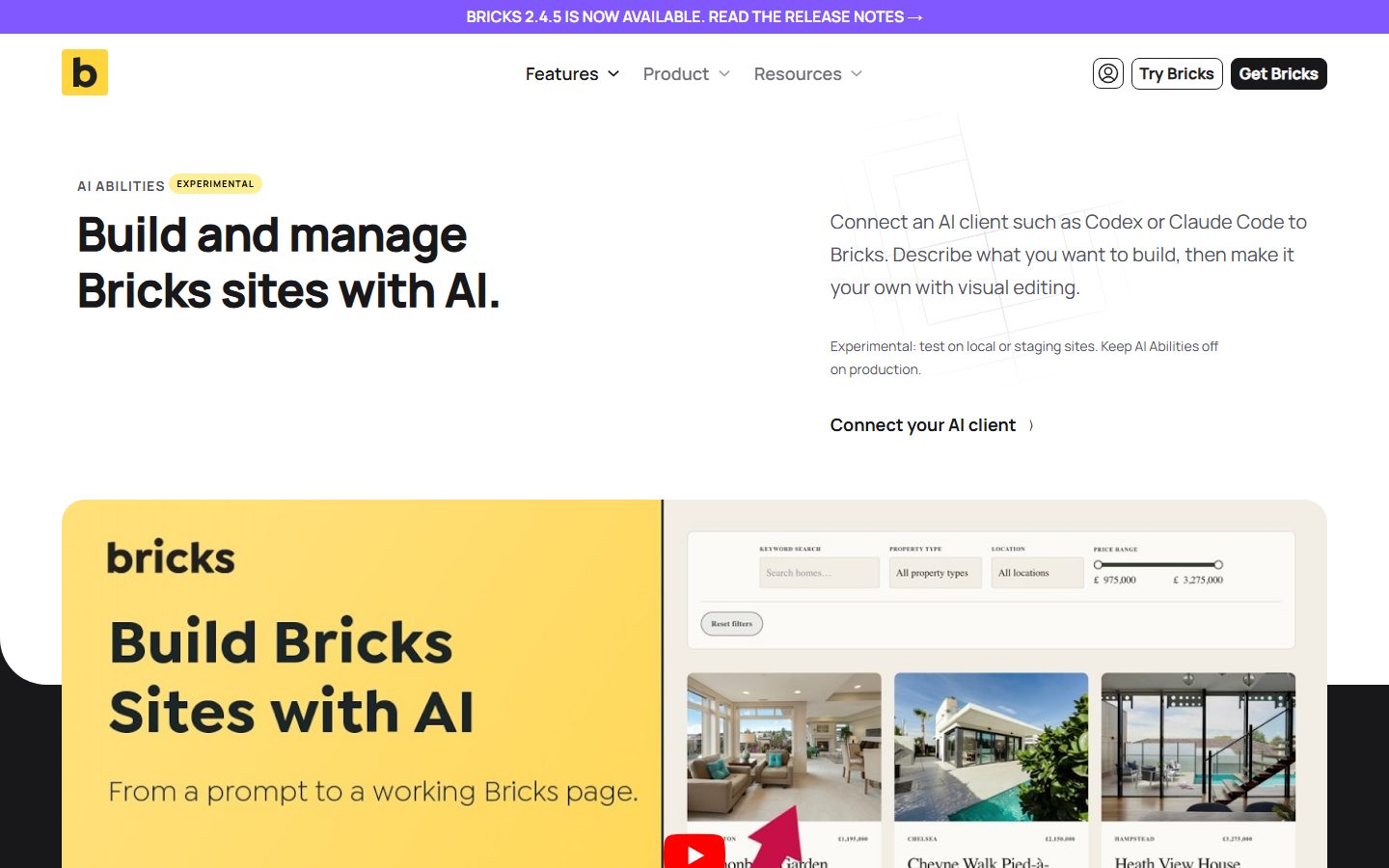
What the documentation says it can do
A connected agent can, per the Academy, read and update parts of a site including the design system, templates, elements, dynamic data, media, WooCommerce templates and revisions. The marketing page lists creating pages and sections, managing global classes, variables and theme styles, building templates, configuring query loops and dynamic content, styling WooCommerce templates, and converting HTML and CSS into Bricks layouts. The HTML and CSS import goes through the same conversion described earlier and, according to the docs, omits disallowed content and returns a partial result listing each omitted element and the reason.
How it connects
- It needs the WordPress Abilities API; the page recommends WordPress 6.9 or later if it is missing.
- For MCP connections you need the WordPress MCP Adapter plugin (WP-CLI use does not).
- You enable abilities under Bricks, AI, Configuration. Bricks generates client config that runs a local npx command to reach the WordPress MCP endpoint, authenticated with an application password.
- Setup examples are given for Codex and Claude Code, plus a generic JSON config.
Security model, as documented
Each request runs as the WordPress user tied to the application password, and Bricks checks that user’s WordPress capabilities, builder access and builder permissions before reads or writes. Ability toggles are site-wide, so the vendor recommends a restricted non-admin user for client workflows. Destructive abilities are badged and sensitive categories are off by default. PHP abilities are off by default, cannot be enabled from wp-admin or the database, require the BRICKS_ENABLE_PHP_ABILITIES constant plus several capabilities, and the page says they are not sandboxed and should be used only on trusted local or staging sites.
Analysis: this is a sensible, permission-first design, and the explicit staging advice is honest. It also means Bricks AI is an automation layer for people who already use an AI coding client, not a one-click “generate my website” button inside the builder. We could not verify built-in text or image generation, or supported AI providers, from the pages we read; the feature page does not cover them. If you want that, check the Academy and the builder’s own settings rather than assuming.
For background on the plumbing, our explainers on the WordPress Abilities API and the complete guide to AI and MCP on WordPress cover what a connection actually exposes, and AI agent security risks on WordPress and a staging workflow for AI agents are directly relevant to the vendor’s own warning.
Front-end output, performance and SEO: the documented claims and how to test them
We have no benchmark of our own for Bricks. What follows are the vendor’s claims, plainly labelled, plus a way to check them.
The performance and SEO page shows a Lighthouse-style panel with Performance 98, SEO 100, Accessibility 100 and Best Practices 100, and says Bricks earns “top grades for a superior user experience” in tests like Lighthouse and GTmetrix. It does not state which page was tested or under what conditions, so treat the numbers as marketing, not as a benchmark. Other documented claims:
- Smaller DOM: the page claims markup that produces “an ever smaller DOM structure”, with no node counts given.
- Semantic output: clean HTML with optional IDs and classes; the sample uses brxe- prefixed classes on div, h3 and span elements.
- Lazy loading: for images, background images and videos.
- Vanilla JavaScript: “Break free from jQuery.”
- Fonts: optimised loading, with variable fonts cited as a speed benefit.
- Script removal: unnecessary scripts are removed, though the page does not say which.
- Built-in SEO settings: permalinks, titles, meta descriptions, meta keywords, robots directives and Open Graph, presented as replacing extra SEO plugins.
The page does not discuss CSS delivery or schema markup, so those are open questions you should check. Also, a builder’s output is only one input to real-world speed. Hosting, caching, image sizes, third-party scripts and the heaviest element on a page often matter more; see our WordPress speed optimization guide, our roundup of caching plugins, our hosting recommendations by use case, and our explainer on Core Web Vitals (LCP, INP and CLS).
| Claim | Where it appears | How to check it |
|---|---|---|
| Lighthouse scores 98 / 100 / 100 / 100 | Performance and SEO page | Run Lighthouse and PageSpeed Insights on your own template several times and compare medians |
| Smaller DOM | Performance and SEO page | Compare DOM node counts for the same layout in Bricks and your current builder |
| No jQuery | Performance and SEO page | Inspect network requests and the loaded scripts on a front-end page |
| Lazy loading | Performance and SEO page | Check that the hero image is not lazy-loaded (it should not be) and below-fold images are |
| Replaces SEO plugins | Performance and SEO page | Compare features against your SEO plugin: sitemaps, schema, redirects, breadcrumbs |
Accessibility and responsive control
The Academy accessibility article, as summarised from search results, says Bricks creates three default landmark regions (header, main, footer), wraps menus in a nav element, and documents keyboard navigation: Tab and Shift+Tab to move, Enter to follow a link, and Space to toggle a submenu. The Nav (Nestable) element, introduced in Bricks 1.8, has a dropdown arrow that can be toggled by keyboard, and custom ARIA attributes can be added to any element. The docs also say aria-labels are added automatically to background images and form fields.
The community forum tells a more cautious story. Threads we found, mostly dating from Bricks 1.x, report submenus not opening via keyboard in a release candidate, keyboard focus leaving an open menu, and a dropdown not opening with NVDA on Firefox. We could not find confirmation of how these were handled in 2.x, so their current status is unverified. The marketing page’s Accessibility 100 score is an automated Lighthouse figure; automated tools catch only a fraction of real accessibility problems.
Responsive control, by contrast, is a documented strength: styles can be copied, moved, merged or reset per breakpoint, and the builder works with classes and variables so a change can propagate. For accessibility work, we recommend testing the header navigation, any mega-menu, accordions, tabs and popups with a keyboard and at least one screen reader on the current version, and treating the result as a pass/fail gate (see the evaluation plan below).
Learning curve, documentation, support and community
The Academy is the documentation hub and is organised into Getting Started (a 13-step beginner path), Builder (setup, licensing, interface, elements, styling, dynamic content, features and templates), Developer (guides, custom elements, controls, functions, dynamic data, hooks and filters, and a schema reference) and Integrations. That is a broad, well-structured doc set, and the Developer section is a point in Bricks’ favour for custom work.
Support is documented as technical support by email and forum on all plans, for the duration of your subscription or for life on the lifetime plan. After a subscription lapses you lose support. A community forum is linked from the Academy. The community template library is also gated: “community templates” are part of what you lose when a subscription ends.
Analysis: for someone who already understands CSS box model, Flexbox and the difference between a class and an inline style, the concepts in Bricks map cleanly. For someone who does not, the same flexibility is a lot of surface area. The builder gives you many ways to do the same thing (inline style, class, theme style, component variant), and good results require choosing a convention and sticking to it. If you are brand new to WordPress itself, begin with what WordPress is and launching your first site before taking on a developer-oriented builder.
Ecosystem: add-ons, frameworks and third-party tools
Bricks has an official add-ons page (bricksbuilder.io/add-ons/), and a search of the ecosystem shows several well-known third-party products. Prices and details below come from search summaries, are not verified on each vendor’s site, and should be checked before purchase.
- Automatic.css: described in third-party roundups as a utility-first CSS framework tailored to Bricks. (It also runs on other builders; WPMusk uses it with Etch. See our Automatic.css guide.)
- Advanced Themer: a productivity plugin that its maker describes as exclusively for Bricks, with builder tweaks and a CSS Grid builder.
- Frames: described on Bricks’ add-ons page as a Figma-to-Bricks tool for organising design variables, exporting palettes and pasting structured sections.
- BricksExtras: an elements and UI pack aimed at larger projects.
- Bricksforge: a toolkit focused on GSAP animations and an interaction panel.
One practical warning from our own research: some search results offered Bricks add-ons through resale sites advertising cheap “GPL” copies. Buy only from the official vendor sites, and follow the process in our guide to vetting a WordPress plugin before you install it. Security is not hypothetical here: Patchstack lists a broken access control issue (CVE-2026-119325) affecting Bricks 2.4.0 and earlier, fixed in 2.4.1, rated CVSS 5.3 and Low priority, and the changelog mentions further security patches in 2.4.3 and 2.4.4. Keeping the theme updated is part of the cost of owning it, which is true of any builder.
Pricing and licensing explained, with a multi-year cost model
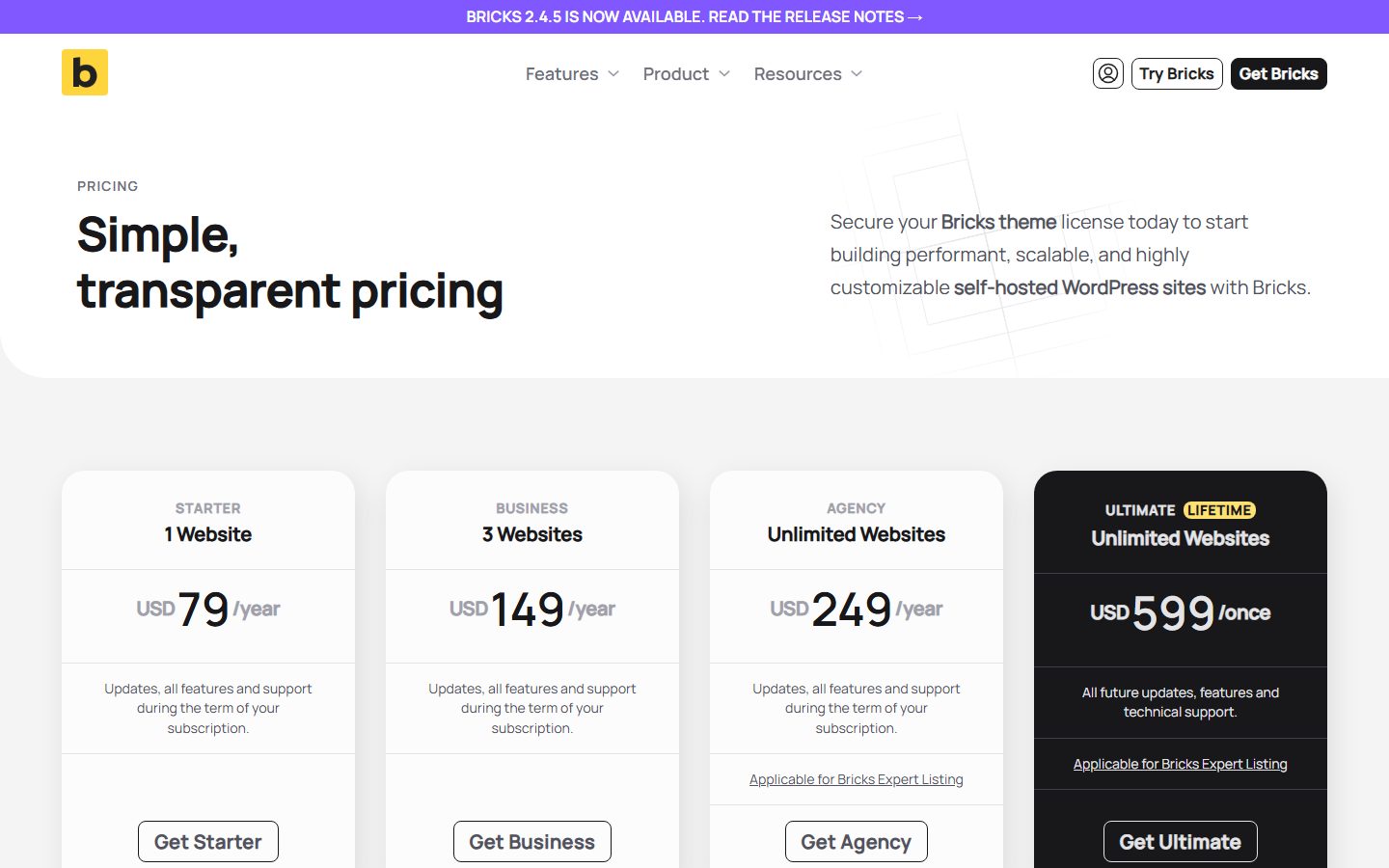
The pricing page lists four plans. Every plan includes the full feature set; the difference is the number of sites and whether payment is yearly or one-time.
| Plan | Websites | Price | Billing | Expert Listing |
|---|---|---|---|---|
| Starter | 1 | USD 79 | Yearly | Not listed |
| Business | 3 | USD 149 | Yearly | Not listed |
| Agency | Unlimited | USD 249 | Yearly | Yes |
| Ultimate Lifetime | Unlimited | USD 599 | One-time | Yes |
Licence terms the page spells out
- Local and staging sites do not count against the site limit.
- Every WordPress site URL needs its own active licence, including each multisite subsite (unless local or staging).
- One licence may be used on your own sites and clients’ sites, but reselling the licence is prohibited.
- You can restrict activation with whitelist and blacklist URLs under the Sites tab.
- Plan changes are prorated: upgrades incur a charge and downgrades earn a credit.
- The page advertises a 60-day money-back guarantee; after 60 days, if the subscription has not yet renewed, you can email for a refund of its remaining value.
- After cancellation the licence stays active until the billing period ends; then you lose updates, support and community templates, but can still edit your sites.
A multi-year cost model
The arithmetic below uses only the listed prices and assumes the yearly plans renew at the same list price. We could not verify on the pricing page whether renewals are discounted or increased, so check your checkout and account page for the renewal price before you rely on these totals. Taxes are extra.
| Plan | Year 1 | 3 years | 5 years |
|---|---|---|---|
| Starter (1 site) | USD 79 | USD 237 | USD 395 |
| Business (3 sites) | USD 149 | USD 447 | USD 745 |
| Agency (unlimited) | USD 249 | USD 747 | USD 1,245 |
| Ultimate Lifetime (unlimited) | USD 599 | USD 599 | USD 599 |
What the numbers say, as plain arithmetic: the lifetime plan costs the same as roughly 7.6 years of Starter, about 4 years of Business (USD 596 after four years, USD 745 after five), and about 2.4 years of Agency (USD 498 after two years, USD 747 after three). Per site, the cost is lowest when you actually use the allowance: Business works out to about USD 49.67 per site per year across three sites, and Agency drops below that if you run more than five sites.
Analysis: if you plan to keep building with Bricks for more than a few years across several sites, the lifetime plan pays for itself against the Agency plan in about the third year. If you have a single site and are unsure, the Starter plan plus the 60-day guarantee is the low-risk entry. Lifetime also means the vendor must stay in business; that is a general risk with any one-time licence, not a finding about this vendor. For comparison with other builders’ pricing models, see our Elementor alternatives guide.
Migration to and from Bricks
We did not find a migration guide titled as such in the Academy. The nearest documented pieces are the “HTML and CSS to Bricks” feature and a developer guide to a converter, so the vendor’s own path appears to be convert-by-paste and rebuild rather than an automatic importer from other builders. Treat any claim of one-click conversion from a specific competitor as something you must verify yourself.
Moving to Bricks
- Content: posts, pages, media, users and custom fields live in WordPress and normally survive a theme switch. Layout from your old builder generally does not.
- Layouts: plan to rebuild templates. If you have a clean HTML and CSS source (a design export or a static prototype), the paste conversion can create elements, global classes and variables, but the vendor itself calls the result a starting point.
- Shortcodes and leftovers: removing a builder often leaves shortcodes or wrapper markup in post content; plan a search-and-replace pass.
- Staging: because local and staging sites do not count against the licence site limit, you can rebuild on staging at no extra licence cost, then switch over.
Moving away from Bricks
Because Bricks is both your theme and your layout engine, leaving means choosing a new theme and rebuilding layouts. Bricks element output uses brxe- classes and its own structure, so layouts will not translate to another builder automatically. After a subscription lapses, the vendor says you keep the ability to edit your sites, which softens a forced exit, but you lose updates and support, and an un-updated theme is a security liability over time. For host moves rather than builder moves, our guide on migrating WordPress to a new host applies equally.
Strengths and weaknesses (our analysis)
The following is judgement based on the documented design, not on measurements.
Strengths
- Breadth included on every plan. Query loops, conditions, interactions, popups, forms and a WooCommerce builder are all in the base product, not separate paid tiers.
- Simple pricing with a lifetime option. Four prices, one feature set, and a documented 60-day refund window.
- A coherent design-system toolset. Classes, variables, theme styles, a colour manager, fluid scales and components cover the pieces a systematic builder wants.
- Developer-friendly. A Developer section in the Academy, a conditions API, filters, and documented PHP queries.
- A permission-first approach to AI. Abilities go through the Abilities API, honour WordPress capabilities and builder permissions, and keep code execution off by default.
- Active development. Five releases are listed from late September to early November 2026.
Weaknesses and risks
- Theme lock-in. Switching away means rebuilding layouts.
- Experimental surface area. AI Abilities, the modular WooCommerce elements (Cart, Checkout, Account, Mini Cart) and CSS Sync are all labelled experimental by the vendor.
- Frequent patch releases. Good for responsiveness, but 2.4.5 fixed a regression from 2.4.4, which argues for staging every update. Security fixes have also shipped in the 2.4 line.
- Learning curve. Many valid ways to style the same thing demand an agreed convention.
- Accessibility needs verification. Documented keyboard support exists, but forum history on menus means you should test, not assume.
- Documentation gaps on the marketing pages. Several feature pages omit details (built-in condition types, nested loops, file uploads) that you will need to find in the Academy.
- Ongoing cost. The yearly plans stop giving updates, support and community templates when they lapse.
How Bricks compares with other builders
The comparison below is deliberately high level and limited to what is publicly documented or is a matter of architecture. For a wider survey, start with our page builders compared guide, and for the most-searched match-up read Bricks vs Elementor.
| Builder | Architecture | Contrast with Bricks (analysis) |
|---|---|---|
| Etch | Plugin-based, the tool WPMusk itself uses | Different philosophy and a different packaging; see our Etch review |
| Breakdance | Plugin-based visual builder | Another modern builder aimed at the same professional audience; compare design-system depth and licence terms side by side in our other in-depth reviews |
| Builderius | Plugin-based, developer-oriented | Also aimed at technical users; evaluate with the same test plan below |
| Elementor | Plugin on top of any theme | Much larger ecosystem and install base, versus Bricks’ theme-level integration and single feature set; see Elementor alternatives |
| Divi, Oxygen, Beaver Builder, Greenshift | Mixed: theme-and-plugin (Divi), plugin (others) | Each has a different pricing and ecosystem model; check current terms on each vendor’s site and use our compared guide |
| Block themes (core Site Editor) | Core WordPress | Least lock-in, fewer built-in dynamic tools; see best block themes |
A fair summary of the Bricks position: it competes on depth per dollar and on a design-system model that appeals to people who think in classes and variables, and it accepts theme-level lock-in in return. If you already run a CSS framework such as Automatic.css, check how it integrates, as covered above.
A one-day evaluation plan for your own site
Because we have not benchmarked Bricks, the honest way to decide is to run your own test. Do this on a staging site or a local install (which, per the pricing page, does not count against the site limit). Use the 60-day refund window as a safety net, not a plan.
- Setup (30 minutes). Install the current Bricks release on staging with a PHP version your host supports. Note the installed version and whether the admin shows any requirement warnings.
- Design system (60 minutes). Create a colour palette, a spacing scale and typography variables, two theme styles, and a card component with one variant and two properties. Pass condition: you can change one variable and see the change propagate everywhere.
- Templates (90 minutes). Build a header, footer, blog archive and single post template. Pass condition: the responsive behaviour at your real breakpoints needs no custom CSS hacks.
- Dynamic content (90 minutes). Using your real custom fields (ACF, Meta Box or similar), build a listing with a query loop, a filter, pagination and one conditional element. Pass: the query returns the right posts and the condition hides and shows correctly. Try a nested pattern if you need it.
- Interactions and popups (45 minutes). Build a popup with a trigger and display condition, and a scroll-based interaction. Pass: they work on mobile and with the keyboard.
- Forms (30 minutes). Build your contact form with spam protection, an email action and database storage. Pass: submissions arrive, and spam protection loads without blocking real users.
- WooCommerce, if relevant (90 minutes). Use the classic templates first, then try the experimental modular checkout separately. Pass: a full test order succeeds with your payment gateway.
- Performance (45 minutes). Build the same page in your current builder and in Bricks. Measure Lighthouse and PageSpeed Insights (several runs each, record the median), the number of requests, DOM nodes, total JavaScript, and Core Web Vitals field data once live. Pass: Bricks is equal to or better than your baseline on your hosting and caching.
- Accessibility (45 minutes). Navigate the header menu, accordion, tabs and popup using only a keyboard, then with a screen reader. Pass: no keyboard trap, visible focus, and correct announcements.
- AI abilities, optional (45 minutes). On local or staging only, connect an AI client following the vendor setup, with a restricted user. Pass: it creates a simple section you can then edit visually, and no capability beyond what you enabled is reachable.
- Update test (15 minutes). Take a backup, update to the next patch release when one appears, and re-run steps 4 and 5 as a regression check.
Record results in a table of pass, fail and notes. A single failure on checkout, accessibility or a query you depend on should outweigh a long list of passes elsewhere.
Who should choose Bricks, and who should not
Choose Bricks if you build several dynamic sites a year, are comfortable with CSS concepts, want most features in one licence, and accept that your layouts live inside the theme. The lifetime plan makes the most sense if you will use it for more than a few years across several sites.
Think twice if you need to keep layouts portable, you want an AI generator built into the editor, you depend on the experimental WooCommerce checkout for a revenue-critical store, or you manage a site whose editors only know the block editor. In those cases, a plugin-based builder or a block theme may suit you better.
Frequently asked questions
Is Bricks a plugin or a theme?
A theme. The vendor describes it as a “visual site builder theme” for self-hosted WordPress.
How much does Bricks cost?
The pricing page lists Starter at USD 79 per year for one site, Business at USD 149 per year for three sites, Agency at USD 249 per year for unlimited sites, and Ultimate Lifetime at USD 599 one-time for unlimited sites. Taxes are added at checkout.
Do all plans have the same features?
According to the pricing page, yes: all plans include the full feature set, including all 149 elements, the Query Loop Builder, Menu Builder, Popup Builder, WooCommerce Builder, Conditions and Interactions. Plans differ by site count, billing and Expert Listing eligibility.
What happens if I stop paying for a yearly plan?
The licence stays active until the billing period ends. After that you lose updates, support and community templates, but, per the pricing page, you can still edit your sites.
Is there a refund policy?
The page advertises a 60-day money-back guarantee on the initial purchase. After 60 days, if the subscription has not yet renewed, you can email for a refund of its remaining value.
Do staging and local sites count against my licence?
No. The pricing page says local and staging sites do not count against the site limit.
Can I use one licence on client sites?
Yes, within the site limit of your plan: the page says one licence may be used on your own and your clients’ sites, but reselling the licence is prohibited.
Does Bricks have AI features?
Yes, but they work through an external AI client. Bricks 2.4 added AI Abilities that register with the WordPress Abilities API and are reachable by MCP-compatible clients. The vendor labels them Experimental and advises keeping them off on production sites. We could not verify built-in text or image generation.
Does Bricks work with WooCommerce?
Yes. The WooCommerce Builder covers shop, product, cart, checkout and account templates. The modular Cart, Checkout, Account Page and Mini Cart features are labelled experimental by the vendor, while the classic template workflow remains supported.
Is Bricks fast?
The vendor claims strong results, citing Lighthouse-style scores of 98, 100, 100 and 100, a smaller DOM, lazy loading and no jQuery, but it does not name the tested page or conditions. Real performance depends on your hosting, caching and content, so run your own comparison as described above.
Which custom field plugins does Bricks support?
The dynamic data page names Advanced Custom Fields, Meta Box, JetEngine, Toolset, Pods and ACPT.
Which PHP and WordPress versions does Bricks need?
The Academy requirements page we read states PHP 5.4 or higher and a WordPress memory limit of at least 64 MB (512 MB recommended), and does not list a minimum WordPress version. Use a currently supported PHP version and confirm requirements for your release in the vendor’s installation guide. The AI abilities additionally need the WordPress Abilities API (the page suggests WordPress 6.9 or later).
Has Bricks had security issues?
Patchstack lists a low-priority broken access control issue (CVE-2026-119325) affecting versions up to 2.4.0, fixed in 2.4.1, and the changelog mentions security fixes in later 2.4 releases. Keep it updated, test on staging first, and see our guide on vetting plugins and themes before installing.
Can I migrate from another builder automatically?
We found no documented automatic importer for other builders. The documented route is pasting HTML and CSS into the builder and rebuilding templates. Verify any migration claim on your own staging site.
This review is based on the vendor’s own documentation, pricing pages and other public sources. WPMusk has not published hands-on benchmark results for it yet, so there is no score.
← All reviews