A practical guide to choosing a lightweight block theme: what small really means, Site Editor quality, and the trade-offs to weigh before you commit.
What a lightweight block theme does, in plain words
A block theme builds the whole site, including the header, footer, page templates and styles, out of blocks that you edit in the Site Editor. A lightweight one adds as little as possible on top of WordPress itself: little CSS, little or no JavaScript, no bundled sliders or icon libraries and design choices kept in a settings file instead of a heavy options panel.
The appeal is simple. Less code sent to the browser usually means faster pages, fewer conflicts and fewer things that can break after an update. The trade-off is that you get fewer ready-made layouts, so you build more of the design yourself or lean on patterns.
WPMusk has not run hands-on tests of any theme named here. This guide teaches you how to choose and offers real themes as examples, not rankings. This page carries no score: it is guidance for choosing, not a measured result.
How it works under the hood
theme.json as the design source
The WordPress theme handbook describes theme.json as a foundational piece of block theming that you use to configure colours, set default typography and apply front-end styles. Because settings live in one structured file, the editor and the front end read the same values, and users can see and change them in the Site Editor’s global styles.
Templates, parts and patterns
A block theme provides templates for page types, reusable template parts such as the header and footer, and patterns, which are ready-made block layouts you insert. All of it is built from blocks, so there is no separate templating language to learn. The handbook’s block theme chapter also covers style variations, which let users choose from alternative designs.
Styles that load only when needed
The WordPress developer blog says styles set through theme.json are inlined and output as needed, and that block themes can load stylesheets per block. A Trac discussion describes core blocks loading their styles only when the block is on the page, and says WordPress 6.9 extended on-demand loading to classic themes. Check the 6.9 release notes for the current defaults rather than relying on this summary. The practical lesson is that a theme which uses core blocks and theme.json starts from a lean position.
Layers of customisation
The child theme documentation describes block theme output as layered: WordPress default settings, then the parent theme, then a child theme and finally the user’s own customisations in the Site Editor, which are stored in the database. Knowing where a change lives helps when you troubleshoot a style that will not change.
Who needs one (and who does not)
A lightweight block theme suits blogs, publications, portfolios, small business sites and anyone who values page speed and a tidy editing experience. It also suits teams that want editors to change layouts without a page builder licence.
It is a weaker fit if you want one-click demo imports of elaborate designs, built-in mega menus, complex shop layouts or animation effects. You can add these with plugins, but then the lightweight advantage shrinks, so be honest about what the site really needs.
If you already work comfortably in a page builder and rely on its widgets, compare the trade-offs in the page builder comparison before moving.
Types and approaches
| Approach | What you get | Typical strength | Typical risk |
|---|---|---|---|
| Minimal block theme | Core blocks, theme.json, a few patterns | Smallest footprint | You build more yourself |
| Pattern-rich block theme | Many patterns and style variations | Faster to a finished design | Unused patterns and fonts can add weight |
| Block theme plus block plugin | Extra blocks and controls from a plugin | More design control | Plugin assets can erase the savings |
| Block theme with paid tier | Free core plus premium patterns and support | Support and ready layouts | Features you need may sit behind payment |
| Classic theme with page builder | Builder widgets and templates | Familiar visual workflow | Heavier output; a different editing model |
What to look for
Our theme scoring weights are speed impact 30%, reliability 25%, support 20%, value 15% and ease of use 10%.
Actual front-end footprint (speed impact, 30%)
Open a demo page, view source and use the network panel. Count stylesheets, scripts and fonts, and note the transferred size. Lightweight should mean small in the page, not small in the marketing copy. Then rebuild a realistic page with your content and images on staging, because a demo with no content flatters every theme. The metrics that matter are explained in the Core Web Vitals guide.
Typography and fonts
Fonts are a hidden cost. Check whether the theme bundles local files, loads from an external service or relies on system fonts, and how many weights it requests. A restrained setup keeps the page light and limits layout shift while text loads. See the self-hosted fonts guide.
Site Editor experience (ease of use, 10%)
Try the template editor, global styles and patterns. Controls should be predictable, the editor view should match the front end and changes should not require code. Edit a header and a single post template, then see if the result survives a theme update.
Pattern and template quality
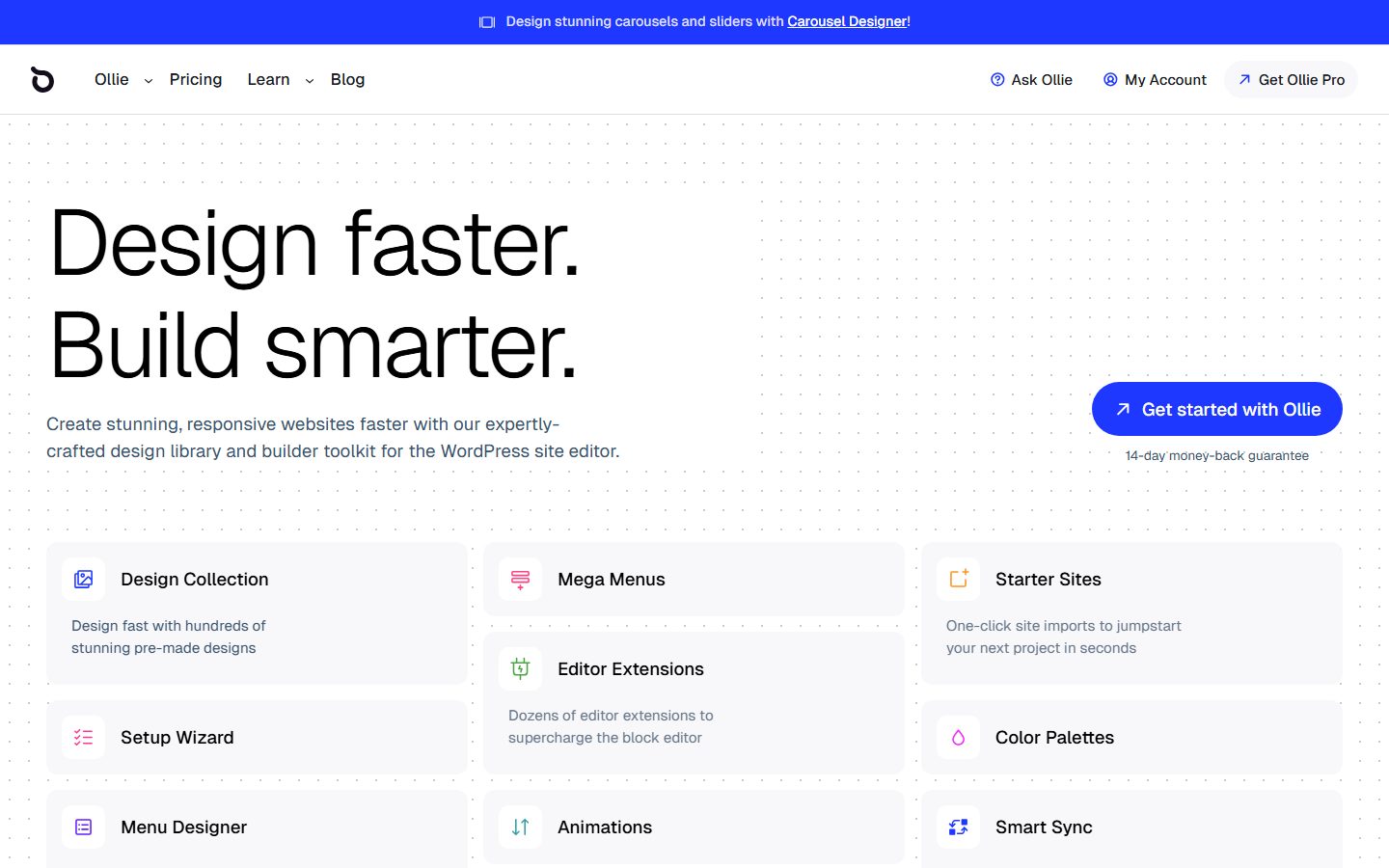
A good set of header, footer, post and archive patterns saves hours. Check that patterns are responsive and use theme colours and spacing instead of fixed values. Ollie’s listing, for example, describes over 50 patterns and 7 full-page layouts, and Frost’s listing mentions hero, portfolio and testimonial patterns.
Style variations
Variations change colours and type with a click. They are useful if you want choice without writing code, but each one can add CSS. Ollie’s listing shows 23 variations and Frost’s lists 8. Test the one you plan to use rather than the default.
Accessibility and standards (reliability, 25%)
Look for visible focus states, a skip link, sensible heading structure and adequate colour contrast in the default palette. An accessibility tag on the theme directory is a start, not proof, so check with a keyboard.
Plugin compatibility
Block themes rely on core features, so most plugins work. Check the ones you need, such as forms, SEO and shop plugins, and look at how the theme styles their output. Twenty Twenty-Five’s description says it supports international typography and several palettes, which is worth noting if your site uses more than one script.
Update cadence and support (20%)
Recent releases, a responsive support forum and clear changelogs matter more than a long feature list, especially for a theme you cannot swap later. Look at the minimum WordPress and PHP versions listed, since they show how current the theme is.
Value and licence (15%)
Free themes are often enough. If there is a paid tier, confirm exactly what it adds and whether you could do without it. Ollie’s listing says the theme is free with paid commercial upgrades or support available.
Real products to look at
These are examples, not rankings. Descriptions come from each theme’s wordpress.org listing and should be checked against the current version. See also the block theme roundup and the fast themes guide.
Twenty Twenty-Five. The default theme from WordPress. Its description says it emphasises simplicity and adaptability, offers patterns for page types such as services and landing pages and supports multiple colour palettes. It fits sites that want the platform’s own default and the longest-term compatibility with core.
Frost. Its listing calls it a clean, minimal block theme with patterns for hero, portfolio, call-to-action and testimonial sections, eight style variations and template editing. It fits sites that want a neutral starting point with some ready patterns.
Ollie. Its listing describes a free block theme with over 50 patterns, seven full-page layouts and 23 style variations, with paid upgrades and support through its website. It fits people who want a large pattern library on a block theme.
A child of one of these. The handbook describes block theme child themes as a way to override templates, parts and patterns without editing the parent, so parent updates do not erase your changes. It is a useful option when you need a few permanent changes.
A comparison checklist for your shortlist
| Question | Candidate A | Candidate B | Candidate C |
|---|---|---|---|
| Transferred size of a realistic page? | |||
| Scripts loaded on a plain post? | |||
| Fonts: local, external or system; weights? | |||
| Patterns and templates you will use? | |||
| Style variations: count and weight? | |||
| Keyboard, focus and contrast pass? | |||
| Works with your forms, SEO and shop plugins? | |||
| Last release and minimum PHP and WordPress? | |||
| Paid tier: what it adds and costs? |
Setup and migration steps
Before you switch
- Record your current look: screenshots, menus, widget areas, custom CSS and any code in the old theme’s functions file.
- List the plugins that add shortcodes or widgets the old theme displayed.
- Back up and build on a staging copy; the staging guide covers the process.
- Save key templates and patterns you plan to reuse.
During the switch
- Activate the new theme on staging and set up global styles first: colours, type scale and spacing.
- Rebuild the header and footer, then the post and page templates, then archives.
- Move menus, and replace widget areas with template parts.
- Check pages built with a page builder; they may not map neatly to blocks.
After the switch
- Compare page weight and loading metrics against the baseline you recorded.
- Check forms, search, comments and the 404 page.
- Remove plugins that only served the old theme, and unused fonts and media.
- Learn how your editors will make changes, and keep the notes where they can find them.
Common mistakes and red flags
- Trusting the word lightweight without checking what loads.
- Judging speed on a demo with no real content, images or plugins.
- Installing several plugins to restore features the old theme had, and losing the speed benefit.
- Heavy custom CSS that fights global styles, making future changes painful.
- Switching on a live site without checking templates, menus and widget areas first.
- Ignoring accessibility in the default colour palette.
- Editing the theme files directly instead of using a child theme or the Site Editor, so an update wipes the work.
- Loading a style variation with extra fonts and never noticing.
Cost and risk of switching later
Changing a block theme is less painful than changing a heavily customised classic theme, because your content stays in the same blocks. What does not travel is the design layer: templates, template parts, global styles and any patterns tied to the old theme. User customisations stored in the database may also behave differently under a new theme.
Page builder content is the larger risk. If your pages use a builder’s own markup, switching away leaves shortcodes or unstyled output. A site built with core blocks avoids that. This is one of the practical reasons people choose block themes.
Keep your design decisions in theme.json and your own patterns, and note any custom CSS in one place. Then a future switch means re-creating a few files rather than hunting through the site. The Create Block Theme plugin’s repository describes tools to export your customisations from the Editor into a theme, which can help you keep a record.
A one-afternoon evaluation plan on a staging copy
- Baseline (20 minutes). With your current theme, load three representative pages and record transferred size, request count, and fonts requested.
- Install (10 minutes). Activate the candidate. Pass: no PHP errors, and the site loads.
- Footprint check (20 minutes). Repeat the baseline on the same pages. Pass: fewer or similar requests, with no unexpected external hosts.
- Global styles (30 minutes). Set your brand colours and type scale in the Site Editor. Pass: changes show the same in the editor and on the front end.
- Template build (40 minutes). Edit the header, footer and single post template. Pass: you can do it without code, and the result is responsive.
- Plugin check (20 minutes). Test your form, SEO and search plugins. Pass: their output is readable and styled acceptably.
- Accessibility pass (20 minutes). Tab through a page using only the keyboard. Pass: focus is always visible, and a skip link exists.
- Exit check (10 minutes). Note where your changes live: files, database or both. Pass: you know what you would lose by switching away.
How we will evaluate it
WPMusk has not run hands-on tests of any block theme, and this page contains no test results. When a full review is published, it will say what was tested, on which pages and with what measurements.
The planned method is the evaluation plan above, judged against the weights listed earlier. For the wider picture of what else affects speed, see the speed optimisation guide.
Questions people ask
Will a lightweight theme make my site fast by itself?
It helps, but hosting, images, plugins and caching matter just as much. A light theme is a good start, not the whole job.
Do I need a page builder with a block theme?
Not necessarily. Patterns, the Site Editor and core blocks cover many layouts. Add a builder only if you find a clear gap.
What is theme.json?
A file that holds a theme’s settings and styles, such as colours and typography. The handbook calls it a foundational piece of block theming.
Can I use a lightweight block theme for a shop?
Often, but shop pages are complex. Test your shop plugin’s templates on staging before deciding.
Should I make a child theme?
If you need permanent changes to templates or patterns, a child theme keeps them safe from parent updates. For small changes, the Site Editor may be enough.
How do I know a theme is actually small?
View a realistic page in your browser’s network panel and count what loads. Do the same for any theme you consider.
Are free block themes good enough?
Often yes. Check what any paid tier adds and whether you need it.
This is a buyer’s guide for a type of product. It is based on public documentation, not on hands-on tests, and it carries no score.
← All reviews