What sets developer-focused WordPress builders apart: clean output, real design system support, and who should choose one.
What a developer-focused builder does, in plain words
A developer-focused page builder is a visual editor that treats a web page the way a front-end developer does. You work with real HTML elements, reusable classes, variables and dynamic data, and the builder shows you or lets you control the code it produces. The target user is someone who knows what a div, a class and a CSS variable are, and who gets annoyed when a tool wraps every element in five extra layers.
Compare that with the older drag-and-drop style, where the promise is that no one needs to know any of this. Developer-focused builders keep the visual canvas but expose more of the machinery. The trade is a steeper learning curve for more control and, vendors argue, cleaner output. This guide helps you decide whether you want that trade and how to test it. It is not a ranking, and WPMusk has not built a site with any of these tools for this page.
How it works under the hood
All page builders have to answer one question: where does the design live and how is it turned into a web page? There are three common answers.
- Builder-owned data. The layout is stored in a custom data structure in the database, and the builder renders HTML from it at request time. If you deactivate the builder, the layout does not turn into plain content.
- Block-based storage. The layout is stored as WordPress blocks in the post content, so the core editor can read it. Etch’s site says its content is built as custom Gutenberg blocks stored in core WordPress and argues this avoids builder lock-in. That is a vendor claim to test.
- Theme or plugin architecture. Bricks describes itself as a visual site builder theme. Breakdance describes itself as a plugin that installs like any other. This choice changes how you handle theme switching, templates and updates.
The things that matter to a developer are also what separate these builders: a class and variable system, nesting that maps to real HTML, query loops for dynamic content, conditions, custom code hooks and the ability to export or reuse components. Output quality depends on all of it, and on how you build. A builder that can produce clean markup can also produce a mess in the wrong hands.
Who needs one (and who does not)
Consider a developer-focused builder if:
- You build many sites and want a consistent design system with classes and variables, not one-off styles.
- You care about HTML structure, accessibility and performance, and want to control tags, attributes and landmarks.
- You build dynamic layouts, such as custom post type archives and loops, and want a visual way to wire them up.
- You work with a CSS framework. See our guide to the Automatic.css framework for the idea.
It is less suitable if the site will be edited mostly by non-technical clients who expect a very simple interface, or if you do not want to learn a design system. In both cases a simpler editor from the page builders compared guide may serve better.
Types and approaches
| Approach | Examples of the idea | Strength | Trade-off |
|---|---|---|---|
| Theme-based visual builder | A builder that is also your theme | Full control of templates, header and footer | Tied to the theme; switching later is a rebuild |
| Plugin-based visual builder | A plugin that works with a theme or on its own | Flexible to install and to combine | You must decide how it meets your theme |
| Block-native development environment | Visual tool that outputs core blocks | Content stays readable by WordPress | Newer ecosystem; fewer ready-made templates |
| Block plugin with design controls | A small set of flexible blocks | Smallest footprint; stays in the core editor | More manual building (see native block toolkits) |
| Code-first with a block theme | theme.json and patterns, no builder | Least dependency | Needs real front-end skills |
What to look for
For page builders we weight speed impact (30%), reliability (25%), support (20%), value (15%) and ease of use (10%), the same weights we use for plugins. Here is how each applies to this type.
Markup and front-end output (speed, 30%)
Inspect the HTML of a demo page. Count wrapper elements. Look at whether you can choose the HTML tag, add attributes and control which CSS and JavaScript loads. Vendors make performance claims, including a PageSpeed score or percent less HTML, but no shared method stands behind them. Test your own page. Our Core Web Vitals guide explains what to measure.
Class and variable system (ease of use, 10%)
This is the heart of a developer-focused builder. Bricks lists reusable classes, variables, palettes and theme styles. Breakdance describes global variables for colours, fonts and spacing. Etch lists true components. Check how classes inherit, whether you can nest and combine them and how easy it is to rename or refactor.
Dynamic data and loops (reliability, 25%)
You want visual query loops with filters and pagination, custom field support and conditional display. Bricks documents a query loop builder with the option to write custom PHP queries. Test with your real data model, for example custom post types and ACF fields. The block editor guide on patterns and the Query Loop shows what the core editor can do without a builder.
Reliability of the builder itself (reliability)
Check the release cadence, changelog, and what happens after a WordPress core update. A young product can move fast and break things. Ask how migrations of your saved designs are handled between major versions.
Portability and lock-in (value, 15%)
Deactivate the builder on a staging copy and see what remains. Look for export of templates, components and global settings. This is where block-based storage claims should be tested.
Client editing experience (ease of use)
Clients need to change text and images without breaking a layout. Check whether you can lock structure, hide controls and give editors a simple screen.
Support and documentation (support, 20%)
A builder for developers lives on its documentation. Read it. Look for searchable docs, examples, a changelog, a community and a clear support channel. For AI-connected features, such as those Bricks and Breakdance describe, check whether they are marked experimental.
Real products to look at
These are examples of builders that describe themselves as developer-oriented, not rankings. Descriptions come from vendor pages as we read them while preparing this guide, and claims about speed and output are theirs. We did not test them.
Bricks. Calls itself a visual site builder theme. Its page lists reusable classes, variables, palettes and theme styles, unlimited custom breakpoints, a query loop builder with custom PHP queries, dynamic data, conditions, interactions, custom code, a menu builder and a WooCommerce builder. It fits developers who want one tool for the whole site and are comfortable with it being the theme. We compare it with a mainstream editor in Bricks vs Elementor.

Etch. From Digital Gravy, which describes it as a visual development environment rather than another page builder. Its site advertises components, loops, conditional logic and content stored as custom Gutenberg blocks, and says you can see, modify and export your code. Most coverage we found is vendor material and interviews, so read its documentation closely. Our Etch review page has more context.
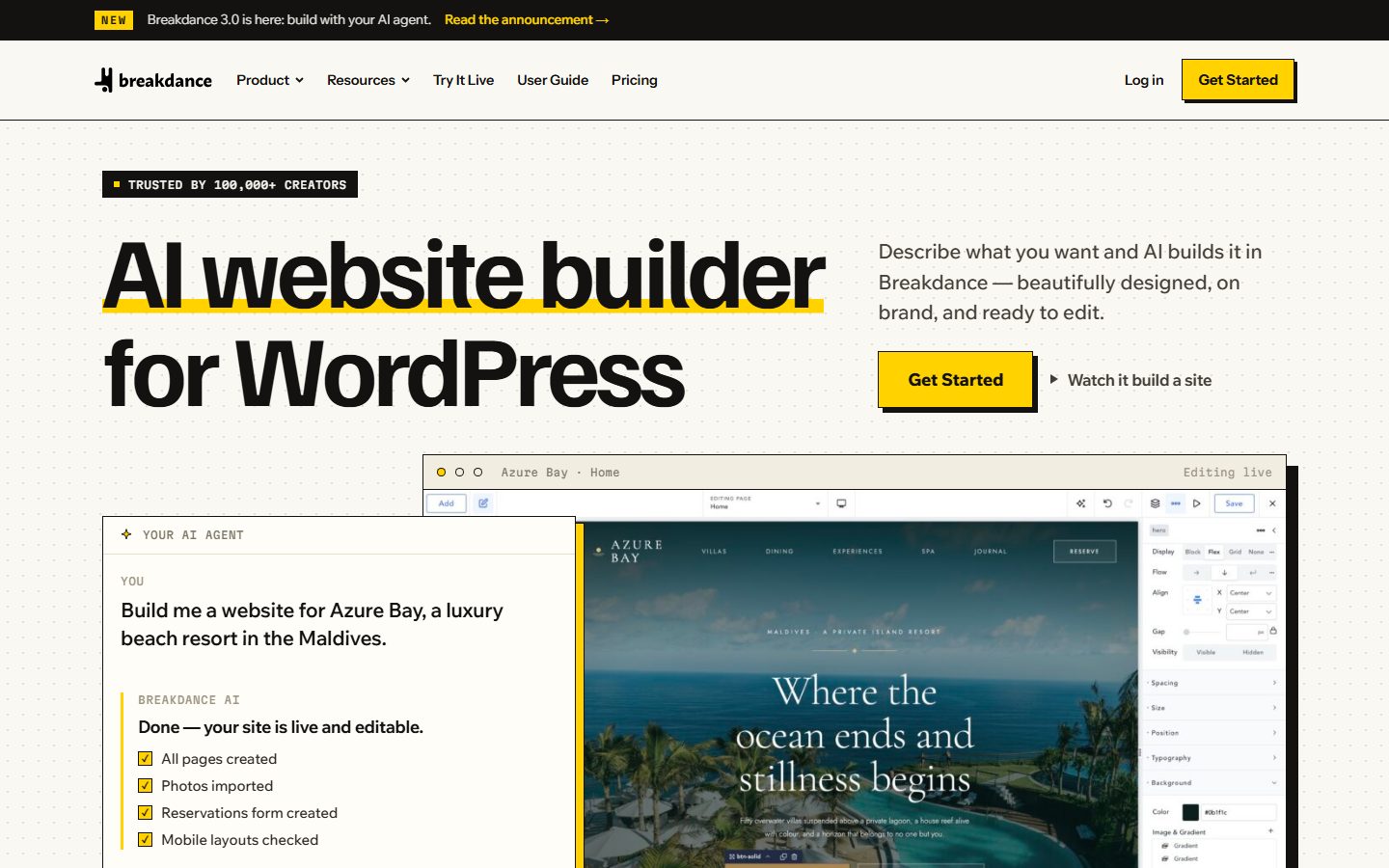
Breakdance. A plugin that describes global variables, dynamic data, forms, WooCommerce templates and 145 built-in elements, plus an AI connection for MCP-compatible agents. Its page claims clean code and fast load times but gives no benchmarks. It fits designers who want a lighter learning curve with developer features.
Oxygen. Reviewers describe it as a developer-focused builder that replaces the theme and gives full control over HTML, CSS and JavaScript. Sources disagreed on the status of its newest version, so check the vendor’s site for the current release before you plan around it.
GenerateBlocks. Not a full builder, but relevant: its WordPress.org page describes nine blocks, including Container, Query and Looper, and says it generates minimal CSS only for the blocks you use. It fits people who want a block-native approach with control. See our native block toolkit buyer’s guide.
A comparison checklist for your shortlist
| Question | Why it matters | Builder A | Builder B |
|---|---|---|---|
| Theme, plugin or block-based? | Architecture and lock-in | ||
| Can I choose HTML tags and attributes? | Semantics and accessibility | ||
| Classes, variables and components? | Design system quality | ||
| Query loops with custom fields? | Dynamic content | ||
| Conditions and custom code? | Flexibility | ||
| What remains if I deactivate it? | Exit cost | ||
| Template and component export? | Reuse across sites | ||
| Client-safe editing? | Handover | ||
| Licensing: sites, updates, renewals? | Real cost | ||
| Update history and documentation? | Maintenance burden |
Setup and migration steps
Before you commit
- Write a short list of the page types you build: home, landing page, blog archive, product page. Use them as your test set.
- Decide whether you want one builder for everything or only for certain page types.
- Check licence terms: number of sites, what updates and support stop if you do not renew.
During the build
- Install on a staging site and set your global styles first: colours, type scale, spacing and base classes.
- Build one component, such as a card, and reuse it. Check that edits propagate.
- Wire up one real dynamic template. Watch the markup as you go.
When migrating an existing site
- Do not migrate everything at once. Rebuild the most important templates first.
- Keep the old builder active until the new pages are tested, then remove it.
- Check redirects and metadata. See the 301 redirect guide if URLs change.
Common mistakes and red flags
- Believing “clean code” means fast without checking the whole page, including images, fonts and scripts.
- Skipping the design system, then building one-off styles on every page.
- Wrapping everything in containers because the builder makes it easy.
- Giving clients full builder access and being surprised by broken layouts.
- Buying on a demo, not on your own content and data.
- Ignoring renewal terms for updates.
- Choosing a very young tool for a long-lived client site with no exit plan.
- Relying on experimental features, such as AI-driven page creation, for production work.
Cost and risk of switching later
Switching page builders is nearly always a rebuild. Layouts live in each builder’s structure, and even block-based storage does not guarantee that blocks from one tool will look right without it. The more of your site is in builder-specific features, such as custom loops, interactions and global classes, the more work a switch needs.
Reduce risk by keeping content in standard fields, using the builder mostly for layout and styling, documenting your naming conventions and keeping your design tokens in a framework or in theme.json where you can. Test a deactivation on staging once a year. Remember that a licence can lapse, and plan for what happens to updates if you stop paying.
A one-afternoon evaluation plan on a staging copy
Most of these tools offer a trial, a demo or a refund window, so check the terms first. You need about four hours per builder.
- Build a reference page (60 minutes). Recreate one real page with a hero, three cards, a form and a footer. Pass: finished without fighting the tool.
- Inspect the output (20 minutes). View source. Count wrapper elements, check heading order and landmarks. Pass: structure a human would write.
- Measure (30 minutes). Run PageSpeed Insights on the page and compare with the same page in your current tool. Note page weight, number of requests and Largest Contentful Paint. See the speed optimization guide.
- Dynamic template (45 minutes). Build an archive with a loop, a filter and pagination from your real content. Pass: works without custom workarounds.
- Design system test (20 minutes). Change a brand colour and a spacing value globally. Pass: the whole page updates correctly.
- Client edit (20 minutes). Log in as an editor and change text and an image. Pass: no way to break the layout by accident.
- Deactivation test (15 minutes). Turn the builder off on staging and see what content remains.
- Accessibility check (20 minutes). Tab through the page with the keyboard and check focus order.
How we will evaluate it
WPMusk has not built sites with developer-focused builders for this page. It draws on vendor pages, WordPress.org listings and third-party descriptions, which we flag where they conflict. This page carries no score: it is guidance for choosing, not a measured result.
A full review will follow the plan above on a staging site, record the version and licence tested, and publish the markup size and page weight alongside the score. We will separate the builder’s claims from what we measured.
Questions people ask
Is a developer-focused builder faster than a mainstream one?
Vendors say so, but no independent comparison method exists on their pages. Speed depends on the output, your images and fonts and your hosting. Test your own pages.
Do I need to know CSS?
You do not have to, but you will get far more value if you do. Classes, variables and custom code are the point of these tools.
Can clients still edit content?
Often yes, though how well depends on the tool. Block-based approaches let clients use the core editor, which Etch’s site describes as an aim.
What happens if the developer stops updating the builder?
Your site keeps working until WordPress or PHP changes break it. This is why the exit path matters.
Should I use a builder at all, or just a block theme?
If your layouts are simple, a block theme with patterns may be enough. See block themes for WordPress.
Are the AI features ready for production?
Bricks labels its AI abilities as experimental. Treat any AI page creation as a first draft you review, not a finished site.
This is a buyer’s guide for a type of product. It is based on public documentation, not on hands-on tests, and it carries no score.
← All reviews