If you build WordPress sites for a living, you have probably felt the tension between visual builders and clean code. Visual tools are fast but can leave you with heavy markup and a proprietary layout format. Hand-coded themes are clean but slow to produce and awkward for clients to edit. Etch WordPress is an attempt to close that gap, and it is getting a lot of attention from developers.
This review explains what Etch is, how it works with the block editor, what its loops, components and dynamic data do, what it requires and costs, and where it falls short. It is a review based on the vendor’s public documentation and pricing pages, not on hands-on benchmarking. I will say plainly what I verified and what I could not.
Disclosure: WPMusk is built with Etch and the Automatic.css framework. We have a stake in how this product is perceived, so treat the praise accordingly and use the cautions as seriously as the strengths. We make no speed or performance claims here, because we have not published benchmarks.
Key takeaways
- Etch is a visual development environment for WordPress that saves what you build as custom Gutenberg blocks, so clients edit content in the normal block editor.
- It targets developers and agencies who want real HTML, CSS and JavaScript, loops, components and dynamic data rather than a template library.
- Its documented minimums are WordPress 5.9, PHP 8.1 and a 64MB memory limit (128MB recommended), with a modern browser for the interface.
- The vendor also sells a separate product, Etch Studio, and says new features arrive there first, so check the roadmap before you commit.
- It is a poor fit for beginners who want one-click templates and a big add-on marketplace, and for sites where nobody on the team writes any code.
What is Etch for WordPress?
Etch is described by its makers as a visual development environment. It is available as Etch for WordPress, often shortened to EtchWP, and as a separate product called Etch Studio. The company behind it is Digital Gravy, which also makes the Automatic.css framework (see the official Etch site). This article is about the WordPress version.
The key idea is that Etch is a place where developers build, and WordPress’s block editor is where clients edit. You design in Etch on a canvas, work visually or in code, and Etch saves the result as custom Gutenberg blocks. The vendor’s documentation puts it this way: Etch remains the development environment, while Gutenberg serves as the client-facing editor.
Before reading further, look at the vendor’s own front page. On the screenshot below, note the code snippets floating around the hero (a loop tag, a dynamic key, a CSS variable and a component tag). They tell you the intended audience: people who are comfortable with that vocabulary.
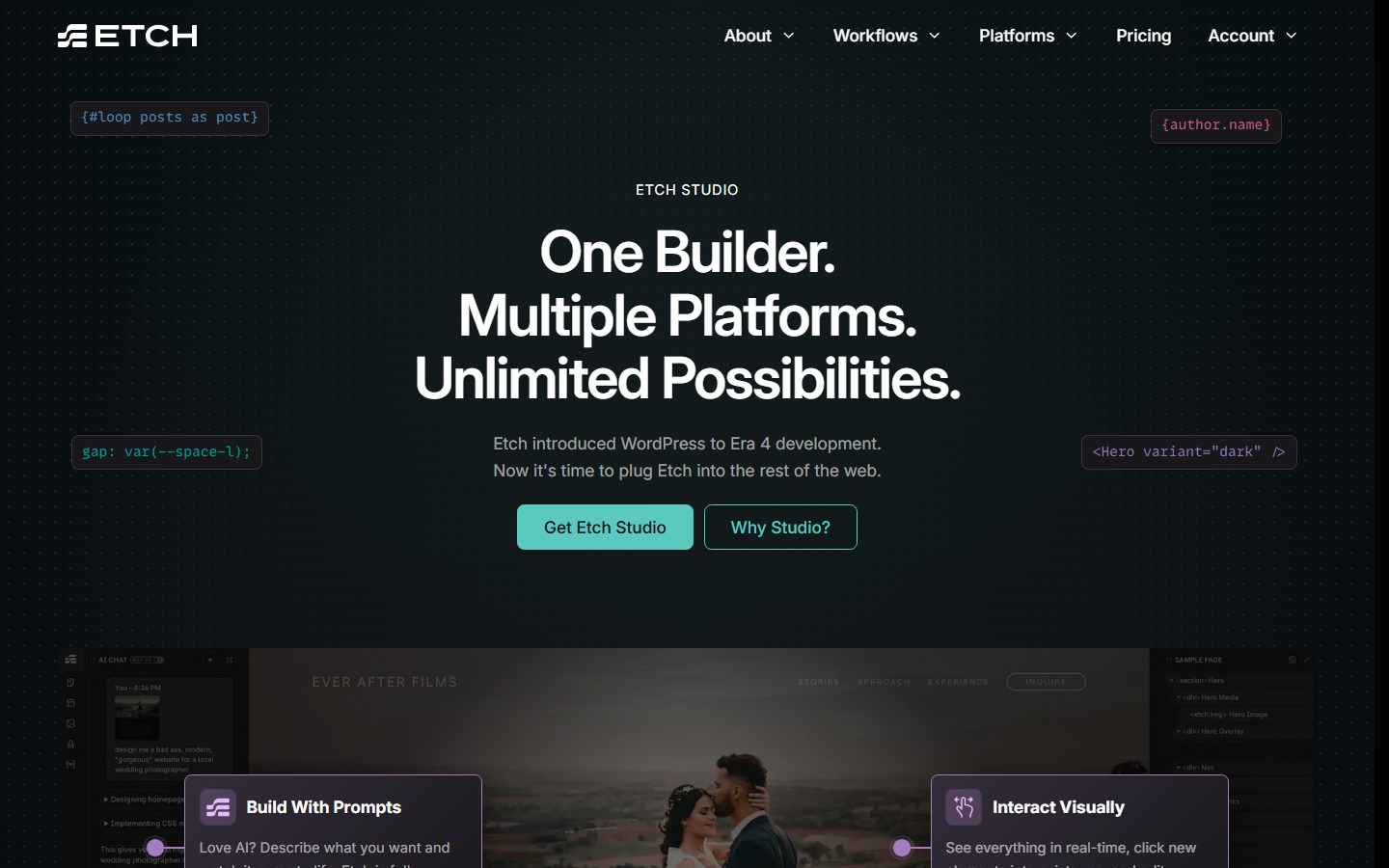
Where it sits in the builder market
Etch belongs to the developer-oriented family of builders, alongside tools such as Bricks, Oxygen and Breakdance. It is not trying to be the easiest builder for a first-time site owner. If you are still working out which family of tools suits you, start with our WordPress page builders comparison, which sorts the field into families and explains how to choose.
If you want to see the neighbours before you commit, these are the three developer-oriented builders the vendor’s audience most often compares it with.
A note about the website address
At the time of writing, the long-used etchwp.com address redirects to the vendor’s etchbuilder.io site, while the documentation still lives on docs.etchwp.com. Product names and addresses may shift as the company reorganises its offering, so verify links from the vendor’s homepage.
How Etch works: the Gutenberg engine
Understanding the architecture explains most of Etch’s strengths and limits.
Custom blocks, not core blocks
According to the Etch documentation, the team first considered using core WordPress blocks and found them too limited. Matching a custom design would have required altering output, removing wrappers and overriding defaults, which they describe as unstable and hard to maintain. So Etch saves your work as its own custom blocks. The docs say these blocks render in the editor as they do in Etch, store content in WordPress and are less likely to break after core updates. They also allow finer content editing, such as spans inside headings, inline links and single buttons.
Two-way sync
The documentation describes a sync in both directions. Changes made in Etch appear in the block editor when you save. Edits made in the block editor sync back to Etch and the front end when you save. The editor reuses the structure panel names and labels from Etch, so the two feel related. The sync runs automatically with no manual configuration.
The rule: build in Etch, edit in Gutenberg
The docs are blunt about this: do not build things in the block editor. The block editor is for content editing only. That matters for team workflow. Developers do structure and design in Etch. Editors change text and images in Gutenberg. If your team likes to assemble layouts directly in the block editor, Etch’s model will feel restrictive. If you want a clean separation between design and content, it is a feature.
What is still on the roadmap
The same page lists some things as future features: controlling which elements clients can edit, locking parts of patterns or components, and distributing custom blocks and libraries to people who do not use Etch. If strict client-proofing is critical to you today, check the current documentation to see whether these have shipped, because they were described as planned when I read the page.
If you want to understand the native alternative, read our advanced block editor guide, which shows what you can do with patterns, variations and the query loop without any third-party builder. Our advanced block editor guide covers patterns and the query loop in detail.
Core features of Etch
The vendor’s feature list includes clean code, real components, loops and logic, dynamic data, isolated code, custom post types and custom fields, an asset manager, a developer API, a fluid responsive canvas, drag and drop, a JavaScript editor and framework agnosticism. Here is what the main ones mean in practice, based on the documentation.
Components
Components in Etch are saved as synced patterns, and per the documentation they render on the front end with no extra DOM elements. You can build variants with conditional logic. For a developer, this is the equivalent of a reusable partial: build a card, a hero or a pricing block once and reuse it everywhere, with props for the parts that change. For an agency, components are the foundation of a repeatable system across client sites.
Loops
Loops repeat content from a data source. The documented sources are WP Query (posts and custom post types), JSON (static or dynamic), WP Terms and WP Users. Child elements read the current item through dynamic keys such as {item.title}, and the markup form is {#loop loopName as item} followed by {/loop}. An optional second variable gives you the index, which starts at zero. On regular pages you define a custom query in the Loop Manager, while template main-query loops are handled automatically. Loops can be nested, and the docs list a separate nested loops page.
An important detail: by default, a loop with no items renders nothing. The docs show a “no results” message built with a second loop and a condition, and call this a workaround, saying a more official method is planned. That tells you the feature set is still evolving.
Conditional logic
Etch supports conditions, for example rendering something only for the first item in a loop. Conditions combine with components to produce variants, and with dynamic data to show or hide content based on values. If you have used conditions in Bricks or similar tools, the concept is familiar, though the syntax is Etch’s own.
Dynamic data and custom fields
Etch lists dynamic data and support for custom post types and custom fields among its features. In practice that means you can bind elements to post data, terms or custom field values, which is what makes templates for single posts, archives and custom content types possible. The documentation sidebar also lists sections for templates, facets and integrations, so look at the integration pages for the field plugins you use before you commit.
Real code and the JavaScript editor
The vendor states that Etch uses real HTML, CSS and JavaScript underneath, and it lists a JavaScript editor and isolated code among the features. For developers this is the main attraction: you can read and edit the output, and the markup is not a black box. It also means you must be comfortable reading and writing code to get the most out of it.
Asset manager and developer API
The asset manager and developer API suggest extensibility for teams that want to integrate custom code or tooling. The documentation includes a Public API section, including pages about loops. If you plan to extend Etch with your own PHP or JavaScript, read that section first.
Framework agnostic, with Automatic.css as an option
The vendor says Automatic.css is optional and that you can use any framework or none. Because both products come from the same company, they are closely associated, and Etch Studio even lists Automatic.css as pre-installed. If you want to know what the framework does for a builder workflow, see our Automatic.css guide, and treat it as an option rather than a requirement.
AI features
The vendor lists building with prompts and agentic AI workflows, with “any model, any harness”. The documentation describes two separate pieces for the WordPress version, Etch Intelligence and the Etch Connector, which a later section of this review covers in detail. If you plan to connect an AI agent to a WordPress site, our guide to AI and MCP for WordPress explains how the protocol works and what permissions to grant.
Requirements and compatibility
The requirements page in the documentation lists these primary requirements:
- WordPress 5.9 or later.
- PHP 8.1 or later.
- A WordPress memory limit of at least 64MB, with 128MB recommended.
It also says the Etch interface uses modern CSS, including color-mix and relative colour syntax, so you should use the latest version of your browser. The docs state that Etch should work in all browsers, but that Firefox may have bugs because it has received less debugging attention, and that a Chromium or WebKit browser gives the best experience. Safari has known bugs with OKLCH colour rendering and relative colour syntax, which can cause colour shifts in the interface.
The requirements page does not cover theme requirements. A separate Etch Theme page does, and it is important: the docs say Etch needs a companion block theme, which is covered in its own section below. The requirements page also does not mention plugin conflicts, so read the troubleshooting and known issues sections of the docs before you install Etch on a production site.
Hosting considerations
The memory figures are modest compared with some heavy builders, but a builder interface is demanding on the server, so a decent host helps. See our hosting comparison by use case and the guide to managed vs VPS hosting for how to choose. If you manage your own servers, our xCloud guide shows one way to do it. When you move an Etch site between hosts, test the front end and the editor on the new server, following our guide to migrating a WordPress site to a new host.
The Etch plugin and the Etch theme: what you actually install
The documentation describes a two-part install. You install and activate the Etch plugin, then you install and activate the Etch theme. After that you claim your licence, open any page or post and choose the Edit with Etch option to start building in the visual editor. Save and publish when you are done.
The theme is the part people overlook. According to the Etch Theme page in the docs, Etch requires a companion block theme to work properly. The page describes it as a minimal, blank block theme that supplies the hooks and structure Etch needs for automatic block authoring and Gutenberg compatibility, and says it includes no more and no less than that. The same page warns against switching themes during development or after launch, citing lost layouts, broken functionality and data corruption, and advises against considering other block themes at all.
That has a practical consequence. If you are used to choosing a theme first and a builder second, Etch reverses the order: the builder dictates the theme. Plan this before you take on a client whose site already runs a custom theme. You are not adding Etch on top of the theme; you are replacing the theme layer.
| Piece | What the docs say it does | What to check |
|---|---|---|
| Etch plugin | The visual development environment and the “Edit with Etch” entry point | PHP 8.1, WordPress 5.9 and a 64MB memory limit (128MB recommended) |
| Etch theme | A blank companion block theme that provides hooks for auto block authoring | Whether your existing theme’s features (menus, widgets, custom templates) are needed elsewhere |
| Theme licence | Needed for auto-updates and certain features; claimed from your account on the Etch site | That the licence key is stored with your other credentials and that you know who owns it |
| Your content | Stored in WordPress as custom blocks, not in Etch | That you can still open pages in the block editor after a test switch |
If you need a reminder of how block themes and the site editor relate to the rest of WordPress, our guide to the best block themes for WordPress explains the model that Etch’s theme plugs into.
Templates in Etch: index, single, archive and 404
Etch’s documentation defines a template as the structure and content layout for a group of URLs that share the same layout and content type. The rule of thumb on the Templates page is to create one whenever several URLs would render the same thing. The page also says that Etch writes every template it creates into WordPress’s full site editing template system, so the templates are not locked in a separate store.
| Template | Used for | Status in the docs |
|---|---|---|
| Index | The fallback for every content type; WordPress uses it when nothing more specific matches | Required, and the only template a site strictly needs |
| Single | Individual blog posts | Recommended |
| Archive | Category pages, the blog index and custom post type listings | Recommended |
| Author | Posts by one author | Marked as planned in the navigation |
| 404 | The “page not found” screen | Recommended |
Search Results and Page Templates appear in the docs navigation too, but the page I read did not describe them, so check those pages directly if your design needs them. The practical takeaway is to build the index template first, then add single and archive templates, and only then look at the rest. A site with three good templates and a handful of components is easier to maintain than one with twenty one-off layouts.
Responsive design in Etch: container queries instead of breakpoints
This is one of the places where Etch is opinionated. The Responsive Development page describes a container-query-first workflow. Media queries ask how big the screen is. Container queries ask how much space is available to the element. The docs argue that the viewport cannot know where a component sits, so a card that works in the main column may fail in a narrow grid.
Etch has no predefined global breakpoints such as a “tablet” width. Each component sets its own responsive behaviour. The docs give illustrative examples: a card that switches layout at 412 pixels, or a navigation that adapts at 322 pixels. The claimed benefits are components that work anywhere, less guessing about breakpoints and fewer media queries. The page says container queries use the same syntax as media queries, so it presents the learning curve as small.
Container queries are a standard CSS feature. You can read the browser-support picture on MDN or the web.dev documentation before you rely on them, and if your audience includes very old browsers, check support yourself. To verify responsive behaviour on a build, open your browser’s developer tools, switch to the responsive mode, and drag the width slowly from 320 pixels up to a wide desktop. Watch each component, not just the page. Then place the same component in a narrow column and a wide one and confirm that it adapts to its container.
Custom fields and integrations: this.meta and this.acf
The Integrations page is short. It says most third-party custom field plugins are supported and that you can read any custom field through the this.meta namespace. Advanced Custom Fields data is structured, so it is exposed under this.acf. The page also lists Controls, Custom Fields and Hooks sub-pages. It does not mention WooCommerce or other plugins, so verify anything beyond field plugins in the docs or with support before you plan around it.
The Known Issues page adds a caution. The Content Hub, which covers custom post types and custom fields inside Etch, is described there as a functional proof of concept that you should treat as a playground rather than a core part of your workflow, unless your needs are very basic. For real projects, that points to defining post types and fields with the tools you already trust and reading them in Etch. Our guides to Advanced Custom Fields and to custom post types, plugin or code cover the data side.
Etch pricing and licensing
Pricing is time-sensitive, so treat the following as a snapshot of the vendor’s pricing page at the time of writing, and confirm it before you buy.
- Etch for WordPress is billed per year. The page lists a Freelancer plan with three live installs, an Agency plan with twenty-five live installs and an Agency Elite plan with seventy-five live installs. All three list unlimited development installs. The listed annual prices are 99, 199 and 299 US dollars respectively.
- All three plans are listed as including priority email support, community access, WooCommerce integration and version control.
- Etch Studio is listed at 59 US dollars per month, with annual billing that the page says saves seventeen percent. It is billed monthly, with no lifetime deal, and existing EtchWP customers can get a reduced rate.
On the vendor’s pricing page, look at the switch under the headline that toggles between Etch Studio and EtchWP, and at the monthly and annual toggle on the Studio card. Make sure you are reading the EtchWP plans, not the Studio price, when you compare costs.
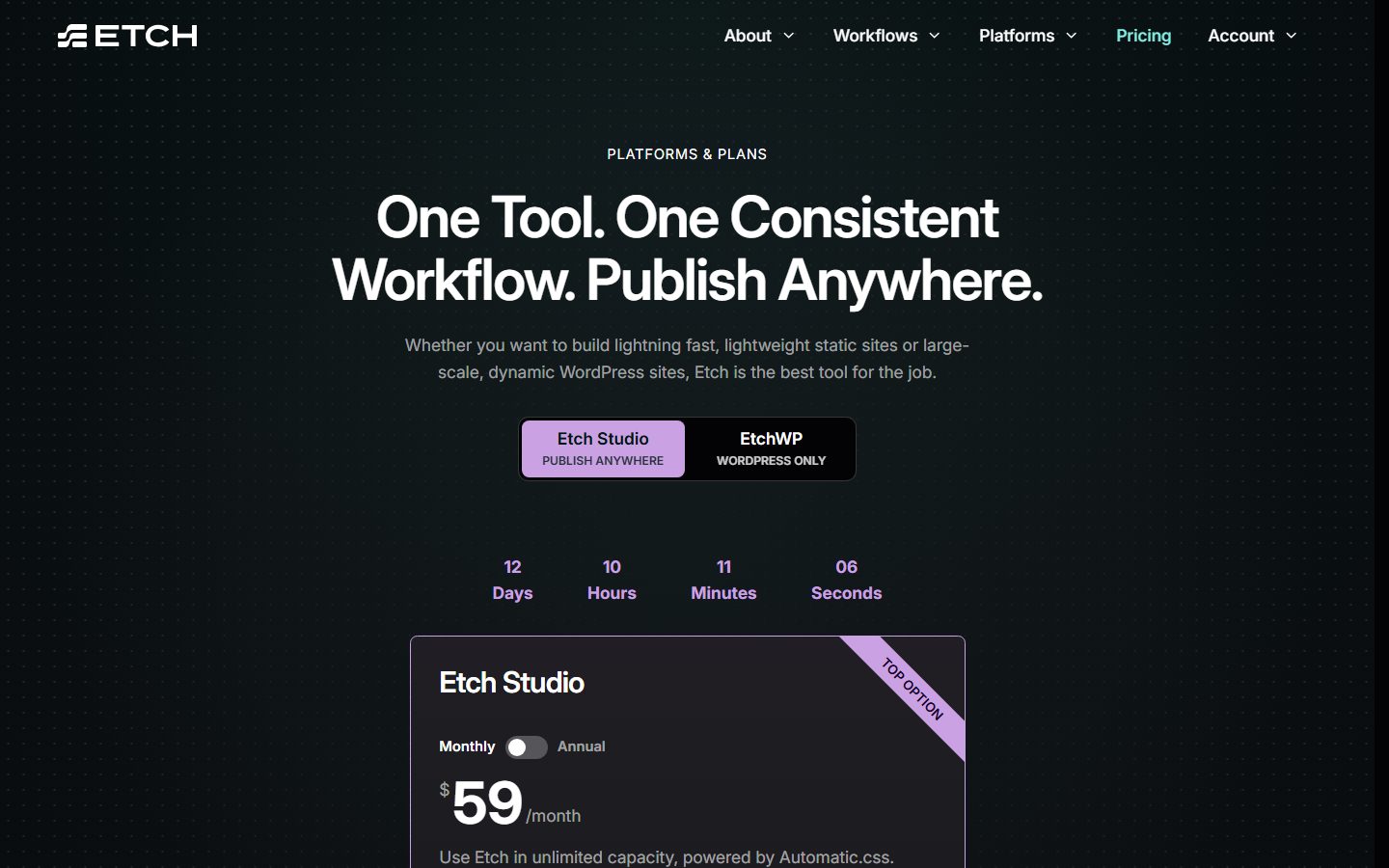
Live and development installs are a key distinction. A “live install” is a production site, while development and staging installs are unlimited on all plans. For an agency, that is a sensible model, but count your client sites before choosing a tier. Also check renewal terms and what happens to your sites if a licence lapses, using the vendor’s current terms rather than assumptions. Lock-in questions like this are covered in our broader page builder guide.
Etch vs other builders: how it differs
This is not a head-to-head test, but a comparison of stated approach.
| Aspect | Etch | Typical visual layer builder | Typical developer builder |
|---|---|---|---|
| Output format | Custom Gutenberg blocks synced with Etch | Proprietary layout data | Proprietary element tree |
| Client editing | In the block editor | In the builder itself | Often in the builder |
| Code access | Real HTML, CSS and JavaScript | Limited, via custom code areas | Strong custom code support |
| Template library | Free patterns listed by the vendor | Large template libraries | Varies |
| Learning curve | Steeper, assumes code literacy | Gentle | Moderate to steep |
| Ecosystem | Smaller, growing | Very large | Medium |
To see how differently the vendors pitch themselves, compare two front pages. Bricks describes itself as a visual site builder theme for self-hosted WordPress, while Elementor’s page leads with building by prompt and fine-tuning by hand. The first speaks to people who want control over structure, the second to people who want speed from a visual canvas.
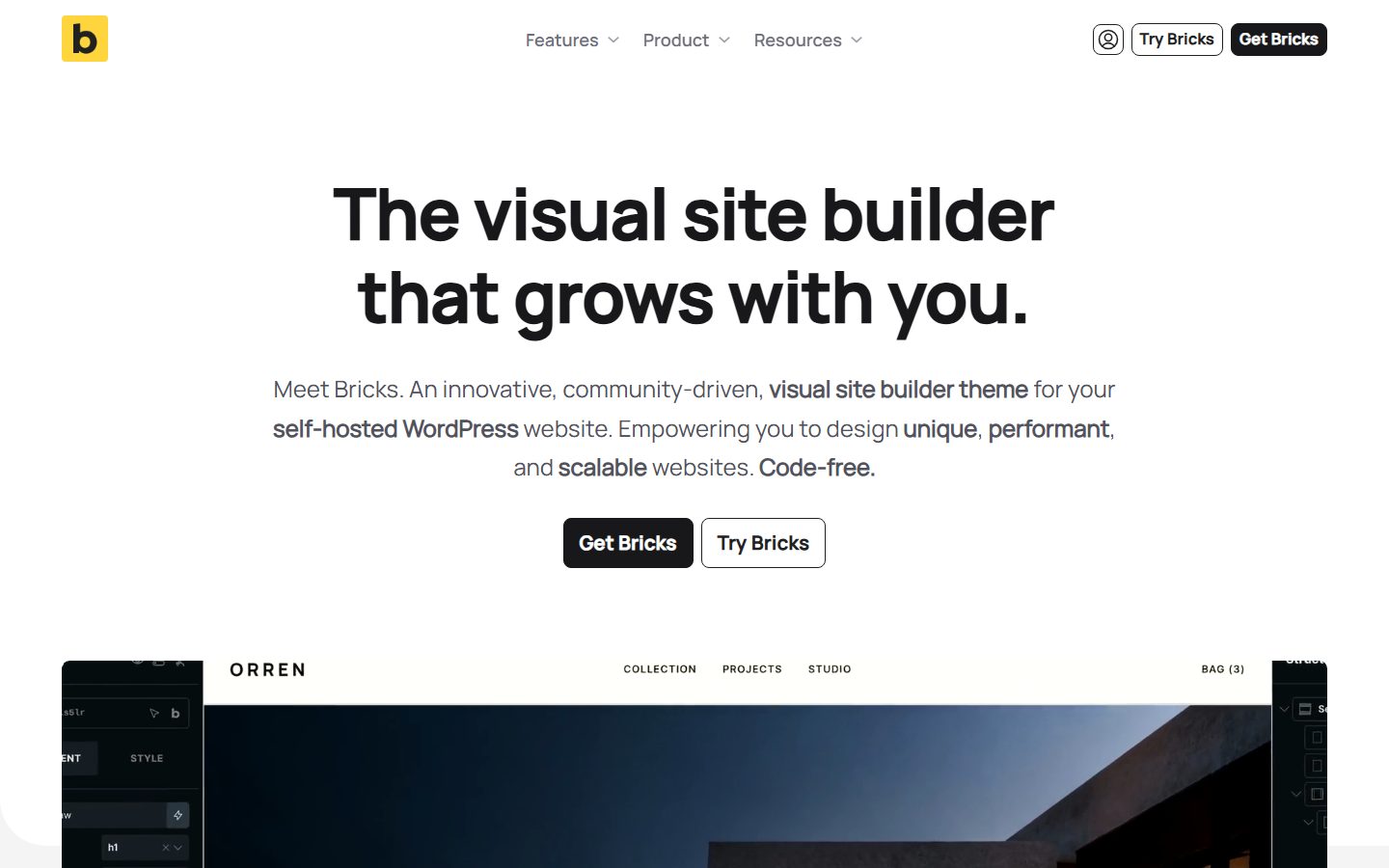
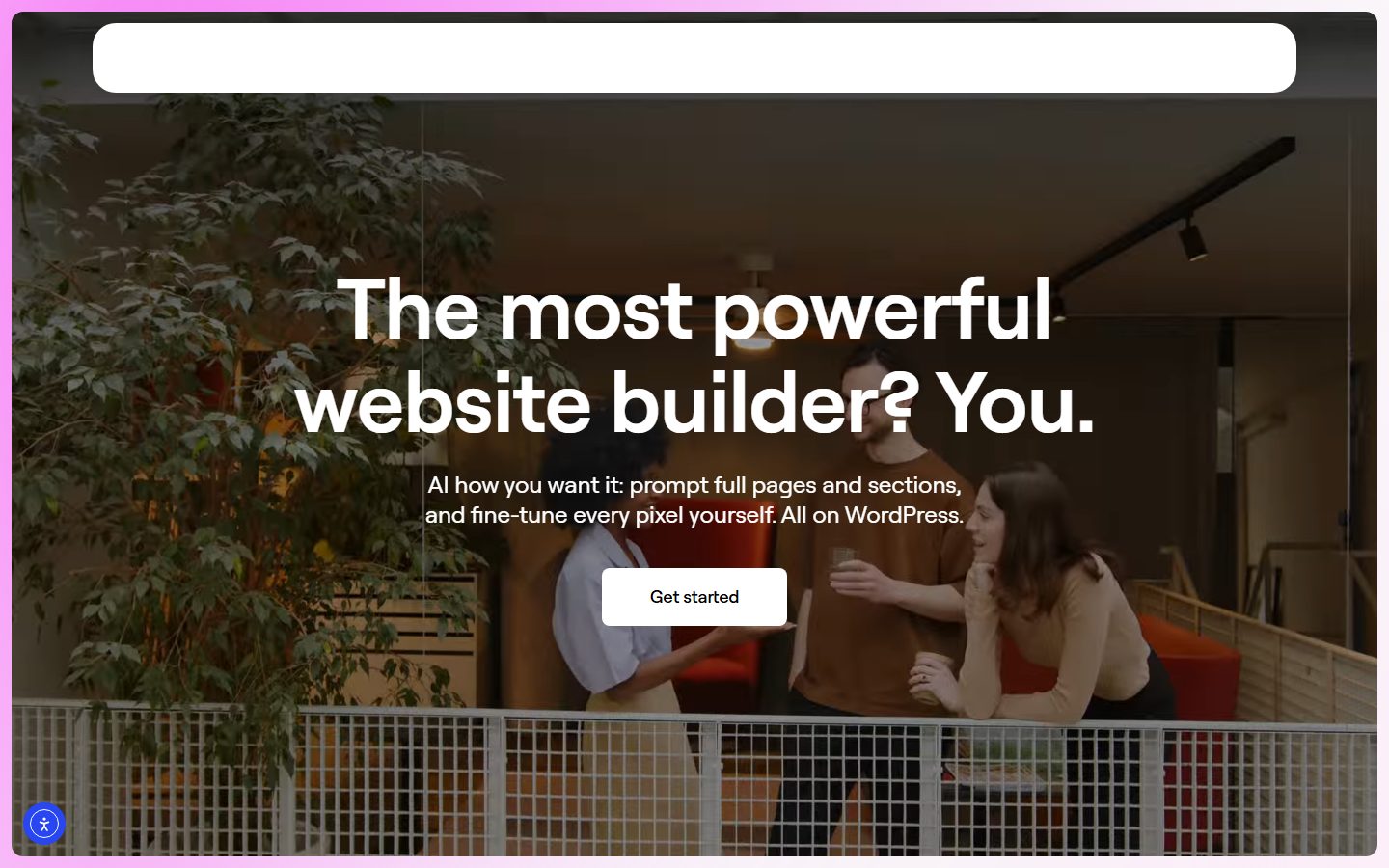
For a head-to-head between two established options, read Bricks vs Elementor, which shows how different working styles lead to different choices. Etch’s distinguishing choice is storing content as blocks that the standard editor understands, which means clients do not need to learn a second interface. A block theme-based site with a leaner footprint is another route, and our guide to the best block themes for WordPress shows what that looks like.
Strengths of Etch
- Client editing in Gutenberg. Clients and editors use the interface they already know, and developers keep control of design.
- Real code and readable output. The documentation emphasises real HTML, CSS and JavaScript, and says you can see and edit your code.
- Components that render without extra wrappers. This supports cleaner markup, according to the docs.
- Loops, logic and dynamic data in the builder. You can build data-driven templates without a separate plugin for each task.
- Framework agnostic. You can use Automatic.css, another framework or none.
- Installs and licensing designed for agencies. Unlimited development installs and tiers by live site count.
- Active documentation. The docs cover requirements, loops, components, templates, conditional logic, facets, responsive design, the Public API, integrations and troubleshooting, with a known-issues section and feature flags.
Limitations and cautions
- A steeper learning curve. It assumes you understand HTML and CSS concepts. Beginners may find a more template-driven builder easier.
- A smaller ecosystem. Do not expect the range of third-party add-ons and templates that older builders have.
- Features still maturing. The docs describe some functions as workarounds or planned, such as the “no results” loop approach, locking components and controlling client-editable parts.
- Two products and a shifting roadmap. The vendor says most new features are built in Etch Studio first and then ported to EtchWP, and describes EtchWP as still in active development. If you rely on a specific upcoming feature, ask the vendor or the community before you commit.
- Build-in-Etch rule. Teams that prefer assembling layouts in the block editor will need to change habits.
- Browser caveats. The docs warn about Firefox bugs and Safari colour rendering issues in the interface.
- Dependence on the builder to edit design. Content is in blocks, but the design lives in Etch, so you remain tied to it for layout changes.
- Time-sensitive pricing and naming. Check the vendor site for current plans.
Who should use Etch, and who should not
Etch is a good fit if
- You are a developer or an agency comfortable with HTML, CSS and some JavaScript.
- You want clients to edit in the block editor and not in a design canvas.
- You value clean, readable output and reusable components.
- You build data-driven sites with custom post types and fields.
- You want a design system approach and are happy to use a framework such as Automatic.css, or your own CSS.
Think twice if
- You are a beginner who wants one-click templates and a large library of add-ons.
- Nobody on the team writes code.
- You need a very mature, long-established ecosystem and plentiful freelancers who already know the tool.
- You need strict client-proofing features that the docs still list as planned.
- You want to build directly in the block editor.
A practical workflow with Etch
This is a suggested process based on the documented model, not a record of tests we ran for this article.
- Check requirements. Confirm WordPress, PHP and memory settings on your host, and use a Chromium-based browser for the interface.
- Install on staging first. Use a development install, which the pricing page lists as unlimited. Do not try a new builder on a live site.
- Define your design system. Decide on variables for colour, spacing and type, and choose whether to use Automatic.css or your own CSS.
- Build components. Create the repeated pieces first: buttons, cards, sections, headers and footers.
- Build templates. Use loops and dynamic data for archives and single pages, and set up custom queries in the Loop Manager for regular pages.
- Test the editing experience. Open pages in the block editor as a client would. Check what they can and cannot change.
- Test responsive behaviour. Check multiple breakpoints on real devices.
- Test integrations. Forms, SEO plugins, caching and, for stores, WooCommerce.
- Hand over. Provide a short guide on editing in the block editor and what not to touch. Our guide to a WordPress agency workflow covers staging, QA and handover in detail.
Etch Intelligence and the Etch Connector: the documented AI features
The Etch documentation describes two different AI features, and it helps to keep them apart.
| Etch Intelligence | Etch Connector | |
|---|---|---|
| What it is | A built-in chat assistant in its own builder panel | A free, open-source npm package, @digital-gravy/etch-connector |
| What it does | Generates code, content and data structures; has a Build mode (default) and an Ask mode | Lets an outside AI coding agent such as Claude Code or Codex work in a live Etch builder tab through Etch’s Public API |
| What you supply | Your own OpenAI API key; the docs say it is experimental and OpenAI is the only supported provider for now | An agent that can run commands on your machine |
| Where it runs | Inside the builder | On your computer, listening only on 127.0.0.1 |
For the connector, the setup in the docs is: turn on the AI Connector and open the builder, click the AI sparkles button, paste npx @digital-gravy/etch-connector serve into the agent’s chat so the agent runs it, then wait for the agent to confirm the connection. Changes then appear live in your open tab.
The Security page is candid. It says the connector rejects requests from web pages and accepts only JSON commands, that scripts run in a restricted mode with the etch.* API and standard JavaScript but without access to window, document, network requests or browser storage, and that this is a guardrail, not a vault, because it is not designed to contain deliberately malicious code. The advice is to treat it like any other developer tool on your machine and to connect only agents and run only scripts you trust. Apply the usual rules from our guide to AI agent security risks: work on a development install, keep a backup and review every change before it reaches a live site.
The docs do not state usage limits, pricing for the AI features, or model names, so do not assume any. If an AI workflow is the reason you are considering Etch, test it on a development install and write down exactly what it could and could not do.
Using Etch with AI agents and MCP
Etch markets AI-assisted workflows, and the wider WordPress ecosystem is moving toward agents that act through the Abilities API and MCP. If you plan to let an agent edit a site built with a developer-first builder, apply the same discipline as for any automation: work on staging, limit permissions, take backups and review the output.
Because Etch stores content as blocks and keeps design in its own environment, think carefully about what an agent should be allowed to change. Content edits through the standard WordPress interface are one thing. Changes to templates and components are another, because they affect many pages. For a deeper explanation of how agent access works, see our AI and MCP guide. We also use NibWP for agent control of WordPress on this site, but it is one option among several, and its use is independent of which builder you choose.
A worked example: a blog archive with a loop and a card component
This is a planning example built from the documented features, not a record of a build we ran. Panel names can differ between versions, so confirm each step against the docs for the version you install.
- Create the card component first. Build the card with an image, a title, a date and an excerpt, and expose the parts that change as properties. The docs say components are saved as synced patterns and render without extra wrapper elements.
- Open the archive template. Etch writes templates into the WordPress template system, so start from the archive template for posts.
- Add a loop. The documented markup is
{#loop loopName as item}followed by{/loop}. For a template’s main query the docs say the loop is handled automatically. On a regular page you would define a custom query in the Loop Manager. - Bind the card to the item. Inside the loop, child elements read the current item through keys such as
{item.title}. - Add the empty state. A loop with no items renders nothing by default. The docs show a workaround for a “no results” message using a second loop and a condition, and call a more official method planned.
- Add a condition for optional parts. Wrap the featured image in a condition (the Condition element is a shortcut for
{#if}{/if}) so a post without an image does not leave an empty box. - Check pagination. The Facets section lists pagination, search, filter and sort as planned, and the pagination page I read said “Coming soon”. If your archive needs paging or filtering today, plan for another approach and verify it first.
- Open a real post in the block editor. Confirm that an editor can change the text and image without seeing the design controls.
The step about pagination is the one most likely to change your decision. If a content-heavy site needs paged archives, filters or search inside Etch templates, verify the current state of those features on the vendor’s pages before you promise them to a client.
Known issues, troubleshooting and what to do about them
The documentation has a Known Issues page and a Troubleshooting section with an Activity Log. They are worth reading before you start, because they tell you where the product is still rough.
| Symptom | Likely cause | What to do |
|---|---|---|
| Odd partial class names appear in the Style Manager | The HTML editor debounces input and guesses when you finished typing a class, so slow typing can create partial selectors (documented known issue) | Add classes with the add-attribute bar instead of the HTML editor, then delete the stray selectors |
| Custom post types or fields built inside Etch behave unexpectedly | The docs call the Content Hub a functional proof of concept | Define post types and fields with a tool you trust and read them in Etch |
| Interface colours look shifted in Safari | The docs list known OKLCH and relative colour syntax bugs in Safari | Build in a Chromium-based browser |
| Interface glitches in Firefox | The docs say Firefox has received less debugging attention | Use Chromium or WebKit while building; Firefox for front-end checks |
| A loop shows nothing | An empty loop renders nothing by default (documented) | Check the query first, then add the documented “no results” workaround |
| Support asks for logs | Etch writes one structured event per request to a file | Download wp-content/uploads/etch/activity.log and any rotated .log.1 or .log.2 files by FTP or your host’s file manager |
One detail on the Activity Log deserves a check on your own server. The docs say it records request URLs, plugin version, timing and success or failure, and not passwords, personal information or authentication tokens. They also say Apache and LiteSpeed block web access to the file automatically, but Nginx and IIS need manual configuration. If your host runs Nginx, request the log’s URL in a private browser window. If the file downloads, ask your host or developer to block it. Our plugin conflict troubleshooting guide gives a general method for isolating problems when Etch is not the only suspect.
A one-afternoon evaluation plan with checks you can run yourself
WPMusk has not benchmarked Etch, so we cannot tell you how its output compares with another builder’s. You can find out on your own pages in an afternoon. Build the same simple page twice, once in Etch and once in the builder you use today, on the same staging server with the same content and images.
- Compare markup size. Open the page, press F12, go to the Network tab, reload and note the size of the main document and the total transferred. Repeat five times and use the middle value.
- Compare DOM size. In the Console tab, run
document.querySelectorAll('*').lengthon each page. - Run Lighthouse. In the Lighthouse tab, run a mobile audit several times on each page. Lab scores vary between runs, so look at the pattern, not one number. Our guides to PageSpeed Insights and Core Web Vitals explain how to read the results.
- Test the editor handoff. Ask someone who does not know the build to change a heading, swap an image and add a paragraph, then note where they got stuck.
- Test the exit. On a copy, deactivate Etch and see what is left, as described earlier.
Write the numbers in a small table, along with your own conclusions. That table is worth more than any vendor claim, including ours. For background on what drives page speed beyond the builder, see our WordPress speed optimisation guide.
Etch by team type: freelancer, agency, in-house and small site
| Situation | What matters most | Etch fit, based on the documentation |
|---|---|---|
| Freelancer with a few clients | Licence cost per live site, learning time | The listed Freelancer plan covers three live installs, so a fourth client means a plan change |
| Agency with many client sites | Live install count, repeatable components, handover | Unlimited development installs and a tiered plan by live sites suit staging-heavy work; component reuse suits repeatable systems |
| In-house developer with one site | Maintainability, editor experience | Good if you write CSS; confirm the roadmap items you need |
| Small business owner who edits their own site | Ease, templates, low cost | Weak: the tool assumes code literacy and has no large template market |
| Store with many products | Checkout reliability, plugin compatibility | The pricing page lists WooCommerce integration, but check the docs for what it covers and test on staging |
If you are pricing client work around a new builder, remember that the learning curve is a cost. Our guide to pricing WordPress projects shows how to include it.
Common mistakes when adopting Etch
- Building layouts in the block editor. The docs say the block editor is for content editing only. Build in Etch.
- Switching themes mid-project. The Etch Theme page warns against it. Decide before you start.
- Skipping the development install. The pricing page lists unlimited development installs on every plan, so there is no cost reason to experiment on a live site.
- Assuming roadmap items exist. Element-level edit permissions, component locking, facets and the author template are listed as planned. Do not sell them to a client.
- Treating the Content Hub as a production CMS tool. The docs call it a playground.
- Forgetting backups. Take one before every structural change. Our backup plugin guide and the backup routine tutorial show a simple schedule.
- Running agents with too much trust. Connect only agents you trust and keep them on development installs.
What to do this week
- Monday: Read the Etch Theme, Known Issues and Current Priorities pages in the docs, and list every feature you need that is marked planned.
- Tuesday: Create a staging site on a host that meets the PHP and memory requirements. Our staging site guide shows how.
- Wednesday: Install the plugin and theme, claim the licence and build one component and one template.
- Thursday: Run the measurement steps above against your current builder.
- Friday: Do the editor handoff test, write down the result and decide whether to continue.
If the answer is yes, review the maintenance checklist so that updates and backups are part of the plan from day one.
Frequently overlooked questions before you buy
What happens if you leave Etch?
The vendor says you can see, edit and export your code, and that content is stored as blocks. That helps, but design and layout logic are still tied to Etch. Test on a staging copy by deactivating the plugin and see what remains before you commit.
How many sites will you run?
Count the production sites you will manage this year and next. The pricing page ties tiers to live installs, so a growing agency may need to move up a plan.
Which product matches your plan?
EtchWP works inside WordPress. Etch Studio is a separate, standalone product that compiles sites into static files and publishes them to Cloudflare, according to the vendor, and the vendor describes it as not yet publicly launched. If your project needs WordPress, plugins and a database, that points to EtchWP.
If Etch Studio’s Cloudflare publishing is part of what interests you, the vendor names Cloudflare as the destination, so it helps to understand the platform.
Does your team have the skills?
If your team already writes CSS and understands components, ramp-up should be modest. If not, budget time for learning, and weigh that against the licence cost, as covered in our guide on how to price WordPress projects as a freelancer.
Etch review checklist before you adopt it
- WordPress, PHP and memory requirements met on your host.
- Chromium or WebKit browser available for building.
- Staging site ready and backups configured.
- Plan chosen based on live install count, with renewal terms read.
- Theme requirements read in the docs.
- Integrations you need, such as forms, custom fields and WooCommerce, checked in the docs.
- Roadmap items you depend on confirmed with the vendor.
- Design system decided: Automatic.css, your own CSS or another framework.
- Client editing tested in the block editor.
- Exit plan tested on a staging copy.
FAQ
What is Etch for WordPress?
Etch for WordPress, or EtchWP, is a visual development environment from Digital Gravy that lets developers design sites visually or in code. It saves what you build as custom Gutenberg blocks and syncs with the block editor, where clients edit content. It supports components, loops, conditions and dynamic data, and the vendor says it uses real HTML, CSS and JavaScript.
What are the requirements for Etch?
The documentation lists WordPress 5.9, PHP 8.1 and a WordPress memory limit of 64MB, with 128MB recommended. The interface uses modern CSS, so the latest browser is advised. Chromium and WebKit browsers are recommended, with Firefox possibly having bugs and Safari having known colour rendering issues. Check the docs for theme requirements and known issues.
How much does Etch cost?
At the time of writing, the vendor’s pricing page lists three yearly Etch for WordPress plans by live install count, with unlimited development installs, plus a separate monthly Etch Studio subscription. Prices and plans can change, so confirm them on the official site. Also check the renewal terms and what your sites keep if you stop paying.
Is Etch better than Bricks or Elementor?
Not universally. Etch stands out for storing content as blocks edited in Gutenberg and for its code-first approach. Elementor has a far larger ecosystem and a gentler learning curve. Bricks is another developer-friendly option with its own strengths. Compare them on your own project, using the questions in our builder guide and our Bricks vs Elementor comparison.
Can clients edit an Etch site without breaking the design?
Clients edit content in the block editor, which is the model Etch is built around. However, the documentation lists finer control over which elements clients can edit and locking parts of components as future features. So test the experience on a staging copy and decide whether the current level of protection is enough for your clients.
Do I need Automatic.css to use Etch?
No. The vendor says Automatic.css is optional and that you can use any framework or none. They are made by the same company and work well together, but you can use your own CSS or another approach. Choose based on your team’s habits and the design system you want to maintain.
Does Etch work with WooCommerce?
The vendor’s pricing page lists WooCommerce integration as included in the Etch for WordPress plans. The details of what is covered, such as product, cart and checkout templates, should be confirmed in the documentation before you plan a store build. Test on staging with your own products and checkout flow first.
What is the difference between Etch for WordPress and Etch Studio?
Etch for WordPress works inside WordPress and saves content as blocks. Etch Studio is a standalone product, which the vendor says compiles sites into static files and publishes them to Cloudflare with a light built-in CMS. The vendor says new features are generally built in Studio first and ported to the WordPress version, so check the roadmap.
Does Etch require its own theme?
According to the Etch Theme page, yes. Etch needs a companion block theme, which the docs describe as minimal and blank, and the page advises against switching themes during development or after launch. A licence is needed for the theme’s auto-updates and certain features.
How do I start building a page in Etch?
After installing and activating the plugin and the theme and claiming your licence, open any page or post and choose Edit with Etch, according to the Installation page. Save and publish when you finish.
Does Etch use breakpoints?
The docs describe a container-query-first approach with no predefined global breakpoints. Each component sets its own responsive behaviour, using the same syntax as media queries. Verify the result by resizing your browser and by placing components in narrow and wide containers.
Does Etch have AI features?
Yes, two. Etch Intelligence is an in-builder chat assistant with Build and Ask modes that, per the docs, is experimental and needs your own OpenAI API key. The Etch Connector is a free npm package that lets an outside agent such as Claude Code or Codex work in an open Etch tab. Neither feature’s limits or costs are stated in the pages I read.
Where does Etch keep its logs?
The Activity Log is a file at wp-content/uploads/etch/activity.log, with rotated copies. The docs say Apache and LiteSpeed block web access to it automatically while Nginx and IIS need manual configuration, so check that it is not publicly reachable.
Can I use ACF with Etch?
The Integrations page says ACF data is available under this.acf and that most other custom field plugins can be read through this.meta. Check the Controls, Custom Fields and Hooks sub-pages for details before you commit to a field-heavy design.
Are facets, filters and pagination available?
The docs list pagination, search, filter, sort, load, reset, apply and map as planned, and link to a third-party facets page. The pagination page I read said “Coming soon”, so confirm the current status before you design a filterable archive.
Can I use Etch on a site that already has a theme?
You can, but you are replacing that theme with Etch’s companion theme. Features that lived in the old theme, such as menus, widgets and custom templates, need to be rebuilt or replaced. Test the swap on a staging copy.
Conclusion and next steps
Etch WordPress is a serious option for developers and agencies who want clean, code-level control without giving up client-friendly editing. Its core idea, building in Etch and editing in Gutenberg, is sensible, and the documentation shows a feature set that covers components, loops, conditions and dynamic data. The cautions are equally real: a steeper learning curve, a smaller ecosystem, features that are still maturing and a roadmap split between two products.
If that profile matches your team, set up a staging site, build one real template and one component, and test the editing experience as a client would. If it does not, compare the alternatives in our complete guide to WordPress page builders and in Bricks vs Elementor before you decide. Either way, check the vendor’s current documentation and pricing, because they will keep changing.
Let your AI assistant do this for you
Open the ready prompt with step‑by‑step instructions for running it through NibWP.