Choosing among WordPress page builders is harder than it should be. Every vendor promises speed, freedom and clean code, and every comparison you read crowns a different winner. The underlying problem is that builders solve different problems for different people. The best tool for a freelancer shipping brochure sites is not the best tool for an agency maintaining fifty client sites, and neither is automatically right for a developer who wants hand-written markup.
This guide gives you a way to decide. It explains how WordPress page builders differ in architecture, what they cost over several years, how they affect performance and lock-in, and which kind of builder fits which kind of project. It covers the native block editor, Elementor, Bricks, Divi, Beaver Builder, Breakdance, Oxygen, Etch, Greenshift and GenerateBlocks, and it points to deeper WPMusk guides for each decision along the way.
A note on method: WPMusk has not run speed benchmarks or built test sites for this article, and you will not find invented numbers here. Everything product-specific comes from the vendors’ own public pages, read in November 2026, plus the screenshots captured from those pages. Where a vendor page did not state something, I say so. Features and prices change often, so confirm current details on each product site before you buy.
Disclosure: WPMusk itself is built with Etch and the Automatic.css framework. That shapes our experience and could bias us, so we treat Etch like any other option here and explain where it does not fit.
Key takeaways
- The right builder depends on who edits the site, who maintains it and how much control over markup you need, not on a ranking.
- There are three broad families: the native block editor, visual layer builders such as Elementor, Divi and Beaver Builder, and developer-oriented builders such as Bricks, Oxygen, Breakdance and Etch.
- Licence models differ sharply. Some vendors sell one-time lifetime licences, some sell yearly subscriptions with site limits, and some offer both. Compare the three-year cost, not the headline price.
- Lock-in is the cost most people forget. Ask what happens to your content and layout if you stop paying or switch.
- Performance depends more on your hosting, images, plugins and discipline than on the builder logo, but builders do differ in the markup and assets they output.
- In 2026, nearly every builder advertises AI agents or MCP connections. Treat them as useful extras and check what they can change before giving them access to a live site.
What WordPress page builders actually are
A page builder lets you design page layouts visually instead of writing templates by hand. You place elements on a canvas, adjust spacing, colours and typography, and the tool stores that design and turns it into HTML and CSS on the front end.
The phrase “stores that design” is where builders diverge. Some store layout as shortcodes or proprietary data in the database. Some store it as WordPress blocks. Some build their own element tree and render it with their own engine. Those choices decide how portable your work is, how heavy the output is, and how other developers can extend it.
What changed in the last few years
Three shifts matter for your decision today.
- The block editor matured. Full site editing, patterns, the query loop and block themes mean WordPress core can build whole sites. Our advanced block editor guide goes deep on this, and our list of best block themes shows which themes make the most of it.
- Builders became design systems. Variables, global classes and reusable components now sit at the centre of most major builders. Divi’s page lists global variables, presets and reusable global elements as Divi 5 features, and Bricks lists classes, variables and palettes.
- AI agents arrived. Elementor’s homepage now leads with prompting full pages and sections, Breakdance and Oxygen both announce agent-first releases, Beaver Builder promotes an AI layout feature and Etch describes prompt-driven building. Our guide to AI and MCP for WordPress explains the protocol and the safety considerations.
The three families of WordPress page builders
Sorting builders into families makes the market easier to read.
Family one: the native block editor
This is WordPress core. You use blocks, patterns and a block theme. It has no extra licence, it is maintained as part of WordPress and it keeps your content in a format other tools understand. The trade-offs are that the design controls are less detailed than in dedicated builders and some tasks need patterns, plugins or code. For many content-led sites, it is enough. Block-extension plugins such as GenerateBlocks and Greenshift sit in this family too: they add richer blocks to the same editor rather than replacing it.
Family two: visual layer builders
Elementor, Divi and Beaver Builder belong here. They emphasise a friendly visual interface, large template libraries and a wide ecosystem of add-ons. They suit people who want to design visually without touching code, including many freelancers and small business owners. The typical trade-offs are extra output weight, a licence to maintain and some dependence on the builder to keep content editable.
Family three: developer-oriented builders
Bricks, Oxygen, Breakdance and Etch sit nearer the code. They tend to offer fine control over markup, class-based styling, query and loop builders, conditions and custom code. They suit developers and agencies who care about clean output and repeatable systems. The trade-off is a steeper learning curve and, for some, a smaller ecosystem of ready-made add-ons.
These families overlap and vendors keep moving. Divi now markets itself as a “framework”, Elementor emphasises a design system, and Beaver Builder’s own homepage says it is the builder “freelancers start with” and “agencies never outgrow”. Still, the categories tell you which questions to ask.
Comparison table: WordPress page builders at a glance
This table compares approach, licence model as stated on vendor pages, and positioning. It does not compare measured performance, because WPMusk has not measured any. Verify details on each vendor’s current site.
| Tool | Type | Licence model (vendor page) | Best for | Think twice if |
|---|---|---|---|---|
| Block editor | WordPress core | Free, part of WordPress | Content sites, portability | You need advanced layout tooling fast |
| Elementor | Visual plugin with free version | Tiered by site count, billed annually or monthly, with multi-year terms | Visual designers, big ecosystem | You want minimal markup or avoid paid tiers |
| Bricks | Builder theme | Annual plans by site count, plus a one-time lifetime plan | Developers, query-heavy sites | You must keep an existing theme |
| Divi | Theme and builder | Yearly or lifetime, unlimited sites | Designers and agencies in its ecosystem | You have old Divi 4 modules to migrate |
| Beaver Builder | Plugin, with Lite on WordPress.org | Yearly plans from one site to unlimited | Stability, white-labelling | You want the newest design-system features |
| Breakdance | Plugin with free tier | Free, plus yearly Pro for one site or unlimited sites | Freelancers and agencies, AI-assisted builds | You need a huge third-party add-on market |
| Oxygen | Plugin | One-time lifetime licence, unlimited sites | Developers wanting control, no renewals | You need an easy path from older versions |
| Etch | Plugin and separate Etch Studio | Studio shown as a monthly or annual plan; check the EtchWP tab | Developers, block-editor client editing | You want a large template library |
| Greenshift | Block plugin | Yearly or lifetime bundles by site count | Animation-heavy sites, shops | You want a classic visual canvas |
| GenerateBlocks | Block plugin | Pricing not stated on the page I read | Lightweight block layouts, GeneratePress users | You want a template marketplace |
How to choose: the questions that matter
Before comparing features, answer these questions about your own project.
- Who will edit the site day to day? A client who changes text and images needs a safe, simple editing experience, not a full design canvas.
- Who will maintain it in three years? If the answer is “whoever the client hires”, prefer widely known tools.
- How many sites will you build? Licence terms matter far more at twenty sites than at one. Several vendors price strictly by site count; others, such as Divi, Oxygen and the unlimited tiers of Breakdance and Bricks, do not.
- How much do you care about markup and performance? A portfolio site and a high-traffic publication have different needs.
- Do you need dynamic content? Custom post types, custom fields, query loops and conditions separate casual builders from capable ones. Our ACF guide and custom post types article cover the data side.
- Do you sell products? Check how well the builder handles shop, product and checkout templates. See our WordPress ecommerce guide.
- How comfortable are you with code? Be honest. A powerful tool you do not understand will slow you down.
- What is your exit plan? Imagine switching in three years and ask how painful it would be.
If you only have time for one filter, use the first: who edits the site. Many failed builder choices come from picking a tool that suits the builder of the site rather than the person who will live in it for years.
The WordPress block editor and block-based extensions
The block editor (Gutenberg)
The block editor is the default way to build in WordPress. With a block theme, you control headers, footers and templates in the Site Editor. Patterns give you reusable layouts, variations give you style options and the query loop lets you display posts dynamically.
It fits content sites, blogs, and teams that want minimal dependencies and long-term portability. It is a weaker fit when you need advanced interactions, highly custom layouts built quickly or deep visual control, though patterns and a good block theme narrow the gap. Start with our guide to block themes and the advanced block editor guide to see how far you can go. If speed of the front end is your top priority, also read what makes a theme light.
The biggest practical advantage is the exit. Content written in core blocks stays readable if you change themes or plugins, and no vendor licence stands between you and your pages. The biggest practical weakness is that complex layouts can take more clicks than in a dedicated builder, and clients can break a free-form layout if you do not lock it down with patterns and template locking.
GenerateBlocks
GenerateBlocks comes from the team behind GeneratePress. Its site describes it as a small collection of lightweight blocks: Container, Headline, Button, Image, Grid and Query Loop, with controls for typography, spacing, colours, gradients, background images, custom inline SVG icons and device-level responsive settings. The page also claims clean HTML5 output. The page I read did not say which features are free and which are Pro, and it did not state pricing or site limits, so check its pricing page before you plan around it. There is no WPMusk screenshot for it.
It fits people who like the block editor but want more layout control than core offers, with a small set of composable blocks instead of a large library. It is not a template-marketplace builder, so expect to assemble your own patterns.
Greenshift
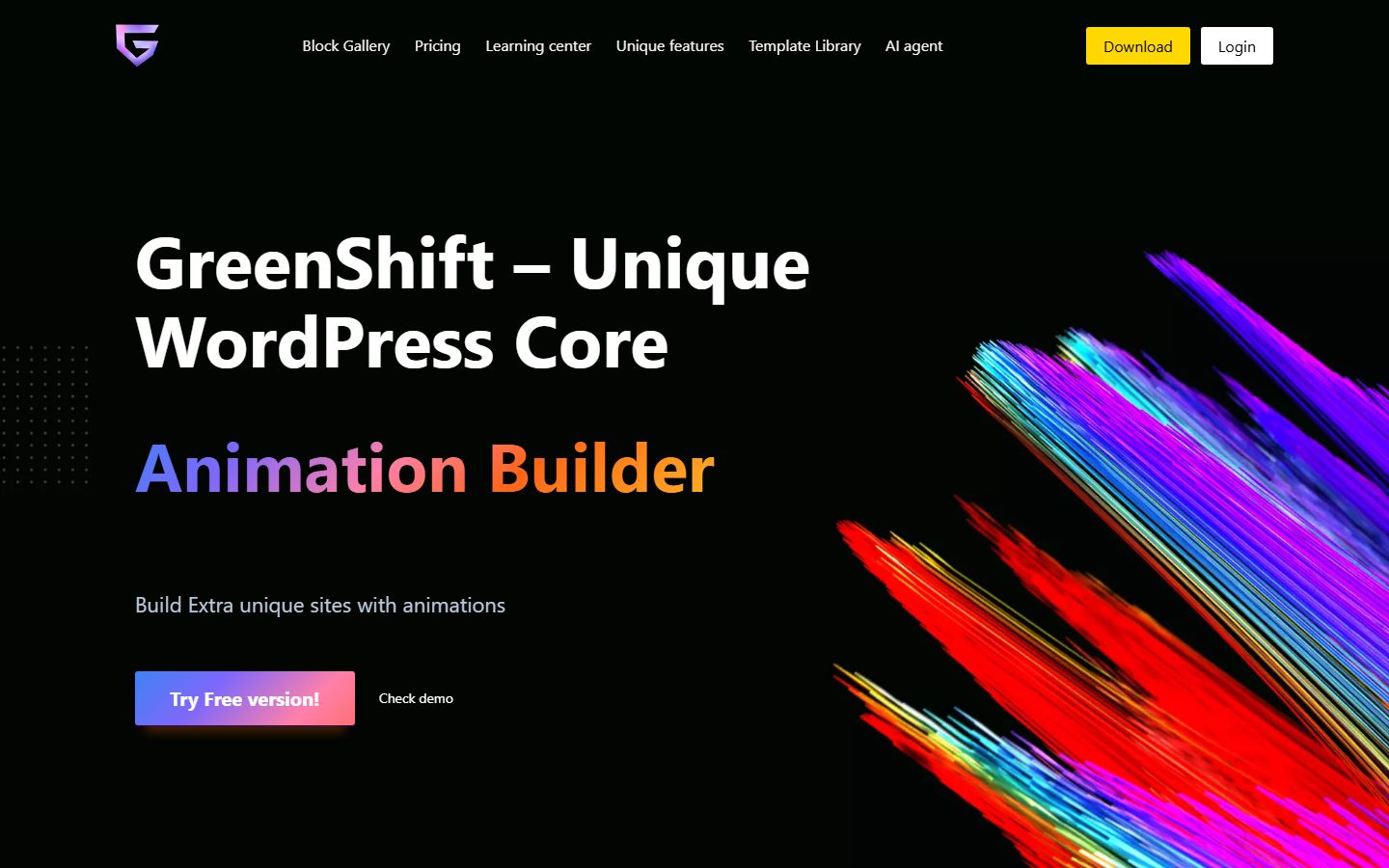
Greenshift positions itself as an animation-focused builder for the block editor. Its homepage headline reads “GreenShift – Unique WordPress Core Animation Builder”, with a Block Gallery, Learning center, Template Library and AI agent in the main navigation.
The homepage below shows how animation is the lead message, which tells you who it targets.
On the pricing page, look at how the packs are split by purpose rather than by feature tier.
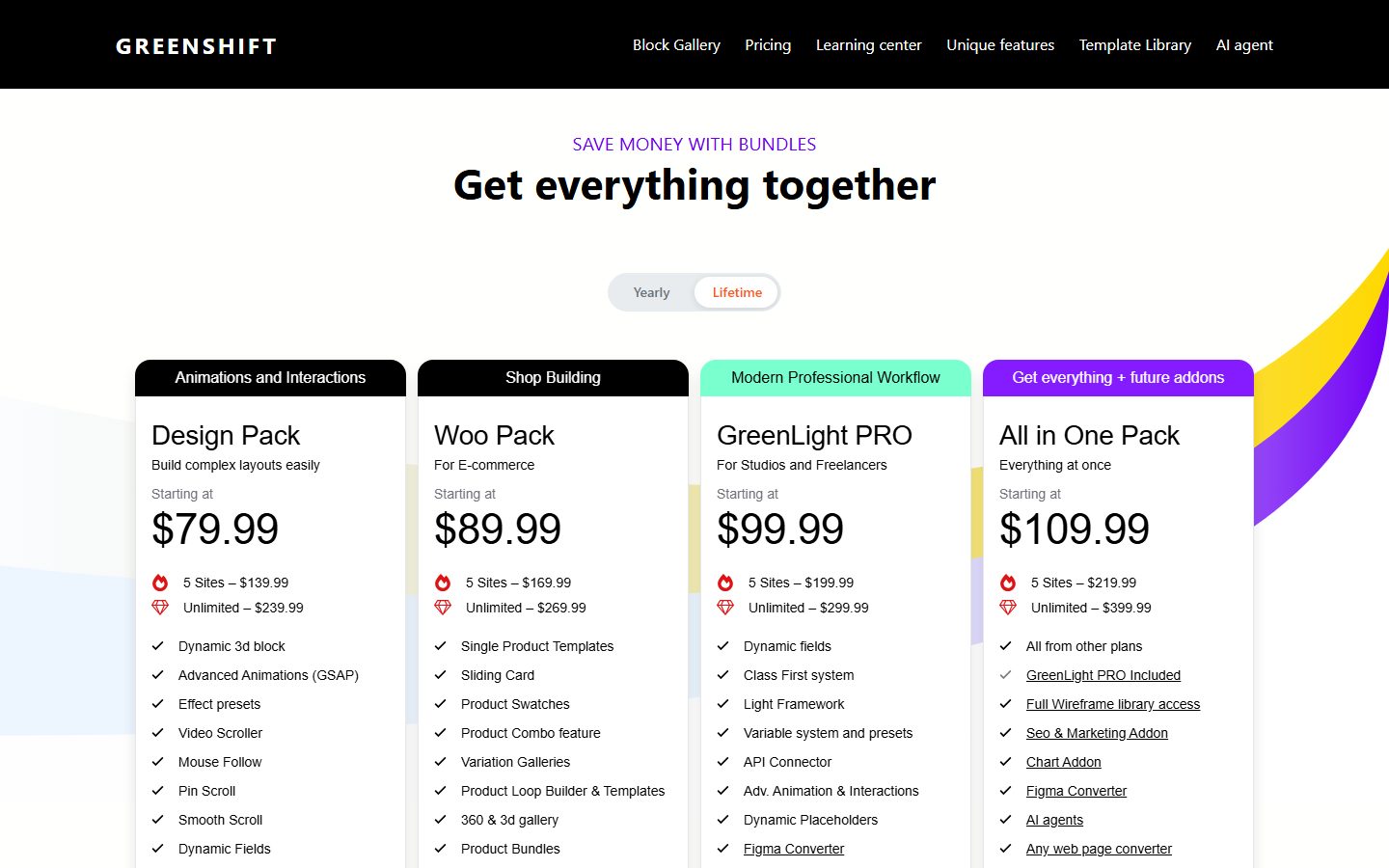
The pricing page as captured lists four bundles: Design Pack (animations and interactions, advanced animation with GSAP, pin scroll, smooth scroll, dynamic fields), Woo Pack (single product templates, product loop builder, galleries, bundles), GreenLight PRO (dynamic fields, a class-first system, a light framework, variables, API connector) and an All in One Pack. Each is priced by number of sites, with a yearly and a lifetime toggle. Because prices on that page may differ by billing toggle and date, check the page for current figures.
Greenshift fits developers who want GSAP-style scroll animation and WooCommerce product building while staying inside the block editor. Its trade-off is that you buy by theme of feature, so work out which pack covers your needs before you buy.
Visual layer builders: Elementor, Divi and Beaver Builder
These three suit people who want a canvas with a large pool of templates, tutorials and freelancers who already know the tool.
Elementor
Elementor is the best known visual builder. According to its WordPress.org listing, the free plugin offers a drag-and-drop editor, a library of free widgets, templates, responsive controls and a design system with variables and classes, and it reports more than ten million active installations. The current editor generation is called Atomic Editor. The listing says Elementor Pro adds features including a theme builder, popups, forms, a WooCommerce builder, dynamic content and custom code.
Look at how the homepage now frames the product around AI prompting alongside manual control.
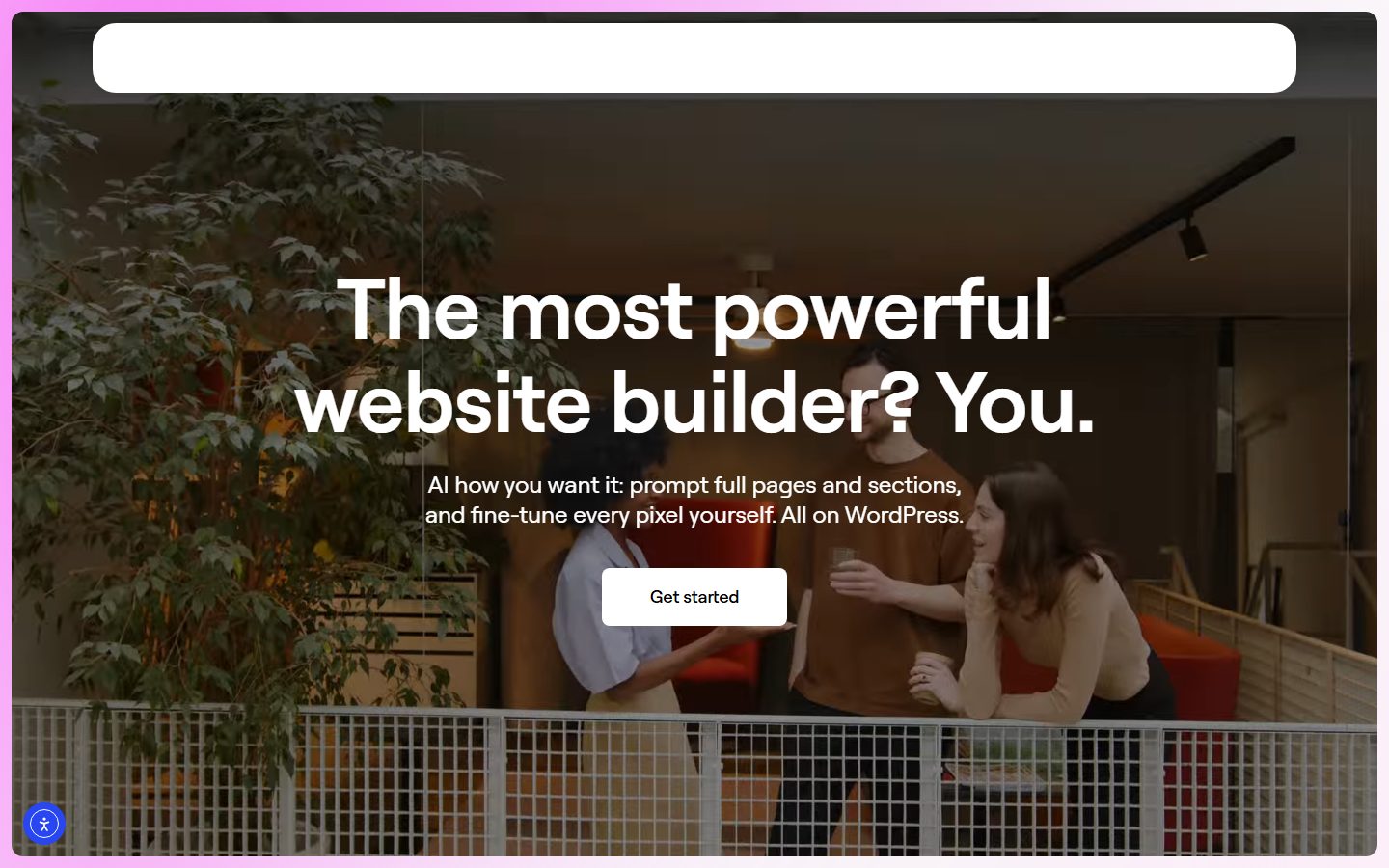
The homepage headline reads “The most powerful website builder? You.” and the subheading says you can prompt full pages and sections and fine-tune every pixel yourself. That is marketing copy, not a test result, but it shows where the vendor is heading.
On the pricing page text I fetched, Elementor lists six plans: Essential (1 site), Advanced Solo (1 site), Advanced (3 sites), Expert (25 sites), One (1 site) and One Agency (unlimited sites). The page says plans are billed annually or monthly with one- to four-year term options, that the 30-day money-back guarantee applies only to annual plans, and that Elementor One plans include AI credits while Pro plans do not list them. It also says plainly that hosting is not included with any plan. The prices were not present in the text I could read, so check the page for current figures. The Essential plan, per the same page, excludes the popup builder, custom code and CSS, and eCommerce features, and its dynamic content lacks custom fields and post types, which matters if your site relies on them.
Elementor fits agencies and freelancers who want a huge ecosystem, a familiar interface and plenty of third-party add-ons. Watch resource requirements: the plugin listing gives recommended memory limits higher than many hosts default to, so check your hosting. Remember also that important features sit behind paid plans. Compare it with alternatives in our Elementor alternatives roundup and in the head-to-head Bricks vs Elementor article.
Divi
Divi, from Elegant Themes, is a long-standing builder-and-theme combination with a large following. The vendor states that Divi 5 is out of beta and ready for production, and that Divi 5.1 arrived in March 2026 with bug fixes and a feature for editing headers, footers, body layouts and page content in one session. The same material says modules not compatible with Divi 5 can still run through backward compatibility, but without the full performance gains, and recommends a backup and a staging test before migrating.
The homepage is built around a single claim worth reading closely.
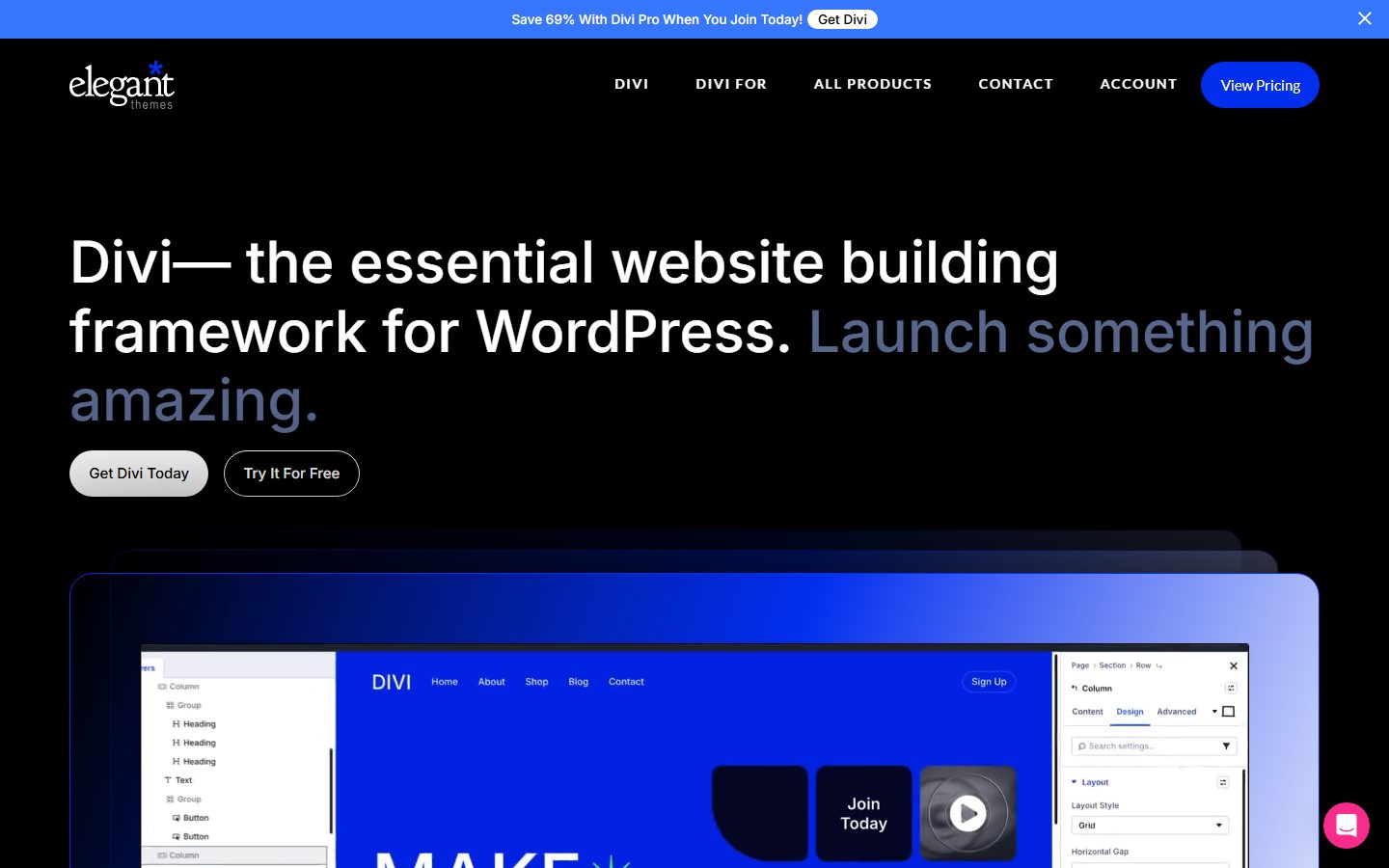
The Divi page I read lists: a visual builder with on-canvas editing, seven predefined breakpoints that you can customise, a Layers panel, global variables, design presets and reusable global elements, a Divi AI Agent that builds and edits pages from prompts, Theme Builder templates, a Loop Builder with dynamic content, no-code interactions, display conditions, scroll effects and animations, Flexbox and CSS Grid layout support, and Quick Sites with more than 2,600 layouts.
On pricing, the page lists Divi at $89 billed yearly, Divi Pro at $277 billed yearly (bundling Divi AI, Divi Cloud, Divi VIP and Divi Teams), a Divi Lifetime plan at $249 one-time, and Divi Lifetime plus Pro at $297 one-time with Pro services then $212 per year. It states that all Divi plans allow unlimited website usage with no per-site fees. It also notes that Divi AI, Cloud, VIP and Teams are only available as subscriptions, so a lifetime licence covers the builder and Divi Dash but not those services. Confirm figures on the current page, since promotions change frequently.
It fits designers and agencies who like a design-focused approach and an ecosystem of layouts and marketplace products, and who want unlimited sites without per-site fees. If you have an older Divi site, plan the migration on staging, check your plugins and modules and keep a backup. Our staging guide shows the process.
Beaver Builder
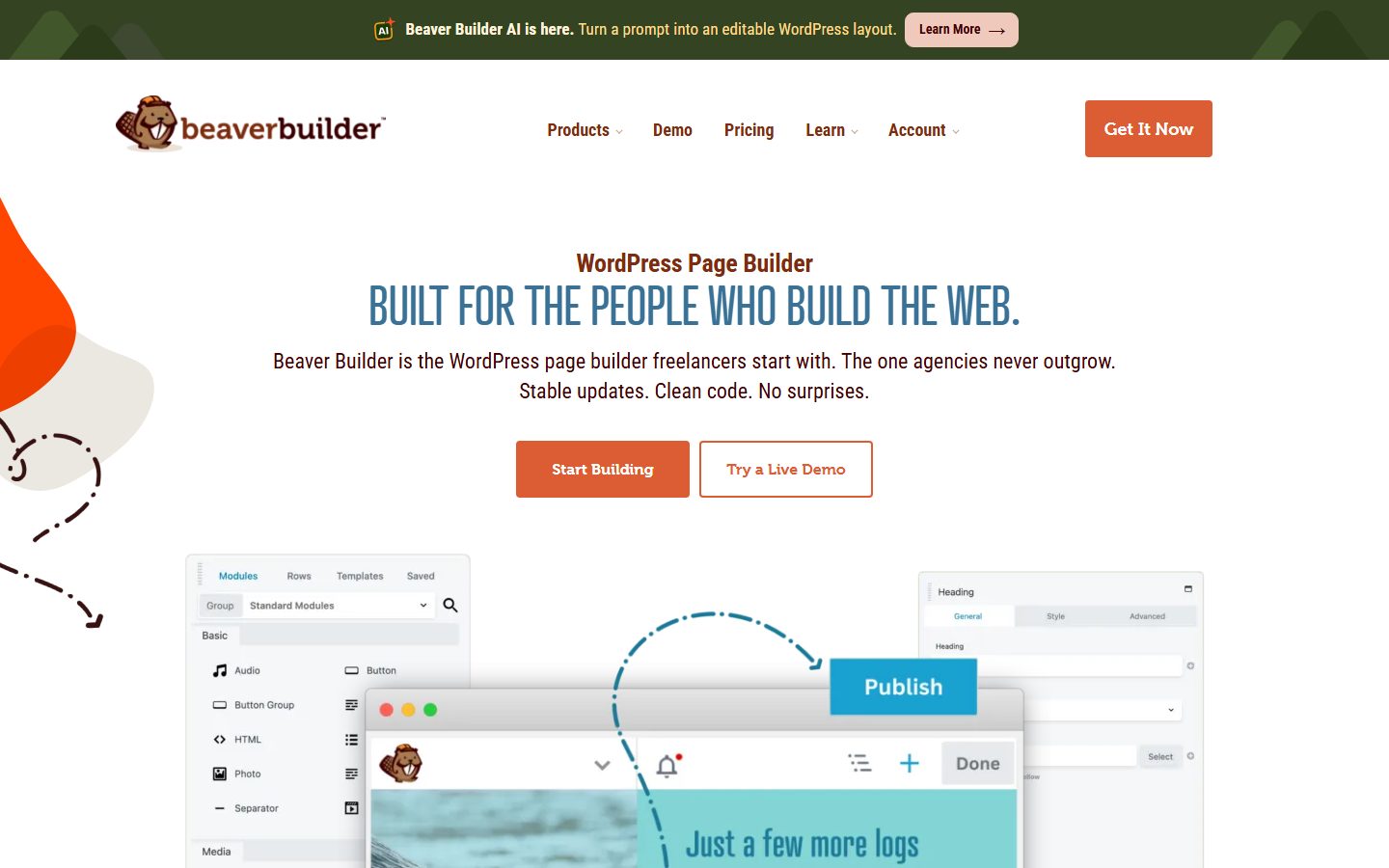
Beaver Builder has existed since 2014 and presents itself as stable and client-friendly, with tested updates, white labelling for agencies and a focus on controlling the page content area while working alongside your theme. It offers a free Lite version on WordPress.org.
Notice the homepage copy, which leads with stability and clean code rather than novelty.
The pricing page below is easy to scan because every plan is yearly and split by site count.
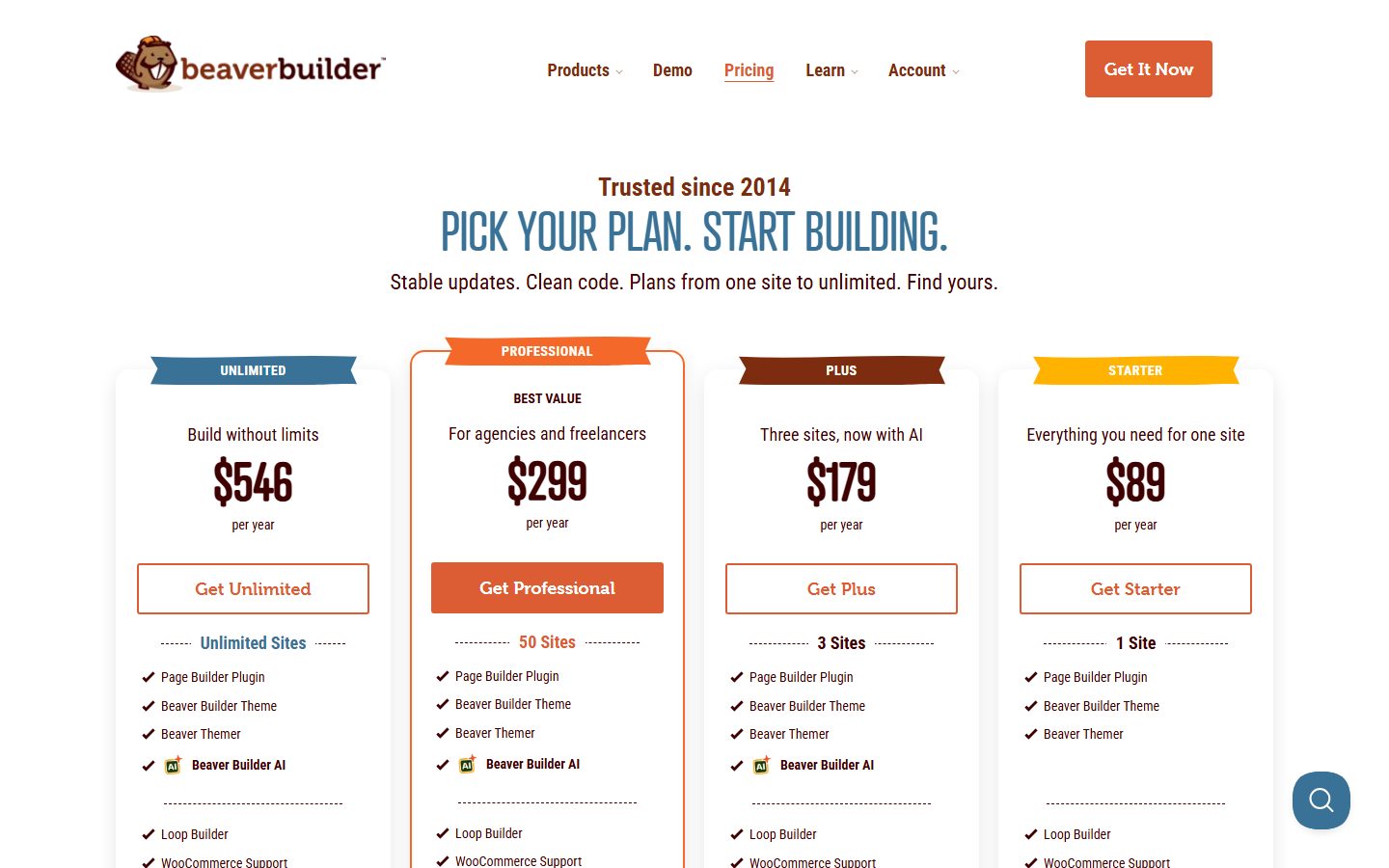
As captured, the page shows Starter at $89 per year for one site, Plus at $179 per year for three sites with AI, Professional at $299 per year for 50 sites labelled best value for agencies and freelancers, and Unlimited at $546 per year. Every plan lists the page builder plugin, the Beaver Builder theme and Beaver Themer, and the larger plans add the AI feature. Loop Builder and WooCommerce support also appear in the feature lists. Renewal terms and what happens when a subscription lapses are worth reading on the vendor site before you commit.
It fits agencies that value stability, white-labelling and a gentle client-editing experience. It is less often chosen by people looking for the newest design-system features, so check whether what you need is there.
Developer-oriented builders: Bricks, Breakdance, Oxygen and Etch
These four give you more control over structure, classes and dynamic data. They reward people who already think in HTML and CSS, and they tend to keep a design-system workflow at the centre.
Bricks
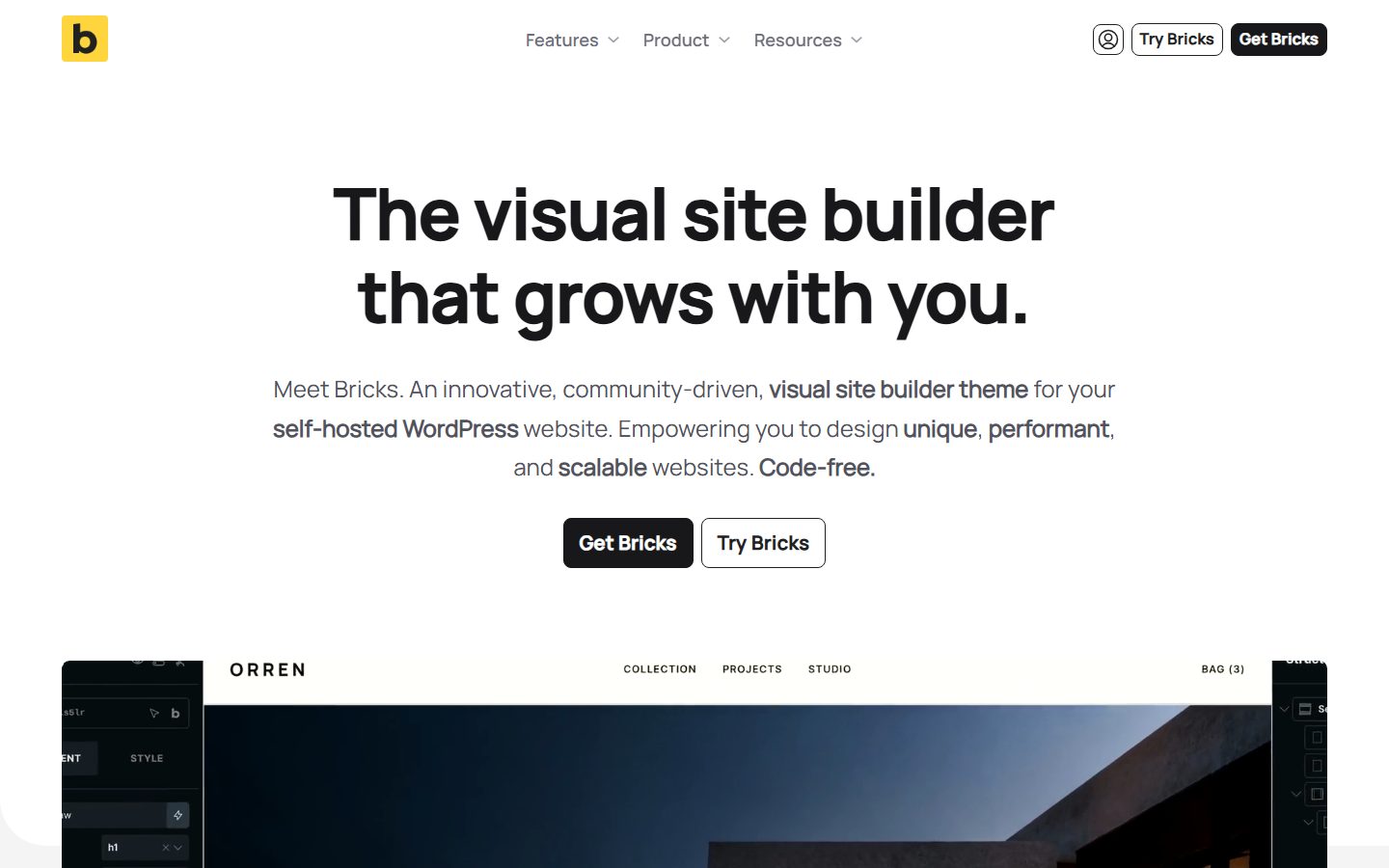
Bricks describes itself as an innovative, community-driven visual site builder theme for self-hosted WordPress. Its listed features include visual editing of headers, footers and pages, a design system with classes, variables and palettes, a query loop builder with an option for custom PHP queries, conditions and interactions, custom breakpoints, a WooCommerce builder and, in an experimental state, AI abilities for external AI clients.
Read the homepage to see how it positions itself against heavier builders.
On licensing, the Bricks pricing page lists four plans: Starter for one website, Business for three websites and Agency for unlimited websites, all as annual subscriptions, plus an Ultimate Lifetime plan for unlimited sites as a one-time payment. The prices stated were $79, $149 and $249 per year and $599 once. The page also says local and staging sites do not count against your site limit, that each live site or subsite does, and that after a subscription is cancelled the licence stays active to the end of the billing period and then you lose access to updates, support and community templates, though you can keep editing existing sites. The page itself warns that running outdated software carries security risk.
Bricks fits developers and agencies who want a modern, class-based workflow with query control. Because it is a theme rather than a plugin, it takes over your theme layer, which is a point to understand before using it on an existing site. Our Bricks vs Elementor comparison covers the practical differences.
Breakdance
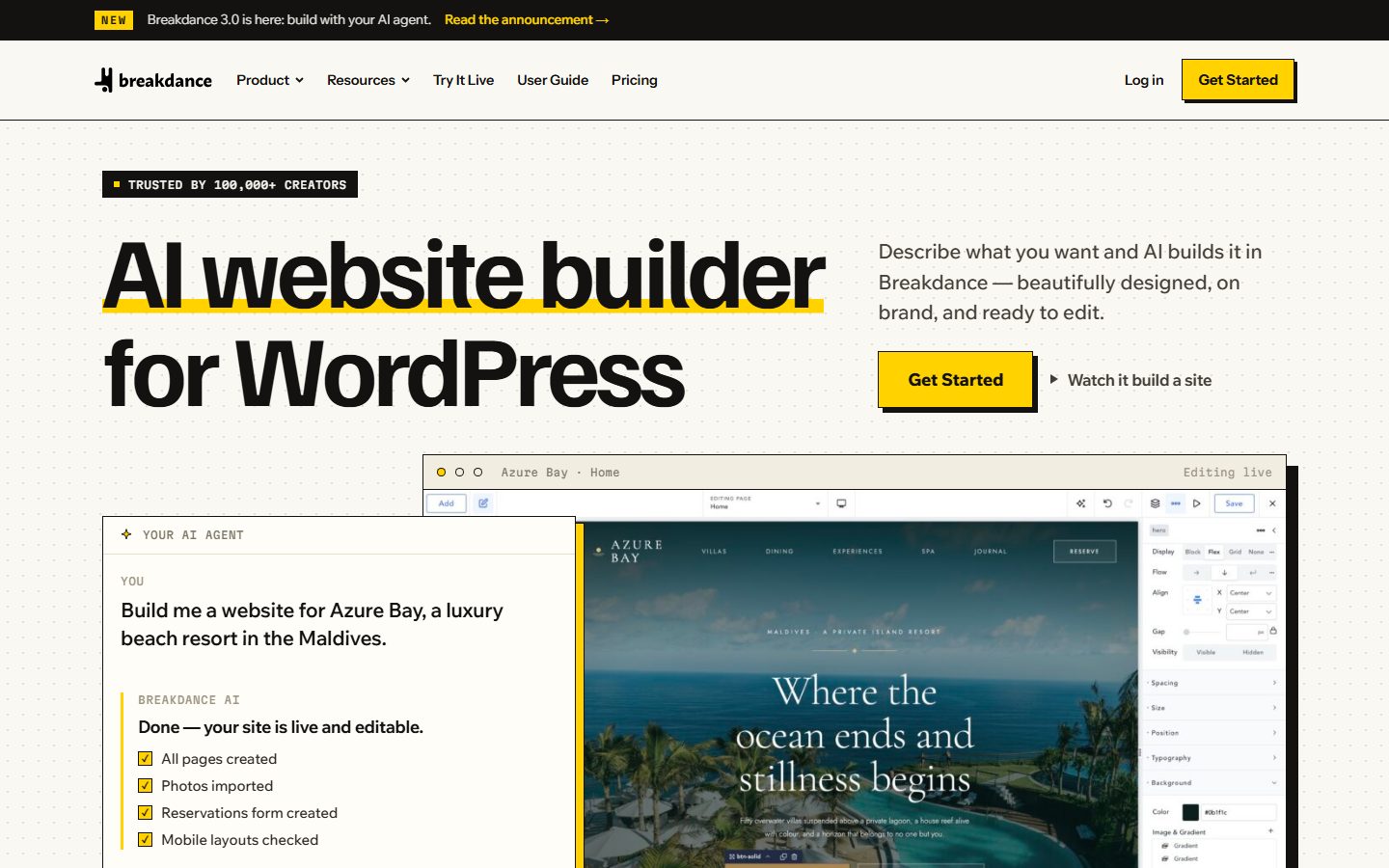
Breakdance describes itself as an AI website builder for WordPress, where you describe what you want and the AI builds it, “on brand, and ready to edit”. Its site lists forms, WooCommerce pages, dynamic data with custom fields and custom post types, global variables, animations and a set of built-in elements.
The homepage banner announces version 3.0 as an agent-first release.
The pricing page shows how its licence tiers are structured.

As captured, the page shows a Free plan for unlimited websites, a Pro plan for one website at $99.99 per year, and a Pro plan for unlimited websites at $199.99 per year (shown with a struck-through “soon to be $399.99” price and a $200 yearly saving). It also states that every purchase has a 60-day money-back guarantee and that you can build client sites without the client needing their own licence. The page claims more than 100,000 creators, which is a vendor statement.
It fits freelancers and agencies who want a modern visual builder and an AI-assisted workflow without per-site fees. As with any newer builder, check community size and the maturity of the features you rely on. A free tier makes a trial cheap: build your standard test page before paying.
Oxygen
Oxygen has been around for years and its current release is Oxygen 6.2, branded as an MCP edition built around connecting AI agents to WordPress. The homepage headline reads “Build WordPress sites by talking to your agent”, and lists Claude, Codex and Cursor as examples of clients that can build in it.
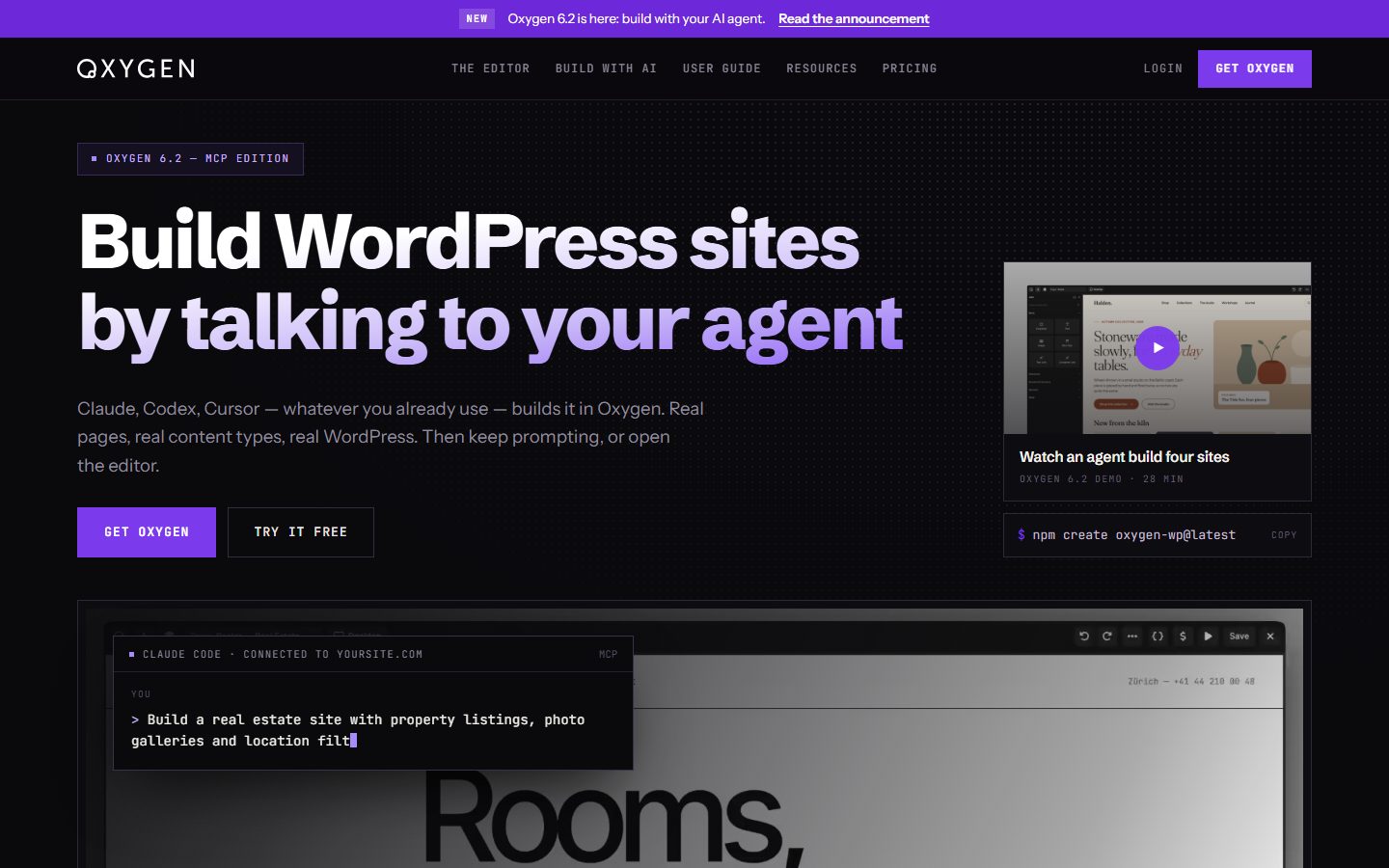
Pricing is the most distinctive part: one plan, paid once.

The page as captured shows a lifetime licence at $199.50, described as paid once, not per year, per site or per seat. It lists every feature including the AI tooling, unlimited sites (personal, client, staging and local), lifetime updates and support, “no renewals, no seats, no add-ons to buy”, and a 60-day money-back guarantee. If your business runs on many client sites, this licence model is the simplest to budget, with the caveat that you are depending on the vendor to keep honouring “lifetime” for as long as you use it.
Oxygen fits developers who want deep control and a one-time purchase. If you used Oxygen before version 6, review the migration path before assuming your old sites carry over.
Etch
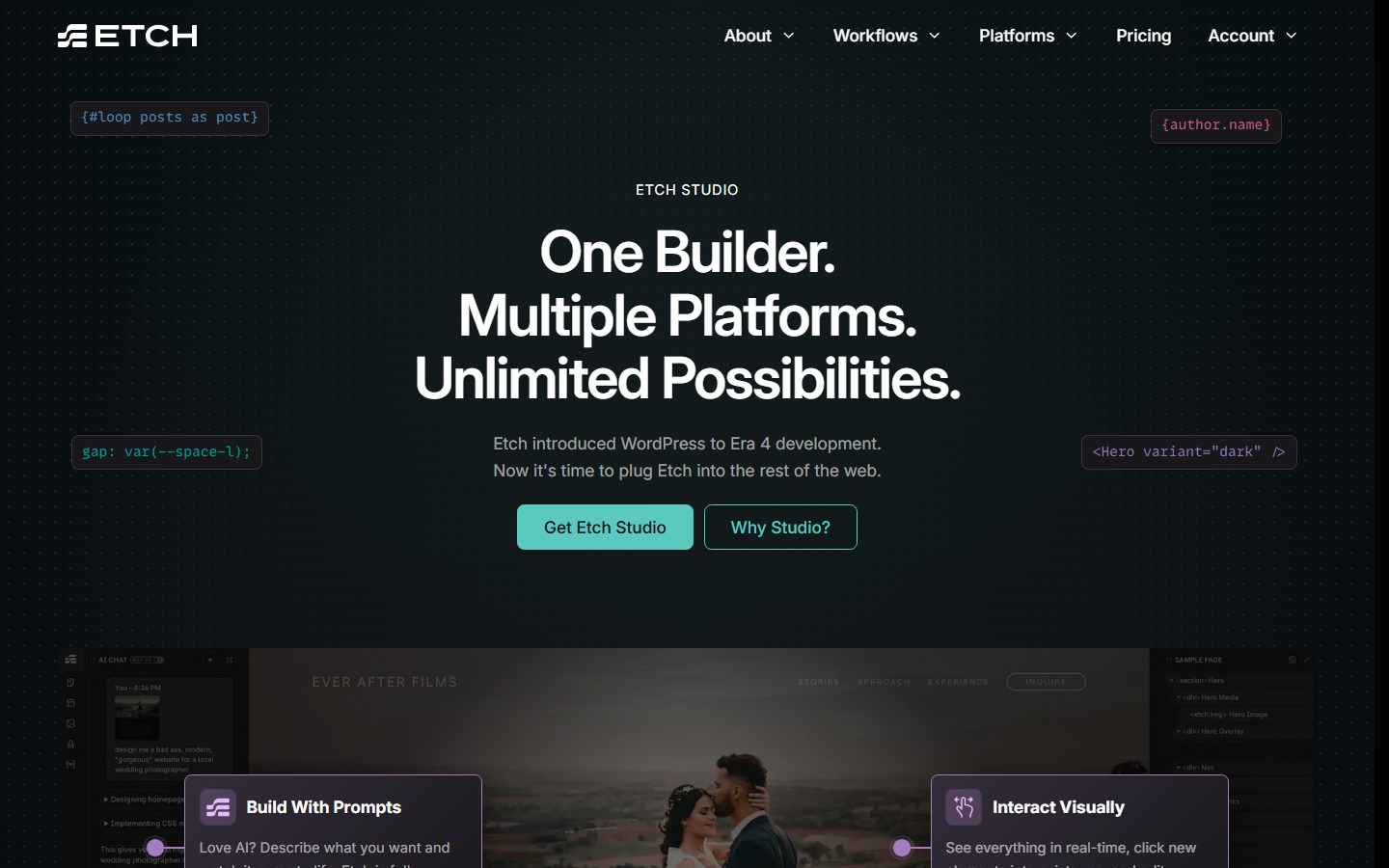
Etch is a developer-focused builder from Digital Gravy, the company behind Automatic.css. Etch for WordPress saves what you build as custom Gutenberg blocks, with a sync between Etch and the block editor so clients can edit content in the familiar editor. It supports loops, conditional logic, components and dynamic data, and the vendor says it uses real HTML, CSS and JavaScript. Its docs list minimum requirements of WordPress 5.9 and PHP 8.1. The vendor has also introduced Etch Studio as a separate product that can publish beyond WordPress, and says new features arrive there first.
The homepage now leads with Etch Studio and its multi-platform message.
On the pricing page, note the toggle that separates Etch Studio from EtchWP, the WordPress-only product.
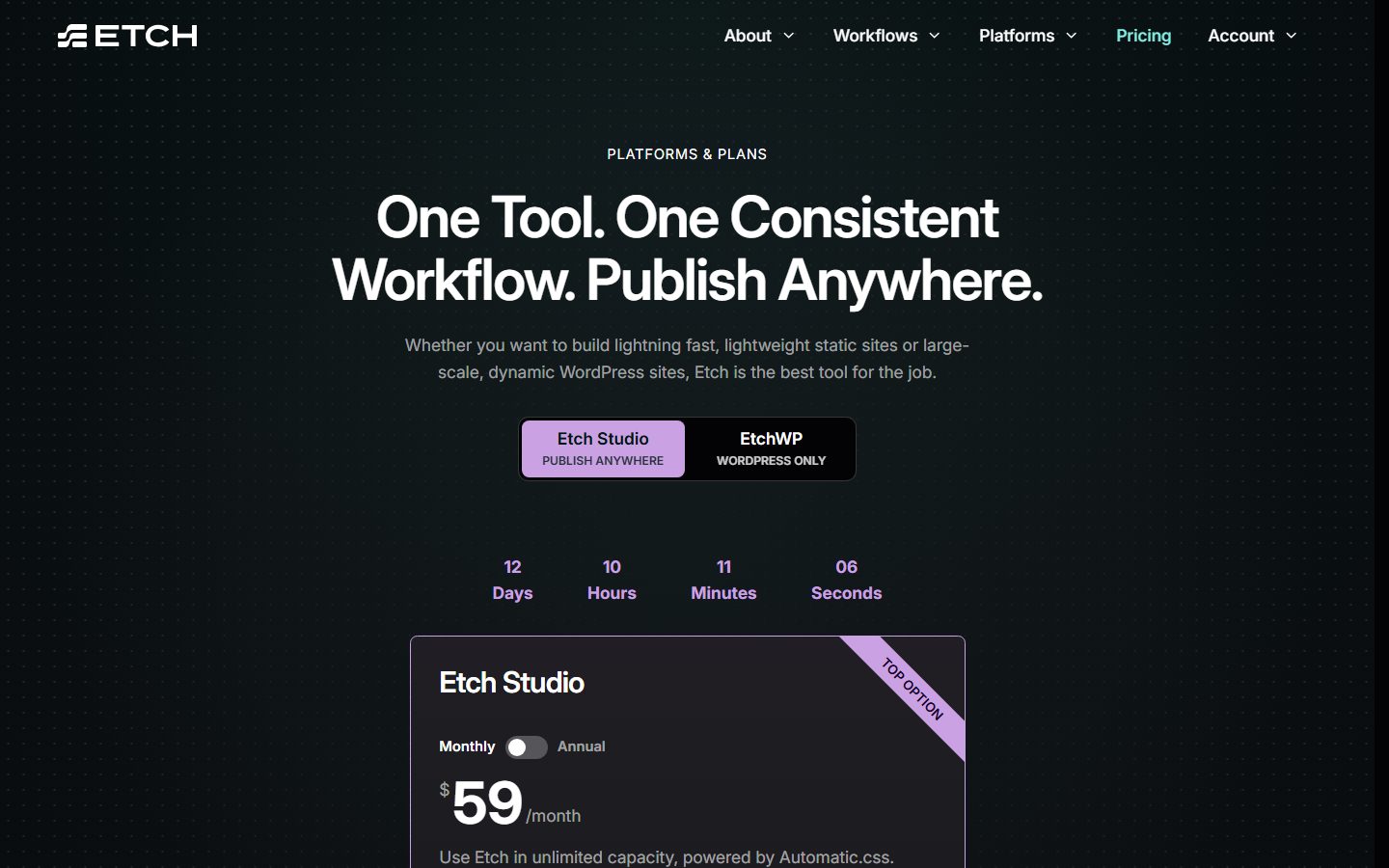
The captured page shows Etch Studio at $59 per month on the monthly setting, with an annual toggle, and describes it as unlimited capacity powered by Automatic.css. I did not capture the EtchWP tab, so check the page for what the WordPress-only plan costs and includes. Read the full Etch for WordPress review for requirements, caveats and how it behaves in practice, and our Automatic.css guide for the framework it is paired with.
It fits developers and agencies who want clean markup, a framework-agnostic approach and client editing in the block editor. It is less suited to beginners who want a large library of one-click templates and a huge third-party ecosystem.
Performance: what actually matters
Every builder claims to be fast. Bricks says “performant”, Divi says its framework was rebuilt for performance, and Beaver Builder says “clean code”. Be sceptical of all of it, including this guide, because WPMusk has no numbers to give you. What you can do is understand the factors that make a site fast or slow, and measure them yourself.
Where builder output affects speed
- HTML size and nesting. Deeply nested wrapper elements increase page weight and rendering work.
- CSS and JavaScript loaded. Does the builder load assets for every element on every page, or only those used?
- Inline versus generated styles. This affects caching and layout stability.
- Interactivity. Sliders, animations and popups often add scripts. Animation-first tools like Greenshift exist precisely to add them, so budget for the cost.
- Editor weight. A heavy visual editor can feel slow on modest hosting even when the front end is fine.
What often matters more
- Hosting. A slow server cancels clean markup. See our hosting comparison by use case.
- Images. Oversized or unoptimised images typically dominate page weight. Our guide to image optimisation covers formats and lazy loading.
- Plugins and third-party scripts. Analytics, chat and tracking scripts add up.
- Fonts. Many font files and weights slow rendering; see how to self-host fonts.
- Caching and the PHP version. Both are cheap wins; see caching plugins compared and PHP versions and performance.
- Your own design choices. A page with forty animated sections is slow in any builder.
A fair performance test you can run yourself
- Install each candidate on a fresh site on the same host, with the same PHP version and the same lean theme or the builder’s own theme where required.
- Build one identical page: hero, three-column feature grid, a loop of six posts, a form and a footer, using the same images, already compressed.
- Record page weight, number of requests and the CSS and JavaScript bytes in your browser’s network panel.
- Run PageSpeed Insights several times and compare medians, not the best run. Our guide to reading PageSpeed Insights and Core Web Vitals explains which numbers deserve attention.
- Open the page source and look at wrapper depth, inline styles and unused assets.
- Open the editor and note how long it takes to load and how responsive it is while editing the loop section.
Our WordPress speed optimisation guide covers the rest of the stack once your builder is chosen.
A self-test protocol: how to measure a builder on your own content
Every claim about builder speed, including the ones in this guide, is a hypothesis until you run it against your own pages, your own hosting and your own plugins. The protocol below uses only free tools and takes an afternoon. It is designed so that the builder is the only thing that changes between runs, which is the one condition that makes a comparison meaningful.
Step 1: build a fair test page
Pick one real page, such as a service page with a hero, three feature blocks, a testimonial row, an image gallery and a contact form. Write the content once in a plain text file, and export the images once at their final sizes. Then rebuild the same page in each builder on the same staging site, with the same theme (or the builder’s recommended theme if it ships one), the same fonts and the same images. If one builder makes you use a different theme, record that, because the theme is a variable you cannot remove.
Keep a log with three columns for each build: minutes spent, number of times you left the visual editor to write custom CSS, and number of things you could not do without a plugin. Time and friction are results too, and they usually matter more over three years than a few hundred milliseconds.
Step 2: measure with Lighthouse, then with field-style thinking
Google’s documentation lists three ways to run Lighthouse: the Lighthouse tab in Chrome DevTools (click Analyze page load, then Run audit, which takes roughly 30 to 60 seconds), the command line (install Node.js, run npm install -g lighthouse, then lighthouse <url>, with Chrome installed), or PageSpeed Insights at pagespeed.web.dev with nothing to install. The DevTools route can also audit pages that sit behind a login, which helps for membership or staging environments protected by a password.
Run each page at least five times and keep the median, not the best run. Lighthouse results vary between runs because of network and CPU noise, so a single number tells you very little. Record the metrics that map to the Core Web Vitals. Google’s web.dev guidance sets the "good" thresholds at 2.5 seconds or less for Largest Contentful Paint, 200 milliseconds or less for Interaction to Next Paint, and 0.1 or less for Cumulative Layout Shift, judged at the 75th percentile of real page loads and split by mobile and desktop. A lab test on your laptop is not the 75th percentile of your visitors, so treat lab results as a way to compare builders against each other rather than as a pass or fail verdict. For the field side, see the walkthrough in our guide to LCP, INP and CLS on WordPress and the tool tour in the PageSpeed Insights guide.
Step 3: look inside the page with Query Monitor
Lighthouse tells you what the browser experienced. Query Monitor, a free plugin on WordPress.org, tells you what WordPress did to produce the page. Its documentation says it shows database queries (filterable by component and calling function), the loaded template and template parts, enqueued scripts and styles with their dependencies, HTTP API requests with timing, PHP errors and deprecation notices, and, for block-based content, the properties of blocks in the post content. By default only administrators can see its output.
For a builder comparison, three panels matter. The Scripts and Styles panels show how many files each builder enqueues on a plain page and whether it loads editor assets for logged-out visitors (check this while logged out by using a private window and the authentication cookie option, or by reading the page source). The Queries panel, grouped by component, shows whether the builder’s own code is a heavy database user on the front end. The HTTP API Calls panel shows whether any builder or add-on calls out to a remote server while rendering, which can add latency you will not notice until the remote service has a bad day.
Write down the totals per builder: number of CSS files, number of JavaScript files, number of queries, and the page’s total transferred size from the browser’s Network tab. Then repeat the table with the page cached, because a good page cache narrows the gap between builders and you should know by how much on your stack.
Step 4: WebPageTest for the filmstrip
For a view closer to a real visitor, use WebPageTest from a test location near your audience. Run several tests, compare the filmstrip view (the sequence of frames showing what the visitor sees over time) and look at the request waterfall. The filmstrip is where builder differences become visible to a human: a page that paints text early and swaps in a web font late feels different from one that waits for several stylesheets before showing anything. WebPageTest also lets you choose a connection profile, so test a slower mobile profile as well as a fast one. If you only ever test on your own fast connection, you are measuring your office, not your customers.
Step 5: interpret the numbers without fooling yourself
- Differences below the noise floor are not differences. If five runs of builder A range from 1.9 to 2.4 seconds and builder B from 2.0 to 2.5, you have measured nothing.
- Check what the page does after the first paint. A builder that ships a larger script can still feel fine if the interactive parts are small, and a smaller script can still block the main thread if it runs everything at once. INP, not only load time, tells you about this.
- Retest after each content change. A third-party chat widget or tag manager added later can erase the margin you measured.
- Keep the winner honest. If a builder wins only after you add a caching plugin and asset-optimisation tuning, that is a cost you will carry on every site. Add that work to the time column.
When you are done, you have a defensible table of build time, friction, page weight, request count, query count and Core Web Vitals proxies for each shortlisted builder. That table is worth more than any vendor claim, and it is the input the scoring sheet later in this guide expects.
Troubleshooting: the failure modes you will actually meet
Most builder problems fall into a handful of patterns. Knowing them in advance turns a panicked afternoon into a checklist. These are general WordPress troubleshooting patterns; always confirm the exact steps in your builder’s documentation, because each vendor names its tools and settings differently.
The editor will not load, or loads blank
The visual editor is a large JavaScript application running inside the WordPress admin, so anything that breaks admin JavaScript breaks the editor. The usual suspects are a plugin conflict, an exhausted PHP memory limit, a security rule that blocks the REST API or admin-ajax requests, or a minification and combination feature in a caching or optimisation plugin applied to the admin. The isolation order that wastes the least time is: open the browser console and read the first red error; disable optimisation and security plugins first; then switch to a default theme; then deactivate everything else and reactivate one plugin at a time. The plugin conflict troubleshooting guide walks through the method.
WordPress’ own Site Health screen (Tools, then Site Health) is a quick first stop. Its Status tab lists critical issues and recommended improvements, and its documentation calls out several that break builders directly: a site that cannot complete a loopback request, blocked outgoing HTTP requests (the WP_HTTP_BLOCK_EXTERNAL constant), and an active PHP session that interferes with REST API and loopback requests. The Info tab shows the PHP memory settings, upload limits and filesystem permissions, which you can paste into a support ticket.
Layouts look right in the editor but wrong on the live site
Almost always a caching problem, a CSS optimisation problem or a stale generated stylesheet. Builders that generate CSS files or inline critical CSS depend on those files being regenerated when you save. Purge the page cache and any CDN cache, regenerate the builder’s CSS if it offers that tool, and test in a private window. If the problem disappears when you disable CSS minification or "remove unused CSS" in your optimisation plugin, you have found the cause, and the fix is an exclusion rule for the affected selectors rather than disabling optimisation sitewide.
The site got slower after a builder update
Compare Query Monitor’s scripts and styles panels before and after, and read the builder’s changelog for new features that load assets by default. Do not update on production first. Use a staging copy, run the same test page, and only then push the update; the process is described in the staging site guide.
A licence expired and the site looks different
For most commercial builders, an expired licence stops updates and support but does not remove what you built. Behaviour differs, though, and you should confirm it for your product before relying on it. Read the vendor’s licence terms for what happens to the builder’s features, add-on modules and template libraries when the licence lapses, and test by deactivating the licence on a staging site. The cost section of this guide shows why this question belongs in your evaluation, not in a post-mortem.
Memory and timeouts on large pages
Very large pages with many nested containers, sliders and dynamic loops can exhaust PHP memory when saving or rendering. The practical fixes are the boring ones: split a long page into reusable sections or templates, reduce nesting, move heavy query loops into paginated lists, and make sure your host provides a PHP memory limit and execution time appropriate for editing. Query Monitor’s PHP errors panel and your host’s error log will show the exact limit that was hit. Raising the limit without understanding why the page is heavy only delays the next failure.
Forms, popups and third-party embeds break after a change
A form plugin that outputs through a shortcode, a block or a builder widget can be affected by a builder switch. Treat every form, popup, booking widget and embed as a separate item on your migration checklist, and test each submission path end to end, including the notification email. For form options see the guide to WordPress form plugins.
Security, privacy and licensing considerations
A page builder is a large piece of code with deep access to your site, so it belongs in your security plan. This section covers what to check, without claiming anything about any specific vendor’s record.
Keep the attack surface small
- Updates matter more for builders than for most plugins. A builder and its add-on packs together can add dozens of endpoints and widgets. Every add-on you install is another codebase to patch. Install only the add-ons you use.
- Prefer fewer add-on vendors. Three small add-on packs from three vendors means three update streams and three places a vulnerability can appear.
- Use least privilege. Editors who only change text do not need the ability to inject custom code or edit global templates. Review which roles can use the builder and its code widgets; see the least-privilege user roles guide.
- Be careful with custom code widgets. Raw HTML and PHP-capable widgets are powerful by design. Restrict who can use them, and never paste snippets you cannot read.
Vulnerability monitoring
Security companies maintain databases of known WordPress plugin vulnerabilities. Patchstack, for example, describes on its homepage virtual patching (blocking exploit attempts with targeted rules, including where no patch exists or a patch has not been applied yet) and a vulnerability intelligence database. Whether you use Patchstack or another service, the useful habit is the same: subscribe to alerts for the builder and its add-ons so you hear about a vulnerability from your monitoring rather than from a hacked site. The wider picture is in the WordPress security guide and the security plugin roundup.

Privacy: what leaves your site
Builders often offer cloud template libraries, icon libraries, font pickers, map widgets and, increasingly, AI assistants. Each of those can mean visitor or editor requests going to a third party. In Query Monitor’s HTTP API panel you can see server-side calls; the browser’s Network tab shows what visitors’ browsers fetch. If you serve visitors in regions with strict privacy rules, check whether the builder loads fonts or scripts from a third-party domain and whether you can serve them locally; self-hosting fonts is one common step. Check the vendor’s data-processing documentation if you use any cloud feature that sends content or personal data off the site.
Licensing: read the terms, not the pricing grid
Pricing pages show tiers. The terms decide what you may do. Before you buy, answer these from the vendor’s own licence and terms pages: how many sites does the licence cover, may you use it on client sites, what happens to updates and support after the term ends, can a licence be moved between domains, and is there a refund window and for how long. If a vendor offers a one-time or lifetime option, read what the lifetime refers to and whether future major versions are included. Record the answers and the date you read them; terms change.
Lock-in and exit strategy
When you build with a page builder, you are making a commitment. Understand its size before you commit.
What lock-in looks like
- Content stored in a proprietary structure. If you deactivate the builder, the content may display as shortcodes, broken markup or nothing.
- Licence dependence. Bricks’ page states that after cancellation you lose updates, support and community templates. Other vendors have their own rules, so check each one’s current terms.
- Skill dependence. Your team’s knowledge belongs to that tool.
- Template dependence. Headers, footers, loops and conditions built inside the builder are hard to move.
- Vendor direction. Divi 5, Oxygen 6 and Breakdance 3.0 all describe major generation changes. A rebuilt builder can mean a migration for you.
How to reduce the risk
- Keep as much content as possible in standard post types and custom fields rather than inside layout data.
- Use the builder for layout and presentation, not as the place where your data lives.
- Prefer builders that output clean HTML and keep content readable if disabled. Test this on a staging site by deactivating the builder.
- Document your design system: colours, spacing, typography. It transfers to any tool.
- Know the licence rules and renewal costs, and budget for them.
- Keep a note of the exact builder version used for each site, so a future migration has a starting point.
The block editor has the lowest lock-in because it is core. Builders that save to blocks, such as Etch, reduce some of the risk, though you still depend on the builder to edit the design.
Cost: the real price of a page builder
List prices change, so check current pricing pages. What does not change is the way to think about cost. The licence models seen on vendor pages in November 2026 fall into four groups.
- Yearly by site count: Bricks (Starter, Business, Agency), Beaver Builder (Starter, Plus, Professional, Unlimited) and Elementor’s Pro and One tiers.
- Yearly, unlimited sites, with a lifetime option: Divi, with a yearly plan and a one-time lifetime plan.
- Free tier plus paid Pro: Breakdance, with Free, Pro for one site and Pro for unlimited sites.
- One-time lifetime: Oxygen, plus the lifetime plans offered by Bricks, Divi and Greenshift.
Cost components
- Licence model. One-time, annual subscription or tiered by site count. Compare them over three years, not one.
- Per-site limits. A cheap plan for one site becomes expensive across a client portfolio.
- Add-ons and services. Divi’s AI, Cloud and Teams services are separate subscriptions, and Elementor’s One plans use a monthly AI credit pool that does not roll over.
- Learning time. Your hours have a cost.
- Maintenance. Updates, compatibility testing and support.
- Replaced plugins. Some builders include features that otherwise need separate plugins, which offsets the licence. Compare against form plugins and other plugins you would otherwise buy.
Worked example: five client sites over three years
Take a freelancer with five live client sites. Using only the prices printed on the vendor pages cited above, with promotions ignored, a plan limited to three sites will not cover them, so you must step up a tier. Bricks’ Agency plan at $249 a year costs $747 over three years, while the lifetime plan at $599 costs $599 once. Divi’s yearly plan at $89 costs $267 over three years, and its lifetime plan costs $249. Oxygen costs $199.50 once. Beaver Builder’s 50-site Professional plan at $299 a year costs $897 over three years. These are arithmetic on listed prices, not recommendations, and they leave out the value of features, support and your own time. The point is that a lifetime licence is not always the cheaper option, and a yearly plan can be the better choice if you value continuing updates and support.
Quick licence comparison approach
- List the features you need: theme builder, popups, forms, WooCommerce templates, dynamic data.
- Check which plan includes each one.
- Count the sites you will run now and in the next two years, and note which environments count (Bricks, for example, says staging and local sites do not).
- Check the renewal terms and what happens if you stop paying.
- Add the cost of necessary add-ons.
Use our freelance pricing guide to work builder licences into the prices you quote.
Design systems: the part that makes a builder scale
The biggest gap between casual and professional builder use is whether you work from a design system. Instead of styling each element by hand, you define variables for colours, spacing and type, and classes for repeated patterns. Change a variable once, and the whole site updates.
Most builders discussed here now support some form of variables and classes. Frameworks go further by providing a ready-made system. Automatic.css is a CSS framework designed for WordPress builders, and our Automatic.css guide explains how a framework fits into a builder workflow. A framework is optional, and plain CSS custom properties work too, but a system saves time as a site grows.
Principles to apply in any builder
- Define colours, type scale and spacing once.
- Name classes by purpose, not appearance.
- Build components for repeated elements: cards, buttons, sections.
- Avoid one-off overrides on individual elements wherever you can.
- Test a design on three screen sizes before calling it done.
- Export or write down the system, so another builder can reuse the values later.
How the families differ on design systems
In the block editor, the system lives in theme.json: colour palettes, font sizes, spacing scales and block styles, which is why a good block theme matters. Developer builders such as Bricks and Etch put classes and variables inside the editor itself. Visual layer builders such as Divi and Elementor have added global variables and presets, but their older sites may still carry hand-styled elements from before those features existed, so audit before you assume a consistent system.
AI and agents in page builders
A visible trend is the connection of builders to AI agents through the Model Context Protocol (MCP) and WordPress’s Abilities API. The vendor pages describe a range of approaches. Oxygen 6.2 is branded as an MCP edition and shows Claude Code connected to a site. Breakdance 3.0 announces an agent-first release with an AI agent inside the visual editor. Elementor’s homepage promotes prompting full pages and sections. Beaver Builder promotes a prompt-to-layout feature in its higher plans. Divi lists a Divi AI Agent, and Bricks lists experimental AI abilities. Greenshift links an AI agent from its navigation.
How to think about this
- Treat it as a productivity tool, not a replacement for design judgement. You must still review the output.
- Check what the connection can change. Some features create pages, others edit settings and design resources.
- Check where the cost lands. Elementor’s page describes monthly AI credits that do not roll over, and Divi sells its AI as a subscription service.
- Use staging first. An agent with write access to a live site can break things quickly. Our safe staging workflow for AI agents is a good template.
- Use least privilege: limit the user account the agent connects as. See user roles and least-privilege access.
- Keep backups before large automated changes; our backup plugin comparison helps you choose.
If you want AI control of WordPress beyond a single builder, tools like NibWP provide an agent connection at the WordPress level; our NibWP review covers it. Read AI agents and WordPress security and our walkthrough on how to connect Claude to WordPress with MCP before you give any agent access, and see how it plays out in practice in building a landing page with an AI agent.
Which builder for which situation
A small business owner building their own site
A block theme with the block editor, or a visual builder with a strong template library, usually works best. Prioritise ease of editing and low maintenance. Avoid tools that require code.
A freelancer building brochure sites for clients
Pick a builder you can learn deeply and reuse. Visual layer builders are common because clients and other freelancers know them. A developer-oriented builder suits freelancers who like clean markup. Factor licence cost per site into your pricing, and notice that unlimited-site licences (Divi, Oxygen, Breakdance Pro unlimited) remove the per-client arithmetic.
An agency maintaining many sites
Standardise on one builder and one design system. Look at multi-site licensing, white-labelling, staging workflows and how easy it is to train new staff. Our agency workflow guide covers staging, QA and handover, which matter more than the builder logo, and tools to manage multiple WordPress sites covers the operations side.
A developer who wants control
Look at developer-oriented builders and the block editor with a custom theme. Evaluate class handling, loops, conditions, custom code support and the quality of the markup. Also test how each tool handles data from Advanced Custom Fields.
A content-heavy publication
Prefer the block editor and a lean block theme, or a builder with excellent loop and template tools. Performance and editorial workflow matter more than visual flourishes. Read internal linking and content silos and our WordPress SEO guide before you design archive templates.
An online store
Check each builder’s WooCommerce templates for product, cart and checkout, or consider the options in our WordPress ecommerce guide. Several builders list a WooCommerce builder among their features, and Greenshift sells a dedicated Woo Pack, but check which plan includes it; Elementor’s page, for example, says the lower Essential plan has no eCommerce features. Our WooCommerce speed checklist and product page conversion guide pick up where the builder ends.
An animation-led marketing site
If scroll effects and motion are the product, compare Greenshift’s GSAP-based animation, Divi’s scroll effects and interactions, and Bricks’ interactions side by side on the same test page, and check the script weight each adds.
Hosting and your builder choice
Your builder and hosting must suit each other. Some builders need higher memory limits, and a heavy builder on weak hosting feels sluggish in the editor and on the front end. Elementor’s listing gives recommended memory limits that are higher than many minimums, Etch’s docs list WordPress 5.9 and PHP 8.1 as minimums, and Elementor’s pricing page says explicitly that no plan includes hosting.
Before committing, read the hosting requirements for your builder, then choose hosting for your project. Our guide to choosing WordPress hosting by use case and the comparison of managed vs VPS hosting help you decide, and the xCloud guide shows one way to manage your own servers with less pain. If you later change hosts, our guide to how to migrate a WordPress site to a new host explains how to avoid downtime. Migrations with builders deserve extra testing because of cached CSS and absolute URLs. A CDN can help the front end too; see Cloudflare for WordPress.
A step-by-step selection process
- Write your requirements. Page types, dynamic content, ecommerce, editing roles, number of sites.
- Shortlist two or three tools. Use the questions and the family descriptions above.
- Check requirements and pricing. Read the official pages for hosting needs, licence terms and renewal rules.
- Build the same test page. A hero, a feature grid, a loop of posts, a form and a footer. Use the same host and content. Free tiers and demos (Breakdance Free, Beaver Builder Lite, Elementor free, Divi’s and Bricks’ try-it options) make this cheap.
- Test editing as the client. Can someone non-technical change text and images without breaking the layout?
- Test performance and output. Measure, and inspect the generated HTML.
- Test the exit. Deactivate the builder on staging and see what happens.
- Check support and updates. Look at the changelog and release cadence, and at what the licence says about updates after renewal lapses.
- Decide, document and commit. Write down why, so you can revisit the decision when your needs change.
Scoring sheet for a shortlist
If you compare two or three tools, a simple weighted sheet keeps the decision honest. Give each criterion a weight from one to five based on your project, then score each tool from one to five after your test build. Do not copy anyone else’s weights, including ours.
| Criterion | What to look at |
|---|---|
| Client editing | Can a non-technical editor change content safely? |
| Markup quality | Wrapper depth, inline styles, semantic elements in the page source |
| Dynamic data | Custom post types, custom fields, loops, conditions |
| Design system | Variables, global classes, components, theme styles |
| Ecommerce | Product, cart, checkout and account templates; which plan unlocks them |
| Licence fit | Three-year cost for your site count, renewal rules, lapse behaviour |
| Exit cost | What the content looks like with the builder switched off |
| Ecosystem | Tutorials, third-party add-ons, people you can hire |
| AI features | What the agent can change, what it costs, how to restrict it |
| Hosting fit | Memory and PHP requirements against your server |
Switching builders: a step-by-step migration walkthrough
Switching from one builder to another is rarely a conversion; it is a rebuild with the old site as a reference. No tool reliably translates one builder’s layout data into another’s, so plan the work as a content and design migration. The sequence below keeps the live site safe throughout. It follows the general site-moving guidance in the WordPress developer documentation (back up files and database, work on a copy, search and replace URLs carefully, verify) and adds the builder-specific steps.
Before you start: the inventory
- List every page type. Home, service pages, blog posts, landing pages, archives, search results, 404, header, footer, popups, and any template used for custom post types. Mark which are built with the old builder and which are plain content.
- List every add-on and shortcode. Check the active plugin list for builder add-ons, and search the content for shortcodes so you know what will turn into plain text if the old builder is removed. WP-CLI’s
wp plugincommand manages plugins, and itswp search-replacecommand can help find and fix strings, but run anything that writes to the database on a copy first. - Record the global design. Brand colours, fonts, spacing scale, button styles. You will recreate these as global settings or variables in the new tool before you rebuild a single page. See the design systems section earlier in this guide and the automatic CSS framework guide.
- Capture baselines. Run the self-test protocol on your five most important pages now. After the switch you need a before and after.
- Capture SEO baselines. Export titles, meta descriptions, canonical URLs and the URL list. A rebuild must not change URLs, so see the redirects guide for the case where it must.
Back up and build a staging copy
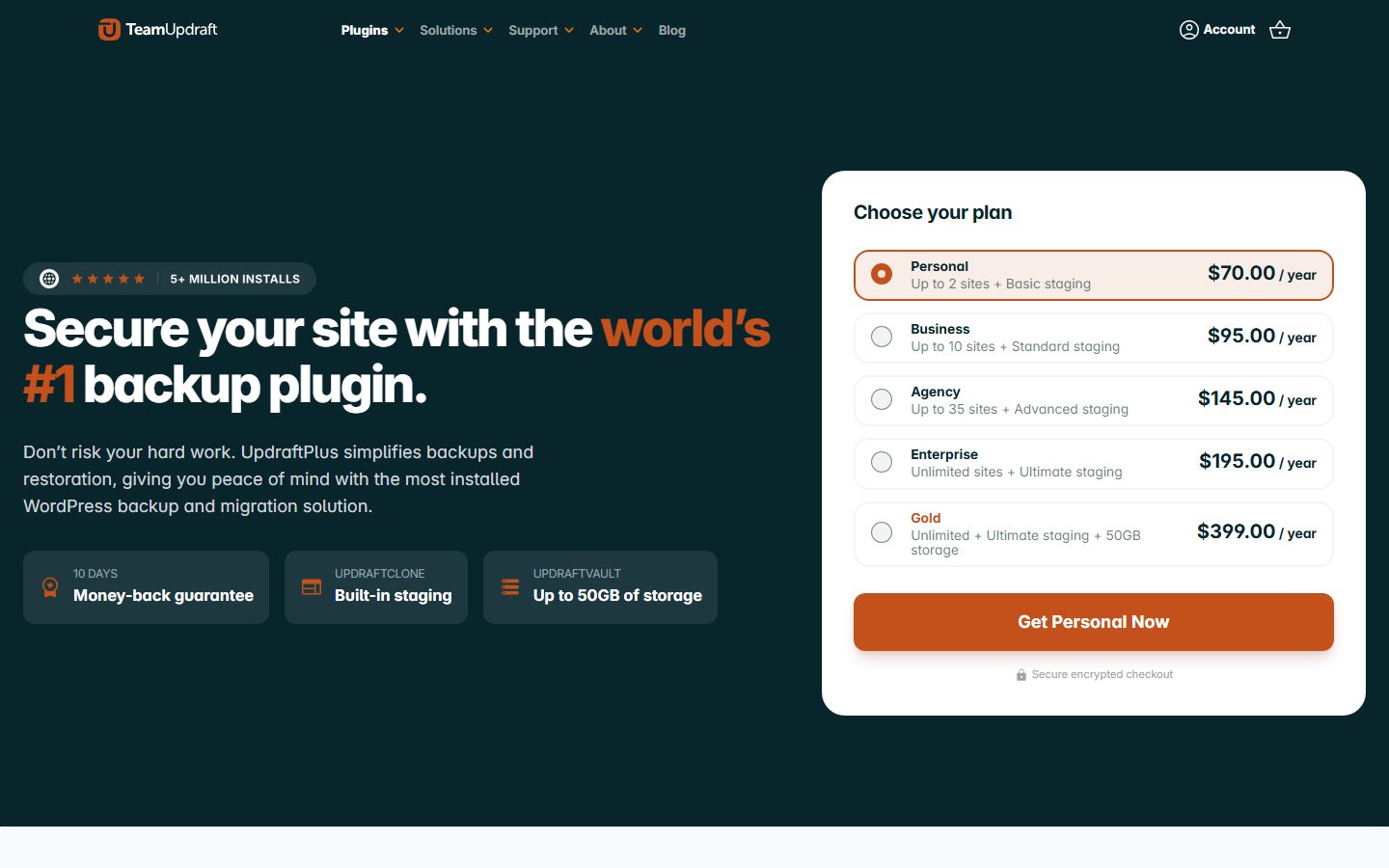
Take a full backup of files and database and confirm you can restore it. UpdraftPlus’ WordPress.org listing says the free version supports manual and scheduled backups, restoring selected components, several remote storage destinations (including Dropbox, Google Drive and S3-compatible storage), and a free manual migration path: download the files from the source, upload them to the destination and use the built-in search and replace. Its premium tier adds more direct migration, incremental backups and backups before updates. Any backup plugin that you have actually restored from is fine; see the backup plugin comparison.
Then create the staging copy, either with your host’s staging feature or with a migration plugin, and make sure search engines cannot index it. The staging workflow is covered in the WordPress staging site guide. Never rebuild on production.
Rebuild in this order
- Install the new builder and its theme on staging. Set the global design first: colours, typography, spacing, button and form styles.
- Rebuild templates before pages. Header, footer, blog post template, archive template, 404. Templates affect every page, so errors there are expensive later.
- Rebuild reusable sections. Hero, call to action, testimonial row, pricing table, FAQ. Name them by purpose, not by page.
- Rebuild pages by traffic. Start with the pages that earn the most visits or revenue, so you find the real problems early.
- Re-create forms and integrations. Each form, booking widget, newsletter signup and analytics event, tested end to end.
- Keep the old builder active until the last page is done. Deactivating it early can leave raw shortcodes on pages you have not yet rebuilt.
The cut-over
- Freeze content changes on production for the cut-over window and note the time.
- Take a fresh backup.
- Move the rebuilt site live using your host’s staging push or by migrating the staging copy. If URLs differ between staging and production, remember the WordPress documentation’s advice: when you search and replace old URLs, limit the operation to where it is needed and leave GUID values alone.
- Purge every cache layer: page cache, object cache and CDN. Regenerate the builder’s CSS if it has such a tool.
- Resave permalinks (Settings, Permalinks) to flush rewrite rules.
- Run the post-switch checks below within the first hour, while the backup is still fresh and a rollback is cheap.
Post-switch checks
- Crawl the site and compare the URL list to your baseline: no new 404s, no new redirects, no changed titles or canonicals.
- Submit every form and confirm the email arrives.
- Open ten key pages on a real phone and on a desktop browser, logged out.
- Re-run Lighthouse and Query Monitor on the baseline pages and compare.
- Check the browser console for errors on the home page and one deep page.
- Look at Search Console in the following days for crawl errors; see the Search Console guide.
Cleaning up afterwards
After a week of clean monitoring, deactivate and delete the old builder and its add-ons, then check for leftover shortcodes, orphaned custom post types and old template libraries. Clearing out stale database rows is a separate task; do it carefully with the safe database cleanup guide. Keep the pre-switch backup for as long as you would keep any other restore point.
Moving content with the standard importer
If you need to move posts and pages to a fresh install rather than copy the whole site, WordPress Importer imports from a WordPress export file: posts, pages, custom post types, comments, custom fields, categories, tags and custom taxonomy terms, and authors. Its listing also notes that attachment handling can be limited by filters and server limits, that some users report missing images, and that it may not have been tested against the latest three major WordPress releases. So test with a small export first and verify media. Builder layout data lives in post meta or post content, so check whether your target builder reads what was exported.
Hypothetical scenarios: how the trade-offs play out
The scenarios below are invented examples to make trade-offs concrete. They are not case studies, and the numbers are placeholders for your own.
Scenario A: a three-person agency with twelve brochure sites on one builder
Suppose the agency maintains twelve small sites in a visual layer builder and is considering a developer-oriented one. The saving per site might be small, while the retraining and rebuild cost is large and immediate. A sensible approach: keep the existing sites on the current builder, build all new sites on the new one for six months, and record time per build and number of support requests. Rebuild an old site only when it needs a redesign anyway. The decision is driven by margin per site over several years, not by any single feature.
Scenario B: a solo consultant with a five-page site
The consultant needs a clear home page, a services page, an about page, a contact page and a few articles. Here the native block editor with a good block theme is likely to be enough, because the site has no complex loops, popups or dynamic data. Adding a heavy builder means a licence to renew and another code base to patch, for features the site will not use. Revisit the choice only if the site grows to need things the editor cannot do, and write that trigger down now.
Scenario C: a membership site with dynamic content on every page
Suppose every page shows content that depends on the logged-in user’s membership level. The deciding factors are dynamic data support, template conditions and how well the builder works with caching, since logged-in pages often bypass full page caching. Test with real user roles and Query Monitor, and put the query counts for logged-in pages in your scoring sheet, not just the logged-out numbers.
Scenario D: a store with a custom product page
A store owner wants a custom product template. Check whether the builder offers a product template editor that integrates with the store plugin you use, whether checkout and cart pages can be styled, and what happens to templates on a store plugin update. WooCommerce’s own site describes the platform as customisable and free of monthly platform fees; the builder’s role is the front-end layer on top. The product page conversion guide and the WooCommerce speed checklist cover what to build and what to measure.

Scenario E: an organisation with a designer who writes CSS
Where a designer is comfortable with HTML and CSS and wants class-based, reusable styles, a developer-oriented builder tends to fit the way they already think. The risk is the editor handover: if the client’s staff need to edit content, test that a non-technical person can change text and images without breaking layout. Hand the designer’s prototype to the least technical editor before you commit.
Glossary
- Block editor (Gutenberg): WordPress’ built-in editor, which stores content as blocks in the post content.
- Block theme: a theme built from block templates and a
theme.jsonconfiguration, editable in the Site Editor. - Visual layer builder: a plugin that adds its own drag-and-drop editor and layout engine on top of WordPress.
- Dynamic data: content that is pulled from the database at render time, such as a post title or a custom field, rather than typed into the layout.
- Query loop: a repeating element that lists posts or other content according to a query.
- Global styles: site-wide design settings that individual elements inherit, such as colours and typography.
- Design token or variable: a named value (such as a colour or spacing step) reused throughout a design.
- Lock-in: how hard it is to remove a tool without losing layout or content.
- Shortcode: a bracketed tag such as
[example]that WordPress replaces with output when the page renders; if the code behind it is removed, it appears as literal text. - LCP, INP, CLS: the three Core Web Vitals, measuring load speed, responsiveness and layout stability.
- TTFB: time to first byte, the time until the server begins returning the page.
- Critical CSS: the minimum styles needed to render the visible part of a page, often inlined by optimisation plugins.
- Staging site: a private copy of your site used to test changes before they go live.
- Template part: a reusable region such as a header or footer.
- Loopback request: a request your site makes to itself, used by scheduled events and the built-in editors; Site Health reports when it fails.
Common mistakes when choosing WordPress page builders
- Choosing by popularity alone. The most used tool is not automatically the best fit.
- Choosing by demo templates. A polished demo says little about your own build experience.
- Ignoring licence terms. Renewals and site limits become real costs.
- Stacking multiple builders. Mixing them on one site adds weight and confusion; see plugin conflict troubleshooting for what that can lead to.
- Skipping the design system. Without one, sites become inconsistent and slow to change.
- Not planning for client editing. A site that only its builder can edit becomes a support burden.
- Believing speed claims. Test on your own hosting and content.
- Giving an AI agent live access too early. Use staging and backups.
- Forgetting the exit. Test what happens if the builder is removed.
- Switching builders mid-project. Finish, then evaluate.
- Skipping maintenance. Builders update often; build updates into your maintenance routine.
Guide map
This guide is the hub for our builder and hosting articles. Use the list below to go deeper.
- Etch for WordPress review: a developer-first builder reviewed, including how it works, requirements, strengths and limits.
- Bricks vs Elementor: a direct comparison of two popular builders for different working styles.
- Elementor alternatives: other builders to weigh against it.
- Advanced block editor guide: patterns, query loop and variations for building with WordPress core.
- Best block themes for WordPress: lean themes that work well with the native editor.
- Automatic.css guide: how a CSS framework brings a design system to your builder.
- WordPress hosting compared by use case: how to match a host to your type of site.
- Managed vs VPS hosting: the trade-offs between convenience and control.
- xCloud for WordPress: server management without the usual pain.
- Migrate WordPress to a new host: how to move a site without downtime.
- WordPress agency workflow: staging, QA and handover for client projects.
- Pricing WordPress projects as a freelancer: how to quote builder-based work profitably.
WordPress page builders checklist
- Requirements and editing roles written down.
- Shortlist made from the three families.
- Hosting requirements checked against your server.
- Licence terms, site limits and renewal costs compared over three years.
- Same test page built in each candidate.
- Client editing experience tested.
- Output inspected and speed tested on your hosting.
- Exit tested on staging.
- Design system defined: variables, classes, components.
- AI features tested on staging only, with limited permissions.
- Decision and reasons documented.
FAQ
What is the best WordPress page builder?
There is no single best one. The block editor suits content sites and portability. Elementor, Divi and Beaver Builder suit visual designers and large ecosystems. Bricks, Oxygen, Breakdance and Etch suit developers who want control over markup and design systems. Choose by who edits the site, how many sites you run, your performance needs and the licence terms you can live with.
Are page builders bad for WordPress performance?
Not necessarily. Builders can add markup and assets, and some are leaner than others, but hosting, images, plugins, fonts and your design choices usually have a bigger effect. Build the same test page in your shortlisted tools on your own hosting and measure it, rather than trusting any vendor’s claim or any generic ranking.
Is the WordPress block editor enough in place of a page builder?
For many sites, yes. With a good block theme, patterns, variations and the query loop, you can build blogs, business sites and some ecommerce templates without a third-party builder. You may still prefer a builder if you need advanced interactions, finer visual control or a faster workflow for complex layouts. Block plugins such as GenerateBlocks and Greenshift sit in between.
What happens to my site if I stop using a page builder?
It depends on the builder. Content stored in proprietary structures may show as shortcodes, broken layouts or plain text. Builders that save to blocks or clean HTML tend to degrade more gracefully. Test this on a staging copy by deactivating the builder before you commit, and keep important data in standard fields and post types.
Do I need to pay for a page builder?
Not always. The block editor is free, and some builders have free versions with limits: Elementor and Beaver Builder Lite are on WordPress.org and Breakdance lists a Free plan. Features such as theme builders, popups, forms and WooCommerce templates often sit in paid plans. Compare the total cost over several years, including renewals, site limits and add-ons, and check each vendor’s current pricing page.
Is a lifetime licence better than a yearly subscription?
Not automatically. A lifetime licence such as Oxygen’s or Bricks’ Ultimate Lifetime plan can win over three or more years, but a yearly plan keeps your cash outlay low and may be easier to justify per client. Read what each vendor says about updates and support under a lifetime plan, and note that Divi says its AI, Cloud, VIP and Teams services remain subscriptions even with a lifetime licence.
Can I use more than one page builder on a site?
You can, but you usually should not. Two builders mean two sets of assets, two learning curves and a more fragile site. A common exception is using the block editor for posts and a builder for landing pages. Even then, set clear rules about which tool is used where.
Which page builder is best for beginners?
The block editor with a well-made block theme is a good starting point because it is free and core to WordPress. If you prefer a more visual canvas and templates, a visual layer builder with a large community is easier to learn from. Avoid developer-oriented tools until you are comfortable with HTML and CSS concepts.
Should I let an AI agent build my pages through a page builder?
Use it as an assistant, not an autopilot. Try it on a staging site, limit the permissions of the connected account, take a backup first and review everything it produces. Check what the connection can change, since some can edit settings and design resources as well as pages.
Do I need to pay for hosting separately from the builder?
Yes in most cases. Elementor’s pricing page says plans do not include hosting, and the builders sold as plugins or themes run on whichever WordPress host you choose. Pick hosting that meets the builder’s stated PHP and memory needs.
How many sites can I build with one licence?
It depends entirely on the vendor and the tier. Read the licence terms and the tier descriptions on the vendor’s pricing page, and write down the answer with the date. If you build for clients, confirm in the terms that client use is allowed, and whether the client or you must hold the licence for updates to continue.
Can I test a builder before paying?
Many vendors offer a free version, a demo, a trial or a refund window; others offer none of these. Check each vendor’s pricing and terms page. Whatever the offer, use the first days for the self-test protocol in this guide rather than for casual clicking, so the refund window, if any, is spent on evidence.
Will switching builders hurt my SEO?
Not by itself, as long as URLs, titles, headings, internal links, structured data and content stay the same and the new pages are fast and render properly. The risks are accidental: changed URLs without redirects, missing headings because a template drops them, broken canonical tags, or content that disappears because a shortcode no longer renders. Compare a crawl before and after, as in the post-switch checks above.
What should I do if my builder’s page editor feels slow?
Start with the page, not the tool. A page with hundreds of nested elements, many dynamic loops or heavy images is slow to edit in any visual editor. Split it into sections or templates, reduce nesting, and check your host’s PHP memory limit and the browser console. Query Monitor will show whether the admin itself is running expensive queries; the slow admin fix guide covers the usual causes.
Do builders work with AI agents and the Abilities API?
Some builders expose their own AI assistants, and agents can also work through WordPress’ own interfaces. What an agent can safely do depends on what the site exposes and how you scope its permissions. Start with the Abilities API explainer and the AI agent staging workflow, and let agents work on staging until you trust the process.
How often should I review my builder choice?
Once a year is enough for most sites, and sooner when a licence renews, a major version arrives, or the site’s needs change. At each review, re-run the cost table from this guide with current vendor prices, check the vendor’s changelog for the last twelve months, and confirm that your exit plan still works.
Is it safe to use two builders on different parts of the same site?
It can work, but each additional builder adds assets, updates and a skill set to maintain. Do it deliberately, for example block editor for articles and one builder for landing pages, and document which pages use which tool. Avoid mixing two layout builders on the same page.
What is the safest way to try a builder on an existing site?
Clone the site to staging, install the builder there, build one page, and run the self-test protocol. Do not install an unfamiliar builder on a live site to see how it feels. If you decide not to proceed, delete the staging copy; production is untouched.
Conclusion and next steps
The best WordPress page builders are the ones that fit your people, your projects and your exit plan. Start from your requirements, pick a family, shortlist two or three tools and run the same test page through each. Judge editing, output, speed and lock-in on your own hosting, and put a design system in place whichever tool you choose.
From here, read our Etch review if you want a developer-first option, compare Bricks and Elementor if you are weighing the two popular options, and revisit hosting before you commit. Then document your decision, so you can review it as WordPress page builders and your own needs evolve.
Keep reading
Etch for WordPress: A Developer-First Builder Reviewed
Our Etch WordPress review covers how the developer-first builder works, what it costs, its requirements, and who should (and should not) use it.
Bricks vs Elementor: Which Builder Wins
Bricks vs Elementor compared on editing, output, query loops, design systems, licensing and agency fit, so you can pick the right builder.
Advanced Block Editor Guide: Patterns, Query Loop, Variations
A practical WordPress block editor guide to patterns, synced patterns, the Query Loop block and block variations, with workflows and pitfalls.
Best Block Themes for WordPress
The best block themes WordPress offers, compared by use case: Twenty Twenty-Five, Ollie, Frost, GeneratePress, Blocksy and Astra, with tests.
Automatic.css Guide: A Design System for WordPress Builders
Automatic.css is a CSS framework that gives WordPress builders a shared design system. Learn what it does, who needs it and how to adopt it well.
Best WordPress Hosting Compared by Use Case
The best WordPress hosting by use case: shared, managed, cloud and control-panel options compared from vendor pages, plus a host-testing checklist.
Managed vs VPS Hosting for WordPress
Managed vs VPS WordPress hosting explained: cost, control, security, speed and who does the work, so you can pick the right setup for your sites.
xCloud for WordPress: Server Management Without the Pain
xCloud WordPress explained: how the panel works, managed vs bring-your-own server, caching, staging, backups, migration and where it fits.
Let your AI assistant do this for you
Open the ready prompt with step‑by‑step instructions for running it through NibWP.