Weigh the convenience of an all-in-one WordPress site builder against the extra weight and lock-in it can bring.
What an all-in-one site builder does, in plain words
An all-in-one site builder tries to replace several separate tools with one. Instead of a theme, a block library, a form plugin, a popup plugin, a theme builder and a WooCommerce layout plugin, you install one product that offers most of them from a single interface. You design pages visually, build headers and footers, create popups and forms, and sometimes restyle your store, all in the same editor with the same design settings.
The appeal is coherence: one place to set colors and fonts, one support contact, one set of updates. The cost is weight and dependence. A bundled tool carries code for features you may never use, and everything you build ends up stored in its format.
This is a buyer’s guide to the category. WPMusk has not run hands-on tests of the products named here. Descriptions come from vendor pages and wordpress.org listings, and we do not rank products or quote prices.
How it works under the hood
These tools do one of two things with your content. Some store the page layout as structured data in the database and render HTML and CSS from it at request time. Others generate the markup when you save and keep both. In either case, the builder must be active for the page to render as designed, because the layout is described in its own schema rather than in standard WordPress blocks.
The weight of a builder shows up in three places. First, the CSS and JavaScript it loads on the front end. Second, the HTML structure: nested wrapper elements that make layouts possible also inflate the DOM. web.dev notes that a larger DOM makes rendering more expensive on load and on later updates, can worsen Interaction to Next Paint, and that Lighthouse warns at 800 DOM nodes and flags an excessive DOM above 1,400. Third, the work the server does to assemble the page.
Vendors address this in different ways. Elementor’s wordpress.org listing describes a leaner HTML structure, lazy loading of non-critical resources, CSS and JS loaded individually and only when needed, and element caching. Beaver Builder’s listing claims lightweight, semantic markup and that it only loads the assets needed for each layout. Bricks’ site says it produces clean code. These are vendor statements. Treat them as claims to verify on your own pages.
The interface is the third element. A bundled tool replaces the block editor for pages that use it, so your editing experience, revisions and collaboration all go through its interface.
Who needs one (and who does not)
You may want an all-in-one builder if you design custom layouts without writing code, work with clients who need a visual editor, or build many sites and value one workflow. It also suits small teams that do not want to evaluate and maintain six plugins.
You may not need one if your site is mostly text content, if your theme and the block editor already provide your layouts, or if page speed is a top priority and you can design with a lighter stack. WordPress core now offers patterns, a query loop and global styles; our block editor guide shows what can be done without a builder.
It is a poor fit if you expect to change tools frequently. The more you build in a bundled system, the more it holds on to your content.
Types and approaches
| Approach | Description | Strengths | Trade-offs |
|---|---|---|---|
| Plugin builder with a free tier | Installed on any theme; advanced features in a paid tier | Easy to try; works with many themes | Key features such as theme building often sit in the paid tier |
| Builder bundled as a theme | Theme and builder come together | One system; less conflict | Switching means replacing both |
| Premium plugin builder with no free tier | Paid from the start | Fewer upsells; often developer focused | No risk-free trial in some cases; check refund terms |
| Native block editor stack | Core blocks, patterns and a block theme | Lightest and most portable | Less visual control than a dedicated builder |
What to look for
Our weights for builders are speed impact 30%, reliability 25%, support 20%, value 15% and ease of use 10%.
Speed impact (30%)
Build the same page in a native stack and in each builder, then compare weight, requests, DOM nodes and Core Web Vitals. The metric thresholds from web.dev are 2.5 seconds or less for Largest Contentful Paint, 200 milliseconds or less for Interaction to Next Paint and 0.1 or less for Cumulative Layout Shift, each at the 75th percentile of real loads. Lab tests on a staging copy are a start, but field data tells you what visitors experience. Our Core Web Vitals guide explains how to read both.
Reliability (25%)
These tools are large and touch everything. Look at release history, how breaking changes are announced, and whether major versions can be rolled out gradually. Divi’s product page describes Divi 5 as rebuilt from the ground up, which is the kind of major change you should plan for rather than apply blindly. Test updates on staging.
Support (20%)
Because the product covers so many areas, support breadth matters. Look at documentation, community size, availability of developers who know the tool and what support your plan includes. Beaver Builder’s page notes that expert support is part of its paid offering, while other tools differ.
Value (15%)
Count what you would otherwise buy. If a builder includes forms, popups, a theme builder and WooCommerce layout, you can compare its cost to the separate plugins. But features may be split across tiers. Elementor’s listing tags Theme Builder, Popup Builder, Forms, WooCommerce Builder, Dynamic Content and Motion Effects as Pro. Beaver Builder’s page says its Lite version omits modules such as Contact Form and Slider and does not include Beaver Themer. Brizy’s listing notes the Form element moved from free to Pro in version 2.5.0. Always match the feature to the tier before you buy.
Ease of use (10%)
Try building a real page. Check how the editor handles responsive design, global styles and reusing sections. A tool that is quick for you may still confuse the client who will edit it later.
Design system support
Check global colors, fonts, classes and variables. Elementor’s listing says its free version includes a design system with variables and classes. Bricks describes reusable classes, variables, palettes and Theme Styles. Breakdance says global styles update across pages, buttons, forms, popups and WooCommerce templates. For a deeper look, see our guide on design system toolkits and the Automatic.css guide.
Lock-in and portability
Ask what happens to content if you deactivate the builder. Vendors rarely state it plainly, so test it on staging. Check export formats, whether text remains as readable content, and whether shortcodes or markers are left behind.
Real products to look at (examples, not rankings)
- Elementor. The wordpress.org listing describes a drag-and-drop editor with free widgets, a design system with variables and classes, responsive controls and performance features such as lazy loading, with Pro adding Theme Builder, Popup Builder, Forms, WooCommerce Builder and more. It fits agencies and freelancers who want a large ecosystem. See our alternatives guide.
- Divi. Elegant Themes describes Divi as a theme and visual builder with Theme Builder templates, global variables, presets, WooCommerce modules and, in Divi 5, a rebuilt interface and custom breakpoints. It fits people who want an integrated theme and builder.
- Bricks. Its site describes a visual site builder theme with a query loop builder, design system, WooCommerce builder and unlimited custom breakpoints. It fits people comfortable with a more technical interface. See Bricks vs Elementor.
- Beaver Builder. The listing describes a drag-and-drop builder with modules, flexbox and grid support in the Box module and a paid tier with Beaver Themer and more modules. It fits teams who want stability and a conservative approach.
- Breakdance. Its site describes a WordPress plugin with 145 built-in elements, global styles, dynamic data, WooCommerce support and forms. It fits people who want a modern visual builder with many included elements.
- Brizy. Its listing describes drag-and-drop editing with 500-plus pre-made blocks and global styling. Confirm which features are in the paid plan.
The screenshots below show the homepage of two of these examples as captured in November 2026, so you can see how each vendor presents the product.
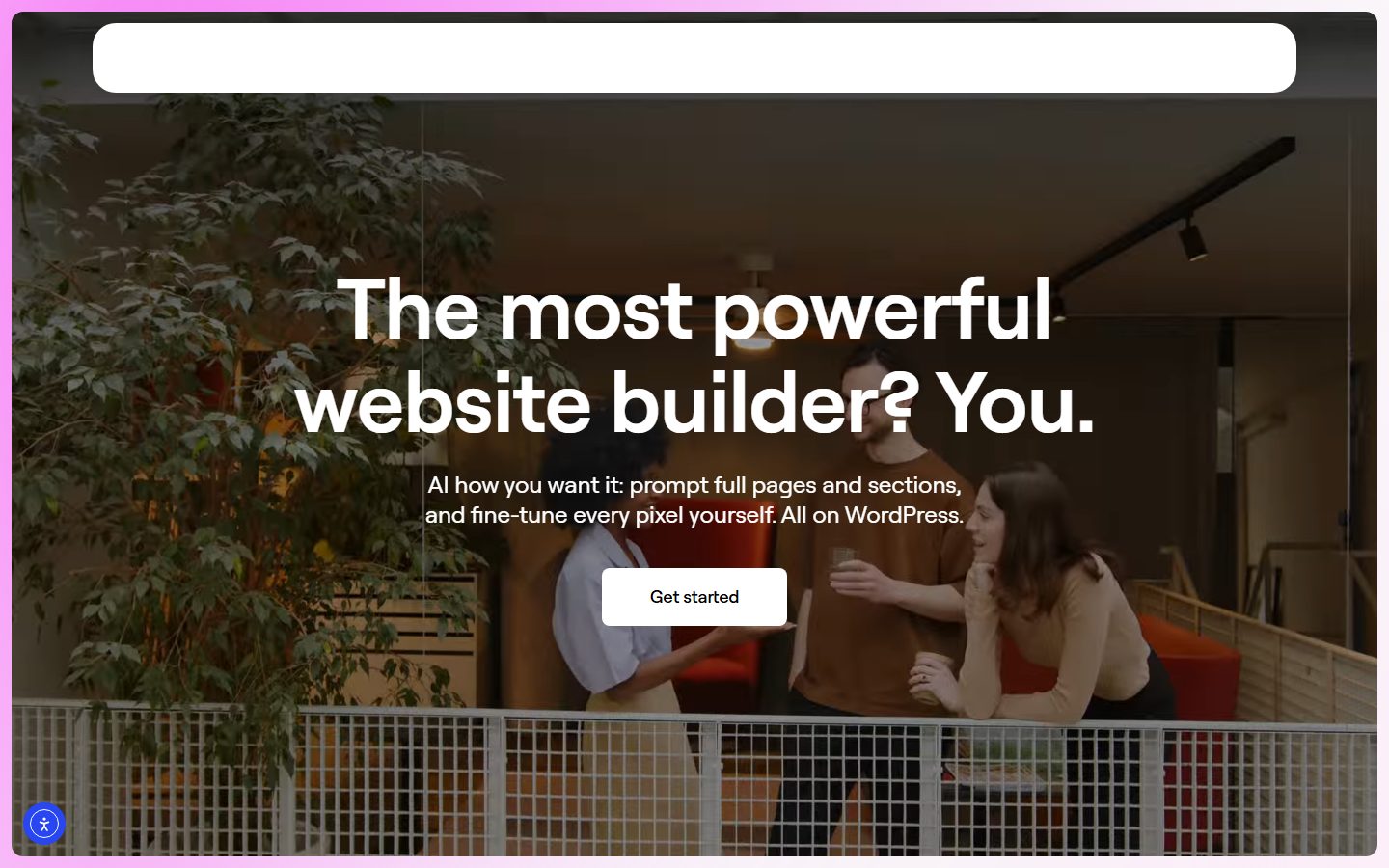
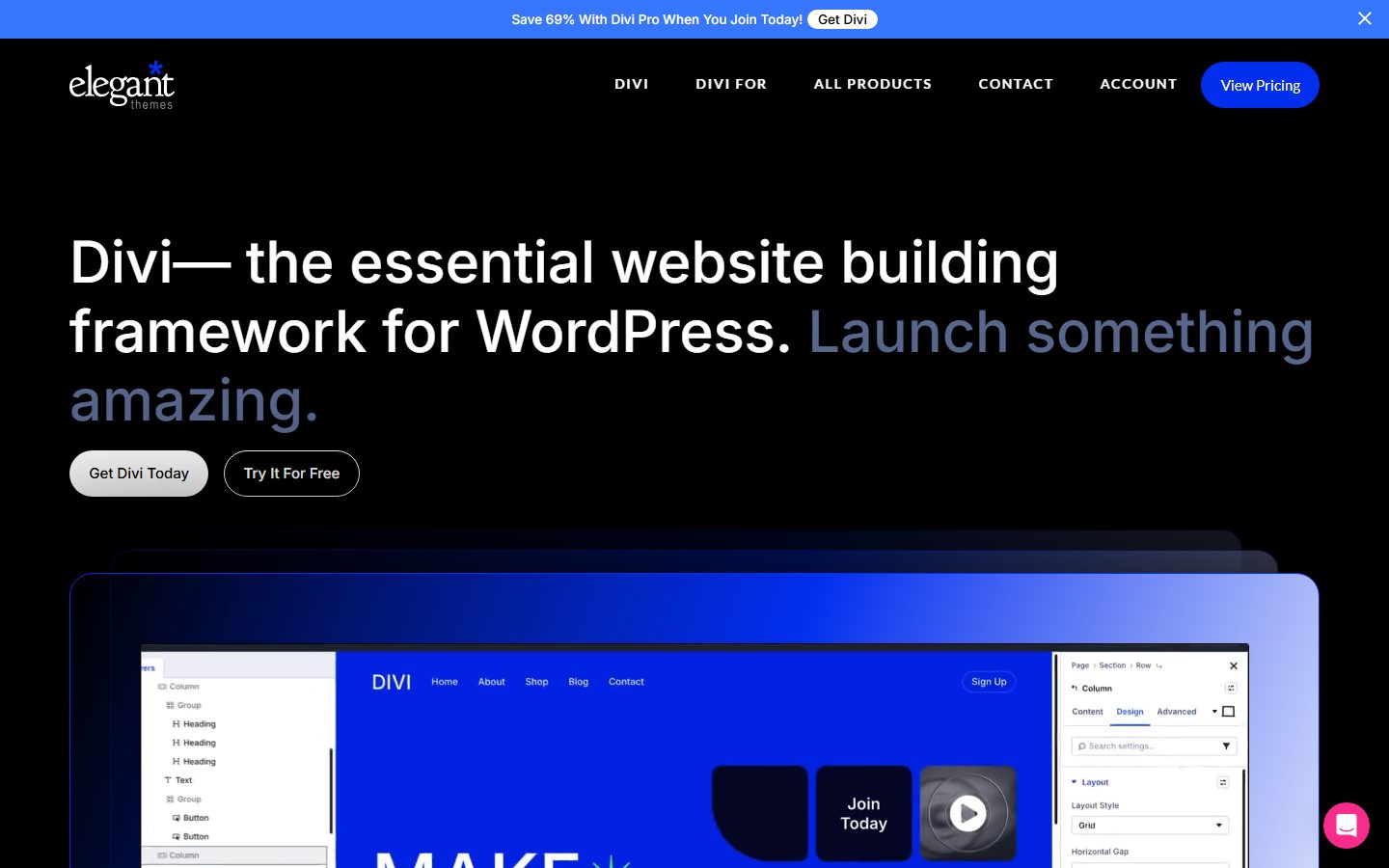
For a comparison of the whole category, see our page builder guide, and for a newer approach, our Etch review.
A comparison checklist you can fill in
| Question | Builder A | Builder B | Builder C |
|---|---|---|---|
| Features I need are in the tier I can afford | |||
| Test page: DOM nodes | |||
| Test page: requests and weight | |||
| LCP, INP and CLS on staging | |||
| Global styles, classes and variables | |||
| Theme builder, popups and forms included | |||
| WooCommerce layouts | |||
| What remains when deactivated | |||
| Update history and change notices | |||
| Availability of developers and tutorials |
Setup and migration steps
Before
Inventory what the current site uses: theme, builder, plugins for forms, popups and sliders. List templates and unique pages. Decide whether you are rebuilding or moving; most migrations are rebuilds. Take a full backup, create a staging copy and plan the work in phases. If you are moving hosts at the same time, do not do both at once; see our host migration guide.
During
Install the builder on staging. Set global colors, fonts and spacing first. Rebuild templates before pages: header, footer, post and archive. Rebuild the highest-traffic pages next. Replace third-party plugins that the builder now covers only after confirming feature parity, and remove them one at a time.
After
Check each page at phone, tablet and desktop widths. Compare Core Web Vitals and weight against the baseline. Confirm that forms send, popups behave and structured data and metadata are still present. Keep the old plugins deactivated, not deleted, for a short while, then remove them.
Common mistakes and red flags
- Choosing by demo templates rather than by the output of your own pages.
- Stacking a builder on top of a heavy multipurpose theme.
- Enabling every bundled feature, so you carry code you do not use.
- Skipping a rollback plan before a major version update.
- Relying on vendor performance claims without measuring.
- Building everything with custom values instead of global styles.
- Learning about a paywalled feature after you have designed around it.
Cost and risk of switching later
Leaving an all-in-one builder is usually a rebuild, because layouts are stored in a format only that builder understands. The cost scales with the number of pages and templates, and with how much custom styling you applied. A 20-page brochure site is a weekend. A 500-page site with templates and dynamic content is a project.
To reduce the risk, put as much as you can in standard WordPress structures: real posts and pages, menus in the menu system, content in core fields, and media in the library. Keep design values in global settings. Keep long text content as plain text so that it is easy to move. And before committing to a large build, test an exit on staging: deactivate the builder and see what remains of five representative pages. Annual pricing also deserves attention: check renewal terms and what happens to updates and support if you do not renew.
A one-afternoon evaluation plan on a staging copy
- Pick the test page. Choose a real page from your site with a hero, columns, a form and an image grid.
- Baseline. Record the current page’s DOM nodes, weight and Web Vitals from PageSpeed Insights.
- Rebuild in candidate A. Time it. Pass if the page matches the design and you set global styles without hunting.
- Measure. Record DOM nodes, requests and LCP, INP and CLS. Pass if you stay within your tolerance, for example, no worse than the baseline by more than the margin you chose in advance.
- Responsive and keyboard. Check three widths and tab through the page. Pass if nothing overlaps and focus is visible.
- Edit as a client. Have someone else change a headline and image. Pass if they succeed unaided.
- Exit test. Deactivate the builder and view the page. Record the result.
- Repeat for candidate B and compare. Our speed guide helps with fixes.
How we will evaluate it
WPMusk has not run hands-on tests of site builders. In a full review we plan to build the same page and template set in each builder on a clean test site, measure DOM size, page weight and Web Vitals, test updates and deactivation, and review the editing experience. This page carries no score: it is guidance for choosing, not a measured result.
Questions people ask
Is an all-in-one builder slower than the block editor?
Often it ships more code and markup, but the gap depends on the tool and how you build. Measure your own pages.
Can I switch builders without rebuilding?
Rarely. Most layouts are stored in each builder’s own format, so expect a rebuild.
Do I need the paid version?
If you need theme building, popups, forms or WooCommerce layouts, those are commonly in paid tiers, according to the listings above.
What is the difference between a theme-based builder and a plugin builder?
A theme-based builder ships its own theme with the editor, so you replace both together. A plugin builder works with a range of themes.
Are builders bad for SEO?
Not inherently. Slow pages and heavy markup can hurt user experience, which is why measurement matters. See the SEO guide.
Should I use an all-in-one or separate plugins?
If you want a single workflow and you will use most bundled features, all-in-one is reasonable. If you need only one or two features, separate lighter plugins may weigh less.
This is a buyer’s guide for a type of product. It is based on public documentation, not on hands-on tests, and it carries no score.
← All reviews