A buyer's guide to drag-and-drop WordPress page builders: widget libraries, client-friendliness, speed costs and lock-in.
What a drag-and-drop builder does, in plain words
A drag-and-drop page builder lets you design a WordPress page visually. You pick elements such as headings, buttons, images, tabs and forms from a panel, drop them onto the page, and change their look with controls instead of code. Most show a live preview as you work. Some also design the parts of a site outside the page content, such as headers, footers, archives and product pages, through a theme builder.
The appeal is speed and independence. People who do not write code can build pages that would otherwise need a developer, and clients can often adjust text and images themselves. The price is that the builder becomes part of your site. This guide helps you decide whether that trade suits you, what to compare, and how to test one before you build a full site. It does not rank products, and WPMusk has not built sites with any builder mentioned here for this page.
How it works under the hood
When you save a page, the builder stores your layout in its own format and uses it to produce the HTML visitors see. There are two parts to that, and each has consequences.
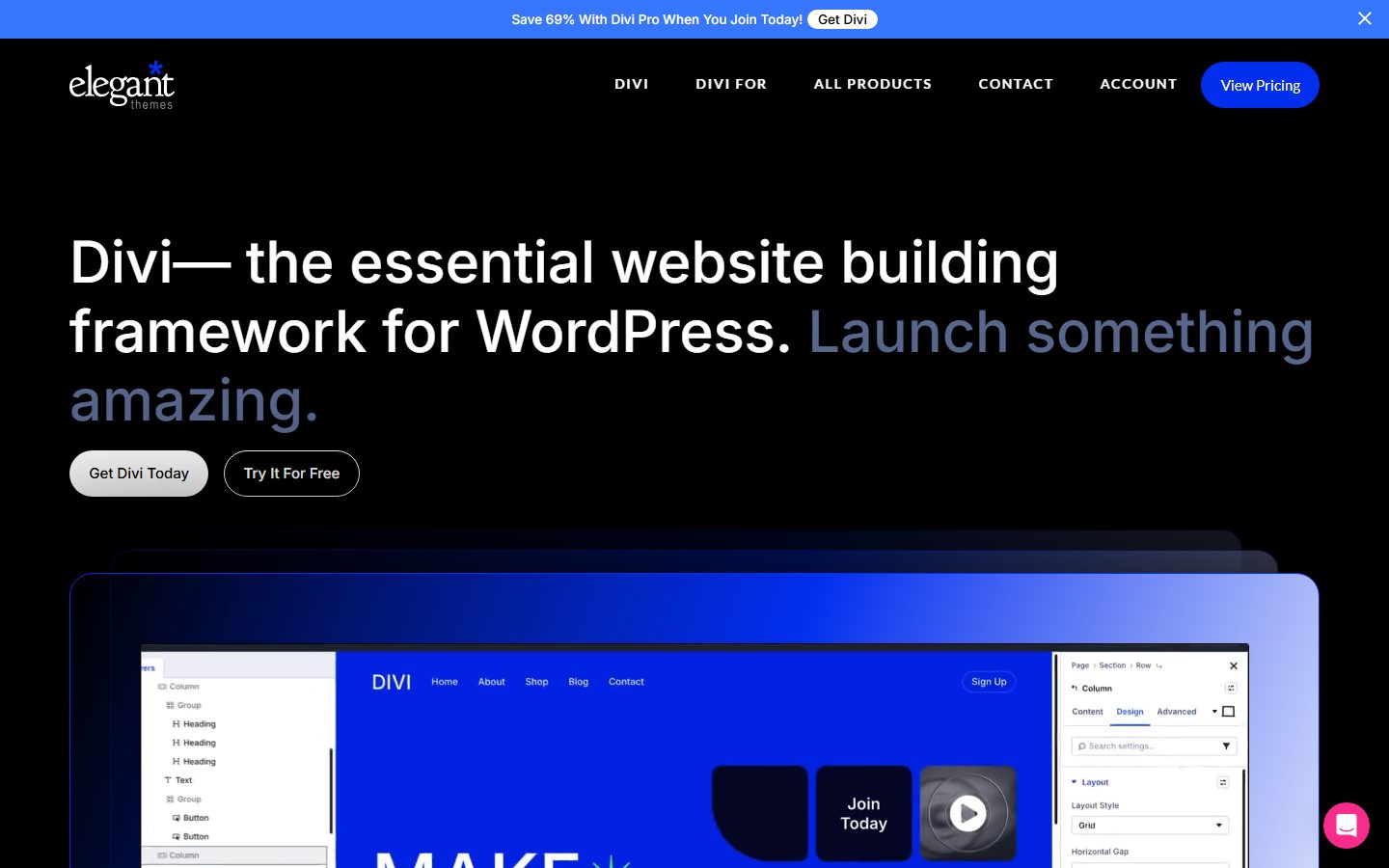
- Storage. Some builders save layout data in post metadata. Others store it in the post content as shortcodes or blocks. Elegant Themes explains that if you disable Divi, pages built with Divi 4 show shortcodes in the raw content, and that Divi 5 moves away from shortcodes. This is the lock-in risk in practice: what the visitor sees depends on the builder being active.
- Rendering. The builder generates wrappers, CSS and JavaScript for each element. Heavier markup and larger assets are the common criticism of the category. How much overhead you get depends on the builder, the elements you use and how deeply you nest them.
Builders have also been adding more developer-style features, including flexbox and grid controls, global classes and variables. Beaver Builder’s page lists flexbox and CSS grid layouts through its Box module, and Elementor’s page mentions global Variables and Classes. The line between drag-and-drop and developer-focused is blurry, which is why our page builders compared guide treats them on one spectrum.
Who needs one (and who does not)
A drag-and-drop builder fits when:
- You build sites for clients or yourself and want to move quickly without writing code.
- You need design freedom beyond what a theme offers, with a large library of widgets and templates.
- Clients will edit content and expect a visual, front-end editing experience.
- You want theme-building tools, popups and forms in one ecosystem.
It fits less well when page weight is your top priority, when you only need a few extra blocks, or when you want content that is easy to move. In those cases a block toolkit or a block theme, such as those in best block themes for WordPress, can be a lighter choice. If you are leaving a builder, see Elementor alternatives.
Types and approaches
| Approach | How you edit | Strength | Trade-off |
|---|---|---|---|
| Front-end visual editor | Edit on the live page with a preview | Intuitive; clients understand it | Editor can be heavy on weak hosting |
| Panel-based editor with canvas | Widgets from a side panel onto a canvas | Large widget libraries and templates | Many add-on plugins can pile up |
| Module-based builder | Rows, columns and modules | Predictable structure | Less flexible layouts in older versions |
| Theme-and-builder bundle | One product for theme and editor | Consistent design system | Switching means replacing both |
| Builder with AI assistance | Describe a layout and edit the result | Faster starting points | Output needs review; features change quickly |
What to look for
For builders we weight speed impact (30%), reliability (25%), support (20%), value (15%) and ease of use (10%). Because drag-and-drop tools sell on ease, the speed and reliability columns deserve your closest attention.
Front-end output and speed (speed impact, 30%)
Build the same simple page in each candidate and compare page weight, requests, DOM size and Largest Contentful Paint. Check which scripts and styles load on pages that do not use all features. Our Core Web Vitals guide explains the numbers. The editor itself matters too. Elementor’s WordPress.org page lists a minimum memory limit of 256 MB and recommends more, which shows that the editing experience has real hosting requirements.
Stability and updates (reliability, 25%)
Check how often updates ship, whether major versions changed storage formats, and whether the vendor provides migration tools. Divi 5, for example, comes with a backward compatibility mode and a migrator for Divi 4 content, according to Elegant Themes. Read the upgrade notes of the version you plan to use.
Lock-in and portability (reliability)
Deactivate the builder on a staging copy and see what the content looks like. Check whether you can export templates and global styles. This is the biggest cost question for any builder, and we come back to it below.
Widget library and add-ons (value, 15%)
Count what is in the free version and what needs Pro. Elementor’s WordPress.org page says the free version has over 40 widgets and that Pro adds the Theme Builder, Popup Builder, Forms, WooCommerce Builder, Dynamic Content, Custom Code and more. Beaver Builder’s page lists extra modules, Themer, saved layouts and global styles as premium items. Match this against what you actually need.
Theme building and dynamic content (value)
If you want to design headers, footers, archives and single templates visually, check which tier includes it and how conditions work. Test a real archive and a custom post type.
Client editing experience (ease of use, 10%)
Try editing as a limited user. Look for locking structure, hiding controls, role-based access and a way to stop clients from changing the design. Our user roles guide explains the WordPress side.
Support and ecosystem (support, 20%)
A large ecosystem means tutorials, templates and developers who know the tool. Look at documentation quality, support terms per tier and what you lose if a licence lapses. Beaver Builder’s page notes the forums offer limited support compared with Pro.
Real products to look at
These are examples of drag-and-drop builders, not rankings. Descriptions come from vendor and WordPress.org pages as we read them while preparing this guide, and we did not test the products.
Elementor. Describes itself as a no-code drag-and-drop WordPress builder with an editor, global design settings, over 40 free widgets, and a Pro tier with Theme Builder, popups, forms and dynamic content. Its page lists minimum and recommended PHP, WordPress and memory requirements. It fits teams that value a large ecosystem. For a head-to-head with a developer-style alternative, read Bricks vs Elementor.
Divi. From Elegant Themes. Its help documentation says Divi 5 moves away from shortcodes, with a migrator and a backward compatibility mode for existing content. It illustrates both the storage question and the importance of reading upgrade notes. It fits people who want a theme-and-builder bundle.
Beaver Builder. Its WordPress.org page describes a front-end drag-and-drop builder with modules such as Box, Photo, Button, Heading and Text Editor, flexbox and grid layouts via the Box module, custom CSS classes, and support for pages, posts and custom post types. Premium items include more modules, Themer, saved layouts and global styles. It fits people who want a more structured, module-based tool.
Breakdance. A plugin that describes itself as an AI website builder with a visual editor, 145 built-in elements, global variables, dynamic data and WooCommerce templates. Its page claims clean code and fast load times without giving benchmarks, and says one licence covers unlimited sites. It sits between drag-and-drop and developer-oriented tools. Our developer-focused builder guide covers this end of the range.
A comparison checklist for your shortlist
| Question | Why it matters | Builder A | Builder B |
|---|---|---|---|
| Page weight and requests for a standard page? | Speed | ||
| What does the page look like with the builder off? | Lock-in | ||
| Free widgets versus Pro widgets? | Real cost | ||
| Theme builder, popups and forms: which tier? | Feature fit | ||
| Global styles and variables? | Design consistency | ||
| Client-safe editing and role controls? | Handover | ||
| Memory and PHP requirements? | Hosting needs | ||
| Licence terms: sites, renewals, updates? | Ongoing cost | ||
| Migration path between major versions? | Maintenance | ||
| Third-party add-ons you would need? | Extra weight and risk |
Setup and migration steps
Before you commit
- List the page types and features you need: header, footer, forms, popups, store pages.
- Check hosting resources against the builder’s stated requirements.
- Take a full backup. Our maintenance checklist covers routines worth keeping.
During the build
- Work on staging. Set global colours, fonts and spacing before building pages.
- Build reusable templates for repeated sections, so one change updates all of them.
- Avoid stacking add-on plugins. Each one adds weight and a dependency.
Leaving a builder
- Decide which pages to rebuild and which can stay, since removing the builder breaks its layouts.
- Rebuild the highest-traffic pages first, in the new tool, on staging.
- Keep the old builder active until every important page is replaced. Check URLs and redirects when done.
Common mistakes and red flags
- Choosing on the template gallery, not on page weight and update history.
- Stacking add-on packs for one widget each.
- Deeply nested sections and columns that inflate the DOM.
- Giving clients unrestricted access and finding the design broken.
- Building without global styles, so a rebrand means editing every page.
- Running the editor on a low-memory host and blaming the builder for a slow dashboard.
- Letting a licence lapse and then being unable to update.
- Ignoring the exit cost until you want to leave.
Cost and risk of switching later
Leaving a drag-and-drop builder is usually a rebuild. Deactivating it leaves shortcodes or empty output in the content of pages built with it, as Elegant Themes describes for Divi 4. That means the real cost of a builder is not the licence, it is the number of pages and templates you build in it.
You can reduce this cost. Keep text and images in standard fields where possible, use global styles instead of per-element overrides, limit add-on plugins and keep a record of which templates matter most. If you expect to move in a few years, favour tools that store content in a form WordPress can read. Revisit the decision at each major version, since vendors change storage formats, and test the upgrade on staging before applying it live.
A one-afternoon evaluation plan on a staging copy
Use a trial, demo site or refund window where the vendor offers one. Read the terms first. Plan about four hours per builder.
- Baseline (20 minutes). Measure a plain page on your theme: weight, requests, Largest Contentful Paint.
- Build a reference page (60 minutes). Hero, three-column features, testimonial, form and footer. Pass: done without hunting for settings.
- Mobile pass (20 minutes). Adjust at phone and tablet widths. Pass: no horizontal scrolling and readable text.
- Measure (30 minutes). Run PageSpeed Insights and compare with the baseline. Check what scripts load. See the speed optimization guide.
- Theme templates (40 minutes). Build a header and a blog archive, if available. Note which tier you need.
- Client edit (20 minutes). Log in as an editor and change content. Pass: you can lock the design.
- Deactivation test (20 minutes). Turn the builder off on staging. Record what remains.
- Cost tally (20 minutes). List the licence tier you would need and renewal terms from the vendor’s page that day.
How we will evaluate it
WPMusk has not built sites with drag-and-drop builders for this page. We have relied on vendor and WordPress.org descriptions and vendor help documentation, and we say where claims are the vendor’s. This page carries no score: it is guidance for choosing, not a measured result.
A full review will follow the plan above, record builder and WordPress versions, publish page weight and request counts for the same reference page, and report the deactivation result in plain terms.
Questions people ask
Do drag-and-drop builders slow a site down?
They add markup and assets, so it is a fair concern. How much depends on the builder and how you build. Measure a page you would actually publish.
Can I switch builders without rebuilding?
Rarely. Deactivating a builder usually leaves broken or raw content, so plan on rebuilding the pages.
Is the free version enough?
For simple pages, often. Theme building, popups, forms and dynamic content tend to be paid. Check the lists on each vendor’s page.
Which is best for client sites?
We do not name a best. Choose the one your clients can edit safely, that you can support, and whose licence terms you can live with. See the agency workflow guide for handover practices.
Will a builder hurt my SEO?
Not by itself. Slow pages and poor structure can. Look at page weight, headings and mobile layout.
What hosting do I need?
Enough memory for the editor. Elementor lists a 256 MB minimum memory limit and recommends more. Check the requirements of the builder you pick.
This is a buyer’s guide for a type of product. It is based on public documentation, not on hands-on tests, and it carries no score.
← All reviews