A guide to choosing a WordPress caching plugin: page and object cache, safe defaults, host overlap and the settings that tend to break sites.
What a caching plugin does, in plain words
WordPress builds each page on request. It runs PHP, asks the database for content, assembles a template and sends HTML to the visitor. A caching plugin saves the finished result so the next visitor gets a stored copy instead of waiting for all that work again.
The effect shows up as a shorter wait for the first byte of the page, and as less load on your server during traffic spikes. It does not make a heavy theme light or fix oversized images. It removes repeated work, nothing more.
Most caching plugins also bundle extras: file minification, script deferral, lazy loading, CDN integration and database cleanup. Those extras are where most breakage comes from, so read them as separate features and not as part of caching proper.
How it works under the hood
There are several cache layers, and a plugin may manage one or all of them.
- Page cache. Static HTML files stored on disk or in memory. A web server rule or a small PHP script serves them without running the full WordPress stack. The WP Super Cache documentation describes its modes this way: one served through Apache rewrite rules, another served by PHP.
- Browser cache. Headers that tell a visitor’s browser to keep static files such as images, CSS and JavaScript for a period. WP Rocket’s documentation notes this is applied through server configuration and needs modules such as mod_expires and mod_deflate on Apache.
- Object cache. Stores the results of database queries in memory, usually with Redis or Memcached, so repeated queries do not hit the database. It helps logged-in and dynamic pages that a page cache cannot serve. See the Redis object cache guide.
- Opcode cache. A server feature, not a plugin. It keeps compiled PHP in memory. Your host controls it.
- CDN or edge cache. Copies of your content held on servers closer to visitors. See the Cloudflare setup guide.
A page cache has to know when to throw a copy away. Good plugins purge a page when you edit it, and purge related archives. Pages that depend on the visitor, such as a cart, checkout or account page, must be excluded. WP Rocket’s documentation lists such ecommerce pages as exceptions by default, along with logged-in users and URLs with query strings.
Who needs one (and who does not)
Most public WordPress sites with mostly static content benefit from page caching. Blogs, brochure sites and content sites often change rarely compared with how often they are viewed.
- You may not need a plugin if your host already runs server-level caching. Many managed hosts do. Running a second page cache on top can cause conflicts or stale pages. Ask your host what it caches and what it purges.
- You need extra care on shops and membership sites. Much of the traffic is logged in, or hits pages that cannot be cached.
- You may need a different fix if the site is slow because of a heavy theme, large images or slow hosting. Caching masks those problems for cached pages only. See the speed optimization guide and the Core Web Vitals guide for the wider picture.
Types and approaches
| Approach | What it does | Fits | Watch out for |
|---|---|---|---|
| Disk page cache via web server rules | Server serves static files, skipping PHP | Apache or Nginx sites on ordinary hosting | Edits to .htaccess or server config; mistakes can take the site down |
| Disk page cache served by PHP | A small PHP script serves stored files | Hosts where rule edits are awkward | Slightly slower than server-level serving |
| Server-integrated cache | Plugin controls a cache built into the web server | Hosts that run a matching server, such as LiteSpeed | Cache features may need that specific server |
| All-in-one performance suite | Page, object, database and CDN options in one place | People who want one tool and can tune it | Many settings; easy to over-configure |
| Managed host cache plus a light plugin | Host does the caching; plugin handles purge and extras | Managed hosting customers | Duplicate caching if you enable both |
| Object cache only | Caches queries in memory | Dynamic, logged-in and WooCommerce sites | Needs Redis or Memcached on the server |
What to look for
On WPMusk, plugins are scored on speed impact (30%), reliability (25%), support (20%), value (15%) and ease of use (10%). For a caching plugin, speed impact and reliability dominate, and they pull in opposite directions: aggressive settings are faster and break more.
Fit with your server and host (speed impact)
Check what the plugin needs. LiteSpeed Cache’s listing says its cache features require a LiteSpeed-based server, while its general optimization features work on any server; a CDN service from its vendor lets Apache and Nginx sites use similar caching. W3 Total Cache’s listing says it works on Apache, Nginx, IIS and LiteSpeed. A plugin that suits one host badly can do little or even harm.
Safe defaults (reliability, ease of use)
A good plugin works after you switch it on and leave the defaults. WP Super Cache’s documentation recommends its simpler mode because it is nearly as fast as the expert mode without editing server rules. Look for plugins that explain what each option risks.
Cache purging and preloading (reliability)
Ask how and when the cache clears. Publishing a post should refresh the post, the home page and relevant archives. Preloading generates pages ahead of visitors. The WP Super Cache documentation notes preload mode can take a while on a large site and disables garbage collection of old files, so read what a feature trades away.
Exclusions and logged-in handling (reliability)
You must be able to exclude URLs, cookies, user agents and logged-in users. Shops need cart, checkout and account pages left alone. WP Fastest Cache’s listing, for instance, describes exclusions for pages and user agents and options for mobile and logged-in users.
Asset optimization that you can switch off (speed impact, reliability)
Minifying, combining and deferring scripts can improve scores, and can also break layouts and interactive features. Look for per-feature toggles, per-page exclusions and a clear way to turn everything off. Some features sit behind paid tiers: WP Fastest Cache lists delayed JavaScript and script minification as premium, and W3 Total Cache lists delay scripts and several related options in Pro.
Integrations (value)
Check CDN, Cloudflare and Varnish support if you use them. Check compatibility with your theme, builder and shop plugin. A plugin that clears a CDN cache when you publish saves manual steps.
Support and documentation (support)
Caching problems are hard to diagnose. Look for documentation that explains why a page is not cached. WP Rocket’s help article on checking page caching, for example, lists blockers such as a constant set by another plugin, excluded URLs, default permalinks and certain file types.
Value (value)
Compare what the free tier and paid tiers include, and whether a service fee sits behind a feature. LiteSpeed Cache’s listing says the plugin is free but that some optional cloud services have usage limits above which they cost money. Read the current pricing page on the day you buy.
Real products to look at
These are examples, not rankings. Descriptions are based on each product’s documentation or wordpress.org listing. Confirm current features and prices on the vendor page.
- WP Rocket. A premium plugin. Its documentation says pages are cached by default, with exceptions for logged-in users, query strings and certain ecommerce pages, and that it needs write access to files such as wp-config.php and .htaccess and to its cache folder. It fits people who want a paid tool with defaults and support. See WP Rocket alternatives.
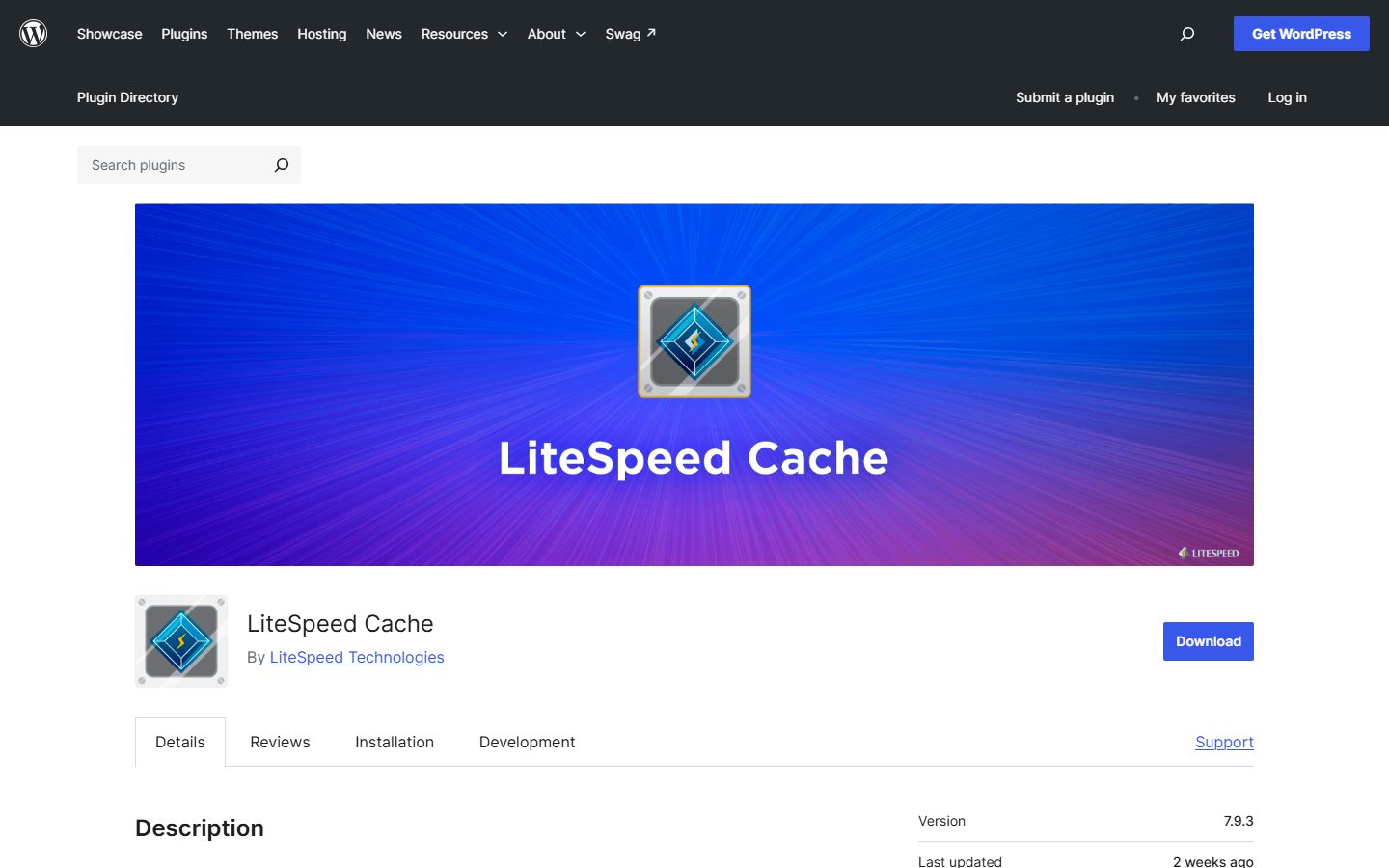
- LiteSpeed Cache. Free and open source, according to its listing. Server-level page cache requires a LiteSpeed-based server, and the listing describes private cache for logged-in users, object cache support for Memcached and Redis, and image optimization to WebP and AVIF through a cloud service. It fits sites on LiteSpeed hosting.
- W3 Total Cache. The listing describes page, object, database, fragment and browser caching, many storage backends and CDN integrations, and a free and Pro edition. It fits people who want many controls and will tune them.
- WP Super Cache. Made by Automattic, per its listing. It offers three modes, with a simple PHP mode recommended, plus preload and CDN support. It fits people who want a plain page cache and little else.
- WP Fastest Cache. Its listing describes page caching, preload, minification and Cloudflare and Varnish integration in the free tier, with mobile cache, script deferral and image conversion in premium. It fits people who want a simple interface and an upgrade path.
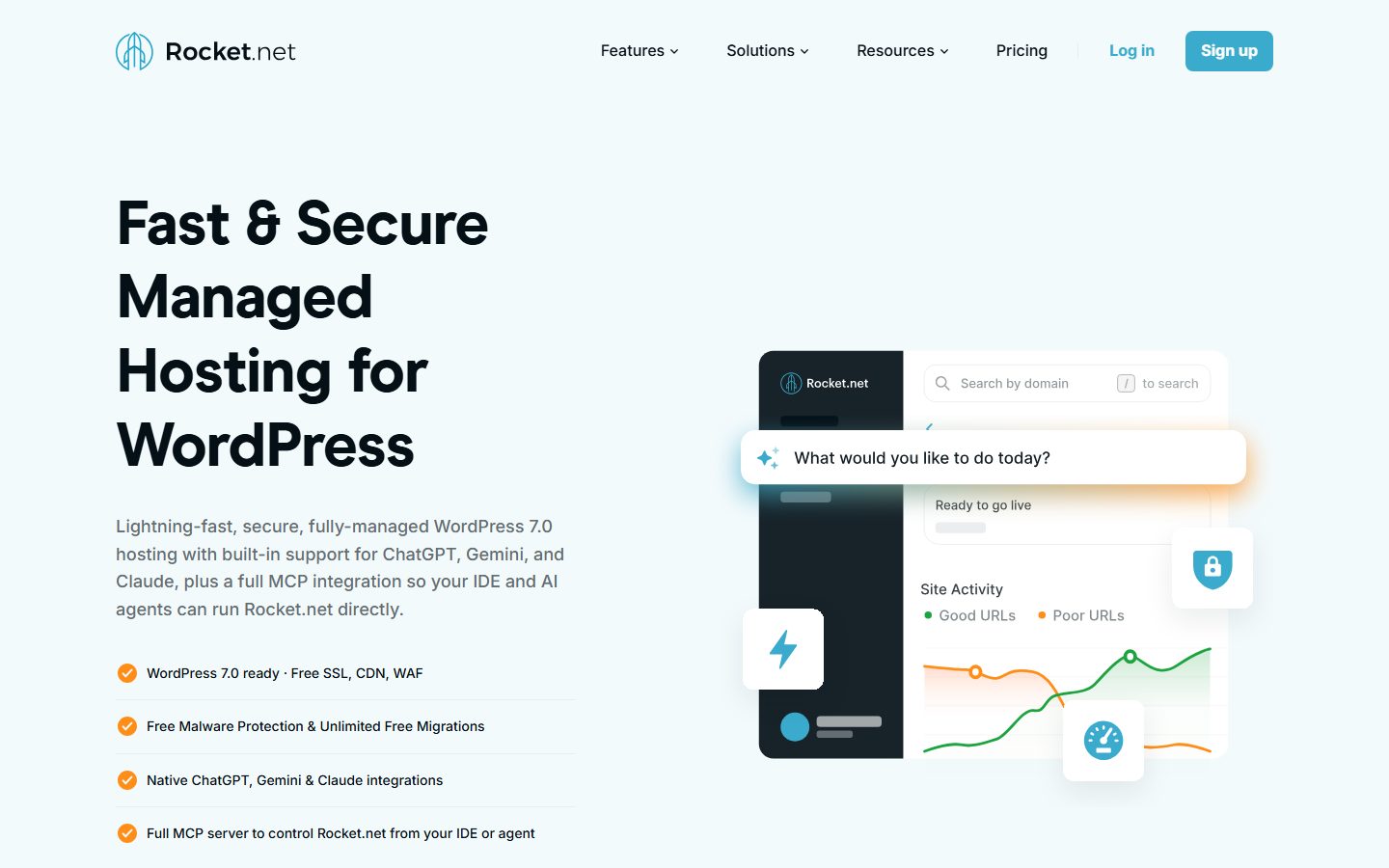
The screenshots below show the homepage of two of these examples as captured in November 2026, so you can see how each vendor presents the product.
For a wider comparison, see the caching plugin roundup.
A comparison checklist you can fill in
| Question | Why it matters | Your answer |
|---|---|---|
| Does it work with your web server? | Some features need a specific server | |
| Does your host already cache pages? | Avoid double caching | |
| Are defaults safe on a fresh install? | Fewer surprises | |
| Can you exclude URLs, cookies and user agents? | Shops, forms, memberships | |
| Does it purge related pages on publish? | Stale content | |
| Can each optimization be turned off alone? | Isolating breakage | |
| Which features are paid? | Real cost | |
| Does it write to wp-config.php or .htaccess? | Risk on uninstall | |
| Does it support your CDN? | Purge automation | |
| How is a cache hit shown? | Verification |
Setup and migration steps
Before you switch
- Take a full backup. Caching plugins edit server files and configuration.
- Write down the current caching setup: which plugin, which host cache, which CDN.
- Record baseline numbers on a few key pages, using PageSpeed Insights or your own timing, so you can compare later. See the PageSpeed Insights guide.
- Deactivate and fully remove the old caching plugin before you install a new one. Two page caches fight each other.
During setup
- Install on a staging copy first.
- Turn on page caching only. Leave minification and script deferral off.
- Clear the cache and load a page twice, once logged out. Confirm the second load is cached. Plugins show this in different ways, such as an HTML comment at the bottom of the page source.
- Add exclusions for cart, checkout, account and any dynamic form pages.
- Enable one optimization at a time and test after each.
After you switch
- Check that editing a post updates the public page.
- Check logged-in views, forms, search and any widget that shows live data.
- Purge your CDN cache once, then watch for stale files.
- Remember to remove leftover lines in .htaccess or wp-config.php if the old plugin did not clean up.
Common mistakes and red flags
- Running two page caches, such as a plugin plus a host cache, without checking they cooperate.
- Turning on every option at once, then not knowing which one broke the layout.
- Caching cart and checkout pages on a shop.
- Testing only while logged in. Logged-in views often bypass the cache and look slow or look fine for the wrong reason.
- Forgetting to purge after theme or plugin changes.
- Chasing a score instead of the visitor’s experience. A tool score is a proxy, not the goal.
Red flags in a product: no way to disable a feature, no explanation of what a setting does, and claims of speed gains without saying under what conditions. Treat any specific number on a vendor page as the vendor’s claim, not a result you can expect.
Cost and risk of switching later
Switching is easy if you clean up. The risk sits in leftovers: rewrite rules in .htaccess, the WP_CACHE constant in wp-config.php and drop-in files in wp-content. The WordPress documentation notes the WP_CACHE constant has an effect only when a caching drop-in is installed. If a leftover drop-in stays after you remove the plugin, you may see odd behavior.
Cost differences come from licensing and from service fees. A paid plugin may charge per site per year. A free plugin may link to paid cloud services. Check each at purchase time. If you move host, a plugin designed for one server may lose features on another, which is a hidden switching cost.
A one-afternoon evaluation plan on a staging copy
- Baseline (30 minutes). On staging, measure the home page, a post, a category page and, if you have a shop, a product page. Record time to first byte and the Core Web Vitals reported in PageSpeed Insights. Pass condition set now: write down the improvement you need.
- Install with defaults (15 minutes). Activate page caching only. Pass: the site still works and nothing in the admin breaks.
- Confirm caching (15 minutes). Load each page twice while logged out. Pass: the second load is served from cache and is measurably faster than the baseline.
- Test purging (20 minutes). Edit a post and refresh it logged out. Pass: the change appears without manual purging.
- Test exclusions (30 minutes). Add to cart, log in and submit a form. Pass: nothing shows another user’s data and forms still send.
- Add optimizations one by one (60 minutes). After each, check the layout on desktop and phone, menus, sliders and forms. Pass: no visual or functional change. Fail: turn that option off and note it.
- Remeasure (20 minutes). Compare with the baseline. Pass: you meet the target you wrote down.
- Uninstall test (15 minutes). Deactivate and delete the plugin. Pass: the site works and no cache rules remain.
How we will evaluate it
WPMusk has not run hands-on tests of caching plugins yet. This page is a decision guide built from vendor documentation and WordPress documentation. This page carries no score: it is guidance for choosing, not a measured result.
When we publish a full review we plan to follow the afternoon plan above, publish the steps and say what we did and did not measure. Scores will use our plugin weights: speed impact 30%, reliability 25%, support 20%, value 15% and ease of use 10%. For shops, also read the WooCommerce speed checklist.
Questions people ask
Do I need a caching plugin if my host has caching?
Often not for page caching. Ask the host what it caches and how it purges. You may still want a plugin for specific extras, but avoid duplicate page caches.
Is page caching safe for WooCommerce?
It can be, if cart, checkout and account pages are excluded and your plugin supports your shop setup. Test the full purchase flow on staging.
Will caching fix a poor Core Web Vitals score?
Only part of it. Caching helps server response time. Layout shift, large images and heavy scripts need other fixes.
Should I enable minification and combining?
Treat it as optional. Enable one option at a time and test, because these features break sites more often than page caching does.
Why does my site look fine to me and stale to visitors?
You may be logged in, which usually bypasses the page cache. Test logged out and in a private window.
Do I need Redis as well?
Only if your server offers it and your site has many dynamic or logged-in requests. See the Redis guide linked above.
This is a buyer’s guide for a type of product. It is based on public documentation, not on hands-on tests, and it carries no score.
← All reviews