An animation addon adds movement to your pages without writing code. Typical effects are elements that fade or slide in as you scroll to them, hover effects on buttons and cards, parallax backgrounds, counters that count up, animated icons, and sequences that tie movement to scroll position. You pick an effect from a menu, set a duration and delay, and the addon does the rest.
Done sparingly, motion helps: it draws attention to a call to action, shows that something has changed, and makes a page feel polished. Done heavily, it slows the page, distracts readers and can make some visitors physically unwell. The best use of this category is restraint, and the best tools make restraint easy by letting you respect the visitor’s settings.
This guide teaches you how to choose. WPMusk has not run hands-on tests of the products named here. Descriptions come from vendor pages, wordpress.org listings and web standards documentation, and we do not rank products or quote prices.
Almost all web animation is built from two layers: CSS and JavaScript. CSS handles transitions, keyframe animations and, in newer browsers, scroll-driven animations. MDN describes CSS scroll-driven animations as tying an animation’s progress to scroll position rather than elapsed time, using the animation-timeline property with scroll() and view() functions, and recommends checking support data before relying on them.
JavaScript libraries fill the gaps. The AOS (Animate On Scroll) library, per its documentation, works by adding a data-aos attribute to an element with an animation name, loading its CSS and JS and calling AOS.init(), with per-element duration, easing, delay and offset. GSAP describes itself as a JavaScript animation library for UI elements, SVG and WebGL, with a ScrollTrigger plugin, and states on its site that it is free for everyone, supported by Webflow. Many WordPress addons wrap libraries like these behind a visual panel.
Cost depends on what is animated. web.dev’s animation guide says to restrict animations to opacity and transform where possible, because they stay on the compositing stage and skip layout and paint work. In its own example, animating top and left dropped 50 percent of frames while the transform version dropped about 1 percent. The same guide says to avoid layout properties unless absolutely necessary. That is why an addon that animates position by changing layout can feel jerky on a mid-range phone while one that uses transforms can stay smooth.
There is also a load cost. The addon’s scripts must download and run, and effects that hide elements until they animate can delay when content appears. web.dev’s guide to Largest Contentful Paint notes that an element is not counted until it has rendered, so a hero image or headline that starts invisible and fades in can postpone your LCP.
You may want an animation addon if your design calls for scroll reveals, hover feedback or animated sections and your builder does not offer them. Portfolio, agency and product launch sites often fit.
You may not need one if your effects are simple. A hover color change or a gentle lift on a card is a few lines of CSS. Many builders and block libraries already include entrance animations: Otter Blocks lists 50-plus animation effects in its free version, Kadence Blocks lists Animate on Scroll among its paid add-ons, Stackable lists motion effects as premium and Elementor tags Motion Effects as Pro. Check what you already have before adding another plugin.
You should skip heavy animation entirely if your audience is on slow devices or your content is the point, such as documentation, news or a store with strong speed requirements. Our speed optimization guide helps you decide where your limits are.
| Approach | How it works | Strengths | Trade-offs |
|---|---|---|---|
| Native CSS you write or paste | Transitions, keyframes, scroll-driven CSS | No extra scripts; lightest | Needs CSS knowledge; newer features need support checks |
| Builder’s built-in motion effects | Entrance and scroll effects in the editor | No extra plugin; consistent UI | Often in a paid tier; locked to the builder |
| Block library animation feature | Animation controls on blocks | Works in the block editor | Limited effect sets in some |
| Dedicated animation plugin | Wraps a library like AOS or GSAP | Wide choice of effects; works across themes | Adds scripts; may be unmaintained |
| Lottie and animated media | Vector animation files played in the page | Rich animation from designers | File weight and player script |
Our weights for builder add-ons are speed impact 30%, reliability 25%, support 20%, value 15% and ease of use 10%.
Check what scripts and styles the addon loads and whether it loads them only on pages that use effects. The Animate on Scroll plugin’s listing, for example, says it loads the AOS library only on pages that use its classes. Check what properties the effects animate: transforms and opacity are cheaper than layout properties. Measure on a mid-range phone profile, not just on a fast laptop. Our Core Web Vitals guide explains the metrics to watch.
Check that animations do not hide content when scripts fail or load late. A page whose text is set to invisible until JavaScript runs is fragile. Also check maintenance: the same Animate on Scroll listing warns that the plugin has not been tested with the latest three major WordPress releases and may be unmaintained, which is the type of flag to look for.
Animation bugs are visual and hard to describe. Look for documentation with examples, a support forum with recent answers and a changelog that explains fixes. If the addon wraps an external library, check how quickly it updates it.
Count the effects you will use. Many sites need three: fade up, fade in and a hover lift. A large effects library has little value if you use a handful. Check whether the feature you want, such as scroll-linked effects or sequences, is free or paid. Per its listing, Otter’s animations are free, while Kadence and Stackable put theirs in paid tiers.
Look for a live preview, sensible defaults and the ability to set an effect once and reuse it. A timeline view helps for sequences. Beware of tools where every element needs five settings.
This is the most important criterion for visitors. MDN documents the prefers-reduced-motion media feature, which detects whether a user has asked their device to minimize non-essential motion, with values no-preference and reduce, and notes that animations such as scaling or panning large objects can trigger discomfort, dizziness or nausea in people with vestibular disorders. WCAG success criterion 2.3.3, at level AAA, says motion animation triggered by interaction should be possible to turn off unless essential, and lists honoring the reduced-motion system setting as one approach. Ask whether the addon honors the setting automatically, offers a toggle or leaves it to you.
Animated content must still be readable and reachable. Check that focus order does not change, that text does not move while someone is reading and that animations do not loop forever without a way to stop them.
Newer CSS features such as scroll-driven animations need fallbacks in browsers that lack them. MDN suggests using feature queries for progressive enhancement. A tool built on them should degrade to a static page, not a broken one.
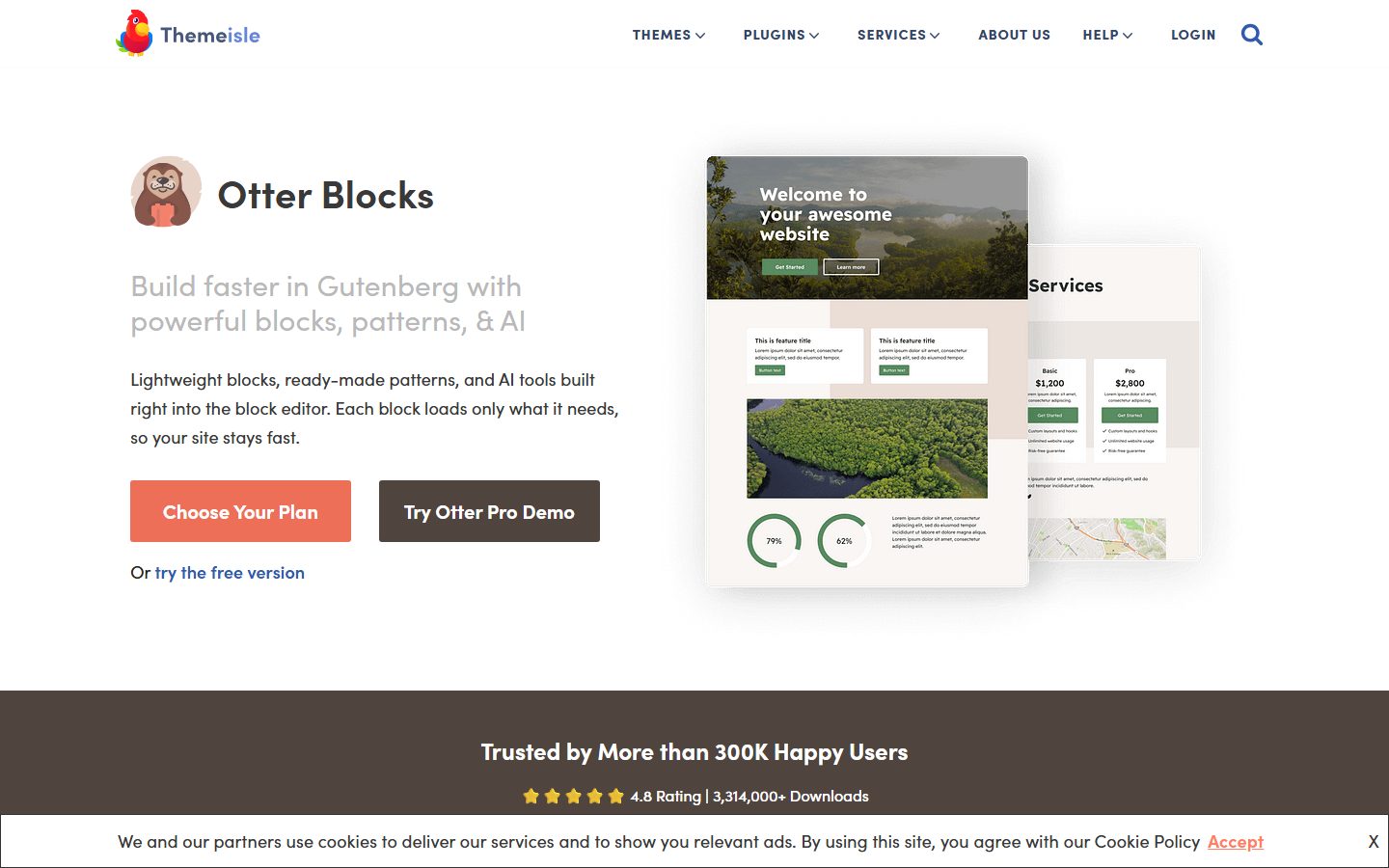
The screenshots below show the homepage of two of these examples as captured in November 2026, so you can see how each vendor presents the product.

| Question | Tool A | Tool B | Tool C |
|---|---|---|---|
| Scripts load only where effects are used | |||
| Effects use transform and opacity | |||
| Honors prefers-reduced-motion | |||
| Content visible without JavaScript | |||
| Effects I need are in my tier | |||
| Hero content not delayed by animation | |||
| Smooth on a mid-range phone | |||
| Recently updated and tested with current WordPress | |||
| Preview and reuse of effects | |||
| Removal leaves content intact |
Decide which three or four effects you want site-wide and write them down: for example, fade up on sections, lift on cards and a subtle button hover. Check whether your builder or block library already has them. Record your page speed and layout shift now so that you have something to compare to. Back up and use staging; see our staging guide.
Install the addon on staging. Apply effects to non-critical sections first and leave the top of the page, the hero and the main headline static. Use short durations and small distances. Set reduced-motion behavior before you apply effects widely. Test on a phone, not only a desktop browser.
Turn on your operating system’s reduce motion setting and reload the page. Confirm effects are removed or toned down. Check page speed and layout shift against the baseline. Scroll quickly and slowly to look for flicker. Review on a slower device if you can.
Animation addons are among the easier things to change. Effects are usually stored as attributes or classes on elements, and removal often just means pages stop animating. The risk is in content that depends on the effect: elements that start hidden may stay hidden if the addon’s script is removed. Test deactivation on staging.
To keep your options open, prefer a small, consistent set of effects, document them and use your builder’s built-in feature where possible. If you rely on a third-party plugin, note which pages use it. If you move to native CSS later, the web.dev guidance on transforms and opacity carries over, and the same effects can often be reproduced with a few lines of CSS. If you are changing builders at the same time, see our page builder comparison first, because motion features are usually part of the builder tier.
WPMusk has not run hands-on tests of animation addons. In a full review we plan to build the same page with a set of effects in each tool on a clean test site, measure weight and layout shift, test reduced-motion behavior and script failure, and check removal. This page carries no score: it is guidance for choosing, not a measured result. Use this page as guidance, not as a verdict.
They can, through extra scripts and through effects that force layout work. Transform and opacity animations are cheaper, according to web.dev. Measure your own pages.
No. Visitors who set their device to reduce motion should see less or none. Choose a tool that honors that setting or lets you set it.
For simple effects, yes. A transition on hover or a short keyframe animation needs no plugin. Addons help when you want a visual panel or scroll-linked effects.
They can if they delay the largest element, shift layout or add heavy scripts. Keep the hero static and reserve space for animated elements.
It is a JavaScript library that developers add to a theme or plugin. Some addons use it internally. Check each tool’s documentation.
Often two or three used consistently. More tends to hurt readability and speed.