An image optimizer shrinks the file size of the pictures on your site so pages load faster and use less bandwidth. It does this by compressing images, converting them to newer formats such as WebP and AVIF, resizing oversized uploads and, in some products, loading images only when they scroll into view.
Images are often the heaviest part of a page. A photo straight from a phone or camera can be many times larger than the space it fills on screen. An optimizer fixes that on upload or in bulk, so you do not have to prepare every picture by hand.
It will not fix a slow server or heavy scripts. It addresses one cause of slow pages, and a large one on image-heavy sites. See the guide to optimizing images with WebP and AVIF for the how-to side, and the Core Web Vitals guide for how images affect Largest Contentful Paint.
When you upload an image, WordPress creates several resized copies, called sizes or thumbnails, such as thumbnail, medium and large. An optimizer then processes the original and, usually, each of those copies.
The processing can happen in three places.
Compression is either lossless, which removes data without changing pixels, or lossy, which discards some detail to go smaller. Next-generation formats are served to browsers that support them. web.dev notes that WebP and AVIF generally compress better than older formats and work in modern browsers, with JPEG or PNG fallbacks possible. How the plugin delivers the right format matters. Options include rewrite rules, picture tags or a CDN. Each has quirks.
You do not need a plugin to get WebP. WordPress core supports WebP uploads, and later versions added AVIF support, but core does not compress your existing library for you or convert every upload. Check your own version’s behavior on staging.
| Approach | Where work happens | Strengths | Watch out for |
|---|---|---|---|
| Local processing | Your server | No per-image quota; files stay on your host | Uses your CPU; needs server tools; may not run on restrictive hosts |
| Cloud compression API | Vendor servers, files returned to your site | Heavy work off your server; strong compression options | Quotas, credits, sending files to a third party |
| Image CDN or on-the-fly delivery | Vendor edge network | Right size and format for each visitor | Dependency on the service; URLs change; check what happens if you cancel |
| Format-conversion only | Server or cloud | Adds WebP or AVIF to existing files | Delivery method needs care |
| Manual process before upload | Your computer | Full control, no plugin | Does not fix the existing library or other authors |
| Host-level optimization | Host | Nothing to install | Limited control |
On WPMusk, plugins are scored on speed impact (30%), reliability (25%), support (20%), value (15%) and ease of use (10%). For image optimizers, speed impact has two sides: the faster pages you gain and the load the tool puts on your server and admin.
The point is smaller files and the right dimensions. Look for resizing of oversized images, next-gen formats and lazy loading. Lazy loading helps pictures below the fold, and it should not be applied to the main image at the top of a page, which can delay Largest Contentful Paint. Check that you can exclude specific images. The Smush listing mentions an option to add missing width and height attributes, which helps avoid layout shift.
Look for lossless and lossy options and a middle setting. ShortPixel’s listing describes lossless, glossy and lossy modes. Imagify’s describes a default smart compression and an optional lossless mode. Photographers and product-photo sites should compare results visually on their own images, since results vary.
Read how usage is counted. ShortPixel’s listing says a credit is used per image or thumbnail optimized by at least 5%, and that images usually have several thumbnails, so one upload can use several credits. Imagify’s listing describes a monthly quota in megabytes, shared across sites. Smush’s listing says its free version skips images over a size limit and that WebP and AVIF are Pro. Limits like these decide your real cost, so do the arithmetic for your library size.
Lossy compression is not reversible. Check that the plugin keeps your originals, where it stores them, and how to restore one image or all. ShortPixel’s listing says restoring depends on enabling backups, and Imagify’s says backup is on by default and recommends keeping it on. Backups take disk space, so look for cleanup options.
How does the plugin serve WebP or AVIF? Rewrite rules, picture tags and CDN delivery each have trade-offs. Imagify’s changelog is cited in its listing as recommending rewrite rules for sites without a CDN and noting that picture tags carry layout risks. Test with your theme and builder, since some builders handle picture tags poorly.
You need a way to process the existing library in the background, with progress shown and the ability to resume. WP-CLI support helps on large libraries. ShortPixel’s listing describes background bulk processing and WP-CLI. Check that new uploads are processed automatically.
Ask what happens if you uninstall or cancel. Imagify’s listing says optimized images stay compressed if you remove the plugin. For URL-rewriting CDN services, images may break or revert unless the originals are still on your server. Optimole’s listing says originals stay on your server unless you offload them, which is a Pro feature.
Cloud services receive your images. Check retention. LiteSpeed Cache’s listing says image data processed by its cloud service is kept for up to seven days. Look for documentation and a support channel that answers questions about quotas and delivery.
These are examples, not rankings. Descriptions come from wordpress.org listings. Check each vendor for current tiers and prices.
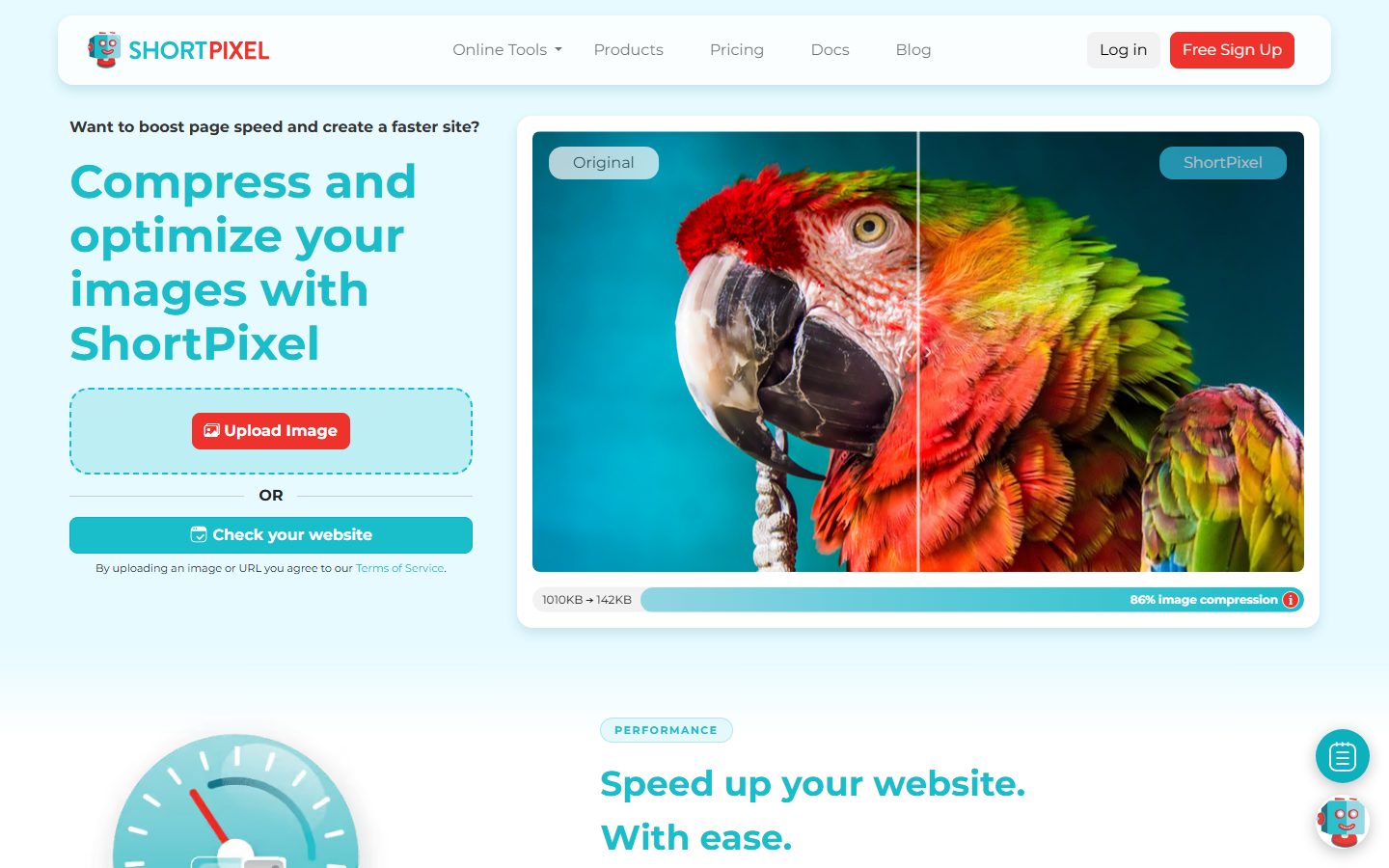
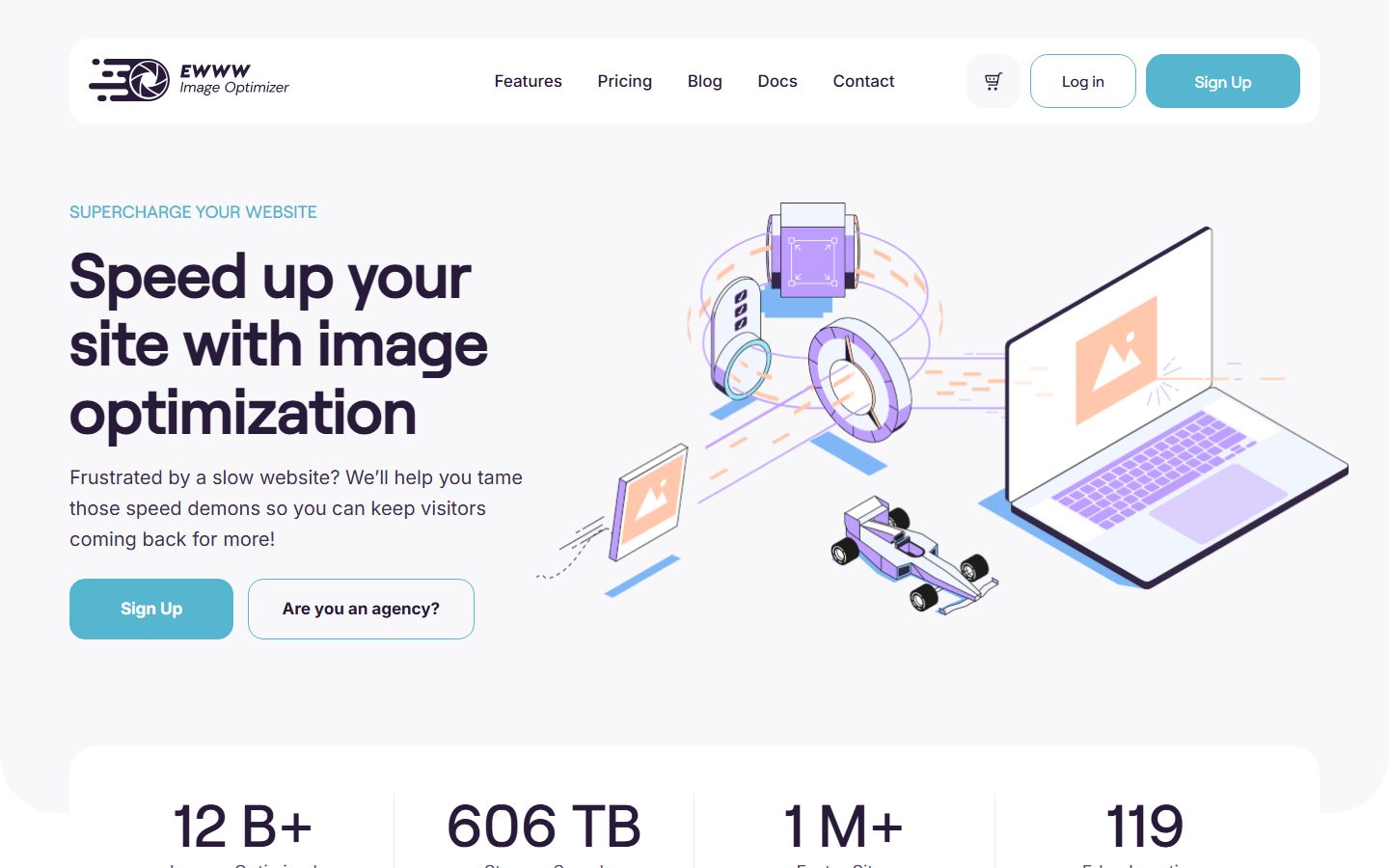
The screenshots below show the homepage of two of these examples as captured in November 2026, so you can see how each vendor presents the product.
Pair this with image SEO and AI image alt text, since file names and alt text matter as much as file size.
| Question | Why it matters | Your answer |
|---|---|---|
| Where is processing done? | Server load, privacy | |
| How is usage counted? | Real cost | |
| Is WebP or AVIF free? | Tier choice | |
| How are formats delivered? | Compatibility | |
| Are originals backed up, and where? | Reversibility | |
| Is there a per-file size limit? | Large photos | |
| Does it resize oversized uploads? | Biggest saving | |
| Does bulk processing run in the background? | Large libraries | |
| Can you exclude images from lazy load? | LCP | |
| What happens if you uninstall? | Exit plan | |
| Does it conflict with your caching or CDN? | Duplicate work |
Red flags in a vendor: unlimited claims without conditions, no description of how originals are handled and no statement about what happens when you leave.
Local and file-based tools leave optimized files in your uploads folder. Switching is easy in that case, though re-optimizing already compressed files can degrade quality, so process from originals when you can. Imagify’s listing says optimized images stay compressed if the plugin is removed, which is the usual behavior for tools that write files.
CDN and URL-rewriting services are harder to leave. Images may load from the vendor’s domain, so removal means URLs revert to your own files. Check how that works before committing. Quotas and credits can change, and one-time credit packs may expire under some terms. Read the current pricing page on the day you buy.
WPMusk has not run hands-on tests of image optimizers yet. This page is a decision guide built from vendor listings and web.dev guidance. This page carries no score: it is guidance for choosing, not a measured result.
When we publish a full review we plan to follow the plan above and state exactly what we measured. Scores will use our plugin weights: speed impact 30%, reliability 25%, support 20%, value 15% and ease of use 10%. For the wider performance picture, see the speed optimization guide.
It is safe when quality is acceptable and originals are kept. Check results on your own images.
Both work in modern browsers, according to web.dev, and generally compress better than older formats. Serve fallbacks and test your delivery method.
Not always. A CDN helps distant visitors. Some optimizers bundle one, and your host or caching plugin may already offer it.
Most plugins can process it in bulk. Check quota and server load first.
Local tools usually keep them. CDN services may rewrite them. Ask before you install.
Images are only one cause. Check scripts, the server and caching.