Search for the best WordPress plugins and you get lists of fifty names with a one-line blurb each. They are easy to skim and almost impossible to act on. The plugin that suits a membership site may be wrong for a portfolio, and the one that suits a store may slow a brochure site. “Best” only means something once you know what you are building.
This guide starts with the job you need done. For each category it names the options worth a look, tells you what each vendor’s own page or wordpress.org listing says (we read them in November 2026), and explains what to compare, when to avoid a plugin and when a built-in feature or a few lines of code is the better answer. You will finish with a decision framework, a minimal-stack method, a testing routine and a map to our deeper comparisons.
WPMusk has not run hands-on benchmarks for this guide, so you will not find invented speed numbers or scores. Prices are quoted only where we read them on a vendor page, and many vendors run Black Friday sales in November, so confirm current pricing at checkout.
Key takeaways
- Choose plugins by the job to be done, not by popularity. Fewer, well-chosen plugins beat a long stack.
- Vet every plugin before installing: maintenance, support, reviews, security record, performance and exit cost.
- For each category compare data ownership, pricing model, renewal terms, integrations and how easily you can leave.
- Delete what you do not use, test updates on staging and learn a method for isolating conflicts.
- Sometimes the best plugin is none: core features, your host or a few lines of code may do the job.
How to think about the best WordPress plugins
A plugin is code that runs on your site, on every request or every admin screen. Each one adds features, but also maintenance work, possible security exposure, a performance cost and a dependency you now have to live with. So the aim is not to find the most plugins or the most popular ones. It is to find the smallest set of reliable plugins that does what the site needs. Seasoned site owners keep a short list of tools they trust and reuse, and add to it slowly.
Plugin count is the wrong metric
“Keep your plugin count low” is a rough guide, not a rule. One badly written plugin can slow a site more than twenty well-built ones. What matters is what each plugin does, how it loads assets, how it queries the database and how well it is maintained. A site with thirty focused plugins from reputable developers can run fine, while a site with five plugins that each load heavy scripts on every page can crawl.
Free, freemium and premium
Free plugins from the WordPress.org directory cost nothing, and many are excellent. Freemium plugins give a core for free and charge for advanced features, which is how most plugins in this guide work. Premium plugins sell licences, typically yearly, and often include support and updates. Price alone says little about quality. Look at the developer’s track record, update history and cost of leaving.
Be clear about the renewal model. With many premium plugins, updates and support stop when the licence lapses, although the plugin keeps working. Several vendors in this guide advertise a discounted first-year price and a higher renewal, so work out the year-two cost before you build a business on a tool.
A framework for choosing a plugin
Use the same questions every time. They take a few minutes and prevent most regrets.
- What exact job does this do? Write it in one sentence. If you cannot, you may not need it.
- Is there a simpler way? Check whether WordPress core, your theme or your host already covers it.
- Is it maintained? Look at the last update, the tested-up-to WordPress version, the PHP requirement and how the developer answers support threads.
- What is its reputation? Read reviews, especially the critical ones. Look for patterns, not single complaints.
- What is its security record? Search vulnerability databases for past issues and how quickly they were fixed.
- What does it cost the site? Check front-end assets, database tables and admin slowdowns.
- What happens if you remove it? Does your content survive? Do shortcodes and data remain readable?
- What does it really cost? Include renewal prices, add-ons, support terms and your time.
Our detailed walkthrough is in how to vet a WordPress plugin before you install it. Read it before you buy anything that stores business data.
What the wordpress.org listing tells you in two minutes
Every plugin in the directory shows a few signals you can read without installing anything: the version and last update, the “tested up to” WordPress version, the minimum PHP version, active installations, the rating with its breakdown and a support tab showing how many recent issues were resolved. Read the one-star reviews first. They tell you what goes wrong in practice. Read the vendor’s own page second, because its feature claims are marketing. Where a listing and a vendor page disagree, as they do on install counts for a few plugins below, trust the detail you can verify and treat round numbers as approximate.
Red flags
- Not updated for a long time and not tested with recent WordPress versions.
- Support questions with no replies.
- Nulled or pirated premium plugins. They are a common route for malware, so never use them.
- Vague claims such as “boosts speed by a huge amount” with no explanation of how.
- Requests for broad permissions or remote access that the feature does not need.
- Data stored in a proprietary format with no export.
The categories at a glance
This table lists the tools discussed in this guide, with facts we read on each vendor page or wordpress.org listing. It is a shortlist to start from, not a ranking.
| Job | Options discussed | Pricing model (as listed) | Main thing to compare |
|---|---|---|---|
| SEO | Yoast SEO, Rank Math, Slim SEO and others | Free core plus yearly paid tiers | Redirects, schema depth, renewals |
| Page building | Elementor, Bricks, the block editor | Free core (Elementor) or paid theme (Bricks) | Output quality, lock-in |
| Forms | Fluent Forms, WPForms | Free core plus Pro | Payments, fees, data storage |
| Email and CRM | FluentCRM | Free core plus Pro; you supply the SMTP service | Deliverability, consent |
| Ecommerce | WooCommerce, FluentCart, SureCart | Free core; extensions, Pro or cloud plans | Fees, hosting model, extensions |
| Membership | MemberPress | Yearly tiers; one tier charges a transaction fee | Payment methods, drip, renewals |
| Booking | FluentBooking | Free core plus Pro | Calendars, payments, group events |
| Speed | WP Rocket, ShortPixel | Yearly licences (WP Rocket by site count) | One caching layer, host overlap |
| Security | Wordfence, Patchstack | Free plus paid; Patchstack by trial and plan | Firewall vs vulnerability mitigation |
| Backups | UpdraftPlus | Free core plus yearly plans | Off-site storage, restore testing |
| Multilingual | WPML, TranslatePress | Yearly licences | Translation storage, SEO output |
| Multi-site management | MainWP, ManageWP, WP Umbrella | Free self-hosted core, per-site add-ons, per-site monthly fee | Per-site cost, hosting of dashboard |
Best WordPress plugins by use case
Below are the categories most sites need. For each one, you will find what to look for, what the vendors say and where to read more. We describe options so you can match them to your situation. We do not claim any product is best for everyone.
SEO
An SEO plugin handles titles, meta descriptions, canonical tags, sitemaps, robots directives and structured data. You need only one. The main choices are Yoast SEO, Rank Math, All in One SEO, SEOPress, The SEO Framework and Slim SEO, and our full comparison of WordPress SEO plugins covers each in depth with a test plan.
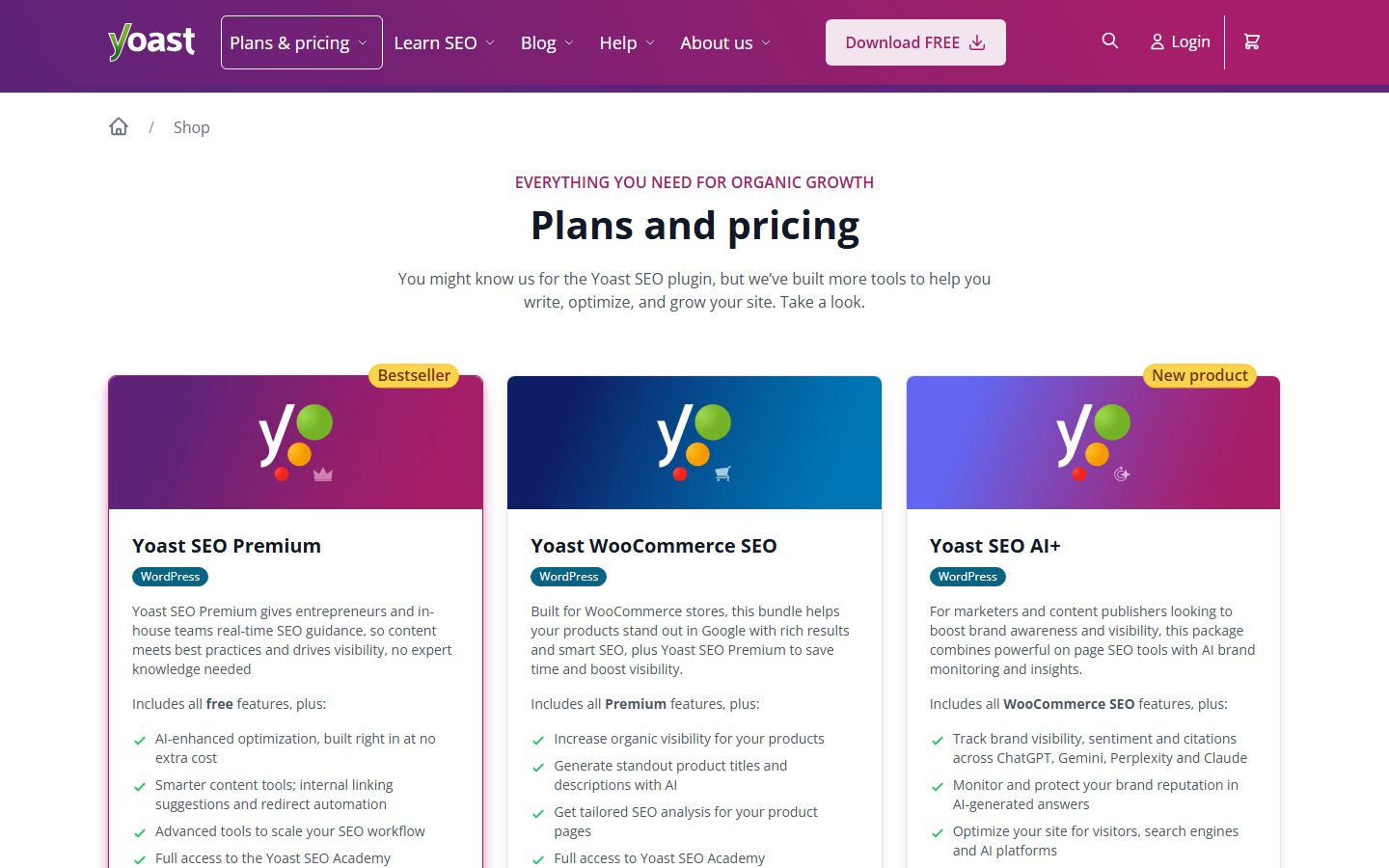
Yoast SEO’s wordpress.org listing shows more than 10 million installs and describes a free plugin with a setup wizard, meta tags, canonical URLs, XML sitemaps, SEO and readability analysis, a bulk editor and basic schema. Its Premium plan adds a redirect manager, AI titles and descriptions and more. When we read its plans page, Premium was $118.80 per year ex VAT.
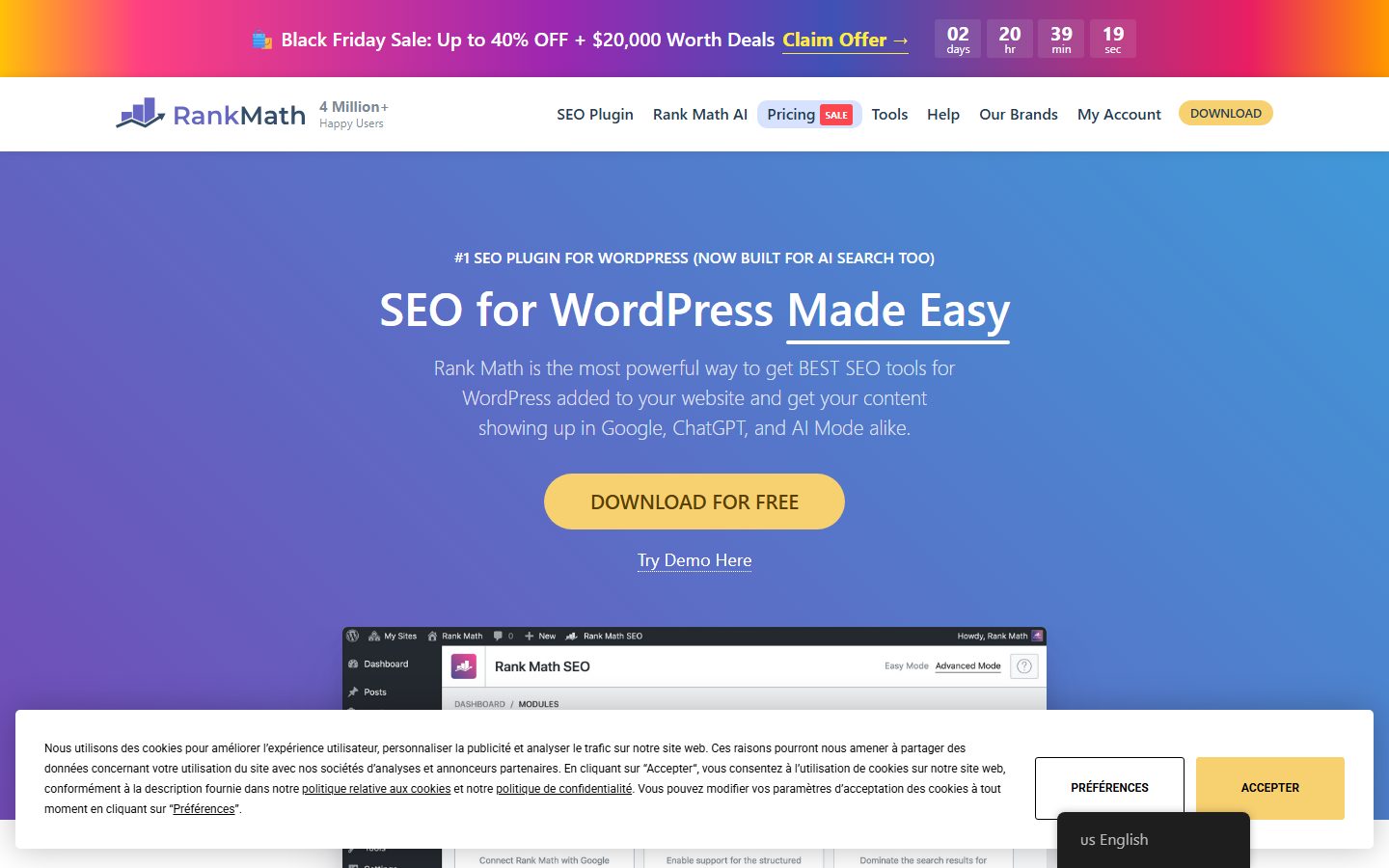
Rank Math takes a module approach: the listing describes 15+ free modules including a redirection manager and 404 monitor, 16+ schema types and Search Console integration, with paid tiers that differ by client-site and keyword limits.
Slim SEO goes the other way: its listing says there is no settings page and that the core works automatically, including meta tags, sitemaps, schema, breadcrumbs and a redirection module. WPMusk uses Slim SEO on its own sites, so read that recommendation with that in mind. If you are leaving Yoast, see Yoast SEO alternatives. The broader strategy lives in the complete WordPress SEO guide.
Page builders and design
Builders let you create layouts visually. They differ in output quality, performance, learning curve, licensing and how hard it is to leave. Elementor is the best-known: its wordpress.org listing shows 10+ million active installs, a free editor with 40+ widgets and a Pro tier with Theme Builder, Popup Builder, Forms and WooCommerce widgets, and notes compatibility with WPML, Polylang, TranslatePress and Weglot. The listing lists WordPress 6.8 as the minimum, and recommends 7.0 and PHP 8.3 or higher.

Bricks is a different model. Its homepage calls it a visual site builder theme for self-hosted WordPress aimed at designing performant, scalable, code-free websites. Because it is a theme, the builder and the theme are one decision.

Other tools worth knowing include Divi, Beaver Builder, Oxygen, Etch and the block editor itself, helped by a CSS framework such as Automatic.css. Think about who edits the site, how complex the layouts are and whether you want a design system with reusable classes. The key warning: the more your content is locked into a builder’s format, the harder it is to move later. See Elementor alternatives and how the builders compare, the page builders guide and Bricks vs Elementor for details.
Forms
Forms collect leads, support requests, orders and registrations. Compare spam protection, conditional logic, file uploads, payment integrations, email notifications, data storage, export options and how entries connect to your CRM or email tools.
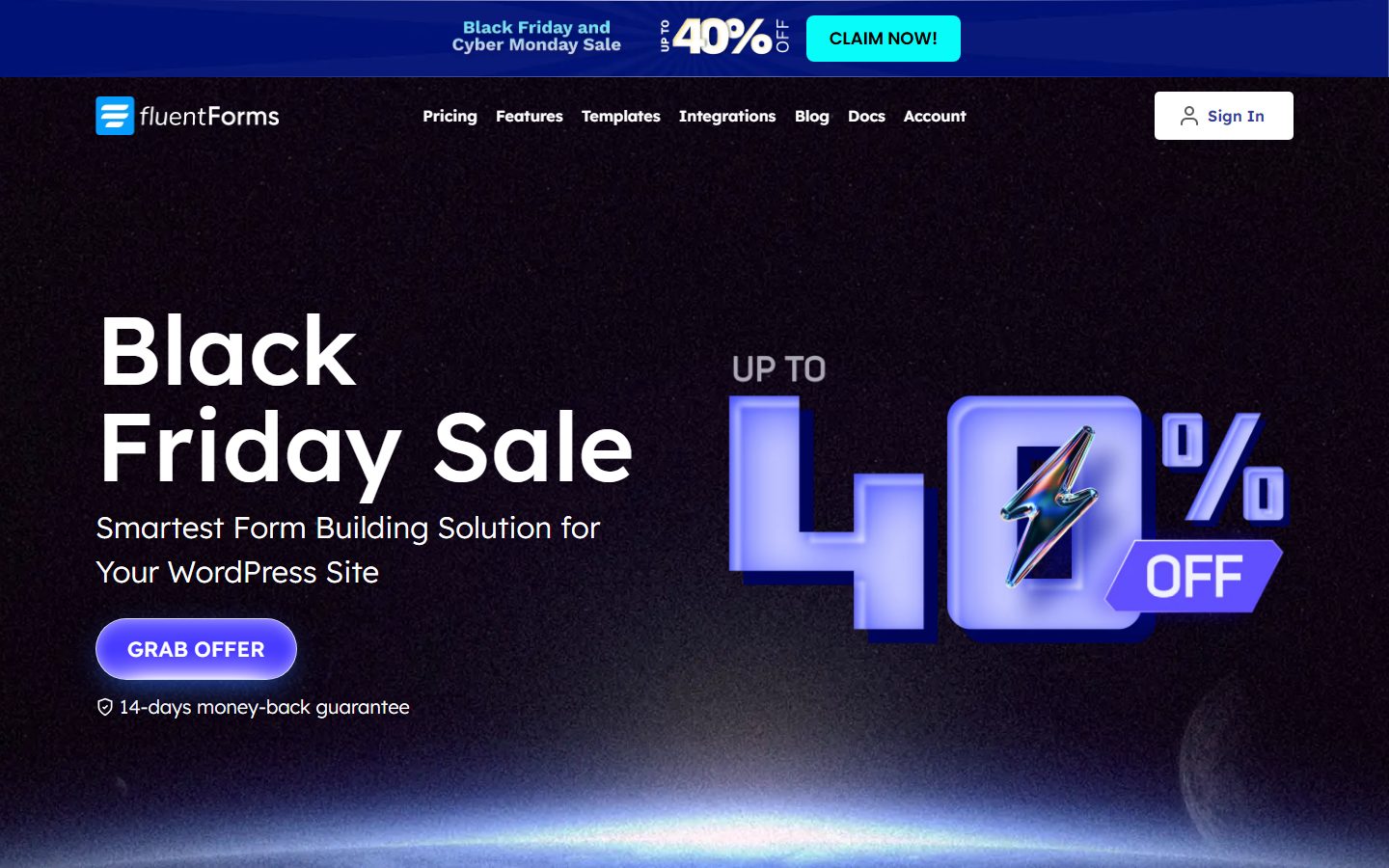
Fluent Forms’ wordpress.org listing shows 800,000+ installs and says the free version includes a drag-and-drop builder, conditional logic, conversational forms, an AI form builder, 25+ input fields, exports, spam protection options and migrators for WPForms, Contact Form 7, Gravity Forms, Ninja Forms and Caldera Forms. Stripe fields are free with a 1.9% transaction fee that Pro removes, and Pro adds multi-step forms, quizzes, user registration and more.
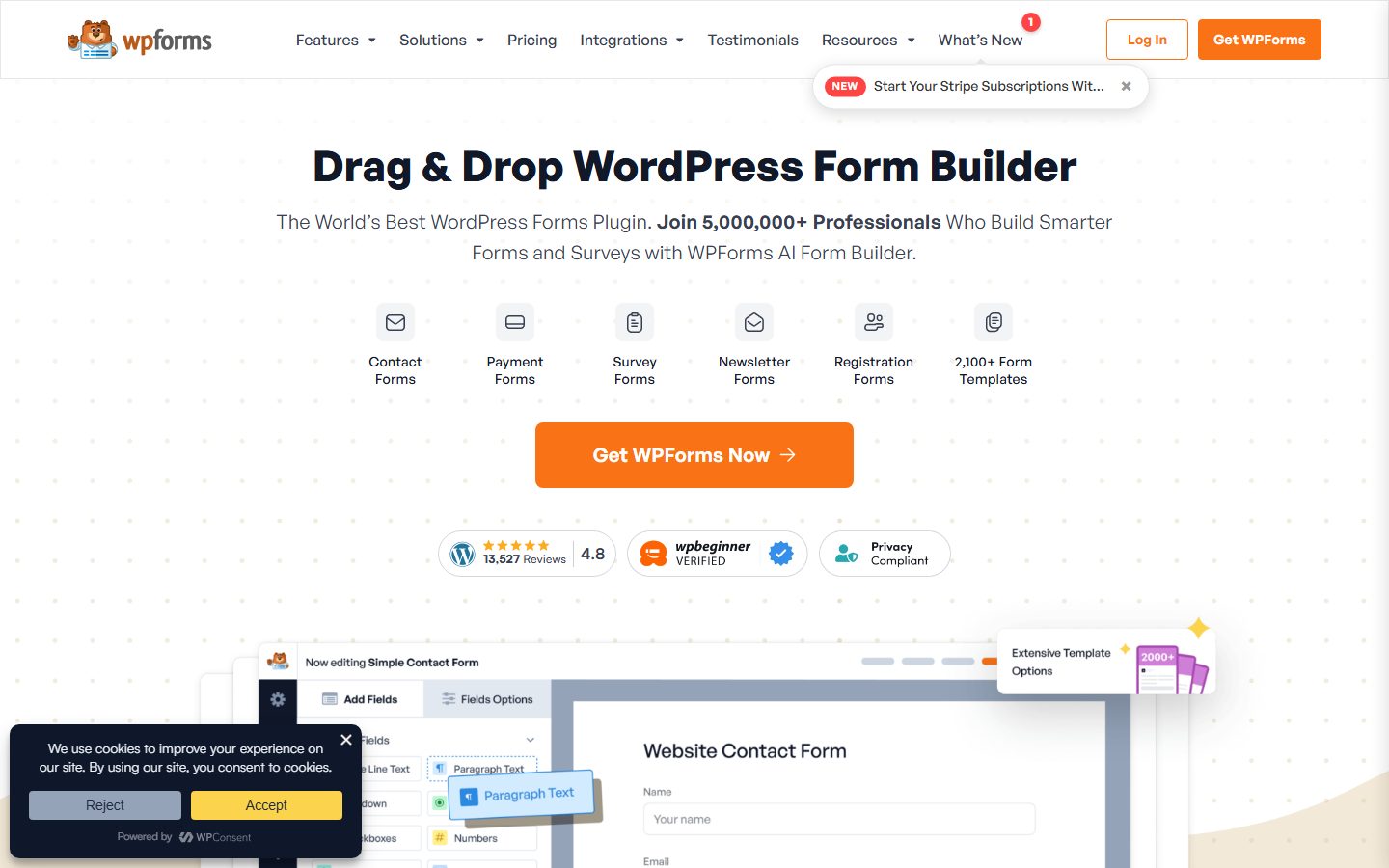
WPForms’ listing shows 5+ million installs and a 4.8 rating from over 14,000 reviews, and the vendor’s homepage promotes a drag-and-drop builder, 2,100+ templates and an AI form builder. The Lite listing is somewhat unclear on which features are free versus Pro, so test the free version against your needs before assuming a feature is included.
Gravity Forms, Formidable Forms and Contact Form 7 are the other usual suspects. Contact Form 7 is free and simple but leaves much to add-ons, while Gravity Forms is known for flexibility and developer features. Read our form plugin comparison and the head-to-head Fluent Forms vs Gravity Forms to decide.
Email marketing and CRM
You can run email from outside WordPress with a hosted service, or inside it with a plugin. Hosted services handle deliverability and are simple to start, but costs scale with list size. Inside-WordPress tools keep data on your server and can lower costs, but you take on sending infrastructure and responsibility for deliverability, usually through a dedicated sending service.
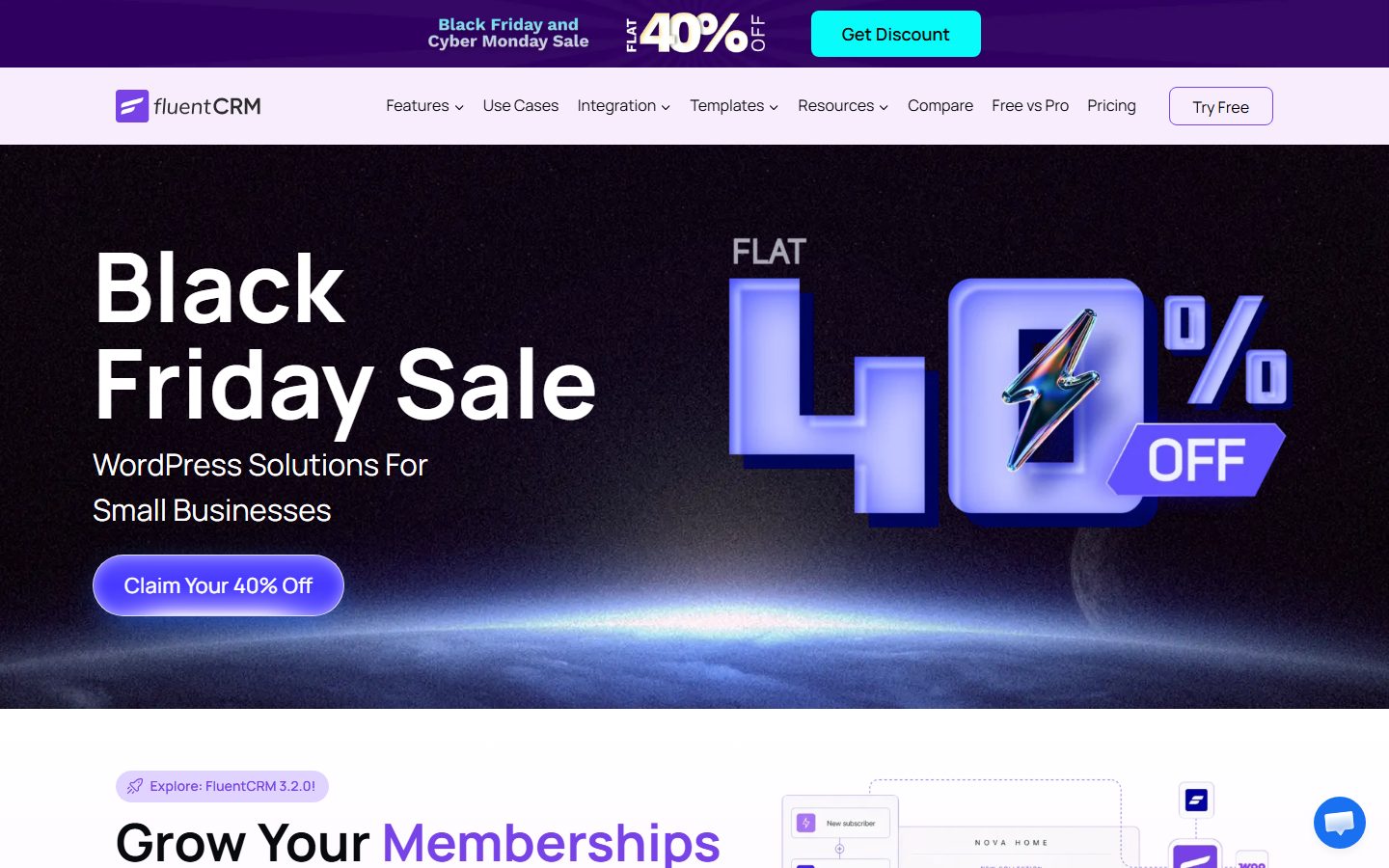
FluentCRM is the WordPress-native option we cover most. Its listing says emails go through an SMTP service of your choice, such as Mailgun, SendGrid or Amazon SES (the FAQ recommends Amazon SES), and states no limits on the number of emails or contacts. The listing shows 80,000+ installs and requires WordPress 6.0 and PHP 7.4. The plugin’s own homepage, captured during a sale, also highlights a “Grow Your Memberships” section lower down the page.
See our FluentCRM guide for how it works and Mailchimp alternatives for WordPress sites if you are weighing hosted services. Whichever you pick, check consent handling, unsubscribe flows and regional privacy rules.
Ecommerce
If you sell physical or digital products you need a commerce plugin or a dedicated platform. The right choice depends on what you sell, how you handle taxes, shipping and subscriptions, who hosts the checkout and how much customisation you need. Stores also carry a bigger performance and security burden than a blog, so think about hosting, caching and extension sprawl early.
WooCommerce. The wordpress.org listing shows 7+ million active installs, a free open-source platform, physical and digital products, variations, instant downloads, checkout blocks and hundreds of extensions. It lists subscriptions, bookings and memberships as extensions, more than 100 payment gateways including Stripe, PayPal and Square, and WooPayments in a list of supported countries. It requires WordPress 7.0 or later and recommends PHP 8.0+. The homepage pitch is ownership: sell without monthly platform fees.

FluentCart. This is a newer WordPress-native option. Its listing says Free includes physical and digital products, subscriptions, checkout, Stripe, PayPal and Cash on Delivery, shipping, tax, coupons and reports, with Pro adding software licensing, installments, bundles, multi-currency and extra gateways such as Paddle, Mollie and Authorize.Net. It states 0% FluentCart commission on both tiers. The listing shows 9,000+ installs, so it is much younger than WooCommerce, and it requires WordPress 6.7 or higher.
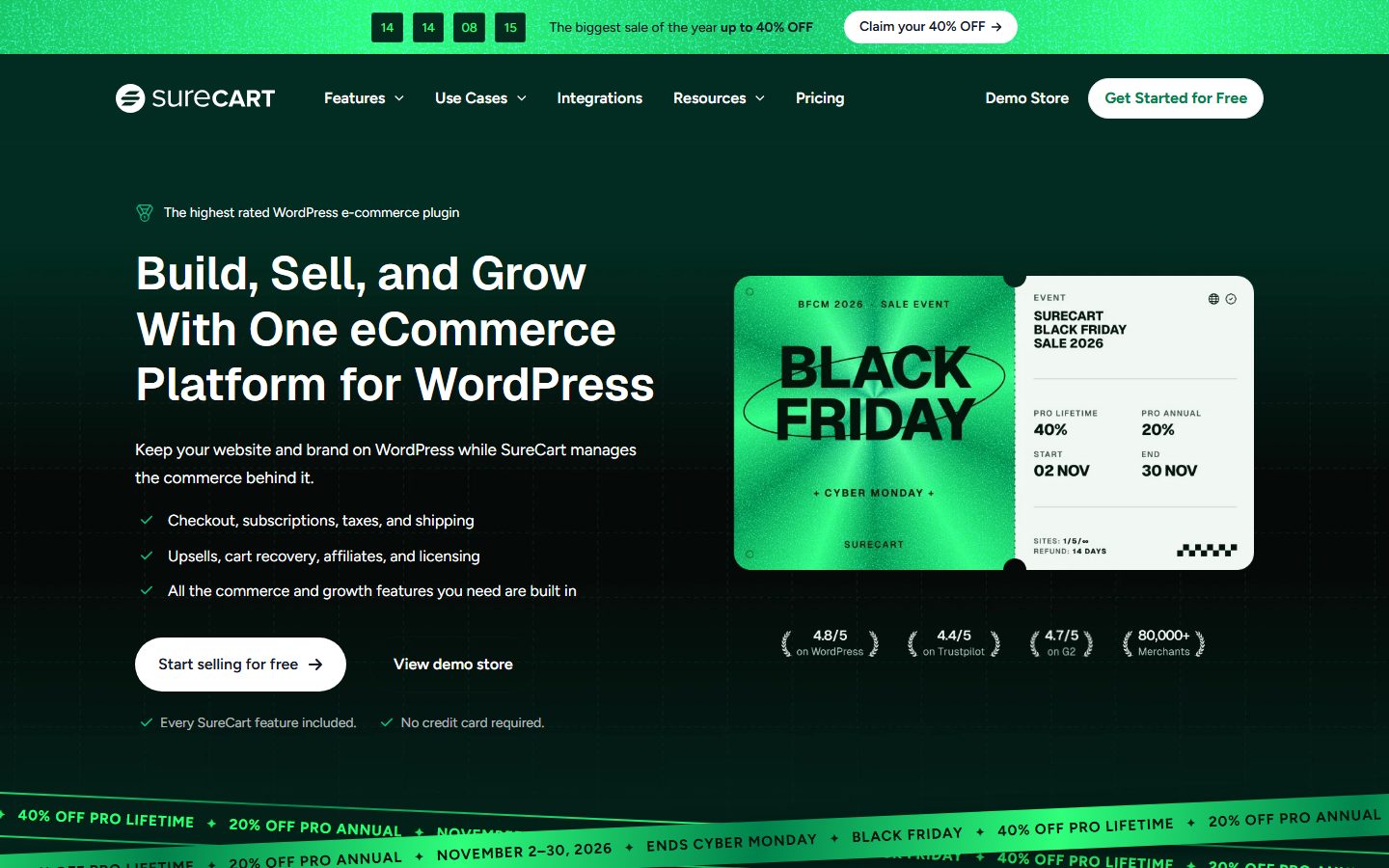
SureCart. SureCart splits the product in two. Its listing says the plugin links to a cloud platform that handles payments, subscriptions, taxes and checkout processing, and that products, orders, subscriptions and customers are stored on the platform rather than in your WordPress database. The free Launch plan carries a 2.9% transaction fee on top of processor fees, while paid plans have no transaction fee. The listing shows 70,000+ installs and requires WordPress 6.8 or higher.
The trade-off between these models is worth stating plainly. A cloud-hosted checkout takes work off your server but puts your order data on someone else’s platform, which affects exit planning. A WordPress-native store keeps data in your database and places the performance burden on your host. Our detailed WooCommerce, FluentCart and SureCart comparison goes deeper, the WordPress ecommerce guide covers platform choice, and the WooCommerce speed checklist covers performance. For product-specific guides see FluentCart setup and SureCart cloud checkout, and WooCommerce alternatives if you are still deciding.
Membership and gated content
Membership plugins manage access, plans, payments and content restrictions. Compare how they protect content, handle recurring payments, drip content, integrate with your email tool and cope with a growing member base. Check how well they work with your theme or builder, since gating can break in unexpected ways.
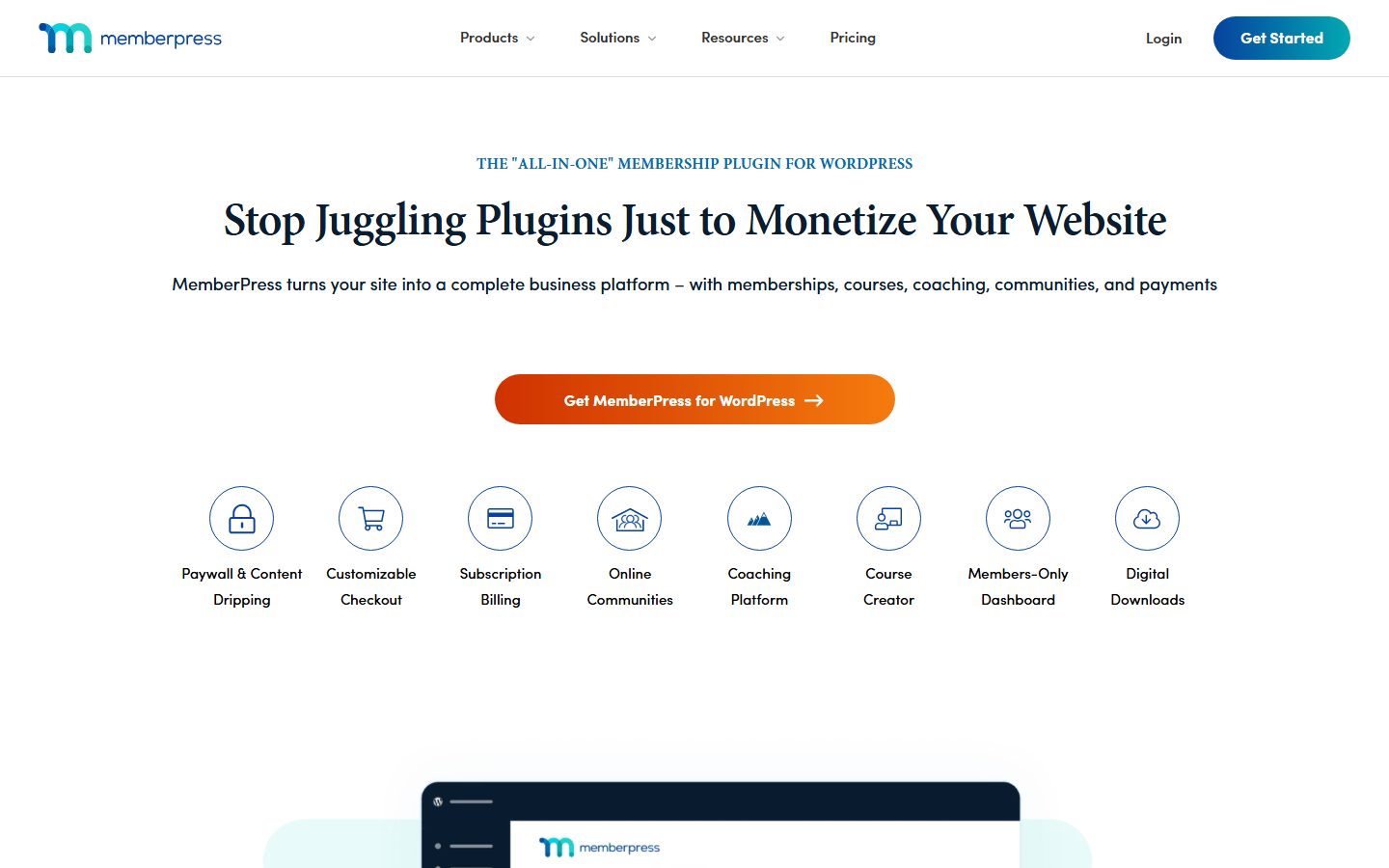
MemberPress describes itself as the all-in-one membership plugin and promotes paywalls and content dripping, checkout, subscription billing, communities, coaching, courses and digital downloads. Its pricing page lists three yearly tiers: Launch at $199.50 per year (with a 4.9% transaction fee and Stripe only), Growth at $349.50 and Scale at $499.50 (both with no transaction fee). It calls those prices introductory and says annual renewals are at full price, with a 14-day money-back guarantee. The page does not state how many sites each plan allows.
The lesson applies well beyond this one product: always read the transaction fee, the payment gateways and the renewal price. Our membership plugin comparison covers the main options and when each fits.
Booking and appointments
Booking plugins handle availability, calendars, reminders, payments and staff schedules. Requirements vary hugely: a solo consultant needs something different from a salon with several staff or a venue with resources. Check calendar sync, timezone handling, deposit and refund support and what happens on cancellation.
FluentBooking’s listing shows 20,000+ installs. It says the free version covers one-on-one meetings and email notifications, while Pro adds group meetings, round-robin team scheduling, one-off events, SMS, calendar integrations (Google, Apple, Outlook, Nextcloud), payments (Stripe, PayPal, Google Pay, Apple Pay), video conferencing and WooCommerce. If you need payments or calendar sync, you will need Pro.

Read our booking plugin guide to match features to your use.
Custom content and fields
If you need content beyond posts and pages, such as events, properties, recipes or team members, you will use custom post types and custom fields. You can register them with a plugin or with code. Advanced Custom Fields is the best-known fields tool, and others cover similar ground.
The choice between plugin and code affects portability and maintenance. A plugin is faster to set up and friendlier to non-developers, while code lives with your theme or a small plugin of your own and avoids another dependency. See our Advanced Custom Fields guide and custom post types: plugins versus code for the trade-offs.
Performance, caching and images
Speed tools cache pages, optimise assets, serve images efficiently and tidy the database. Good hosting counts for more than any single plugin. Use one main caching solution, avoid stacking several that do the same job and check what your host already provides before adding more.
WP Rocket is the best-known paid caching plugin. Its pricing page, captured during a Black Friday offer valid until 28 November 2026, listed Single (1 site), Plus (3 sites) and Multi (50 sites, with larger options) licences, a 14-day free trial and a satisfaction refund. It lists caching, lazy loading, preload, Delay JS and Remove Unused CSS among its features, and says it works on Apache, NGINX and LiteSpeed. The first-year offer price renews at the regular price, so check the renewal figure.

Images are a separate job. ShortPixel’s homepage shows an original-versus-optimised comparison and offers a way to check a website. Check the vendor’s pricing page for how usage is metered and estimate your image volume before choosing. Our caching plugin comparison, WP Rocket alternatives, the WebP and AVIF guide and the speed optimisation guide give the detail.

Security
Security plugins add firewalls, malware scanning, login protection and hardening. They help but do not replace sound basics: updates, strong passwords, two-factor authentication, least-privilege roles, good hosting and backups. Choose one primary security tool and avoid overlapping firewalls.
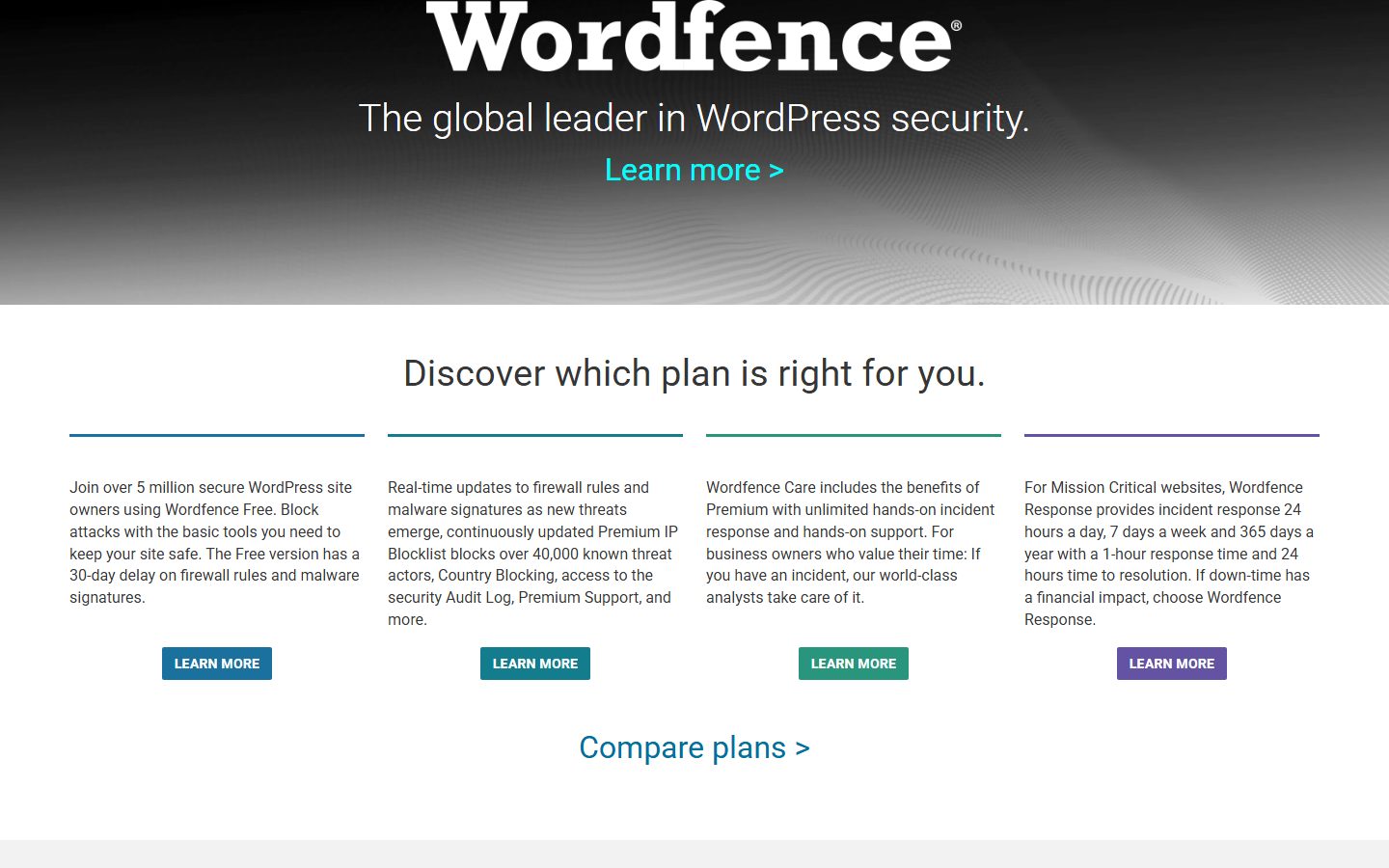
Wordfence’s listing shows 5+ million installs. It says the free version receives firewall rules and malware signatures through its threat defence feed with a 30-day delay, while Premium adds real-time updates, a real-time IP blocklist, country blocking, a security audit log, more frequent scans and paid support. The vendor homepage lays out Free, Premium, Care and Response tiers and says Free users get a 30-day delay on rules and signatures.
Patchstack takes a vulnerability-focused approach. Its homepage claims it prevents up to 74% more vulnerabilities from being exploited than leading web application firewalls, which is the vendor’s own figure and one we have not verified. Its pricing page describes mitigation rules deployed without changing code, a Developer plan billed annually and a trial, but does not state a free plan.

See our security plugin comparison, Wordfence alternatives and the WordPress security guide. Add two-factor authentication and least-privilege roles regardless of which plugin you pick.
Backups
A backup plugin is only worth anything if you can restore from it. Look for scheduled backups, storage off the server, incremental options for larger sites and a clear restore process, then test a restore on staging.
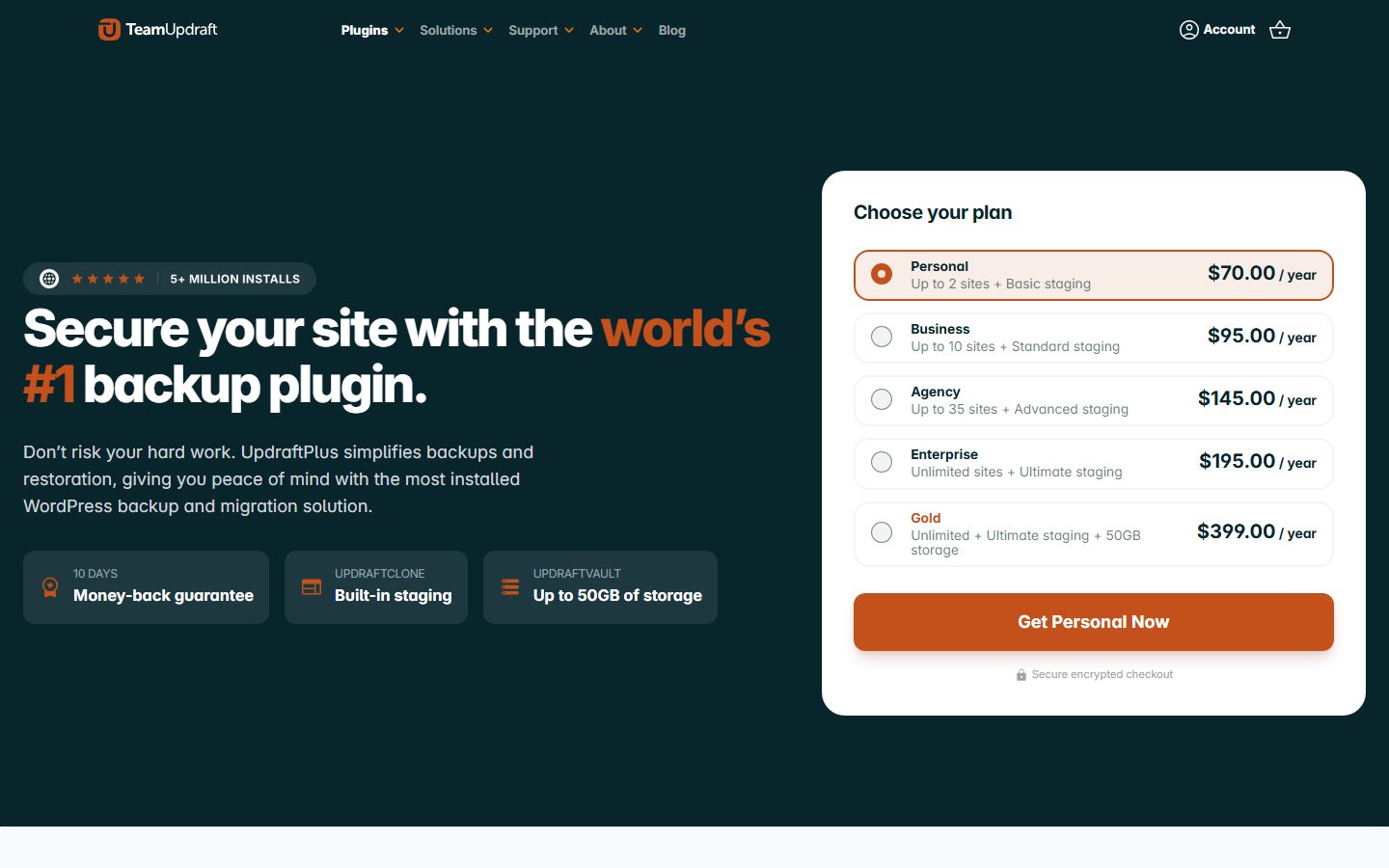
UpdraftPlus’s listing says the free version backs up, restores and migrates, with schedules from every two hours to monthly and destinations including Dropbox, Google Drive, Amazon S3, FTP and email. Premium adds incremental backups, backups before updates, more storage destinations, multisite support, database encryption and WP-CLI. The listing shows both 3 million and 4+ million installs, so treat the figure as approximate. The vendor’s homepage shows five yearly plans by site count, from Personal at $70 for two sites to Gold at $399, with a 10-day money-back guarantee noted.
Compare more options in our backup plugin comparison and UpdraftPlus alternatives.
Multilingual
Translation plugins add language versions of your content, with different approaches to storing translations. Some create separate posts per language, others store translations alongside the original. Consider URL structure, SEO handling with hreflang tags, translation workflow, machine translation options and database load.
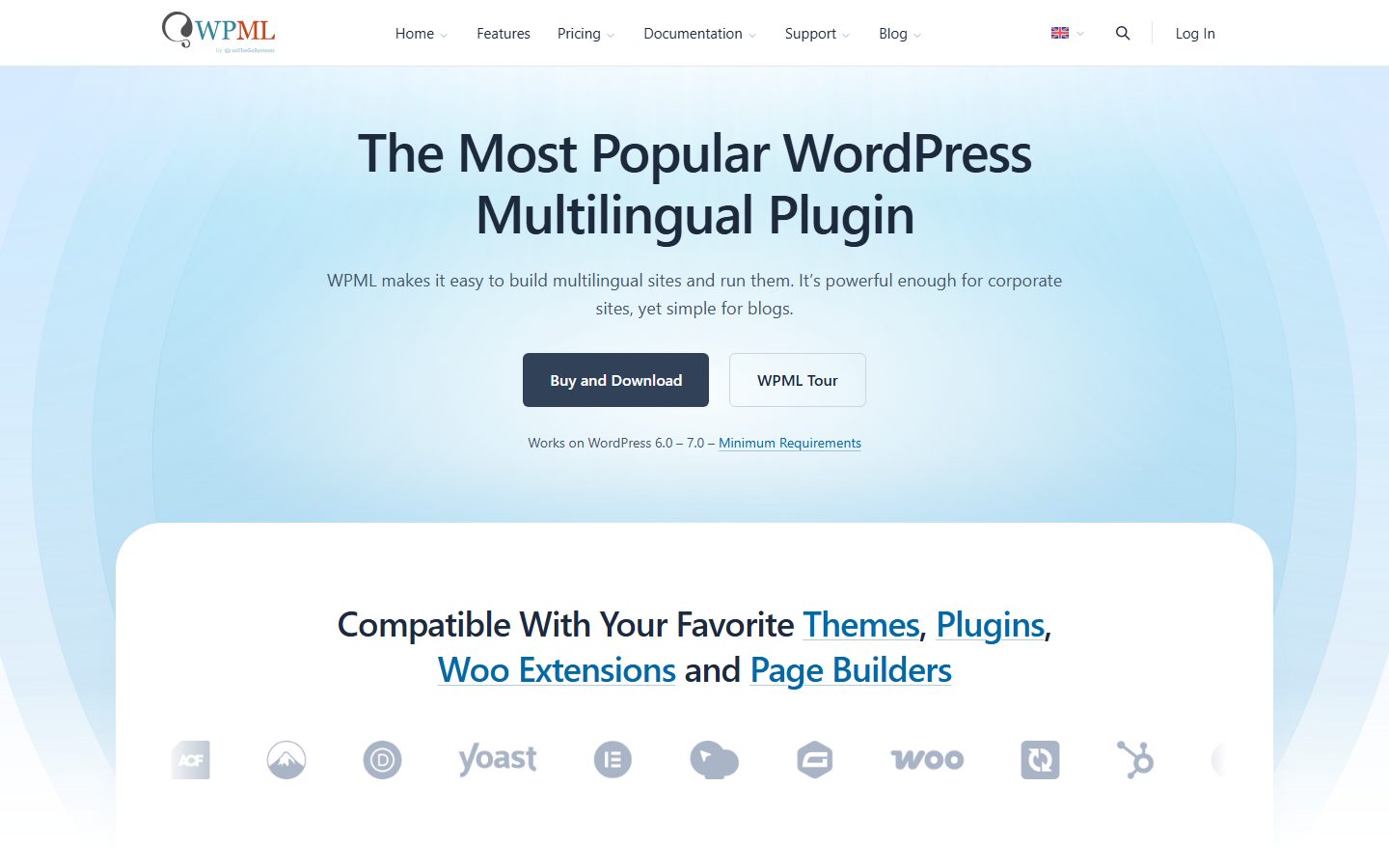
WPML’s pricing page lists Multilingual Blog at EUR 39, Multilingual CMS at EUR 99 and Multilingual Agency at EUR 199, with different site limits, and says the CMS and Agency plans include AI translation words, with a 30-day money-back guarantee. It also says that without renewal the site keeps working but you cannot update WPML. Its homepage says it works on WordPress 6.0 to 7.0.
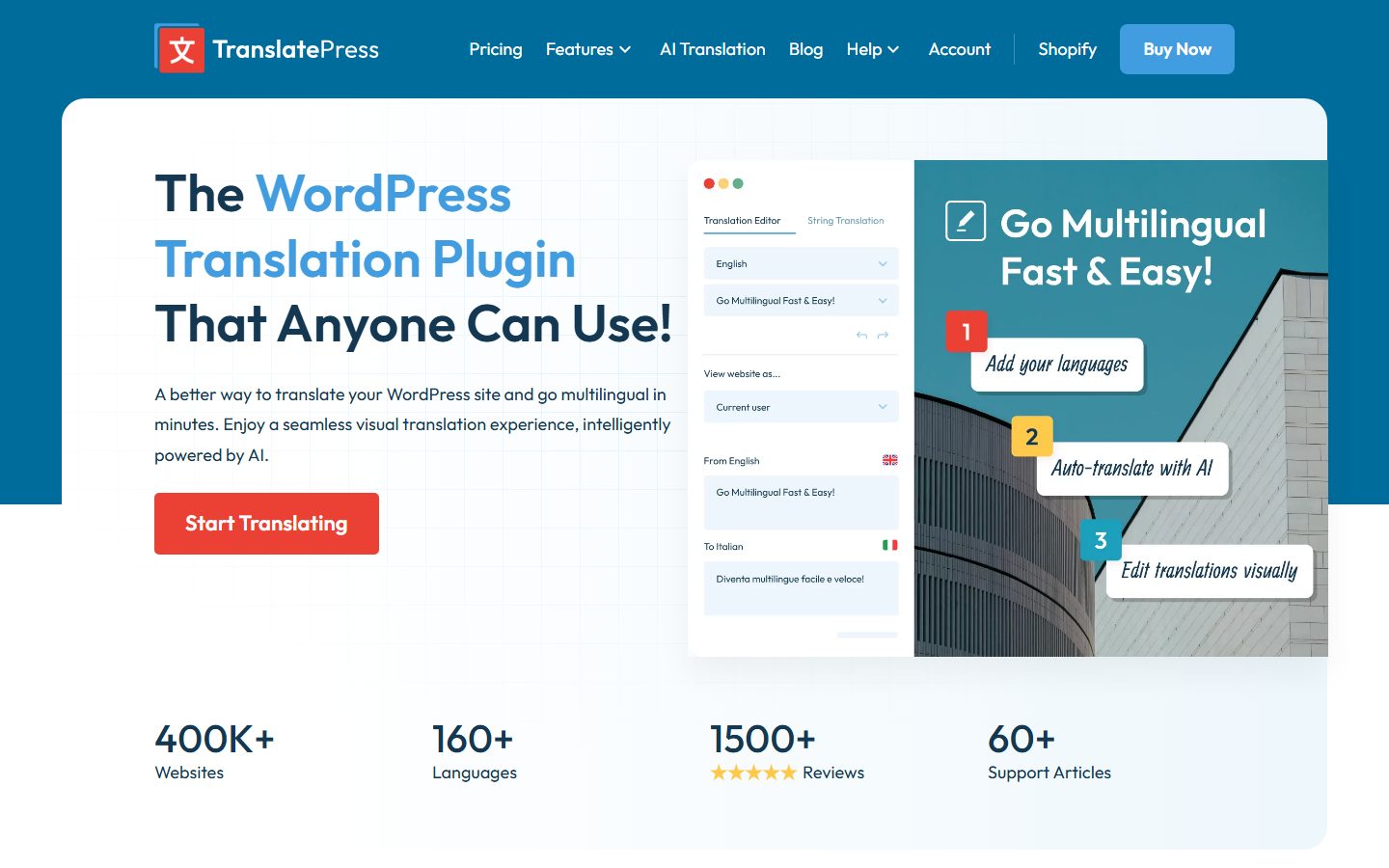
TranslatePress offers a visual front-end editor. Its wordpress.org listing describes a free version with a capped 2,000-word AI allowance and unlimited Google Translate with your own API key, while paid plans include full AI translation with a monthly word allowance. Its pricing page lists Personal at EUR 99 per year for one site through Developer at EUR 349 for unlimited sites, and says translations stay on your site if the licence expires.
Read our multilingual plugin comparison before committing, since switching later is painful.
Managing several sites
If you run several sites, you need one place for updates, backups, monitoring and reporting. The three options here are priced very differently.
- MainWP is a free, open-source, self-hosted dashboard. Per its listing, you install the Dashboard on a separate WordPress site and a Child plugin on each managed site. Core features are free (bulk updates, backups, client management, a REST API and WP-CLI), and paid add-ons extend it. It requires PHP 8.3 or higher.
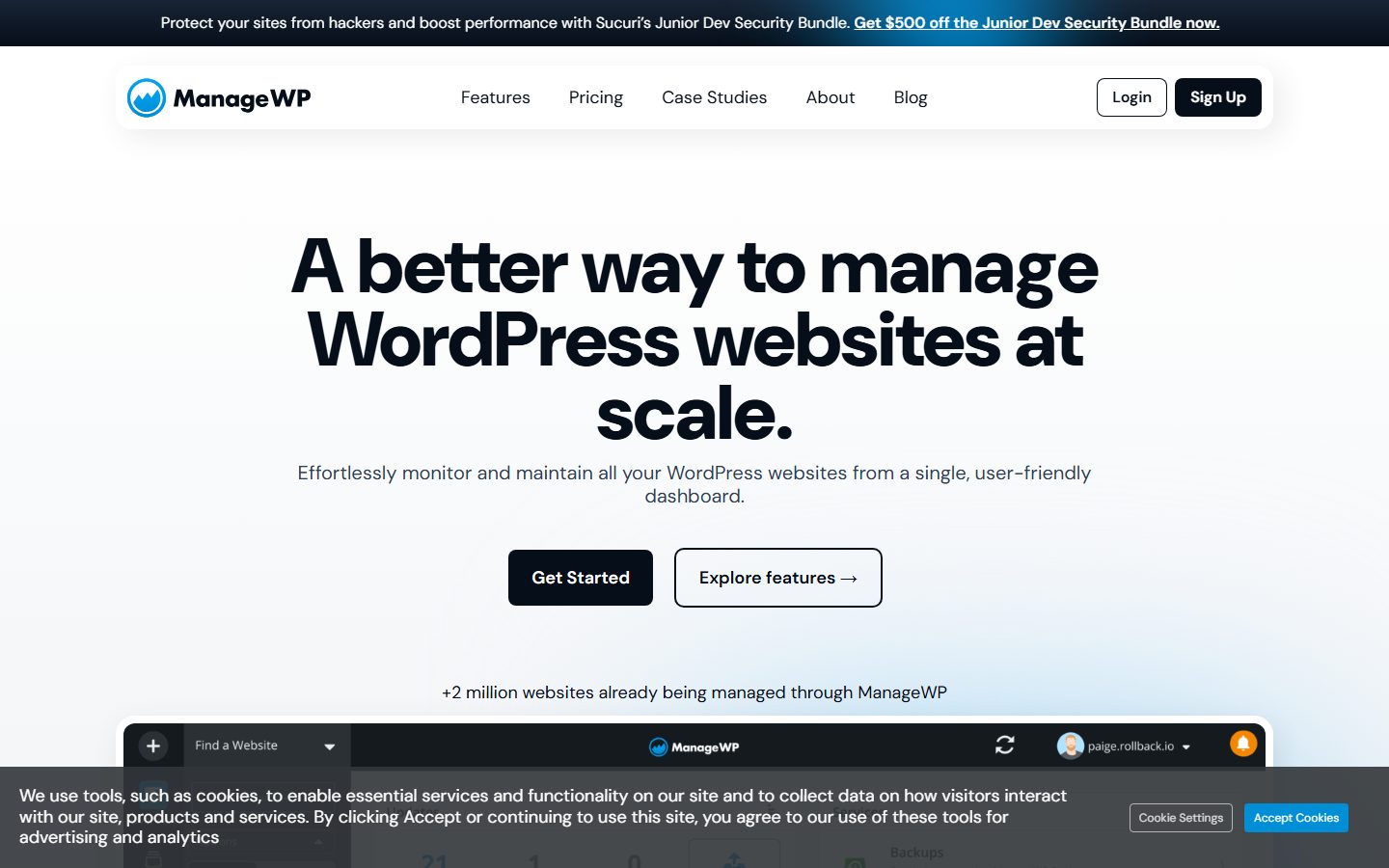
- ManageWP is a hosted dashboard. Its homepage claims 2 million+ sites managed. Its pricing page lists free features such as monthly cloud backup, safe updates and client reports, and paid per-site add-ons such as backups and vulnerability protection billed per website per month.
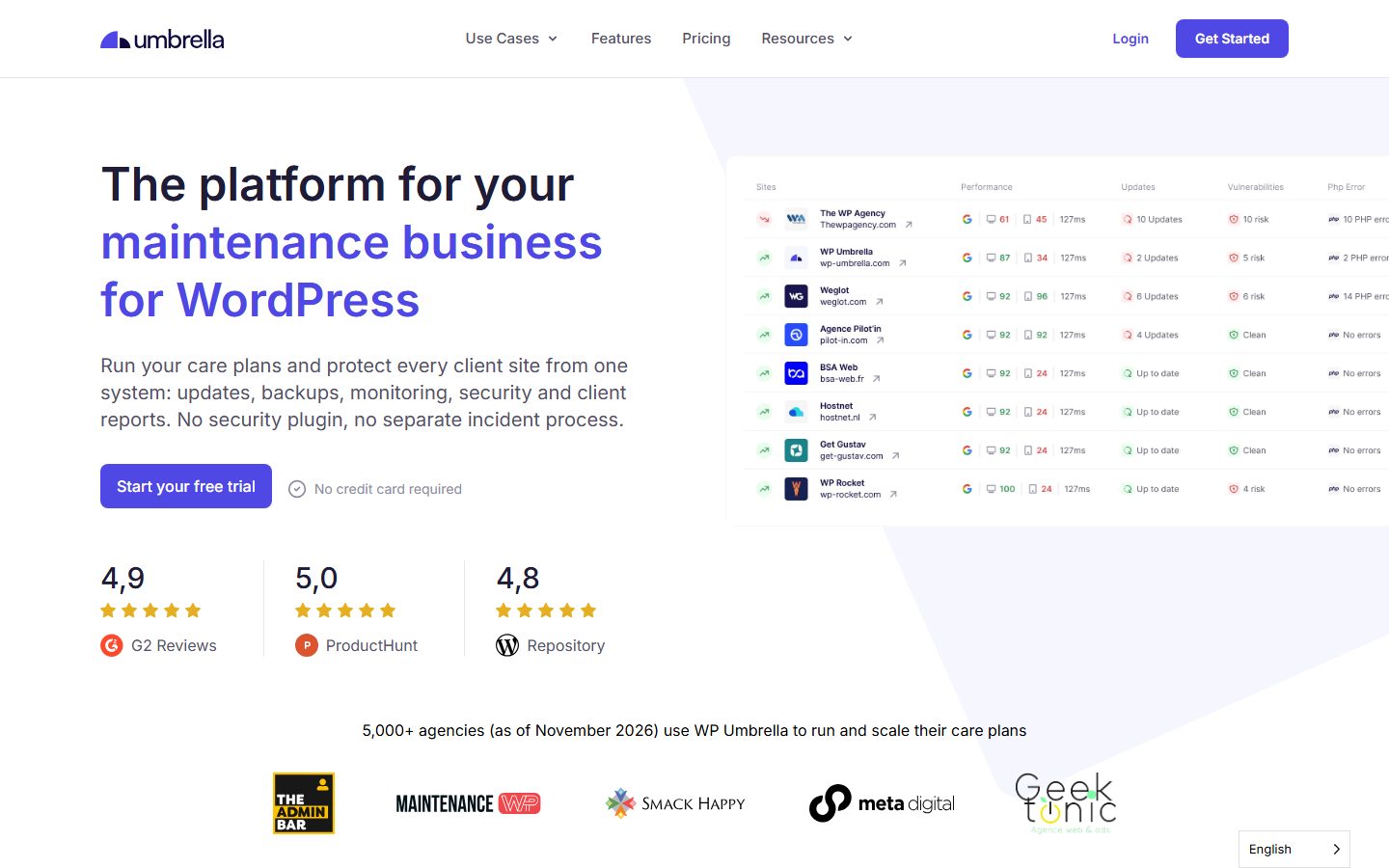
- WP Umbrella is aimed at maintenance businesses. Its pricing page lists a single plan at EUR 1.99 per site per month with optional per-site add-ons for security and hourly backups, plus a 14-day trial.
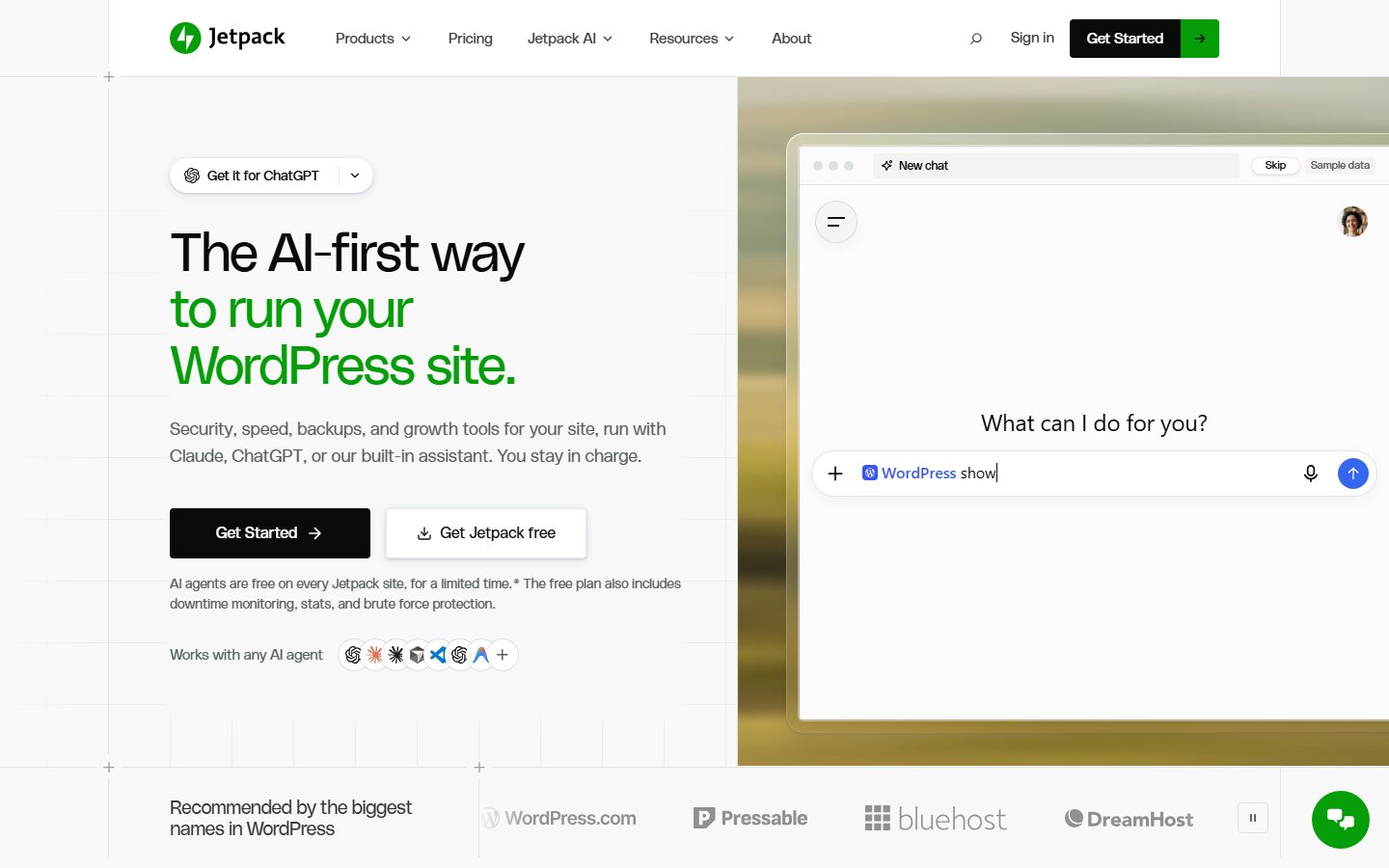
For a full comparison, read best tools to manage multiple WordPress sites. AI-driven control is a newer approach: NibWP, for example, lets an AI agent act on a WordPress site through a controlled set of abilities. It can help with routine tasks, but start on staging and keep permissions tight. Jetpack also now offers an AI agent connection, covered in our guide to the best AI plugins for WordPress.
Analytics and tracking
Analytics plugins add tracking code and may show reports in the dashboard. Many sites do better by adding the tracking code through their theme or a tag manager and reading reports in the analytics tool itself, which avoids another plugin. Consider privacy rules and consent, and choose tools that fit the regions your visitors come from. Google Search Console is free and does not need a plugin to be useful; see our Search Console guide.
Anti-spam
Comment and form spam wastes time and can harm your site. Choose protection that matches your risk: built-in settings, honeypots, CAPTCHA alternatives and spam filtering services. The Fluent Forms listing mentions reCAPTCHA, hCaptcha and Turnstile support, and MemberPress lists Cloudflare Turnstile and Math Captcha. Avoid heavy tools for a site that gets a few comments a week. Our guide to stopping WordPress spam covers the options.
What to compare in every category
| Category | Main decision | Watch for |
|---|---|---|
| SEO | How much control versus automation | Running two plugins, unchecked defaults |
| Page builder | Output quality and lock-in | Heavy markup, hard-to-leave formats |
| Forms | Features versus price per site | Payment fees, data storage, add-on costs |
| Email and CRM | Hosted versus in-WordPress | Deliverability, consent, list-size pricing |
| Ecommerce | Where checkout and data live | Transaction fees, extension sprawl, tax rules |
| Membership | Access control and payments | Transaction fees by tier, content leaks, renewals |
| Booking | Complexity of schedules | Time zones, calendar sync, refunds |
| Custom content | Plugin or code | Dependency, portability |
| Performance | One main caching layer | Overlapping optimisers, host features |
| Security | One main firewall and scanner | False confidence, delayed free rules, login lockouts |
| Backups | Restore reliability and storage location | Backups stored only on the same server |
| Multilingual | Translation storage model | SEO and hreflang handling, database load |
| Site management | Self-hosted or SaaS dashboard | Per-site fees, where credentials are stored |
Build a minimal plugin stack
Here is a practical way to build a stack for a new site.
- List your jobs. Write what the site needs to do: publish content, collect leads, sell, book, gate content.
- Cover them with core first. WordPress already does more than many expect, including a sitemap, basic redirects for changed slugs and a block editor with reusable patterns.
- Check your host. Many hosts include caching, backups, staging and security features. Use them before adding plugins.
- Add one plugin per remaining job. Avoid suites that duplicate things you already have.
- Test on staging. Install on a copy of the site and check front-end speed, admin speed and conflicts. See our staging site guide.
- Document it. Keep a list of every plugin, why it is there, who owns it and when its licence renews.
Example stacks
These illustrate structure; they are not shopping lists.
- Small content blog: an SEO plugin, a caching solution (or the host’s), a backup tool, a form plugin for contact, an anti-spam measure and image optimisation.
- Local service business: an SEO plugin, a form plugin, a booking tool if needed, backups, security basics and caching.
- Online store: a commerce plugin and needed extensions, payment gateway plugins, an SEO plugin, caching, backups, security and email automation.
- Membership site: a membership plugin, payments, an email and CRM tool, forms, caching suited to logged-in users, backups and security.
- Agency maintaining many sites: a management dashboard, standardised backups and monitoring, staging workflows and a short approved list of plugins. See a WordPress agency workflow.
Minimum viable stack: a walkthrough for five site types
The earlier section gave the method. This one applies it, category by category, to five common site types. In every case the logic is the same: start from the jobs, cover as many as possible with core, your theme and your host, then add one plugin per remaining job. The stacks below are hypothetical examples to show the reasoning. They are not recommendations of a specific product for every site, and the products named are examples drawn from the listings we read in November 2026.
Stack 1: a personal blog or small publication
The jobs. Publish posts, be found in search, let readers contact you, survive a failure, stay fast and avoid comment spam.
| Category | Cover it with | Add a plugin when |
|---|---|---|
| Content and design | A block theme and the block editor | You need layouts the editor cannot make |
| SEO | One SEO plugin | Always: core has a sitemap but no title and description controls |
| Forms | A free form plugin, or a mailto link on a very small site | You want spam filtering and stored entries |
| Caching and images | Your host’s cache, then core’s lazy loading | The host provides no page cache, or you upload large images |
| Backups | Your host’s backups plus one off-site copy | The host’s backups are not retained or downloadable |
| Security | Updates, strong passwords and two-factor authentication | You want a login firewall and scanner |
| Spam | Core discussion settings (moderation, link limits) | The moderation queue becomes a daily chore |
The steps.
- Install a block theme and configure fonts and colours in the site editor, so the design sits in core and does not need a builder.
- Install one SEO plugin, run its wizard and set indexing rules as described in the SEO plugin comparison. Check the page source for one title and one canonical.
- Check what your host includes for caching and backups before installing anything. If a host-level cache exists, do not add a second full-page cache.
- Add one form plugin with spam protection only if you want a form on the contact page.
- Turn on two-factor authentication for every administrator, as described in the two-factor guide.
The result is three to five plugins. If you end up with more, ask which job each one covers.
Stack 2: a local service business
The jobs. Show services and location, capture enquiries or bookings, rank for local searches and stay trustworthy.
- Design. Use a block theme or one builder. The decision matters because a builder becomes part of your content. See the page builders guide before choosing.
- SEO. Pick an SEO plugin whose plan covers local business markup, and check which tier unlocks it. Make your business name, address and phone number identical across the site, as covered in the SEO comparison.
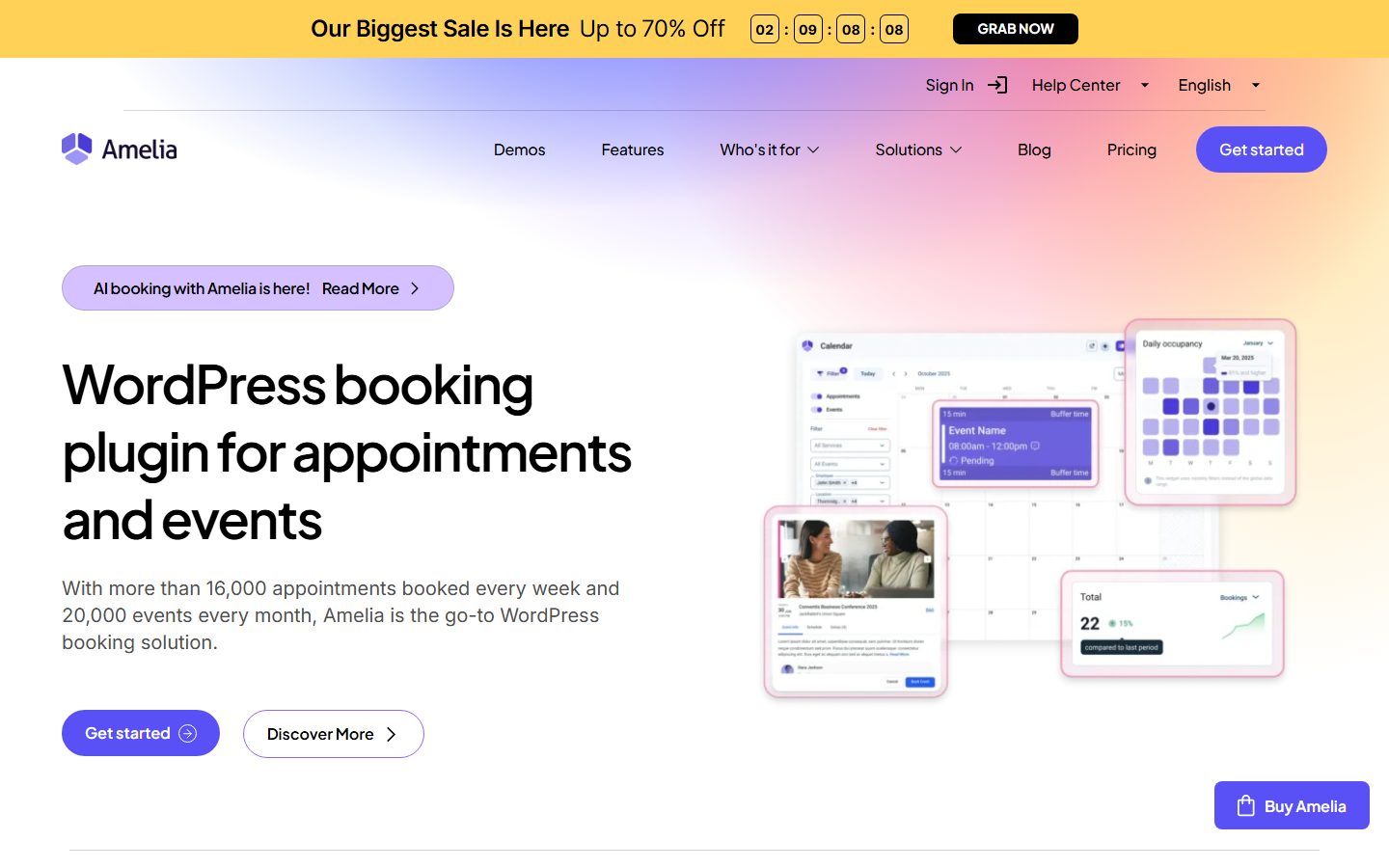
- Forms or bookings. If customers ask for quotes, a form is enough. If they pick a time, you need a booking plugin. The listing for FluentBooking says the free version covers one-on-one meetings and email notifications, and that payments and calendar sync need Pro. Amelia’s homepage promotes a booking plugin for appointments and events.
- Email follow-up. A quote request should send an instant confirmation. Use a transactional email service so messages reach inboxes, and test with a free address from a different provider.
- Speed. Local businesses lose enquiries to slow mobile pages, so measure one landing page on a phone connection before and after any change.
- Backups and security. Use the host’s backups plus an off-site copy, and add a firewall or scanner only if the host does not include one.
The Amelia listing on wordpress.org requires WordPress 6.5 and PHP 7.4, and was updated in late October 2026 when we read it. Always compare those numbers with your hosting before you buy, since a plugin that needs a newer PHP than your plan offers will not install cleanly. Compare more options in the booking plugin guide.
Stack 3: an online store
The jobs. Sell products, take payment, calculate tax and shipping, send order emails, stay fast under load and stay safe with customer data.
- Choose the commerce model first. WooCommerce, FluentCart and SureCart store data in different places, as the ecommerce section explains. Decide where you want order data to live before you install an extension.
- Add payment gateways one at a time. WooCommerce’s listing names more than 100 gateways. Use the one your bank or processor supports and test with that provider’s test mode.
- SEO for products. Check the SEO plugin’s store plan against what you need, and validate one product page with a structured data test.
- Email. Order emails must arrive. Set up SMTP or an email service and test with a real order. If you also send marketing mail, add consent checkboxes and an unsubscribe flow.
- Performance. Pages with carts and accounts cannot all be cached. Exclude cart, checkout and account pages from the page cache and test the exclusions by adding an item to the cart in a private window.
- Security and backups. A store needs scheduled backups that include the database, since orders live there, and a restore you have tested. Use two-factor authentication for every shop manager.
- Review extensions. Every extension is another plugin. Revisit the WooCommerce speed checklist after each addition.
Expect a stack of around ten plugins for a mid-sized store, but treat that as a consequence of the job and not a goal. Compare approaches in the WooCommerce, FluentCart and SureCart comparison.
Stack 4: a membership or course site
The jobs. Take recurring payments, restrict content, manage member accounts, send onboarding emails and keep gated content from leaking.
- The membership plugin. Read the plan limits first. MemberPress’s pricing page listed a Launch tier with a 4.9% transaction fee and Stripe only, and higher tiers with no transaction fee. Estimate your revenue and compute the fee before choosing, using the cost model later in this guide.
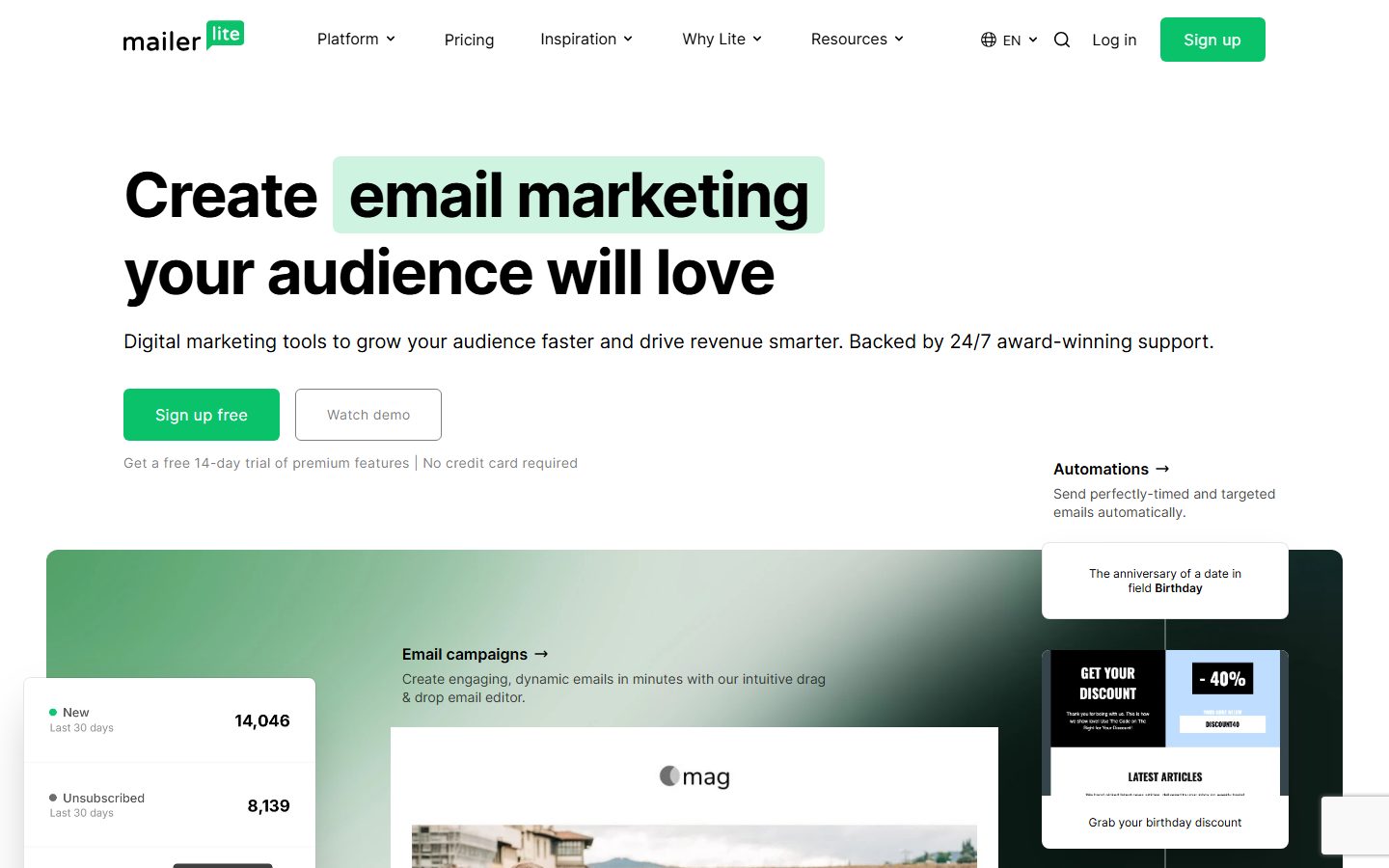
- Email and onboarding. A welcome sequence matters more than any other message. Decide whether to run email inside WordPress, as FluentCRM does, or in a hosted service, as MailerLite does. The MailerLite homepage offers a 14-day trial of premium features with no credit card, which gives you a way to try the hosted route.
- Gating test. Log out, open a members-only URL in a private window, and try to reach the same content through search, the REST API and the sitemap. Gated content that appears in a public sitemap or archive is leaking.
- Caching. Pages that differ per user must be excluded or handled by a cache that understands logged-in users. Test by logging in as two different members and checking that each sees only their own data.
- Backups and security. Member data is personal data. Back up often, encrypt where you can and keep the plugin list short.
See the membership plugin comparison for the products and the FluentCRM guide for the in-WordPress email option.
Stack 5: an agency or freelancer running client sites
The jobs. Build repeatably, update safely, monitor many sites, hand over cleanly and limit liability.
- A baseline stack. Choose one SEO plugin, one backup tool, one security approach and one caching approach, and document the settings. Reuse them on every build so you know their quirks.
- A management dashboard. MainWP is self-hosted and free at the core, ManageWP is hosted, and WP Umbrella’s pricing page lists EUR 1.99 per site per month. Compare in the multi-site tools guide.
- A staging routine. No client site gets updated without a staging pass. See the agency workflow guide.
- Licence ownership. Decide whether licences sit under your account or the client’s. Put it in the contract and your inventory.
- Handover. Give the client a document listing every plugin, its purpose, its renewal date and who pays.
A baseline is a form of risk control. The fewer different tools you manage, the fewer different failure modes you must learn.
Where the five stacks overlap
Every stack has the same four core jobs: a way to be found, a way to be reached, a way to recover and a way to stay fast. The remaining plugins in each stack come from the site’s specific business job. If you cannot name the business job a plugin serves, remove it.
Caching is the area where small stacks most often go wrong. The WP Fastest Cache listing on wordpress.org describes page caching, minification, compression and CDN and Cloudflare support. If your host already provides page caching, using such a plugin on top duplicates the work, so check your host first.

The same applies to an edge service in front of the site: decide which layer is the primary cache and configure the others to stay out of its way, then purge each layer after changes when testing. Our caching plugin comparison explains the choices.
Before and after: what to check around an install
A plugin install is a small change with a long tail. These checklists make the before and after explicit, and they work for any plugin in any category.
Before the install
- Write the job and the success measure in one line, for example “contact form sends mail within a minute and stores entries”.
- Note the current WordPress, PHP and theme versions and compare them with the plugin’s listing.
- Record a baseline: page load of three templates, admin load time and any current errors in the log.
- Take a backup, confirm it exists off the server and know how to restore it.
- Read the refund window and put its end date in your calendar.
Right after the install
- Open the front end in a private window and look for visual changes you did not expect.
- Check the browser console for new errors.
- Look at the network tab for new scripts and styles on pages where the plugin should be inactive.
- Check the PHP error log for notices and warnings.
- Run the feature end to end once, with a real test.
After a week
- Repeat the baseline and compare medians.
- Look at whether the plugin created cron jobs, database tables or options, and decide whether you are comfortable with them.
- Read the support forum for recent issues with your WordPress version.
- Add the plugin to your inventory with its purpose, owner and renewal date.
Before you remove one
- Find where its content lives: shortcodes in posts, blocks, database tables or custom post types.
- Export what you want to keep.
- Deactivate on staging first and compare pages for broken output.
- Delete the plugin after a backup, then check whether it left data and decide whether to clean it.
A test plan you can run on any shortlist
We have not benchmarked these plugins, and vendor claims about speed, security or time saved are the vendor’s own. Test them on your site with this routine, which works for any category.
Before you install
- Read the wordpress.org listing: last update, tested-up-to version, PHP minimum, install count, rating breakdown and support resolution.
- Search for the plugin’s name in a vulnerability database and note how fast past issues were fixed.
- Read the vendor’s refund policy and note the window, since you will test inside it.
On staging
- Record a baseline: a page speed test of three templates (run several times), the admin dashboard load, and the number of database queries if you have a tool for it.
- Install the plugin and configure only what you need.
- Repeat the baseline. Small differences are noise; consistent large ones matter.
- Use the feature for real: submit a form, run a backup and restore it, place a test order, change a translation.
- Export your data and check the format. Uninstall the plugin and see what remains on the site, including shortcodes, blocks and database tables.
- Check the front end for new scripts and styles on pages where the plugin should do nothing.
Before production
- Take a fresh backup and confirm you can restore it.
- Install, test the key flows again and watch error logs.
- Add the plugin to your inventory with its renewal date and purpose.
Do you need a plugin at all?
Some features are better handled another way.
Use core when it is enough
WordPress core includes XML sitemaps, native lazy loading for images, responsive images, a block editor with patterns and basic user roles. Before installing a plugin for any of these, check whether core is enough.
Use your theme or host
Block themes and many hosts offer settings for fonts, layouts, caching and backups. Using them reduces dependencies. Our guide to hosting by use case covers what different hosts include.
Use small custom code
Tiny tweaks, such as removing a feature, adding a snippet or registering a custom post type, can live in a small custom plugin or a code snippet. Be careful: code you do not understand can break a site, and code in the theme disappears when you change themes. Keep custom code in a dedicated plugin with a short comment on why it exists.
Use an external service
Some jobs suit a hosted tool: email delivery, advanced analytics, video hosting or large-scale search. Pushing them out of WordPress can reduce load and risk, though it creates another account and another bill.
Keep plugins healthy over time
Choosing well is half the work. Maintenance is the rest.
Update on a routine
Plugin updates fix bugs and security holes, so delay has a cost. Still, updating blindly on a live store is risky. A good pattern is to update on staging, check key flows, then update production, with a fresh backup beforehand. Our article on WordPress auto-updates and risk helps you decide what to automate, and the maintenance checklist turns it into a routine.
Audit regularly
Every few months, review your plugin list. Remove unused ones, check for abandoned plugins and look for overlap. Read WordPress plugins you can safely delete to find candidates you may have forgotten. Remember too that several plugins above raise their PHP and WordPress minimums regularly (MainWP lists PHP 8.3 or higher, for example), so an old host can quietly block updates.
Deactivate and delete, not only deactivate
An inactive plugin still sits on the server, and vulnerabilities in it can still be exploited in some cases. Delete plugins you do not need. Some leave data behind in the database, so check whether to clean up, take a backup first and follow the database cleanup guide.
Monitor
Watch for slowdowns, errors and unusual behaviour after changes. Use uptime monitoring and keep an eye on server logs, particularly after updates.
When plugins conflict
Conflicts are a fact of WordPress life. Two plugins hook into the same function, a theme loads a script twice or an update changes behaviour. Symptoms range from a broken layout to a white screen.
A quick method
- Take a backup and, if possible, work on staging.
- Turn on debugging in a safe way and read the error log for the plugin or file named.
- Deactivate all plugins and switch to a default theme. If the problem disappears, a plugin or your theme is the cause.
- Reactivate one by one, testing after each, until the problem returns.
- Check for an update, a known issue or a settings fix. Contact the developer with clear steps to reproduce.
- Replace or remove the plugin if it cannot be fixed.
The full process is in our step-by-step guide to troubleshooting WordPress plugin conflicts. Duplicate output is the most common cause: two SEO plugins, two caching layers or a firewall in the plugin and another at the host.
Security and privacy considerations
Plugins are one of the most common routes into WordPress sites, which is why vetting matters.
- Install from trusted sources: the WordPress.org directory or the developer’s own site. Never use nulled copies.
- Limit who can install plugins. Only trusted administrators should have that ability.
- Use least-privilege roles. Give people only the access they need.
- Enable two-factor authentication for administrator accounts.
- Review data practices. Plugins that send data to third-party services may require disclosure and consent under privacy laws. SureCart stores order data on its platform, FluentCRM sends mail through the SMTP service you choose and translation plugins can send your text to Google Translate or DeepL. Read each plugin’s documentation and check what leaves your site.
- Back up before major changes and store backups off the server.
AI features inside plugins deserve extra care. Check which provider receives your content, what is stored and how you can turn it off. Our guides on AI agent security risks and a safe staging workflow for AI agents explain how.
Costs, licences and exit planning
Total cost of ownership
Add up licence fees, add-ons, renewal changes, transaction fees, support and your own time. A cheap plugin that needs hours of workarounds is not cheap, and a premium plugin that saves a day of work each month may pay for itself. Transaction fees are easy to miss: in this guide they appear on Fluent Forms’ free Stripe fields (1.9%), SureCart’s free plan (2.9%) and MemberPress’s Launch tier (4.9%).
Licence terms
Read what happens when a licence expires, how many sites you may use and whether a lifetime option exists and for how long it is supported. WPML says an expired account keeps working but cannot update, and TranslatePress says translations stay on your site. Those are the kind of answers you want before you build on a product. Be wary of building a core feature on a product with unclear terms.
Renewal pricing and sales
Many pages we read were in sale mode: Rank Math, WP Rocket, the Fluent products, SureCart and Jetpack among them. Sales are fine if you were going to buy anyway. Check what the price becomes at renewal, whether the discount applies only to the first term, and whether a lifetime deal comes with a defined support period.
Exit planning
Before you commit, ask how you would leave. Can you export data in a standard format? Does content remain readable without the plugin? Many page builders, form tools and membership systems store data in custom structures. A short test export now saves pain later.
Common mistakes when choosing plugins
- Choosing by ranking in a list. Listicles often reflect affiliate commissions, not your needs.
- Installing to try, then forgetting. Unused plugins add risk and clutter.
- Stacking overlapping tools. Two SEO plugins, two caching plugins and two firewalls cause trouble.
- Ignoring maintenance signals. A plugin left alone for a long time is a risk.
- Skipping staging. Testing on the live site is how outages happen.
- Locking in without an exit. Proprietary data formats make leaving hard.
- Trusting a plugin to fix a hosting problem. Slow servers need better hosting, not another optimiser.
- Using a plugin for a one-line job. Sometimes a small snippet is safer.
- Never updating. Old versions collect security holes.
- Ignoring fees. Transaction fees and renewal prices add up faster than licence prices.
A multi-year cost model
List prices hide the real cost, which is the sum of licences, fees and renewals across several years. The calculations below use only figures we read on vendor pages in November 2026, assume prices stay flat (vendors do not promise this) and omit taxes. They are arithmetic examples, not forecasts, and the stacks are hypothetical.
Licence line items we verified
| Item (price on vendor page) | Year 1 | Year 3 total |
|---|---|---|
| Yoast SEO Premium, $118.80 per year ex VAT | $118.80 | $356.40 |
| SEOPress PRO, 1 site, $49 per year (same-price renewal stated) | $49 | $147 |
| UpdraftPlus Personal, $70 per year (2 sites) | $70 | $210 |
| UpdraftPlus Business, $95 per year (10 sites) | $95 | $285 |
| MemberPress Launch, $199.50 per year (introductory, renews at full price) | $199.50 | Not calculable: renewal price not shown on the page |
| WPML Multilingual CMS, EUR 99 (renewal terms on vendor page) | EUR 99 | Check renewal price on vendor page |
| TranslatePress Personal, EUR 99 per year | EUR 99 | EUR 297 |
| WP Umbrella, EUR 1.99 per site per month | EUR 23.88 per site | EUR 71.64 per site |
The WP Umbrella row shows how per-site monthly pricing compounds: with 20 client sites the base fee is 20 x EUR 23.88 = EUR 477.60 per year, before any optional per-site add-ons for security or hourly backups mentioned on the pricing page. Self-hosted tools like MainWP trade that recurring fee for a server and your own maintenance time, so compare the full picture, not the plugin price alone.
Hypothetical stack A: a small brochure site, year 1 and year 3
Assume SEOPress PRO for one site ($49), UpdraftPlus Personal ($70) and free tools for forms, caching on the host and security basics. Year one: $49 + $70 = $119. Over three years with flat prices: $357. If you replace SEOPress PRO with the free version of an SEO plugin and the free UpdraftPlus plugin, the licence cost is zero, and the question is whether the premium features pay for themselves. For a site that never changes URLs and restores from the host’s backups, they may not.
Hypothetical stack B: a membership site with $10,000 in annual revenue
Suppose MemberPress Launch at $199.50 with its 4.9% transaction fee. The fee on $10,000 of revenue is 0.049 x 10,000 = $490. Add UpdraftPlus Personal at $70. Year-one cost: 199.50 + 490 + 70 = $759.50, before payment processor fees. Now compare with a tier that lists no transaction fee: Growth at $349.50. Year-one cost: 349.50 + 70 = $419.50. At this revenue level the higher licence is cheaper. The break-even is where the transaction fee equals the price difference of $150: 150 / 0.049 = about $3,061 of annual revenue. Below roughly that figure the Launch tier costs less, above it the Growth tier does. Check the current plan limits, since the page did not state how many sites each plan allows.
Hypothetical stack C: an agency with 20 client sites
Take WP Umbrella at 20 sites (EUR 477.60 per year), UpdraftPlus Business at $95 per year for up to 10 sites, which means two licences for 20 sites ($190), and SEOPress PRO’s unlimited tier at $149. The licence total is EUR 477.60 + $190 + $149, which mixes currencies, so convert at your own rate before comparing. The point of the exercise is the structure: per-site monthly fees dominate the bill as the client list grows, while flat or tiered licences barely change.
Hidden costs to add
- Transaction fees such as Fluent Forms’ 1.9% on free Stripe fields, SureCart’s 2.9% on its free plan and MemberPress Launch’s 4.9%.
- Email or SMS credits for messages sent from a plugin.
- AI usage when a plugin calls a model through your own key.
- Storage for backups and media, which grows with the site.
- Your time for updates, testing and troubleshooting, valued at a realistic hourly rate.
A simple annual review
Once a year, list every paid plugin with its renewal date, price and the last time you used a premium feature. Cancel anything you cannot justify. Then check if the free version of the same plugin has caught up, since free tiers of the tools in this guide have grown over time.
Licensing, the directory rules and what they protect
The WordPress.org plugin guidelines set a baseline that helps you judge any plugin from the directory. According to the guidelines page we read, plugins must be GPL-compatible, must not contact external servers without explicit consent (typically an opt-in step), must not execute outside code or load non-font scripts from third-party CDNs, and must not lock functionality behind a trial or quota. Services are allowed if they offer functionality of substance and are documented in the readme. These rules explain several behaviours you will see: free plugins ask you to opt in to usage tracking, and plugins that connect to a cloud platform describe that connection in their listing.
The rules only cover plugins hosted in the directory. A premium plugin sold on the vendor’s own site follows the vendor’s own terms, so read them for site limits, renewal behaviour and what happens to updates and support when a licence lapses. WPML’s page says an unrenewed site keeps working but cannot update the plugin, and TranslatePress says translations stay on your site if the licence expires. These are the kinds of terms to compare before you build on a product.
Never use nulled plugins
Pirated copies of premium plugins are a well-known way for malware to reach sites. Beyond the security risk, you receive no updates through the vendor, so known vulnerabilities stay open. If a premium plugin is out of budget, use its free alternative or wait for a sale.
Privacy and compliance across the stack
A plugin stack is also a map of the places your visitors’ data travels. For each plugin, write down what data it collects, where it stores it and which third parties receive it. The categories most likely to move personal data off your server are forms and CRM (entries and emails), analytics, translation services that send page text to a provider, AI features that send content to a model provider, cloud checkouts such as SureCart that store order data on a platform and email services.
- Inventory the processors. Keep one table: plugin, data, destination, purpose.
- Update your privacy notice whenever you add a plugin that sends data elsewhere.
- Check consent. Marketing mail, tracking cookies and some third-party scripts need consent in many regions. Confirm the rules that apply to your visitors and, for anything significant, ask a qualified adviser.
- Set retention. Delete old form entries, logs and chat transcripts on a schedule instead of keeping them forever.
- Prepare for requests. Know how to find and delete one person’s data across forms, the CRM, orders and email lists.
WordPress.org’s own guidelines treat undisclosed tracking as a violation for directory plugins, which is a reason to read each listing’s description of what the plugin sends.
When a plugin goes wrong: a failure-mode guide
White screen or critical error after an update
Restore from your backup if you have one, or rename the plugin’s folder over SFTP or your host’s file manager to deactivate it. Then read the error log to confirm which plugin was named, and reproduce the update on staging. The plugin conflicts method earlier in this guide applies, and the full conflict guide has detail.
The site is slow after installing something
Deactivate the new plugin and rerun your baseline. If speed returns, look at the network tab for new assets and at the plugin’s settings for features that load on every page. Many plugins let you restrict scripts to pages that need them. If speed does not return, the cause is elsewhere, such as a cache that was purged or a host under load. Read the speed optimisation guide for the wider list.
Emails do not arrive
Forms, orders and membership notices all depend on mail delivery. Send a test message from the plugin to an address at a different provider, check the spam folder and use an email service with proper authentication records rather than the server’s default mail. If a plugin says it sent the message but nothing arrives, the problem is delivery, not the plugin.
A restore fails
This is why you test restores. Common causes are a backup missing the database, an archive truncated by a size limit or a restore tool that needs more memory or time than the host allows. Fix it while the site is healthy: run a restore on staging after changing backup settings, and keep one backup made by a second method.
A licence stops working or updates disappear
Check that the licence is active, the site URL matches the registered one and the account email is current. Migration to a new domain often requires deactivating the licence on the old URL first. For premium plugins, keep the licence key in a shared password manager under the business account.
Two plugins fight over the same job
Duplicate titles, double caching, two firewalls or two schema sources are the usual cases. Pick one plugin per job, switch off the overlapping module in the other and verify the front end. Our SEO plugin comparison shows how to check for duplicate tags in the page source.
A plugin was removed from the directory
This happens for security issues or abandonment. Do not wait: check the plugin’s page for the reason, look for a patched version or a recommended replacement, and plan a migration on staging. Export your data first.
Glossary
- Active installs: the rounded count of sites running a plugin, shown on its directory listing.
- Tested up to: the latest WordPress version the developer has confirmed the plugin with.
- Freemium: a free core with paid advanced features.
- Transaction fee: a percentage the plugin vendor takes on each payment in addition to the payment processor’s fee.
- Staging site: a copy of your site used for testing changes before they reach production.
- Page cache: stored copies of rendered pages so the server does not rebuild them each time.
- Object cache: a store for database query results, often backed by Redis or Memcached.
- CDN: a network that serves static files and sometimes full pages from locations near visitors.
- WAF (web application firewall): a filter that blocks malicious requests before they reach WordPress.
- Virtual patching: a rule that blocks exploitation of a known vulnerability without changing the plugin’s code.
- Custom post type: a content type beyond posts and pages, such as events or products.
- hreflang: annotations that connect translated versions of a page for search engines.
- SMTP: the standard protocol for sending email, used by plugins that route messages through a mail service.
- Nulled plugin: a pirated copy of a premium plugin with its licence check removed, often carrying malware.
- Lock-in: the cost of leaving a product because your content or data is stored in its own format.
Guide map
This pillar page points to deeper guides for each area. Use the ones that match your project.
- Elementor Alternatives: Builders Compared: how the main page builders differ on output, performance and lock-in.
- Best WordPress Form Plugins: a comparison of form tools, with Fluent Forms and its competitors.
- Fluent Forms vs Gravity Forms: a direct head-to-head between two popular options.
- FluentCRM Guide: running email marketing and automations from inside WordPress.
- Mailchimp Alternatives for WordPress Sites: hosted and self-managed options to consider instead.
- Best WordPress Membership Plugins: software for gated content and recurring plans.
- Best WordPress Booking Plugins: matching booking tools to your scheduling needs.
- Advanced Custom Fields Guide: building custom content structures with fields.
- Custom Post Types: Plugins vs Code: how to decide between a plugin and code.
- Best Tools to Manage Multiple WordPress Sites: dashboards and workflows for agencies and owners of several sites.
- Best WordPress Multilingual Plugins: ways to run a site in more than one language.
- WordPress Plugins You Can Safely Delete: trimming what you no longer need.
- How to Vet a WordPress Plugin Before You Install It: a checklist for judging quality and risk.
- Troubleshoot WordPress Plugin Conflicts Step by Step: finding the cause when plugins clash.
A decision checklist before you install anything
- I can describe the job in one sentence.
- Core, my theme and my host cannot already do it.
- The plugin was updated recently and supports current WordPress and PHP versions.
- Support responses and reviews look healthy.
- I checked its vulnerability history.
- I tested it on staging for speed and conflicts.
- I know the full price, including renewals, add-ons and transaction fees.
- I know how to export my data and remove it.
- I have a backup and a rollback plan.
- I wrote it down in my plugin inventory.
FAQ
What are the best WordPress plugins to install first?
It depends on the site, but most need an SEO plugin, a backup solution, a caching setup (often from the host), a form plugin if you collect enquiries and some spam protection. Add security hardening and two-factor authentication. Beyond that, add only what a specific job demands and avoid installing “just in case” tools.
How many plugins is too many?
There is no magic number. Quality, scope and loading behaviour matter more than the count. A few heavy, poorly coded plugins can hurt more than many small, careful ones. Audit regularly, remove what you do not use, avoid overlap and test the effect on speed with and without each plugin.
Are free plugins safe?
Many are, particularly those that are actively maintained and widely used. Free does not mean unsafe, and paid does not mean safe. Check the update history, reviews, support activity and vulnerability record. Download only from the official directory or the developer’s site, and never use pirated premium plugins.
Do too many plugins slow down WordPress?
They can, depending on what they do. Plugins that load scripts and styles on every page, run heavy database queries or add admin overhead cause slowdowns. Measure instead of guessing: test with and without a suspect plugin using a tool such as PageSpeed Insights, and consider whether better hosting would help more.
Should I use an all-in-one plugin or separate plugins?
Suites reduce the number of tools and can integrate well, but they risk bloat and lock-in. Separate focused plugins give flexibility but add more to maintain. Rank Math’s modules, for example, let you switch off features you do not need, which is one way to get the benefits of a suite with less bloat. Avoid suites whose extra modules you will never use.
How often should I update plugins?
Update promptly for security fixes, and regularly for everything else. For important sites, test on staging first and take a backup before updating production. Automatic updates suit low-risk plugins, while stores and membership sites benefit from a more controlled routine.
What should I do if a plugin breaks my site?
Restore from a backup if the site is down, or deactivate the plugin through your file manager or SFTP by renaming its folder. Then investigate on staging. Check the error log, test for conflicts by deactivating other plugins and look for an update or fix from the developer. Report it with clear steps to reproduce.
Can I replace a plugin with code?
Often, for small jobs. A few lines in a dedicated custom plugin can replace a single-purpose plugin, but you take on responsibility for security, testing and maintenance. For larger features such as forms or payments, use proven plugins instead of writing your own.
Is a paid plugin worth it over a free one?
Sometimes. Paid versions usually add support, updates and advanced features, and a few remove fees: Fluent Forms Pro removes its 1.9% Stripe fee, for example. But many sites run well on free versions, and the right move is to upgrade only for a specific feature you can name.
Which is better, a cloud-based store or a WordPress-native store?
Neither wins outright. A cloud checkout such as SureCart’s moves payment and order processing off your server but stores order data on the vendor’s platform. A WordPress-native store such as WooCommerce or FluentCart keeps data in your own database but depends on your hosting. Choose based on who you want to hold the data and where you want the performance load to sit.
How do I know whether a plugin is abandoned?
Check the last update date, the “tested up to” version, the support forum’s recent threads and whether the developer answers. A plugin untouched for a long time and untested with current WordPress releases is a risk. Look for a maintained alternative before problems appear.
Should I buy a lifetime licence?
Only if the vendor defines what lifetime means. Ask how long support and updates are promised, whether it covers all sites or one, and what happens if the company is sold. A yearly licence you can cancel may carry less risk than a lifetime deal from an unknown vendor.
Can I use the same licence on a staging site?
It depends on the vendor. Some count staging copies as separate sites, others allow a staging domain. Read the licence terms before cloning, and note that some tools disable licence checks on recognised staging domains.
Do I need a security plugin if my host has a firewall?
Not necessarily. A host-level firewall covers some of what a plugin does, and running two firewalls can cause false blocks. A vulnerability or malware scanner may still add value. Check exactly what your host covers, then choose a plugin for the gaps.
What is the safest way to test a premium plugin?
Use staging, buy within the refund window and run your test plan during that period. Set a calendar reminder two days before the window ends. Export your data before you decide.
How do I move my plugin licences when I change domains?
Deactivate each licence on the old site if the vendor requires it, move the site, then activate on the new domain. Keep a list of which licences are tied to which URL so you do not forget one.
Is it a problem if my plugin is not on wordpress.org?
No, many good plugins are sold from the developer’s site. You lose the directory’s visible signals (installs, reviews, support threads), so look at the vendor’s changelog, documentation and independent reviews instead, and check the vulnerability record.
How can I tell which plugin is slowing the admin?
Time the admin dashboard with all plugins on, then deactivate suspects one at a time on staging. Browser developer tools show slow requests, and a query monitor plugin on staging can list slow database queries by plugin.
Next steps
The best WordPress plugins are the ones that do one job well, are maintained by a developer you can trust, fit your hosting and let you leave if you need to. Choose by use case, vet before you install, keep your stack small, update with care and review it regularly. No list can do that thinking for you, which is why this guide gives you a method more than a ranking.
Start by writing down your site’s jobs and checking each against core, your theme and your host. Then pick one plugin per remaining job using the framework above, and run the test plan on staging. Use the guide map to read the deeper comparison for each category, and keep a living inventory of what you run and why. A short, understood plugin stack is easier to secure, faster to load and far cheaper to maintain.
Keep reading
Elementor Alternatives: Builders Compared
Looking for Elementor alternatives? Compare Bricks, Breakdance, Divi, Beaver Builder and block-based options by speed, cost, and how you build.
Best WordPress Form Plugins: Fluent Forms and Competitors
Compare Fluent Forms, WPForms, Gravity Forms, Formidable, Ninja Forms, Forminator and Contact Form 7 on features, pricing model, spam control and fit.
Fluent Forms vs Gravity Forms: Which One Fits
Fluent Forms vs Gravity Forms: compare pricing, free features, logic, payments, add-ons and developer tools so you can pick the right form plugin.
FluentCRM Guide: Email Marketing Inside WordPress
FluentCRM runs email marketing and automation inside WordPress. Learn how it works, what it costs to send, setup steps, and when it is the wrong choice.
Mailchimp Alternatives for WordPress Sites
Compare the best Mailchimp alternatives for WordPress: hosted platforms and in-WordPress plugins, with costs, trade-offs, and a migration plan.
Best WordPress Membership Plugins
Compare MemberPress, Paid Memberships Pro, Kadence Memberships, WishList Member, WooCommerce Memberships, SureCart and Ultimate Member by model, fees and fit.
Best WordPress Booking Plugins
Compare Amelia, Bookly, FluentBooking, LatePoint, SimplyBook.me, WooCommerce Bookings and Simply Schedule Appointments by booking model, payments and pricing.
Advanced Custom Fields Guide: Build Custom Content Types
A practical advanced custom fields tutorial: create field groups, display values safely in your theme, and build custom content types without bloat.
Let your AI assistant do this for you
Open the ready prompt with step‑by‑step instructions for running it through NibWP.