Search for a security plugin and you will meet a wall of near-identical promises: firewall, malware scanner, brute force protection, one-click hardening. Every vendor says it is the best, and many review sites that rank well are paid by the products they list. It is hard to tell what you actually need.
This guide helps you find the best WordPress security plugin for your own situation. Instead of crowning a single winner, it explains the different jobs security tools do, compares the main options by approach and trade-offs, and gives you a decision method. You will also see which features matter, which are marketing, and when you can skip a plugin altogether.
A fair warning: WPMusk has not run hands-on attack simulations or malware tests for this guide, and there are no invented detection rates here. Everything described comes from each vendor’s own pages or its wordpress.org listing, and any figure that is a vendor claim is labelled as one. Features and pricing change, so confirm details on the vendor’s site before you buy.
Key takeaways
- Security plugins do different jobs: firewall, malware scanning, vulnerability monitoring, login protection and activity logging. Decide which job you need first.
- Run one main security plugin, not several. Overlapping firewalls and scanners conflict and slow the site.
- Vulnerability monitoring gives high value for low cost, because many compromises start with a known flaw in outdated software.
- A plugin supplements updates, strong access control and tested backups. It does not replace them.
- Free tiers are useful, but read what is delayed or locked. Some free firewalls receive new rules later than paid users.
What a security plugin can and cannot do
Before comparing products, set expectations. A security plugin sits inside WordPress, or in front of it, and adds protection to a site that is otherwise unaware of threats. It can block known bad traffic, warn you about vulnerable software, notice changed files and slow down password guessing.
It cannot fix a weak password you reuse everywhere, a host with poor isolation, an outdated server, a nulled theme with a built-in backdoor, or an admin who falls for a phishing email. It also cannot fully clean a compromised site by itself, since a thorough clean-up involves judgment. The wider picture is in our complete WordPress security guide, which lays out the layers a plugin belongs to.
The jobs, in plain language
- Firewall. Filters incoming requests and blocks those that look malicious.
- Malware scanner. Checks files, and sometimes the database, for known malicious code or unexpected changes.
- Vulnerability monitoring. Compares your installed core, plugin and theme versions against a database of known flaws and alerts you.
- Virtual patching. Blocks the exploitation of a specific known flaw at the firewall level until you can update the software.
- Login protection. Rate limiting, two-factor authentication, CAPTCHA, password rules and login history.
- Hardening. Toggles for configuration changes such as disabling file editing or blocking PHP in uploads.
- Activity logging. Records user actions so you can spot and investigate suspicious changes.
- Clean-up and monitoring services. Professional malware removal and continuous monitoring, usually as a paid service.
Two kinds of firewall: endpoint and cloud
The most important technical difference between products is where the firewall runs, because it changes what the tool can do and how it affects your site’s speed.
Endpoint (plugin-level) firewalls
These run as PHP code inside your WordPress install. They inspect requests after the web server has received them and passed them to PHP. Because they know WordPress internals, they can make accurate decisions about logins, user roles and plugin requests. The trade-offs: they use your server’s resources on each request, and malicious traffic still reaches your server before being blocked. If the plugin itself is disabled or the site is badly overloaded, protection fails with it.
Cloud and edge firewalls
These sit in front of your site. You point your DNS at the service, or use a reverse proxy, and traffic is filtered before it reaches your server. This reduces server load, absorbs bot floods and can block attacks early. The trade-offs: they depend on DNS or proxy configuration, can be bypassed if attackers find your origin server address, and may add a monthly cost. Some also cache content, which helps speed and relates to what we cover in our Cloudflare for WordPress guide.
Host-level protection
Many managed hosts run their own firewall, malware scanning and brute force protection. Ask your host what is included. If it already blocks attacks at the server, a second firewall inside WordPress may be redundant, and a lighter tool focused on vulnerability monitoring and login security may be enough. Hosting choices are covered in our hosting by use case guide and managed versus VPS hosting.
How to choose: the decision questions
- What does my host already provide? List its firewall, scanning, backups and malware removal before buying anything.
- What is my biggest risk? Outdated plugins, credential attacks, spam bots, a store handling payments, or a team of many editors?
- Who will read the alerts? An alert nobody acts on is worthless. Prefer fewer, clearer alerts.
- What is my technical comfort? Some tools give many switches. Others make decisions for you.
- What is my budget, and what is delayed or locked at the free tier?
- What is my performance headroom? Endpoint scanners can be heavy on small servers.
- Do I need support and clean-up included? If you would hire an expert after an incident, a service with clean-up may be worth the price.
- How many sites am I protecting? Per-site pricing and central dashboards matter once you pass a handful.
The main options compared
The table is a simplified summary based on vendor descriptions at the time of writing. It is a starting point, not a substitute for reading the product pages, and it is not a ranking.
| Tool | Main approach | Firewall | Malware scanning | Vulnerability alerts | Best fit |
|---|---|---|---|---|---|
| Wordfence | All-in-one endpoint plugin | Endpoint and WAF; free rules delayed 30 days | Yes | Yes | Feature-rich, hands-on owners |
| Patchstack | Vulnerability-first | Virtual patching on paid plans | Not the focus | Yes, core feature | Agencies, lean setups |
| Jetpack Protect | Simple scan and warn | Paid upgrade | Paid upgrade | Yes, free | Beginners, Jetpack users |
| Kadence Security (formerly Solid Security / iThemes Security) | Login and hardening focus | Not its main feature | File change detection | Yes, site scanner | Account protection focus |
| Sucuri | Free plugin plus paid cloud platform | Cloud WAF, paid | Remote scan free; clean-up in paid plans | Paid platform | Owners who want it handled |
| Cloudflare | Edge firewall and CDN | Cloud | No | No | Bot floods, load reduction |
| WP Umbrella and ManageWP | Maintenance dashboards | No | Varies | Yes, per dashboard | Agencies running many sites |
Wordfence: the all-in-one endpoint plugin
Wordfence is probably the most widely installed security plugin; its wordpress.org listing shows more than five million active installs. The listing describes a web application firewall plus an endpoint firewall that runs inside WordPress, a malware scanner that checks core files, themes and plugins for malware and backdoors and compares them with the versions on WordPress.org, login security with passkeys, authenticator-app two-factor authentication, a login CAPTCHA, brute-force protection and XML-RPC controls, blocking of admins who use compromised passwords, and a live traffic view that shows visits and hack attempts.
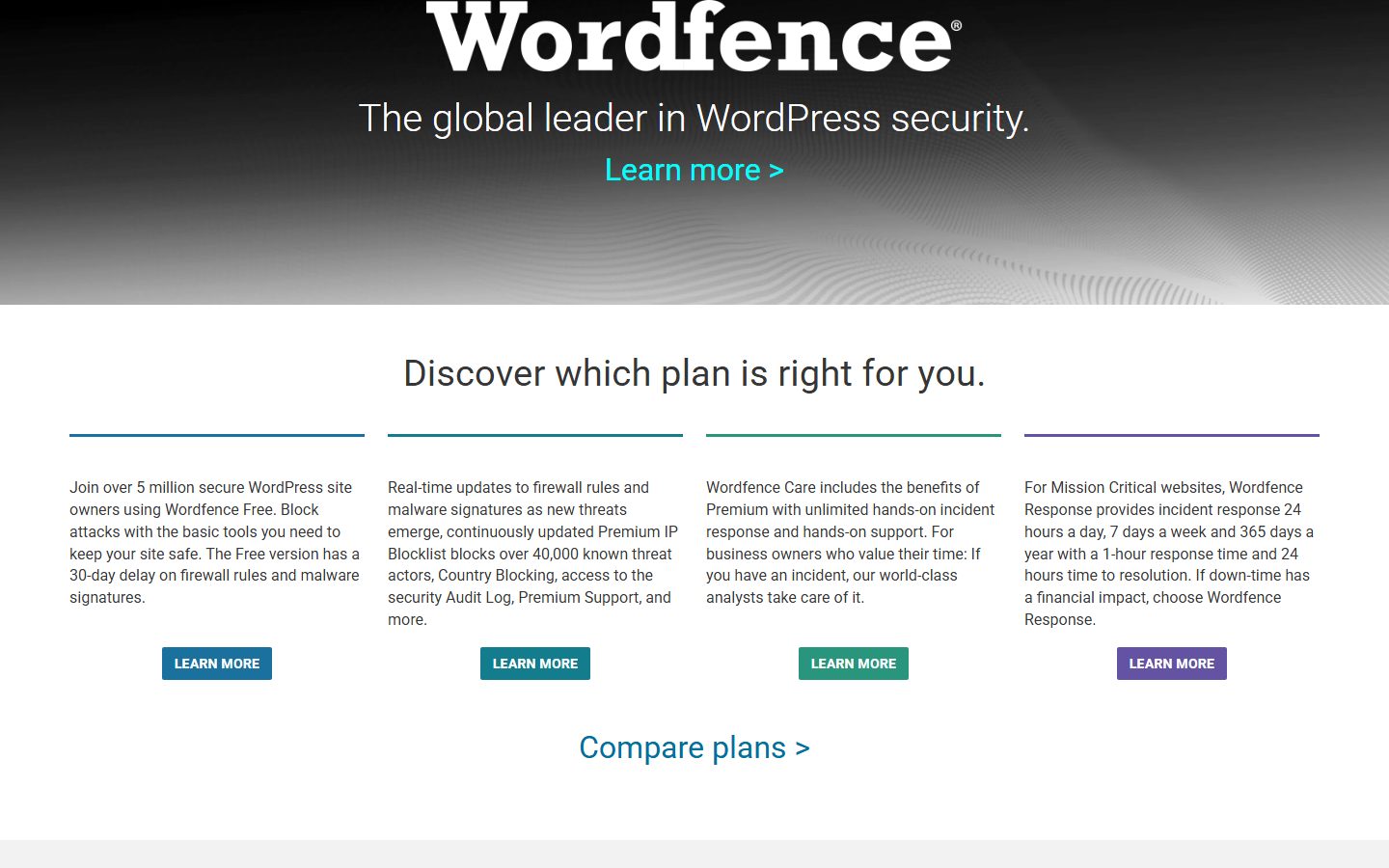
The homepage makes the plan structure clear, and it is worth reading carefully. The free version carries a 30-day delay on firewall rules and malware signatures. Premium receives real-time rule updates and adds a real-time IP blocklist, country blocking, a security audit log and premium support. Wordfence Care adds hands-on incident response and support, and Wordfence Response is aimed at mission-critical sites, with incident response around the clock and a one-hour response time, according to the vendor.
Good for: site owners who want a feature-rich all-in-one plugin with a large community and who are comfortable with a dashboard full of options.
Watch out for: endpoint firewall load on small servers, the free-tier delay on new rules, and an interface that can feel busy. If it does not suit you, see our roundup of Wordfence alternatives.
Patchstack: vulnerability-first protection
Patchstack focuses on vulnerabilities rather than general scanning. The vendor describes a system called RapidMitigate that applies targeted virtual patches, which are rules that block the exploitation of a specific known flaw without changing your code. According to its plugin page, the free tier matches your installed versions against its vulnerability database, sends alerts and lets you manage updates in one place, and it does not include a firewall. Paid plans add virtual patching, hardening options and an IP blocklist.
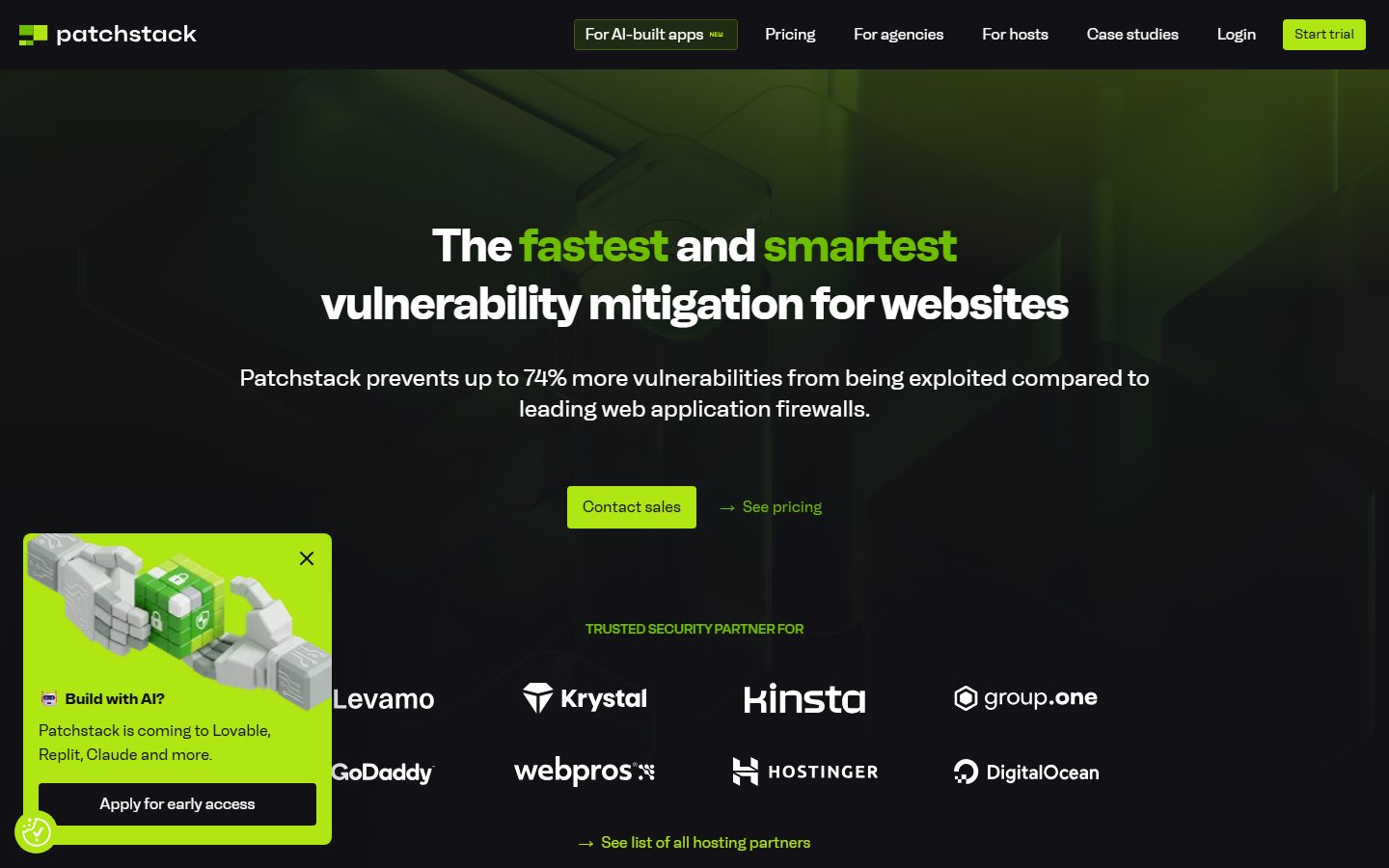
That headline figure is a vendor claim. WPMusk has not verified it, so treat it as marketing and judge the product by whether it tells you which of your plugins is vulnerable and what to do about it. The list of hosting partners at the bottom of the screenshot is more useful context: if your host already integrates Patchstack, you may get some of its protection without buying anything separately, which is worth asking about.
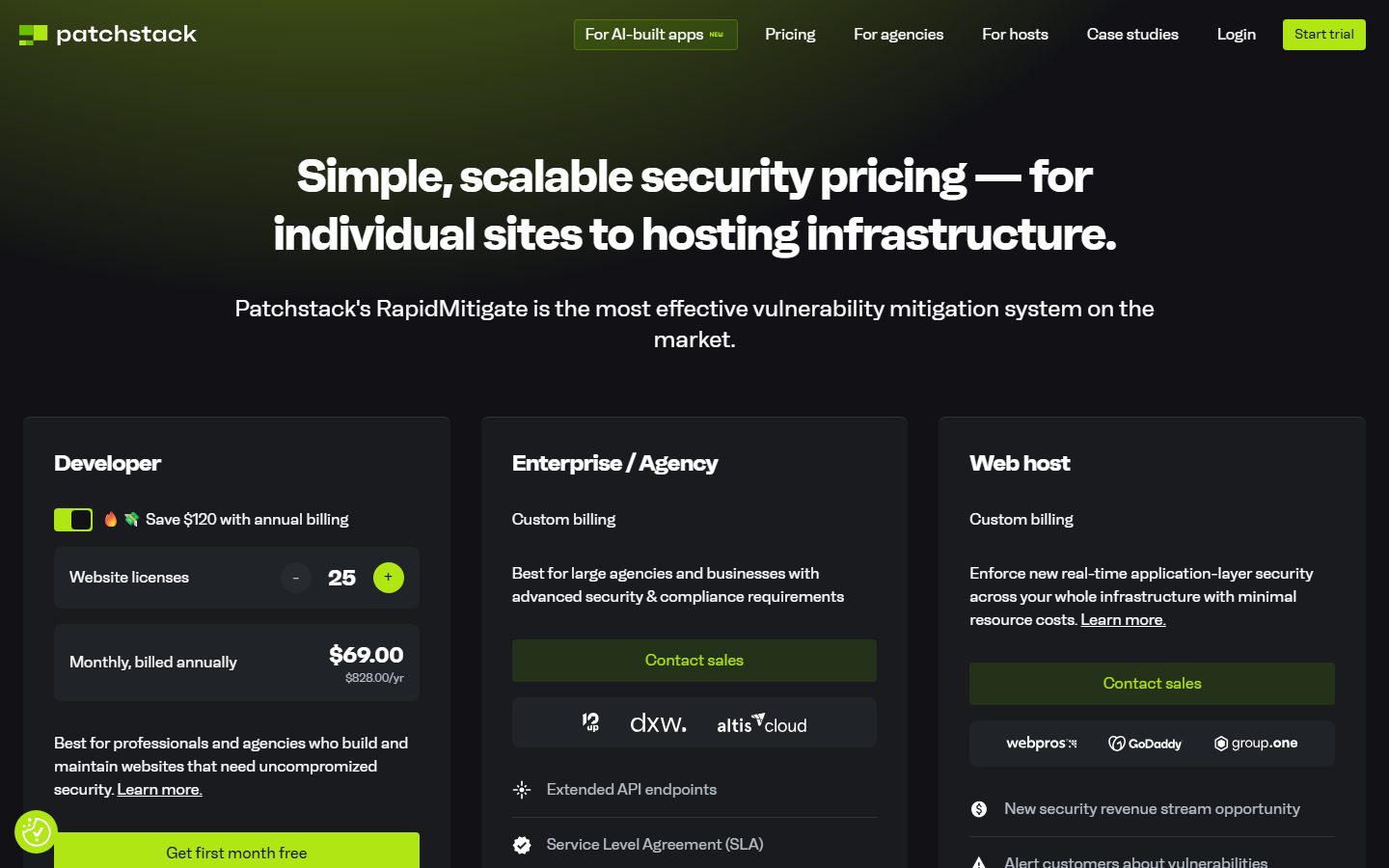
The pricing page shows three structures: a Developer plan where you choose the number of website licences and a billing period, an Enterprise or Agency plan with custom billing, and a Web host plan, also custom. At capture time the Developer calculator was set to 25 licences and showed a monthly price billed annually, with a first month free. The number will change with the licence count you select, so use the calculator on the vendor page.
Good for: owners and agencies who accept that the best defense is knowing which of their plugins is vulnerable, and who want a lightweight tool that does not try to be everything. Virtual patching is useful when you cannot update immediately, for example because of compatibility testing.
Watch out for: the free tier detects but does not block. You still need a firewall elsewhere, and your host may supply one.
Jetpack Protect and Jetpack Security: simple, with an Automattic account
Jetpack Protect is a small plugin from the Jetpack family. Its page describes a daily vulnerability scan of core, plugins and themes against a known-vulnerability database for free, with paid upgrades adding daily malware scanning, one-click fixes and a web application firewall with automatic rule updates. It needs a publicly reachable site, so it does not work on local installs.
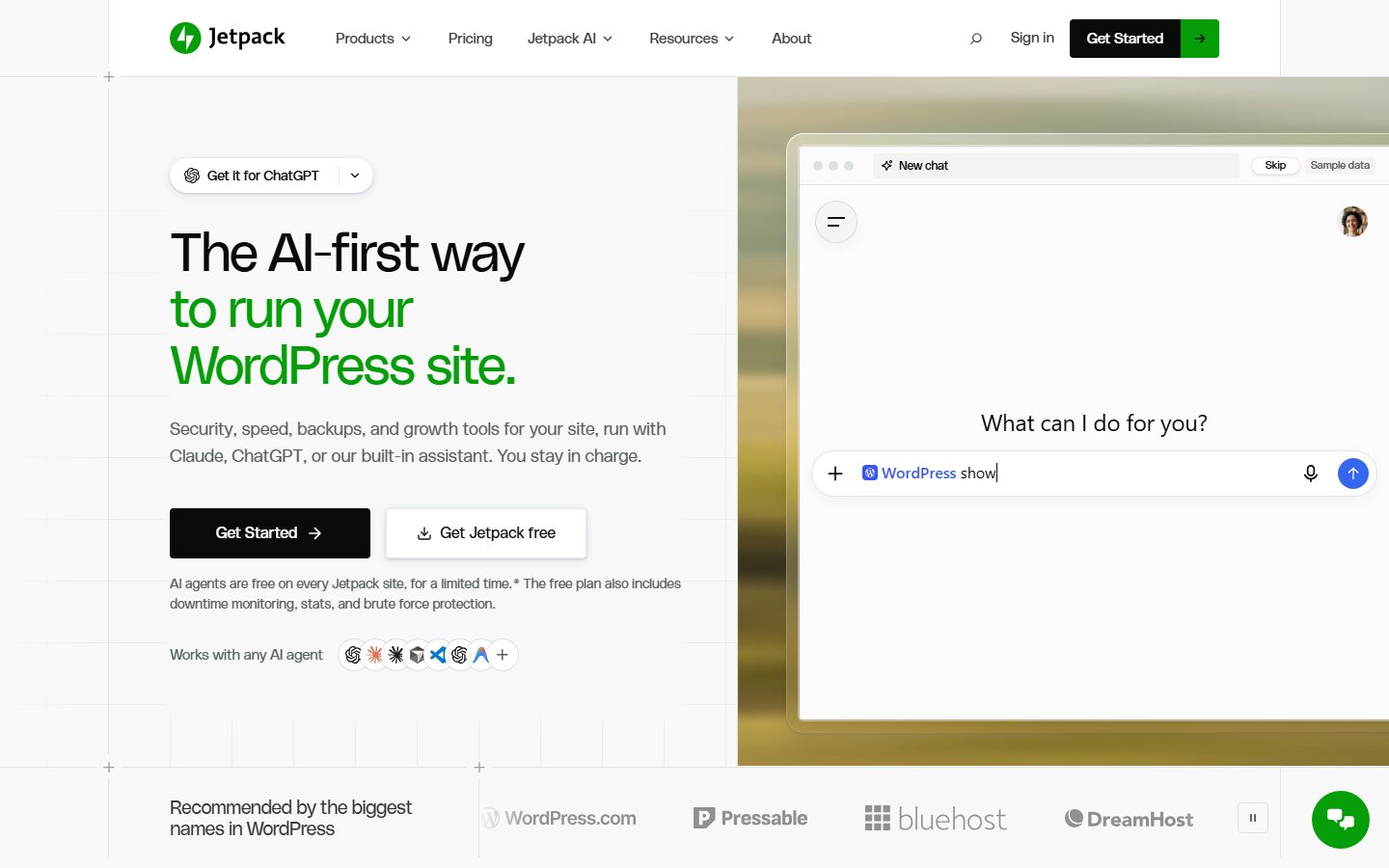
Jetpack’s homepage also says the free plan includes downtime monitoring, stats and brute force protection. Beyond the free plan, Jetpack sells bundles. The pricing page lists a Pro and a Complete bundle, each including real-time backup storage and an activity log, with different storage and log-retention amounts, and it shows yearly and two-year billing options.
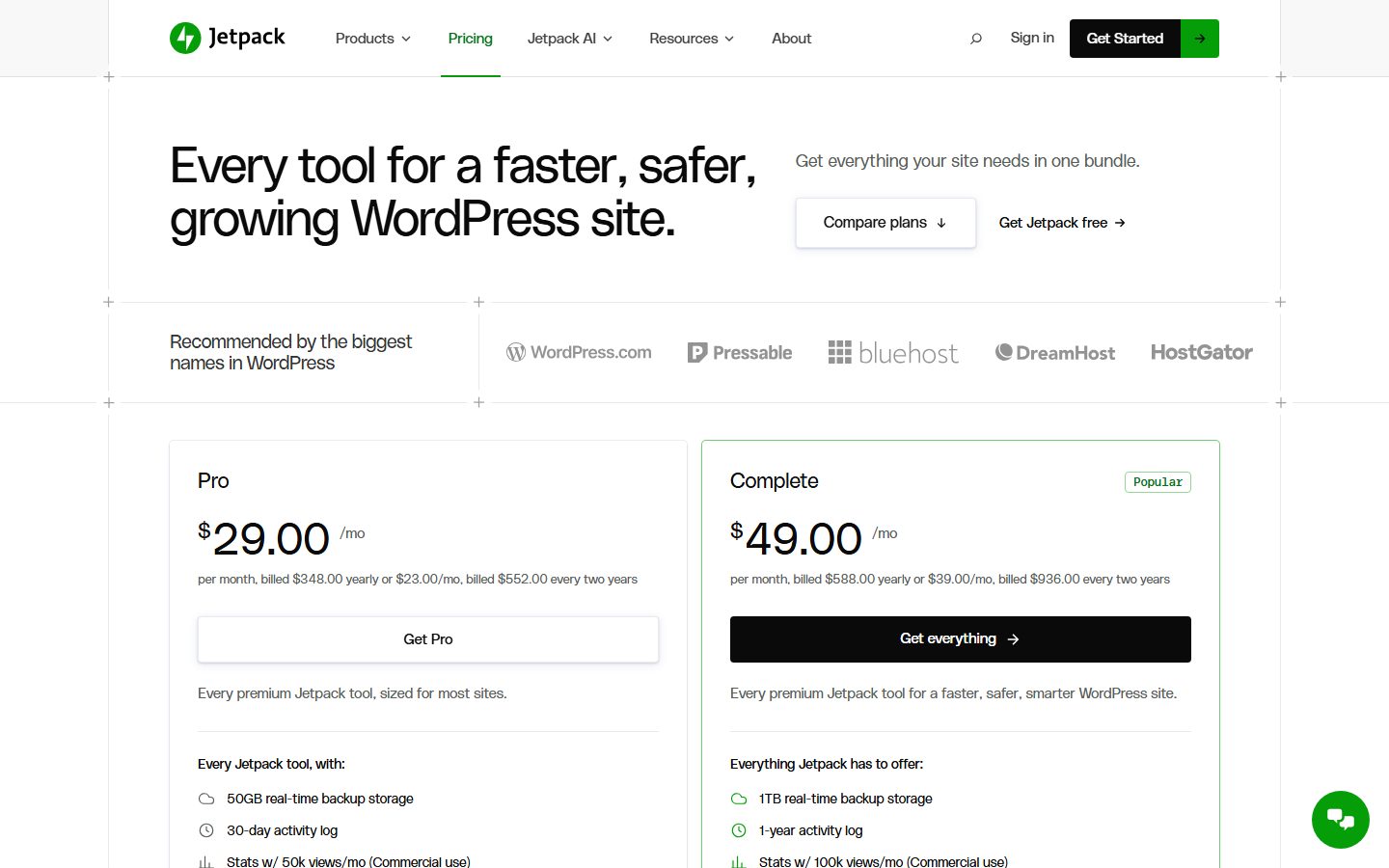
Good for: beginners who want a simple, low-configuration warning system, especially if they already use other Jetpack features.
Watch out for: the free version does not include malware scanning or the firewall, and the plugin ties you into Automattic’s account system. Bundles combine security with other tools you may not need, so compare the plan contents to what you would actually use. Check current prices on the vendor site.
Kadence Security (formerly Solid Security and iThemes Security)
This is the plugin many people still know as iThemes Security. Its wordpress.org listing now shows the name Kadence Security, noting that it was formerly iThemes Security and then Solid Security, with over 700,000 active installs. The free feature set is built around login security and hardening: two-factor authentication through authenticator apps, email and backup codes; password requirements; local and network brute force protection with user bans; file change detection; a site scanner that checks core, plugins and themes for known vulnerabilities and checks Google Safe Browsing status; and a user security screen. Pro adds features such as reCAPTCHA, passwordless logins, trusted devices, magic links, user logging, version management and automated patching through Patchstack, plus hourly rather than four-times-daily scans.
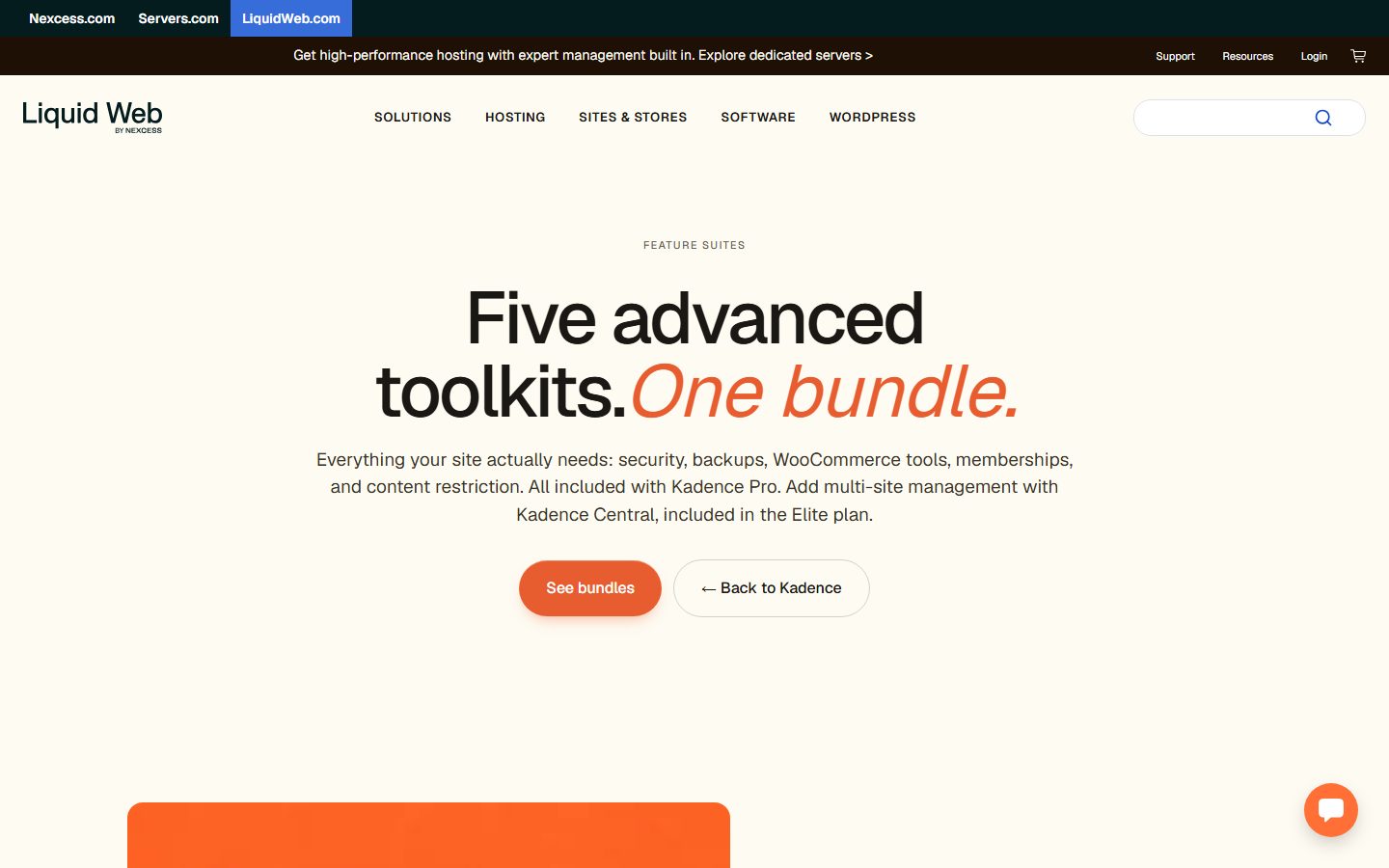
The screenshot is the vendor’s current bundle page, not the plugin settings, and it shows how the product has been repackaged: security and backups now appear as part of a Kadence Pro bundle, with multi-site management in the Elite plan. If you are researching this plugin, check the naming and bundling on the vendor’s page, because older articles and tutorials still use the iThemes and Solid names.
Good for: sites that mainly want account protection and a guided set of hardening steps.
Watch out for: branding and ownership changes, features split between free and Pro, and some older hardening options such as changing the database prefix that carry more risk than benefit on an existing site.
Sucuri: a plugin plus a managed cloud service
Sucuri is both a plugin and a paid service. The free plugin, according to its wordpress.org page, offers security activity auditing, file integrity monitoring against a baseline taken at install, remote malware scanning through its SiteCheck scanner, blocklist monitoring, hardening recommendations, post-hack actions such as resetting secret keys and passwords, and customizable alerts, with over 600,000 active installs. The paid platform adds a web application firewall, brute force protection, DDoS mitigation and vulnerability scanning of core, plugins, themes and PHP.
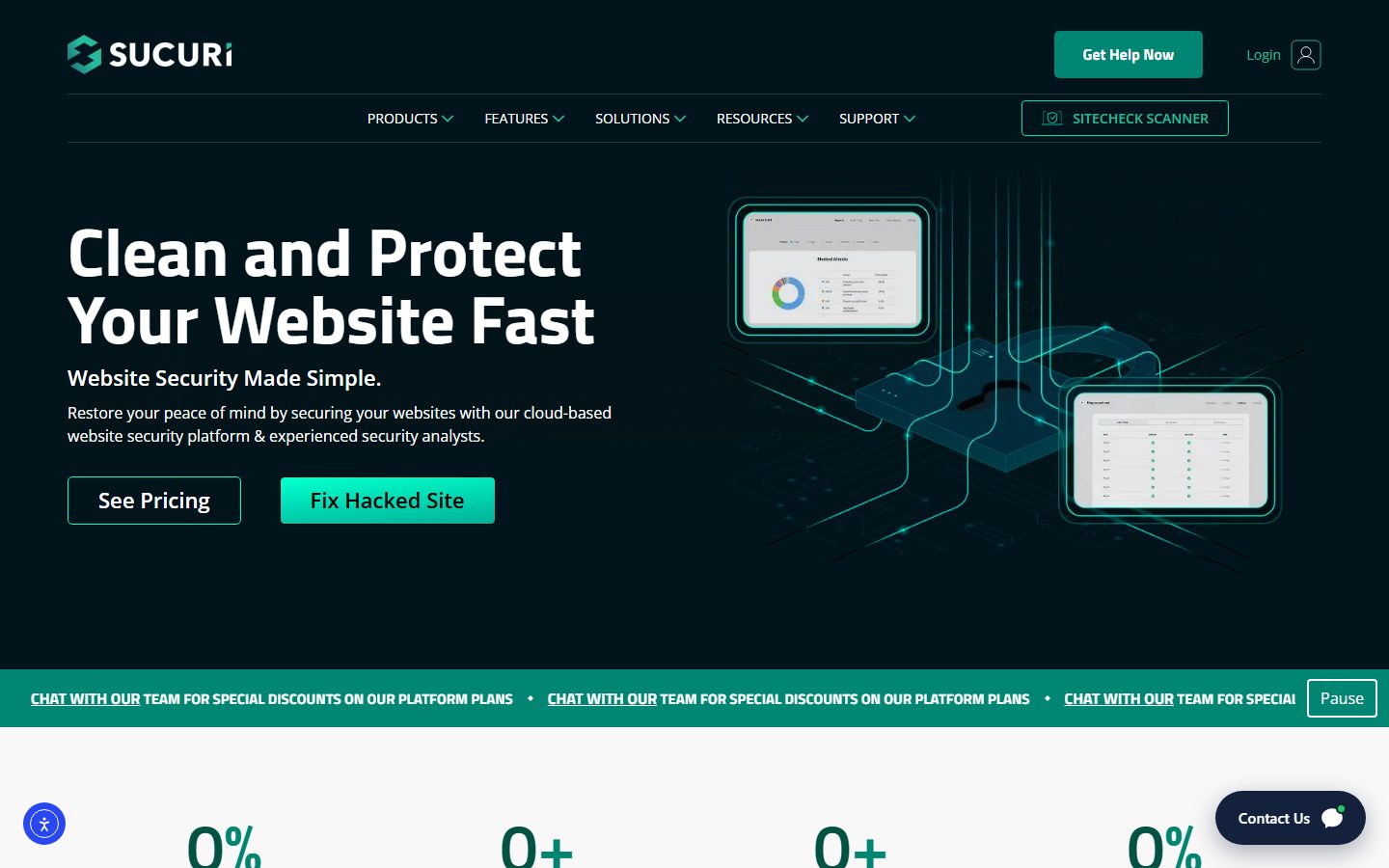
The vendor’s homepage promotes a “cloud-based website security platform and experienced security analysts” and offers a prominent Fix Hacked Site option, which tells you what the company sells: the incident response, not just the software. That is the type of choice where you pay a company to deal with infections instead of only detecting them.
Good for: owners without time or skill for incident response, who want a service to own the problem.
Watch out for: the paid tiers cost more than a plugin-only option, and the cloud firewall requires DNS changes. The free plugin detects and reports but does not clean. Compare plan contents carefully, and use the recovery plan if you are already compromised.
Cloudflare and other edge services
A cloud firewall and CDN is not a WordPress plugin, but it can serve as the first layer for many sites, with managed rules, rate limiting and bot filtering. Combine it with a WordPress-level tool for login protection and vulnerability alerts.

The pricing page shows four tiers: Free, Pro, Business and Contract. At capture time the Free plan was $0 per month, Pro was listed at $20 per month billed annually ($25 billed monthly) and Business at $200 per month billed annually ($250 monthly), with Contract priced custom. Prices and included features change, so check the page and the feature comparison, especially for WAF and bot-management features, which differ by plan.
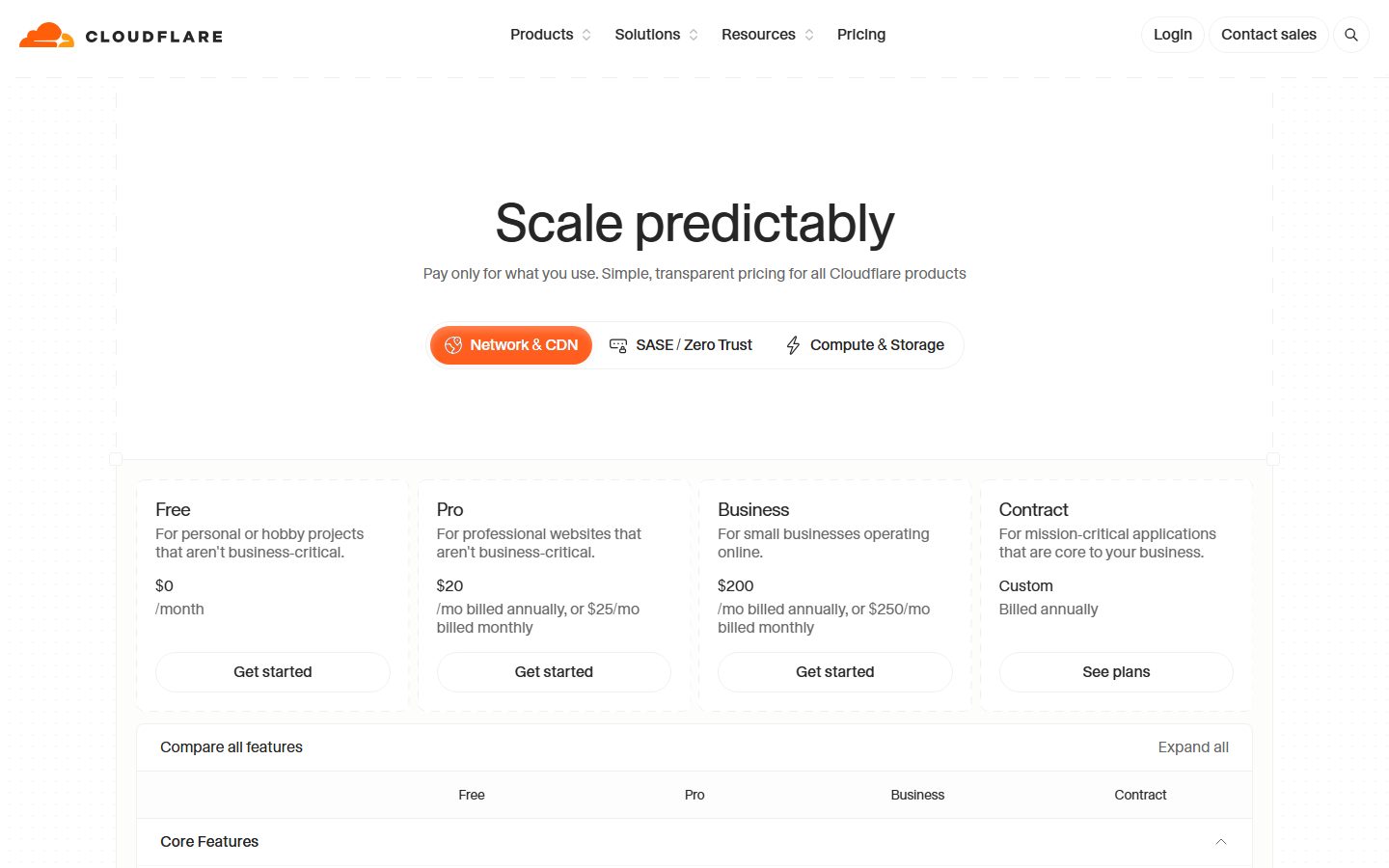
Good for: sites facing bot floods, or wanting to reduce server load and add caching in front of the origin.
Watch out for: misconfiguration, bypassing through the origin IP address, and cached pages that should not be cached. The caching side is covered in our caching plugin comparison.
Maintenance dashboards for agencies: WP Umbrella and ManageWP
If you look after many sites, the question changes from “which plugin protects one site” to “how do I see the state of every site at once”. Maintenance dashboards do not replace a firewall, but they put vulnerability, update and uptime data in one place, which is where a lot of real-world security work happens.
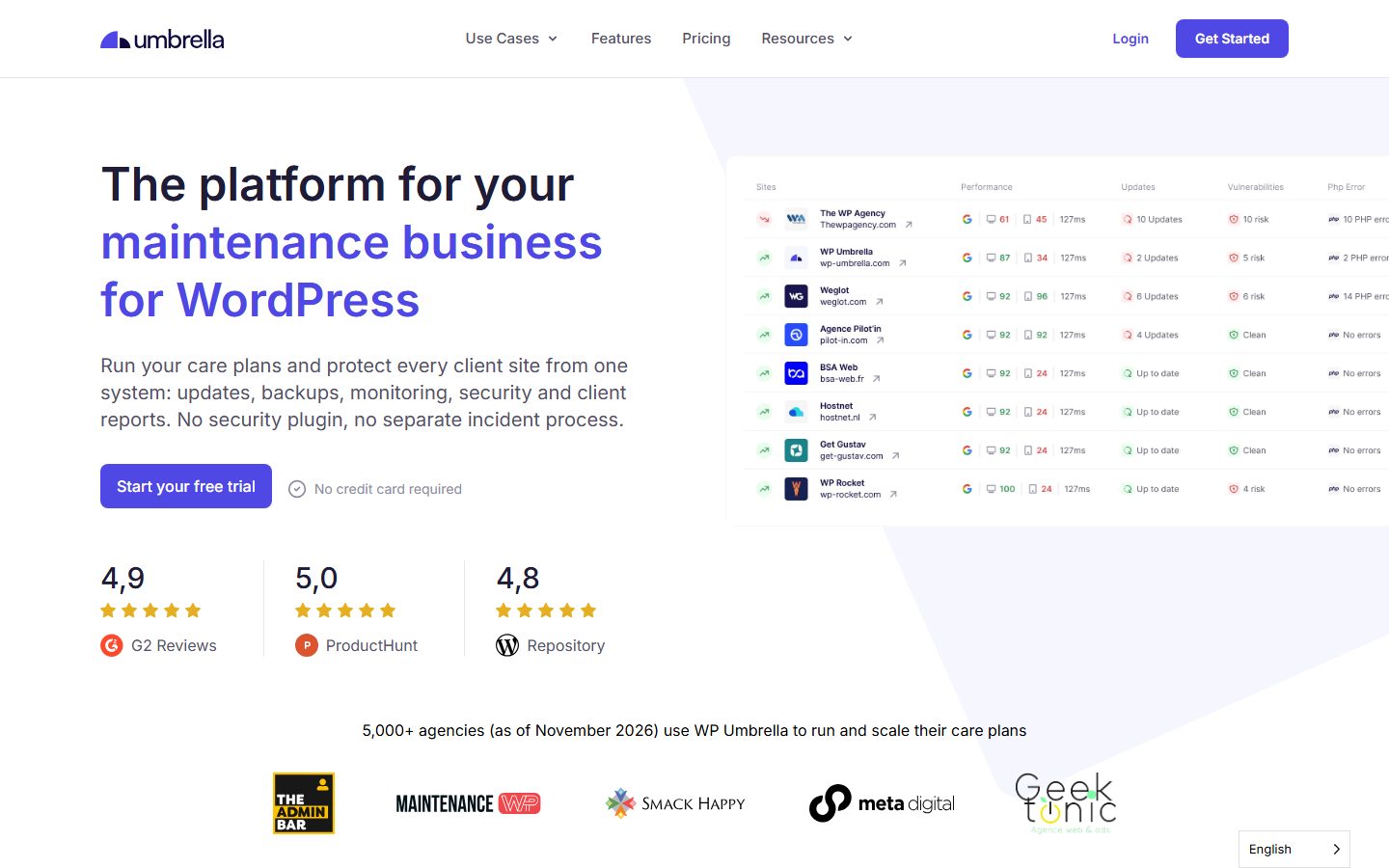
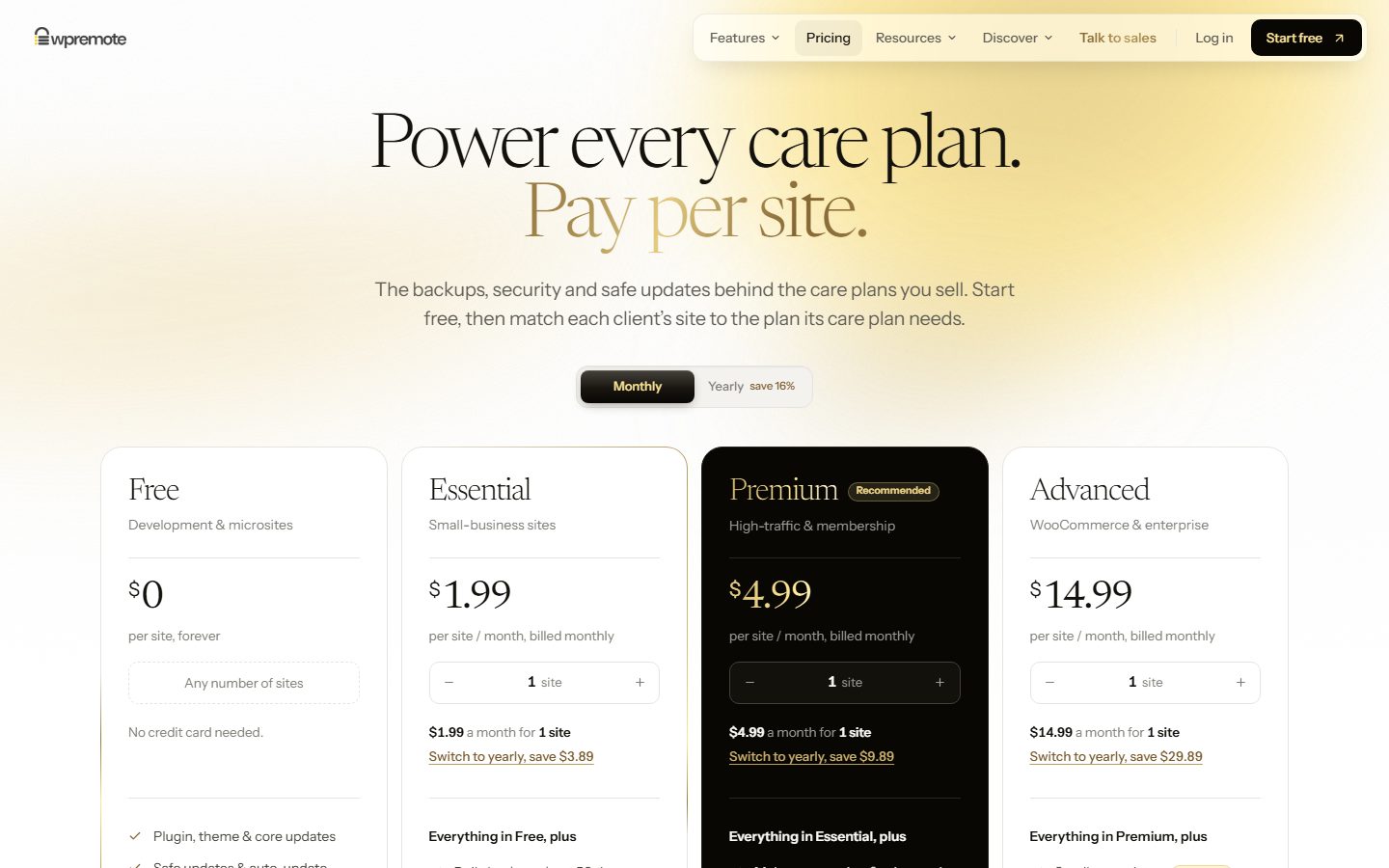
WP Umbrella describes itself as a platform for a WordPress maintenance business: updates, backups, monitoring, security and client reports from one system. Its homepage preview shows a table with a row per client site and columns for performance, updates, vulnerabilities and PHP errors, which is exactly the overview an agency needs on a Monday morning.
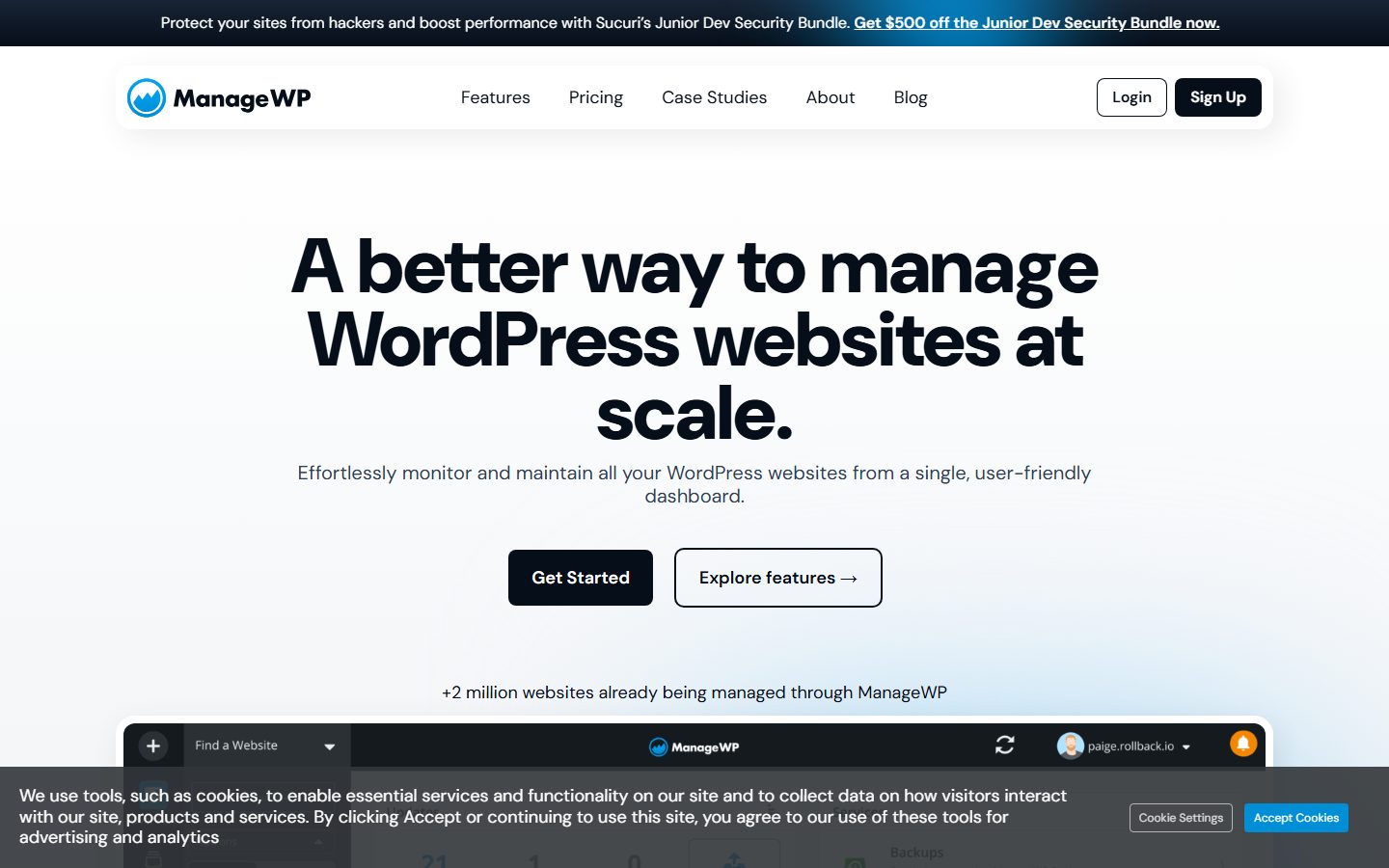
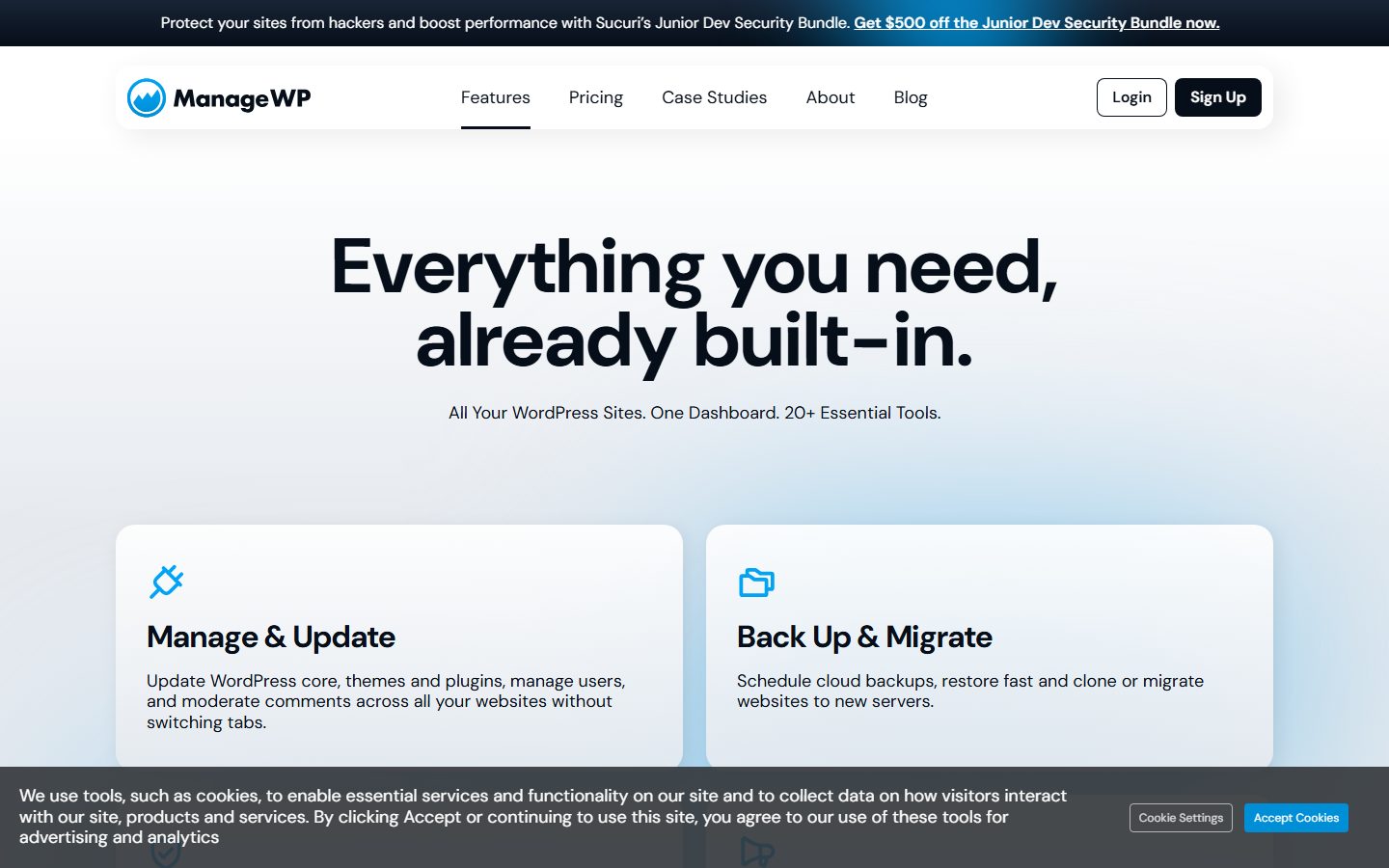
ManageWP, now part of the GoDaddy and Sucuri family, positions itself as a single dashboard to monitor and maintain all your WordPress websites, with a claim of more than two million websites managed. At capture time its banner promoted a Sucuri security bundle, which shows how dashboards and security services are often sold together. Our wider comparison is in the tools for managing multiple WordPress sites.
Good for: agencies, freelancers and anyone responsible for more than a handful of sites. Watch out for: these tools can push updates and run backups, so protect their accounts with strong passwords and two-factor authentication. A compromised dashboard account is a compromised portfolio. For client work processes, see the agency workflow guide.
Host-level security: what to ask before you buy a plugin
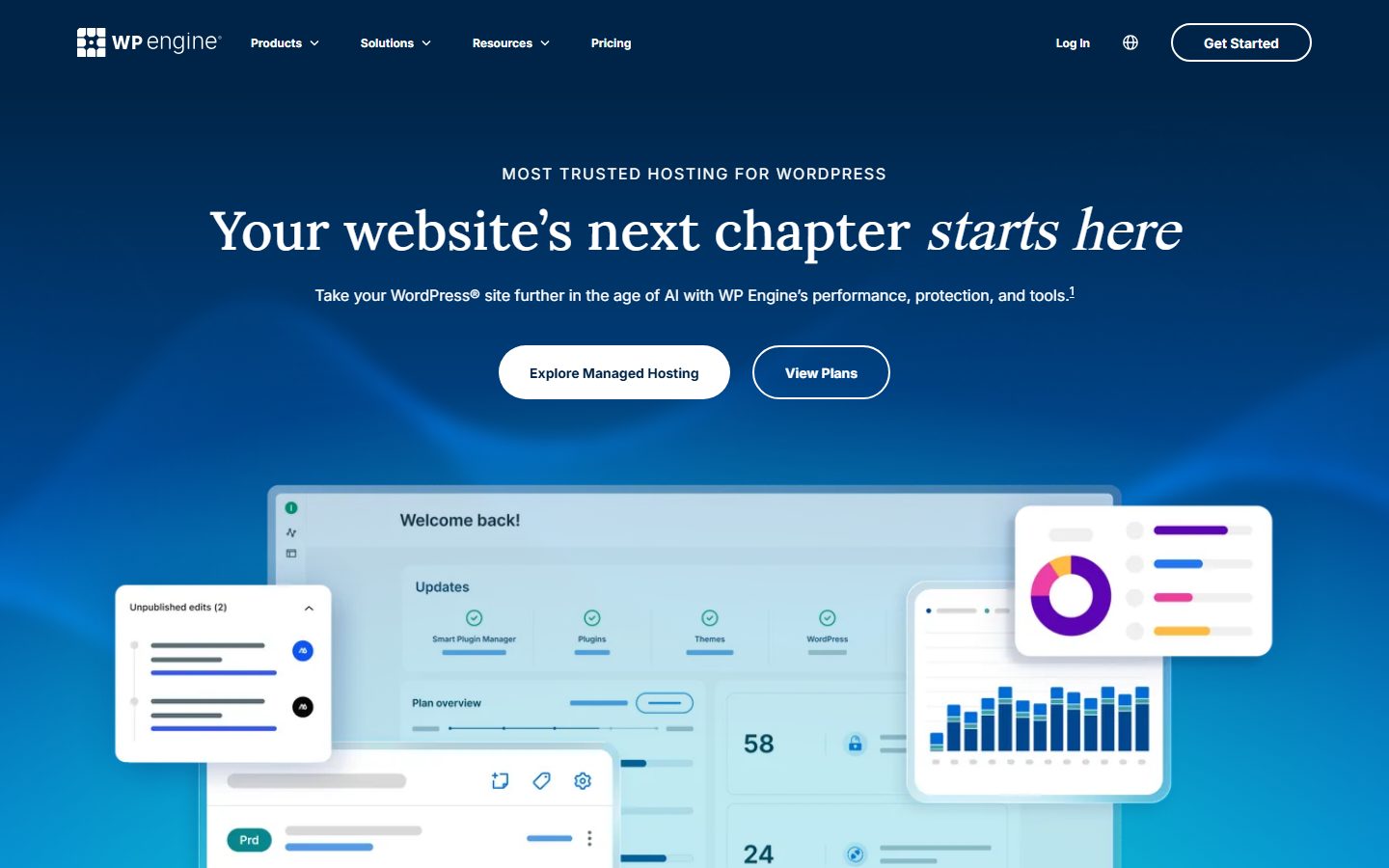
Managed hosts increasingly include security as part of the platform. A host that isolates accounts, runs a server-level firewall, scans for malware and keeps PHP current can cover much of what a plugin would otherwise do. WP Engine’s homepage, for example, talks about “performance, protection and tools” and shows a dashboard with a plugin, theme and core update summary. Cloudways’ homepage describes managed cloud hosting where staging, backups and caching are ready on day one. What exactly is included differs by plan, so ask direct questions.

- Is there a web application firewall, and does it cover my plan?
- Is malware scanning included, and does the host clean an infection or only report it?
- Are sites isolated from each other on the same server?
- How are vulnerable plugins handled? Does the host integrate a vulnerability service?
- Are backups included, how often, where are they stored and how long are they kept?
- Can I restore myself, and what is the recovery time if I ask support?
- Which PHP versions are supported, and is updating to a newer one easy?
Use the answers to decide which jobs remain for your plugin. Many owners on a well-managed host end up with a vulnerability monitor, a login-security tool and an activity log, and no second firewall. For platform context, see the xCloud hosting guide and the comparison of hosting by use case.
Other well-known tools
Several other products are worth knowing, though details change and you should check their pages. All In One WP Security, a free plugin, bundles many hardening and login features. Defender, from WPMU DEV, belongs to a wider membership of tools. MalCare focuses on scanning and clean-up using an external service. Melapress offers login and activity-related plugins. Each may fit a particular workflow, so evaluate them against the same questions as above, and use the plugin vetting checklist before adding any of them.
Which features matter most
Vendors list dozens of features. These are the ones that tend to change outcomes.
Vulnerability monitoring
Because many compromises start with a known vulnerability in outdated software, an alert that says plugin X version Y has a known flaw is very valuable. It tells you exactly what to update. If you only had one feature, this would be it. It also makes the case for tidying your plugin list, as in plugins you can safely delete.
Two-factor authentication
Stops stolen passwords from being enough. Many security plugins include it, but dedicated plugins exist too. Our guide to adding two-factor authentication to WordPress compares approaches.
A firewall that updates quickly
A firewall is only as good as its rules. Pay attention to how fast new rules reach your site, and whether that speed depends on your plan. Wordfence’s 30-day delay on the free tier is the clearest example.
Rate limiting and brute force protection
Limits login attempts and aggressive crawlers. It reduces noise and server load.
File integrity monitoring
Detects when core files change in ways they should not. Helpful for spotting a compromise early, if you act on the alerts. Sucuri’s free plugin and Kadence Security both list it.
Activity log
Shows who did what and when, which is invaluable when investigating an incident or a team mistake. Also useful for accountability when many editors work on the site, and consistent with the principles in our article on least-privilege roles.
Features that matter less than they sound
- Hiding the WordPress version or login URL. Minor obscurity measures.
- Changing the database prefix. Little benefit, and risky on an existing site.
- Security scores and badges. Marketing more than protection.
- Dozens of hardening toggles. Many are the same few settings, and several you can set yourself in wp-config.php or at server level.
- Visitor-facing trust seals. They do not make a site safer.
Spam and bots: a different problem
Comment spam, form spam and fake registrations are often lumped in with security, but a firewall alone does not solve them. They are better handled with dedicated anti-spam measures such as honeypots, CAPTCHA alternatives and form-level filtering. See our guide to stopping WordPress spam and the form plugin comparison for what is built into popular form tools.
Backups are not optional, and not a feature to skip
Most security suites focus on prevention and detection. None of them remove the need for a backup you can restore. A good recovery path often matters more than any scanner. Read our comparison of backup plugins for dedicated tools, and these UpdraftPlus alternatives if you want a different option. Store backups off the server, and test a restore at least once. Some security bundles, such as Jetpack’s and Kadence’s, include backups, but check the retention period and the restore process before you rely on them.
What it costs: free versus paid
Prices are only quoted here where they were visible on a vendor page at capture time, because plans, discounts and renewal terms change often. Instead, here is what to look for when comparing tiers.
- What is delayed on the free tier? Rule updates and malware signatures are the common examples.
- What is missing? Free tiers often detect but do not block, or block but do not clean.
- How many sites does a plan cover? Agencies need per-site or bundle pricing, as Patchstack’s licence calculator shows.
- What is the renewal price? Introductory discounts can disappear after the first year.
- What support is included? Priority support and clean-up are the main reasons to pay.
- Is a clean-up included, or billed separately?
- Is the plan a bundle? Bundles that include backups, stats and AI features may cost more than a single tool you would actually use.
When free is enough
For a small blog or brochure site on a decent host, a free vulnerability monitor plus two-factor authentication, updates and backups is a respectable setup. Add a firewall if your host does not provide one.
When paying makes sense
Stores, membership sites, agencies and any site where downtime costs real money benefit from real-time firewall rules, virtual patching and support. The cost is small compared with a day of downtime or a clean-up.
A multi-year cost model from verified prices
Security pricing mixes licences, services and add-ons, so the sticker price rarely tells you the three-year cost. The figures below come from vendor pages read while preparing this section, and the totals are simple arithmetic that assumes the price does not change. Renewal prices were not stated on every page, so confirm them at checkout.
| Option (verified price) | Covers | Per year | Three years, price unchanged |
|---|---|---|---|
| Sucuri Basic Platform, $229 per year | 1 site | $229 | $687 |
| Sucuri Pro Platform, $339 per year | 1 site | $339 | $1,017 |
| Sucuri Business Platform, $549 per year | 1 site | $549 | $1,647 |
| Sucuri Junior Dev, $999.98 per year | 5 sites | $999.98 (about $200 per site) | $2,999.94 |
| Sucuri Basic Firewall only, $9.99 per month | 1 site | $119.88 | $359.64 |
| Sucuri Pro Firewall only, $19.98 per month | 1 site | $239.76 | $719.28 |
| Patchstack Developer, $69 per month billed annually | Licences as selected; see note | $828 | $2,484 |
| Patchstack free plan plus per-site virtual patching, $5 per site per month | 1 site | $60 | $180 (for three sites: $540) |
Read the table with these facts from the vendor pages. Sucuri’s platform plans are listed with malware removal service levels (30 hours on Basic, 12 on Pro, 6 on Business, according to the page), advanced scans every 12, 6 or 30 minutes depending on the plan, unlimited manual cleanups, ticket support all day every day, and a 30-day money-back guarantee. The firewall plans are monthly, and the page says multi-year purchases can receive discounts of up to 30 percent. The same page quotes CDN speed-up percentages that are not consistent between sections, so ignore those numbers. Patchstack’s Developer line on its pricing page includes three seats, charges $24 per extra seat per month and $12.50 per month for an extra five sites, and does not state the base number of sites, so it is unwise to turn it into a per-site figure without reading the live calculator. Its page also says “Get first month free”.
What the arithmetic shows: the cheap path is a free detection plugin plus a host that blocks attacks, while the managed-service path costs a few hundred dollars per site per year and buys cleanup obligations and response times. Wordfence, Jetpack and Kadence are not in the table because their pricing pages could not be read cleanly for this guide; check them directly and add a row.
A worksheet for your own model
- List every site, including staging and client sites, and the number of licences each plan needs.
- Write the first-year price, the renewal price and the billing period for each shortlisted product.
- Add the cost of any companion tool: a separate backup, a firewall, two-factor authentication.
- Estimate the hours per quarter you will spend on alerts and updates, and give them a price.
- Compare the three-year total against the cost of a cleanup from a service, which is the event you are insuring against; Sucuri’s plans list unlimited manual cleanups while other vendors charge separately.
Performance and compatibility
A security plugin that slows your site or conflicts with your cache is a bad trade. Before committing, check a few things.
- Install on staging first. Our staging site guide explains how.
- Check how it affects server response time and admin speed. For how to read the results, see our PageSpeed Insights guide and the slow admin fixes.
- Look at scan scheduling. Heavy scans on small shared hosting can exceed resource limits. Run them off-peak.
- Check compatibility with your caching plugin, page builder and any membership or shop plugin.
- Check that it does not lock out legitimate users, or block your own payment gateway callbacks or monitoring services.
- If something breaks, follow the plugin conflict troubleshooting routine.
How to measure a plugin’s impact yourself
- On staging, record time to first byte and load time for five representative pages, plus a few wp-admin screens, with the security plugin off.
- Activate the plugin with default settings and repeat the measurements several times, using the median.
- Start a full scan and watch server CPU and memory in your host’s panel while it runs.
- Check the plugin’s own log or traffic view for false positives such as blocked admin users or blocked API callbacks.
- Keep the plugin only if the protection it adds is worth any overhead you see.
SEO side effects
Overzealous blocking can block search engine crawlers, break your sitemap or XML feeds, or slow response times, and any of these may hurt crawling. After installing, check that Googlebot can reach your pages and watch Search Console for crawl errors. See our WordPress SEO guide and the Search Console guide for the larger picture.
How a vulnerability turns into a hack, and where each tool steps in
Understanding the timeline helps you see why different tools exist. A typical sequence for a plugin flaw looks like this:
- A researcher or the developer finds a flaw and reports it privately.
- The developer releases a patched version, and the flaw is published in a vulnerability database with an affected version range.
- Attackers read the advisory and scan the internet for sites still running the affected versions.
- Vulnerable sites are exploited, often with automated tools, sometimes within hours or days of publication.
- Site owners notice only when something breaks, or never.
Each kind of tool targets a different step. A vulnerability monitor shortens the gap between steps two and five by telling you the moment a plugin on your site is affected. A firewall with fast rule updates tries to block the exploit attempts in step four. Virtual patching is a targeted version of the same idea. Automatic updates close the window by installing the fix in step two. File integrity monitoring and malware scanning help after step four, by revealing that something changed. Backups let you recover when everything else fails. No single tool covers the whole chain, which is why a layered approach works better than a hunt for the one perfect plugin.
It also explains why abandoned plugins are such a risk. If a plugin is no longer maintained, a flaw may never be patched, and the only options are to remove it, replace it or rely on virtual patching for as long as it lasts. Check the “last updated” date and active-install numbers on each plugin’s wordpress.org page as part of your review, and use a vetting checklist before adding anything new.
Security layers that are not plugins
The most effective measures are often settings and habits rather than software. Whatever plugin you choose, put these in place.
Updates
Keep core, plugins and themes current. Decide which updates can be automatic and which should be tested first. Security releases for core are usually safe to apply automatically; plugin updates on a store deserve a staging check. See the risk guide for auto-updates for a way to decide.
Strong, unique credentials
Use a password manager, and never reuse an admin password. A plugin that blocks compromised passwords or enforces strength rules helps, but the habit matters more than the tool.
Two-factor authentication
Require it for every account that can publish, edit users or install plugins. Authenticator apps are preferred over SMS. Wordfence, Kadence Security and several dedicated plugins offer it; follow the two-factor authentication guide for setup.
Least privilege
Give each person the lowest role that lets them do their job, and remove accounts that are no longer needed. Fewer administrators means fewer ways in. The role model is explained in the least-privilege roles article.
HTTPS and secure configuration
Use HTTPS everywhere, keep file permissions sensible, disable the built-in file editor if no one needs it, and keep debug output off on production. Your host’s documentation and the hardening options in your plugin can help, but test each change, since some break plugins that expect to write files.
Backups
Keep versioned backups off the server, and test a restore on staging. Without a clean backup, a serious compromise turns into a rebuild. See the backup plugin comparison.
Staging
Test updates and new plugins on a copy of the site first. The staging guide shows the workflow, and it is also where you should evaluate any new security plugin.
Monitoring
Uptime checks, vulnerability alerts and an activity log catch problems early. These do not need to be expensive. What matters is that a person receives and acts on the alerts.
Hardening that costs nothing and needs no plugin
WordPress’s own hardening documentation lists measures that work whichever plugin you choose. They are worth doing before you pay for anything, and a security plugin that reports them as findings is only repeating this list.
- File permissions. The documentation recommends 755 for directories and 644 for files, with wp-config.php readable only by you and the web server (it says this generally means 400 or 440). The wp-admin and wp-includes folders should be writable only by your user account, and wp-content by your account and the web server.
- Disable the file editor. Adding
define( 'DISALLOW_FILE_EDIT', true );to wp-config.php removes the theme and plugin editor capabilities. The docs are clear that it does not stop an attacker from uploading malicious files, so it reduces one path and is not a defense on its own. - Protect wp-config.php at the server. On Apache, a Files block in .htaccess with
Require all denieddenies web access to it. - Use SFTP, not FTP, if your host supports it.
- Limit database privileges. The documentation suggests SELECT, INSERT, UPDATE and DELETE, and warns that removing DROP, ALTER or GRANT can break updates that change the schema, so back up first.
- Server-side protection for wp-admin. Basic authentication is suggested, with the warning that protecting wp-admin can break admin-ajax.php used by some front-end features.
- Avoid obvious usernames such as “admin” and consider a table prefix other than wp_.
- Enable two-step authentication, delete unused plugins and keep the rest updated.
The documentation also notes that moving wp-config.php above the install directory has disputed benefits and may introduce problems if done carelessly, which is a reminder to treat every hardening tip as a trade-off. For the account side, read the two-factor authentication guide and the least-privilege roles guide. For the full picture of layers, see the WordPress security guide.
Questions to ask any security vendor
When you read a product page, translate the marketing into questions you can answer.
- Where does the protection run? In the plugin, at the edge, or at the host?
- How often are rules and signatures updated, and does that differ by plan?
- What is the source of the vulnerability data, and does the vendor publish it?
- What happens after detection? Does the tool block, alert, quarantine or clean?
- What is the clean-up policy? Is it included, limited, or an extra fee?
- What data leaves my site? Many scanners and cloud services send file hashes or site data to the vendor. Read the privacy policy.
- What does uninstalling leave behind? Firewall plugins can add files that load before WordPress, and these must be removed correctly.
- How does the vendor communicate incidents, including problems with its own software?
- What are the limits? Number of sites, scans, log retention and support hours.
- Are claims independently verified? Treat percentages such as “prevents up to X percent more” as marketing until you can verify them.
A simple scorecard for your shortlist
If you are torn between two or three options, score each from one to five on the criteria that matter to you, then add the numbers. Weight the criteria by your situation: a store might double the weight of firewall speed and support, while a hobby blog might double the weight of price.
| Criterion | What to check | Where to find it |
|---|---|---|
| Fit with host | Overlap with host firewall and scanning | Host documentation or support |
| Coverage of your top risk | Does it address vulnerabilities, logins, bots or payments? | Vendor features page |
| Free-tier limits | Delays, missing blocking, missing clean-up | Plugin listing and pricing page |
| Performance impact | Response time and CPU during scans on staging | Your own tests |
| Maintenance record | Recent updates, support responses, changelog quality | wordpress.org listing |
| Support and clean-up | Hours, channels and what is included | Pricing and support pages |
| Total cost over time | Per-site price, renewal price and bundle contents | Pricing page and checkout |
| Ease of use | Can you explain the main settings after twenty minutes? | Staging trial |
The point of a scorecard is not mathematical precision. It forces you to write down what you value and to compare products on the same terms, which is much harder to do while reading a polished sales page.
Scenario-based recommendations (hypothetical sites)
These are invented examples to show the reasoning. They are not recommendations for your site, and none comes from a measured case.
Scenario A: a personal blog on managed hosting
One administrator, a handful of plugins, a host that already blocks malicious traffic and takes backups. The weak points are the admin account and outdated plugins. A free vulnerability alert tool plus two-factor authentication and a short plugin list covers most of the realistic risk. A full endpoint firewall may duplicate what the host does, so ask your host first and test the extra load before you add one.
Scenario B: a small business site with a contact form and a paid theme
The business depends on the site, and nobody on the team will watch dashboards. Choose a tool that sends alerts to a mailbox someone reads and set a weekly ten-minute review. Consider a firewall layer (host, edge service or plugin), vulnerability monitoring for the paid plugins, and backups tested by restoring them. See the backup plugin comparison and UpdraftPlus alternatives for the backup half of the decision.
Scenario C: an online shop
Customer accounts and orders raise the cost of a breach. You want a firewall in front of PHP, login protection, malware scanning, an audit log of changes and a tested restore. Check payment pages after every security change, since overly aggressive rules can block checkout callbacks. Consider a managed service with a stated cleanup response time. The WooCommerce speed checklist covers the performance side of the same stack.
Scenario D: an agency with twenty client sites
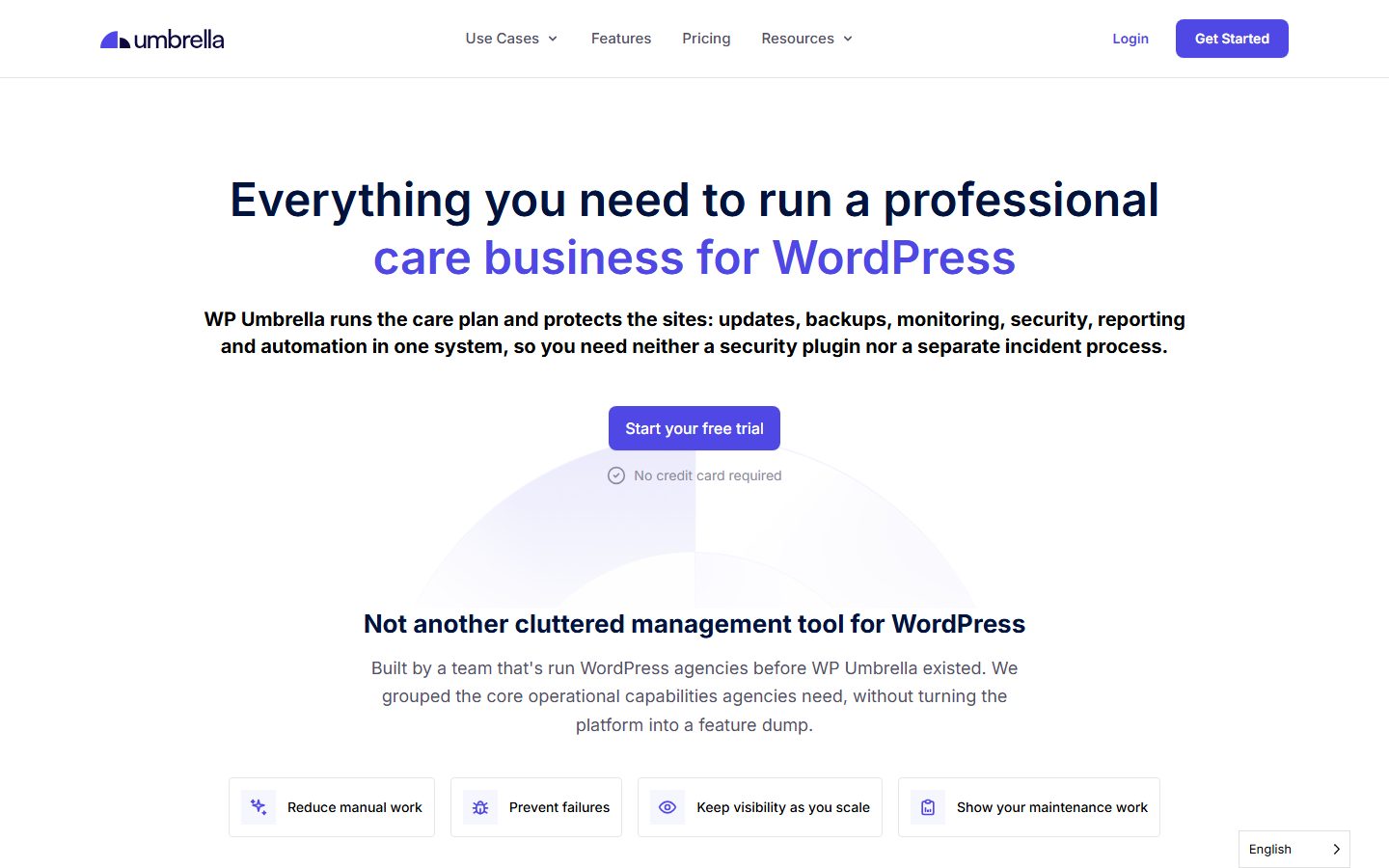
The challenge is visibility, not the tool. The management dashboards covered earlier (WP Umbrella and ManageWP) bundle updates, backups, monitoring and reporting, and some security plugins offer a central dashboard of their own (Wordfence Central is described as free to use for unlimited sites). Count seats and site slots, check whether white-label reports exist, and standardize one baseline configuration so alerts mean the same thing on every site.
Scenario E: a site that was recently hacked
Do not install a plugin and assume the problem is solved. Follow the recovery plan first: contain, restore from a known-good backup or clean, change every credential, and find the entry point. A scanner then helps confirm the site is clean, and a firewall or virtual patching helps keep it that way.
Plugin, service or both?
Most of the tools above fall into one of three shapes. Understanding the shape helps you avoid paying for what you do not need.
- Plugin only. Runs inside WordPress. Cheapest and most flexible, but it uses your server’s resources and relies on you to act on alerts. Examples in this guide: Wordfence, Kadence Security and the free tiers of Patchstack and Jetpack Protect.
- Plugin plus cloud service. A small plugin connects your site to a vendor’s platform, which does the heavy work off your server. Sucuri’s paid firewall and Cloudflare work this way, and so do Patchstack’s virtual patches.
- Managed service with people. A team takes responsibility for detection and clean-up. This is the most expensive and the least work for you. Wordfence Care and Response, and Sucuri’s clean-up services, are in this category according to the vendors’ own pages.
Many sites do well with a plugin only. Sites that cannot afford downtime, or whose owners cannot respond to an incident themselves, are the ones that benefit from paying for people. If you are somewhere in the middle, start with a plugin and a tested backup, and consider the managed option once you know what an hour of downtime would cost you.
Recommended setups by situation
Small blog or brochure site
Quality host with server-level protection, automatic updates for security releases, strong unique passwords with two-factor authentication, off-site backups, and a lightweight vulnerability monitor. One free security plugin is enough if the host has no firewall.
Business site with a few editors
Add an activity log, least-privilege roles, a firewall (host, cloud or plugin) and scheduled scans. Review users every quarter, and remove accounts for people who have left.
WooCommerce or membership site
Prioritize a firewall with fast rule updates, vulnerability monitoring with virtual patching if possible, two-factor authentication for staff, frequent database backups, and a staging site for updates. Consider a managed service with clean-up and support. Store-specific advice is in the WordPress ecommerce guide and the membership plugin comparison.
Agency managing many sites
Look for central management, per-site pricing and consistent reporting. A vulnerability-first tool with a central dashboard, plus host-level firewalls, keeps things lean. Tools that let you operate WordPress sites through automation or an AI agent can help with routine tasks such as bulk updates, but keep humans in charge of access and approvals; the risks are explained in our guide to AI agent security risks on WordPress.
Site under repeated attack
Add an edge firewall to absorb bot traffic, rate limit logins, enforce two-factor authentication, and get a professional review. If it has already been hacked, read our step-by-step recovery plan.
Product-by-product setup notes
The generic setup steps below apply to every product. This section adds what is specific to each one, using only what the vendors document on their own pages. Menu names change between releases, so treat them as pointers.
Wordfence: what to switch on first
Wordfence’s WordPress.org listing describes four areas worth setting up in this order. First, the firewall, with its live traffic view; if the plugin offers a learning or optimization step for the firewall, complete it before you rely on blocking, and keep a note of how to disable the firewall if it blocks you. Second, the malware scanner, which compares core files, themes and plugins with the versions on WordPress.org and can repair changed files; run a first scan right after install and review the findings before you act on any of them. Third, Login Security: the listing names authenticator-app two-factor authentication, passkeys, a login CAPTCHA, XML-RPC options and blocking of administrators who use known compromised passwords. Fourth, Wordfence Central, which the listing describes as free to use for unlimited sites, with alerts by email, SMS or Slack.
Remember the plan difference from the comparison above: the free version receives firewall rules and malware signatures with a 30-day delay, while Premium receives them in real time through the Threat Defense Feed and adds a real-time IP blocklist, country blocking and the security audit log. If you run a site where a 30-day gap on new rules is uncomfortable, put that in your decision, not an afterthought. Requirements listed on the page are WordPress 4.7 or higher and PHP 7.0 or higher.
Patchstack: free monitoring, paid blocking
- Start with the free plan to learn your exposure. According to the plugin listing, the free plan does not run external scans. It compares the software installed on your site against Patchstack’s vulnerability database, which is public, and sends email alerts. It includes a dashboard in the Patchstack app for managing updates and generating snapshot reports, and optional automatic updates limited to vulnerable plugins.
- Treat early warnings as a to-do list. The listing mentions early warnings of up to 48 hours. When an alert names a plugin you use, check for an update, test it on staging and apply it; if no fix exists, decide whether to remove or replace the plugin.
- Know what is not included. The listing states that the free version does not include a firewall. Virtual patching is available per site for $5 per site per month on the free plan according to the listing, while the paid Developer and Enterprise plans add automatic virtual patching (the listing mentions more than 12,000 rules), hardening settings, two-factor authentication, Slack alerts, custom rules and reports.
- Plan for multisite. The listing says each subsite must be added individually and uses one site slot.
- Understand what is synced. The listing says Patchstack syncs and stores data such as your domains, installed software and activity logs, and links its Terms, Privacy Policy and data processing agreement from the FAQ. Read them if you are subject to data protection rules.
Jetpack Protect: the smallest footprint
The Jetpack Protect listing says the free version checks the WordPress version, plugins and themes against a vulnerability database (it cites 53,500 vulnerabilities, powered by WPScan) and scans daily. It also says the plugin needs a publicly accessible site to perform the scan, which matters for staging or password-protected sites: they cannot be scanned. Upgrading adds daily malware scanning, one-click fixes, a firewall and notifications; the page says you cannot set the time of the automated scans, and that the plugin does not require the full Jetpack plugin. The listing does not describe what data is sent to Automattic, so read the privacy policy on the vendor site before you install it on a site with sensitive data.
Sucuri: a free plugin and a separate paid service
The free Sucuri Security plugin, per its WordPress.org page, offers audit logs of security events such as logins and content changes, file integrity monitoring that compares the current state against a baseline created at install, a remote malware scan that runs from outside your site like a visitor, a hardening section with recommendations, and customizable alerts under Settings, then Alerts. It states the firewall is not included free but is integrated so that you can activate it if you buy it, and that the plugin is not designed to replace the Website Security or Firewall products. In practice that means the plugin is a monitoring layer, and blocking attacks at the edge requires the paid firewall.
Kadence Security (Solid Security): bundles and the management layer
The Kadence feature-suites page describes five toolkits in one bundle: security, backups, WooCommerce tools, memberships and content restriction, all included with Kadence Pro, with multi-site management through Kadence Central included in the Elite plan. If you already use Kadence themes or blocks, check whether the bundle replaces two or three other subscriptions; if you do not, compare it as a security plugin on its merits.
How to install and set up a security plugin safely
- Check what your host already provides, and avoid duplicating it.
- Take a fresh backup, and confirm it is stored off the server.
- Install on a staging copy if you can, and test key pages, forms and checkout.
- Install the plugin on production and run through its setup wizard slowly. Do not enable every option at once.
- Add your own IP address to any allowlist, and note any recovery or emergency access instructions so you cannot lock yourself out.
- Enable the firewall in learning or monitoring mode first if it offers one, then switch to blocking.
- Configure two-factor authentication for administrators and editors, and keep recovery codes safe.
- Set alerts to a mailbox that a person reads, and tune them to avoid noise.
- Schedule scans for quiet hours.
- Test the site again, including logged-out browsing and any integrations.
- Record the settings and review them every few months.
What to do when the plugin raises an alert
Alerts are only useful if you know how to respond. A simple triage routine keeps small warnings from becoming incidents.
- Vulnerable plugin or theme. Read the advisory. If a patched version exists, take a backup and update, ideally on staging first. If no patch exists, deactivate and remove the plugin, or enable a virtual patch if your tool offers one, and look for an alternative.
- Changed core file. Compare it with the official version. If the change is not yours or a known tool’s, treat it as a possible compromise and replace core files from a clean download.
- Unknown admin user or new file in uploads. Treat as a likely compromise. Change all passwords, invalidate sessions, check for backdoors and follow the recovery plan.
- Blocked login bursts. Usually brute-force noise. Confirm rate limiting and two-factor authentication are on, and move on.
- Blocklist or Safe Browsing warning. Scan for malware, clean up, then request a review from the listing service.
- Plugin deactivated or deleted unexpectedly. Check the activity log to see which user or process did it.
Write the routine down and share it with anyone who has admin access. During an incident is a bad time to decide who does what. For ongoing hygiene, add these checks to your WordPress maintenance checklist.
Common mistakes with security plugins
- Installing several overlapping plugins. Two firewalls or scanners can conflict and slow the site.
- Treating a green dashboard as proof of safety. A scanner finds what it knows about.
- Locking yourself out. Always record your recovery path before turning on strict login rules.
- Ignoring alerts, or drowning in them. Tune them until each one is worth reading.
- Skipping updates because a plugin is installed. Updates remain the first defense. See the auto-updates risk guide for a sensible policy.
- Enabling every hardening toggle. Some break functionality. Change one at a time and test.
- Forgetting to test a restore. A security plugin cannot undo a bad day, but a backup can.
- Buying on fear. Fear-based marketing sells expensive plans to sites that need basics.
- Forgetting the hosting layer. Account isolation and a current PHP version matter more than most plugins; see the PHP version guide.
- Using nulled plugins or themes. No scanner reliably protects you from software that was malicious when you installed it.
Privacy, licensing and compliance considerations
Security tools see more of your site than most plugins do: logins, IP addresses, file contents and installed software. This is a question list, not legal advice.
- What leaves the site? Patchstack’s listing says it syncs and stores domains, installed software and activity logs. A cloud firewall or CDN sits in the request path and sees visitor IP addresses and requests. Ask each vendor what it stores, where, and for how long.
- Is there a data processing agreement? Patchstack’s listing links one; Patchstack’s agency pricing mentions a DPA for the Enterprise tier. For any service that processes personal data of people covered by the GDPR, you generally need one in place. Check the vendor’s legal pages and have your own policy mention the processor.
- Visitor IPs in logs. Audit logs and live traffic views record IP addresses and usernames. Decide how long you keep them, who can see them, and whether your privacy notice covers them.
- Staging and private sites. Jetpack Protect’s listing says it needs a publicly accessible site to scan, so a password-protected staging site will not be scanned. Cloud scanners that fetch your pages like a visitor cannot see pages behind a login either.
- Licence keys and updates. A lapsed paid licence can stop updates and rule feeds. For security tools that gap is a risk, so set a renewal reminder and avoid letting a key expire on a live site.
- Who has dashboard access? A management dashboard that can update and log into many sites is itself a high-value target. Use two-factor authentication for it and remove ex-colleagues promptly.
- Lock-in. Check whether your audit logs, settings and reports can be exported before you commit.
Do you need a plugin at all?
Sometimes the lazy answer is right. If your host provides a server firewall, malware scanning, automatic updates and backups, and you use unique passwords with two-factor authentication, a security plugin may add little. In that case, a vulnerability alert tool and an activity log may be all you want. A plugin earns its place when it fills a gap you actually have.
The reverse is also true: a plugin cannot rescue neglect. Pair whatever you choose with the routine above, and keep a considered auto-update policy so known flaws do not sit open for weeks. Security and speed also interact, since a firewall plugin that runs on every request affects the cache layer; see the speed optimization guide when tuning both.
A self-test protocol: proving the setup works
Installing a plugin proves nothing. These checks, all free and safe on a site you own, confirm the pieces work. Do them on staging first if you can, and never run attack tools against a site you do not own or have written permission to test.
- Alert delivery. Trigger a harmless alert (for example, log in from a private window if login alerts are on) and confirm the email arrives in the inbox, not spam, and is read by a person.
- Two-factor login. Log in with a test administrator using the authenticator app, then log in again with a recovery code to prove the recovery path works. Store the codes offline.
- Lockout recovery. Find out, before you need it, how to disable the plugin without dashboard access: renaming its folder over SFTP is the usual method. Write the steps down.
- Scanner baseline. Run a scan on a clean site, save the result, and note which findings are expected so that new ones stand out. Sucuri’s free plugin builds a file integrity baseline at install, which is the same idea.
- External view. Use a free remote scanner such as the SiteCheck tool that Sucuri links from its site, to see what an outside visitor sees. It cannot see behind logins, so it complements rather than replaces an inside scan.
- Update drill. When an alert names a plugin update, practise the full path: backup, staging, update, test, deploy. The staging guide shows how.
- Restore test. Restore your latest backup to a separate location and open the result. A backup you have not restored is a guess.
- Permissions check. Compare your file permissions with the 755 and 644 baseline from the hardening section, and confirm wp-config.php is not world-readable.
- Review users. List administrators, remove those who should not have access, and apply least privilege (roles guide).
- Schedule the review. Put a recurring slot in your calendar; the maintenance checklist has weekly, monthly and yearly tasks to use.
If you consider enabling auto-updates as part of the plan, weigh the trade-offs in the auto-updates risk guide first.
Switching security plugins without a gap
- Do not run two firewalls or two scanners in parallel. They can block each other and double the load. Plan an overlap of minutes, not days.
- Before: export settings, note allowlisted IPs and country rules, back up the site, and copy 2FA recovery codes.
- Firewall changes: deactivating an endpoint firewall may leave a configuration line in .htaccess, .user.ini or wp-config.php. Check the vendor’s removal instructions so a stale prepend setting does not cause a fatal error on the server.
- After: run the self-test protocol, verify the new plugin’s firewall is active, and watch error logs for a few days.
- Cancel the old subscription in the vendor’s dashboard and revoke any API keys or Central connections.
If you are moving away from Wordfence in particular, the alternatives roundup lists options to compare.
Glossary of security terms
- WAF (web application firewall): software that filters requests before they reach WordPress, either at the edge (cloud) or inside the site (endpoint).
- Virtual patch: a rule that blocks exploitation of a specific known flaw without changing the vulnerable code.
- Vulnerability database: a catalogue of known flaws by plugin, theme and version, used to flag outdated software.
- File integrity monitoring: comparing current files with a known-good baseline and flagging changes.
- Brute-force attack: repeated login guesses; rate limits, CAPTCHAs and two-factor authentication blunt it.
- 2FA: a second login factor such as an authenticator-app code or a passkey.
- TOTP: time-based one-time passwords, the six-digit codes authenticator apps produce.
- Passkey: a phishing-resistant login credential stored on a device, supported by some security plugins.
- XML-RPC: an older WordPress remote interface that some attacks target, which security plugins let you restrict.
- Allowlist: addresses that are never blocked; keep yours on it to avoid lockouts.
- DPA: a data processing agreement between you and a vendor that processes personal data for you.
- SLA: a service-level agreement; for malware removal it states how quickly a vendor commits to respond.
Security checklist before you choose
- List what the host already protects.
- Decide your top risk: vulnerabilities, logins, bots or payments.
- Choose one main tool, and check its free and paid differences.
- Check recent updates and support activity for the plugin, on its wordpress.org page.
- Test on staging for conflicts and performance.
- Set up two-factor authentication and alerts that a person reads.
- Confirm off-site backups and test a restore.
- Restrict user roles and remove unused accounts.
- Schedule a review of your setup every six to twelve months.
FAQ
What is the best WordPress security plugin?
There is no single best one, because tools do different jobs. Wordfence suits owners who want an all-in-one endpoint firewall and scanner. Patchstack suits those who want vulnerability alerts and virtual patching. Jetpack Protect suits beginners. Kadence Security (formerly Solid Security) suits owners focused on login protection. Choose by your biggest risk, your host’s existing protection, and your budget.
Is a free security plugin enough?
For small sites on good hosting, often yes, if combined with updates, strong passwords, two-factor authentication and backups. Know what the free tier lacks. Some delay new firewall rules or omit blocking and clean-up. Higher-risk sites, such as stores, usually justify a paid plan.
Can I use more than one security plugin?
You can use tools that do different jobs, such as a vulnerability monitor plus a separate two-factor plugin. Avoid running multiple firewalls or scanners together, because they overlap, conflict and slow the site. Keep a single main security plugin and add narrow tools only where needed.
Do security plugins slow down WordPress?
Endpoint firewalls and scanners use server resources, and heavy scans can strain small hosts. Cloud firewalls move that work off your server. The effect varies by product and hosting, so test on staging, measure response times before and after, and schedule scans for quiet hours.
Is Wordfence still worth using?
It remains a capable, widely used option with a firewall, scanner and two-factor authentication. Its free version delays new firewall rules and malware signatures by 30 days compared with premium, so weigh that against your risk. Our Wordfence alternatives article covers other options if it does not fit.
What happened to iThemes Security and Solid Security?
The wordpress.org listing now names the plugin Kadence Security and says it was formerly iThemes Security, then Solid Security. If you read older tutorials, the features are usually the same plugin under an earlier name, but screens and plan names may differ, so follow the current documentation.
Does a security plugin protect me from every attack?
No. Plugins block known threats and warn you about known flaws. They cannot stop a stolen password without two-factor authentication, a malicious nulled plugin, or an attack that exploits an unknown flaw. Treat them as one layer in a wider setup that includes updates, access control and backups.
Do I need a security plugin if my host has a firewall?
Maybe not a full suite. A host firewall covers many bad requests, but it does not usually track your plugin vulnerabilities, enforce two-factor authentication or log user activity. A lightweight vulnerability monitor and a login security tool can fill those gaps without duplicating the firewall.
What is virtual patching?
It is a firewall rule that blocks the exploitation of a specific, known vulnerability without changing the vulnerable plugin’s code. It buys time when you cannot update immediately. It is not a substitute for updating, and its quality depends on how quickly the vendor writes rules for new flaws.
Will a security plugin affect my SEO?
Not directly, but misconfiguration can. Aggressive blocking can stop search crawlers, slow responses or break feeds and sitemaps. After setup, test that your pages are reachable, check Search Console for crawl errors and watch response times. A secure, fast site supports good rankings.
Should I use a cloud firewall such as Cloudflare instead of a plugin?
They do different work. A cloud firewall filters traffic before it reaches your server and helps with bots and load. A plugin adds WordPress-aware features such as login security, vulnerability alerts and activity logs. Many sites use both, with the cloud layer in front and a lightweight plugin inside.
Can I use a free plugin and still be reasonably protected?
Often yes, if the plugin covers the real gaps: known vulnerabilities in your plugins and themes, login security and file change detection. The trade-offs are things like the 30-day rule delay on Wordfence’s free tier and the absence of a firewall in Patchstack’s free plan, according to their listings. Add a host-level or edge firewall to cover what free tools do not.
Should I run a security plugin and a host firewall together?
Usually, yes, because they sit at different layers, but avoid two overlapping tools of the same type, and test the combination for false positives. Ask your host which protections it already provides before you buy a duplicate.
What is the difference between a scanner and a firewall?
A scanner looks for problems that already exist on the site, such as modified files or known malware. A firewall tries to stop malicious requests before they cause harm. A vulnerability alert tool tells you which software is outdated. You want at least a way of knowing about each of these three.
Will a security plugin slow my site down?
It can. Endpoint firewalls run on each request, scanners use CPU while they run, and live traffic logs write to the database. Patchstack’s listing says its free version only runs scheduled tasks while the paid version filters traffic on each page load. Schedule scans for quiet hours and measure server response time before and after, using the method in the caching plugin comparison.
How do I know the plugin is actually working?
Use the self-test protocol above: confirm alerts arrive, 2FA and recovery work, a baseline scan is saved, a restore works, and the plugin’s own status page shows the firewall as active. Silence is not proof of safety.
What should I do if the plugin locks me out?
Use SFTP or your host’s file manager to rename the plugin’s folder in wp-content/plugins, which deactivates it, and log in. Then fix the cause (usually a missing allowlist entry or a misconfigured 2FA) and reactivate. Know this procedure before you need it.
Do security plugins protect against SEO spam and defacement?
Scanners and file monitoring can detect injected content and changed files, but the best protection is preventing the entry in the first place. If your site shows spam in search results, see the recovery plan and the SEO guide for the clean-up and reconsideration steps.
Is a multi-year licence a good idea?
Only if you are confident you will keep the product. Sucuri’s page mentions discounts of up to 30 percent for multi-year purchases, which can look attractive, but switching vendors after paying three years upfront costs you the remaining term. Take a short term first and move to multi-year after you have run the self-test protocol and a restore test.
Next steps
The best WordPress security plugin is the one that closes a gap you really have, fits your host, and that you will actually keep updated and read alerts from. For many sites that means a vulnerability monitor, two-factor authentication and good backups, with a firewall at the host or edge. For higher-risk sites it means real-time rules, virtual patching and support.
Take ten minutes today to list what your host already protects, pick your top risk, and shortlist one tool to test on staging. Then read the complete WordPress security guide to build the layers around it, set up backups before you need them, and keep search visibility healthy with the WordPress SEO guide.
Keep reading
WordPress Security: The Complete Guide for Site Owners
WordPress security explained for site owners: how sites get hacked, the layers that stop it, a hardening checklist and what to do if you are attacked.
Wordfence Alternatives Worth Considering
Looking for Wordfence alternatives? Compare Solid Security, Patchstack, Sucuri, AIOS and host-level options by use case, trade-offs and gaps.
Best WordPress Backup Plugins Compared
Find the best WordPress backup plugin for your site. Compare UpdraftPlus, Duplicator, BackWPup, WPvivid, Jetpack and BlogVault by use case and restore.
UpdraftPlus Alternatives for Reliable Backups
Compare the best UpdraftPlus alternatives for WordPress backups, from Duplicator and WPvivid to BlogVault and Jetpack, and pick one that restores.
WordPress SEO: The Complete Guide to Ranking in 2026
WordPress SEO explained end to end: technical setup, content, links, schema and measurement, with a practical plan you can follow this week.
Let your AI assistant do this for you
Open the ready prompt with step‑by‑step instructions for running it through NibWP.