Every few weeks a new tool announces “MCP support” and WordPress people ask the same thing: what is it, and do I need it? The explanations online tend to be either a one-line slogan or a wall of protocol jargon. Neither helps you decide whether to connect an AI assistant to a site you care about.
This article explains MCP for WordPress in plain language. You will learn what the Model Context Protocol is, how it differs from an API or a plugin, how WordPress exposes features to it, what a real session looks like, and what to check before you try it. If you want the whole map of the topic, start with our complete guide to AI and MCP for WordPress and return here for the foundations.
Key takeaways
- MCP (Model Context Protocol) is an open standard that lets AI applications discover and call tools, read resources and use prompts on other systems.
- For WordPress, the usual chain is: Abilities API (what the site can do), MCP Adapter or a plugin (the MCP server), and an AI client such as Claude or ChatGPT.
- The AI does not get raw access. It calls named functions, and WordPress applies the connected user’s permissions.
- MCP is good for open-ended, human-supervised work. For fixed jobs, the REST API, WP-CLI or a plain automation is usually the better choice.
- The two main safety levers are the account you connect and the tools you expose. Start read-only, on staging.
MCP in one paragraph
The Model Context Protocol is an open-source standard for connecting AI applications to external systems. Those systems can be data sources such as files or databases, tools such as search engines or calculators, and workflows such as specialized prompts. The project describes it with an analogy: MCP is like a USB-C port for AI applications. Before USB-C, each device needed its own cable. Before MCP, each AI app needed a custom integration for each service. With a shared standard, a service builds one MCP server and every compatible AI application can use it.
That is the whole idea. Everything else in this article is detail about how it works and how it applies to WordPress.
Why WordPress needs something like MCP
WordPress already has a REST API, so why add another layer? Because an API is built for programmers, and an AI model is not a programmer reading documentation. It needs three things an ordinary REST API does not provide in a standard way.
- Discovery. The model needs to ask “what can this site do?” and get a list it can understand.
- Descriptions. Each action needs a plain-language description and a machine-readable schema for its inputs, so the model knows when to use it and how.
- A common shape. If every plugin describes actions differently, every AI client needs custom code for every plugin.
MCP supplies a standard way to do all three. It does not replace the REST API; it sits on top of whatever your site can do and presents it in a form an AI client expects. We compare the two in detail in MCP vs the WordPress REST API.
The cast: host, client and server
MCP uses three terms that sound similar but mean different things. The architecture overview defines them like this.
- MCP host: the AI application you talk to, such as Claude Desktop or an editor with agent features. It coordinates one or more clients.
- MCP client: a component inside the host that keeps a dedicated connection to one server.
- MCP server: a program that provides context and tools. “Server” describes the role, not the location: it can run on your laptop or on the internet.
In a WordPress setup, your site (or a bridge in front of it) is the server. Claude or ChatGPT is the host. You rarely deal with the client directly, because the host creates it when you add a connection.
What a server can offer: tools, resources and prompts
MCP defines three server-side building blocks.
Tools
Tools are executable functions the AI can invoke. For WordPress, examples include “create a post”, “list plugins” or “update a menu item”. Each tool has a name, a description and an input schema. Most WordPress MCP work today is about tools.
Resources
Resources are data an AI can read for context: a document, a record, a configuration. A server might expose a site’s settings summary or a style guide as a resource, so the model can read it without running an action.
Prompts
Prompts are reusable templates that guide an interaction. A server could offer a “weekly audit” prompt that tells the model what to check and how to report it.
Discovery works through list methods: the client asks which tools, resources and prompts exist, then calls what it needs. Because the list is dynamic, a server can change what it offers depending on the user or the site state.
What travels over the wire: the messages behind a tool call
You never need to write MCP messages by hand, but seeing them removes a lot of mystery. According to the MCP architecture overview, the data layer is built on JSON-RPC 2.0: a client sends a request with a method name and parameters, and the server answers with a result. Two methods do most of the work when an assistant talks to a WordPress site.
tools/listasks the server which tools exist. Each tool in the answer has aname, a human-readabletitle, adescriptionand aninputSchema, which is a JSON Schema describing the arguments.tools/callruns one tool. The request carries the exactnamefrom the list and anargumentsobject that follows that schema. The result carries acontentarray, often plain text.
The MCP Adapter’s own documentation shows what a call looks like against a WordPress site over STDIO, where a message is piped into the adapter’s serve command. This is the shape of the message, using the documentation’s example ability:
{"jsonrpc":"2.0","id":1,"method":"tools/call","params":{"name":"my-plugin-get-site-info","arguments":{"include_stats":true}}}Two details are worth noticing. First, the tool is named my-plugin-get-site-info, while the ability behind it is my-plugin/get-site-info. The adapter’s documentation explains that MCP tool names may contain only letters, digits, underscores, dots and hyphens, so the slash in an ability name becomes a hyphen. Second, the arguments are plain data. There is no password, cookie or code in the message. Identity comes from the connection: an application password over HTTP, or the --user option when WP-CLI runs the adapter locally.
Dated protocol versions
MCP is versioned by date. The 2026-07-28 revision described in the architecture overview is stateless: every request carries the protocol version and the capabilities relevant to it, and a client may call server/discover to learn a server’s supported versions, capabilities and identity. Earlier revisions tracked sessions on the server. This matters on WordPress because the MCP Adapter’s WordPress.org listing says version 0.7.0 limited its supported MCP schema revisions to 2025-11-25 and 2026-07-28, and that version 0.7.1 capped stored session data so affected clients must reconnect once. A likely symptom of a client and server that no longer agree on a revision is a connection that will not initialize. The usual fix is to update whichever side is older, then reconnect.
To see which version of the adapter a site runs, open the Plugins screen in wp-admin, or run wp plugin list --name=mcp-adapter if you use WP-CLI. Write the version down before you update, so you can tell later whether a behavior change came from the adapter.
Local and remote: the two transports
MCP defines how messages travel. Two transports matter.
STDIO (local)
The host launches a program on the same machine and talks to it through standard input and output. There is no network involved. Local servers usually serve a single client. For WordPress, this appears as a bridge that runs on your computer, or WP-CLI running on the server, and then calls into WordPress. It is simple and private, but only works where the AI application can start the process.
Streamable HTTP (remote)
The client sends messages over HTTP, optionally using server-sent events for streaming. A remote server can serve many clients and uses standard web authentication. The specification recommends OAuth for obtaining tokens. For WordPress, this means your site, or a gateway, exposes an HTTPS endpoint. Cloud assistants need this form because they cannot reach a process on your laptop.
Which one you use decides your setup. A cloud assistant needs a publicly reachable HTTPS address; a desktop or terminal tool can use a local bridge. Our step-by-step guides cover both cases: connecting Claude to WordPress and connecting ChatGPT to WordPress.
How WordPress exposes features: the Abilities API and MCP Adapter
WordPress does not just let an AI poke around. It has an explicit, permissioned catalogue of capabilities.
The Abilities API
According to the official documentation, the Abilities API is available in WordPress 6.9 and above. Core, plugins and themes register abilities: named functions with a label, description, category, input and output schemas, an execute callback and a permission callback. It is a registry of “things this site can do” that works without AI at all, but is a perfect fit for AI. Developers can read our Abilities API walkthrough for code.
The MCP Adapter
The official MCP Adapter converts registered abilities into MCP tools, resources and prompts. Per its repository, abilities are private by default and must be marked public to be exposed, and the default server offers three meta-tools to discover abilities, get information about one, and execute one. That design lets an agent browse the catalogue and then call only what it needs, instead of loading every tool at once.
Plugins with their own servers
You do not have to use the official adapter. Several plugins ship their own MCP server with a settings screen, OAuth and a built-in tool list. These are easier to set up but vary in quality, permission controls and what they send off your site. We compare options in our roundup of AI plugins for WordPress.
The default server’s three meta-tools
The official adapter does not publish one MCP tool per WordPress ability by default. Its repository says the default server exposes three generic tools, and the agent uses them in sequence.
| Tool (as documented) | What it does | When the agent calls it |
|---|---|---|
mcp-adapter/discover-abilities | Lists the abilities that are exposed to MCP | At the start of a task, to see what exists |
mcp-adapter/get-ability-info | Returns the details of one ability, including its input schema | Before using an ability it has not called yet |
mcp-adapter/execute-ability | Runs one ability with arguments that match its schema | When it is ready to act |
The practical consequence is that a long ability list does not flood the model’s context. It sees a short catalogue and fetches details on demand. The cost is an extra round trip and a dependency on good descriptions: if an ability is described vaguely, the agent has little to go on when it browses. A plugin can also register its own server with a fixed list of tools, as the WordPress developer blog describes for the adapter, which is why some products show many separately named tools instead.
Products that already ship MCP on WordPress
MCP is no longer only a developer topic. Several products you may already run describe MCP support in their own documentation or WordPress.org listings. The notes below come from those vendor pages as we read them for this article. They are the vendors’ claims, WPMusk has not run these integrations, and plans, versions and menus change, so check each source before you rely on it.
AI Engine, a plugin from Meow Apps, takes an all-in-one approach. Its WordPress.org listing says it includes an MCP server that lets external agents such as Claude and ChatGPT read and edit a site, that Claude and ChatGPT connect with OAuth, and that each person connects with their own WordPress account so actions appear under that user. The listing also says the server’s tools are curated and do not run arbitrary code.
WooCommerce documents a different pattern. The store registers abilities, and the separate MCP Adapter plugin exposes them. WooCommerce’s developer documentation calls its MCP implementation a developer preview, says WooCommerce does not bundle the adapter, and lists product and order abilities. It tells you to connect remote clients with a WordPress username and an application password, not your account password or a WooCommerce REST API key, and it warns that order and customer data can contain personal information.
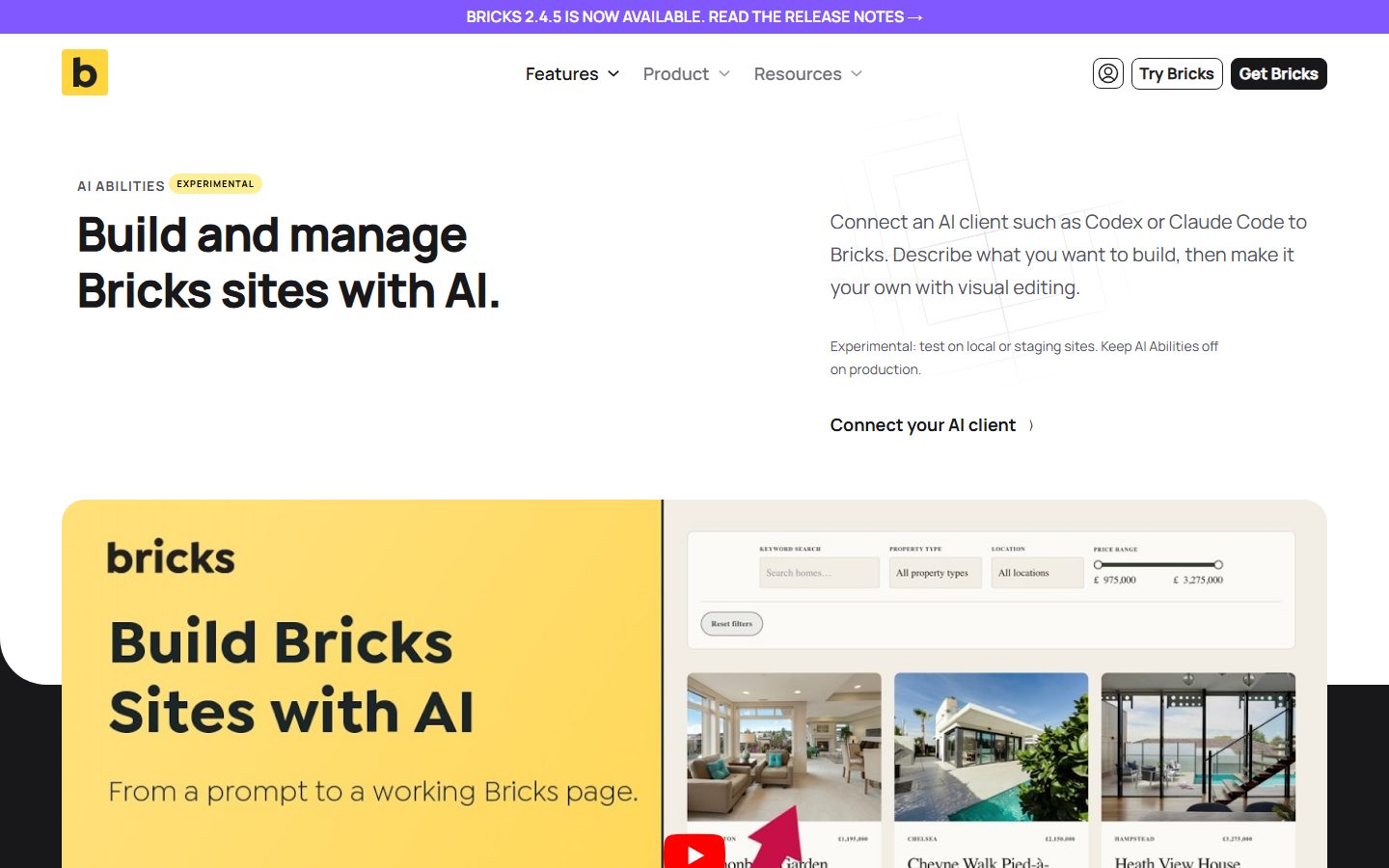
Bricks added experimental AI abilities in version 2.4. According to the Bricks Academy documentation, Bricks registers builder actions with the WordPress Abilities API, you turn them on under Bricks, AI, Configuration, and the connected client acts as the WordPress user tied to an application password. Look at the screenshot below for the Experimental badge and the line telling you to test on local or staging sites and keep AI abilities off on production.
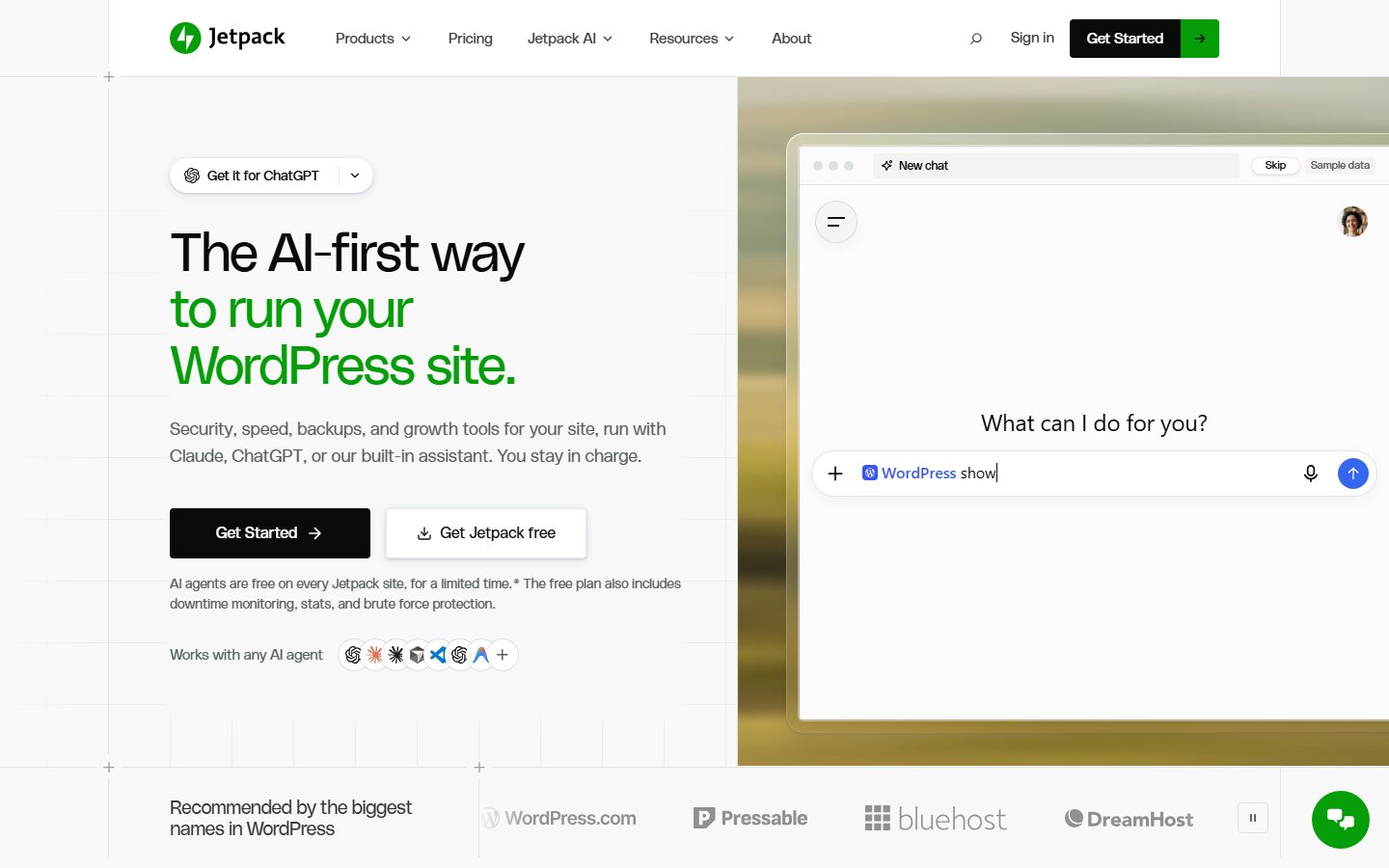
Jetpack takes a hosted route. Its WordPress.org listing says you can enable MCP access and choose which tools an agent may use, and that the connection runs through WordPress.com’s cloud with a free WordPress.com account linking your site. On its homepage, look at the headline and the row labelled “Works with any AI agent”. The small print there says AI agents are free on every Jetpack site for a limited time, so check current terms before you plan around it.
SEO plugins are joining in too. The All in One SEO listing states that the plugin includes an MCP server and WordPress Abilities API support, and the SEOPress listing says its free version includes seven MCP tools for taxonomy SEO settings. Neither listing is a substitute for the vendor’s documentation of exactly which tools exist and which require a paid tier.
| Product | Pattern | Authentication, per the vendor | Read before you connect |
|---|---|---|---|
| AI Engine | Bundled MCP server with its own curated tools | OAuth for Claude and ChatGPT; own WordPress account per person | WordPress.org listing: tool list, free versus Pro, safety controls |
| WooCommerce | Store abilities exposed by the MCP Adapter | WordPress username plus application password | Developer documentation: preview status, version notes, personal data warning |
| Bricks | Builder abilities registered through the Abilities API | Application password for the chosen user; Bricks checks that user’s builder permissions | Bricks Academy: Abilities tab, default-off categories, PHP abilities warning |
| Jetpack | Hosted connection through WordPress.com | Linked WordPress.com account | Listing: what data runs through the cloud, which tools can be enabled |
| All in One SEO and SEOPress | SEO data exposed as MCP tools | Check each plugin’s documentation | Listing and docs: free versus paid tools |
Two patterns stand out. Core-aligned products register abilities and let the official adapter expose them, which keeps one permission model and one place to look. Bundled servers ship their own tools and sometimes their own sign-in, which can be easier to set up but means you must read that vendor’s permission and data-handling notes. Neither is automatically safer. What matters is whether the tool list is narrow, whether permissions follow WordPress capabilities, and whether you can see what happened afterwards.
What a session actually looks like
An example makes this concrete. Imagine you connect an assistant to a staging copy of your site and type: “List the draft posts older than 90 days and tell me which ones have no featured image.”
- The assistant has already asked the server for its tool list. It sees tools for listing posts and reading post details.
- It decides which tool fits, builds a structured call with filters such as status and date, and sends it.
- The server checks that the connected user is allowed to read drafts. If so, WordPress runs the query and returns the result as data.
- The assistant may make follow-up calls to check each post for a featured image.
- It writes you a readable summary.
You never see JSON unless you look for it. If you then say “move those to trash”, the assistant asks the server to run a write tool. Many clients prompt you for approval at that point, and WordPress still checks permissions. You can decline, or approve once, or, if you are unwise, approve always.
This is also where mistakes appear. The model decides which tool matches your sentence. If descriptions are vague or you were ambiguous, it may pick the wrong one. That is why reviewing before approving matters.
What MCP is not
A few misunderstandings come up constantly.
- MCP is not an AI model. It is a communication standard. It does not make a model smarter.
- MCP is not a WordPress plugin. It is a protocol. Plugins and adapters implement it.
- MCP is not magic access. The model can only use tools the server exposes, as the connected user.
- MCP is not automatically secure. The protocol offers authorization options, but safety depends on how you configure the server and what you connect.
- MCP is not a replacement for the REST API or WP-CLI. It often sits on top of the same underlying functions.
- MCP is not only for WordPress. The same assistant can connect to many servers at once, such as calendars, code repositories and databases.
What you can reasonably do with MCP on WordPress
Realistic uses today fall into a few families.
Audit and reporting
Listing plugins and update status, finding posts missing metadata, checking user roles, summarizing comments. These are read-only and low risk. Our collection of 25 prompts for maintenance and audits gives you starting wording.
Content operations
Drafting, rewriting, restructuring and bulk edits. Review is essential, and our guide to AI content that stays SEO-safe explains how to keep quality high.
Building and editing pages
Assembling layouts from a brief. Results vary with your design system. See the landing page walkthrough for realistic prompts.
Media and accessibility
Generating alt text suggestions for an image backlog, with human review. See automating alt text.
Operations and stores
Maintenance planning, WooCommerce reporting and similar admin tasks. Money-touching or destructive actions deserve extra approval steps.
Where MCP is the wrong tool
Be honest about when to skip it.
- Fixed, repeating jobs. A nightly export or deployment hook should be a script, not an agent deciding each time.
- High-volume traffic. A front-end feature serving visitors needs a regular, fast code path, not a model in the loop.
- Anything needing guaranteed results. Models are non-deterministic. If the same input must always produce the same output, use code.
- Sites you cannot back up or stage. Without a safety net, experiment elsewhere first.
- Regulated or highly sensitive data where you cannot confirm what leaves the site.
Performance is a related concern. An agent that scans a large site can generate many requests, so run heavy audits at quiet times, and do not treat an agent as a substitute for proper tuning. For that, see our WordPress speed optimization guide.
Who can do what: the WordPress role an agent inherits
Because an MCP connection acts as a WordPress user, the user’s role sets the ceiling. WordPress’s documentation on roles and capabilities describes the default roles in a sentence each, and that is enough to plan around.
| Role | What the documentation says it can do | Fit for an agent |
|---|---|---|
| Subscriber | Manage their own profile only | Too little for real work, but useful to prove that denials work |
| Contributor | Write and manage their own posts, but not publish them | Drafting only. A sensible default for content experiments |
| Author | Publish and manage their own posts | Can make content public, so keep approvals on |
| Editor | Publish and manage posts, including other people’s | Broad content access. Reasonable on staging with review |
| Administrator | Full access to the site’s administration features | Avoid for routine agent work |
Individual products can narrow this further. AI Engine’s listing, for example, says administrators get full access, editors can connect once Editor Access is enabled and are limited to content they can already edit, and settings, users, plugins, themes and deletions stay administrator-only. It also says read-only connections can be set per connection. Treat that as the vendor’s description and confirm it in the plugin’s settings screen. For a deeper walk through custom roles, see our guide to user roles and least privilege.
A quick way to prove the ceiling holds: connect as a Contributor and ask the assistant to publish a post. WordPress should refuse. If it does not, something between the assistant and WordPress is not using WordPress capabilities, and you have learned that before it mattered.
Security basics for any MCP connection
An MCP server is a new way into your site. A few rules cover most of the risk.
Connect as a dedicated, low-privilege user
The AI inherits that user’s capabilities. An Editor-level user cannot install plugins or change other users. An Administrator can. Choose the lowest role that does the job.
Use revocable credentials
Application passwords are built into WordPress core and can be created per integration and revoked instantly. OAuth, where a plugin supports it, adds a consent screen and token expiry. Avoid a long-lived static key placed in a URL.
Expose the minimum
Fewer tools means less risk and less confusion for the model. Start with read-only tools.
Watch for prompt injection
If the assistant reads untrusted content, such as comments or pages, that text can contain instructions. Limit what the agent can do after reading such content and keep approvals on for sensitive actions. Anthropic’s connector documentation makes the same recommendation: be aware of prompt injection risks, review tool approval requests, and only click Always allow for trusted servers.
Work on staging first
Rehearse every new workflow on a copy. Our staging workflow for AI agents shows how.
For a fuller list, read AI agents and WordPress security: 9 risks and how to limit them.
What the MCP project itself warns about
The MCP project publishes a security best practices page aimed mainly at people who build servers and clients. You do not need to implement any of it, but several warnings translate directly into questions a site owner can ask.
| Risk named by the MCP project | What it means in plain terms | Question to ask before you connect |
|---|---|---|
| Token passthrough | A server accepts credentials that were issued for some other service and forwards them on | Does the server accept only credentials issued for it, and are actions logged under the real user? |
| Confused deputy | A proxy that sits between a client and a third-party service can be tricked into granting access without proper consent | If a hosted proxy sits between my assistant and my site, does it ask for my consent per client? |
| Local server compromise | A local server or one-click setup runs commands on your computer with your privileges | Can I read the exact command before I approve it, and do I trust the package it fetches? |
| Scope minimization | A token that carries broad permissions makes any leak far worse | Can I limit this connection to the smallest set of permissions, and revoke it alone? |
The local-server point applies to the bridge configurations shown in our Claude guide, which launch a package with npx. A configuration that asks for the latest version of a package runs whatever that version is when the assistant starts. If you want repeatable behavior, pin a version you have reviewed.
Knowing what the agent did: logs and audit trails
An agent can touch dozens of items in a minute. The only way to review that is a record of who changed what. WordPress itself keeps revisions for post content, but it does not keep a general audit log, so many sites add an activity-log plugin.
WP Activity Log is one such plugin. Its WordPress.org listing says it records user logins, post, page and custom post type changes, and plugin installs, activations, updates and removals, and that by default it keeps audit data for three months, which can be changed. The listing says the free edition collects the same data as premium, with premium adding filtering, search and notifications.
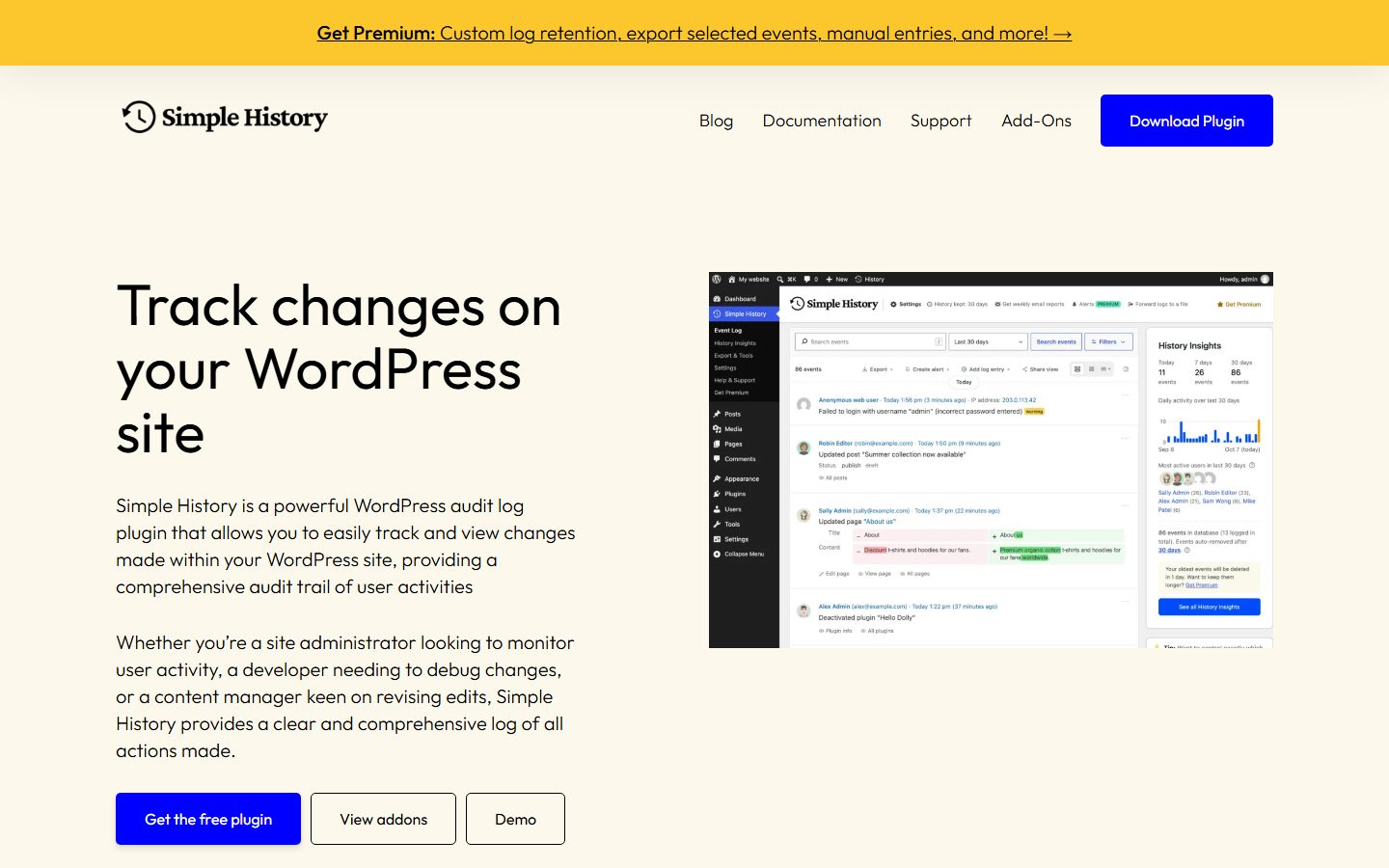
Simple History is a lighter alternative. Its listing says it tracks content edits, user logins, plugin updates and security events, and records who acted and when. On its homepage, look at the sample event log in the screenshot: each entry names a user, an action and a time, which is the kind of line you want to read after an agent session.
One caution applies to any log plugin. A listing that describes REST or WP-CLI access to the log is not the same as saying that actions arriving through MCP are logged, and we could not confirm that either way for either plugin. Test it yourself in two minutes on staging. Connect the assistant, ask it to create a draft titled “log check”, then open the activity log. If you see an entry naming the agent user, your audit trail works. If not, rely on revisions and backups, and ask the plugin’s vendor how MCP traffic is recorded.
Troubleshooting: when MCP does not work
Most failures fall into a few buckets. Work through them in this order, because each one rules out a layer.
| Symptom | Likely cause | What to do |
|---|---|---|
| The endpoint returns 404 | The MCP plugin is inactive, the path is wrong, or permalinks are set to Plain. WooCommerce’s documentation says remote use needs HTTPS and non-Plain permalinks | Activate the plugin, copy the exact URL from its settings, and save a pretty permalink structure |
| The endpoint returns 401 | No credential, a wrong credential, or a host that does not pass the Authorization header to PHP | Recreate the application password, check the username, and ask your host if the header is stripped |
| A tool fails with a permission error | The connected user’s role lacks the capability. WordPress’s reference for running an ability documents the error code ability_invalid_permissions for a failed permission check | This is correct behavior. Change the role only if you accept what that role can then do |
| The tool list is empty or missing an ability | Abilities are private to MCP unless marked public | Check the ability’s MCP flag or the plugin’s tool settings |
| The URL opens in a browser but the assistant cannot connect | A CDN or security plugin treats the assistant as a bot | Review bot protection and rate limits, as described below |
| It worked yesterday and fails today | A plugin or adapter update changed behavior | Read the changelog, update the client side, and reconnect |
| The assistant says it finished but nothing changed | The summary is not the site | Verify in wp-admin and ask for the exact tool output |
Edge protections deserve a special note because they fail silently. Cloudflare’s documentation says Bot Fight Mode can challenge API or mobile app traffic and that it cannot be skipped with WAF custom rules or Page Rules, while Super Bot Fight Mode supports skip rules. If your assistant connects from a cloud service and your site sits behind Cloudflare, look in Security, Analytics, Events for challenged requests labelled Bot Fight Mode.
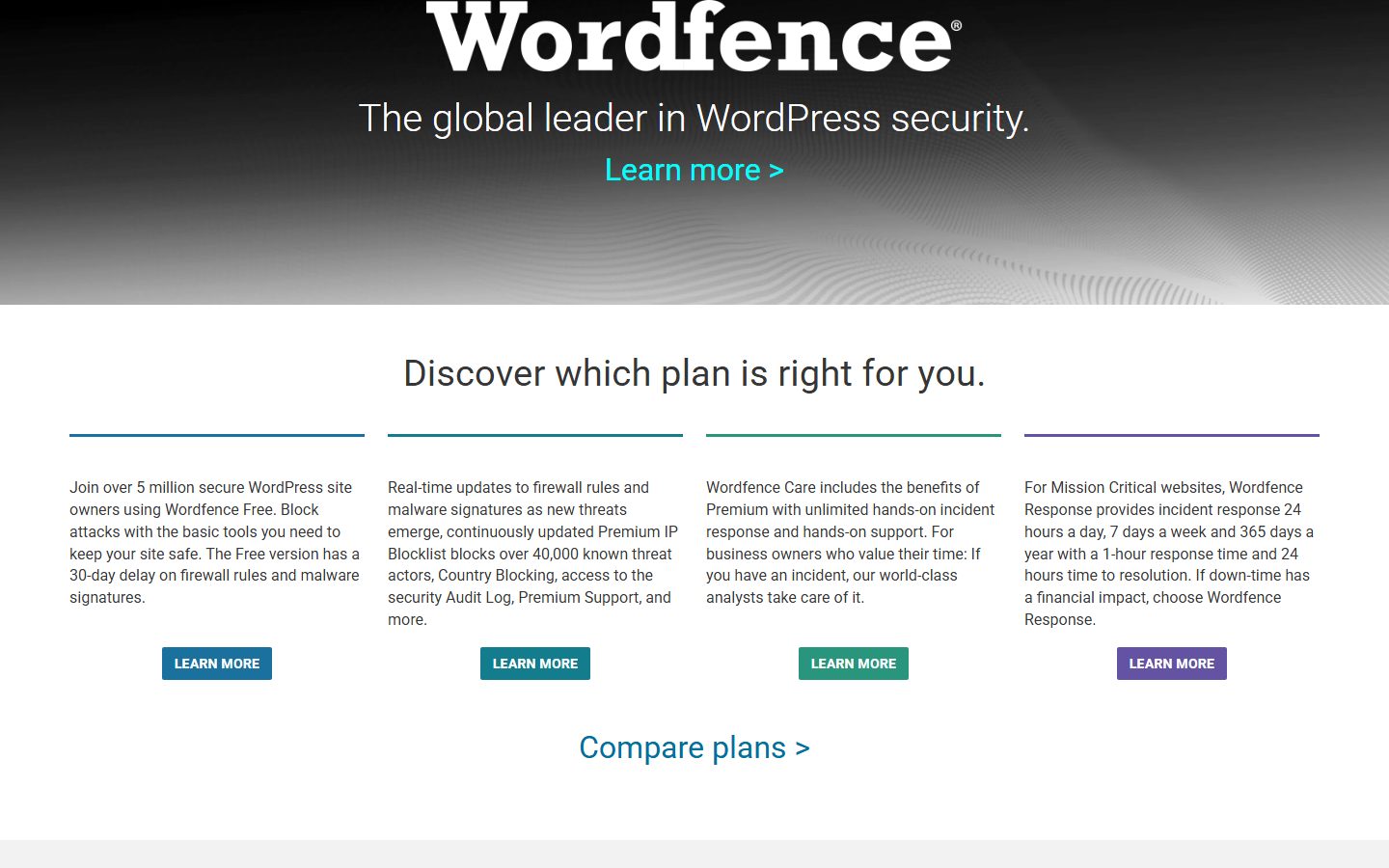
Security plugins can do the same thing from inside WordPress. The Wordfence listing says it can rate limit or block aggressive crawlers, scrapers and bots. On its homepage, look at the plan comparison text, which notes that the free version has a delay on new firewall rules. Check its logs for blocked requests from your assistant’s address range before you change any rule, and never disable a firewall entirely to make a connection work.
How to try MCP on WordPress: a minimal path
- Make a staging copy of your site and confirm you can restore a backup.
- Check WordPress and PHP versions. The Abilities API needs WordPress 6.9 or later. A plugin with its own server states its own requirements.
- Install an MCP server: the official MCP Adapter, or a reputable plugin.
- Create a dedicated user and a revocable credential.
- Connect an assistant. Use the Claude guide or the ChatGPT guide.
- Run a read-only request and compare the result with wp-admin.
- Try one harmless write, then inspect the author and revisions.
- Decide what to keep. Disable tools you do not need and keep approvals on.
MCP compared with other ways to connect AI to WordPress
| Approach | What it is | Strength | Limit |
|---|---|---|---|
| MCP | Standard protocol for AI clients to use described tools | Works across many assistants; discoverable; permissioned | Depends on model judgment; needs a server and careful scoping |
| REST API | HTTP endpoints for WordPress data and actions | Deterministic and well documented | You write the client logic; not self-describing for AI |
| WP-CLI | Command-line control of WordPress | Powerful for maintenance and bulk operations | Needs shell access; mistakes are costly |
| In-dashboard AI plugin | AI features inside wp-admin or the front end | Friendly for editors; no external setup | Tied to that plugin’s features and billing |
| Copy and paste into a chatbot | Manual workflow | Zero setup and zero risk to the site | Slow and not scalable |
Copy and paste is underrated. If your needs are occasional, a chat window and your own hands may be the right amount of automation.
Common mistakes beginners make
- Connecting a production site before testing on staging.
- Using an administrator account because it is convenient.
- Assuming the assistant’s confident summary is accurate without checking wp-admin.
- Installing an MCP plugin from an unknown source with broad permissions.
- Exposing every available tool when the task needs two.
- Approving “always allow” on a connector you have not vetted.
- Forgetting that a cloud assistant needs a public HTTPS URL, then exposing a development site with weak protection.
- Leaving test credentials active after the experiment.
How to decide whether MCP is worth it for you
Use this quick test.
- Worth it: you manage several sites or a large one, you do varied admin tasks you would explain differently each time, and you can review results.
- Maybe later: you manage one small site and your main need is writing help. An editor plugin or a chat window may be enough.
- Not now: you have no backups, no staging, and nobody who can review changes. Fix the foundations first.
If you are on the fence, run a one-hour read-only experiment. It tells you more than any article.
Where this is heading
WordPress is building shared AI infrastructure into core: the Abilities API for describing capabilities, the MCP Adapter for exposing them, and a client side for calling AI providers, which we cover in our WordPress 7.0 explainer. The MCP specification itself also keeps evolving, with dated versions and new features. That is a reason to learn the concepts rather than memorize screens. Details such as menu labels, plan requirements and function names will change, so confirm them against current official documentation before you rely on them.
As a practical example of a product built on this idea, NibWP is a plugin that lets an AI agent operate a WordPress site through MCP. It is one option among several, and our review covers its strengths and limits.
A worked example: from an idea to a safe first task
Suppose you run a ten-year-old blog with about four hundred posts. You suspect many have no meta description, some link to dead pages, and a few plugins are overdue for updates. Doing all of that by hand would take days. This is a typical case where MCP helps, so here is how you would approach it without taking risks.
Step one: define the question, not the action
Resist the urge to say “fix my SEO”. Ask for a report instead: “List published posts with no meta description, sorted by publish date, and show the first twenty.” The wording asks for information, so even a mistaken tool choice cannot change anything.
Step two: check the answer against reality
Open three of the listed posts in wp-admin and confirm the field is empty. If the agent was wrong, you have learned something important about how it reads your site, and you have lost nothing.
Step three: ask for proposals, not edits
Next ask: “For these twenty posts, propose a meta description under 155 characters. Show them in a table with the post title. Do not save anything.” You now review twenty small texts in a minute or two. Rewrite the weak ones, discard the generic ones.
Step four: apply a small batch
Only after review do you say “Save the approved descriptions for these five posts.” Then verify the five in wp-admin and look at the revision history. If everything matches, repeat with a larger batch.
Why this order works
Each step moves one notch up in risk: read, propose, write a few, write more. You build trust in the connection and in the model’s judgment using evidence, not hope. The same ladder applies to dead links, plugin audits and image alt text. It is slower than typing “do everything”, and far faster than cleaning up after a bad bulk change.
What this tells you about MCP
The protocol does not make the work safe; your process does. MCP gives the agent a structured way to read and act. Your staging copy, your low-privilege user and your review habit are what turn that into a dependable workflow rather than a gamble.
A pre-flight checklist before you connect anything
Print this or paste it into your notes. Each line names what to check and where to look, so you finish with evidence rather than a feeling.
| Check | Where to verify | Done when |
|---|---|---|
| WordPress version supports the Abilities API | Dashboard, Updates, or the Site Health screen | You see 6.9 or later, or the plugin you use states its own minimum |
| A restorable backup exists | Your backup tool, plus one real test restore | You have restored it to a scratch site at least once |
| A staging copy exists | Your host’s staging feature or a clone plugin | The MCP connection points at staging, not production |
| A dedicated agent user exists | Users screen | The user has a low role and a name that identifies the integration |
| The credential is revocable | The user’s profile page for application passwords, or the plugin’s connections screen | You know where to click to cut access |
| Only needed tools are exposed | The MCP plugin’s tools or abilities screen | Delete, user and plugin-management tools are off |
| An activity log is running | Your activity-log plugin | A harmless test action shows up under the agent user |
| Edge protections are understood | CDN and security plugin logs | You know whether bot protection would challenge the assistant |
A short glossary
| Term | Meaning in this article |
|---|---|
| MCP | Model Context Protocol, an open standard for connecting AI applications to external systems |
| Host | The AI application you talk to, such as Claude Desktop |
| Client | The component inside the host that keeps one connection to one server |
| Server | A program that provides tools, resources and prompts. On WordPress, a plugin or the adapter |
| Tool | A function the AI can call, with a name, a description and an input schema |
| Resource | Data the AI can read for context |
| Prompt | A reusable template that shapes an interaction |
| Ability | A WordPress Abilities API entry: a named, permissioned unit of functionality |
| MCP Adapter | The official WordPress package that exposes abilities as MCP tools, resources and prompts |
| Transport | How messages travel: STDIO for local processes, Streamable HTTP for remote servers |
| Application password | A revocable WordPress credential created per integration for a specific user |
| OAuth | A sign-in flow with a consent screen that issues revocable tokens instead of sharing a password |
What to do this week
You do not need to adopt anything to benefit from understanding MCP. If you want to try it, a realistic week looks like this.
- Day one: read and decide. Use the decision list above. If you have no staging copy and no restorable backup, make those your project and stop there.
- Day two: prepare the site. Create the staging copy, the dedicated user and an activity log. Run the two-minute log test with a manual edit so you know the log works.
- Day three: install a server. Install the official MCP Adapter or one product from the list above on staging only. Read the vendor’s permission notes before you switch anything on.
- Day four: connect and read. Connect one assistant and ask three read-only questions. Compare every answer with wp-admin.
- Day five: one harmless write. Ask for a draft with a clear name, then check the author, the revision and the log entry.
- Day six: break something on purpose. Ask for an action the agent user must not be allowed to do. Confirm the refusal.
- Day seven: decide. Write down what saved time, what needed correction, and whether you would trust the setup on a second site. Delete credentials for anything you will not keep.
FAQ
What does MCP stand for?
MCP stands for Model Context Protocol. It is an open standard for connecting AI applications to external systems such as data sources, tools and workflows. The name reflects the goal: giving a model the context and abilities it needs from outside sources in a consistent way. It is not owned by a single WordPress plugin, and any compatible client and server can work together regardless of who built them.
Is MCP the same as an API?
No. An API is an interface any software can call, usually designed for developers. MCP is a protocol that standardizes how AI applications discover and call tools, with descriptions and schemas a model can use. An MCP server often wraps existing functions or APIs. So they work together: the REST API or WordPress functions do the work, while MCP presents them to an AI in a consistent, discoverable format.
Do I need to code to use MCP with WordPress?
Not necessarily. If you use a plugin that ships an MCP server, setup is mostly configuration: install, create a user and credential, and paste a URL into your assistant. Developers who want custom capabilities register abilities in code through the Abilities API. For most site owners, the hard part is not coding but deciding what to expose and how to review the results safely.
Does MCP give the AI full control of my site?
Only if you let it. The assistant can call only the tools the server exposes, and WordPress checks the permissions of the connected user. A low-privilege user with a few read-only tools gives the agent very little power. An administrator account with every tool exposed gives it a lot. You set the boundary, so choose deliberately and start small.
Which AI assistants support MCP?
The MCP project lists support across many applications, including Claude, ChatGPT, Visual Studio Code and Cursor. Support level and setup differ by product and plan, and menus change often. Check each vendor’s current documentation. Our guides on connecting Claude and ChatGPT describe what to look for, but always confirm the latest steps in the vendor’s own help pages.
Is MCP secure?
MCP supports standard authorization, and the specification recommends OAuth for remote servers, but the protocol alone does not make a setup safe. Security depends on your configuration: the user’s role, the tools exposed, credential handling, and whether you trust the server you connect to. Prompt injection is a genuine risk whenever an agent reads untrusted content, so keep approvals on for sensitive actions.
Can I use MCP on a local development site?
Yes, with a local transport. A desktop tool can run a bridge on your computer that talks to a local WordPress through WP-CLI or a local URL. Cloud assistants that connect from the vendor’s servers cannot reach localhost, so they need a public HTTPS address or a tunnel. Local setups are excellent for experiments because nothing live is at stake.
Will MCP slow down my site?
Visitors should not notice it, because MCP traffic comes from your own assistant, not from page views. However, an agent that runs large scans can create bursts of requests and database queries, so run heavy tasks at quiet times and on staging first. If your site is already struggling, fix performance basics before adding automated tooling.
What is the difference between an ability and an MCP tool?
An ability is a WordPress concept: a named, permissioned function registered with the Abilities API. An MCP tool is the protocol-level description of something an AI client can call. The MCP Adapter turns the first into the second, converting the ability name into a valid tool name, for example replacing the slash with a hyphen. One ability can therefore serve REST clients and MCP clients from the same code.
Is the MCP Adapter available from the WordPress plugin directory?
Its WordPress.org listing exists and, when we checked, showed version 0.7.1, a requirement of WordPress 6.9 and PHP 7.4 or later, and more than 70,000 active installations. The listing also says the adapter provides no AI features itself: abilities have to come from WordPress core or other plugins. Check the listing for the current version before you install, because the project has already shipped breaking changes between early releases.
Does MCP send my site content to the AI company?
Whatever a tool returns goes to the assistant so it can read it, and the assistant’s provider processes it under that provider’s terms. If a tool returns order data, user details or private posts, that data leaves your site in the conversation. That is why the account you connect, the tools you expose and the content you let the agent read all matter. For regulated or sensitive sites, read the AI provider’s data terms before you connect, and keep personal data out of the tools you expose.
Can several people share one MCP connection?
Technically yes if they share a credential, but it is a poor idea, because every action then appears under one user and you cannot revoke one person’s access alone. Prefer one connection per person with their own WordPress account, which is how the AI Engine listing and Anthropic’s documentation for organization connectors describe the normal setup. A shared API key is the exception that gives everyone the same access.
How do I find out which MCP version my site’s server supports?
For the official adapter, the plugin listing and changelog state which MCP schema revisions it supports. For a plugin with its own server, check its documentation. A client can also ask a server directly: in the 2026-07-28 revision, a server must implement a server/discover request that returns supported versions and capabilities. If you cannot tell, ask the vendor, because mismatched versions are a common cause of connections that will not start.
Conclusion and next steps
MCP for WordPress is a standard way for AI assistants to discover and use what your site can do, with WordPress still deciding who is allowed to do what. The Abilities API describes capabilities, the MCP Adapter or a plugin serves them, and a client such as Claude or ChatGPT puts them to work. It is powerful for open-ended, supervised tasks and unnecessary for fixed ones.
Your next step is to see it working safely. Clone your site to staging, create a dedicated low-privilege user, and follow the Claude setup guide or the ChatGPT guide. If you build plugins, read the Abilities API guide to expose your own features properly. For the full picture, return to the complete AI and MCP guide.
Keep reading
AI and MCP for WordPress: The Complete Guide (2026)
AI and MCP for WordPress explained end to end: how agents connect, what the Abilities API does, which setups are safe, and where to start.
How to Connect Claude to WordPress with MCP, Step by Step
Connect Claude to WordPress with MCP using a custom connector or a local bridge. Step-by-step setup, safe credentials and troubleshooting tips.
Connect ChatGPT to WordPress: What Works and What Does Not
Connect ChatGPT to WordPress with MCP, a custom GPT or plain copy and paste. See what works, what does not, and how to stay safe.
The WordPress Abilities API Explained for Plugin Developers
The WordPress Abilities API explained for plugin developers: how to register, secure and expose abilities, with code, schemas and MCP exposure.
WordPress Speed Optimization: The Complete Guide
WordPress speed optimization step by step: measure first, fix hosting, caching, images, scripts, database and plugins, and avoid the mistakes that cost you speed.
Let your AI assistant do this for you
Open the ready prompt with step‑by‑step instructions for running it through NibWP.