You have probably seen the demos: someone types a sentence into an AI assistant and a WordPress site changes. A page appears, a plugin updates, a batch of images gets alt text. It looks like magic, and it is also easy to get wrong. The part nobody shows is the plumbing underneath, and the plumbing decides whether the result is useful or dangerous.
This guide covers AI and MCP for WordPress from the ground up. You will learn what the Model Context Protocol is, how WordPress exposes its features to AI through the Abilities API and the MCP Adapter, how Claude and ChatGPT fit in, what the real risks are, and which first projects are worth your time. By the end you will know what to try, in what order, and what to leave alone.
The guide is deliberately practical and honest about limits. AI tooling around WordPress moves quickly, so where a detail is likely to change I say so and point you to the official documentation instead of pretending to certainty.
Key takeaways
- MCP is an open standard that lets an AI application call tools on another system. On WordPress, those tools come from the Abilities API (core since WordPress 6.9) and are exposed to AI clients by the official MCP Adapter.
- An AI agent acts as a WordPress user. Everything it can do is bounded by that user’s capabilities, so the account you connect matters more than the model you choose.
- Start read-only, work on a staging copy, and widen permissions one ability at a time. Never hand an agent your main administrator login.
- MCP, the REST API and WP-CLI are different tools for different jobs. MCP suits a person talking to an assistant; REST and WP-CLI remain better for fixed, repeatable automation.
- AI is strongest at audits, drafts, bulk edits and boring maintenance, and weakest where accuracy, brand voice or irreversible changes are involved. Review before you publish.
What AI and MCP for WordPress actually means
Two ideas are tangled together in most conversations about this topic, so separate them first.
The first is AI inside WordPress. A plugin adds a button to the editor that drafts a paragraph, writes alt text, or powers a chatbot on your front end. The AI is a feature of the site, and you use it as an author or a visitor.
The second is AI that operates WordPress. An assistant such as Claude or ChatGPT sits outside your site and is allowed to read and change it on your behalf: list your plugins, create a draft, find broken links, edit a menu. The assistant is a user of the site, and the thing that lets it connect is a protocol.
That protocol is the Model Context Protocol, usually shortened to MCP. It is an open standard for connecting AI applications to external systems. The official introduction compares it to a USB-C port for AI: one standard shape instead of a custom cable for every device. When an assistant supports MCP and your site runs an MCP server, the assistant can discover what your site can do and call those functions.
So “AI and MCP for WordPress” names a whole stack: the assistant, the protocol, the server on your site, the list of things the site is willing to do, and the permissions that limit it. If you want the protocol explained on its own first, read our plain-English explanation of MCP for WordPress. This pillar ties every layer together and links out to a deeper article for each one.
How the pieces fit together
Here is the whole chain, from your sentence to a changed page.
- You talk to an AI application. This is the MCP host: Claude, ChatGPT, an editor with agent features, or a command-line tool.
- The host runs an MCP client for each server it connects to. The client holds the connection and asks the server what it offers.
- Your WordPress site runs an MCP server. Either a plugin or the official MCP Adapter provides it. The server answers with a list of tools, each with a name, a description and a schema describing its inputs.
- The model picks a tool based on your request and the descriptions, and the client sends the call.
- WordPress checks permissions and runs the underlying code. The result goes back to the model, which explains what happened in plain language.
Notice what the model never does. It does not log in to wp-admin, click buttons, or write to your database. It requests a named function with structured input, and your site decides whether to run it. That is the single most important design fact in this whole topic, because it means the safety of the system lives on your side, in what you choose to expose and which user the connection runs as.
Tools, resources and prompts
MCP defines three things a server can offer. Tools are functions the AI can run, such as “create a draft post”. Resources are data the AI can read for context, such as a document or a record. Prompts are reusable templates that shape an interaction. For WordPress work, tools do most of the heavy lifting, which is why you will hear “tools” used almost as a synonym for “capabilities” in this space.
Local and remote servers
MCP supports two main transports. A local server talks over standard input and output with a program running on the same machine. A remote server talks over HTTP and can serve many clients, with OAuth recommended for authorization. This split matters for WordPress because it decides how an assistant reaches your site. A desktop tool can launch a local bridge on your computer, while a cloud-hosted assistant needs a public HTTPS address it can call. We go through the practical differences in our step-by-step Claude setup and in the ChatGPT guide.
The Abilities API: the foundation inside WordPress
For years, every AI plugin invented its own way of describing what it could do. The WordPress core answer is the Abilities API, which the developer documentation says is available from WordPress 6.9. It is a central registry where core, plugins and themes declare what they can do, in a form both humans and machines can read.
Each ability has a namespaced name such as my-plugin/site-info, a label, a description, a category, an input schema, an output schema, an execute callback and a permission callback. A plugin registers one with wp_register_ability() on the wp_abilities_api_init hook. Because every ability carries a schema and a permission check, an AI client can learn how to call it correctly and WordPress can refuse the call if the user is not allowed.
The registry is useful even without AI. Any code can list and run abilities, and abilities can be marked for exposure over the REST API. But the reason it exists now is that AI agents need exactly this: a self-describing, permission-aware catalogue of actions. If you build plugins, our developer walkthrough of the Abilities API shows how to register one properly, with working code.
Why a registry beats ad hoc endpoints
Before a shared registry, an AI integration had to wrap each plugin’s REST routes or functions by hand. That is slow, brittle and inconsistent. A registry gives you one place to discover capabilities, one shape for inputs and outputs, and one permission model. It also lets site owners see, in a single list, what an agent could possibly do. That visibility is a security feature, not just a convenience.
The MCP Adapter: turning abilities into tools
The Abilities API describes what your site can do. It does not speak MCP. The bridge is the official MCP Adapter, which according to its GitHub repository turns registered abilities into MCP tools, resources and prompts. It supports both HTTP and STDIO transports, and it can run several MCP servers with per-server and per-ability permissions.
Two details from the project documentation are worth remembering. First, abilities are private by default. To expose one to MCP, its author sets a public flag in the ability’s metadata. Second, the default server exposes three generic meta-tools: one to discover abilities, one to fetch details about a specific ability, and one to execute an ability. So instead of dozens of separate tools loaded into the model’s context, the agent first browses the catalogue and then calls what it needs.
The default server lives on your own site under the REST namespace, at a path the project documents as /wp-json/mcp/mcp-adapter-default-server. A local client can also reach WordPress through WP-CLI over STDIO. Which route you choose depends on where the AI runs and whether your site is reachable from the internet.
Authentication in plain terms
Connecting a client to the server requires a WordPress identity. In many setups that means an application password, a feature built into WordPress core that lets a user create a revocable credential for one integration without sharing the real login. Other plugins implement OAuth so you can sign in through a browser consent screen. Either way, the connection acts as a specific WordPress user, and WordPress applies that user’s capabilities to every call.
Create a dedicated user for the agent, give it the lowest role that does the job, and use a credential you can revoke in seconds. This is the cheapest and most effective safety control you have.
WordPress 7.0 and the AI client
The Abilities API and MCP Adapter are part of a broader effort to give WordPress native AI building blocks. Another strand of that work is about the opposite direction: letting plugins on your site call AI providers through a shared client and connector settings, instead of every plugin asking you for its own API key. We cover that in our explainer on the WordPress 7.0 AI client and connectors. The two directions are complementary. Abilities let outside agents use your site, and the AI client lets your site use outside models.
Because this area is still evolving, check release notes on make.wordpress.org before you rely on a specific function name or setting in production. Durable advice beats a snapshot: learn the concepts here, then confirm the details against current documentation.
What is actually shipping: a status snapshot
It is easy to read about this topic as if everything were finished. It is not. The table lists the layers of the stack, what the primary sources say about each, and where you can check. Every row reflects the cited page as we read it in November 2026, so re-check before you rely on it.
| Layer | Status according to the source | Where to verify |
|---|---|---|
| Model Context Protocol | Open standard with dated revisions. The 2026-07-28 revision is described as stateless and uses a server/discover request | modelcontextprotocol.io architecture overview |
| WordPress Abilities API | In core from WordPress 6.9. Three core abilities ship with it | developer.wordpress.org handbook and the WordPress developer blog |
| WordPress 7.0 additions | An AI Client, a Connectors screen with Anthropic, Google and OpenAI as default providers, and a client-side abilities package | The 7.0 field guide on make.wordpress.org |
| MCP Adapter | Official package with a WordPress.org listing. Version 0.7.1 requires WordPress 6.9 and PHP 7.4, with more than 70,000 active installations. It provides no AI features itself | wordpress.org/plugins/mcp-adapter |
| WooCommerce | Describes its MCP implementation as a developer preview | developer.woocommerce.com |
| Bricks | AI abilities added in 2.4, labelled experimental | Bricks Academy documentation |
| Plugins with their own servers | AI Engine, Jetpack, All in One SEO and SEOPress describe MCP features in their listings | Each plugin’s WordPress.org listing |
The pattern is clear. The foundations are in core and official packages. The products on top range from developer previews to mature features, and several describe themselves as experimental. That is the right reason to start on staging.
AI Engine, from Meow Apps, is the example of a bundled approach. Its WordPress.org listing says it includes an MCP server, that Claude and ChatGPT connect with OAuth, and that each person connects with their own WordPress account so actions are logged under that user.
WooCommerce shows the registry-based approach. Its developer documentation calls its MCP support a developer preview, says the store registers abilities for the adapter to expose, and tells you to use a WordPress username and application password instead of a WooCommerce REST API key.
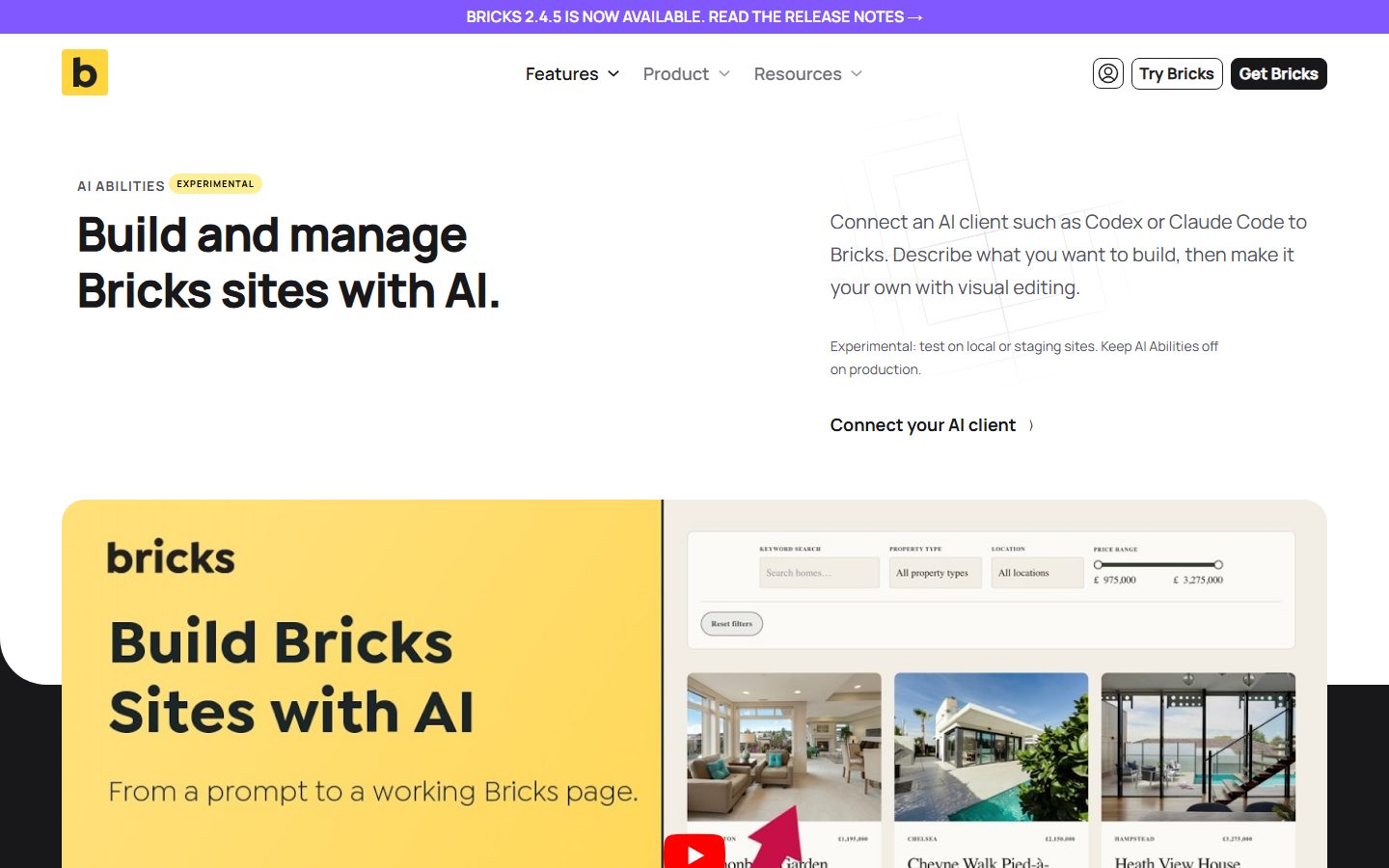
Bricks shows how a builder can expose actions. According to its documentation, you enable abilities under Bricks, AI, choose which ones are available, and the connected user’s builder permissions still decide what the agent can do. In the screenshot, look at the Experimental badge beside the heading and the line telling you to test on local or staging sites and keep AI abilities off on production.
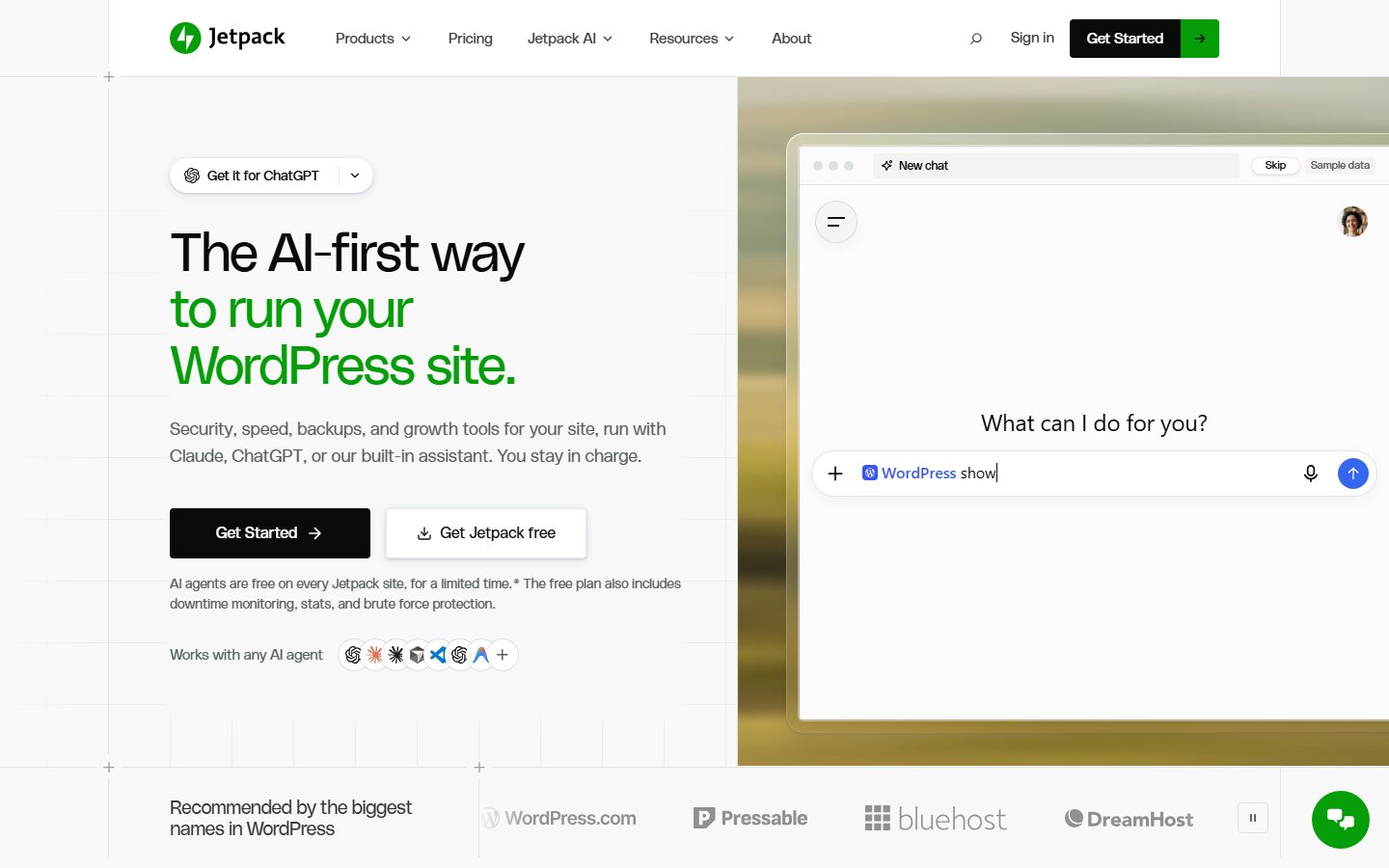
Jetpack is the hosted example. Its listing says you can enable MCP access and choose which tools an agent may use, with the connection running through WordPress.com’s cloud. On the homepage, look at the headline “The AI-first way to run your WordPress site” and the “Works with any AI agent” row. The small print says AI agents are free on every Jetpack site for a limited time, so check current terms.
Which AI assistant should you connect?
Any MCP-capable assistant can in principle talk to a WordPress MCP server. In practice the experience differs by client, and so do the requirements.
| Client | How it connects | Good for | Watch out for |
|---|---|---|---|
| Claude (web and desktop) | Add a remote server as a custom connector by URL, with OAuth or fixed request headers; desktop can also run local servers | Interactive site management, audits, drafting with review | The server must be reachable over HTTPS from Anthropic’s cloud for remote connectors; review tool approvals |
| ChatGPT | Add a custom MCP server in its connector or plugin settings, subject to plan and mode | Research-style reads, content workflows | Requirements and menu names change; some flows expect specific read-only tools |
| Coding tools and editors with MCP support | Local config file, often STDIO or an HTTP proxy | Developers who already work in the terminal | You are responsible for credentials stored in config files |
| Automation platforms | Webhooks or REST rather than MCP, in most cases | Fixed, scheduled workflows | Less flexible; the AI does not choose tools freely |
The honest answer to “which one” is to use the assistant you already pay for and trust, then judge it on three things: how clearly it shows you what a tool is about to do, how easy it is to approve or block individual tools, and whether it handles long, multi-step jobs without losing the thread. Our two connection guides cover the specifics for Claude and ChatGPT, including what does and does not work today.
Ways to run AI on WordPress: a decision map
MCP is not the only route, and it is not always the right one. Pick by the job.
Use an AI plugin inside the dashboard when
You want a feature your editors use every day, such as drafting in the block editor, alt text suggestions or a front-end chatbot. The AI is a product feature with its own interface, billing and controls. Our roundup of the best AI plugins for WordPress compares the options by use case.
Use MCP when
You want to describe work in natural language and have an assistant carry it out across many pages or settings: audits, bulk edits, content restructuring, plugin checks, store reports. It shines when the task is fuzzy, changes each time, or needs judgment between steps.
Use the REST API or WP-CLI when
The task is fixed and repeatable. A nightly export, a scripted migration or a deployment hook should not depend on a model interpreting instructions. Deterministic tools are cheaper, faster and easier to audit. Read MCP versus the REST API for a direct comparison, and WP-CLI with AI agents for the command-line route.
Use a plain automation when
A trigger leads to the same action every time and no judgment is needed, for example sending a form entry to a CRM. Adding an AI agent there is cost without benefit.
A good rule: if you can write the steps down once and they never change, script them. If you would explain the job differently each time, an agent earns its keep.
Where to start, by who you are
The same technology serves very different people. Pick the row that looks like you and start there.
| You are | Best first step | Avoid at first | Read next |
|---|---|---|---|
| A solo blogger or small site owner | An editor-side AI feature, or a read-only audit on a staging copy | Letting any agent publish | AI content without hurting SEO |
| A freelancer or agency | A read-only health check per client site, on staging, with a dedicated user per client | One shared credential across clients | A safe staging workflow |
| A store owner | Read-only reports on a staging copy of the shop | Refunds, price changes and customer data access | AI for WooCommerce stores |
| A plugin or theme developer | Register one read-only ability on a test site | Exposing write abilities by default | The Abilities API explained |
| A non-technical owner who only wants writing help | Copy and paste into an assistant, or an in-editor tool | Any connection to the live site | Best AI plugins |
| An administrator who cares most about risk | Read the risk article, then decide what to forbid | Enabling every tool | AI agents and security |
Setting up a safe connection, step by step
The exact screens depend on the MCP plugin and the assistant you use, so treat this as the sequence that applies everywhere. The detailed click-paths are in the client-specific guides.
- Clone your site to staging. Do the first connection on a copy. Our guide to a safe staging workflow for AI agents explains how to keep the copy useful and how to promote changes.
- Update WordPress and PHP. The Abilities API needs WordPress 6.9 or later. If you rely on a plugin that implements its own MCP server, check its stated requirements instead.
- Install an MCP server. Use the official MCP Adapter, which has a WordPress.org listing and, according to WooCommerce’s documentation, installs with
wp plugin install mcp-adapter --activate, if you are comfortable with a developer-oriented setup. Or use a plugin from a reputable vendor that bundles a server and an admin screen. - Create a dedicated WordPress user. Give it a role such as Editor or a custom role with only the capabilities you need. Do not use your own administrator account.
- Create a revocable credential. Generate an application password for that user, or complete the OAuth flow if your plugin supports it. Store the secret in a password manager, never in a shared document.
- Expose only what you need. If the server lets you choose which tools or abilities are public, start with read-only ones.
- Connect the assistant. Add the server URL as a connector, or configure the local bridge, as the client-specific guide describes.
- Run a read-only test. Ask for a list of plugins and their versions, or a summary of draft posts. Confirm the result matches what you see in wp-admin.
- Test a harmless write on staging. Ask it to create a draft with a clear name, then check the post author and revision history.
- Review the logs and approvals. Decide which tools may run without asking and which must always prompt you.
Only after those steps pass on staging should you consider connecting to production, and even then with the narrowest role that works.
What an AI agent can do for your site
The best uses are the ones that save you from tedious, error-prone repetition while leaving judgment to you. Here are the areas where agents already earn their place.
Audits and reporting
Reading is the safest and often the most valuable use. An agent can list outdated plugins, find posts missing a meta description, spot pages without a featured image, check which users have the administrator role, or summarize recent comments. Because these are read-only, the downside is small and the time saved is real. For ready-made starting points, see 25 prompts for maintenance and audits.
Content drafting and restructuring
Agents can produce first drafts, rewrite for clarity, convert notes into posts, or reorganize long articles into sections. Treat the output as a draft from a fast junior writer: useful, confident and sometimes wrong. The risk is not that AI text is “detected”; it is that thin, unverified or generic pages dilute your site. The safe way to do this is covered in how to use AI for WordPress content without hurting your SEO.
Building pages
Agents can assemble landing pages from a brief, using your existing blocks and patterns. Results depend heavily on how well your design system is defined and how specific your prompt is. Our walkthrough, building a landing page with an AI agent, shows realistic prompts and where human editing is still needed.
Media and accessibility
Writing alt text for a backlog of images is a classic fit: repetitive, tolerant of a good first pass, and easy to review in bulk. Do not publish suggestions blindly, because a model can misdescribe an image or miss its purpose on the page. See automating alt text with review.
Maintenance
Agents can check update status, deactivate a suspect plugin on staging, review error logs you paste in, or prepare a change list. Pair them with WP-CLI for precise operations, as described in our WP-CLI and AI agents guide. Keep destructive actions behind a human approval.
Stores
For WooCommerce, an agent can summarize orders, flag low-stock products, draft product descriptions and prepare reports. Money-touching actions such as refunds deserve extra friction. We list twelve concrete use cases in managing a WooCommerce store with an AI agent.
Search and discovery
There is also the reverse question: how do AI assistants find and cite your site? That is a content and structure problem rather than an MCP problem, covered in getting your WordPress site cited by AI search.
What AI agents should not do unsupervised
Some jobs are poor fits no matter how good the model is.
- Publishing without review. Anything that goes public under your name should be read by a person first.
- Irreversible deletions. Deleting posts, users, plugins or database tables without a backup and a confirmation step is asking for trouble.
- Changing user roles or passwords. A mistake here is a security incident.
- Editing code on a live site. Theme and plugin file edits belong in a repository with version control, not in a chat.
- Handling secrets. Do not paste API keys, database credentials or customer data into a conversation unless you understand where that data goes.
- Legal, medical or financial claims. The model can sound authoritative while being wrong. A qualified person must check anything regulated.
None of this is a reason to avoid agents. It is a reason to match autonomy to reversibility: the easier a change is to undo, the more freedom the agent can have.
AI and MCP for WordPress: security and risk
An MCP connection is a new door into your site, and a door needs a lock, a log and a guard. The main risks are worth naming plainly.
Over-privileged accounts
If the connected user is an administrator, the agent can do anything an administrator can. A confused or manipulated agent with that power can install plugins, change users or delete content. Use the least privilege that works.
Prompt injection
Models treat text as instructions. If an agent reads a comment, a form submission or a web page that contains hidden instructions, it may follow them. Anthropic’s own connector documentation warns about prompt injection risk when you connect to third-party servers. The defence is limiting what an agent can do after reading untrusted content, and requiring approval for sensitive actions.
Credential leakage
Application passwords and tokens stored in config files, chat logs or screenshots can be copied. Use revocable credentials, rotate them, and keep them out of anything shared.
Unreviewed servers
A remote MCP server from an unknown vendor can see what your assistant sends it and can return instructions of its own. Only connect to servers from organizations you trust, and prefer ones with clear documentation and permission controls.
Silent damage
A bulk edit that is 98 percent right can be worse than none, because the wrong 2 percent hides in the pile. Work in batches you can review, keep backups, and compare before and after.
We have gathered nine specific risks and a mitigation for each in AI agents and WordPress security. For general site hardening that applies with or without AI, see our WordPress security guide.
A short safety checklist
- Staging first, production later.
- Dedicated user with the lowest workable role.
- Revocable credential, stored in a password manager.
- Read-only tools before write tools.
- Approval required for deletes, role changes and anything public.
- A current backup you have actually restored at least once.
- Activity logging so you can see what the agent did.
- A way to disconnect everything quickly.
The supporting cast: backups, logs and monitoring
An agent connection is only as safe as your ability to undo and to see what happened. Three kinds of tool do that job, and none of them is AI.
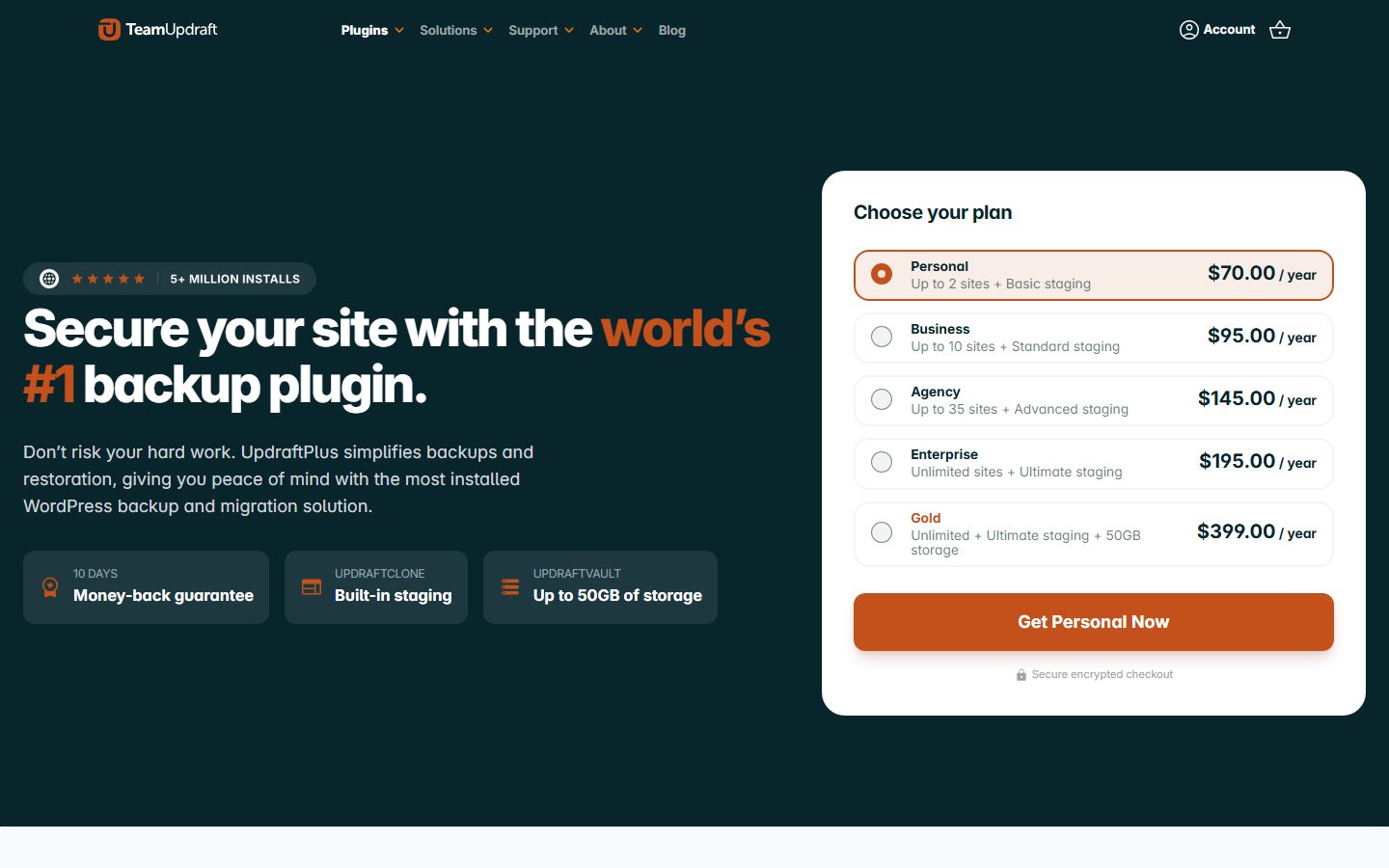
A backup you have restored is the first. UpdraftPlus is one widely used option. Its WordPress.org listing says it backs up to remote storage, restores in a few clicks, lets you choose which components to restore, and can run on a schedule. The listing describes UpdraftClone as a separate product for temporary sandbox copies, and the vendor page shows “Built-in staging” and “UpdraftClone” tiles. Plans change often, so read the current options on the vendor’s site.
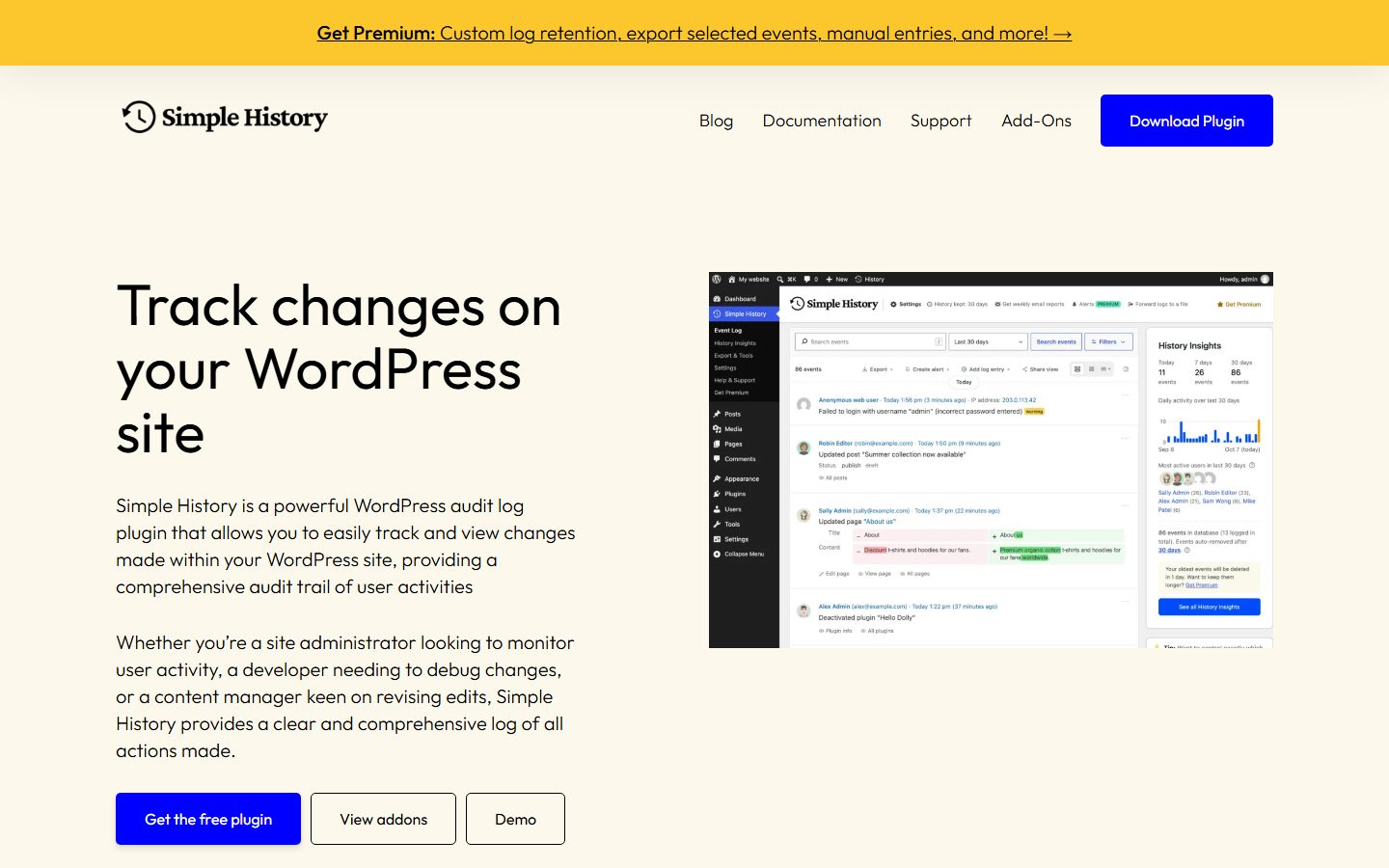
An activity log is the second. WP Activity Log’s listing says it records logins, post changes and plugin installs, updates and removals, and that audit data is kept for three months by default. Simple History’s listing describes a log of content edits, logins, plugin updates and security events that records who acted and when. In the screenshot, look at the sample event list on the right, where each line names a user and an action.
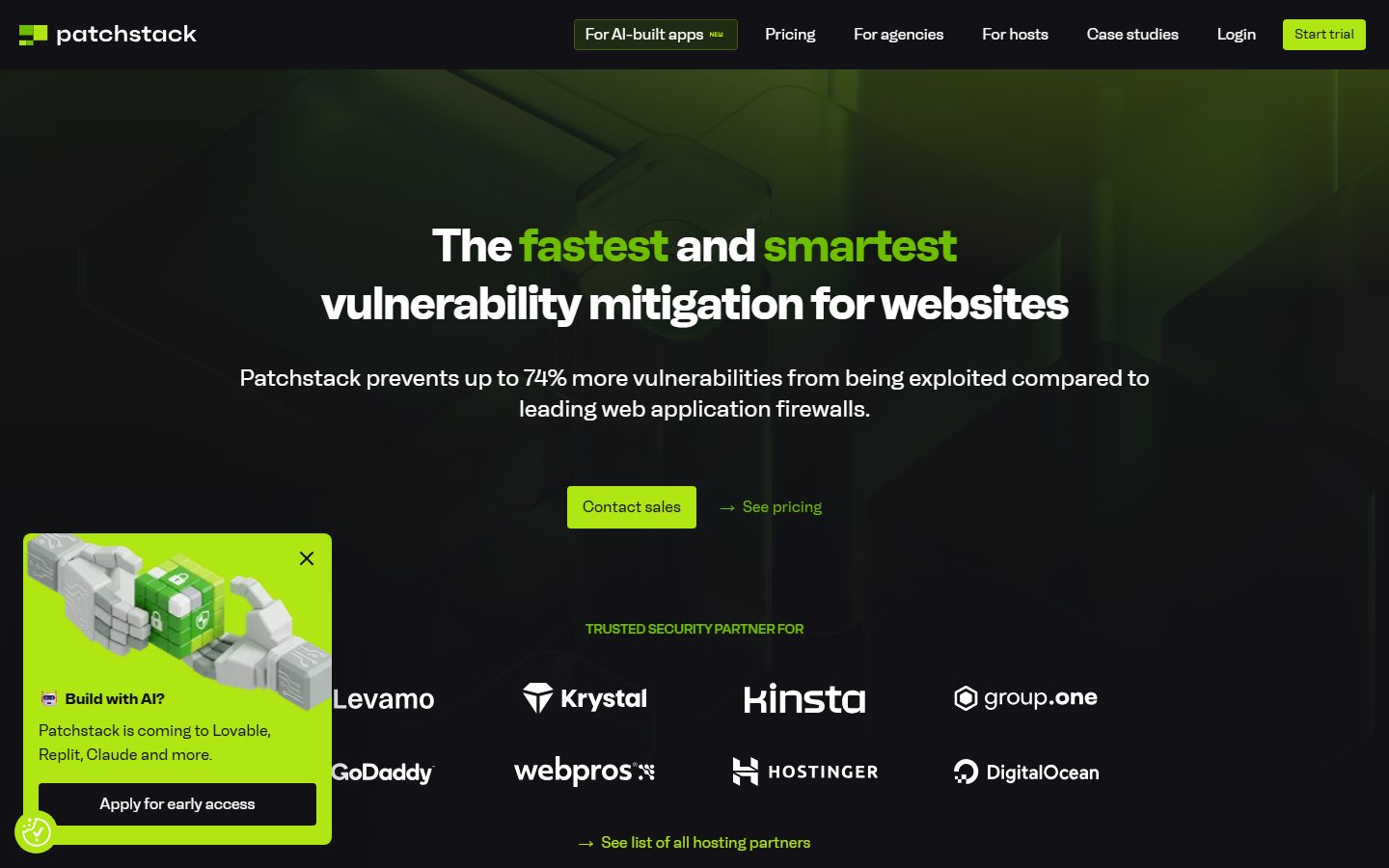
Vulnerability monitoring is the third. An MCP plugin is new code on your site, so it should be covered like any plugin. Patchstack describes itself as a vulnerability mitigation service for WordPress. On its homepage, look at the headline and the hosting partner logos under it, which are the vendor’s own marketing.
| Control | What it gives you | Prove it works by |
|---|---|---|
| Backup | A way back after a bad bulk change | Restoring to a scratch site once |
| Staging copy | A place to rehearse safely | Confirming the connection points at staging, not production |
| Activity log | Evidence of who changed what | A test action appearing under the agent user |
| Vulnerability monitoring | Alerts about flaws in the plugins you rely on | Checking which plugins the service covers |
| Revisions | A diff and rollback for post content | Editing a post and restoring an earlier version |
Our staging site guide and comparison of backup plugins cover the first two in depth.
MCP versus REST versus WP-CLI
These three overlap, which confuses people. They are different layers with different strengths.
| Approach | Who decides what to run | Best for | Weakness |
|---|---|---|---|
| MCP | An AI model, from a list of described tools | Open-ended requests and multi-step jobs a person supervises | Non-deterministic; depends on tool descriptions and model judgment |
| REST API | Your own code or an integration | Apps, headless sites, fixed integrations | You must write and maintain the client logic |
| WP-CLI | A person or a script | Server-side maintenance, migrations, bulk operations | Needs shell access; powerful, so mistakes are costly |
Many good setups combine them. An agent may decide what to do through MCP while the underlying ability calls well-tested WordPress functions. That is exactly the point of the Abilities API: one tested implementation, several ways to reach it. The full comparison, with examples, is in MCP vs the WordPress REST API.
Real-world workflows worth trying first
Start with projects where mistakes are cheap and results are easy to judge.
1. A weekly site health summary
Ask the agent to list plugins with available updates, pending comments, draft posts older than ninety days, and users with elevated roles. Read-only, fast, and it builds your trust in the connection.
2. Metadata clean-up on staging
Have the agent find posts without a meta description and propose drafts. You review the proposals in a table, approve the good ones, and apply them. If you use an SEO plugin, confirm which field the agent is writing to. Our broader WordPress SEO guide explains what good metadata looks like.
3. Alt text backlog
Process a batch of images with missing alt text, review the suggestions, and save only the accurate ones. Decorative images should usually get empty alt text, so give the agent that rule explicitly.
4. Landing page first draft
Give a clear brief with audience, offer, sections and tone. Build on staging, review the structure, then edit the copy yourself. Treat the page as a starting point.
5. Performance triage
Ask the agent to inventory plugins and flag likely heavy ones, then verify with real measurements. The agent can organize the investigation, but only measurements tell you what is slow. Our speed optimization guide covers how to test properly.
6. Store report
For a shop, request a summary of recent orders and low-stock items. Keep refunds and price changes out of scope until you trust the setup.
Writing good prompts for site work
Prompts for an agent are closer to a work order than a chat message. The more precise the scope, the safer and better the result.
- State the goal and the boundary. “Review the ten most recent posts and list issues. Do not edit anything.”
- Name the environment. “This is the staging site. Production is off limits.”
- Require a plan first. “List what you intend to change and wait for my approval.”
- Ask for a diff. “Show before and after for each change.”
- Set rules for edge cases. “If you are unsure, skip the item and list it for me.”
- Limit batch size. “Process ten items, then stop.”
Plan-then-approve is the habit that pays off most. It turns the agent from an actor into a proposer, and you stay the decision maker.
Costs and trade-offs
There is no meaningful licensing cost to the open standard itself, and the MCP Adapter is open source. The costs you will actually meet are indirect: your AI subscription or API usage, any commercial MCP plugin you choose, a staging environment, and the time to review output. Agents that run long, multi-step jobs can consume a lot of usage, so keep tasks scoped. Prices and plan limits change often, so check the vendors’ current pages rather than relying on a number in an article.
The bigger trade-off is attention. An agent saves typing, not responsibility. If you do not review its work, the savings turn into cleanup. If you do review it, you still come out ahead on large, repetitive jobs.
Where the money and effort go
We do not quote prices here, because plans and usage limits change and we have not tested any of these products. What we can do is show you where costs appear, so you can ask vendors the right questions.
| Cost item | What drives it | How to keep it small |
|---|---|---|
| AI subscription or API usage | Long, multi-step jobs and large amounts of content read by the model | Scope each task, limit batch sizes, and read only what you need |
| An MCP plugin or paid tier | Tool sets that sit behind a paid plan, as several plugin listings note | Start on the free tier and check the listing for which tools need Pro |
| Staging and backups | Storage and the time to restore and test | Use your host’s staging, and test one restore |
| Logging and monitoring | Retention and notification features, which listings often place in paid tiers | Keep the free log for learning, upgrade only if you need alerts |
| Your review time | How much the agent changes and how reliable the output is | Work in small batches and keep a record of corrections |
| Developer time | Registering your own abilities, writing tests, keeping up with changes | Begin with one read-only ability |
Review time is the cost people forget. If checking an agent’s output takes as long as doing the task, the setup is not paying for itself, and you should say so in your decision notes.
Choosing a plugin or server
You can use the official MCP Adapter with abilities you or your plugins register, or a plugin that ships its own server and tool set. When you compare options, look for these things.
- Permission controls. Can you enable or disable individual tools, and does everything honor WordPress capabilities?
- Authentication. OAuth or revocable application passwords, not a shared static key in the URL.
- Logging. A record of which tool ran, as which user, and when.
- Documentation and maintenance. Recent updates, a changelog, and a clear support channel.
- Scope. A tool list that matches your needs, not hundreds of tools you will never use.
- Transparency. Clear statements about what data leaves your site and where it goes.
As one option among several, NibWP is a plugin we use that lets an AI agent control a WordPress site through MCP; our NibWP review describes how it works and where it fits. Evaluate any option, ours included, against the list above.
Measuring whether it is working
Hype is cheap, so give yourself a way to judge a pilot with your own evidence. You need no special tools, only a notebook or spreadsheet, and the discipline to record things as you go.
- Pick one task. For example, a weekly plugin and update audit, or an alt text backlog.
- Time the manual version first. Do the task by hand once and note how long it took with a clock. That is your baseline.
- Time the agent version. Include setup, the agent’s run, your review and your corrections. Leave nothing out.
- Count the corrections. For each item the agent handled, note whether you accepted it, edited it or rejected it.
- Check a sample against wp-admin. Open a handful of items and confirm the claim matches reality.
- Decide with the numbers you collected. Keep, change the prompt, narrow the scope, or stop.
| What to record | Why |
|---|---|
| Minutes, manual versus assisted, including review | Shows whether you saved time overall |
| Items accepted, edited, rejected | Shows how reliable the output is |
| Anything the agent reported that was untrue | Shows how much verification you must keep doing |
| Anything the agent did that you did not ask for | Shows whether scope and permissions are tight enough |
| Prompts that worked well | Becomes your reusable playbook |
After two or three tasks you will have a better answer than any article can give, because it comes from your own sites and your own standards.
Common mistakes
- Connecting production first. Always rehearse on a copy.
- Using the main admin account. It makes every mistake maximum size.
- Trusting a fluent answer. The model may report success for something that did not happen. Verify in wp-admin.
- Exposing every ability. More tools mean more risk and more confusion for the model.
- Skipping backups. A backup you have never restored is a hope, not a plan.
- Mass publishing AI text. Quantity without review and original value is a quality problem.
- Ignoring client approvals. Clicking “always allow” on an untrusted server removes your last checkpoint.
- Forgetting to revoke. Delete credentials for experiments you have finished.
How to decide if you should do this at all
Ask four questions.
- Do I have repetitive site work that costs real hours? If not, the setup effort is not justified.
- Do I have a staging environment and a tested backup? If not, build those first. They are worth having anyway.
- Can I review what the agent produces? If nobody will check the results, do not automate the change.
- Is the data on this site sensitive? Membership, health, legal or financial data calls for a more cautious review of where prompts and results go.
If you answer yes to the first three, start with a read-only pilot this week. If you answer no to the second, fix that before touching MCP.
A 30-day rollout plan
If you decide to proceed, a month is a sensible pace. The plan assumes one site and one person, and you can stretch it for a team.
| Week | Focus | Done when |
|---|---|---|
| 1 | Foundations: staging copy, tested backup, activity log, dedicated user | You have restored a backup and seen a test action in the log |
| 2 | Connect and read: install a server on staging, connect one assistant, run read-only audits | Three audits whose results you checked in wp-admin |
| 3 | Controlled writes: drafts and proposals, then small approved batches | A batch of ten changes reviewed, with corrections counted |
| 4 | Decide: measure time and corrections, tighten permissions, plan production use or stop | A written decision, with credentials for abandoned experiments deleted |
Do not connect production until week four, and only if the staging record supports it. Even then, begin with a read-only user.
Glossary
| Term | Plain meaning |
|---|---|
| Agent | An AI application that can take actions through tools, not only produce text |
| MCP | An open standard that lets AI applications discover and call tools on other systems |
| MCP server | The program that offers tools, resources and prompts. On WordPress, a plugin or the adapter |
| Ability | A named, permissioned unit of functionality registered with the WordPress Abilities API |
| MCP Adapter | The official WordPress package that exposes abilities as MCP tools, resources and prompts |
| Application password | A revocable credential WordPress lets you create per integration for a specific user |
| OAuth | A sign-in flow that uses a consent screen and issues revocable tokens |
| Prompt injection | Hidden instructions in content the model reads that try to change its behavior |
| Least privilege | Giving an account only the permissions its task needs |
| Staging | A private copy of your site used to test changes before they reach production |
Guide map
Use this map to go deeper on each layer. Read them in any order; the first four give you the core of the stack.
- What is MCP for WordPress: the protocol, its building blocks and why WordPress is adopting it.
- Connect Claude to WordPress with MCP: a step-by-step setup using custom connectors and safe credentials.
- Connect ChatGPT to WordPress: what works, what does not, and the requirements to check.
- The WordPress Abilities API explained: how developers register abilities, with code.
- Best AI plugins for WordPress: a comparison by use case, from writing helpers to chatbots.
- AI content without hurting SEO: a review process that keeps quality high.
- A safe staging workflow for AI agents: how to test and promote changes.
- AI agents and WordPress security: nine risks and how to limit them.
- Build a landing page with an AI agent: realistic prompts and the edits you will still make.
- Automate image alt text: bulk suggestions with a review step.
- AI chatbot plugins for WordPress: options and the costs to expect.
- AI search visibility: making your content easy for AI assistants to cite.
- WP-CLI and AI agents: automating maintenance from the command line.
- MCP vs the REST API: when to use which.
- 25 AI prompts for maintenance: copy-ready starting points for audits.
- Manage WooCommerce with an AI agent: twelve store use cases.
- NibWP review: one way to run WordPress by talking to it.
- WordPress 7.0 AI client and connectors: how plugins on your site call AI providers.
FAQ
What is MCP in WordPress?
MCP, the Model Context Protocol, is an open standard that lets AI applications discover and call tools on other systems. In WordPress, a server exposes your site’s abilities as MCP tools, so an assistant can list posts, create drafts or check plugins. The assistant never touches your database directly. It requests a named function, and WordPress checks the connected user’s permissions before running it. See our fuller explainer on MCP for WordPress for the building blocks.
Do I need WordPress 6.9 to use MCP?
The core Abilities API requires WordPress 6.9 or later, and the official MCP Adapter builds on it. Some plugins ship their own MCP server and may support older versions, with their own requirements. Whatever you choose, run a current WordPress and PHP version, because security fixes matter even more when an automated client can reach your site. Check the plugin’s documentation for its exact minimums before installing.
Is it safe to let an AI agent edit my WordPress site?
It can be, if you limit the damage a mistake can do. Use a staging copy, a dedicated low-privilege user, a revocable credential, read-only tools first, and approval prompts for anything destructive or public. Keep a tested backup. The agent is only as safe as the account and tools you give it, so permissions matter more than the model. Never connect with your main administrator login.
Can ChatGPT and Claude both manage WordPress?
Both can connect to an MCP server, so in principle yes. In practice the setup differs: Claude lets you add a remote server by URL as a custom connector, while ChatGPT’s requirements depend on your plan and current settings, and some flows expect particular read-only tools. Both approaches need a publicly reachable HTTPS endpoint for remote servers. Our two connection guides explain what works today and how to check.
Is MCP better than the WordPress REST API?
Neither is better in general. MCP is designed for AI assistants that choose tools from a described list, which suits open-ended requests. The REST API is better for fixed integrations where your own code decides what to call. Many setups use both: MCP on top for conversation, and well-tested WordPress functions underneath that the REST API can also reach. Choose based on whether a human-supervised agent or a script is in charge.
Will AI-generated content hurt my SEO?
Not by itself. What hurts is thin, inaccurate or repetitive content published at scale without human review. Search engines evaluate usefulness, not the tool that typed the words. Use AI for drafts and structure, add real expertise and verified facts, edit for voice, and publish fewer, better pages. Our guide on AI content and SEO walks through a review workflow you can apply to any draft.
What is the cheapest way to try this?
Clone your site to a free or low-cost staging environment, install the MCP Adapter or a plugin with a free tier, and connect an assistant you already subscribe to. The open-source pieces cost nothing. Your real costs are AI usage and your review time. Start with a read-only health check to see whether the workflow saves you time before paying for anything extra.
Can an AI agent break my site?
Yes, if it has permission to. A well-meaning agent can deactivate a needed plugin, overwrite content or misread an instruction. That is why least privilege, staging, backups and approvals exist. Treat the agent like a new contractor on day one: limited access, clear instructions, and review of the work before anything goes live.
What changed in WordPress 7.0 for AI?
According to the 7.0 field guide on make.wordpress.org, core gained an AI Client, a central interface that lets plugins talk to generative AI models without being tied to one provider, and a Connectors screen under Settings where providers such as Anthropic, Google and OpenAI are managed. It also added a client-side abilities package, and the Abilities API is integrated into the AI Client. These pieces help your site use AI models. The MCP Adapter, by contrast, helps outside assistants use your site. Our explainer on the 7.0 AI client and connectors covers the first half.
Which is easier: a plugin with its own MCP server or the official adapter?
A plugin with its own server is usually easier to set up, and several describe OAuth sign-in in their listings. The official adapter fits developers and sites that want one permission model across many plugins. Neither choice removes the need for a dedicated low-privilege user, staging, backups and a log. Judge both against the permission, authentication, logging and transparency checklist earlier in this guide.
How do I know an MCP plugin is trustworthy?
Look for evidence rather than adjectives: a WordPress.org listing with a recent update and a changelog, clear statements about what data leaves your site, permission controls you can see and test, a stated security contact, and tools that honor WordPress capabilities. Then verify on staging. Make the connected user a Contributor and ask for something it should not be able to do. A trustworthy server lets WordPress refuse.
Where do I report a security problem in an MCP plugin?
Use the plugin’s own security policy. The MCP Adapter’s listing asks reporters to follow its SECURITY.md process instead of reporting publicly, and AI Engine’s listing says vulnerability reports go through the Patchstack program. If a plugin has no stated process, contact its vendor privately and consider whether you should keep using it.
Conclusion and next steps
AI and MCP for WordPress is no longer a curiosity. The pieces are in place: an open protocol, a core registry of abilities, an official adapter and assistants that can use them. The opportunity is real for audits, drafts, bulk edits and maintenance. The risk is just as real if you connect carelessly.
Your next steps are simple. Build or confirm a staging copy and a restorable backup. Read the MCP explainer if any concept above was new. Then follow either the Claude setup guide or the ChatGPT guide, connect with a dedicated low-privilege user, and run a read-only health check. If that saves you time, widen the scope one ability at a time, and read the security risks article before you go near production.
Take it slowly, keep a human in the loop, and let the tools earn your trust one task at a time.
Keep reading
What Is MCP for WordPress? Model Context Protocol Explained
MCP WordPress explained in plain English: what the Model Context Protocol is, how it works with your site, and when it is worth using.
How to Connect Claude to WordPress with MCP, Step by Step
Connect Claude to WordPress with MCP using a custom connector or a local bridge. Step-by-step setup, safe credentials and troubleshooting tips.
Connect ChatGPT to WordPress: What Works and What Does Not
Connect ChatGPT to WordPress with MCP, a custom GPT or plain copy and paste. See what works, what does not, and how to stay safe.
The WordPress Abilities API Explained for Plugin Developers
The WordPress Abilities API explained for plugin developers: how to register, secure and expose abilities, with code, schemas and MCP exposure.
Best AI Plugins for WordPress in 2026, Compared
The best AI plugins for WordPress in 2026, sorted by job: editor help, SEO, chatbots, translation, page building and agent access, with costs and risks.
How to Use AI for WordPress Content Without Hurting Your SEO
AI content WordPress SEO done safely: what Google actually says, a review workflow that protects rankings, and the mistakes that get sites in trouble.
A Safe Staging Workflow for AI Agents on WordPress
An AI agent WordPress staging workflow in nine steps: clone, restrict, test, review the diff and deploy safely, with checklists and common mistakes.
AI Agents and WordPress Security: 9 Risks and How to Limit Them
AI agent WordPress security explained: nine real risks, from prompt injection to over-privileged accounts, and practical controls to limit each one.
Let your AI assistant do this for you
Open the ready prompt with step‑by‑step instructions for running it through NibWP.