A buyer's guide to managed WordPress hosting: what is included, what limits to check and how to judge support and value.
What a managed WordPress host does, in plain words
Managed WordPress hosting is a service built around one application. Instead of renting a general-purpose server, you get an environment where the web server, PHP, database, caching and security rules are set up for WordPress and maintained by the provider. You log in, build your site, and leave much of the server work to the host.
The typical bundle, according to provider documentation, includes automatic backups, server-level caching, a staging area for testing changes, security monitoring, and support staff who work with WordPress every day. Pressable, for example, says on its site that staging, sandbox environments and daily, hourly and on-demand backups are included on every plan. Kinsta’s documentation describes daily backups of files and databases kept for a minimum of 14 days.
It sits between two extremes. Cheap shared hosting gives you a login and leaves most decisions to you. Running your own server gives you every decision and every duty. Managed hosting takes some of those duties off you in exchange for a higher price and some restrictions.
How it works under the hood
Four mechanisms explain most of what you pay for.
- A tuned stack. The WordPress documentation notes that with managed hosting the provider manages the software stack, which also limits your choices. In return you do not configure PHP, the web server or the database yourself.
- Layered caching. WordPress’s own performance documentation describes page caching (saving finished pages as static files so PHP and the database are skipped), browser caching, a persistent object cache that reduces database trips and needs support from the host, and opcode caching for PHP. Managed hosts usually provide the first and third at server level. See our Redis object cache guide.
- Edge protection. Kinsta’s documentation says Cloudflare provides a first layer of defence on its Managed WordPress sites, against code and SQL injection, layer 7 DDoS attacks and generic vulnerability scanners. Other hosts use their own firewalls or edge networks.
- Isolation and limits. Hosts cap resources per site or per plan: visits, storage, bandwidth and PHP workers (the processes that run uncached PHP requests). Those caps are where the real value comparison happens.
Who needs one (and who does not)
Business sites, content sites with steady traffic, agencies looking after client sites, and anyone who would rather spend time on content than on updates and server alerts gain the most. It is also sensible when downtime or a hacked site would cost money.
A hobby site or a first experiment often does not need it; a budget plan is fine (see best WordPress hosting by use case). If you want full control of the operating system or need unusual software, a VPS suits you better, as laid out in managed versus VPS WordPress hosting. Stores have their own concerns, covered in a separate guide for managed WooCommerce hosting.
Types and approaches
| Approach | What you manage | Strength | Trade-off |
|---|---|---|---|
| Fully managed, proprietary dashboard | Content, plugins, themes | Least server work; WordPress-literate support | Higher price per site; plugin restrictions; tied to the provider’s tooling |
| Managed by a WordPress-company platform | Content, plugins, themes | Close tie to WordPress itself | Plan structure and limits are set by the platform |
| Managed layer on your own cloud server | Server rental, some settings | Choice of cloud and data centre; lower cost at scale | Support is split between panel vendor and cloud vendor |
| Managed shared hosting | Most things | Low cost, familiar control panel | Shared resources; managed features vary widely |
What to look for
We weigh hosting on speed 30%, reliability 25%, support 20%, value 15% and ease of use 10%.
Speed (30%)
Ask which caching layers exist, whether an object cache is included, which PHP versions are offered, and where the data centres are relative to your visitors. Time to first byte matters because Google’s guidance on web.dev says a high TTFB makes a 2.5 second Largest Contentful Paint hard to reach. The WordPress project lists PHP 8.3 or greater as recommended, so a host that lags several versions behind is a concern; see PHP versions and performance.
Reliability (25%)
Read the uptime commitment and what remedy the provider offers if it is missed. Find out how often backups run, how long they are kept, whether restores are self-service and whether a restore overwrites everything or can be partial. Check whether the host keeps backups in a separate location from the live server.
Support (20%)
Ask about channels (chat, ticket, phone), hours and how first-response time is measured. Pressable’s own site, for example, lists live chat rather than phone and quotes response times itself; treat vendor figures as claims, not measurements. A useful test is to send a real question before you buy and see whether the answer addresses WordPress or just restarts a service.
Value (15%)
Identify what counts toward your allowance: visits, storage, bandwidth, PHP workers, sites, staging environments. Work out the renewal price, not the first-term price, and what the next plan up costs. Read prices on the vendor’s own pricing page on the day you buy.
Ease of use (10%)
Look for a clear dashboard, one-click staging and push-to-live, migration help and a way to give clients limited access. Our multi-site management guide matters if you run several sites.
Plugin and software restrictions
Some managed hosts disallow plugins that duplicate server features or cause load. WP Engine’s support documentation, for example, has a dedicated “Disallowed Plugins” article. Check the list before moving a site that depends on a backup, caching or related-posts plugin.
Security responsibilities
Ask what the host scans for and what it does when it finds malware. Weak passwords, outdated plugins and unsafe code are still yours to handle; the security guide covers that side.
Real products to look at
These are examples, not a ranking. Each description is taken from the vendor’s own pages read while preparing this guide, so confirm current details yourself.
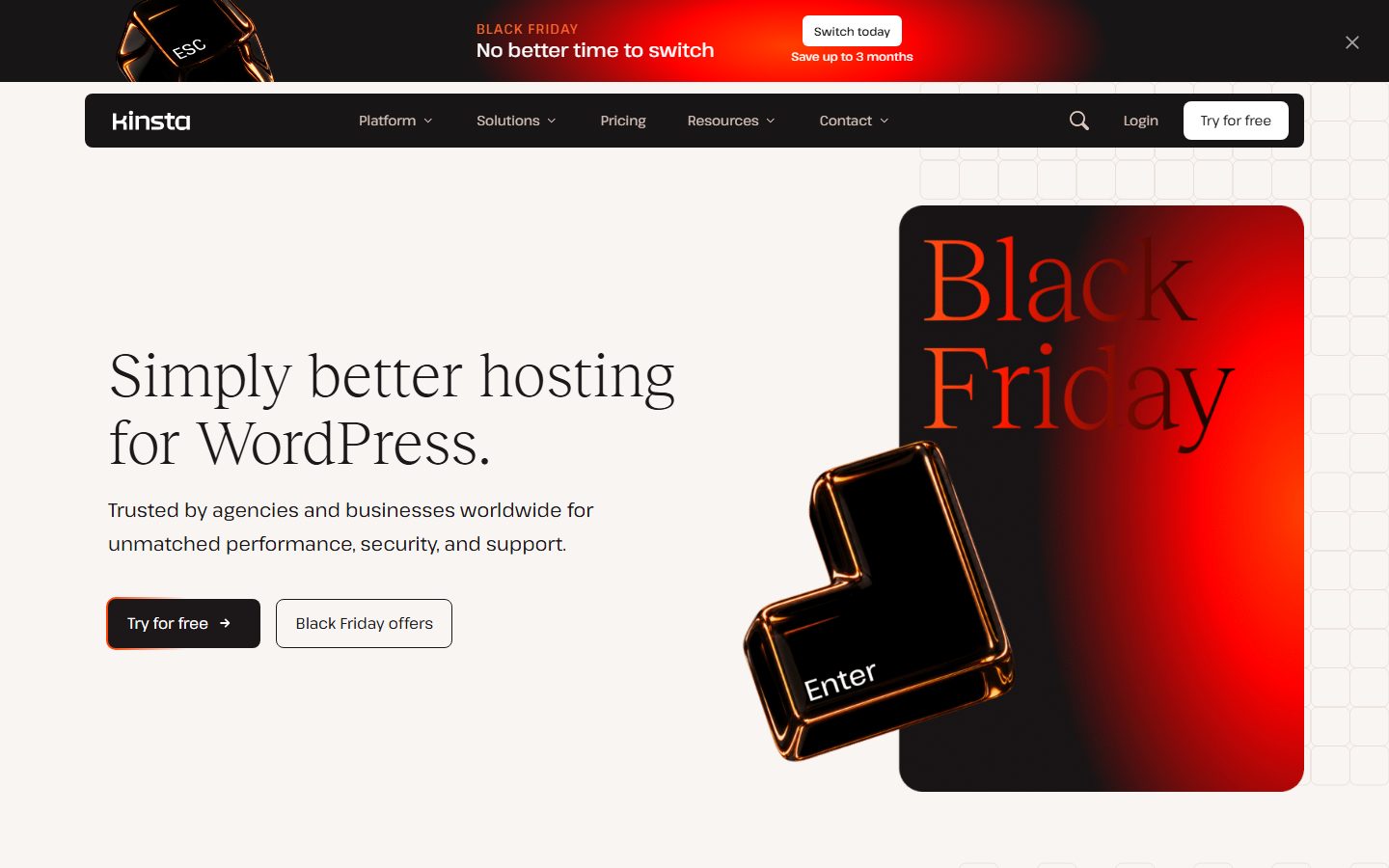
- Kinsta. Its documentation describes daily backups of files and databases with at least 14 days of retention and a Cloudflare layer in front of Managed WordPress sites. Caching, staging and data centre information sit on linked documentation pages we did not read in detail. It fits teams that want a dashboard-driven managed service.
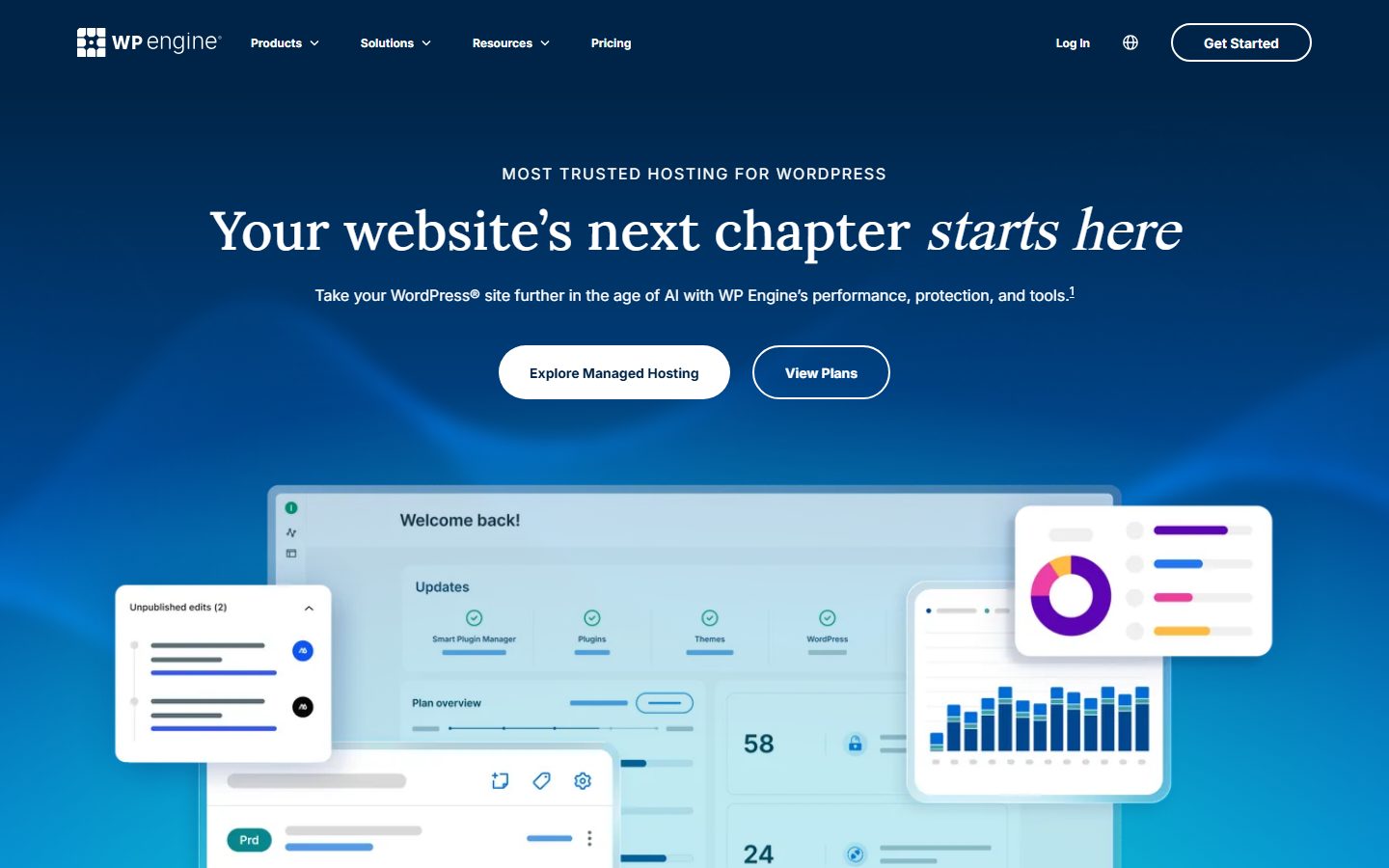
- WP Engine. Its support site documents server and browser caching, backup and restore, environments and a disallowed plugins list. It fits agencies and businesses that want a long-established managed host and can work within its plugin rules.
- Pressable. The site says the platform is built on Automattic’s WP Cloud and describes itself as an Automattic hosting lab, with staging and backups on every plan and 24/7 support through live chat. WordPress.org’s hosting page lists Pressable as one of its recommended hosts, with the caveat that its listing is described as arbitrary.
- Cloudways. It describes a managed layer on cloud servers from DigitalOcean, Vultr, Linode, AWS and Google Cloud, using an NGINX and PHP-FPM stack with Redis, Memcached and Varnish, staging on every plan and scheduled backups. It fits people who want choice of data centre with a managed panel.
- SpinupWP. A server control panel rather than a host: it describes setting up WordPress sites on servers you rent from providers like DigitalOcean, Hetzner or AWS, with caching, backups and staging. It suits developers who want control without raw command-line administration. Our xCloud guide covers a similar category.
The screenshots below show the homepage of two of these examples as captured in November 2026, so you can see how each vendor presents the product.
A comparison checklist to fill in
| Question | Host A | Host B | Host C |
|---|---|---|---|
| Caching layers (page, object, CDN) | |||
| PHP versions offered; can you choose per site? | |||
| Data centre locations | |||
| Backup frequency, retention, off-server copy | |||
| Staging included? How many environments? | |||
| Limits: visits, storage, bandwidth, PHP workers | |||
| What happens when you exceed a limit | |||
| Disallowed plugins list | |||
| Support channels, hours, WordPress-specific? | |||
| Renewal price and cancellation terms | |||
| Free migration? Email included? |
Setup and migration steps
Before you move
Write down your DNS provider, current PHP version and the plugins you rely on. Take a full backup and store it away from the old host. Lower the DNS time-to-live on your domain a day ahead so the cut-over is quick. Check the new host’s plugin restrictions against your list. The full process is in migrating WordPress to a new host.
During the move
Use the provider’s migration tool or service, or a migration plugin. Test the copy on a temporary URL or by editing your local hosts file, checking forms, checkout, logins and search. Freeze content changes on the old site shortly before the final sync.
After the move
Point DNS, then confirm HTTPS works and that email delivery is unaffected, since many people forget that mail may have been hosted with the old provider. Keep the old account for a few days as a fallback. Set up backups you control and a monitoring check, and test a restore once.
Common mistakes and red flags
- Installing a stack of plugins that duplicate what the host already does.
- Choosing on visit allowance alone and ignoring PHP workers or storage.
- Treating the host’s backups as your only copy; see backup plugins.
- Assuming security is fully handled.
- Ignoring the renewal rate after an introductory discount.
- Signing a long term before testing support and speed.
- A host that will not state its limits or what happens when you hit them.
- Support that cannot be reached before you are a customer.
Cost and risk of switching later
Moving WordPress between hosts is possible, since the core is files plus a database, but the effort grows with the platform-specific features you adopt: proprietary caching rules, host-only staging workflows, edge redirects configured in a dashboard, email tied to the account. Keep a list of such dependencies so you know what to rebuild. Annual billing is cheaper per month in many cases but reduces your ability to leave quickly. Ask about refund terms and whether exporting a full site archive is self-service.
A one-afternoon evaluation plan on a staging copy
- Prepare (20 minutes). Take a full backup of your live site and note your current response time using PageSpeed Insights.
- Migrate a copy (45 minutes). Use the trial or a money-back period, if offered, to move a copy. Pass: the site works on the temporary URL without code fixes.
- Speed check (30 minutes). Run PageSpeed Insights on the home page and a heavy page three times each and record the median server response and Largest Contentful Paint. Pass: no worse than your current host and under 2.5 seconds for LCP.
- Staging test (20 minutes). Create staging, change a plugin, push live. Pass: no manual file copying.
- Restore test (20 minutes). Delete a test page, restore from backup. Pass: restored in under 15 minutes without support.
- Support test (20 minutes). Ask a real question, such as how to enable the object cache. Pass: a specific, correct answer within the response time the vendor advertises.
- Limits check (15 minutes). Find where visits, workers and storage use appear in the dashboard. Pass: you can see them without opening a ticket.
How we will evaluate it
WPMusk has not run hands-on tests of managed WordPress hosts. This is a buyer’s guide built from vendor documentation and standards, and it contains no measured results. A full review would host the same site at each provider, measure server response and page load, monitor uptime over a sustained period, test staging and restore, and contact support with real questions, then score against the weights above. This page carries no score: it is guidance for choosing, not a measured result.
Questions people ask
Is managed hosting worth the extra cost?
It is when your time or your site’s uptime is worth more than the price difference. For a casual site, probably not.
Will it make a slow site fast?
It removes server-side bottlenecks, but a heavy theme or plugin set still slows pages. See the speed optimisation guide.
Can I move my existing site?
Usually yes, through a migration tool or service. Ask whether it is free and whether it covers email and custom configuration.
What are PHP workers?
They are the processes that execute uncached PHP requests. Cached pages do not use them, so they matter most for logged-in users, carts and admin work.
Do I still need a caching plugin?
Often not, and some hosts restrict them. Ask the host which layers are on before you add another.
Does the host back up my site well enough?
Probably well, but keep an independent off-site copy so one account problem cannot take both.
This is a buyer’s guide for a type of product. It is based on public documentation, not on hands-on tests, and it carries no score.
← All reviews