Tutorial
What you will set up, and what you need
By the end of this tutorial you will have a written backup routine for your WordPress site: what gets copied, how often, where the copies live, how long you keep them, and how you check that they work. You will also have done at least one practice restore, which is the step most site owners skip and the step that decides whether a backup is worth anything.
Almost everyone agrees that backups matter. The failure is rarely “I did not know”. It is “I thought my host did it”, “the plugin said it was running”, or “the backup was there but it would not restore”. This guide is built around those failures.
What you need
- Administrator access to WordPress, so you can install a plugin and view settings.
- Access to your hosting control panel, so you can see which backups the host provides and what they cover.
- An account with at least one storage service that is not your web host. Examples are covered later. You may already have one.
- About one to two hours for the first setup, plus a practice restore. After that the routine takes minutes.
- A way to test a restore somewhere other than your live site. A staging site, a local development tool or a second hosting account all work.
The routine in one table
| Question | What you decide | Section |
|---|---|---|
| What do I copy? | Database, files, and the settings that tie them together | What a backup contains |
| How many copies, where? | The 3-2-1 idea | The 3-2-1 idea |
| How often? | Depends on how often the site changes | Frequency |
| Which tool? | Host backups, a plugin, or both | Plugins versus host backups |
| Where do copies go? | Storage that is separate from the site | Off-site storage |
| Does it work? | Test restore, on a schedule | Restore testing |
| How long do I keep copies? | A retention rule | Retention |
| Who can touch them? | Access control, encryption, separate credentials | Security |
Why backups matter: what can go wrong
A backup is insurance against a list of events that are all more common than they sound. Think about the realistic ways a WordPress site is lost or damaged:
- A bad update. A plugin, theme or WordPress update conflicts with something and the site shows an error or loses content. The auto-updates risk guide explains why automatic updates make this a real possibility.
- Human error. Someone deletes a page, a product, a plugin or a database table. Someone edits a file on the live server and makes a typo.
- A hack or malware infection. The hacked site recovery guide covers cleanup, and a clean backup from before the attack is often the fastest route.
- Hosting problems. A server fails, a host closes an account, or an account is suspended. If your backups live on the same server, they go with it.
- Ransomware and account takeover. CISA, the United States cybersecurity agency, says in its small business guidance that “Backups are your best hope of recovery from a ransomware attack.”
- A failed migration or redesign. Moving hosts or rebuilding a theme goes wrong, and you need a way back.
- Plugin or theme bugs. A buggy plugin corrupts data over time. You discover it weeks later.
Some of these are fast to notice, and some are slow. A bad update shows up in seconds. A corrupted table or a hidden malware file can sit for weeks. That affects how long you keep copies, and the retention section deals with it.
What a WordPress backup contains
A WordPress site is made of two separate parts that live in different places. You need both to rebuild it. The WordPress developer documentation says so directly: you need both parts to fully restore a typical site, and downloading the WordPress directory does not include the database, which is stored separately, usually in MySQL or MariaDB.
Part 1: the database
The database holds your content and settings. Posts, pages, comments, users, menus, most plugin and theme settings, widget settings, WooCommerce products and orders if you have them, and form entries stored by plugins. The WordPress documentation puts it in blunt terms: if the database is erased or corrupted, you stand to lose everything you have written.
Part 2: the files
The files hold code and uploads. The WordPress documentation lists WordPress core, themes, plugins, uploaded media, code files and other static files, including wp-config.php and .htaccess.
| Item | Where it lives | Why it matters | Can you re-download it? |
|---|---|---|---|
| Posts, pages, comments, users, settings | Database | Your actual content and configuration | No. Only the backup has it. |
| Media uploads (images, PDFs, video) | The uploads folder inside wp-content | Your library. Usually the largest part of a backup. | No, unless you still have the originals |
| Themes | wp-content/themes | Your design. Custom and child themes are unique to you. | Public themes yes, custom changes no |
| Plugins | wp-content/plugins | Features. The versions and configuration matter. | Free plugins yes. Paid plugins need a license download. |
| WordPress core files | The WordPress root folder | The engine | Yes, from WordPress.org |
wp-config.php | Root folder, or one level above | Database connection details and security keys | No. Contains values specific to your site. |
.htaccess or server rules | Root folder, on servers that use it | Permalinks, redirects, security rules | Partly, as WordPress can regenerate the basic rules |
| Custom code or must-use plugins | wp-content/mu-plugins and similar | Site-specific functions | No |
What plugins may leave out
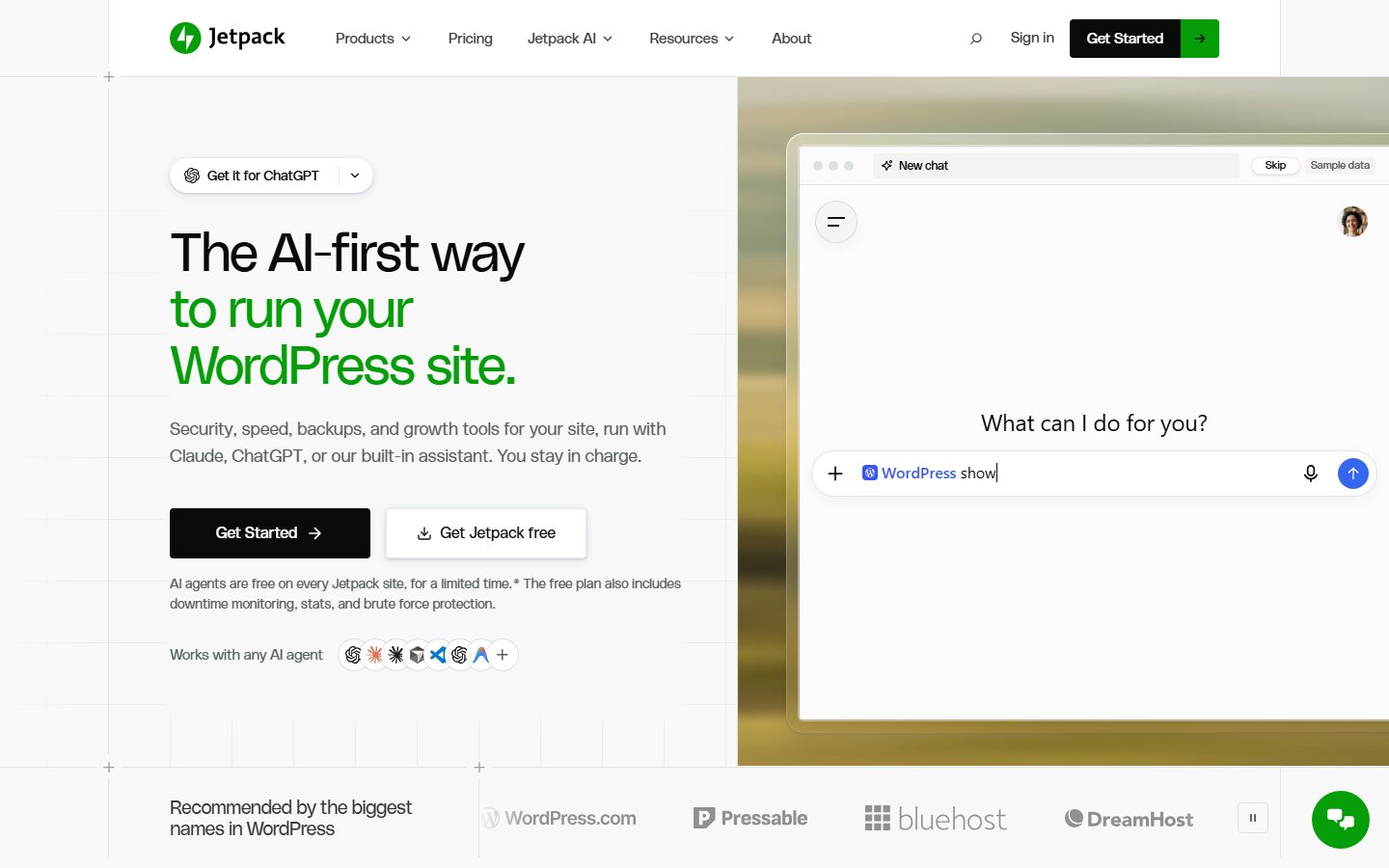
Not every backup tool copies everything, and the differences matter. For example, Jetpack’s support documentation says its backup does not include WordPress core files, which you can download from WordPress.org, nor files outside the directories it lists, nor database tables that do not appear to belong to WordPress or have no unique identifier, nor cache, log and backup directories. It lists what it does include: database tables that use your table prefix and have a unique or primary key, files in the plugins, mu-plugins, themes and uploads directories, files in the WordPress root directory that are not part of another WordPress installation, and certain files in wp-content. That is a reasonable design, but it means you need to read the documentation of whichever tool you use and ask: what is not covered?
Things people forget to ask about:
- Other databases or non-WordPress tables in the same database, such as those created by custom applications.
- Files outside the WordPress folder, such as a separate subdomain or a custom script.
- Email accounts, which are normally held by your hosting or email provider, not WordPress.
- DNS records, which are held by your registrar or DNS provider.
- Your hosting account settings, cron jobs and server configuration.
- Licenses and account details for paid plugins and themes.
Backing up the site is not the same as backing up the business. Keep a separate document listing your domain registrar, DNS provider, email provider, host, payment gateway, license keys and the accounts that hold them. Store it somewhere that does not depend on the site being online.
Full, partial and incremental backups
| Type | What it copies | Pros | Cons |
|---|---|---|---|
| Full | Everything, every time | Simple. Each copy restores on its own. | Large and slow for big sites |
| Database only | Just the database | Small and quick. Good for frequent runs on busy sites. | Not enough alone. Files are not included. |
| Files only | Just the files | Useful for the uploads folder, which changes less often | Not enough alone |
| Incremental | Only what changed since the last backup | Fast and small after the first run | A restore may need a chain of backups. Rely on a tool that handles this. |
| Real-time | Changes as they happen | Minimal data loss. Good for shops and membership sites. | Usually a paid, cloud-based service |
Tools mix these. Several plugins let you choose full site, database only or files only, and schedule them separately. That lets you back up the database often and the large uploads folder less often.
The 3-2-1 idea
The 3-2-1 rule is a simple pattern used by security agencies and IT teams. CISA’s small business guidance calls it a trusted guideline: three copies of important files, two different storage media, and one copy kept off-site, away from your business location. It also advises combining on-site and remote backups to guard against threats, hardware failures and physical damage.
Translated for a WordPress site:
| Rule | Meaning for a WordPress site | Example |
|---|---|---|
| 3 copies | The live site counts as one. You need at least two more. | Live site, a host backup, a plugin backup in cloud storage |
| 2 different media or systems | Not all copies on the same kind of storage or under the same control | Host server storage and a third-party cloud storage account |
| 1 off-site | At least one copy outside your hosting account entirely | Cloud storage with separate login, or a download to your own computer |
The point is that no single failure can remove every copy. If your host’s server fails, the cloud copy survives. If your cloud account is compromised, the host backup is still there. If both fail, the copy on your own computer remains.
Common ways people think they have 3-2-1 and do not
- “My plugin stores backups in a folder on my server.” That copy is on the same machine as the site. If the server is lost, so is the copy. It also gets attacked together with the site in a hack. This counts as a convenience copy, not an off-site copy.
- “My host takes snapshots, and my plugin backs up to the same host’s storage.” Those may be two copies but under one account and one provider. A suspended account would affect both.
- “I have a backup in Dropbox that the plugin wrote.” That is good, provided the plugin’s connection to Dropbox cannot delete the old copies and that the Dropbox account has two-factor authentication. See the security section.
- “The backup is in the cloud, so it is safe.” It is safer, but it is still only as good as the last successful run and the last tested restore.
A realistic setup for most sites
- Copy one: the live site.
- Copy two: the host’s backups, if the host provides them. Treat them as a convenient, fast restore option, not as your only protection.
- Copy three: a plugin or service that sends scheduled backups to storage you control, outside the host.
- Optional copy four: a periodic manual download to your own computer or an external drive, for the full site, kept offline.
How often to back up
The right frequency depends on one question: how much work can you afford to lose? If the site fails right now and you restore the last backup, everything since that backup is gone. So the frequency of your backup is the maximum amount of recent change you accept losing.
The WordPress developer documentation gives rough guidance: small sites with few posts about once a week, high-activity sites daily, and always before an upgrade or a move. That is a starting point. Use the table below to tune it.
| Site type | What changes | Suggested database frequency | Suggested files frequency |
|---|---|---|---|
| Brochure or portfolio site | A few edits a month | Weekly, and before any change | Weekly or after uploads |
| Blog that publishes weekly | New posts and comments | Daily or at least weekly | Weekly |
| News or busy publishing site | Many edits a day | Daily or more often | Daily or weekly |
| Online shop | Orders, stock and customers all the time | Real-time or hourly, if your tool allows | Daily or weekly |
| Membership or course site | New members, progress, payments | Real-time or daily | Daily or weekly |
| Site with user-generated content, forums or booking | Constant writes | Real-time or hourly | Daily or weekly |
These are recommendations based on the principle above, not measured rules. Adjust them to your own tolerance for lost work. A shop that processes dozens of orders a day cannot lose a day of orders. A brochure site that changes once a month does not need hourly backups.
Always back up before
- Updating WordPress core, a theme or a plugin, especially a major version.
- Changing your PHP version.
- Installing or removing a plugin that touches the database.
- Editing theme files,
wp-config.phpor.htaccess. - Running a database cleanup or search and replace.
- Migrating to a new host or domain. See the migration guide.
- A big sale, launch or campaign, as in the Black Friday preparation plan.
- Any large content change, such as bulk edits or an import.
Shop-specific caution on restoring
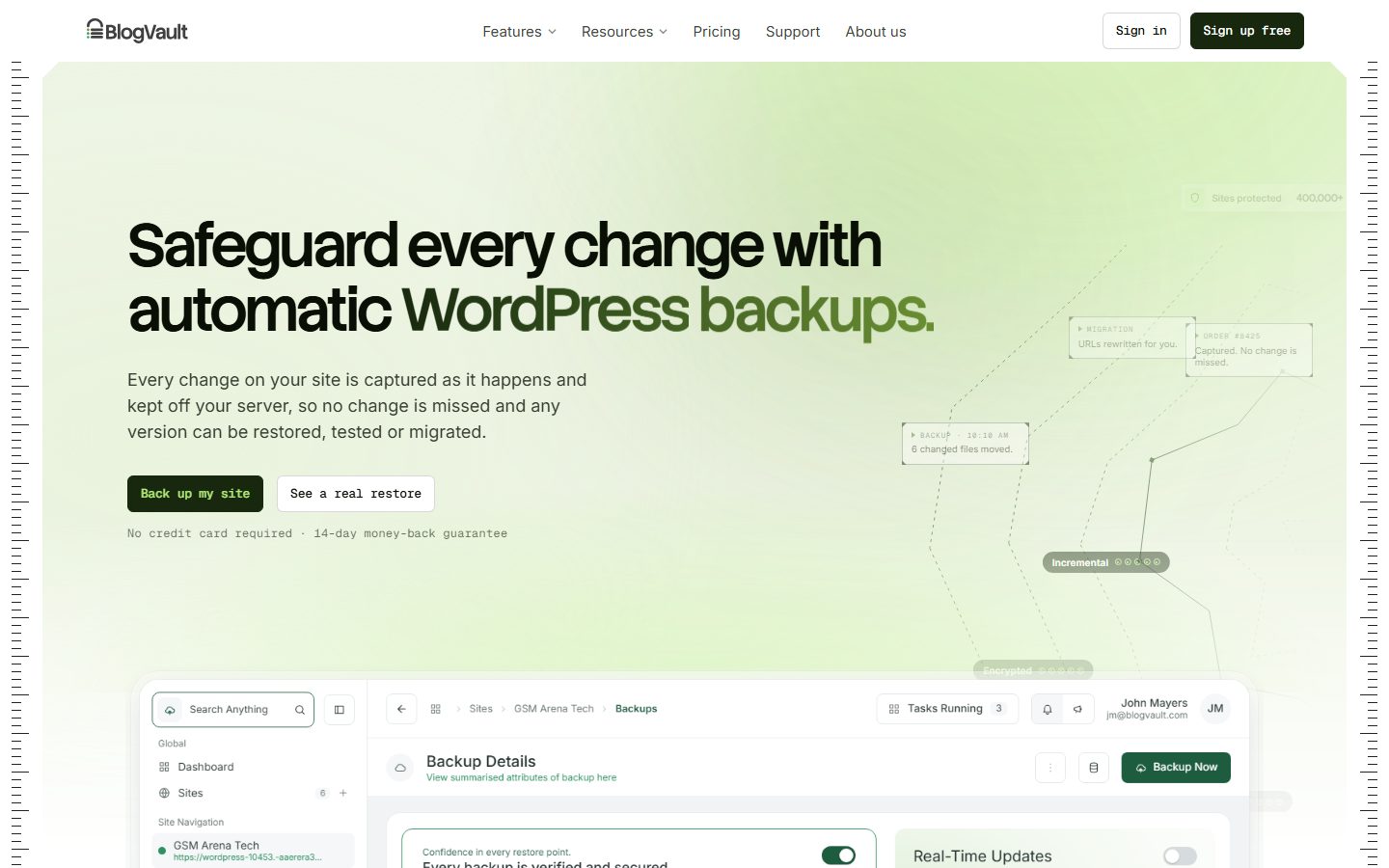
If you run an online shop, restoring an older backup can erase orders placed after that backup was made. Some tools address this. For example, Jetpack’s documentation says WooCommerce products and orders are backed up in real time in an immutable way so that an order is not lost if you restore to an earlier point, and BlogVault’s page says that merging a whole staging store to live would lose new live orders and recommends selective table merges. These are vendor claims, so read the current documentation. The lesson applies to any tool: plan how you will keep recent orders when you restore an older copy.
Plugins versus host backups
Most site owners have two possible sources of backups: the host and a plugin or external service. They solve different problems, and relying on only one is a gamble.
Host backups
Many hosts offer backups, snapshots or restore points as part of the plan or as an add-on. The details differ a lot between hosts. Before you rely on one, find out and write down the answers to these questions:
- Is it included or an extra cost?
- What does it copy: files, database, or the whole server?
- How often does it run, and can you change that?
- How long are copies kept?
- Where are the copies stored: on the same infrastructure as your site, or elsewhere?
- Can you restore by yourself in the control panel, or do you have to open a support ticket?
- Can you download a copy?
- What happens to the backups if your account is suspended or closed?
- Does a restore overwrite everything, or can you restore a single file or database table?
If you cannot answer these from the host’s documentation, ask their support. Do not assume.
Backup plugins and services
A backup plugin runs inside WordPress, creates archives of your files and database, and sends them to storage you choose. Services such as hosted backup platforms run the process on their servers and connect to your site. Both give you control that does not depend on your host.
| Factor | Host backup | Plugin or service |
|---|---|---|
| Setup effort | Usually none | Install, connect storage, schedule |
| Independence from the host | Low | High, if storage is off the host |
| Restore speed | Often fast, at server level | Depends on size and tool |
| Control over schedule and retention | Limited by the host | Usually more |
| Migration use | Usually tied to that host | Often usable for moving to another host |
| Cost | Often included or an add-on | Free tiers exist. Paid tiers add features. |
| Failure modes | Same provider as your site | Plugin conflicts, timeouts on large sites, storage connection expiry |
Which should you use?
Use both when you can. The host backup gives you a quick restore for common mistakes. The plugin backup, written to storage outside the host, protects you against the host itself failing and gives you an independent copy for a migration. If you must pick one, pick the one that keeps copies outside your hosting account. The backup plugin comparison and the UpdraftPlus alternatives guide help you choose.
If your host runs a managed platform that includes site backups, it is worth checking how that works with your plugin. Running a plugin backup on a site where the host already creates full snapshots can add load, so some hosts discourage or restrict it. Check your host’s documentation.
Choosing a backup tool: what the main options offer
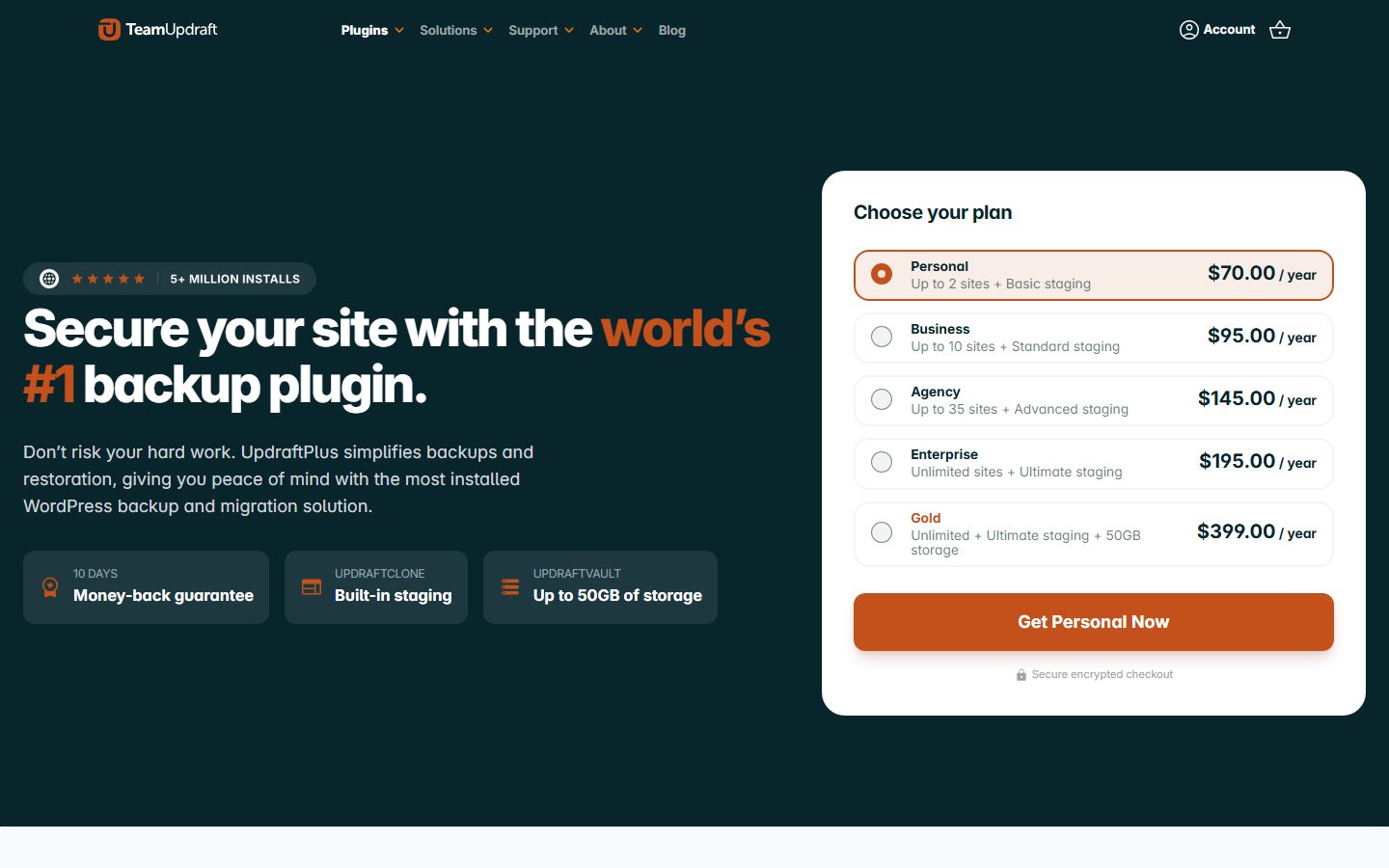
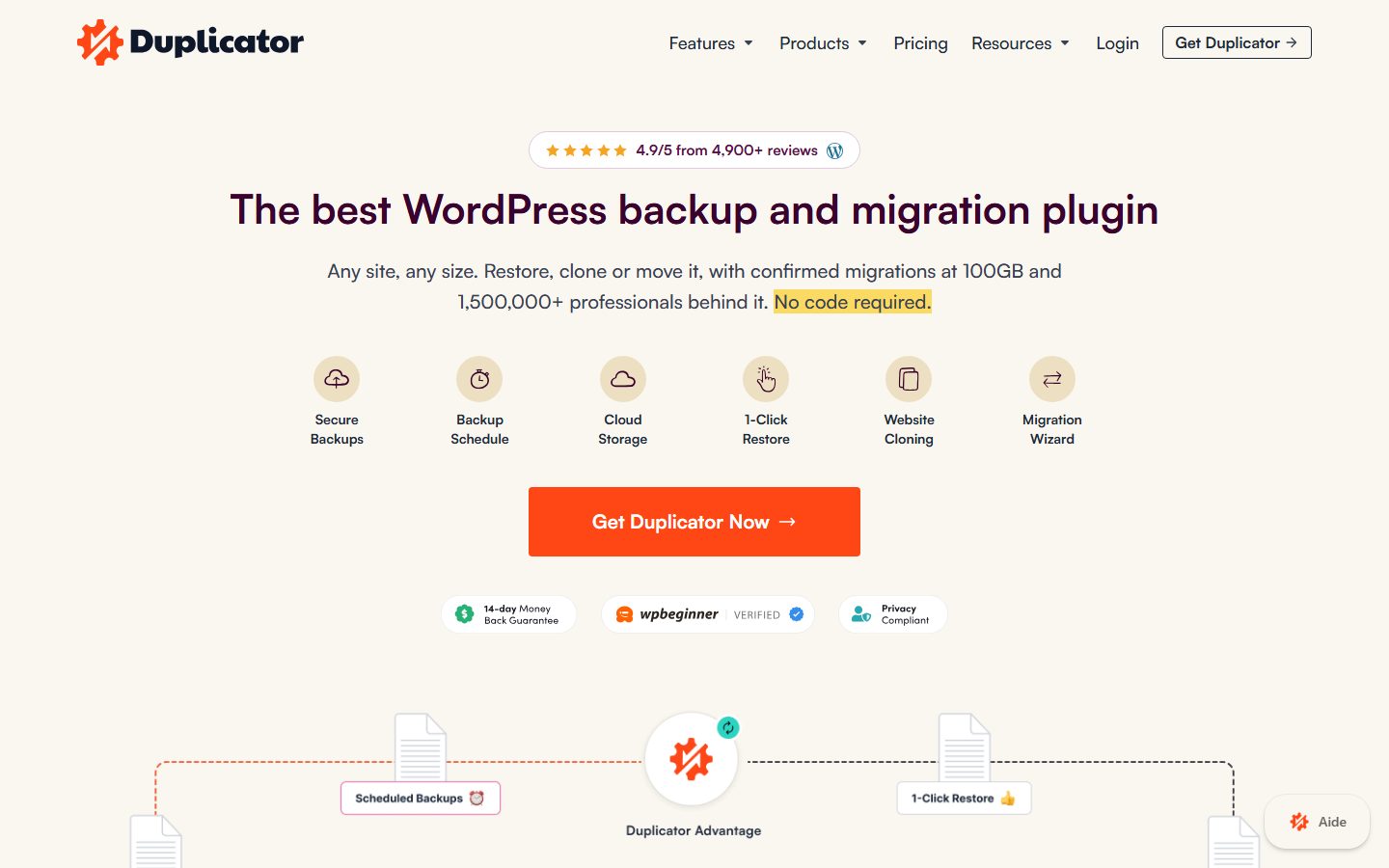
This section summarizes six well-known WordPress backup tools using their own plugin directory pages and documentation. These are vendor statements, WPMusk has not tested these tools, and plans, limits and prices change, so check the current pages before you choose. Use the screenshots to recognize each vendor’s site, and confirm the details there.
UpdraftPlus
According to its plugin directory page, the free version can send backups to Dropbox, Google Drive, Amazon S3 or compatible services, Rackspace Cloud, FTP, DreamObjects, OpenStack Swift or email. Backups can run manually or on a schedule from every few hours up to fortnightly, and you can restore a site in a few clicks and choose which components to restore, such as plugins, themes or the database. The page lists backing up non-WordPress files and databases as a Premium feature, along with extra destinations such as OneDrive, Azure, SFTP and UpdraftVault.
Jetpack VaultPress Backup
Jetpack’s support documentation describes a cloud-based service. It runs at least one full backup per day, plus quick synchronizations of specific changes as they happen, triggered by post, page, comment, media, theme, plugin, settings and user changes. You choose a preferred time of day for the daily backup, but you cannot change the frequency to hourly or weekly. Restores are available from WP Admin or from Jetpack Cloud, and you can restore selected items or individual database tables. It needs a Jetpack plan that includes backups, a working Jetpack connection, and does not support WordPress multisite on the Backup page in WP Admin.
BlogVault
According to the BlogVault plugin page, it makes incremental backups, meaning only changed data after the first full backup, encrypted and stored off-site, with up to 90 days of history and daily, weekly or monthly schedules. It lists real-time backups for WooCommerce, one-click restore including when the site is offline, a Test Restore feature that checks backups without touching the live site, and a one-click staging site on its own cloud. The page itself notes that the FAQ and feature list describe frequency slightly differently, so confirm the current schedule options.
Duplicator
The Duplicator plugin page lists packaging, migration and backups in the free version. Scheduled backups are listed as a Pro feature. The page says the free plugin stores backups locally and on Duplicator Cloud, while Pro adds destinations such as Dropbox, Google Drive, OneDrive, Amazon S3, FTP and SFTP, and other S3-compatible providers. Duplicator is especially known for packaging a site to move it between hosts or domains.
WPvivid
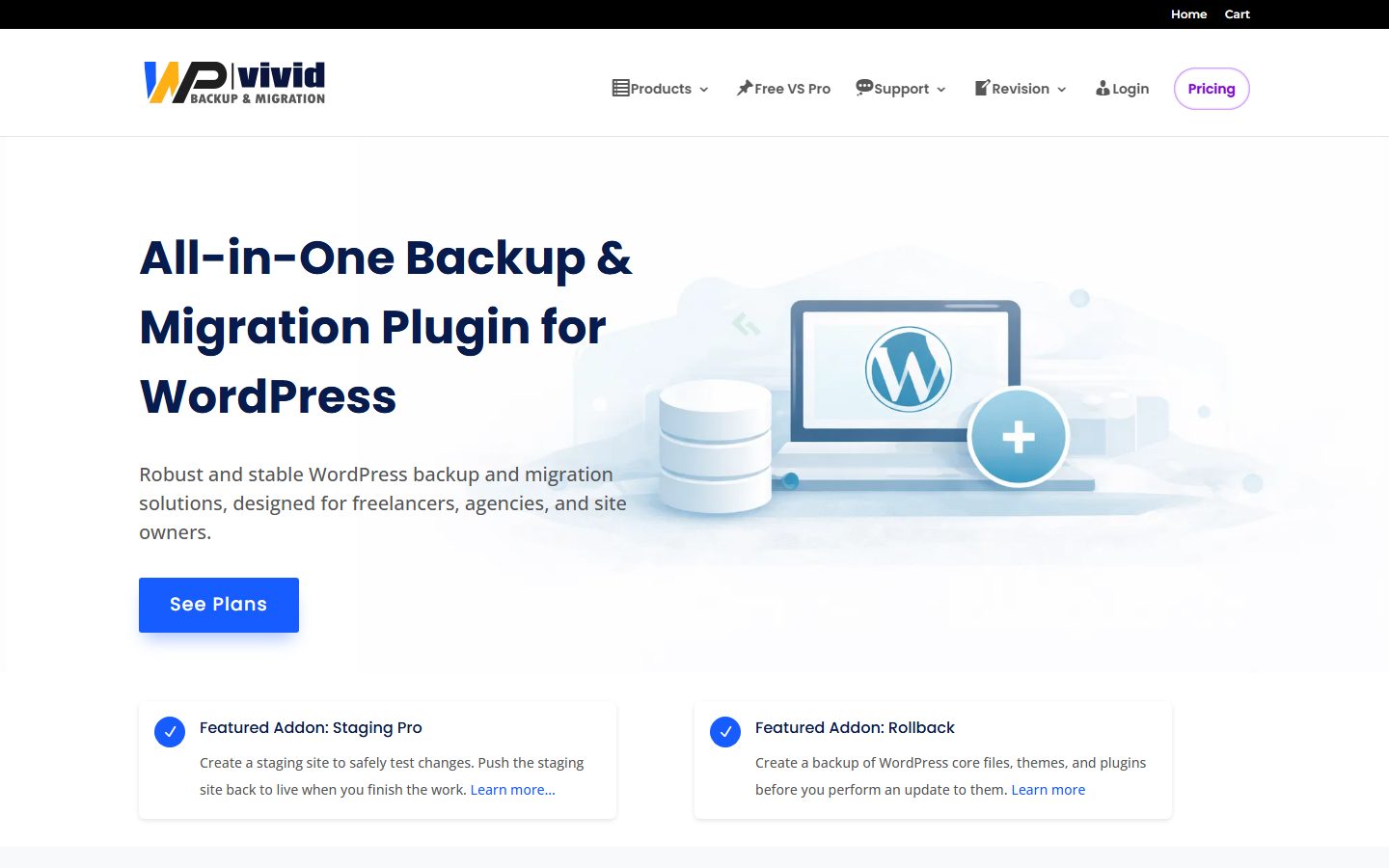
The WPvivid plugin page lists backup and restore of the whole site, all files or the database only, remote storage to Dropbox, Google Drive, Amazon S3, Microsoft OneDrive, DigitalOcean Spaces, FTP or SFTP, schedules from every 12 hours to monthly, and migration and staging features. It lists some remote restore and advanced schedule options under Pro, so check which features sit in which tier.
BackWPup
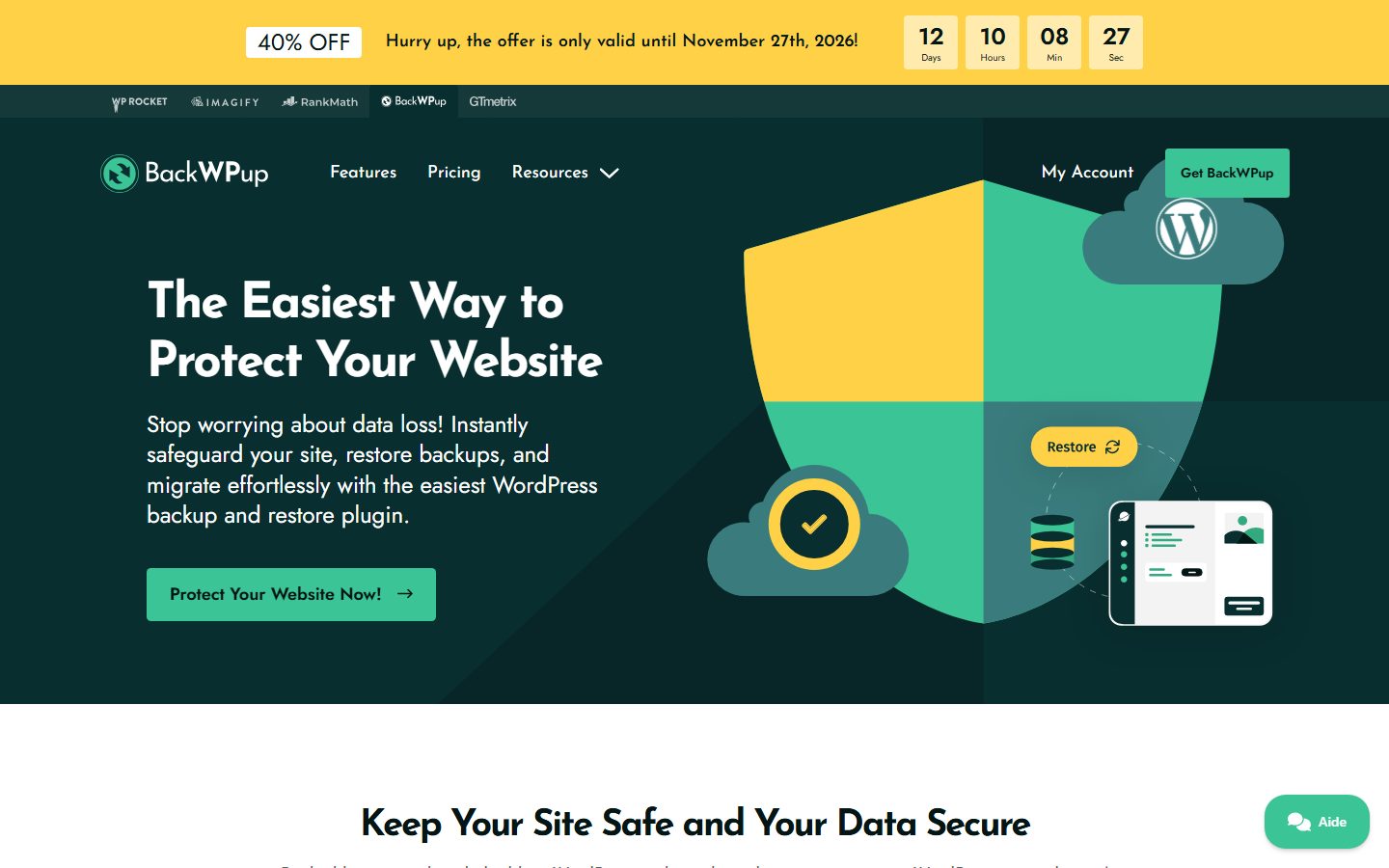
The BackWPup plugin page describes jobs that can cover the full site, the database only or files only, with destinations including the website server, Dropbox, FTP, Microsoft Azure, Amazon S3 and compatible storage, SugarSync and Rackspace Cloud Files. Automated backups can run hourly, daily, weekly or monthly. Restoring backups you upload manually is listed as a free feature. Direct cloud restores, encryption of backups and a standalone restore application are listed as Pro features.
Side by side
| Tool | Where backups can go (per vendor pages) | Schedule (per vendor pages) | Notes from vendor pages |
|---|---|---|---|
| UpdraftPlus | Several cloud services, FTP, email | Manual or every few hours to fortnightly | Non-WordPress files and databases listed as Premium |
| Jetpack VaultPress Backup | Jetpack’s cloud | Daily full plus real-time changes | Requires a plan with backups. No multisite on the Backup page. |
| BlogVault | Its own off-site storage | Daily, weekly or monthly, plus real-time for WooCommerce | Test Restore and staging features |
| Duplicator | Local and Duplicator Cloud in free | Scheduled backups in Pro | Strong on migration packages |
| WPvivid | Several cloud services, FTP and SFTP | Every 12 hours to monthly | Some advanced features in Pro |
| BackWPup | Local server, several cloud services, FTP | Hourly to monthly | Encryption and cloud restore are Pro |
How to choose
- Small, simple site and a cloud account you already have: a free plugin that writes to that cloud account on a schedule is enough, provided you test restores.
- Shop or membership site: look for tools designed to capture orders and changes continuously, and read how they handle a restore without losing newer orders.
- You want someone else to hold the copies: a hosted service stores backups on its own infrastructure, which gives you an off-site copy without managing storage yourself.
- You move sites often: choose a tool built around packaging and migration.
- Agency or many sites: look at central dashboards. This guide to tools for managing multiple sites helps.
Step by step: set up a scheduled off-site backup
This walkthrough is generic, because the screens differ between plugins and change over time. Follow the same steps in whichever tool you pick, and use the exact labels you see on screen.
Stage 1: Prepare
- Write down what the host already backs up, using the questions in the previous section.
- Choose the storage service you will use for off-site copies. It must be outside your hosting account. Create or open the account and turn on two-factor authentication for it.
- Check that the storage has enough space. As a rough guide, look at the size of your site in your hosting panel and multiply by the number of copies you plan to keep. Incremental tools use less.
- Take one manual backup of the site and download it to your own computer, as a first copy outside the host.
Stage 2: Install and connect
- Open the Plugins screen in the admin menu and add a new plugin. Search for the tool, check the number of active installations and the date of its last update on the plugin page, then install and activate it. The guide to vetting a plugin lists what to check.
- Open the plugin’s settings screen. It may be under Settings, Tools or its own item in the admin menu.
- Choose your remote storage. Follow the plugin’s connection steps. This typically opens a sign-in window from the storage provider and asks you to authorize the plugin.
- Use a dedicated folder or bucket for backups, not a shared folder.
- Run the plugin’s connection or storage test if it offers one.
Stage 3: Choose what to back up and when
- Choose the files and database both. If the tool splits them, make sure both are enabled.
- Check any exclusion list. Some tools exclude cache folders, other backup folders and sometimes large uploads by default. Excluding the cache and other plugins’ backup folders is sensible. Excluding uploads is not.
- Set the schedule using the frequency table in this tutorial. If you can, back up the database more often than the files.
- Pick a quiet time of day for scheduled runs, when traffic is low, so the backup does not compete with visitors.
- If the tool can send an email on success or failure, enable failure emails at least, and send them to an address you check.
Stage 4: Set retention
- Set the number of backups to keep, using the retention section below.
- Check how the tool deletes old copies. It should delete only copies it created, in its own folder.
Stage 5: Run the first backup and check it
- Run a backup now.
- Wait for it to finish. On a large site this can take a while. If it fails with a timeout or memory error, see the troubleshooting section.
- Open your remote storage in a browser and confirm that the files exist, have sensible sizes, and have the date and time you expect.
- Download one file, and check that it is not empty.
- Note the date of the first backup in your routine document.
A green tick in a plugin is not proof. A plugin can report success when the archive is incomplete, when a large folder was skipped, or when the file never arrived at the remote location. The only proof is a restore. Do the next stage before you consider the routine finished.
Off-site storage: where to keep the copies
An off-site copy is one that does not depend on your hosting account. The tools above support different destinations, so the choice depends on what you already pay for and trust.
| Destination | Good for | Watch out for |
|---|---|---|
| Cloud file storage (Dropbox, Google Drive, OneDrive) | Small and medium sites, easy browsing and download | Storage quota, account security, and API connections that expire. Check that sync clients on your computer do not copy deleted files out again. |
| Object storage (Amazon S3 and compatible services) | Larger sites, long retention, fine-grained access control | More setup. Credentials and permissions need care. Costs depend on storage and transfer, so check the current pricing. |
| The backup service’s own storage | You want no storage to manage | You depend on that vendor. Check retention limits and how to export your data. |
| FTP or SFTP to another server | You already own a second server | Plain FTP is not encrypted. Prefer SFTP where offered. A second server needs its own security and monitoring. |
| Your own computer or an external drive | An offline copy that no one can reach over the internet | Manual. It is only as current as your last download. Drives fail, so do not make it your only copy. |
| Email attachments | Tiny databases only | Size limits, and your inbox is not a vault. UpdraftPlus lists email as an option, but it suits only very small backups. |
The WordPress documentation recommends storing copies in different places, such as the host server, cloud storage and a local computer, and notes physical media like drives for files.
Rules for choosing storage
- Separate login. The storage account should not share a password with your hosting or WordPress admin.
- Two-factor authentication on the storage account. See the two-factor authentication guide for the principle.
- A different company from your host where possible. A single provider outage or account problem should not affect both copies.
- A different region from your site. If the storage offers regions, pick one other than where your server sits.
- Enough capacity for your retention plan. A full backup every day for 30 days of a large site is a lot of data. Use incremental or less frequent full backups to control it.
- A way out. Confirm you can download backups and restore them without the plugin that made them. Some formats are readable only by the originating tool.
Restore testing, step by step
A restore test is the only way to know a backup works. CISA’s guidance for small businesses recommends scheduled recovery tests to verify backup integrity, and the ability to restore data both fully and partially. For WordPress, that means rebuilding the site from your backup somewhere that is not your live site, and checking that it works.
Where to test
- A staging site on your host, if the host provides one. See the staging site guide.
- A local development environment on your computer, using a local WordPress tool.
- A throwaway hosting account or subdomain on a different host.
- The tool’s own test feature, if it has one. For example, BlogVault’s page lists a Test Restore feature that checks backups without touching the live site. Even then, do a manual test at least once.
Never test a restore by overwriting your live site. If the backup is bad, you will have destroyed the only working copy. Always restore to a separate location first.
Restore with a backup plugin
- Create a new, empty WordPress installation on your test location. Use the same major WordPress version if you can.
- Install the same backup plugin and activate it.
- Connect it to the storage where the backup lives, or upload the backup files into the plugin. Some tools need the backup folder placed in a specific location. Follow the vendor’s documentation.
- Choose the backup to restore. Pick the most recent one first.
- Select the components to restore. For the test, restore everything: database, plugins, themes, uploads and other files.
- Start the restore and wait for it to finish. Do not close the browser tab.
- Log in. Your old login may be needed now, because the restore replaces users from the backup.
- Run the checks below.
Restore by hand: files and database
You should know the manual route at least once, because a plugin may not work when the site is broken. The WordPress documentation describes the order: when backing up, copy the database first, then the files. When restoring, put the files in place first, then import the database. If database credentials changed, update wp-config.php to match.
- Create an empty database and a database user on the test location, and note the name, user, password and host.
- Upload the backed-up WordPress files to the test location’s web folder, including the
wp-contentfolder with themes, plugins and uploads. - Open
wp-config.phpand set the database name, user, password and host to the test location’s values. - Import the database. In phpMyAdmin, select the empty database, open the Import tab, choose your SQL file and run it. For large files, the command line is more reliable than a browser upload.
- If the test location uses a different address than the original, update the site and home address values. The WordPress documentation on migrating says you can set
siteurlandhomein the options table, or defineWP_HOMEandWP_SITEURLinwp-config.php, which stops you editing them on the General settings screen. If the domain changed, use WP-CLI’s search-replace or a plugin such as Better Search Replace. Do not run a plain find and replace over the whole database, because it can break serialized data, and do not change theguidcolumn. - Re-save the permalinks so
.htaccessis regenerated, and check custom redirects. - Run the checks below.
The WordPress documentation shows how to take the database backup from the command line with mysqldump, using the syntax below. Replace the placeholder names with your own details. It will prompt for the password.
mysqldump --add-drop-table -h mysql_hostserver -u mysql_username -p mysql_databasename > blog.bak.sqlTo compress it, the same documentation pipes the output through gzip:
mysqldump --add-drop-table -h mysql_hostserver -u mysql_username -p mysql_databasename | gzip > blog.bak.sql.gzThis backs up only the database, not the files. The documentation also describes exporting through phpMyAdmin: select your database, open the Export tab, choose the Custom option, keep all tables (or only those with your table prefix if other applications share the database), set compression to zipped or gzipped for large databases, keep the SQL format, enable the option that adds DROP TABLE statements, and click Go. Command line access and phpMyAdmin availability depend on your host. If you use WP-CLI, this guide to WP-CLI maintenance covers it.
The restore checklist
- The home page loads, and looks right on desktop and phone.
- Several posts and pages open, and their images show.
- You can log in to the admin and see the expected plugins, themes, users and settings.
- The newest post you remember publishing is there. If it is not, you restored an older backup than you thought.
- The menu, forms and search work.
- For a shop: products, a recent order, customers and the checkout page are present. Use test mode, and make sure the test copy cannot send real emails or take real payments.
- Media library items open, and the uploads folder has the right size.
- Permalinks work and pages are not returning not-found errors.
- Note how long the restore took, and what went wrong. That is your recovery time for planning.
Keep your test copy out of search engines and away from real email. Use a password-protected or noindex setup for a staging or test site, and disable outgoing email, payment gateways and scheduled tasks that contact customers. A copy of your live site that emails customers is a common and embarrassing mistake.
How often to test
- Once, right after you set up the routine.
- After you change the backup tool, the storage, the host or the PHP version.
- On a schedule: at least a few times a year for a small site, and more often for a shop. CISA recommends scheduled tests but does not give a number, so choose one you will keep.
- After any backup failure email or any odd change in backup size.
Put the date of the last successful restore test in your routine document. If the date is more than the interval you chose, test again.
Using staging with your backups
A staging site is a private copy of your site used to try changes. It is related to backups in three ways. First, it is the safest place to test restores. Second, it is a place to test updates before you apply them live, which reduces the number of times you need an emergency restore. Third, some tools can create or refresh staging from a backup.
A safe update workflow
- Make a backup of the live site, or confirm the last scheduled one succeeded.
- Create or refresh the staging copy from the live site.
- Apply the update on staging.
- Test the pages and features that matter.
- If it works, apply the update on live, outside your busiest hours.
- Check the live site and keep the backup for a while before you delete it.
The staging site guide covers setup, and the agency staging and QA workflow shows a more formal process. If you let an AI agent make changes to a site, this guide to an AI agent staging workflow explains why a backup and a staging step come first.
Be careful pushing staging to live. Pushing a whole staging database to a live shop or membership site can overwrite orders, comments and signups made since the copy. Push files and selected changes instead, or use a tool that merges selected tables.
Retention: how long to keep backups
Retention is the rule that decides how many copies you keep and for how long. Too short, and you cannot go back to before a slow-burning problem began. Too long, and you pay for storage and keep more copies of data than you need.
The WordPress documentation advises keeping at least three to five recent backups. Vendors set their own limits: BlogVault’s page mentions up to 90 days of history, for example. These are tool limits, not rules for you.
A starting rule
| Layer | Keep | Purpose |
|---|---|---|
| Recent | The last 7 to 14 daily or frequent copies | Undo a recent mistake or bad update |
| Medium | Around 4 weekly copies | Go back to before a problem you noticed late |
| Long | Several monthly copies, or fewer for a small site | Recover from slow corruption, an old infection or a deleted page nobody noticed |
| Milestones | One copy before each major launch, migration or redesign, kept longer | A known-good state to return to |
This is a planning suggestion, not a standard. Scale it to your site size and storage budget.
Questions that shape retention
- How quickly would you notice a problem? If a hack could sit unseen for a month, one week of copies is not enough.
- Do you hold personal data? Backups contain customer and user data. Privacy laws may limit how long you may keep it, and may require you to delete it on request. Check the rules that apply to you, because we cannot give legal advice here.
- Do you have a legal duty to keep records? Shops may need to keep order records for tax purposes. Rely on your accountant’s advice and your jurisdiction’s rules.
- How large is each backup? Large sites need incremental backups or a smarter retention policy.
Keeping the backups themselves secure
A backup contains everything an attacker wants: your database with user details, your configuration file with database credentials and security keys, and your code. A leaked or stolen backup can be as damaging as a hacked site. CISA advises leveraging protections for backups, including physical security, encryption and offline copies, and knowing how to access critical files even without an internet connection.
Protect access
- Use strong, unique passwords for the storage account, and turn on two-factor authentication. The two-factor authentication guide explains how it works.
- Give the backup connection the least access it needs. For object storage, create a dedicated user or key that can write to one location, and avoid using the account’s main credentials. Where the storage supports it, prevent the backup user from deleting or overwriting old copies. The least privilege guide explains the idea.
- Limit who is an administrator. A backup plugin runs with administrator rights, and an attacker with an administrator login can often download or delete backups.
- Do not store backups in a publicly reachable folder. Some plugins by default write archives to a folder inside
wp-contenton the web server. If the folder is not protected, anyone who guesses a file name could download the site. Check that directory listing is off and that the plugin protects the folder. Better still, send backups off the server and remove local copies once they are uploaded, if the tool allows it. - Review the API connections. In your storage account’s security settings, you can see which apps are authorized. Remove ones you no longer use.
Encrypt where you can
Encryption means that a stolen file cannot be read without a key. Some tools encrypt backups (BackWPup’s page lists encryption as a Pro feature, and BlogVault’s page says its backups are encrypted). Storage providers also offer encryption of data at rest. If you encrypt, keep the key or password somewhere separate from the backup, such as a password manager, and test that you can restore with it. A lost key makes the backup useless.
Keep one copy out of reach
Ransomware and account takeovers can reach anything that is connected and writable. An offline copy, such as an external drive that you connect only to download a backup and then disconnect, or a storage setting that stops old versions being altered, protects against an attacker who has your credentials. Even a monthly manual download is worth having. Note that a cloud sync folder on your computer is not offline, because malware can encrypt the synced files and sync the damage back up.
Handle personal data responsibly
- Backups of a site with customers or members contain personal data. Treat them with the same care as the live database.
- When you restore a copy to staging or a local machine, remember that it also contains real data. Limit who has access to it, and delete the test copy when you finish.
- If you delete a user at their request, remember that the data may still be in older backups. Your retention period needs to match your privacy commitments. Ask a qualified adviser for the rules that apply in your country.
Watch for backups that grow strangely
A sudden jump or fall in backup size is a useful signal. A much larger backup can mean a runaway log, a spam flood, or a file dump left by an attacker. A much smaller one may mean a folder was skipped or the database export failed. Note the normal size in your routine document and look at it each time you check.
Disaster scenarios and what to do in each
Plan for the scenarios before they happen. Each of these is a short drill you can rehearse.
Scenario 1: a bad update breaks the site
- Do not panic and do not run more updates.
- If the admin is reachable, deactivate the plugin or switch the theme you just updated. If the admin is not reachable, rename that plugin’s folder using your host’s file manager or SFTP, which deactivates it.
- If that fixes it, find an update, a fix or an alternative.
- If not, restore the most recent backup from before the update. Prefer a host restore point for speed, or a plugin restore to staging first if you have time.
- Check the restored site against the restore checklist.
Scenario 2: you deleted something important
- Check the Trash in WordPress first. Posts and pages go to the Trash and can be restored from there. Media may not.
- For a post, check the revisions, which let you roll back to an earlier version.
- If it is gone, restore the backup to a staging copy, find the item, and copy it back into the live site. Many tools let you restore individual components such as the database tables or the uploads folder. Jetpack’s documentation, for example, says you can restore selected items or individual database tables, and UpdraftPlus lets you choose which components to restore. Selective restores reduce collateral damage.
Scenario 3: the site is hacked
- Put the site into maintenance mode or take it offline if it is serving malware or spam.
- Change passwords for WordPress administrators, hosting, database, SFTP and the backup storage, from a clean computer.
- Identify when the infection happened if you can. A backup from before that date is the candidate, so this is where retention depth pays off.
- Restore the clean backup to staging first and check it. Restoring a backup that already contained the malware just brings it back.
- Update everything, remove unused plugins, and close the hole. If you restore and do not fix the cause, the attack repeats.
The full process is in the hacked site recovery guide, and prevention is covered in the WordPress security guide and the security plugins comparison.
Scenario 4: your host fails or closes your account
- Confirm that the problem is the host and not DNS or your domain.
- Get a new host and an empty WordPress install, as in the restore by hand steps.
- Restore from your off-site copy. This is the scenario that justifies the off-site rule.
- Update DNS records to point at the new host. Keep your DNS and domain details in your routine document so you can do this quickly.
The migration guide explains the move, and the hosting guide helps you decide where to go.
Scenario 5: the backup is bad
- Try the next older backup. This is why retention keeps several.
- Try a different source: the host’s backup if the plugin one failed, or the manual download.
- If the archive is damaged, check whether the download completed and whether the file size matches the storage listing.
- Afterwards, work out why it failed, fix the cause and test again.
Scenario 6: the shop lost orders in a restore
- Keep the broken or newer copy of the database before you overwrite it, so the missing orders can be recovered from it.
- Check the payment gateway’s own dashboard. Payments are recorded there independently of your site, which lets you reconcile orders.
- Check order notification emails you received.
- Rebuild missing orders manually or with a tool, and contact affected customers.
- Afterwards, adopt real-time or hourly database backups for the shop.
Scenario 7: you are locked out of everything
Keep a printed or offline note of where your recovery information lives: password manager emergency access, the registrar account, the host account and who owns the email address that receives the resets. A backup that you cannot reach because you lost the storage login is no use. If other people depend on the site, make sure one more trusted person knows where to find it.
Recovery targets
Two numbers help you plan, and you can decide them without any special tool:
- How much data can I lose? This is set by your backup frequency.
- How long can the site be down? This is set by how fast you can restore. Your restore test tells you. If a restore takes three hours and you can only afford one, change the setup: use a host restore point, a lighter site, or a faster tool.
Troubleshooting backups
| Symptom | Likely cause | Fix |
|---|---|---|
| Backup never finishes, or times out | Large site, low server time or memory limits, slow storage connection | Split files and database into separate jobs, exclude cache folders, ask your host about limits, use incremental or hosted backup tools |
| Backup runs but nothing arrives in remote storage | Expired authorization, full storage, blocked connection | Reconnect the storage, check free space, read the plugin’s log |
| Scheduled backups do not run | WordPress scheduled tasks only run when someone visits the site, and may be disabled or blocked | Check how your host handles scheduled tasks and whether a real server cron job is recommended. Visit the site, and check the plugin log. |
| Backups fill the storage | Retention too long, full copies too frequent | Reduce retention, move to incremental, or enlarge the storage |
| Restore fails halfway | Time or memory limits, version mismatch, corrupted archive | Raise limits, use the same PHP and WordPress versions, try an older backup, restore manually |
| Restored site shows errors about the database | Wrong credentials in wp-config.php, incomplete import | Check database name, user, password and host, and repeat the import into an empty database |
| Restored site redirects to the old domain | Site and home address values still point to the old address | Update the address values or define the constants, then search and replace safely |
| Images missing after restore | Uploads folder not backed up, or path differences | Check the uploads folder in the archive, restore files first, check upload paths |
| Permalinks give not-found errors | .htaccess missing or not regenerated | Re-save the permalinks on the Permalinks settings screen |
| Backup plugin slows the site | Backup runs at a busy time, heavy compression | Move to a quiet hour, lower compression, or use an external service |
| Email says backup failed | Any of the above | Read the log, fix the cause, run a manual backup, and verify |
Write your routine down
A routine that lives in your head is a routine that fails at the worst time. Write it down in a document that you can read when the site is offline. Here is a template to copy.
Template
- Site and owner. Domain, host, who is responsible.
- What is backed up. Database, files, anything extra, anything excluded.
- Tools. Host backup (what, how often, how long), plugin or service (which, version).
- Schedule. Database frequency, files frequency, time of day.
- Storage. Each location, account name, where the login details are kept, whether two-factor authentication is on.
- Retention. How many copies, for how long.
- Notifications. Who receives failure emails.
- Restore procedure. The steps for the plugin restore and the manual restore, written in your own words from your test.
- Restore test log. Dates, what was tested, how long it took, problems found.
- Key accounts. Registrar, DNS, host, email, payment gateway, licenses.
- Emergency contacts. Host support, developer, the second person who can recover things.
A monthly check, in ten minutes
- Open the storage and look at the latest backups. Are they there, and recent?
- Compare their size with last month’s.
- Check the plugin log or the notification emails for failures.
- Check that the storage has space.
- Look at the date of the last restore test.
- Add backup review to your regular maintenance checklist.
Before a risky change
- Run a manual backup.
- Confirm that it reached remote storage.
- Note the time. If you need to roll back, you know which backup to use.
Recap checklist
- I know the two parts of a WordPress backup, the database and the files, and my tool covers both.
- I read my tool’s documentation about what it excludes.
- I follow the 3-2-1 idea: at least three copies, on two kinds of storage, with one outside my hosting account.
- My backup frequency matches how much work I can afford to lose.
- I know exactly what my host’s backups include, how long they are kept and how I restore them.
- Backups go to storage with its own login and two-factor authentication.
- Retention keeps recent, weekly and monthly copies, plus a copy before each major change.
- I did a restore test on staging or a separate location and wrote down how long it took.
- Backups are not stored in a public folder, and are encrypted where possible.
- One copy is offline or protected from being deleted.
- I receive failure notifications.
- The routine is written down, with account details and a restore log.
- I back up before every update and every risky change.
- I check the backups monthly and test restores on a schedule.
What to do next
Once your backups are in place, you can make changes with more confidence. Start with speeding up a slow site, which asks you to back up before each change, and tighten your defenses with the security guide. If you are still setting the site up, the launch tutorial walks you through the whole process, and the introduction to WordPress explains the parts you have just learned to back up. For a wider set of routine tasks, use the maintenance checklist.
FAQ
Do I need backups if my host already makes them?
Yes. Host backups are useful, but they usually live under the same account and provider as your site, and the details vary. Keep at least one independent copy outside the host. Ask your host exactly what its backups cover, how long it keeps them and how you restore.
How often should I back up my WordPress site?
The WordPress documentation suggests about weekly for small sites with few posts, daily for high-activity sites, and always before an upgrade or a move. Shops and membership sites often need more frequent or real-time database backups. Base it on how much recent work you can afford to lose.
What exactly should a WordPress backup include?
The database, and the files: themes, plugins, uploads, and configuration files such as wp-config.php and .htaccess. WordPress core can be downloaded again, but many backups include it anyway. Check what your tool leaves out.
What is the 3-2-1 rule?
Three copies of your data, on two different types of storage, with one copy off-site. CISA describes it as a trusted guideline for small businesses.
Is it enough to store backups on my web server?
No. If the server fails, is hacked or the account is closed, the backups go with the site. Send at least one copy to storage you control outside the host.
Which backup plugin is best?
It depends on your site and budget. Compare where backups can go, how scheduling works, how restores work, and what is free and what is paid. We list the vendor claims above and in the backup plugin comparison, but WPMusk has not tested these tools, so test your choice yourself.
How do I know a backup works?
Restore it to a separate location and check the site. A completed backup job does not prove that the backup is complete or usable.
How many backups should I keep?
The WordPress documentation says at least three to five recent ones. A layered approach is better for many sites: recent frequent copies, several weekly ones, and a few monthly ones. See the retention section.
Can I restore just one page or one table?
Some tools can. Jetpack’s documentation says you can restore selected items or individual database tables, and UpdraftPlus lets you choose which components to restore. Otherwise you can restore the full backup to staging and copy the item across.
Should I encrypt my backups?
If they contain customer or member data, yes where you can. Some tools offer encryption, and some storage providers encrypt at rest. Keep the key separate from the backup and test that you can restore with it.
Will a backup plugin slow my site down?
It can while it runs, particularly on large sites with limited server resources. Schedule runs for quiet hours, exclude cache folders and consider hosted services that do the work off your server.
What about restoring a shop without losing orders?
Restoring an older backup can remove newer orders. Use real-time or very frequent database backups, check how your tool treats orders, keep a copy of the current database before overwriting it, and reconcile against your payment gateway’s records.
Do backups protect me from a hack?
They help you recover, but only if the backup predates the infection and the hole is closed before you restore. Retention depth matters here. They do not replace updates, strong passwords and two-factor authentication.
Can I use a backup to move to a new host?
Often yes, and some tools are designed around it. Follow the steps in the migration guide, and keep the old site running until the new one is verified.
Let your AI assistant do this for you
Open the ready prompt with step‑by‑step instructions for running it through NibWP.