A buyer's guide to WordPress themes for online courses: lesson layouts, LMS plugin compatibility, speed and student experience.
What a course theme does, in plain words
A course theme is a WordPress theme styled for teaching online. It shapes the pages students see: the course catalogue, a course landing page, the lesson page with its video or text and a progress sidebar, quizzes, the student dashboard and the certificate or completion screen. It also shapes the pages that sell the course.
The theme does not teach anything on its own. Courses, lessons, quizzes, enrolments and progress tracking come from a learning management system (LMS) plugin. The theme’s job is to make that plugin’s output look coherent and load quickly. That makes compatibility the first question: a theme that looks great but fights the plugin’s templates will cost you weeks.
How it works under the hood
An LMS plugin stores courses, lessons and quizzes as custom content types and renders them with its own templates. A theme can leave those templates alone, restyle them with CSS, or override them with its own versions. A block theme can go further, if the plugin supports block templates, by letting you edit course pages in the Site Editor.
Take Sensei LMS as an example. According to its wordpress.org listing, it is made by Automattic and lets you build courses and lessons in the WordPress block editor, embed video from YouTube, Vimeo and VideoPress, and use several quiz question types. Tutor LMS, per its listing, has a course builder, quiz builder, content drip, certificates and student dashboards. LifterLMS, per its listing, covers sections, lessons, quizzes, assignments, access plans and memberships. Each has its own templates, so the same theme can look different with each.
The selling side is separate again. Selling a course may use the LMS’s own checkout, a store plugin, or a membership plugin. See membership plugins and recurring billing. The theme must style whichever route you pick.
Who needs one (and who does not)
You need a course-oriented theme if you sell or run courses on your own site and want control over branding and pricing, instead of publishing on a marketplace. Schools, trainers, coaches, product teams that train customers and membership sites with lessons all fit.
You may not need one if you have a few video lessons behind a simple login: a general block theme with a membership plugin can serve. If your content is mostly reference material rather than sequenced lessons, a documentation setup may be better; see our docs theme guide. If you sell digital downloads rather than lessons, see selling digital products.
Types and approaches
| Approach | How it works | Strength | Trade-off |
|---|---|---|---|
| Theme built for one LMS | Designed with a specific LMS plugin’s templates in mind | Tight fit, less cleanup | Tied to that plugin |
| General theme with LMS support | Styles several LMS plugins | Flexible | Support depth varies per plugin |
| Block theme with block-based LMS templates | Course pages editable in the Site Editor | Modern, editable | Needs a plugin that supports block templates |
| LMS plugin with its own template set | Plugin controls the look; theme stays neutral | Predictable student pages | Less design freedom |
| Builder-driven course pages | Page builder designs course pages | Visual control | Extra weight, builder lock-in |
What to look for
Our theme weights are speed impact 30%, reliability 25%, support 20%, value 15%, ease of use 10%.
Speed impact (30%)
Course sites mix heavy elements: video embeds, progress bars, quizzes. web.dev’s “good” thresholds at the 75th percentile are LCP 2.5 seconds or less, INP 200 milliseconds or less and CLS 0.1 or less. Video embeds are a common LCP and CLS culprit if they do not reserve space. Check how the theme loads them. See the PageSpeed Insights guide.
Reliability (25%)
A broken lesson page is a support ticket from a paying student. Check the update record, the stated LMS compatibility and how the theme tracks LMS plugin changes. Both the theme and the plugin need to be maintained.
Support (20%)
Look for documentation on the LMS integration specifically and a place where you can see issues raised and answered. A theme made by the LMS vendor has the advantage that both are supported by one team.
Value (15%)
Check which LMS features are free and which are paid add-ons, and whether the theme adds its own paid tier. Compare yearly costs for the whole stack: theme, LMS, payment, membership, video hosting. Check each vendor’s pricing page.
Ease of use (10%)
You will create courses repeatedly. Check how long it takes to build a course landing page, add a lesson and publish. Check the student’s view as well: can they find where they stopped?
Lesson page layout
Look at the lesson template on a phone. The video, the lesson text, the next-lesson button and the progress indicator should be reachable without confusion. Check the layout when a lesson has a long text, a quiz and attachments.
Student dashboard and account area
Check the enrolled courses list, progress display, certificate access and profile editing. Students return to this page, so clarity matters.
Checkout and access control
If you sell through the LMS or a store plugin, test the full purchase and enrolment path on staging. If you use a store, see the WordPress ecommerce guide.
Accessibility
Students include people using keyboards and screen readers. Check captions or transcripts for video (your content, not the theme’s), focus order in quizzes and contrast in progress bars.
Real products to look at
These are examples, not a ranking. Descriptions come from wordpress.org listings and may have changed.
Course (theme). A theme by Automattic. Its listing describes it as an education theme for sharing knowledge, built to integrate with Sensei LMS and also usable without Sensei, with block theme support and block editor patterns. It suits you if you plan to use Sensei.
Sensei LMS (plugin). By Automattic. The listing describes courses and lessons built in the block editor, video embeds and several quiz question types, plus progress and performance reports. It is an LMS to pair with the theme above or any compatible theme.
Tutor LMS (plugin). By Themeum. The listing describes a course and quiz builder, native e-commerce, subscriptions and bundles, content drip, certificates, live lessons, student dashboards and multi-instructor support. It fits larger course catalogues with several teachers.
LifterLMS (plugin). The listing describes a free open-source LMS covering sections, lessons, quizzes, assignments, access plans and memberships, with add-ons and integrations, and notes REST API and WP-CLI access. It fits sites that mix courses and memberships.
Kadence and Blocksy (themes). General themes with paid tiers. The Kadence listing says you can build course websites and does not mention LMS plugins by name. The Blocksy listing does not mention LMS. Check each vendor’s documentation to see which LMS plugins they test against.
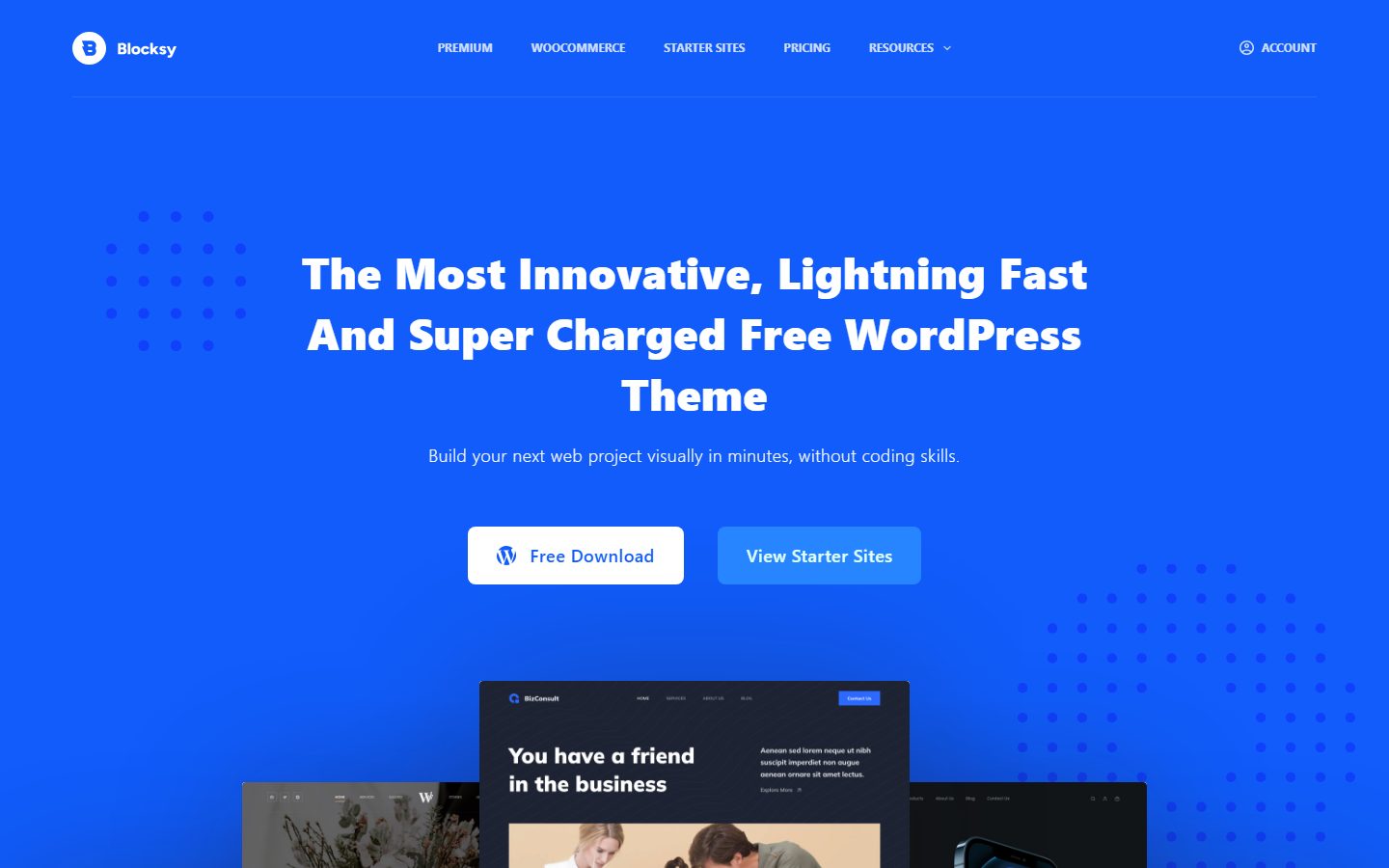
For wider theme choices, see best block themes for WordPress.
A comparison checklist you can fill in
| Check | Theme A | Theme B | Theme C |
|---|---|---|---|
| Named LMS plugin(s) supported, with version | |||
| Course catalogue and landing page patterns | |||
| Lesson template works on a phone | |||
| Student dashboard styled | |||
| Quiz screens styled | |||
| Checkout path tested | |||
| Video embeds reserve space (no shift) | |||
| LCP, INP, CLS on a lesson page | |||
| Contrast and focus in quizzes | |||
| Update history |
Setup and migration steps
Before
Choose the LMS first, then the theme. Write down the course structure: modules, lessons, quizzes, certificates, prices and access rules. Back up and use staging (staging guide). If you already have students, do not change themes without testing as a student account.
During
- Install the LMS and theme on staging.
- Build one complete sample course: landing page, three lessons, one quiz.
- Style the catalogue, course, lesson, quiz and dashboard pages.
- Test purchase and enrolment, using test payment mode.
- Test as three roles: student, instructor and admin.
After
Switch in a quiet period, tell students if the layout changes, and watch support requests. Keep a checklist for each new course so each launch follows the same steps. See the maintenance checklist for updates.
Common mistakes and red flags
- Picking a theme before the LMS, then finding they do not fit.
- Choosing a theme for its demo, which uses plugins and content you will not have.
- Embedding large videos directly in the lesson page instead of using a video host.
- Stacking a page builder, a theme builder and an LMS builder on the same page.
- Testing as an administrator only, which hides what students see.
- No mobile test of the lesson page, where many students learn.
- Selling without clear refund, access and privacy pages.
- Ignoring what happens to student progress if the LMS is changed.
Cost and risk of switching later
There are two layers. Switching the theme is the cheaper one: courses and student data live in the LMS, so a new theme changes layout and not content, provided it supports the plugin. Switching the LMS is the expensive one: courses, lessons, quizzes, enrolments, progress records and certificates are stored in the plugin’s structures, and moving them may need import tools, custom work, or a rebuild. Check what each LMS offers for export before you commit.
Money risk includes yearly renewals for theme, LMS add-ons and payment tools, and a revenue risk if a switch disrupts access. Treat the LMS choice as the serious decision and the theme as the one you can change. Check each vendor’s licence terms for the number of sites and for what happens to updates when a licence lapses.
A one-afternoon evaluation plan on a staging copy
- Set up the LMS (30 minutes). Install your chosen LMS and create a sample course with three lessons and a quiz.
- Apply each theme (30 minutes each). Style the catalogue, course landing, lesson, quiz and dashboard pages.
- Student test (30 minutes). Enrol a test student, complete a lesson and quiz on a real phone. Pass: you can find the next lesson and your progress without help.
- Measure (30 minutes). Run PageSpeed Insights on a lesson with an embedded video. Pass: LCP at or under 2.5 seconds, CLS at or under 0.1, and the video area reserves its space.
- Purchase path (20 minutes). Buy the course in test mode. Pass: payment, enrolment email and access all work.
- Accessibility (15 minutes). Complete the quiz using only the keyboard. Pass: every control is reachable and visible.
- Exit check (10 minutes). Switch to Twenty Twenty-Five. Pass: course data remains and you know which pages need rework.
Designing the course landing page
The landing page is where a theme earns its keep, because it has to persuade a visitor and not only display information. A solid landing page answers, in order: what will I be able to do, who is this for, what is in it, who teaches it, what does it cost and what if it is not right for me. Check that the theme’s course patterns leave room for all six, including a syllabus list, an instructor block and a clear refund or guarantee statement if you offer one.
Write the claims yourself and keep them truthful. Do not copy testimonials or results from a demo, and do not state outcomes you cannot back up. If you have no student quotes yet, leave that section out until you do.
How we will evaluate it
WPMusk has not run hands-on tests of any course theme or LMS plugin yet. This page carries no score: it is guidance for choosing, not a measured result. In a full review we plan to build the same sample course on each theme with the same LMS, test as a student on a phone, measure speed on the lesson and catalogue pages and check checkout and quiz accessibility. Scores will follow the weights above.
Questions people ask
Do I need a theme made for my LMS?
Not required, but it reduces friction. Check the theme’s documentation for the LMS you plan to use, including versions.
Which LMS plugin should I choose?
That depends on your needs: pricing model, number of instructors, memberships, certificates. Compare features from each plugin’s own documentation, and test one on staging.
Can I run a course on a general block theme?
Yes, often. The LMS supplies the templates, and a clean block theme can sit around them. Test the lesson page on a phone.
Where should I host my videos?
Many sites use a video host and embed the player, to avoid heavy files on the web server. Check the LMS’s documentation for supported embeds.
Will changing the theme lose student progress?
Progress is stored by the LMS, so a theme change should not remove it. Test on staging with a student account to be sure.
Can I sell memberships as well as courses?
Some LMS plugins do this natively, and others pair with a membership plugin. See the membership guide linked above.
This is a buyer’s guide for a type of product. It is based on public documentation, not on hands-on tests, and it carries no score.
← All reviews