A guide to choosing a WordPress activity log plugin: what gets recorded, storage growth, alerts, retention and the privacy points to settle first.
What an activity log plugin does, in plain words
An activity log plugin keeps a record of what happens inside your WordPress admin and on your site: who logged in, who edited or deleted a page, which plugin was activated, which setting changed and when. It answers the question every site owner asks after something breaks: what changed, and who did it?
The record is also called an audit log or audit trail. It is a diary of events, not a security wall. It does not stop anything. It helps you investigate, hold changes accountable and spot unusual behavior early.
How it works under the hood
WordPress fires internal events, called actions and hooks, when content is saved, users log in, plugins are activated and settings are updated. An activity log plugin listens for those events, builds a readable entry with details such as time, user, role, IP address and the object affected, and writes it to storage.
By default the storage is your WordPress database. The WP Activity Log listing says logs are stored in the WordPress database by default, and that Premium can mirror or archive them elsewhere. Simple History’s listing describes forwarding logs to files, syslog or an external database in its premium add-on. Sucuri’s listing says its audit logs are not stored in the database, so storage design differs by product.
Two consequences follow. First, logs grow. A busy site can create a large table, so retention matters. Second, if an attacker gains administrator access, they may be able to edit or delete the log that is stored in the same database. Sending logs somewhere else limits that risk.
Coverage depends on hooks. WordPress core events are covered by most plugins. Events from other plugins, such as shop orders, forms or page builders, are only logged if the activity log has an integration or the other plugin fires standard hooks. Stream’s and WP Activity Log’s listings name third-party plugins they cover.
Who needs one (and who does not)
- Sites with several editors, authors or administrators benefit. When two people edit the same page or someone deletes a menu, the log shows what happened.
- Agencies and freelancers use logs to show clients what changed and when. See the agency workflow guide.
- Shops and membership sites want records of role changes, price edits and settings changes.
- Sites using AI agents have a new reason to log. When an agent can edit content through an interface such as MCP, a record of its actions is basic hygiene. See the AI agent security risks guide. Stream’s listing says it can log AI client generations from WordPress 7.0 onward as metadata and does not log prompt or response text by default.
- Single-author personal sites may not need one. Your host’s access logs or a security plugin’s basic log may be enough.
Logging has costs: storage, a small performance load and personal data in the log. Decide what you need to know before you install.
Types and approaches
| Approach | What it does | Fits | Watch out for |
|---|---|---|---|
| Dedicated activity log plugin | Records many event types with filters and search | Teams and agencies | Table growth; paid alerts and reports |
| Simple change log | Records main content and settings changes | Small sites | Narrower coverage |
| Security suite with a log | Audit log inside a firewall or scanner | Sites that already run that suite | Log depth may be limited |
| Log forwarded to external system | Sends events to syslog or a logging service | Compliance, larger teams | Setup effort; often paid |
| Host or server logs | Records web requests and errors | Developers and hosts | Does not describe who changed what in the admin |
| Revision history only | WordPress stores post revisions | Content rollback | No record of logins, settings or plugin changes |
What to look for
On WPMusk, plugins are scored on speed impact (30%), reliability (25%), support (20%), value (15%) and ease of use (10%). For an activity log, speed impact is the write load and table size, and reliability is whether events are captured completely and cannot be quietly removed.
Performance and storage growth (speed impact)
Every event is a write to the database. Look for event toggles so you can turn off noisy events, retention settings that prune old entries and options to move logs off the main database. Stream’s listing describes retention schedules with batch deletion. Check how the log screen performs once it holds many thousands of entries.
Event coverage (reliability)
List the events you care about: logins and failed logins, content changes, user and role changes, plugin and theme changes, settings changes, file changes and the third-party plugins you use. WP Activity Log’s listing covers all of these categories in its free edition. Simple History’s covers many of them and names integrations. Confirm your own shop, form and builder plugins are covered.
Detail level (ease of use)
A useful entry says who, what, when and from where, and shows old and new values where possible. Look at screenshots and the demo. If the entry only says “post updated,” it will not help you.
Retention and tamper resistance (reliability)
Look for configurable retention. The WP Activity Log listing says default retention is three months and can be configured, and that logs can be kept indefinitely. Simple History’s listing says the default is 30 days and that changing it through the interface needs Premium. Retention is also a privacy decision. Also ask whether administrators can delete log entries and whether logs can be mirrored or forwarded to a system the site cannot edit.
Alerts and notifications (value)
Real-time alerts for critical events, such as a new administrator or a plugin install, make a log active instead of passive. Check which tier includes alerts. WP Activity Log’s listing places email, SMS and Slack notifications in Premium, and Simple History’s places alerts and log forwarding in its premium add-on. Stream’s listing describes email alerts and webhooks.
Privacy and data handling (support, reliability)
Logs contain personal data: usernames, email addresses and IP addresses. Check whether the plugin masks IPs, who can view them and how to erase entries on request. Simple History’s listing says it masks IP addresses before storage by removing the last part and lets only administrators see them, while noting that a masked IP can still identify someone in combination with other fields. It also says compliance depends on how you use the plugin and your policies. Stream’s documentation warns that proxy headers are spoofable, so check how IPs are determined behind a proxy or CDN.
Access control and multisite (support)
Decide who can read the log. Editors seeing everything may be a problem. WP Activity Log’s listing mentions role-based viewing restrictions. Simple History’s says administrators see all events and editors see post and page events. For multisite, check network views.
Reports and export (value, ease of use)
You may need to send a client or auditor a report. Look for CSV or JSON export, scheduled reports and search filters. Stream’s listing describes CSV and JSON export. WP Activity Log’s lists HTML and CSV reports in Premium.
Real products to look at
These are examples, not rankings. Descriptions come from wordpress.org listings. Check each vendor for current tiers and prices.
- WP Activity Log (WP Security Audit Log). The listing describes logging of content, users, logins, plugins, themes, settings and file changes, with third-party coverage for plugins such as WooCommerce, Yoast SEO and Gravity Forms. Free includes retention policies and role-based viewing; Premium adds reports, notifications, statistics and multisite support. It fits teams that want deep coverage.
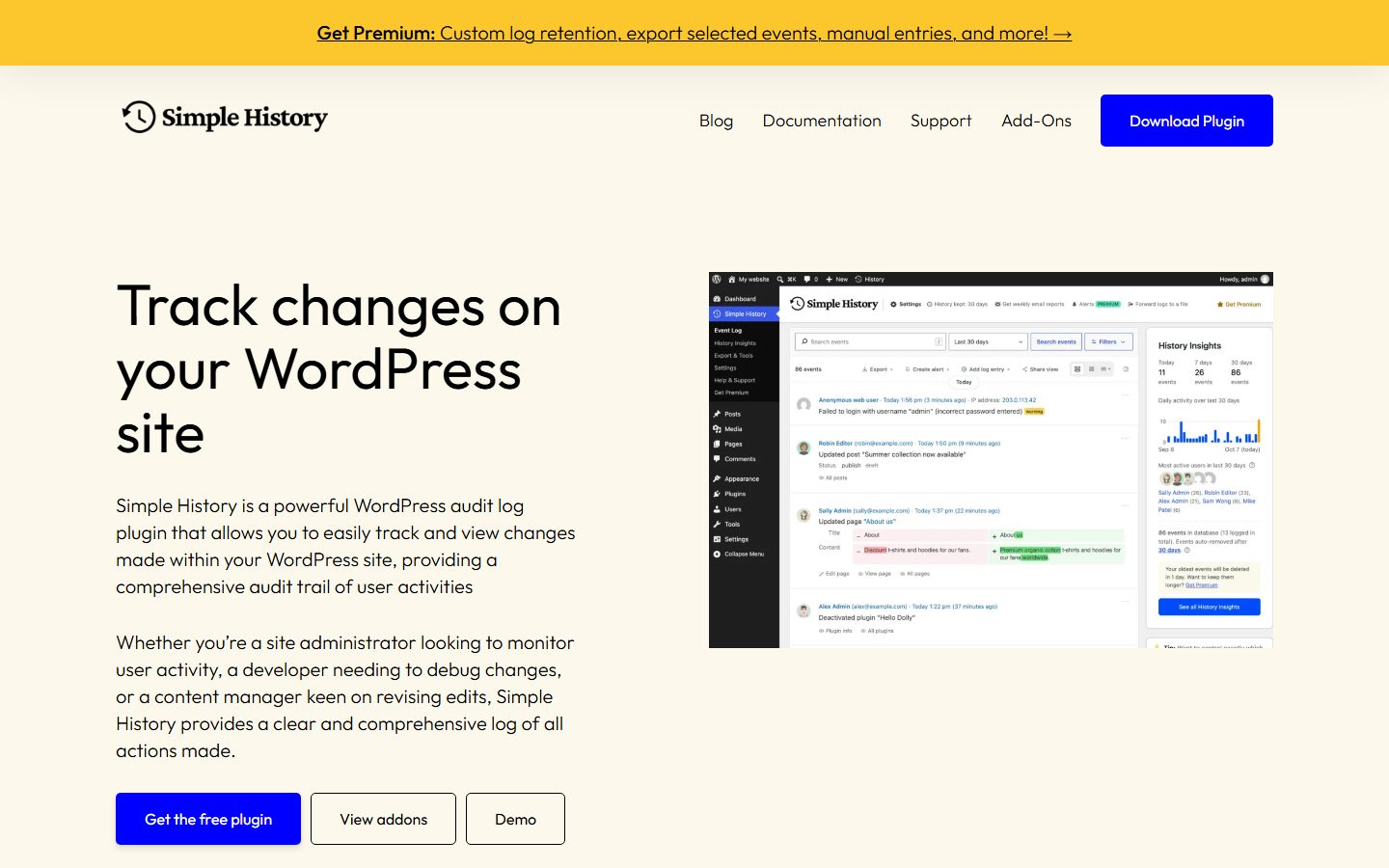
- Simple History. The listing describes a feed of events for content, users, security and system changes, a 30-day default retention, an RSS feed, REST and WP-CLI access and IP masking, with premium add-ons for alerts, forwarding and custom retention. It fits small teams who want a readable timeline.
- Stream. The listing describes records for core and plugin events with filters by user, role, context, action or IP, CSV and JSON export, retention schedules, alerts and webhooks, live updates, and says it is maintained by XWP and developed on GitHub. It fits people who want an open-source log with webhooks.
- Sucuri Security (audit log feature). The listing describes audit logging within a broader security plugin, with filters and CSV export. It fits people who already use that plugin and want a lightweight trail.
- AIOS (audit log feature). The listing mentions an audit log of events such as plugin or theme changes within its security suite. It fits people who want basic records inside a suite.
The screenshots below show the homepage of two of these examples as captured in November 2026, so you can see how each vendor presents the product.
A comparison checklist you can fill in
| Question | Why it matters | Your answer |
|---|---|---|
| Which events are logged? | Coverage | |
| Are your third-party plugins covered? | Shops, forms, builders | |
| Default retention and can you change it free? | Cost, privacy | |
| Where are logs stored? | Tamper resistance | |
| Can admins delete entries? | Trust | |
| Are IPs masked, and who sees them? | Privacy | |
| Which alerts are free? | Cost | |
| Can you toggle noisy events? | Table size | |
| Can you export or forward logs? | Reports, compliance | |
| Does it work with multisite? | Network sites | |
| Does it handle proxies and CDNs for IPs? | Accuracy |
Setup and migration steps
Before you switch
- Decide the questions the log must answer, such as who changed a price or who added an administrator.
- If you have an existing log, export it. Logs rarely move between plugins.
- Check your privacy policy and decide a retention period.
- Back up the database, since the plugin creates new tables.
During setup
- Install on staging first. See the staging site guide.
- Turn off events you will never read, such as frequent system events.
- Set retention to a value you can justify.
- Restrict log access to administrators.
- Set alerts for a short list of critical events, so they stay meaningful.
- If the log should be tamper-resistant, configure forwarding or mirroring.
After you switch
- Perform a handful of known actions and confirm each appears correctly.
- Check the database table size after a week and adjust retention.
- Add the log review to your routine. See the maintenance checklist.
Common mistakes and red flags
- Logging everything and reading nothing.
- No retention limit, so the table grows without bound.
- Keeping logs forever with personal data and no reason.
- Letting administrators erase entries when you rely on the log as evidence.
- Assuming the log covers all plugins. Verify the ones you use.
- Trusting IPs behind a proxy without checking how they are detected.
- Using the log as a security control. It records; it does not prevent.
- Shared admin accounts. A log that says “admin” did it is of little use. Give each person a login.
Red flags in a vendor: no description of storage or retention, no privacy documentation and promises of compliance without detail. Compliance depends on your use, not just the tool.
Cost and risk of switching later
History is the lock-in. A log only covers the period it was running, and entries stay in the old plugin’s tables. If you switch, you lose a continuous record unless you export first. Keep an export of the old log for as long as your retention policy says.
Cost differences come from tiers. Alerts, reports, longer retention and forwarding are common paid features, and Premium licences may be annual. Check pricing on the vendor’s page on the day you buy. Also check what happens to your data if a licence lapses and whether the log continues to record in the free mode.
A one-afternoon evaluation plan on a staging copy
- List your questions (15 minutes). Write down five things you want to learn from a log.
- Install (10 minutes). Install on staging with default settings.
- Perform test actions (30 minutes). Log in and out, fail a login, edit and delete a post, change a menu, change a setting, add a user, change a role, install and deactivate a plugin, and edit a shop or form item if you use one. Pass: each action appears with the right user, time and detail.
- Check old and new values (15 minutes). Pass: the entries show what changed, not just that something changed.
- Test third-party coverage (20 minutes). Act in your shop, form or builder plugin. Pass: the events appear, or you learn they do not.
- Test tamper resistance (20 minutes). As an administrator, try to delete log entries or the plugin. Pass: you understand what is possible and whether a forwarded copy remains.
- Test retention (15 minutes). Set a short retention and confirm the cleanup works.
- Test alerts (20 minutes). Trigger a critical event. Pass: you get a clear alert.
- Measure overhead (20 minutes). Compare admin response times and table size after a few hundred events. Pass: no noticeable slowdown.
How we will evaluate it
WPMusk has not run hands-on tests of activity log plugins yet. This page is a decision guide built from vendor listings and WordPress documentation. This page carries no score: it is guidance for choosing, not a measured result.
When we publish a full review we plan to follow the plan above and report what we did. Scores will use our plugin weights: speed impact 30%, reliability 25%, support 20%, value 15% and ease of use 10%. For related practice, see the AI agent staging workflow and the user roles guide.
Questions people ask
Is an activity log the same as a security plugin?
No. A log records events. A security plugin tries to block and detect threats. Some suites include both.
Will a log slow down my site?
It adds database writes. Turn off noisy events and set retention to keep it light.
How long should I keep logs?
Long enough to investigate problems and meet any legal or contractual need, and no longer. The defaults vary by plugin, so choose deliberately.
Can the log be edited by an attacker?
If it sits in the same database and an attacker has administrator access, possibly. Forwarding or mirroring logs elsewhere reduces that risk.
Does the log contain personal data?
Yes: usernames, emails and IP addresses. Treat it as personal data under your privacy policy.
Can I log what an AI agent did?
If the agent acts as a WordPress user, its actions appear like any user’s. Give it its own account so entries are attributable.
This is a buyer’s guide for a type of product. It is based on public documentation, not on hands-on tests, and it carries no score.
← All reviews