Shared hosting puts many customers’ websites on one physical server and shares its processor, memory, disk and network between them. Because costs are divided across many accounts, the monthly price is low. A budget shared host is the cheapest tier of this model, aimed at people launching a first site, a small business page, a portfolio or a hobby blog.
You normally get a control panel, a one-click WordPress installer, email accounts, a free SSL certificate and a support channel. What you do not get is dedicated resources, a server tuned for your site or the ability to install software on the machine. WordPress’s own documentation describes the trade: on shared hosting there is little control over the server, so the work focuses on caching, WordPress settings and offloading content.
This guide helps you tell a good cheap plan from a plan that is cheap for reasons that will cost you later.
On a shared server, an isolation layer keeps accounts from reading each other’s files, and resource caps keep one busy account from using everything. Providers implement this in different ways: containers or CloudLinux-style limits, per-account process caps and I/O throttling. When your site hits a cap, pages slow down or return errors until usage drops.
Most “unlimited” claims describe what is not metered, not what is available. Storage may be unlimited in marketing while an inode (file count) limit or fair-use policy applies. Always look for the real limits: CPU time, memory per process, concurrent processes, inodes and entry processes.
Speed on shared hosting depends heavily on caching. Many budget hosts run LiteSpeed or Nginx-based stacks with a caching plugin or built-in cache. Hostinger’s page, for example, describes LiteSpeed servers with smart caching, and SiteGround’s lists multilevel caching on every plan. A cached page costs the server very little, which is why a well-cached site on a cheap plan can outrun an uncached site on an expensive one. See caching plugins and the WordPress optimisation documentation’s section on page caching.
A first site, a personal blog, a local business brochure site, a hobby project, a staging playground or a site with low and steady traffic will do fine on a decent shared plan. Many successful sites started here.
Online stores with real orders, membership sites, sites with heavy logged-in activity and sites that must survive spikes are usually better served elsewhere; see hosting by use case. If you want staff-level WordPress support and easy staging, look at a managed plan, and if you want server control, a VPS (see managed versus VPS). A budget plan is also a poor fit if you cannot tolerate occasional slowdowns.
| Approach | What it is | Strength | Trade-off |
|---|---|---|---|
| Classic shared plan | Many sites on a common server, general panel | Lowest price, familiar tools | Neighbours can affect you; limits are loosely described |
| Shared plan tuned for WordPress | Same model with WordPress caching and tools | Better default speed, staging on some tiers | Features split across plan tiers |
| Entry cloud or “cloud shared” tier | Higher resource allocation per account | More headroom as the site grows | Higher price; naming varies between hosts |
| Free or ultra-cheap promotional plan | Introductory pricing, often multi-year | Very low first-term cost | Renewal jumps; terms may limit features |
We weigh hosting on speed 30%, reliability 25%, support 20%, value 15% and ease of use 10%.
Check the web server (LiteSpeed, Nginx or Apache), which caching is built in, current PHP versions and storage type. WordPress’s requirements page lists PHP 8.3 or greater as recommended, so a plan stuck on old PHP is a red flag; see PHP versions and performance. Pick a data centre near your visitors if the host lets you choose. SiteGround’s page, for instance, says clients can choose a location and change it later across 11 data centres, whereas Hostinger’s page did not state locations.
Look for a stated uptime commitment and what compensation it offers. Check backups: SiteGround lists free daily backups on all plans stored in multiple locations; Hostinger describes weekly backups on its Premium tier and daily on higher tiers; DreamHost lists daily automated backups on every WordPress plan. Differences like these decide whether a bad update is a ten-minute fix or a lost week.
Cheap plans often lean on chat support and a knowledge base. Ask what hours, what channels and whether agents will help with WordPress itself or only with the account. Test this before you buy with a presales question.
The first-term price is the least important number. Find the renewal price, the length of the introductory term, the price of add-ons you would need (backups, staging, email) and the refund window. DreamHost states a 30-day money-back guarantee on its WordPress plans on its page. Read the vendor’s pricing page on the day you buy, and write down the renewal price somewhere you will see it.
One-click WordPress install, a clean dashboard, simple staging and migration help matter for first-time users. SiteGround lists free migrations, and DreamHost lists a free automated migration plugin on every plan; Hostinger describes a one-click staging tool. Check which plan tier includes each feature, because staging is often reserved for higher tiers.
Ask about inodes, CPU seconds, concurrent processes, monthly visit allowances and email sending limits. Ask what happens at the limit, whether the site is throttled, suspended or billed.
Some plans include mailboxes for a limited time or limit the number per site; Hostinger’s page says mailboxes are free for one year. Keep the domain registered in your own name and in an account you control, separate from the hosting account where possible, so moving later is easy.
Check for a free SSL certificate, a firewall, malware scanning and account isolation. These do not replace your own habits: strong passwords, updates and two-factor sign-in. See WordPress security guide and two-factor authentication.
These are examples, not a ranking, described from the vendors’ own pages read while preparing this guide. Features and plan structure change, so verify them yourself.
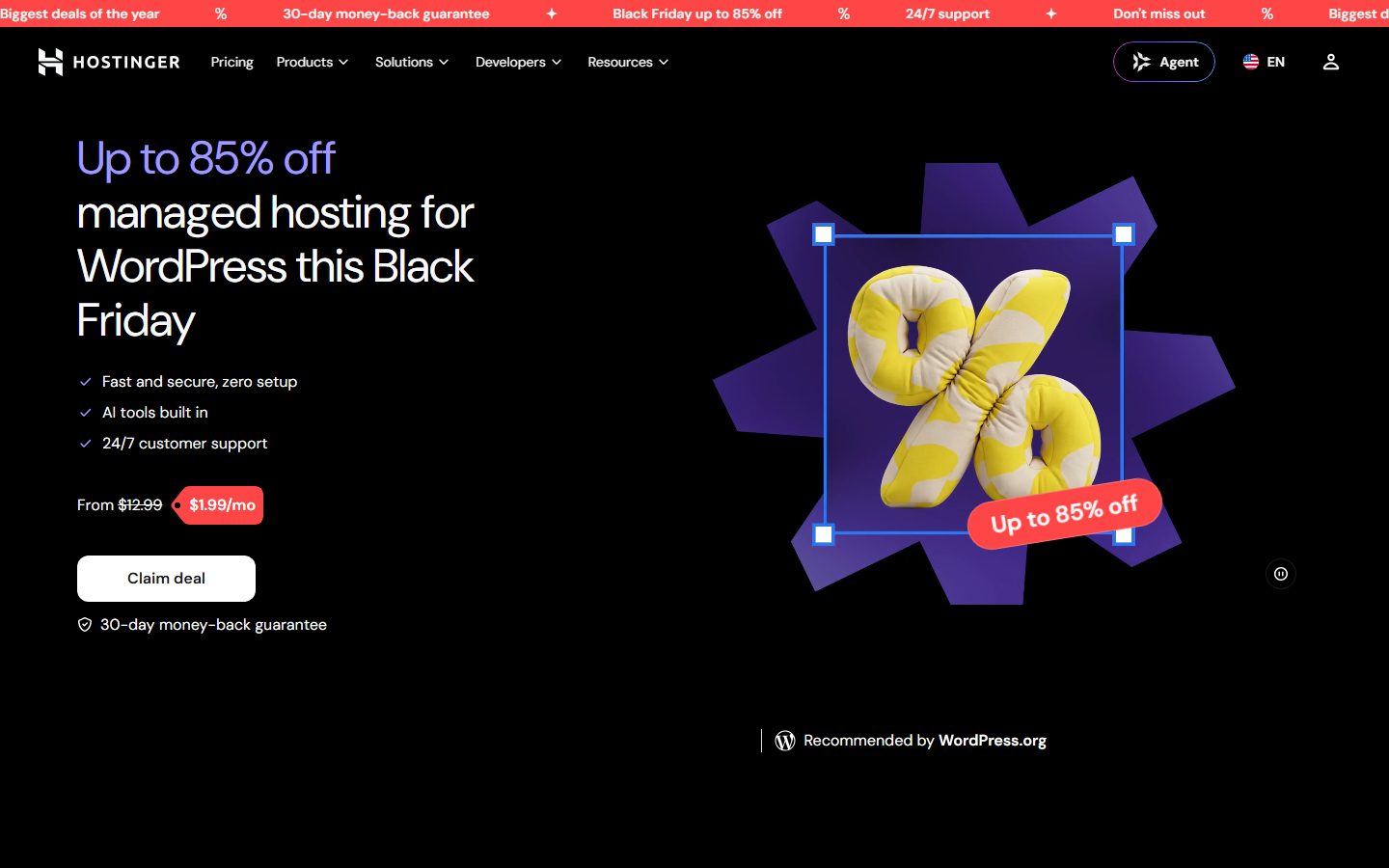
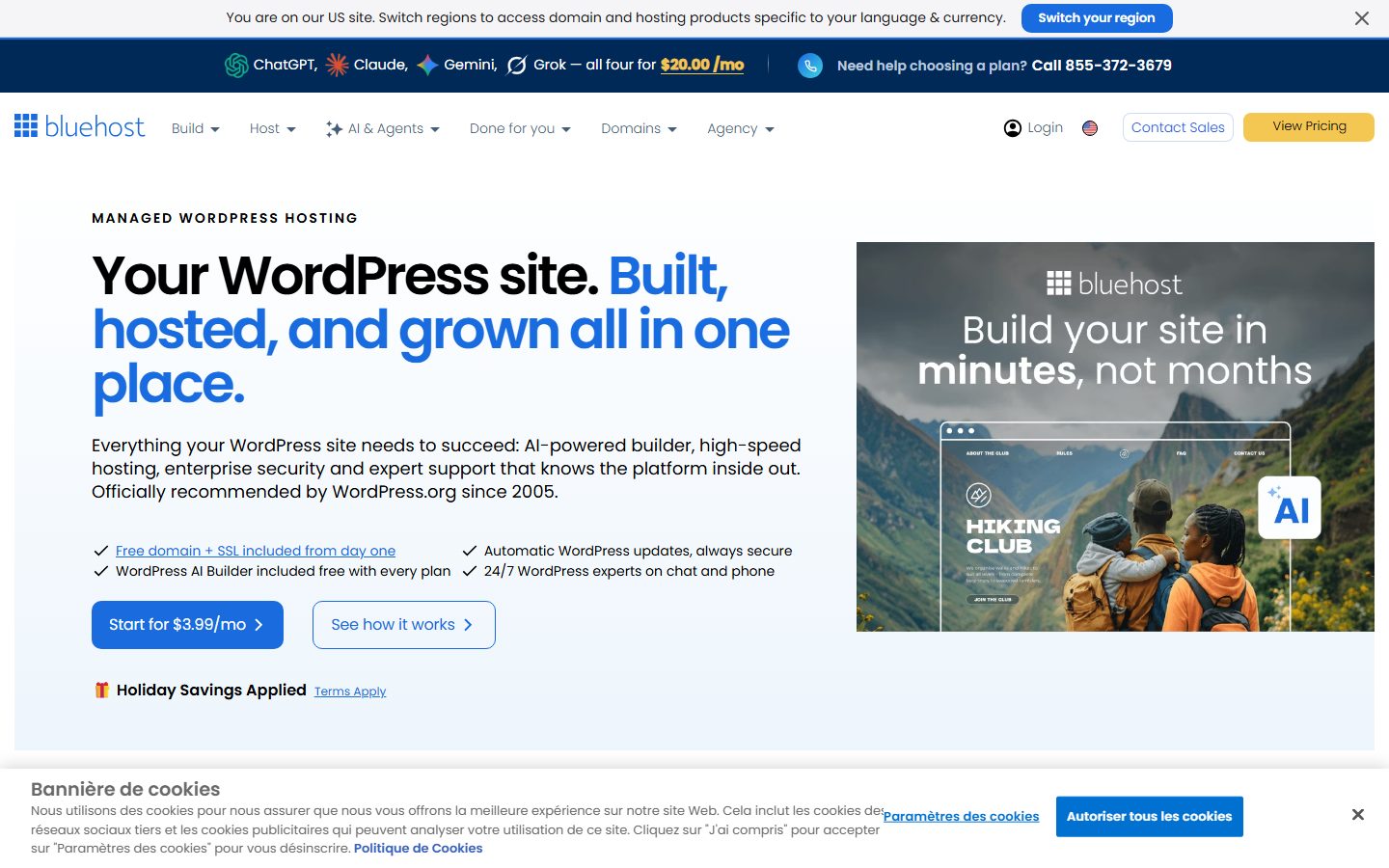
The screenshots below show the homepage of two of these examples as captured in November 2026, so you can see how each vendor presents the product.
| Question | Host A | Host B | Host C |
|---|---|---|---|
| First-term price and length | |||
| Renewal price | |||
| Web server and caching included | |||
| PHP versions available | |||
| Backups: frequency, retention, restore method | |||
| Staging: which tier? | |||
| Real limits: inodes, CPU, processes, visits | |||
| Data centre choice | |||
| Migration help | |||
| Refund window | |||
| Support channels and hours |
Decide what you need for the next year: how many sites, whether you need staging, how much traffic you hope to get and whether email is included. Register your domain with a registrar you control. If moving an existing site, make a full backup and read the migration guide.
Install WordPress with the one-click tool, set the PHP version to the newest your plugins support, switch on the built-in cache and enable HTTPS. Remove the default sample content and unused themes and plugins. Configure automatic backups and, if the host’s backup is weak, add an independent plugin from our backup roundup.
Check the site from a phone, run PageSpeed Insights, and add an uptime monitor. Set a calendar reminder for the renewal date well before it arrives. Follow the maintenance checklist monthly.
Leaving a shared host is usually straightforward, since WordPress is files and a database and shared hosts mostly use standard tools. The friction comes from three places: the domain, which you want in your own registrar account; email, which you need to move or replace; and any host-specific caching plugin or settings that you must redo elsewhere. Long prepaid terms can make a refund small or impossible after the guarantee period, so a short first term costs a little more but keeps your options open. Plan to outgrow the plan: when the site hits resource limits regularly, that is the moment to move up a tier or to a managed host rather than fight the limits.
WPMusk has not run hands-on tests of budget shared hosts. This guide draws on vendor and WordPress documentation and contains no measured results. A full review would host the same site on each provider, measure response time and page load over a sustained period, track uptime, test backups, staging and migration and contact support, then score against the weights above. This page carries no score: it is guidance for choosing, not a measured result.
For a small, steady site, yes, if caching is on and you keep the site tidy.
Common causes are no page cache, old PHP, heavy plugins and hitting resource limits. Start with speed optimisation before changing hosts.
Usually that a resource is not metered, not that it is unconstrained. Read the fair-use terms for the actual caps.
Only after you have tested the host. The discount is real but so is the lock-in and the renewal jump.
Yes. Host backups are useful, but an independent copy protects against account or provider problems.
When you regularly hit limits, need staging or support you do not have, or run a store with real orders.