WordPress is built for one language per site. A translation plugin adds the missing pieces so visitors can read your pages, menus, forms and product listings in more than one language, and so each language has its own address that search engines can index.
Those pieces usually include a way to enter or generate translations, a language switcher, a URL for each language and the markup that tells search engines the pages are related. Some plugins also translate the admin screens, emails and strings inside themes and other plugins.
What it does not do is decide your translation quality. A plugin can connect to a machine translation service or hold a human translator’s work, but the words themselves come from you or from a service you choose. WPMusk has not run hands-on tests of any plugin named here, and this guide teaches you how to choose rather than ranking products.
The single most important question is where the translations live. The answer shapes your speed, your search results and how hard it is to leave.
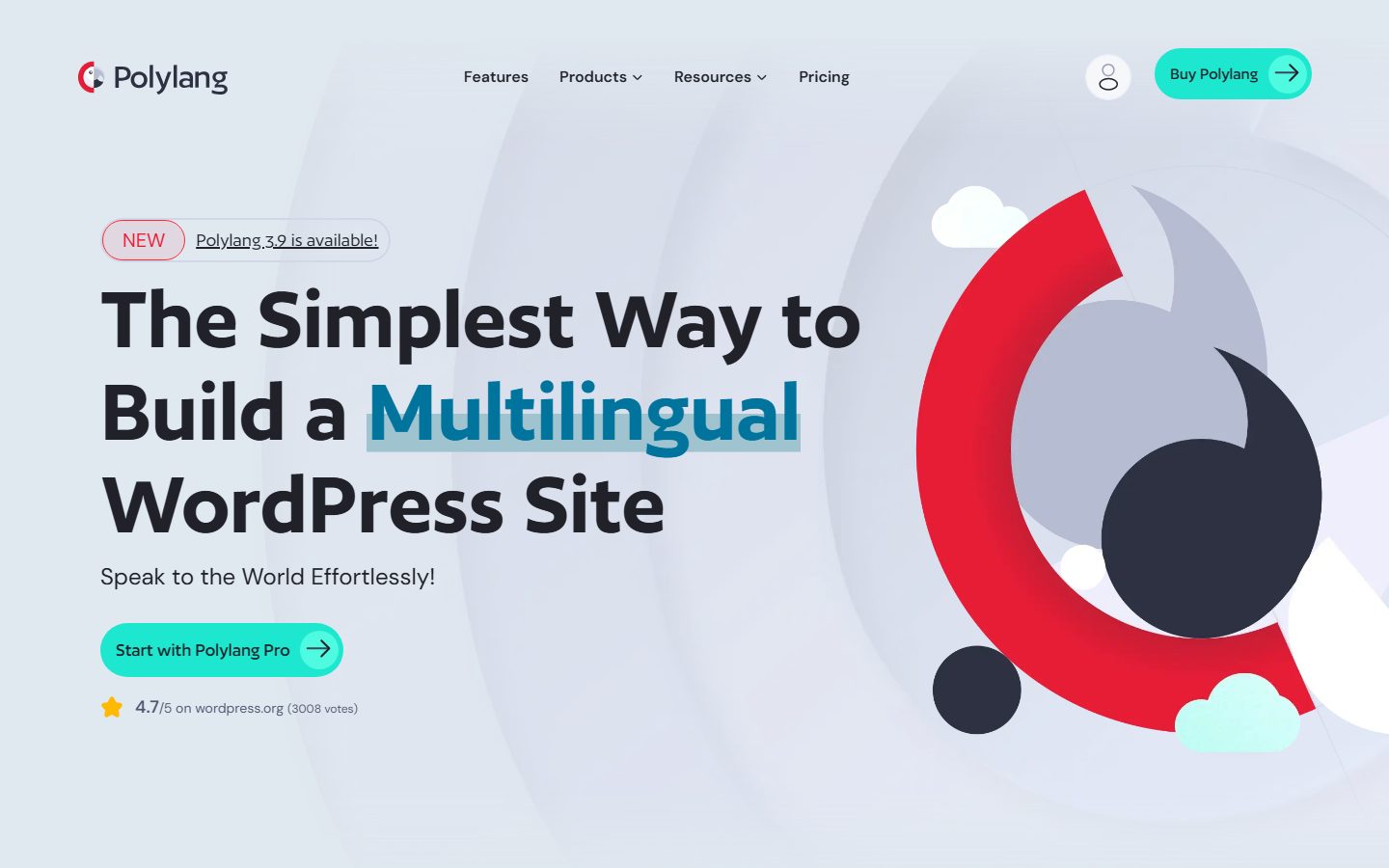
Polylang’s listing says it uses WordPress’s own taxonomies and links translations together as a group. In practice, each translated page is a normal WordPress post connected to its siblings. Content stays in your database in a form any plugin can read, so leaving is a matter of reassigning or copying the posts.
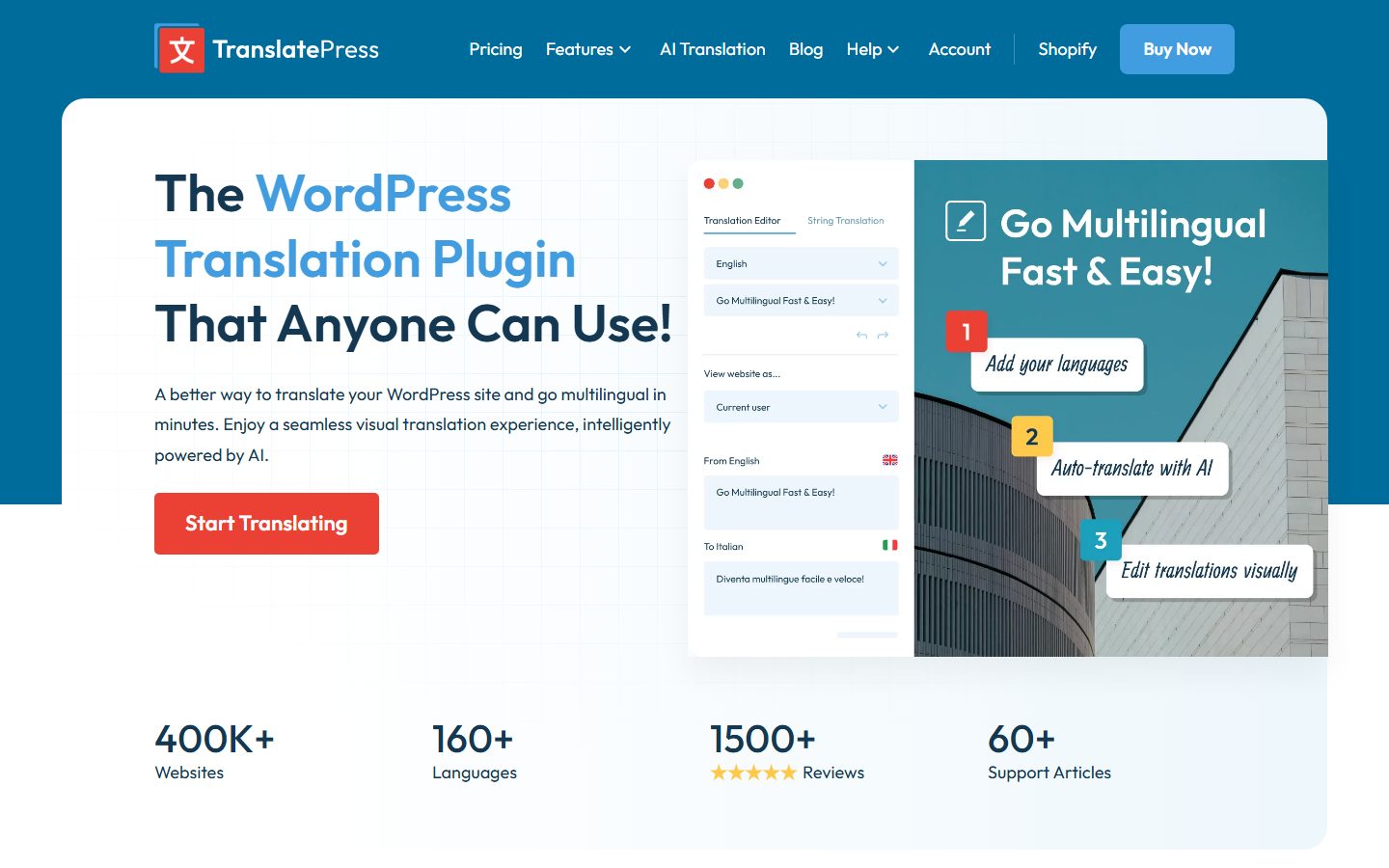
TranslatePress’s listing describes a front-end visual editor where you translate the page as it appears, including output from shortcodes, forms and page builders. This approach translates the rendered strings rather than creating a separate post for each language. It covers content that comes from places other than the editor, but you should check how much it adds to your database and how URLs are produced.
Weglot’s listing says all translations are stored on its servers, that translations are served from the cloud, and that your WordPress database stays untouched. It also says that if you stop using Weglot, your site will no longer be translated. That is a trade: less database weight and less setup, in exchange for a subscription and a dependency. Weglot’s listing says translations can be exported.
WPGlobus’s listing shows another model: all languages for a piece of content sit in one field using tags such as {:en}English{:}{:fr}French{:}. The listing warns that if you deactivate the plugin, all languages appear at once, and that you must run its cleanup tool before uninstalling. It is a useful example of why you should ask how a plugin stores data before you commit.
A fourth approach is a separate WordPress site per language, often on a multisite network. It gives total independence at the cost of managing several sites. Some plugins link such sites together.
You need one if a meaningful part of your audience reads another language and you want them to find you in search or complete a purchase in their own language. Examples include a local business in a bilingual region, a shop shipping abroad and a documentation site with international users.
You probably do not need one if you only want to offer a quick machine translation of the page. A browser’s built-in translate function does that for free, with no effect on your site or your search presence. A plugin makes sense when you want your own indexed pages, your own wording for key pages and control over what is translated.
Also think about the ongoing work. Every new page means another translation to create, check and update. Teams that cannot sustain that often do better translating the ten pages that matter than the whole site.
For a wider comparison of options, see the multilingual plugin roundup.
| Approach | Where translations live | Typical strength | Typical risk |
|---|---|---|---|
| Separate post per language | Your database, as normal posts | Portable content, native editing | Duplicate effort for menus, widgets and strings |
| Front-end string translation | Your database, as string records | Covers builder and shortcode output | Database growth; check how URLs are produced |
| Cloud service | Vendor’s servers | Fast setup, light database | Subscription dependency; translations vanish if you stop |
| Single-field tags | Your database, packed into one field | Simple to understand | Messy output after deactivation; cleanup needed |
| Multisite, one site per language | Separate sites | Full independence per language | Many sites to update and secure |
The URL structure also varies. Polylang’s listing says the language is set by a code in the URL or by a separate subdomain or domain per language. TranslatePress’s listing mentions a toggle for the subdirectory of the default language and, in a paid add-on, a different domain per language. Google’s documentation says separate URLs per language are suitable for fully translated sites and for sites that translate only the template, and that localised pages are treated as duplicates only if the main content remains untranslated.
Our plugin scoring weights are speed impact 30%, reliability 25%, support 20%, value 15% and ease of use 10%.
Translation touches every request. Ask how many database queries it adds, whether it works with your page cache and whether the cloud model adds a round trip. Test it on your own pages, because results depend on your theme and plugins. Your wider tuning is covered in the speed optimization guide.
Each language needs its own URL, and each version should point to the others. Google’s documentation says hreflang can be provided through HTML link tags, HTTP headers or an XML sitemap, that each version must list itself and the others, that links must be bidirectional and that an x-default page is recommended. Confirm that the plugin outputs these correctly, and that your sitemap includes translated URLs. See the sitemap guide.
A visual front-end editor suits people who think in pages. A side-by-side admin editor suits people who work in bulk. Try both with a real page that includes a form and a menu.
List the content you need translated: posts, pages, custom post types, menus, widgets, theme strings, product attributes, emails, SEO titles and slugs. Polylang’s listing, for example, separates what is free from what needs Pro, including translatable template parts, translated slugs for some content and DeepL machine translation. Check whether the features you need sit in the tier you will pay for.
TranslatePress’s listing says page content is sent to external services, which can happen on front-end visits. Any plugin that connects to a translation service sends your text to a third party, so read what is sent and when. Machine output is a draft. Have a human who reads the language review pages that matter, such as checkout, legal text and anything that makes a promise.
Ask how you export translations and what the site looks like without the plugin. A cloud service that stops translating when the subscription ends is a different commitment from posts that remain in your database. Price it over several years, not the first month.
Check support for your page builder, your SEO plugin, your shop plugin and your caching setup. Shop translations can be a separate paid add-on. Polylang’s listing, for instance, describes a separate add-on for WooCommerce.
Look at the support forum: how quickly staff reply and whether threads end with a fix. Paid tiers often include priority support, and the plugin pages say so.
These are examples, not rankings. Descriptions come from each product’s wordpress.org listing and should be checked against the current version.
Polylang. According to its listing, it translates posts, pages, media, categories, tags, custom post types and taxonomies, with no limit on languages, and uses core WordPress features. Its Pro tier adds items such as translatable template parts, shared and translated slugs, DeepL machine translation and XLIFF import and export. It fits sites that want translations stored as native content.
TranslatePress. Its listing describes a front-end visual editor with live preview, support for page builder and shortcode output and machine translation through Google Translate with your own key or paid add-ons. It fits people who prefer to translate on the page itself.
Weglot. Its listing says it translates into more than 110 languages using AI, stores translations on its own servers, adds hreflang tags and per-language URLs and lets you edit translations in a visual editor. It fits teams that want a hosted service with minimal setup and accept a subscription dependency.
WPGlobus. Its listing describes manual translation entry, language-prefixed URLs and the single-field tag storage described above. It does not translate automatically. It is a good example to study when comparing storage models.
WordPress Multisite with a linking plugin. Not a single product, but a valid architecture for organisations that want separate sites with different owners per language.
| Question | Candidate A | Candidate B | Candidate C |
|---|---|---|---|
| Where are translations stored? | |||
| What happens to the site if you deactivate it? | |||
| URL pattern (subdirectory, subdomain, domain)? | |||
| hreflang and sitemap output? | |||
| Translates menus, widgets, theme strings, slugs? | |||
| Machine translation: which service, what is sent? | |||
| Works with your builder, SEO and shop plugins? | |||
| Features you need: free or paid tier? | |||
| Export format for translations? |
Switching translation plugins is among the harder plugin changes, because translated content is tied to the plugin’s storage. Moving between plugins that store native posts may be a matter of a conversion tool or a script. Moving away from a cloud service means exporting translations first and importing them somewhere else. Moving away from a single-field approach means cleaning each field.
The URL structure carries the biggest risk. If translated URLs change, you need redirects and a fresh sitemap, and rankings may fluctuate while search engines reprocess. That is why the URL decision belongs at the start.
A practical hedge: pick a plugin whose documentation describes export, and do a trial export on staging before launch.
WPMusk has not run hands-on tests of any translation plugin, and this page contains no test results. When a full review is published, it will say what was tested, on what setup and with what result. This page carries no score: it is guidance for choosing, not a measured result.
The planned method is the evaluation plan above, judged against the weights listed earlier. It will include an exit test, because the ability to leave is part of the value.
For the related search side, see the WordPress SEO guide.
It can help people in other languages find the right page, because each language gets its own indexed URL. No plugin guarantees a ranking.
It depends on the language pair and the content. Treat it as a draft and have a reader review pages that carry weight.
Google’s documentation says hreflang tells it that pages are localised versions of each other. Check that your plugin outputs them correctly, in both directions.
Yes. Many sites translate their key pages and leave the rest. Make sure the language switcher only links to pages that exist in the chosen language.
Weglot’s listing says the site is no longer translated if you stop using it. Export before you cancel.
It can. The storage model and caching support both matter. Measure on staging.
Google’s documentation allows alternates on different domains. A subdirectory is simpler to manage. Choose a domain per language only if you have a clear reason.