
WordPress ships with a set of core blocks: paragraph, heading, image, columns, buttons and so on. A block library plugin adds more of them, such as tabs, accordions, sliders, countdowns, pricing tables, advanced layout containers and query-driven post grids. You keep editing in the normal block editor, but you get a bigger toolbox and, usually, finer design controls like per-device spacing and hover colors.
The promise is a middle path between plain core blocks and a full page builder: more design power, but still inside the editor WordPress maintains. Whether that promise holds depends on how the plugin loads its code and how it stores your content, which is what this guide helps you check.
WPMusk has not run hands-on tests of these plugins. Where we describe a product, we are relaying its wordpress.org listing or documentation, and we say so. Nothing here is a ranking.
Every block is registered in WordPress with metadata, usually a block.json file. The block editor handbook explains that this file can declare scripts and styles, and that WordPress registers them automatically. Assets marked for the front end are enqueued only when the block is actually rendered on a page, a behavior available since WordPress 5.8, with viewStyle added in 6.5. That is the mechanism behind the claim that a plugin “only loads CSS or JavaScript for the blocks you use.”
The handbook is specific that this conditional loading applies when assets are declared through block metadata. A plugin that enqueues one large stylesheet for all of its blocks on every page is not using it. So the claim is worth checking in the network tab rather than trusting.
The second mechanism is how content is stored. Blocks are saved in the post content as HTML with comment delimiters carrying their settings. When a block is saved with static markup, WordPress compares the stored HTML with what the block’s current code would generate. If they differ, the editor attempts the block’s declared deprecations, a list of older versions with migration steps, and if none match, you may be asked to recover or convert the block. Dynamic blocks, which render through PHP on each request, avoid some of this but depend on the plugin being active.
That has a practical consequence. If you deactivate a block plugin, its blocks lose their rendering code. What visitors see after that depends on whether the block output is static HTML (which may remain, unstyled) or dynamic (which may vanish). Ask how a plugin behaves when it is removed before you build a site on it.
You benefit from a block library if you build pages in the block editor and keep hitting the limits of core blocks: no tabs, no flexible grid, no responsive controls for spacing. It also suits teams that want clients to edit in the standard editor without a separate builder interface.
You may not need one if your theme or patterns already cover your layouts. Recent WordPress versions support patterns, group and row blocks, a query loop and global styles. Our advanced block editor guide shows how far core goes. Many sites that install a library use two or three blocks from it, and carry the rest as unused code and unused editor choices.
A heavily animated, pixel-perfect marketing design may be easier in a full page builder; our page builder comparison helps decide.
| Approach | Example of what it offers | Strengths | Trade-offs |
|---|---|---|---|
| Large all-purpose library | Dozens of blocks plus a design library of patterns | One plugin covers most needs; templates speed up work | More code to maintain; easy to use blocks you could have done with core |
| Small layout-focused set | A handful of container, grid, text, button and query blocks | Minimal CSS; strong for custom designs | You build components yourself; steeper for beginners |
| Design-system-centered | Blocks tied to global colors, fonts and spacing | Consistent across pages; follows theme settings | Value depends on how well it reads theme.json |
| Extension of one theme’s ecosystem | Blocks that pair with a specific theme | Tight visual match | Less useful if you change theme |
Our scoring weights for builder add-ons are speed impact 30%, reliability 25%, support 20%, value 15% and ease of use 10%.
Open a test page that uses two blocks from the plugin and check which CSS and JS files load. Compare against a page with none. If files for unused blocks appear, the plugin is not scoping assets. Also check whether frontend scripts depend on jQuery or other libraries. Stackable’s listing claims a combined frontend CSS and JS size of about 7.8 KB and no jQuery dependency; that is a vendor claim to verify, not a result. The speed optimization guide shows how to read the waterfall.
Look at update history. Blocks touch your content, so a bad release can trigger “invalid content” warnings. Check for a changelog that mentions deprecations or migrations, and test an update on staging. Look at compatibility with the current WordPress version and with the full site editor if you use a block theme.
Check where help lives: documentation, a support forum and response behavior on wordpress.org. Also check maintenance status. The wordpress.org page for Spectra, for example, now describes the plugin as “Spectra Legacy,” says it receives security and compatibility updates but no new features, and points new development to a separate plugin. That is exactly the sort of detail to read before you commit.
Map the free and paid split to your needs. According to its listing, Kadence Blocks keeps blocks such as Advanced Query Loop, Advanced Slider and Modal, plus features like Animate on Scroll and dynamic content, in paid add-ons. GenerateBlocks says its free plugin includes the core dynamic tags while Pro adds more. Stackable lists dynamic content, query loops and motion effects as premium. Identify the one or two features you cannot live without and see which tier carries them.
Try building a section from scratch. Look for sensible defaults, responsive controls that are easy to find, a list view that shows structure, and a way to disable blocks you do not use. Stackable’s listing notes you can disable blocks you do not need, which reduces editor clutter.
Inspect the HTML generated. Count wrapper elements and check that headings, buttons and links use real semantic elements. Tabs and accordions should work by keyboard and expose state to assistive technology. A block that looks right but is a pile of unlabeled divs is a red flag. Deeply nested markup also inflates the DOM; web.dev notes Lighthouse warns at 800 DOM nodes and flags excess above 1,400.
Ask what happens to the content if you leave. Plugins that wrap everything in custom containers are harder to leave than those that extend core blocks. Test it: deactivate the plugin on staging and look at three pages.
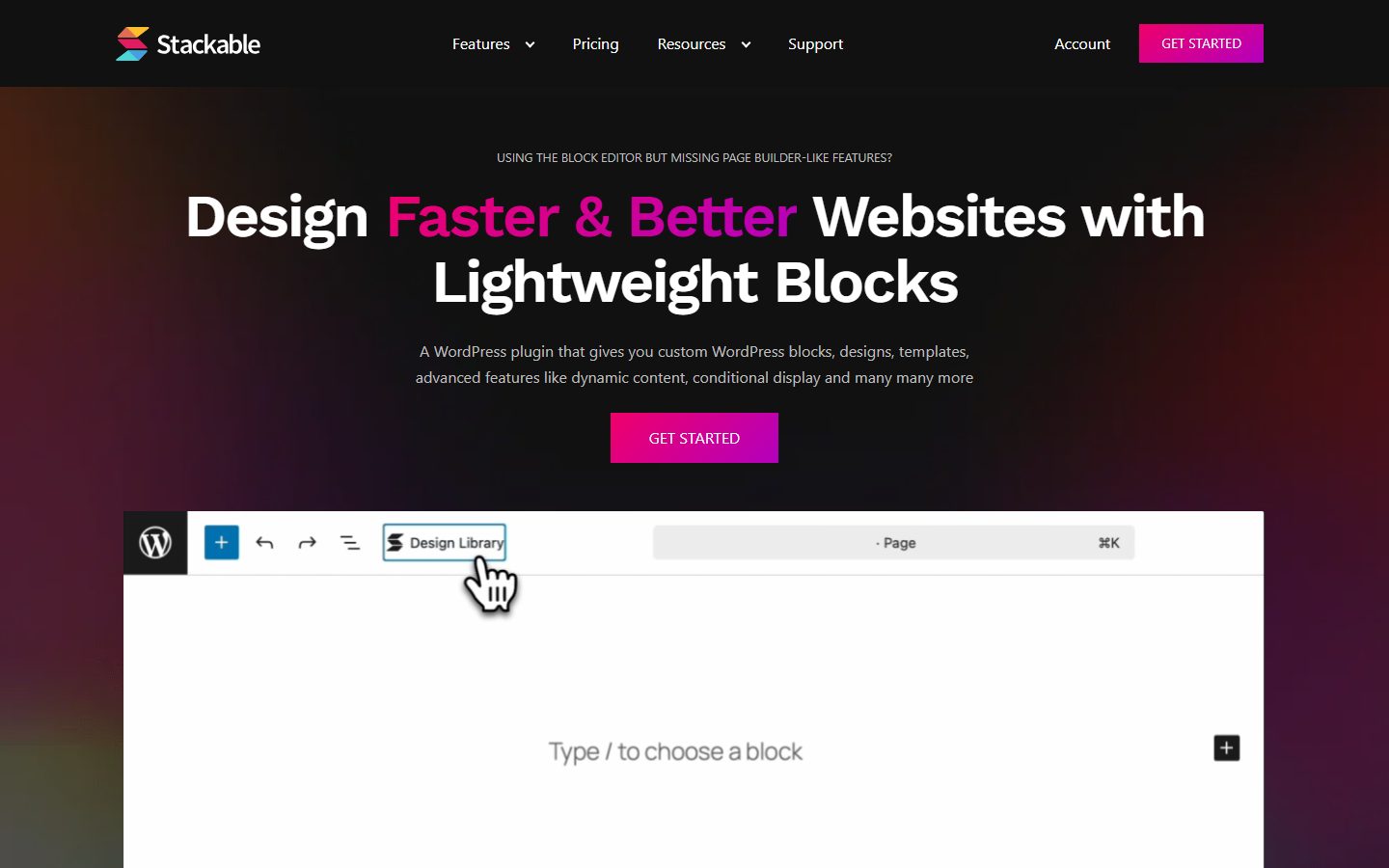
The screenshots below show the homepage of two of these examples as captured in November 2026, so you can see how each vendor presents the product.
| Question | Plugin A | Plugin B | Plugin C |
|---|---|---|---|
| Frontend assets load only for used blocks (verified) | |||
| No jQuery or heavy dependency on the front end | |||
| Blocks I need are in the tier I can afford | |||
| Reads global colors and fonts from theme | |||
| Semantic, keyboard-friendly markup | |||
| Behavior when deactivated is acceptable | |||
| Actively maintained, recent update | |||
| Works with my theme and form or ecommerce plugins | |||
| Unused blocks can be disabled |
List the blocks you actually use today. If you are replacing a page builder, note which of its widgets have no equivalent. Take a backup and create a staging copy. Our staging site guide covers the steps.
Install the plugin on staging only. Enable just the blocks you need if it allows. Rebuild one representative page, not all of them. Convert core blocks to the library’s blocks only where you need the extra control, so most of your content stays plain core markup and stays portable.
Check your top pages on phone and desktop. Open the editor on an old post to make sure no block shows a recovery prompt. Review the page source and confirm only the expected assets load. Make a note of each custom block in use so that a future audit is quick.
Switching away from a block library costs more than you might expect, because blocks live inside your post content. Each use of a custom block is a place that may need to be converted. The more you rely on plugin-specific containers, the bigger the job. The risk is lower for libraries that extend core blocks or output plain markup, and higher for ones with proprietary wrappers and dynamic rendering.
Limit the risk: use core blocks wherever they are good enough, record where the library’s blocks appear, and keep design values in a shared place such as theme.json so the look is not tied to the plugin. If you plan to move to a block theme later, see our block theme roundup.
WPMusk has not run hands-on tests of block library plugins. In a full review, we plan to build the same test page with each plugin on a clean site, record the assets loaded and page weight with and without it, check keyboard operation and test deactivation. This page carries no score: it is guidance for choosing, not a measured result. Treat this page as guidance, not a verdict.
No. It extends the standard editor with extra blocks, while a page builder replaces the editor with its own interface and storage. The line blurs when a library adds many layout controls.
They can add CSS and JS. The WordPress handbook describes conditional loading for block assets, so well-built plugins should ship code only for blocks on the page. Verify in your own network panel.
It depends on the block. Static blocks may leave markup that is unstyled; dynamic blocks may disappear. Test on staging before relying on any plugin.
You can, but you duplicate assets and interface, and styles can clash. Pick one as your primary and use core for the rest.
Often for basic layouts. Dynamic content, query loops and motion are commonly paid features, according to the listings above. Check which one you need.
Some say so explicitly. Stackable’s listing mentions support for block theme styles and theme.json. Confirm for any plugin you consider.