Running a shop on WordPress gives you something hosted platforms rarely do: ownership. You own the content, the customer data, the design, and the code. In return, you own the decisions. Which store plugin? Which payment gateway? How do you handle shipping and tax? What happens on the busiest day of the year? This guide on WordPress ecommerce answers those questions in order.
It is written for people at three stages: those choosing a store plugin for the first time, those running a store and wondering whether to switch, and those who need a map of the topics that matter, from checkout to subscriptions to Black Friday. You will learn how to decide, what each choice costs you in effort, and where the common traps are.
Prices, plans, and features change often, so this guide describes models and trade-offs, and tells you what to verify on vendor pages before you commit. Where a topic has its own detailed article, the Guide map near the end links to it.
Key takeaways
- You have three broad routes for WordPress ecommerce: a full-featured self-hosted plugin such as WooCommerce, a newer native WordPress plugin such as FluentCart, or a cloud-assisted checkout such as SureCart. Each trades flexibility, effort, and cost differently.
- Choose by what you sell (physical, digital, subscriptions, services), where your team’s skills lie, and how much of the stack you want to manage.
- Checkout, payments, shipping, and tax decide whether you actually get paid. Treat them as core design decisions, not afterthoughts.
- Speed, security, and a plugin diet matter more in a store than in a blog, because failures cost revenue.
- Plan for growth: abandoned cart emails, product page conversion, and peak-season preparation return more than most redesigns.
Why choose WordPress for ecommerce
WordPress powers a large share of the web, and a large share of independent online shops run on it. The reasons are practical.
Ownership and control
You host your own data, choose your payment processors, and move between hosts when you wish. There is no platform that can change fees or terms in a way you cannot escape. That is not a guarantee of lower cost, but it does give you leverage.
Content and commerce together
WordPress started as a publishing platform. If search traffic, guides, comparisons, and a blog drive your sales, having your store and your content in one system simplifies SEO, internal linking, and analytics. Product pages and articles can share a design and a navigation.
A deep ecosystem
Themes, page builders, payment gateways, shipping integrations, accounting connectors, and email tools are available for most needs. The depth is also the weakness: more choice means more decisions and more compatibility checking.
When WordPress is not the best choice
Be honest about the alternatives. If you want to launch in an afternoon with no maintenance, a fully hosted store builder may suit you better. If you have a huge catalogue with complex inventory across channels, a specialised commerce platform may fit. If nobody on your team will update plugins or watch backups, the maintenance burden of self-hosting is real. WordPress rewards owners who are willing to manage it, or pay someone who will.
The three routes: WooCommerce, native plugins, and cloud checkout
The store plugin is the heart of your site. Most options fall into three groups.
WooCommerce: the established, extensible option
WooCommerce is the most widely used store plugin for WordPress. It handles physical and digital products, variations, coupons, tax, shipping, and orders, and it has a huge catalogue of extensions for subscriptions, bookings, memberships, and integrations. Its strength is that almost any requirement has an extension or a developer who has solved it. Its cost is complexity: a typical store grows a stack of extensions, each with its own updates, settings, and potential for conflict.
Choose it when you need deep flexibility, a large catalogue, many integrations, or you have developers who know it. Think carefully if your needs are simple and you would prefer fewer moving parts.
FluentCart: a newer, lean, WordPress-native store
FluentCart is a store plugin from the team behind Fluent Forms and FluentCRM. It stores data in your own WordPress database and aims to cover product setup, checkout, and order management with a modern interface, without the extension sprawl of an older ecosystem. Our FluentCart guide walks through setup, products, and checkout in detail.
Choose it when you like a lean, integrated approach, you already use the Fluent family of tools, and your needs fit its feature set. Verify the current feature list and extension availability against your requirements, since newer products have a smaller ecosystem.
SureCart: cloud-assisted checkout
SureCart takes a different architecture. Product, order, and checkout data are handled through a hosted service connected to your WordPress site, while the storefront blocks live in WordPress. The result is a lighter load on your own server and a setup that suits digital products and subscriptions. The trade-off is that part of your commerce data lives with the vendor. Our SureCart guide explains how its cloud checkout works.
Choose it when you want simpler setup and less server load, and you are comfortable with a vendor-hosted data layer. Check fees, plan limits, and export options before you commit.
Comparing the three
| Question | WooCommerce | FluentCart | SureCart |
|---|---|---|---|
| Where is order data? | Your database | Your database | Largely vendor cloud, with sync to your site |
| Ecosystem size | Very large | Smaller, growing | Moderate |
| Setup effort | Higher for complex stores | Moderate | Lower for simple stores |
| Best fit | Complex physical catalogues, many integrations | Lean stores, Fluent users | Digital products, subscriptions, light servers |
| Main trade-off | Extension sprawl and maintenance | Younger ecosystem | Vendor dependence |
For a head-to-head with scenarios, read our detailed WooCommerce, FluentCart and SureCart comparison. If none of the three suits you, our overview of WooCommerce alternatives lists other routes.
What each platform’s own listing says
Marketing pages are promises, and plugin listings on wordpress.org are slightly more restrained. Before you read our trade-offs, read what each vendor states about its own product. The points below come from the wordpress.org listings and homepages as we read them. WPMusk has not run hands-on tests of these products, so check each statement against the current page before you rely on it.
The WooCommerce listing calls it “the open-source ecommerce platform for WordPress” and says the core platform is free and that you keep ownership of your store’s content and data. It lists physical and digital goods, variations and instant downloads, with subscriptions, bookings and memberships available through extensions. On payments it names WooPayments, available in a stated list of countries, and says that over 100 payment gateways exist, naming Stripe, PayPal and Square. The homepage headline reads “Your business. Your rules.” and says you can sell and grow without monthly platform fees, which is a statement about the platform and not about the hosting, extension and payment costs around it.

The FluentCart listing calls it “a performance-first, self-hosted eCommerce plugin for WordPress”. It states that data lives in dedicated tables rather than the WordPress posts tables, and that your store data stays on your server. It lists physical products, subscriptions, digital downloads and software licences. Stripe, PayPal and cash on delivery are listed in the free version, while gateways such as Mollie and Paddle appear under Pro, and software licensing is a Pro feature. The listing separates what is free from what is Pro, so read that split before you assume a feature is included.
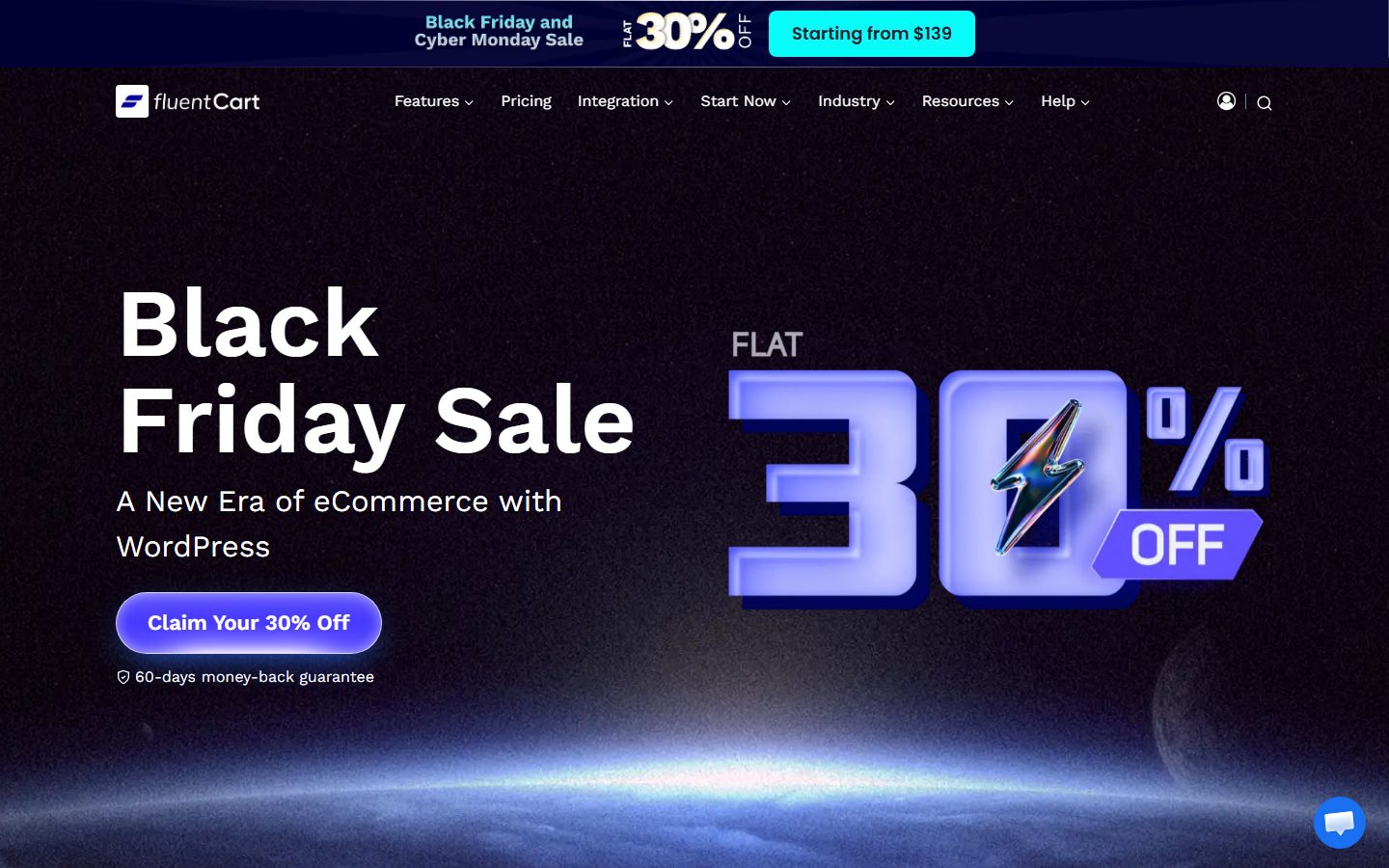
The SureCart listing says it works with a cloud platform that handles payments, subscriptions, taxes and checkout, so those tasks do not run on your own server. It lists physical products, digital downloads, subscriptions, services, donations and software licensing, with Stripe, PayPal, Mollie, Razorpay and Paystack as payment processors. The listing’s FAQ says a SureCart.com account must be linked to the plugin, and that the entry-level plan adds a transaction fee on top of processor fees while paid plans have none. Plans change, so read the current pricing page for the fee and its conditions.
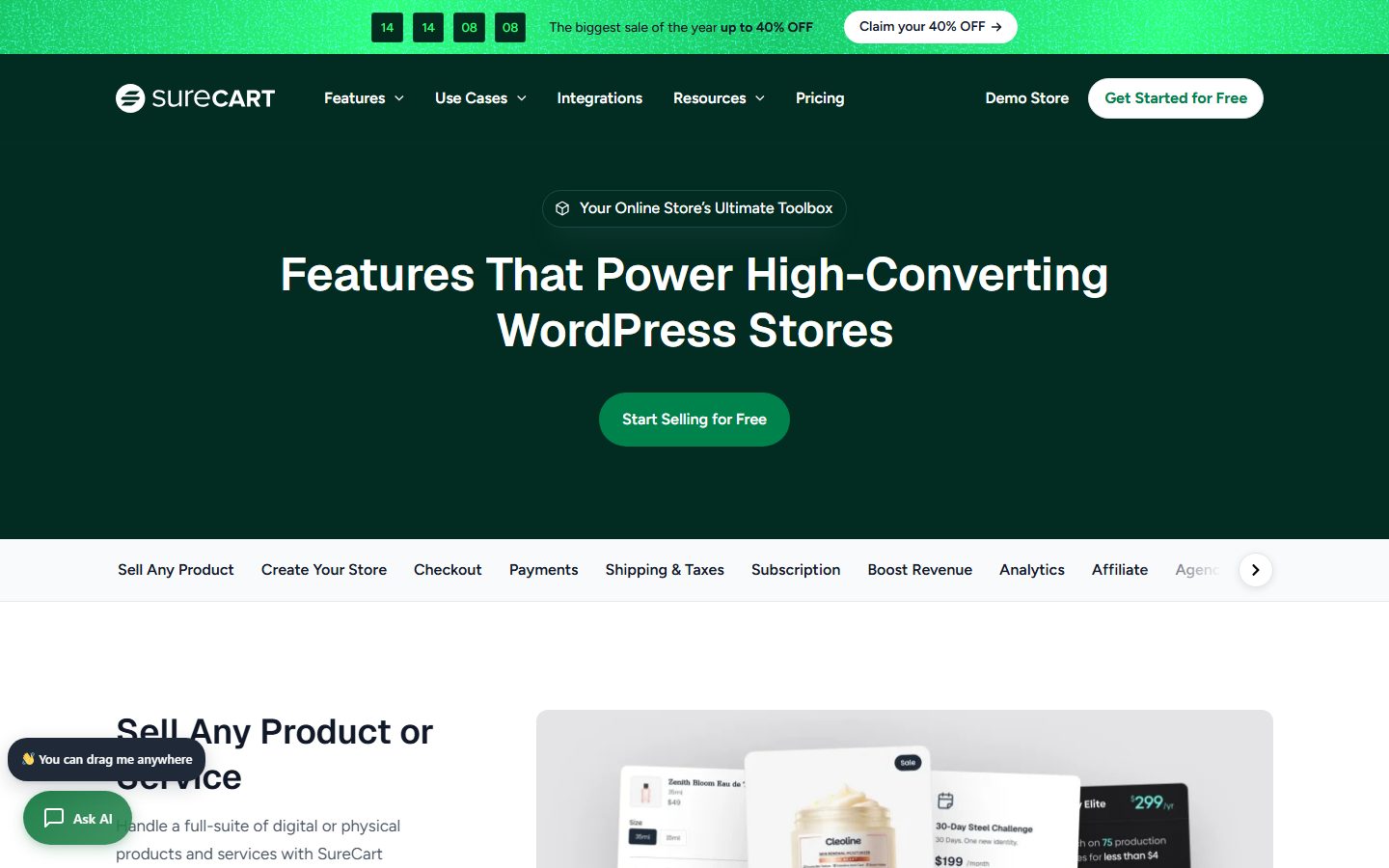
On the SureCart homepage, look at the three-line checklist under the headline: checkout, subscriptions, taxes and shipping, and then upsells, cart recovery, affiliates and licensing. It states the vendor’s positioning, that your site stays on WordPress while SureCart manages the commerce behind it. The features page has a tab strip across the top with Checkout, Payments, Shipping and Taxes, Subscription and Analytics, which makes it a quick way to check a requirement.
| Statement to verify | WooCommerce | FluentCart | SureCart |
|---|---|---|---|
| Where order data lives | Your site; store data is yours and exportable, per its listing | Your server, in dedicated tables, per its listing | Handled by a cloud platform linked to your site, per its listing |
| Subscriptions | Through extensions | Recurring products listed; some renewal features are Pro | Listed in its description |
| Software licensing | Through extensions | Listed as Pro | Listed in its description |
| Gateways named by the vendor | Stripe, PayPal, Square and many others | Stripe and PayPal in free, more in Pro | Stripe, PayPal, Mollie, Razorpay, Paystack |
| Account required | A WordPress site | A WordPress site | A SureCart.com account linked to the plugin |
Use this table as a checklist, not a verdict. For each cell that matters to you, open the vendor’s page, find the sentence, and write down the date you read it.
How to choose a WordPress ecommerce platform
A decision based on a feature table alone tends to disappoint. Use these questions instead.
What do you sell?
Physical goods bring shipping, inventory, returns, and tax complexity. Digital goods bring download delivery, licence keys, and sometimes tax rules for digital services. Subscriptions bring recurring billing, failed payment handling, and customer self-service. Services and bookings bring calendars and deposits. Make a list of your product types and the special handling each needs. For the digital case, see our guide to selling digital products on WordPress, and for recurring revenue, our subscriptions and recurring billing options.
How large and complex is the catalogue?
Ten products with no variations is a different job from five thousand with attributes and filters. Large catalogues need good search, filtering, import tools, and performance. Test import and editing with a realistic sample before you commit.
Who will run it?
Be realistic about skills and time. A store with many extensions needs someone to update, test, and troubleshoot. A leaner setup reduces that load but may limit what you can do. Match the platform to the person who will be on call when something fails.
What is the real cost?
Count more than the plugin price: extensions, payment fees, hosting that can handle checkout traffic, premium themes, email tools, and the time you spend. A free core with several paid extensions can cost more than a single paid product. Compare the total for your use case over a year or more, using current vendor pricing.
How locked in will you be?
Products, orders, customers, and subscriptions are hard to move. Before choosing, test an export, and ask what happens to subscriptions and order history if you migrate. Lock-in is not always bad, but you should accept it knowingly.
What does your payment setup need?
Not every gateway is available in every country or for every product type, and platforms differ in which gateways they support well. Check your payment requirements early, as we explain below.
A total-cost worksheet for the first year
Platform price is the smallest part of the bill for many stores, so build a worksheet before you choose. Fill in every row for each platform you are considering, using current vendor pricing that you read yourself.
| Cost line | Where to find it | How it scales |
|---|---|---|
| Store plugin licence or plan | Vendor pricing page | Often per site or per year; check renewal terms |
| Extensions or add-ons for your features | Vendor marketplace or Pro feature list | One cost per feature; renewals may differ |
| Platform transaction fee, if any | Vendor FAQ and pricing page | Grows with sales |
| Payment processor fees | Processor pricing page for your country | Percentage plus fixed amounts, plus extras for currency conversion and disputes |
| Hosting that can run a store | Host pricing and the host’s limits on visits and resources | Steps up with traffic |
| Theme or builder licences | Vendor pages | Usually annual |
| Email delivery and marketing tools | Vendor pricing | Grows with list size and send volume |
| Backups, monitoring and security | Host or plugin vendors | Per site |
| Your time or a developer’s | Your own rate or quotes | Largest for complex stores |
Run the table at two sales levels, one low and one high, so you can see where transaction-based costs overtake fixed costs. That crossover point tells you more than any feature comparison.
How WooCommerce stores orders, and why it matters
If you choose WooCommerce, understand where orders live, because it affects backups, migrations and plugin compatibility. WooCommerce’s documentation on High-Performance Order Storage (HPOS) says orders can be stored in dedicated tables, wc_orders and related tables, instead of the WordPress posts and postmeta tables used before WooCommerce 8.2. It says new installations from 8.2 have HPOS enabled by default and that existing stores must opt in.
To see what your store uses, open WooCommerce > Settings > Advanced > Features and read the Order data storage setting. The page lists three modes: posts storage, HPOS, and posts storage with compatibility mode that synchronises both. It also notes that if a non-Marketplace extension is not compatible, the switch is disabled, and that extensions which use custom post types, such as subscriptions or bookings, store data in the posts tables.
What this means in practice: ask any extension vendor whether it supports HPOS before you buy, take a database backup before you change the storage mode, and do not change the mode in the same week as a hosting move or a big sale.
Hosting and infrastructure for a store
A store is less forgiving than a blog. Cart and checkout pages cannot be fully cached, logged-in customers bypass page caches, and slow checkout loses sales.
What a store needs from hosting
- PHP and database performance that holds up under dynamic pages.
- Object caching for repeated database queries, where your host supports it.
- HTTPS everywhere, with a valid certificate that renews automatically.
- Daily backups with tested restores, and a staging environment.
- Resources that scale when traffic spikes during a sale.
Caching without breaking checkout
Page caching speeds up product and category pages. Cart, checkout, and account pages must be excluded, because they are personal. If customers see each other’s carts or stale totals, a cache rule is wrong. Test as a logged-out and logged-in user before every launch.
Security
Keep core, themes, and plugins current, use strong unique passwords with two-factor authentication for admin users, limit admin accounts, and use a firewall. Payment card data should be handled by the payment provider’s hosted fields or redirect, so card numbers never touch your server. That design reduces your compliance burden, though you should read your provider’s requirements.
Payments: choosing gateways
Payment is the moment your store earns money, so a failure here costs more than anywhere else.
What to compare
- Fees. Per-transaction percentages and fixed amounts, plus extra fees for currency conversion, disputes, or international cards. Verify on the provider’s pricing page for your country.
- Payout speed. How soon you receive money, and any holds on new accounts.
- Methods. Cards, digital wallets, bank debits, and local methods that your customers prefer.
- Country and product restrictions. Some providers restrict categories of goods.
- Checkout experience. On-site fields versus redirect, mobile support, and strong customer authentication where required.
- Subscription support. Retrying failed payments and updating expired cards.
Offer the methods your customers expect and no more. Every extra gateway adds setup and reconciliation work. For WooCommerce-specific comparisons, see our payment gateway comparison.
Test before launch
Use your provider’s test mode to run successful payments, declined cards, and refunds. Check the confirmation email, the order status, and how the transaction appears in your payment dashboard. Then place a small real order after launch and refund it.
Payment methods and processors: what the vendors say
The processors below are the ones our registry covers. The descriptions come from each vendor’s own pages as we read them. They show what each says about itself, and they do not rank the services. Fees, country coverage and approval rules change, so read the current pages for your country.
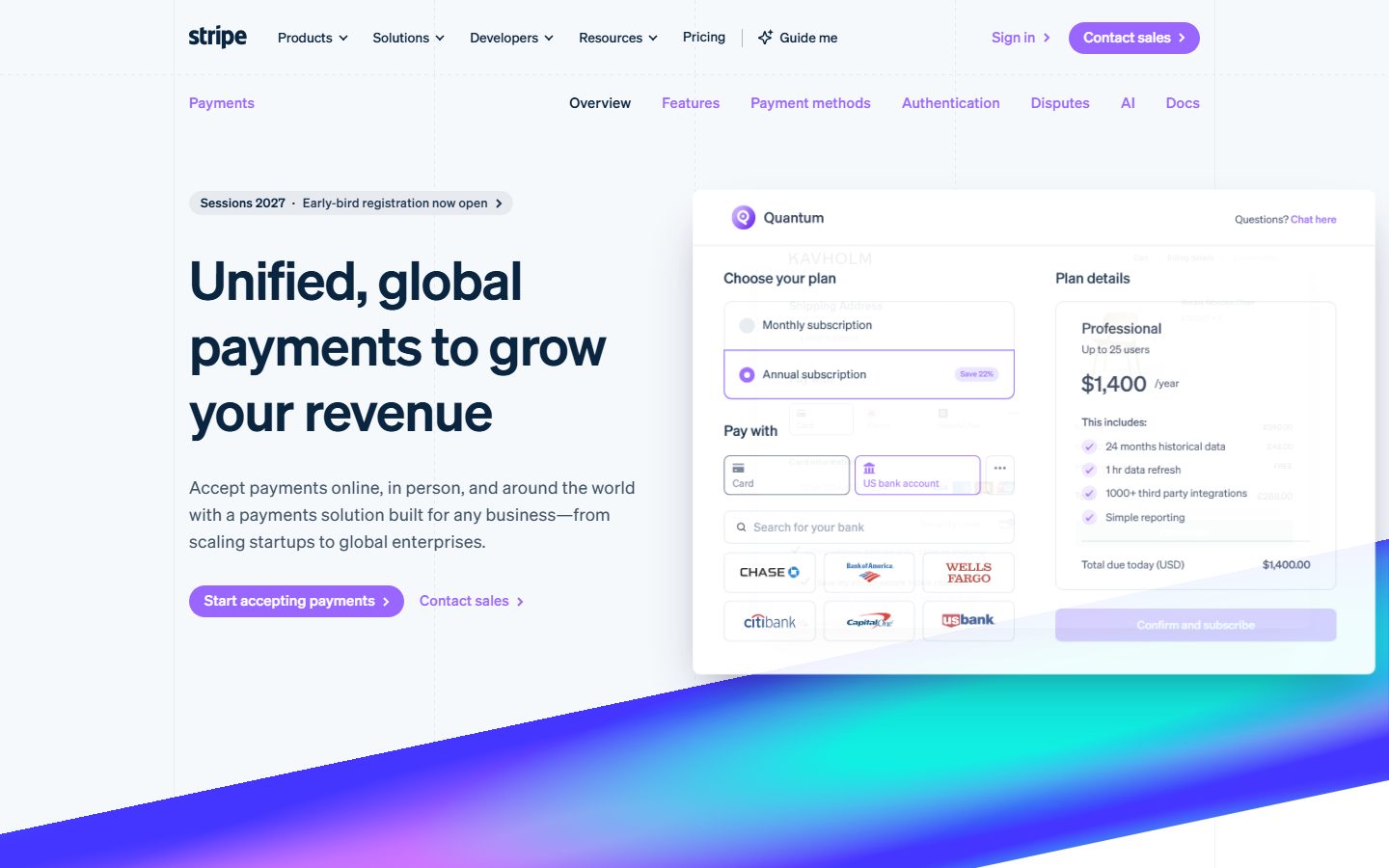
Stripe’s homepage describes a payments solution for any business, to accept payments online, in person and around the world. On its homepage, look at the checkout mockup on the right: it shows a plan choice and a Pay with section offering card and bank-account options, a reminder that the checkout your customer sees is determined by the processor’s hosted components as much as by your store plugin.
PayPal is named in the listings of all three platforms in this guide, as a gateway that WooCommerce, FluentCart and SureCart each support according to their own pages. That coverage makes it a common second option to offer alongside cards.
Mollie’s homepage says you can accept 38 payment methods with one integration, lists online and in-person payments, subscriptions and payment links, and refers to a European payments ecosystem. If your customers are in Europe, check the list of local methods against what your customers use. FluentCart’s listing places Mollie in its Pro tier, and SureCart’s listing names it as a supported processor.
Square has an online-store page on its site, titled as a way to build a free online store or ecommerce website, and the WooCommerce listing names Square among supported gateways. FluentCart’s listing places Square among its Pro add-ons. If you also sell in a physical shop, ask whether one provider can serve both and how stock and sales reports will be reconciled.
Klarna’s business page lists pay in full, pay in 30 days, pay in 3 or 4 and financing options, and says merchants are paid upfront and in full while Klarna assumes credit and fraud risk. It says access is through partners such as Stripe and Mollie. Offer this kind of method only if your customers ask for it and your margins can bear the fees. Read the terms yourself.
WooPayments is described in WooCommerce’s documentation as designed for WooCommerce, with topic areas that include subscriptions, payouts, refunds, fraud and disputes. The WooCommerce listing says it is available in a stated list of countries, so check yours first.
| Decision | Question to answer | How to verify |
|---|---|---|
| Is the processor available in my country? | Can my business and my customers use it? | The processor’s supported-countries page |
| Does my store plugin support it? | Is the gateway in the free or paid tier? | The plugin’s listing and documentation |
| What will I pay at my expected volume? | Percentage, fixed fee, currency conversion, disputes | The processor’s current pricing page |
| How fast is payout, and are there holds? | Cash flow for new accounts | The processor’s payout documentation |
| What happens on failed renewals? | Retries and customer emails for subscriptions | Test a failed renewal in test mode |
What changes when a platform handles payment data
Modern gateway integrations generally collect card details through the provider’s own hosted fields or a redirect, so card numbers do not pass through your server. Confirm that in the documentation of each gateway you enable. That design limits your exposure but does not remove your responsibilities. The PCI Security Standards Council publishes the card industry’s standards and self-assessment questionnaires, and your provider’s documentation says which applies to you. Read that guidance before launch and keep the answer with your records.
Checkout: where orders are won or lost
Checkout is the most valuable page on your site. Small friction compounds: every extra field, forced account creation, or unclear cost can lose a buyer.
Principles of a good checkout
- Ask only for what you need. Remove optional fields such as company name or a second address line unless required.
- Offer guest checkout, or make account creation optional and easy after purchase.
- Show the full cost, including shipping and tax, as early as you can. Surprises at the last step cause abandonment.
- Support autofill and mobile keyboards with correct field types.
- Provide trust signals: clear return policy, contact details, and recognised payment options.
- Give clear error messages next to the field that failed.
Our guide to WooCommerce checkout optimisation goes through field reduction and layout changes in detail. Even if you use another platform, the principles carry over.
Measure what happens
Track how many visitors reach the cart, start checkout, and complete it. A drop at a specific step tells you where to look. Make one change at a time so you know what caused the result, and do not draw conclusions from a handful of orders.
Cart abandonment: what the evidence says and what to fix
Before you add plugins to recover lost sales, look at why carts are abandoned. The Baymard Institute publishes a list of cart abandonment statistics. According to its page, the average documented abandonment rate is about 70 percent, calculated as the mean of 50 studies published between 2006 and 2025, with individual studies ranging from 55 to 84 percent. Baymard’s own survey of US shoppers asked why people abandoned a purchase, and the figures it reports for the reasons are in the table. Treat them as a guide to what to check and not as a prediction of your store.
| Reason reported by Baymard (US shoppers, excluding “just browsing”) | Share | What to check in your store |
|---|---|---|
| Extra costs too high (shipping, tax, fees) | 40 percent | Show shipping and tax early; test the cart total as a new visitor |
| Delivery too slow | 20 percent | State dispatch and delivery times on product pages |
| Distrust of the site with card information | 19 percent | Use the provider’s hosted fields, show a clear returns policy and contact details |
| Site required creating an account | 18 percent | Offer guest checkout |
| Checkout too long or complicated | 17 percent | Remove optional fields; test on a phone |
| Site had errors or crashed | 17 percent | Watch error logs; test with caching on |
| Returns policy unsatisfactory | 13 percent | Make the policy visible before payment |
| Total cost could not be seen up front | 12 percent | Show a shipping estimate in the cart |
| Card declined | 10 percent | Offer more than one payment method; review decline messages |
| Too few payment methods | 9 percent | Add the methods your customers actually use |
Read the source page for the exact wording, the date of the survey and the sample, since the figures are from an external survey and not from your shop.
Measure your own funnel
- Record the number of sessions that view a product, add to cart, start checkout and complete an order, for a fixed period such as four weeks.
- Find the largest drop between two steps.
- Pick one change aimed at that drop, such as showing shipping costs earlier.
- Run the change for another four weeks, and compare. Do not draw conclusions from a handful of orders.
Funnel and checkout add-ons
Some tools sit on top of a WooCommerce checkout. CartFlows presents itself as a sales funnel and checkout builder for WooCommerce, listing one-click upsells, order bumps and A/B split testing. FunnelKit lists a funnel builder, an optimised WooCommerce checkout, order bumps, post-purchase upsells, automations and cart abandonment recovery. Both are vendor claims, so test them on staging, measure checkout speed before and after and check how they interact with your gateway.
SureCart’s listing includes order bumps, upsells and abandoned cart recovery in the plugin itself, and FluentCart’s listing includes one-click checkout and order bumps under its feature lists, with some functions in Pro. Fewer plugins means fewer conflicts, so check what your platform already covers before you add anything.
Shipping for physical products
Shipping is where many first-time store owners lose margin and customers. Decide your approach before you build the catalogue.
Common shipping models
- Flat rate. Simple to explain. Works when parcel size and weight are similar.
- Free shipping with a threshold. Encourages larger baskets. Make sure the margin supports it.
- Weight- or price-based tables. Fair for varied products.
- Live carrier rates. Accurate rates from carriers, which requires accurate product dimensions and weights.
- Local pickup or delivery. Useful for local businesses.
Zones, classes, and rates
Most platforms let you define regions with their own methods and rates, and group products with similar handling needs. A bulky item might need its own class with a higher rate. Our WooCommerce shipping setup guide explains zones, classes, and rates step by step, and its logic applies to other stores too.
Be clear on delivery times and returns
State processing time, delivery estimates, and the returns process on product pages and at checkout. Clear expectations reduce support emails and chargebacks.
Tax and legal basics
Tax rules vary by country, by region, and by product type, and they change. Treat this section as orientation and confirm details with a qualified adviser for your situation.
Questions to answer early
- Where are you registered to collect sales tax, VAT, or similar?
- Do prices display with tax included or excluded in your market?
- Do you sell digital services across borders, where different rules may apply?
- Do you need to show tax details on invoices?
Most platforms can calculate tax based on location rules you configure, and some integrate with tax services. Setup for the European Union and the United States differs in important ways, which we cover in our WooCommerce tax setup guide for EU and US stores.
Legal pages and compliance
You will usually need a privacy policy, terms and conditions, a returns policy, and cookie consent where required by law. Collect only the customer data you need. If you serve visitors in regions with data protection rules, review what applies to you. A multilingual store adds translation requirements, as discussed in our WordPress multilingual plugin comparison.
Product pages that sell
A product page must answer a buyer’s questions without making them leave. Think of it as a salesperson who is always available.
What every product page needs
- Clear, accurate photography showing the product from useful angles, with a zoom option.
- A direct title and a short summary that states what it is and who it is for.
- Price, availability, and shipping information near the buy button.
- A description that covers specifications, materials, size, and use, written in plain language.
- Honest reviews or social proof, if you have it.
- A prominent, unambiguous add-to-cart button.
- Answers to common questions, and a visible returns policy.
For detailed tactics, see our product page conversion guide. Do not fake reviews, countdown timers, or stock scarcity. They damage trust and may break consumer protection rules in your market.
Selling digital products and subscriptions
Not every store ships boxes. Digital goods and recurring plans have their own requirements.
Digital products
Downloads, licence keys, courses, and templates need secure delivery, download limits, and sometimes updates for past buyers. Check that your platform handles file protection, licence generation, and tax rules for digital sales. Our digital products guide compares plugin options.
Subscriptions and memberships
Recurring billing needs reliable renewals, retries for failed cards, customer controls to pause or cancel, and clear communication before charges. Decide between subscriptions inside your store plugin and a separate membership plugin. Our recurring billing overview and the membership plugin comparison help you decide.
Bookings and services
If you sell appointments or rentals, you need availability calendars and deposits. A dedicated booking tool often beats forcing a physical-goods plugin into the role. See our booking plugin comparison.
Email, CRM, and recovering lost sales
Most visitors leave without buying. Email is how you bring back some of them and keep customers returning.
Transactional emails
Order confirmations, shipping notices, and receipts are the emails customers care about most. Make sure they send reliably, using an SMTP or email delivery service, not the default server mail. Test that they reach inboxes, not spam, and brand them so they look trustworthy.
Abandoned cart emails
Many shoppers add products to a cart and leave. A short sequence of reminders can recover some of those sales. Keep the tone helpful, include the cart contents, offer to help with questions, and respect consent rules in your country. Details and sequences are covered in our abandoned cart email guide.
CRM and segmentation
Tracking purchases, tags, and behaviour lets you send relevant messages: a how-to for a product just bought, a reorder reminder, a win-back note. A WordPress-native CRM such as FluentCRM can connect store data to email within your own site, as in our FluentCRM guide. Other tools exist, and our Mailchimp alternatives article compares several. Choose one that connects cleanly to your store and respects your data policy.
Forms and customer contact
Support forms, pre-sales questions, and returns requests need dependable forms. See our form plugin comparison for tools that fit store sites.
Run the store: weekly, monthly and quarterly routines
A store is a business process as much as a website. These routines keep it healthy and catch problems before customers do.
| Frequency | Task | Why |
|---|---|---|
| Weekly | Check orders for failed payments, refunds and unusual patterns | Catches gateway or fraud problems early |
| Weekly | Place a test order on staging or in test mode after any update | Updates are the most common cause of checkout failure |
| Weekly | Read the error log and the email delivery log | Silent failures cost sales |
| Monthly | Compare funnel steps with the previous month | Finds drops that need a fix |
| Monthly | Restore the latest backup to a scratch site | A backup you have not restored is unproven |
| Monthly | Review stock levels, low-stock alerts and slow sellers | Prevents overselling and dead stock |
| Quarterly | Review tax settings, shipping rates and legal pages | Rules and carrier rates change |
| Quarterly | Audit plugins and users; remove what is unused | Lowers risk and maintenance |
| Before each sale | Run the peak-season checklist | See the Black Friday plan in the guide map |
Speed, SEO, and the plugin diet
Speed
Slow pages lose customers. Compress images, use a lightweight theme, load scripts only where needed, and use a quality host. Test the product pages and the checkout, not only the home page. Remember that caching rules differ for dynamic pages.
SEO for stores
Write unique product descriptions, use clear category pages with helpful text, add structured data for products where your platform supports it, and keep URLs stable. Build content that matches buying questions: comparisons, guides, and size or fit advice. Avoid thin, duplicated manufacturer descriptions.
Keep the plugin stack lean
Every extension adds risk and maintenance. Before adding a plugin to your store, vet it with a checklist such as the one in our guide to vetting a plugin. Remove what you no longer use, following the safe deletion guide. When something breaks after an update, the process in our plugin conflict troubleshooting guide gets you to the cause faster. For picking tools by purpose, see the best WordPress plugins guide.
Test orders: a scenario table you can reuse
A launch test is only as good as its scenarios. Run each of the following in your gateway’s test mode, with page caching switched on.
| Scenario | What to check | Pass condition |
|---|---|---|
| Guest purchase of one product | Totals, confirmation page, emails to customer and admin | Order recorded once, emails received |
| Logged-in customer with saved address | Address autofill, account order history | Order appears in the account |
| Declined card | Error message at the failed field, cart preserved | Clear message, no duplicate order |
| Refund | Order status, email, gateway dashboard | Statuses agree in store and gateway |
| Discount code | Rules, minimum spend, stacking | Totals match your calculation |
| Shipping to two regions | Zone rates, tax for each address | Totals match the sample addresses |
| Out-of-stock item | Product page and cart behaviour | Cannot be purchased, message is clear |
| Phone-sized browser | Field types, buttons, payment sheet | Completed without zooming or scrolling sideways |
| Webhook delivery | Processor dashboard event log | Events delivered without errors |
Step-by-step: launch a WordPress store
- Define the business basics. Products, audience, markets, margins, and what you promise on delivery and returns.
- Choose the platform. Use the questions above and run a trial on staging with realistic products.
- Pick hosting and set up HTTPS, backups, and staging.
- Install the store plugin and a lightweight theme. Configure currency, units, and store location.
- Set up tax. Configure rules for your markets and decide on tax-inclusive or exclusive display.
- Set up shipping. Zones, methods, and rates, with accurate product weights and sizes.
- Connect payments. Configure gateways in test mode and run test orders, declines, and refunds.
- Add products. Strong photos, clear copy, accurate stock, and correct attributes.
- Tune checkout. Cut unneeded fields and test on mobile.
- Write legal pages. Privacy, terms, returns, and cookie consent, reviewed for your markets.
- Set up emails. Reliable delivery, branded templates, and abandoned cart flows.
- Test everything. A full purchase as a guest and as a customer, on desktop and mobile, with caching on.
- Go live, place a real order, and refund it.
- Monitor. Uptime, errors, and checkout completion for the first weeks.
Pre-launch checklist
- HTTPS works on every page, with no mixed content warnings.
- Cart, checkout, and account pages are excluded from page caching.
- Test orders succeed with each payment method, and declines show clear messages.
- Tax and shipping totals match your calculations for several sample addresses.
- Order emails arrive, and render well on mobile.
- Privacy, terms, and returns pages are linked from the footer and checkout.
- Backups run, and you have tested a restore.
- Admin accounts use strong passwords and two-factor authentication.
- The site is fast on a mobile connection.
- You know who to call, and how, if checkout fails.
A 90-day plan for a first store
This sequence keeps a new shop from collapsing under its own to-do list. Adapt the order to your catalogue and team.
| Period | Focus | Deliverables |
|---|---|---|
| Days 1 to 14 | Decide and set up | Platform choice from a staging trial, hosting, HTTPS, backups, store basics |
| Days 15 to 30 | Core commerce | Tax, shipping, gateways in test mode, first products with photos and copy |
| Days 31 to 45 | Trust and legal | Privacy, terms, returns, cookie consent, order emails, contact page |
| Days 46 to 60 | Test and soft launch | Test-order scenarios, mobile checks, a real order and refund, limited announcement |
| Days 61 to 90 | Learn and improve | Funnel measurements, first abandoned cart email, one fix for the largest drop |
Preparing for peak season
Sales events expose weak spots: slow servers, broken coupons, stock errors, and overloaded support. Preparation matters more than heroics on the day. Test performance under load, freeze risky changes before the event, check that discount rules do not stack by accident, make sure your payment provider can handle volume, and write support answers in advance. Our 14-day Black Friday plan for WooCommerce gives a day-by-day schedule that applies to other peak dates as well.
Troubleshooting a store: symptom, cause and fix
| Symptom | Likely cause | Fix |
|---|---|---|
| Customers see someone else’s cart or old totals | A caching rule includes cart or checkout pages | Exclude cart, checkout and account from page caching, then purge caches |
| Orders stay on pending after payment | The gateway’s webhook did not reach the store | Check the webhook log in the processor dashboard and any firewall rules |
| Order emails do not arrive | Default server mail is blocked or flagged | Use an email delivery service and test with an outside inbox |
| Tax totals differ from your calculation | Tax rules, location settings or price display do not match | Test sample addresses and compare with your adviser’s rules |
| Checkout is slow | Too many scripts, slow hosting or heavy extensions | Test with extensions off one at a time on staging |
| Checkout broke after an update | An extension conflict or an incompatible update | Roll back on staging, test one update at a time, see the conflict guide |
| A payment method disappears for some customers | Country, currency or amount restrictions on the method | Check the method’s rules in the processor settings |
| Stock goes negative | Stock management is off for some products | Turn on stock management and check variations |
Common mistakes in WordPress ecommerce
Choosing on price alone
A cheaper platform that cannot do what you need costs more in workarounds. Compare total cost over time.
Too many extensions
Each one is a maintenance and conflict risk. Consolidate and remove.
Ignoring mobile checkout
Many shoppers buy on phones. Test on real devices, not only a desktop browser at a narrow width.
Hiding costs until the last step
Unexpected shipping or fees are a leading reason people abandon a purchase. Show costs early.
Skipping backups and restore tests
A backup you have never restored is unproven. Test it.
Updating on the live site first
Test updates on staging, particularly for payment and checkout plugins.
Copying manufacturer descriptions
Duplicate text gives search engines no reason to rank you and gives shoppers nothing new. Write your own.
Never reviewing the funnel
Check cart, checkout, and conversion data regularly, and fix the largest drop first.
How the decisions change by type of store
| Situation | Priorities | Watch out for |
|---|---|---|
| Small shop with a handful of products | Simple setup, one or two gateways, clear shipping and returns | Over-building: do not add funnel plugins before you have traffic |
| Digital products and subscriptions | Secure delivery, renewals, failed payment handling, tax on digital sales | Platform fees that grow with revenue |
| Large physical catalogue | Import tools, search, filters, inventory, performance | Extension sprawl and slow queries |
| Agency building for a client | Client ownership of accounts, clear handover, maintenance plan | Choosing a platform you cannot support for years |
| Store replacing an existing shop | Order and customer migration, redirects, parallel testing | Losing order history or breaking old URLs |
If you build stores for clients, our freelance pricing guide shows how to estimate shop projects, and the agency workflow guide covers staging, QA and handover.
Using AI and automation in your store
AI can help with routine store work: drafting product descriptions you then edit, summarising customer questions, or checking that every product has the required fields. For agent-driven site management, tools such as NibWP let an AI agent act on WordPress through defined abilities, and our guide to AI and MCP for WordPress explains the model. Keep humans in control of prices, refunds, and anything customer-facing, test on staging, and never paste customer personal data into tools whose data terms you have not checked.
Guide map
This guide is the hub for our ecommerce coverage. Each article below goes deeper on one decision.
- WooCommerce vs FluentCart vs SureCart: a detailed comparison to help you pick between three different architectures.
- FluentCart guide: how to set up products, checkout, and orders in a WordPress-native store.
- SureCart guide: how its cloud-assisted checkout works and who it suits.
- WooCommerce alternatives: other store routes if WooCommerce is not the right fit.
- WooCommerce checkout optimization: practical ways to remove friction and raise completed orders.
- Best WooCommerce payment gateways: how to compare fees, methods, and reliability.
- Sell digital products on WordPress: plugin options for downloads, licences, and delivery.
- WordPress subscriptions and recurring billing: what to look for in renewals, retries, and customer controls.
- Black Friday prep for WooCommerce: a 14-day schedule to get a store ready for peak traffic.
- Abandoned cart emails for WooCommerce: sequences and tone that recover sales without annoying people.
- WooCommerce shipping setup: zones, classes, and rates explained step by step.
- WooCommerce tax setup for EU and US: how tax rules differ and how to configure them.
- Product page conversion for WooCommerce: what to put on a product page to help buyers decide.
FAQ
Is WordPress good for ecommerce?
Yes, for many kinds of store. It gives you ownership of your data and design, a deep ecosystem, and strong content and SEO capabilities. It asks more of you than a hosted builder: you manage hosting, updates, backups, and security, or pay someone to. If you want zero maintenance, a hosted platform may fit better.
Which is the best WordPress ecommerce plugin?
It depends on what you sell and how you work. WooCommerce suits complex catalogues and integrations. FluentCart suits lean, WordPress-native stores. SureCart suits digital products and subscriptions with cloud-assisted checkout. Test your top two on staging with realistic products, check total cost, and test an export before deciding.
How much does it cost to run a WordPress store?
Costs include hosting, a domain, the store plugin and any paid extensions, a theme, email delivery, payment processing fees, and your time or a developer’s. The total varies widely by store size and platform. Get current prices from vendors, add them up for a year, and include transaction fees, which grow with sales.
Do I need a developer to build a WordPress store?
Not always. A simple store with a handful of products can be set up by a careful non-developer using modern plugins. Complex shipping, custom checkout flows, integrations, and large catalogues usually benefit from a developer. Even then, owners should understand the setup, backups, and where to find logs.
Is WooCommerce free?
The core plugin is free to install, but a working store usually involves costs: hosting, payment fees, and often paid extensions for features such as subscriptions, bookings, or specific shipping and payment integrations. Check each extension’s price and renewal terms. Compare this total with alternatives that include more in one product.
How do I make a WordPress store fast?
Use quality hosting, a lightweight theme, optimised images, and fewer plugins. Enable page caching for catalogue pages and exclude cart, checkout, and account pages. Use object caching where available, load scripts only where needed, and test product pages and checkout on a mobile connection, not only the home page.
How do I handle taxes in a WordPress store?
Configure tax rules in your store plugin for the places where you must collect tax, decide whether prices include tax, and check rules for digital goods and cross-border sales. Rules change and vary by country, so confirm your obligations with a qualified adviser, and test calculations with sample addresses before launch.
Can I sell subscriptions and digital products on WordPress?
Yes. Several plugins support downloads, licence keys, and recurring billing, either inside the store plugin or through dedicated tools. Check secure file delivery, renewal retries for failed cards, customer self-service, and tax handling. Test the full lifecycle on staging, from purchase through renewal, failure, and cancellation.
Should I start with a free plan or a paid one?
Start with whatever lets you test your real scenarios: products, checkout, tax, shipping and a refund. Free versions often cover the basics, while some features you need may sit in a paid tier. List your must-have features first, check which tier includes them on the vendor’s current page, and then decide.
Can I switch platforms later?
Yes, but plan for it. Products and customers usually export with some effort. Order history, subscriptions and stored payment methods are harder. Ask each vendor what its export covers, and test an export before you commit. If you may migrate, keep your URLs stable and write redirects.
How many payment methods should I offer?
Offer the ones your customers use, and add more only when you see requests or declines that a new method would fix. Each method adds setup and reconciliation work. Cards plus one wallet or local method cover many shops.
Do I need a separate plugin for abandoned carts?
Not always. Check whether your store plugin or email tool already covers it. A dedicated plugin makes sense when you want sequences, segmentation or testing that the platform does not offer. Measure the result, and respect consent rules in your country.
What should I back up on a store?
The database, which holds orders and customers, plus uploads and your theme and custom code. Store backups off the server and test a restore. For a busy store, ask your host how frequently the database is backed up, because orders arrive between daily backups.
How do I know my host can handle the store?
Read the host’s limits on resources and visits, ask about object caching and staging, and test checkout under realistic conditions on a staging copy. Our hosting comparison explains the models. WPMusk has not benchmarked hosts, so measure your own pages before and after a change.
Conclusion and next steps
WordPress ecommerce works best when you treat it as a set of decisions, made in the right order. Choose the platform that matches what you sell and who will run it. Get payments, shipping, tax, and checkout right before you polish the design. Keep the plugin stack lean, test on staging, and watch the numbers that matter: checkout completion, speed, and recovered carts.
Your next steps: write down your product types and markets, shortlist two platforms, and run a realistic trial of each on a staging site. Use the Guide map above to read deeper on the decisions that matter most to your store. Then launch with the checklist, place a real order, and improve one part of the funnel at a time. A steady, tested approach beats a perfect launch that nobody maintains.
Keep reading
WooCommerce vs FluentCart vs SureCart: The Detailed Comparison
WooCommerce vs FluentCart vs SureCart: a fair, detailed comparison of architecture, payments, subscriptions, costs and who should pick which.
FluentCart Guide: Setup, Products and Checkout
A practical FluentCart tutorial: install, configure the store, add products, set up payments and checkout, then test before you go live.
SureCart Guide: Cloud Checkout on WordPress
A practical SureCart tutorial: how the cloud checkout works, how to connect and set up your store, sell products and subscriptions, and what to watch.
WooCommerce Alternatives for WordPress Stores
Looking for WooCommerce alternatives? Compare self-hosted, cloud and hosted options by store type, and learn when staying with WooCommerce is smarter.
WooCommerce Checkout Optimization: Fewer Fields, More Orders
WooCommerce checkout optimization that works: remove fields, cut friction, add the right payment methods, speed up the page and test every change.
Best WooCommerce Payment Gateways Compared
Compare WooCommerce payment gateways: WooPayments, Stripe, PayPal, Square, Mollie and Klarna, with fees, countries, subscriptions and how to choose.
Sell Digital Products on WordPress: Plugin Options
Want to sell digital products WordPress style? Compare WooCommerce, Easy Digital Downloads and other plugins for delivery, licensing and tax.
WordPress Subscriptions and Recurring Billing Options
Choosing a WordPress subscription plugin? Compare options, design plans and renewals, and handle failed payments, cancellations and tax correctly.
Let your AI assistant do this for you
Open the ready prompt with step‑by‑step instructions for running it through NibWP.