How to choose a WordPress code snippets plugin: safe error handling, scoping, version control and why it beats editing functions.php.
What a code snippets plugin does, in plain words
A code snippets plugin lets you add small pieces of custom code to WordPress without editing your theme or creating a plugin by hand. You paste a PHP function, a CSS rule, a JavaScript tag or a block of HTML into an admin screen, choose where it runs and switch it on or off.
The usual alternative is to paste code into your theme’s functions.php. That works until you change themes, when the code disappears, or until one typo causes a fatal error. A snippets plugin keeps your customizations in one place that survives theme changes and gives you a way to switch a snippet off.
Typical uses include adding tracking scripts to the header, changing a WooCommerce label, registering a small custom post type, hiding an admin notice and adding a few lines of CSS. Anything big, such as a full feature with its own settings, belongs in a proper plugin.
How it works under the hood
The plugin stores each snippet in the database, along with settings such as its type, scope, priority and whether it is active. On each request it loads the active snippets and runs them at the point you chose. PHP snippets are executed by the plugin, usually through PHP’s eval or by writing them to files, and CSS, JS and HTML snippets are printed into the page.
That has two consequences. First, a snippet runs with the full power of WordPress. It can read the database, write files and send requests, so it has the same risk as any plugin code. Second, a broken PHP snippet can stop the site from loading, so error handling is the feature that matters most. The Code Snippets documentation describes a Safe Mode that prevents snippet execution so you can troubleshoot, and it says plainly that Safe Mode is a recovery aid and does not make every snippet safe.
WordPress also has its own fatal error protection, which can show a recovery link to administrators when a plugin or theme causes a fatal error. Do not rely on it as your testing method. Test on staging.
Who needs one (and who does not)
- Site owners making small tweaks benefit from a plugin with a library and a safe interface.
- Agencies want to share the same snippets across client sites and see which snippet does what.
- Developers may prefer a version-controlled site plugin or must-use plugin, where code lives in files, goes through review and deploys with the rest of the project. A snippets plugin that keeps code only in the database does not fit that workflow, though some offer file-based execution or export.
- Anyone adding tracking tags may be better served by a tag manager or a header-and-footer tool that does just that.
You do not need one if you rarely add code, or if your needs are covered by a plugin you already run. Before pasting code you found online, read the plugin vetting guide for the habits that also apply to snippets.
Types and approaches
| Approach | Where code lives | Strengths | Watch out for |
|---|---|---|---|
| Theme functions.php | Theme file | No plugin needed | Lost on theme change; one typo can crash the site |
| Child theme functions.php | Child theme file | Survives parent theme updates | Still tied to the theme |
| Snippets plugin (database) | Database rows | Switch on and off, scoped, theme-independent | Not in version control by default; crash risk if error handling is weak |
| Snippets plugin (file-based) | Files managed by the plugin | Closer to a code workflow | Needs file write access |
| Custom site plugin | Your own plugin folder | Version control, review, structure | Needs developer skill |
| Must-use plugin | The mu-plugins folder | Always on, cannot be deactivated from admin | No on and off switch in the UI |
| Header and footer script tool | Settings fields | Simple for tracking tags | Not for PHP logic |
What to look for
On WPMusk, plugins are scored on speed impact (30%), reliability (25%), support (20%), value (15%) and ease of use (10%). For a snippets plugin, reliability and the way it handles errors carry the most weight in practice.
Error handling and recovery (reliability)
This decides whether a typo is an annoyance or an outage. Look for code validation before saving, a clear way to see which snippet broke and where, a safe mode and the ability to disable snippets without logging in, for example through a constant or file. WPCode’s listing describes code validation, error tracking that shows the snippet and line number, and a safe mode, and says only snippets that cause fatal errors in the admin are deactivated automatically; other errors are logged. Read how each tool behaves on a front-end fatal error, then test it.
Snippet types (value)
Check which types are included. The Code Snippets listing says PHP and HTML snippets are free, while dedicated CSS and JavaScript types are in Pro. WPCode’s listing says PHP, JavaScript, CSS, HTML and text snippets are in the free version. Match the tiers to your needs.
Scope and conditions (speed impact, ease of use)
You should be able to run a snippet everywhere, in the admin only, on the front end only, or by condition. Narrow scopes mean less code runs on each request. WPCode’s listing describes conditions by login state, role, URL, post type and device, and also notes the page is inconsistent about which tier includes conditional logic, so check the plan table.
Performance overhead (speed impact)
Each active snippet adds a small cost, and a large number of them adds up. Look for per-snippet scopes, the option to run code from files, and clear indicators of which snippets run on a given page. The Code Snippets listing describes optional file-based execution and, in Pro, a “ran on this page” view and performance insights.
Import, export and sharing (value)
You will want to move snippets between sites. Code Snippets describes export of single or multiple snippets, including PHP export for use on a site without the plugin. WPCode describes import and export and a library of tested snippets. Portability reduces lock-in.
Permissions and security (reliability)
Whoever can edit snippets can run arbitrary PHP on your site. Restrict snippet management to trusted administrators. WordPress offers the DISALLOW_FILE_EDIT constant to turn off the built-in plugin and theme editor, which its documentation describes as an additional layer if an attacker gets into a privileged account. Think the same way about a snippets plugin: if it lets any administrator run PHP, protect those accounts with two-factor authentication. See the two-factor authentication guide.
Library and community code (support, value)
A library of ready-made snippets is convenient, and also a source of code you did not write. Read each snippet before enabling it, and prefer libraries that show update history. Check support channels and how quickly a vendor answers.
Real products to look at
These are examples, not rankings. Descriptions come from the plugins’ wordpress.org listings. Check each vendor for current tiers and prices.
- Code Snippets. The listing describes PHP and HTML snippets, run scopes (everywhere, admin, front end), run-once snippets, import and export, tags, search, a Community Cloud for shared snippets, optional file-based execution and a Safe Mode. CSS, JavaScript, revisions, role-based permissions and other items are listed as Pro. It fits people who want a focused snippet manager.
- WPCode. The listing describes PHP, JavaScript, CSS, HTML and text snippets, global header and footer scripts, a library of ready-made snippets, code generators, error tracking and safe mode. Cloud library, revisions and more are listed as Pro. It fits people who want snippets plus header and footer scripts in one tool.
- A custom site plugin. Not a product, but a pattern. The WordPress plugin documentation describes a plugin as a PHP file with a header comment placed in the plugins folder. For a developer, that is the cleanest home for code that should be reviewed and versioned.
- Child theme functions.php. Also a baseline rather than a product. Useful for code that is truly theme-specific.
The screenshots below show the homepage of one of these examples as captured in November 2026, so you can see how each vendor presents the product.
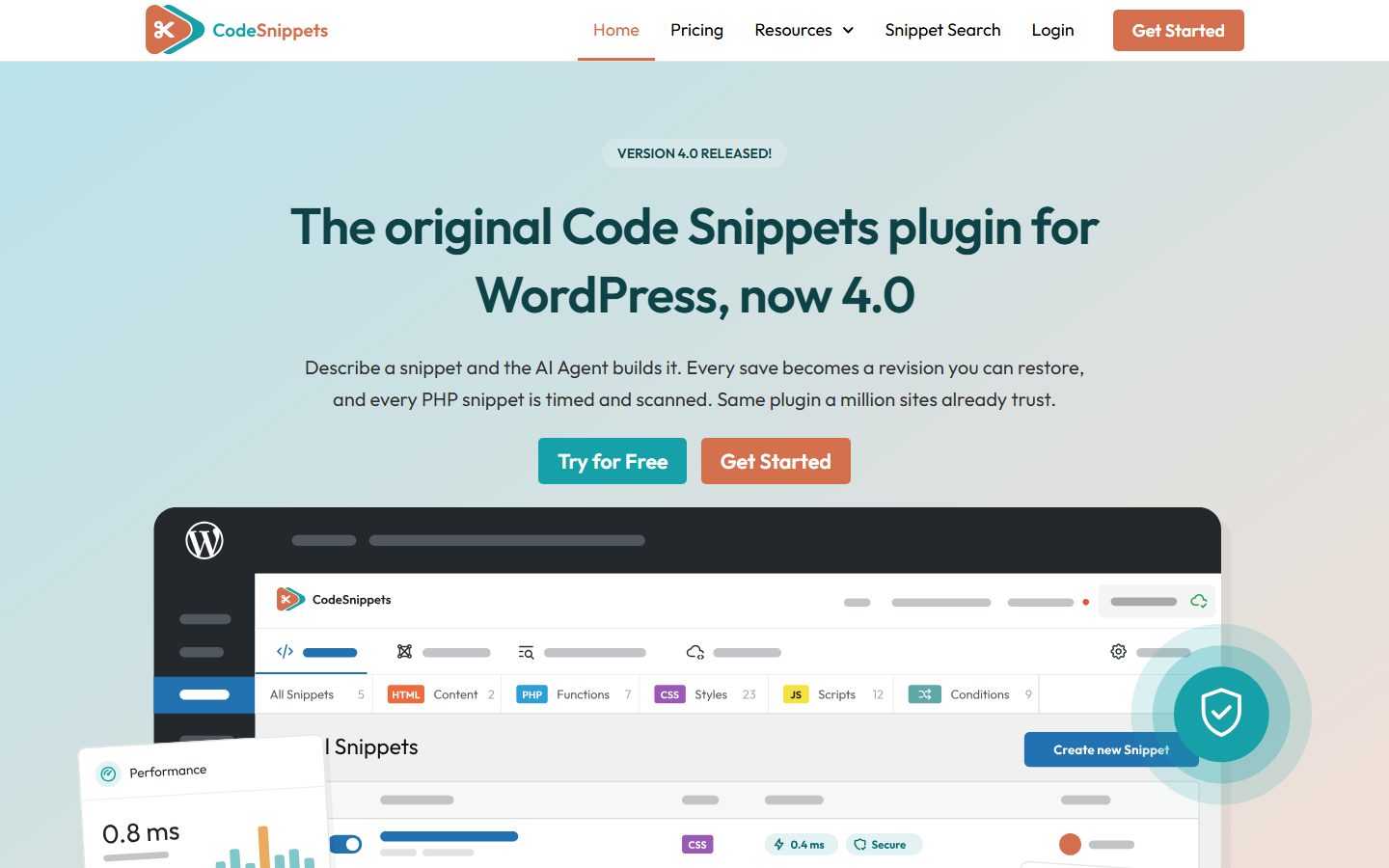
Also see plugins you can delete for cases where a snippet could replace a whole plugin, and custom post types: plugin or code for a common decision that touches this topic.
A comparison checklist you can fill in
| Question | Why it matters | Your answer |
|---|---|---|
| What happens on a PHP fatal error? | Outage risk | |
| Is there a safe mode? | Recovery | |
| Can you disable snippets without admin access? | Locked-out recovery | |
| Are CSS and JS types included? | Tier cost | |
| Can you scope to admin, front end or a condition? | Overhead | |
| Can you export snippets as plain files? | Lock-in | |
| Who can edit snippets? | Security | |
| Is there change history? | Rollback | |
| Does the library show update history? | Trust | |
| Does it support multisite if needed? | Network sites |
Setup and migration steps
Before you switch
- Back up the site and your theme files.
- List the snippets you already run, and where they live: theme files, other plugins, the customizer.
- Check each snippet is still needed. Delete code for features you no longer use.
- Make a plan to disable code without the admin, such as renaming the plugin folder through SFTP.
During setup
- Install on staging first. See the staging site guide.
- Move snippets one at a time. After each, load the front end and the admin.
- Give every snippet a name, a description and a tag. Future you will not remember why it exists.
- Remove the original from functions.php only after the snippet works, so it does not run twice.
- Set scopes narrowly from the start.
After you switch
- Switch themes on staging and confirm the snippets still run.
- Enable a debug log on staging only and look for new notices. WordPress documents WP_DEBUG and WP_DEBUG_LOG, and warns that a log in a public location is a security risk.
- Restrict who can edit snippets.
Common mistakes and red flags
- Pasting code you do not understand. A snippet from a forum can do anything.
- Testing on the live site. A single missing bracket can take the site down.
- Using a snippet for a large feature. Big code belongs in a plugin.
- Adding the same code twice, once in the theme and once in the plugin.
- No names or notes. Hard to maintain and hard to hand over.
- Letting many administrators edit PHP.
- Ignoring the “run everywhere” default. Narrow it.
- Forgetting snippets when you migrate. They live in the database and may need export.
Red flags in a vendor: no explanation of error handling, no export, and a library with no authorship or update history. See the plugin conflicts guide for how to isolate a snippet that causes trouble.
Cost and risk of switching later
Switching from one snippets plugin to another is mostly copy and paste, since the code is plain text. The cost sits in the extras: conditions, tags, descriptions and run-order settings that may not export. If you rely on conditions, recreate them and test.
The bigger lock-in is not the plugin but the habit. A site with fifty snippets and no documentation is hard to move. Keep a short readme or notes field for each, and consider moving mature code into a site plugin kept in version control. For a developer, that is the long-term home. Paid tiers are usually yearly, so check what stays active if you do not renew.
A one-afternoon evaluation plan on a staging copy
- Install (10 minutes). Install the candidate on staging.
- Add a harmless PHP snippet (15 minutes). For example, a function that changes a text label. Pass: it runs on the scope you chose and not elsewhere.
- Break it on purpose (20 minutes). Save a snippet with a syntax error. Pass: the plugin rejects it or shows a clear error, and the site stays up.
- Trigger a runtime error (20 minutes). Write a snippet that calls an undefined function on the front end. Pass: you can identify the snippet and disable it, with or without admin access.
- Test safe mode (15 minutes). Enable it and confirm all snippets stop. Pass: the site loads and you can fix the snippet.
- Test types (20 minutes). Add a CSS rule and a JavaScript tag. Pass: they output where expected, or you learn they need a paid tier.
- Test export (15 minutes). Export a snippet and import it on a second staging site. Pass: it arrives with its settings.
- Check overhead (20 minutes). Add ten small snippets with narrow scopes and look at admin and front-end speed. Pass: no noticeable change.
- Review permissions (15 minutes). Log in as an editor and confirm they cannot see snippets.
How we will evaluate it
WPMusk has not run hands-on tests of snippets plugins yet. This page is a decision guide built from vendor listings and WordPress documentation. This page carries no score: it is guidance for choosing, not a measured result.
Our planned approach follows the plan above, with special attention to failure handling, since that is where these tools differ. Scores will use our plugin weights: speed impact 30%, reliability 25%, support 20%, value 15% and ease of use 10%. Related reading: the WordPress security guide.
Questions people ask
Is a snippets plugin safer than editing functions.php?
It can be, because good ones validate code, show errors and let you switch snippets off. It is not safe by itself. A bad snippet is still bad code.
Where should I keep custom code long term?
Small tweaks can stay in a snippets plugin. Larger or shared code is better in a site plugin under version control.
Will snippets slow my site?
Each one adds a little work. Narrow scopes and a modest number keep the cost low. Measure on staging.
Can I use a snippets plugin for tracking scripts?
Yes, many support header and footer injection. Check that it can scope the script to the pages that need it, and review consent requirements.
What if a snippet locks me out?
Use the plugin’s safe mode if you can reach it, or rename the plugin folder over SFTP to deactivate it. Know the method before you need it.
Are community snippets safe?
Treat them like any third-party code. Read them, test on staging and prefer sources with visible authorship.
This is a buyer’s guide for a type of product. It is based on public documentation, not on hands-on tests, and it carries no score.
← All reviews