How to choose a WordPress SEO plugin: titles, schema, sitemaps, redirects and the bloat and nagging to avoid, explained for site owners.
What an SEO plugin does, in plain words
An SEO plugin gives you a place to control how your pages present themselves to search engines and to people who see them in results. It handles page titles, meta descriptions, canonical URLs, sitemaps, structured data and robots directives. It also usually adds an editor panel that scores your content against a checklist.
It does not rank your site. Rankings come from content quality, links, technical health and many things outside a plugin. What a plugin does is remove technical friction and make sure the signals your pages send are consistent and correct.
How it works under the hood
The plugin hooks into WordPress as it builds each page. It changes the title tag, adds meta tags and link tags in the page head, and prints structured data, usually as JSON-LD, a script block that describes the page to machines. Google calls JSON-LD the easiest format to implement and maintain at scale, though it also supports Microdata and RDFa.
For sitemaps, the plugin generates XML files listing your public URLs and updates them as content changes. WordPress core has included basic XML sitemaps since version 5.5, with a sitemap index at wp-sitemap.xml, so a plugin’s sitemap competes with or replaces the core one. Running both is a common source of confusion. See the XML sitemap guide.
Many plugins add more: breadcrumbs, redirect managers, 404 monitors, Search Console connections, bulk editors and social previews. These extras overlap with other plugins, so decide which one owns each job.
Who needs one (and who does not)
- Sites that want organic traffic benefit from a plugin that sets titles, descriptions, canonical tags and sitemaps correctly without editing theme files.
- Developers who control the theme can do some of this in code, though a plugin is usually less maintenance.
- Sites where search does not matter, such as private intranets or membership areas, need little more than a noindex setting.
- Sites on a managed platform or builder that already outputs clean tags may only need a plugin for schema and redirects.
If you already run one SEO plugin and it works, switching rarely produces a ranking gain. The reasons to switch are cost, features you need, or friction with your workflow. Run only one SEO plugin at a time, because two will output duplicate tags.
Types and approaches
| Approach | What it does | Fits | Watch out for |
|---|---|---|---|
| Guided, checklist-style plugin | Scores content with traffic-light feedback and readability hints | Writers who want a prompt | Treating the score as the goal; scores do not equal rankings |
| Modular, feature-rich plugin | Many modules you switch on or off | People who want schema, redirects and 404 tools in one place | Turning on modules you never use; overlap with other plugins |
| Lightweight settings plugin | Titles, meta, sitemaps and little else | Developers and minimalists | Fewer guardrails |
| Core sitemaps plus a small meta plugin | Core handles sitemaps; plugin handles tags | Simple sites | Limited schema and no redirects |
| Theme or builder built-in SEO | Fields inside your theme or builder | Sites tied to one builder | Lock-in; data lost if you change theme |
What to look for
On WPMusk, plugins are scored on speed impact (30%), reliability (25%), support (20%), value (15%) and ease of use (10%). For SEO plugins, speed impact means admin and front-end overhead, and reliability means that tags and schema stay correct after updates.
Performance overhead (speed impact)
An SEO plugin runs on every page and loads editor scripts in the admin. Look for modular designs where unused features are off, and be wary of plugins that add many database queries or large admin scripts. Check your own admin speed on a staging copy rather than trusting any claim.
Correct, valid output (reliability)
Titles, canonicals, robots tags and schema must be right. Check whether the plugin lets you control archives, tags, author pages and attachment pages, since thin pages can be marked noindex. Validate structured data with Google’s Rich Results Test. Google states that structured data does not guarantee rich results, and that required properties must be present for eligibility. See the schema markup guide.
Schema coverage and control (reliability, value)
Compare which types are included and which need a paid tier. Yoast’s listing says free includes basic structured data and FAQ and HowTo blocks, and that Premium adds more schema types. Rank Math’s listing describes 16 or more schema types. AIOSEO’s listing mentions schema in the free version without naming types. SEOPress’s listing describes organization data in free and a JSON-LD editor in Pro. Read the table for the type you need, such as Product, Recipe or LocalBusiness.
Redirects and 404 handling (value)
Some plugins include a redirect manager and a 404 monitor, others put them behind a paid plan. Yoast’s page lists its redirect manager under Premium. AIOSEO’s lists a redirection manager under Pro. Rank Math’s listing describes a redirection manager and 404 monitor. If you want one tool for this, check the tier. Otherwise see the 301 redirects guide.
Sitemap control (reliability)
You should be able to exclude post types, taxonomies and individual URLs, and to confirm that only one sitemap is active. Note which sitemap types, such as video, news or image, are paid.
Import and export (ease of use, value)
If you may change plugins later, check for importers from other SEO plugins and for data you can export. Titles and descriptions live in post meta tied to the plugin that wrote them. Losing them is the main cost of switching.
Support, documentation and update cadence (support)
SEO plugins touch every page. Look for a clear changelog, an active support channel and documentation on how to handle conflicts with themes. Free tiers on wordpress.org use forum support, and paid tiers usually add ticket support.
Privacy and integrations (value)
Check what leaves your site. Some plugins connect to Search Console, analytics or AI services. Read what data is sent and whether you can turn it off. See the Search Console guide.
Real products to look at
These are examples, not rankings, drawn from each plugin’s wordpress.org listing. Features and tiers change, so check the vendor page. We list no prices.
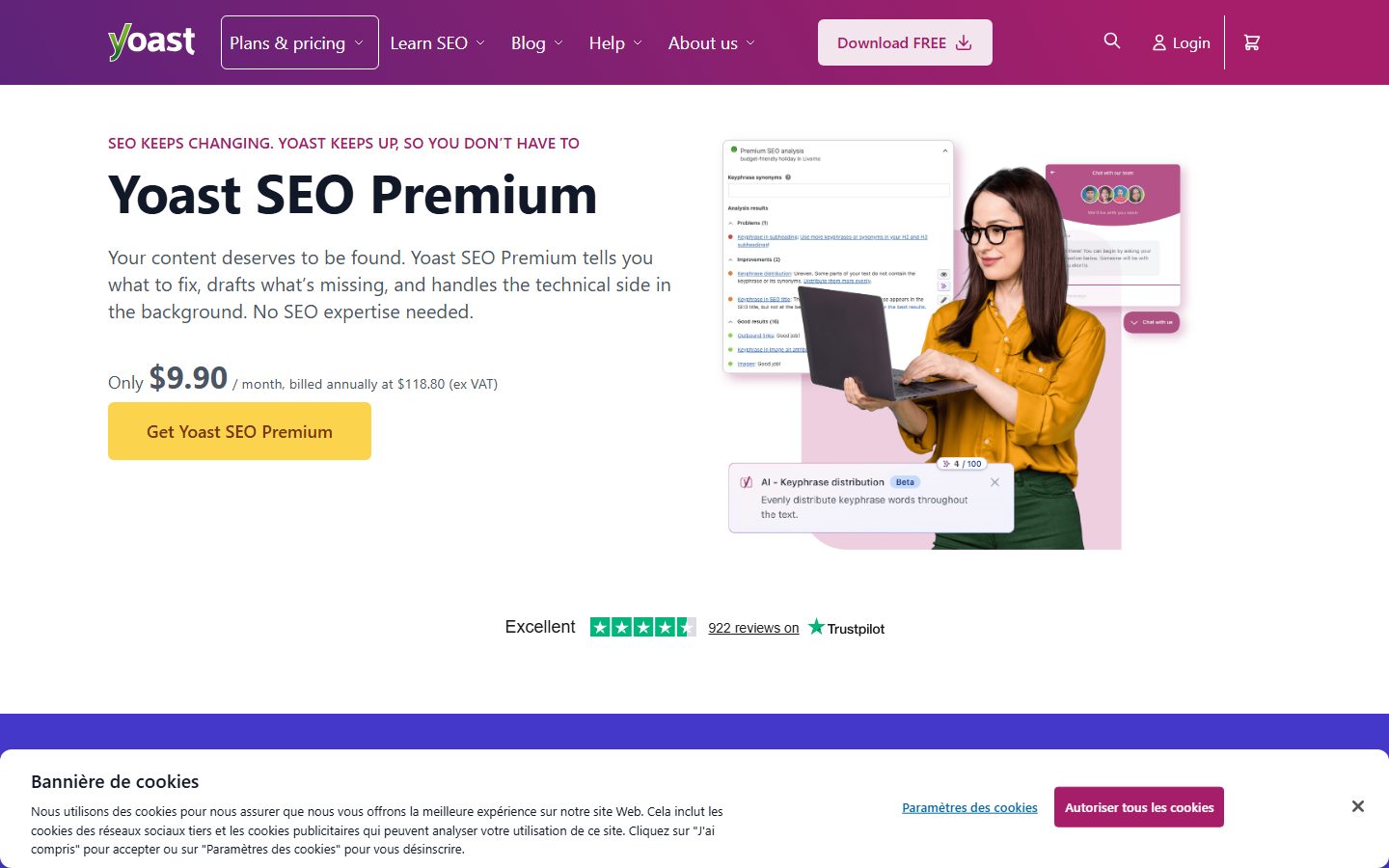
- Yoast SEO. The listing describes automatic XML sitemaps, basic structured data, canonical URLs, SEO and readability analysis, SERP previews, breadcrumbs and an LLMs.txt feature in the free version. Premium adds a redirect manager, AI title and description generation, more schema types and other extras. It fits people who want guided content analysis. See Yoast alternatives.
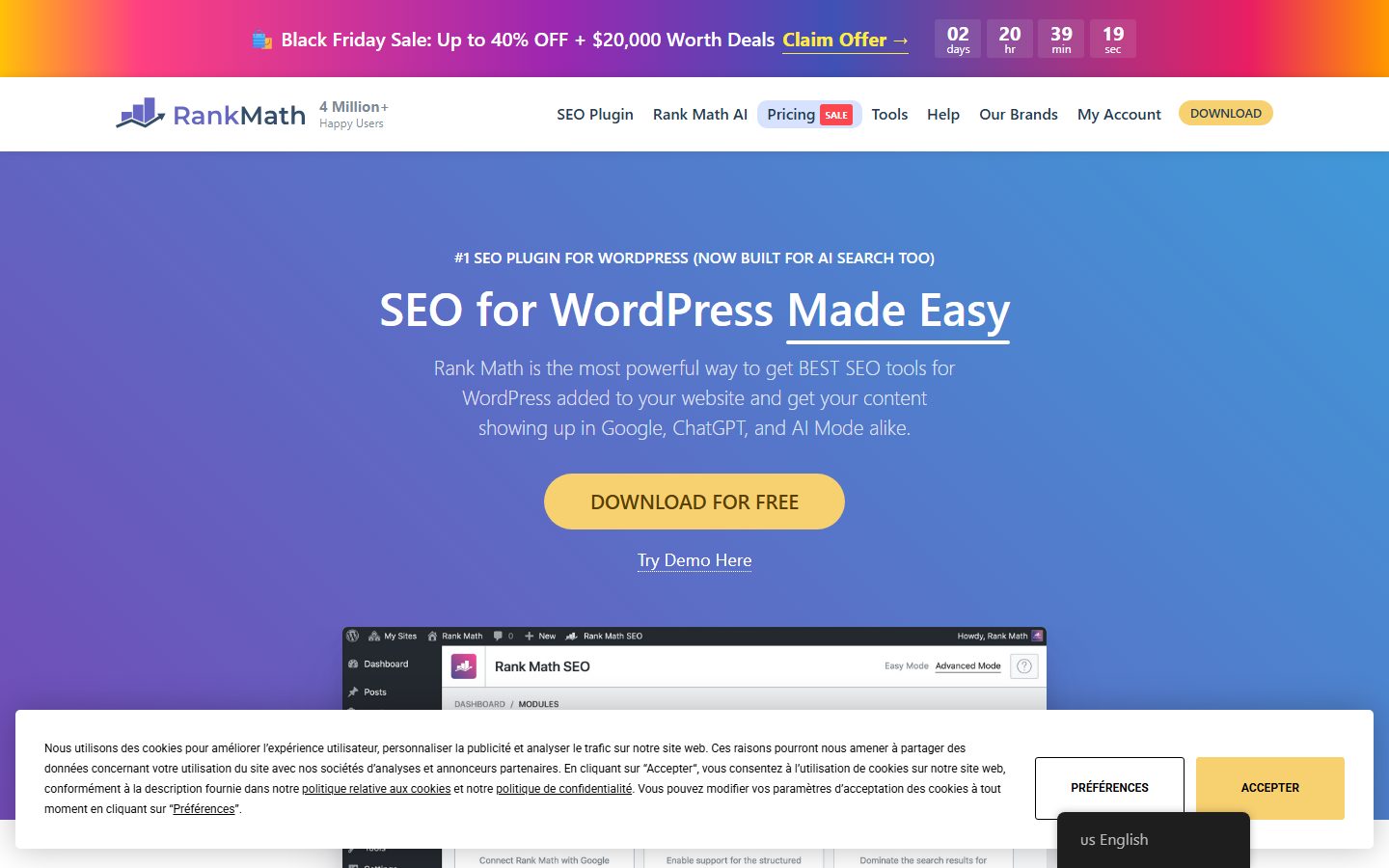
- Rank Math. The listing describes schema types, XML sitemaps, a redirection manager, a 404 monitor, Search Console integration and 15 or more free modules you can enable individually. It fits people who want many features in one plugin.
- All in One SEO. The listing says the free version includes an XML sitemap, schema markup and TruSEO content analysis, and that Pro includes the redirection manager and a wider sitemap suite. It fits people who want a familiar interface with an upgrade path.
- SEOPress. The listing describes free XML sitemaps for posts, pages, taxonomies and images, post-level redirections, and white labelling in the free version, with unlimited redirects, regex, a URL tester and 404 monitoring in Pro. It fits agencies that want to brand the plugin.
- WordPress core sitemaps. Not a plugin, but a baseline: since 5.5 core provides a sitemap index for posts, taxonomies and users. It fits very simple sites.
The screenshots below show the homepage of two of these examples as captured in November 2026, so you can see how each vendor presents the product.
For a wider view, see the SEO plugin roundup.
A comparison checklist you can fill in
| Question | Why it matters | Your answer |
|---|---|---|
| Which schema types you need are free? | Rich result eligibility | |
| Is a redirect manager included? | Avoids another plugin | |
| Can you exclude URLs from sitemaps? | Index hygiene | |
| Does it replace the core sitemap cleanly? | No duplicates | |
| Is there an importer from your current plugin? | Migration | |
| Can you turn off unused modules? | Overhead | |
| What data does it send off site? | Privacy | |
| Does it work with your theme and builder? | Conflicts | |
| How many sites does a licence cover? | Agencies | |
| What happens to your data if you uninstall? | Lock-in |
Setup and migration steps
Before you switch
- Back up the site and export your current SEO data if the plugin allows it.
- Crawl the site and save a list of URLs with titles, descriptions, canonical tags and status codes.
- Note your sitemap URL and whether it is submitted in Search Console.
- Record which redirects the current plugin manages. Moving to a plugin without that feature drops those redirects.
During setup
- Do it on staging first. See the staging site guide.
- Run the importer. Do not run two SEO plugins on the live site at once.
- Set site-wide defaults: title format, separator, social image and organization details.
- Choose what is indexable: archives, tags, author pages and attachments.
- Confirm one sitemap is active and disable the core sitemap if the plugin replaces it.
After you switch
- Crawl again and compare titles, descriptions, canonicals and robots tags with the list you saved.
- Validate schema on a few templates.
- Resubmit the sitemap in Search Console if the URL changed, and watch coverage reports for a few weeks.
Common mistakes and red flags
- Running two SEO plugins and outputting duplicate tags.
- Importing blindly, then finding titles shortened or templates changed.
- Chasing green lights. A content score is a guide, not a ranking factor you can bank.
- Leaving “discourage search engines” on after launch, or setting site-wide noindex by accident.
- Adding schema that does not match the page. Google’s guidelines require markup to reflect visible content.
- Ignoring the sitemap. Check that it lists the URLs you want indexed, not thin or duplicate ones.
- Assuming a paid tier unlocks rankings. Paid tiers unlock features and support.
Red flags in a vendor: promises of rankings, no mention of how to export your data, and a free tier that gives no sense of what is locked.
Cost and risk of switching later
The main risk is data. Titles, descriptions, focus keywords, canonical overrides and schema settings sit in post meta tagged with the plugin’s own keys. Importers can convert many of them, but not all. Test the conversion on a staging copy and compare counts.
The second risk is changed output. Even with the same text, a different title template or a new canonical rule can change what search engines see. Keep a before-and-after crawl. The third risk is licensing. Paid plugins are usually yearly subscriptions, and features can stop working or stop updating if you do not renew. Check renewal terms and what remains active after expiry.
A one-afternoon evaluation plan on a staging copy
- Baseline crawl (30 minutes). Crawl staging and save titles, descriptions, canonicals, robots meta and status codes for all URLs.
- Install and import (30 minutes). Install the candidate, run the importer and set defaults. Pass: the imported counts of titles and descriptions match the source.
- Compare output (30 minutes). Crawl again. Pass: titles, canonicals and robots tags match the baseline, or differ only where you chose.
- Validate schema (30 minutes). Test one post, one page and one product or equivalent in the Rich Results Test. Pass: no errors for the types you rely on.
- Check the sitemap (20 minutes). Open it and verify that only indexable URLs are listed and that there is one sitemap. Pass: yes.
- Measure admin overhead (20 minutes). Open the editor and the settings screens. Pass: loads are not noticeably slower than before.
- Test redirects and 404s (20 minutes). If you plan to use the plugin’s redirect feature, add one and test it, then check a 404 is logged. Pass: works as described.
- Uninstall (10 minutes). Deactivate and confirm titles fall back to something sensible and no errors appear.
How we will evaluate it
WPMusk has not run hands-on tests of SEO plugins yet. This page is a decision guide built from vendor listings and the documentation of Google and WordPress. This page carries no score: it is guidance for choosing, not a measured result.
When we publish a full review we plan to follow the plan above and say what we checked. Scores will use our plugin weights: speed impact 30%, reliability 25%, support 20%, value 15% and ease of use 10%. For the strategy side, read the WordPress SEO guide and the launch checklist.
Questions people ask
Do I need an SEO plugin at all?
Not strictly, since core WordPress outputs titles and basic sitemaps. A plugin saves manual work and adds control for titles, schema and noindex rules.
Can I run two SEO plugins?
Not at the same time. They duplicate tags and sitemaps. Switch fully from one to the other.
Will switching plugins hurt my rankings?
It can if the output changes, for example titles or canonicals. Compare crawls before and after to catch it.
Does the content score predict rankings?
No. It is a checklist for readability and keyword placement. Use it as a prompt.
Is schema guaranteed to show rich results?
No. Google says structured data can make pages eligible, not that results will appear.
Which free tier is enough?
It depends on what you need. List your must-have features, such as redirects or a schema type, and check which tiers include them.
This is a buyer’s guide for a type of product. It is based on public documentation, not on hands-on tests, and it carries no score.
← All reviews