A normal page builder lets you design the content of a page. A theme builder lets you design everything around it: the header, the footer, the layout of a single blog post, the layout of a category archive, the search results page and the 404 page. These are the parts that your theme usually controls through PHP template files, and that you would otherwise change by editing code or accepting the theme’s defaults.
With a theme builder you create a template visually, then tell it where to apply: the whole site, all posts, one category, a single page. Change the template once and every page that uses it updates.
This guide teaches you how to choose. WPMusk has not run hands-on tests of the tools named here; product descriptions come from vendor pages and wordpress.org listings, and where we could only find third-party descriptions we say so.
WordPress decides what to show using the template hierarchy. The theme handbook explains that WordPress identifies the type of page requested from the URL, checks the active theme for matching template files in a fixed priority order, uses the first match, and falls back to index.php. A single post, for example, checks single-{post-type}-{slug}.php, then single-{post-type}.php, single.php, singular.php and finally index.php. A category archive checks category-{slug}.php, category-{id}.php, category.php, archive.php and index.php.
A theme builder works by inserting itself into that process. Instead of letting the theme’s file render, it intercepts the request, finds the builder template whose display conditions match, and renders that template’s layout in place of the header, footer or body. If no builder template matches, WordPress falls back to the theme. That fallback is a useful safety net and a thing to test.
Block themes work differently. The Site Editor edits templates and template parts stored as part of the block theme system, and the theme.json file holds global settings and styles. In that world, WordPress itself is the theme builder, and a third-party add-on competes with a built-in feature.
Dynamic content is the other piece. A single-post template must show whichever post is being viewed, so the builder offers dynamic elements for title, featured image, author, date, content and custom fields.
You need a theme builder if you want a custom header, footer or blog layout and your theme does not offer it, or if you design sites for clients who expect pixel-level control. It also helps with custom post types such as portfolios, courses or properties, where a unique single and archive layout matters.
You may not need one if a good block theme gives you the Site Editor, or if your theme already has enough header and footer options. Our block themes roundup shows what comes built in. Another case where you can skip it: a site with one layout and a theme that already matches your brand.
The cost of a theme builder is that it makes you dependent on the builder for the whole site frame, not just individual pages. That is a bigger commitment than adding a widget.
| Approach | How it works | Strengths | Trade-offs |
|---|---|---|---|
| Builder’s own theme builder (paid tier) | Part of a page builder or its add-on | Same editor for pages and templates; deep integration | Locked to the builder; often in a paid plan |
| Header and footer add-on for a builder | Small plugin adds header and footer templates only | Light and cheap; solves the common need | Does not cover archives or single posts |
| Builder that is also the theme | Theme and builder ship together | One coherent system; fewer conflicts | Hard to leave; you adopt the theme as well |
| WordPress Site Editor with a block theme | Native templates and template parts | No extra plugin; follows core | Fewer advanced display conditions in some cases |
| Hand-coded child theme | Template files written in PHP | Maximum control and lightest output | Needs a developer; not visual |
Our weights for builder add-ons are speed impact 30%, reliability 25%, support 20%, value 15% and ease of use 10%.
Because a header and footer load on every page, any weight they add is multiplied across the whole site. Check what a bare template adds in CSS, JS and DOM nodes. Menus, sticky headers and mega menus often bring scripts. Compare a simple header built in the tool with your current one. See our fast themes guide for a baseline.
The question is what happens when conditions conflict. Two templates can match the same page. Ask how the tool decides, and test it. One third-party plugin’s documentation says only one header, footer and single or archive template is used per page and that when two of the same type match, the most recently created one wins; that describes a different plugin, so verify the rule for the tool you choose. Also test fallback: what does the site show if the template is deleted or the builder is deactivated?
Theme builders interact with themes, caching, translation plugins and WooCommerce, so conflicts happen. Look for documented compatibility with your theme and an active support channel. Beaver Themer’s page notes that full header and footer control requires a compatible theme, which is the sort of caveat to look for.
Check the tier that includes the theme builder. Elementor’s wordpress.org listing tags Theme Builder as a Pro feature. Beaver Themer, per its page, needs a paid Beaver Builder plan and does not work with the Lite version. Divi’s page lists Theme Builder templates among its features. Add-ons that cover only headers and footers are an option if that is all you need.
Try assigning templates. Display conditions should be readable at a glance, preferably with a list of which template applies where. A good tool lets you preview a template with real content and see mobile layouts.
If you use custom post types or custom fields, check that the builder can show them without code. Check query and loop features for archives, which decide how lists of posts display. Bricks describes a query loop builder that can use a custom PHP query; other tools handle loops through widgets or modules.
If you run WooCommerce, confirm that shop, product, cart and checkout templates are supported. Beaver Themer’s page says it can restyle Shop, Cart, Checkout and My Account pages, and Divi’s page mentions store page templates. See our guide to ecommerce builders for more on this overlap.
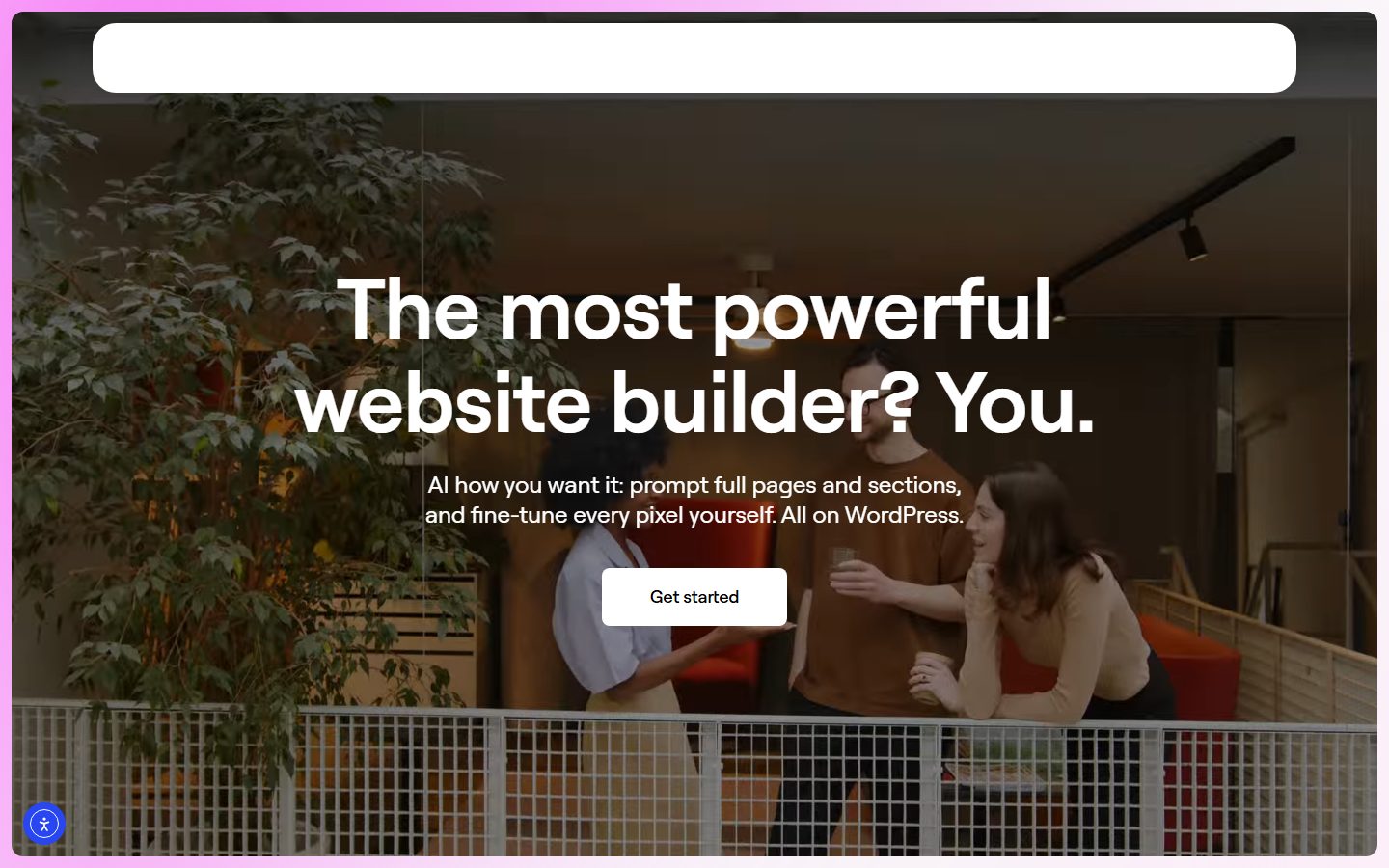
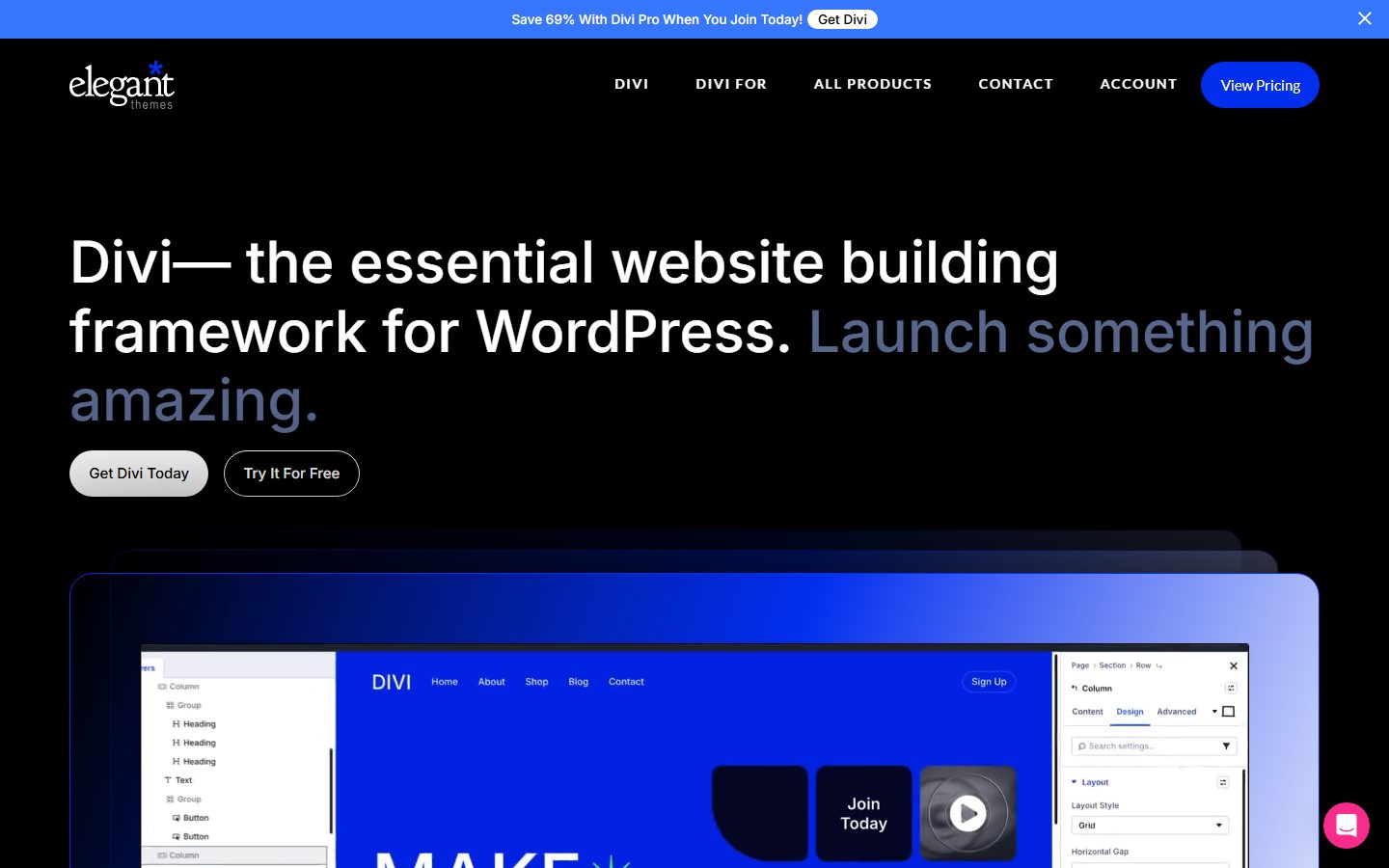
The screenshots below show the homepage of two of these examples as captured in November 2026, so you can see how each vendor presents the product.
If you prefer native tools, the Site Editor on a block theme offers templates and template parts without any add-on. See the block editor guide.
| Question | Tool A | Tool B | Tool C |
|---|---|---|---|
| Covers header, footer, single, archive, search and 404 | |||
| Display conditions are clear and testable | |||
| Rule for conflicting templates documented | |||
| Works with my theme | |||
| Custom post type and field support | |||
| WooCommerce templates available | |||
| Added weight on every page | |||
| Site still works if builder is off | |||
| Tier and cost for my site count | |||
| Import and export of templates |
Screenshot your current header, footer, post layout and archives at desktop and phone widths. List the menus, widgets and scripts that appear in them, such as a search form, cart icon, language switcher or consent banner. Back up the site. Do the work on a staging copy; our staging guide explains how to set one up.
Install the builder and set it up on staging. Start with the header and footer, because they affect every page. Build a minimal version first, with the logo, menu and one button, assign it to the entire site and check a few pages. Then add the single post template and an archive template. Add more specific conditions only after the base templates behave. Name templates clearly, with their scope in the title.
Walk through every template type: home, a page, a post, a category, a search with results, a search with none, a 404 and, if relevant, shop and product. Check menus on phones and keyboard operation. Compare page weight against your before numbers. Then move to production with a backup in place.
A theme builder is among the stickiest tools you can add. Templates, conditions and dynamic widgets live in the builder’s format, so leaving means rebuilding the site frame. Because the header and footer touch every page, a mistake during a switch is visible everywhere at once.
You can reduce the risk. Keep the design simple so a rebuild is quick. Keep menus in the WordPress menu system rather than inside the builder where possible. Keep content in standard posts and fields. Export templates when the tool allows it, and record the display conditions in a note. When you do switch, run old and new side by side on staging and compare templates one by one. Moving to a block theme later is possible, but you will recreate templates in the Site Editor; the template hierarchy stays the same, which helps.
WPMusk has not run hands-on tests of theme builders. In a full review we plan to build the same header, footer, single post and archive on a clean test site in each tool, test conflicting conditions, measure the weight each adds and test removal. This page carries no score: it is guidance for choosing, not a measured result. Treat this page as guidance for choosing.
Often yes, but results vary. Some vendors say full header and footer control needs a compatible theme, so check the documentation for your theme.
No. A block theme lets you edit templates with the native Site Editor. A theme builder is a separate tool, usually tied to a page builder.
It can, because header and footer load everywhere. Measure on staging and keep templates simple.
WordPress falls back to your theme’s own templates, per the template hierarchy, but content built in the builder may not render. Test before you rely on it.
Not always. WooCommerce has its own blocks, and some builders add product and shop templates. Decide based on how far you need to customize.
If you only need two templates, an add-on is lighter. If you need archives, singles and conditions, a full theme builder fits better.