A security plugin adds protective layers to WordPress. Typical jobs are blocking suspicious requests with a firewall, limiting login attempts, requiring two-factor authentication, scanning files for changes or malware, hardening settings and alerting you when something looks wrong.
It reduces risk. It does not make a site unhackable, and no plugin replaces the basics: updated software, strong and unique passwords, least-privilege accounts, backups and trustworthy plugins and themes. Think of a security plugin as a smoke alarm plus a lock, not a fortress. For the full picture see the WordPress security guide.
Security plugins use a handful of mechanisms, and knowing which one a feature uses tells you what it can and cannot do.
Any site that logs users in, takes payments or stores personal data should have some protection beyond defaults. Sites that attract attacks include those with many plugins, those with many user accounts, shops and sites with a known brand.
A security plugin is not a substitute for updates. Most compromises come from known flaws in outdated plugins and themes, so patching is the main defense.
| Approach | Where protection runs | Strengths | Limits |
|---|---|---|---|
| Endpoint firewall plugin | Inside WordPress | Context-aware, easy to install | Uses server resources; traffic still reaches your host |
| Cloud firewall service | In front of your site | Blocks before the request arrives; can absorb floods | Subscription; DNS or proxy changes |
| Hardening and login plugin | Inside WordPress and server rules | Many settings in one place | Rules can conflict with your host or theme |
| Scanner and monitor | Plugin and vendor service | Spots changes, known malware and blocklist entries | Detects after the fact |
| Vulnerability patching service | Vendor feed and rules | Protects against known flaws while you update | Often paid; coverage varies |
| Host-level security | Host | No plugin needed | Limited control and visibility |
On WPMusk, plugins are scored on speed impact (30%), reliability (25%), support (20%), value (15%) and ease of use (10%). For security plugins, speed impact is the load of firewall and scanning, and reliability includes false positives that lock out real users.
Firewalls and scans use CPU, memory and database writes. Scans on shared hosting can slow a site or hit limits. Look for scheduling, throttling and the ability to run scans off-peak. Check logging settings too: some plugins write large tables if left unchecked.
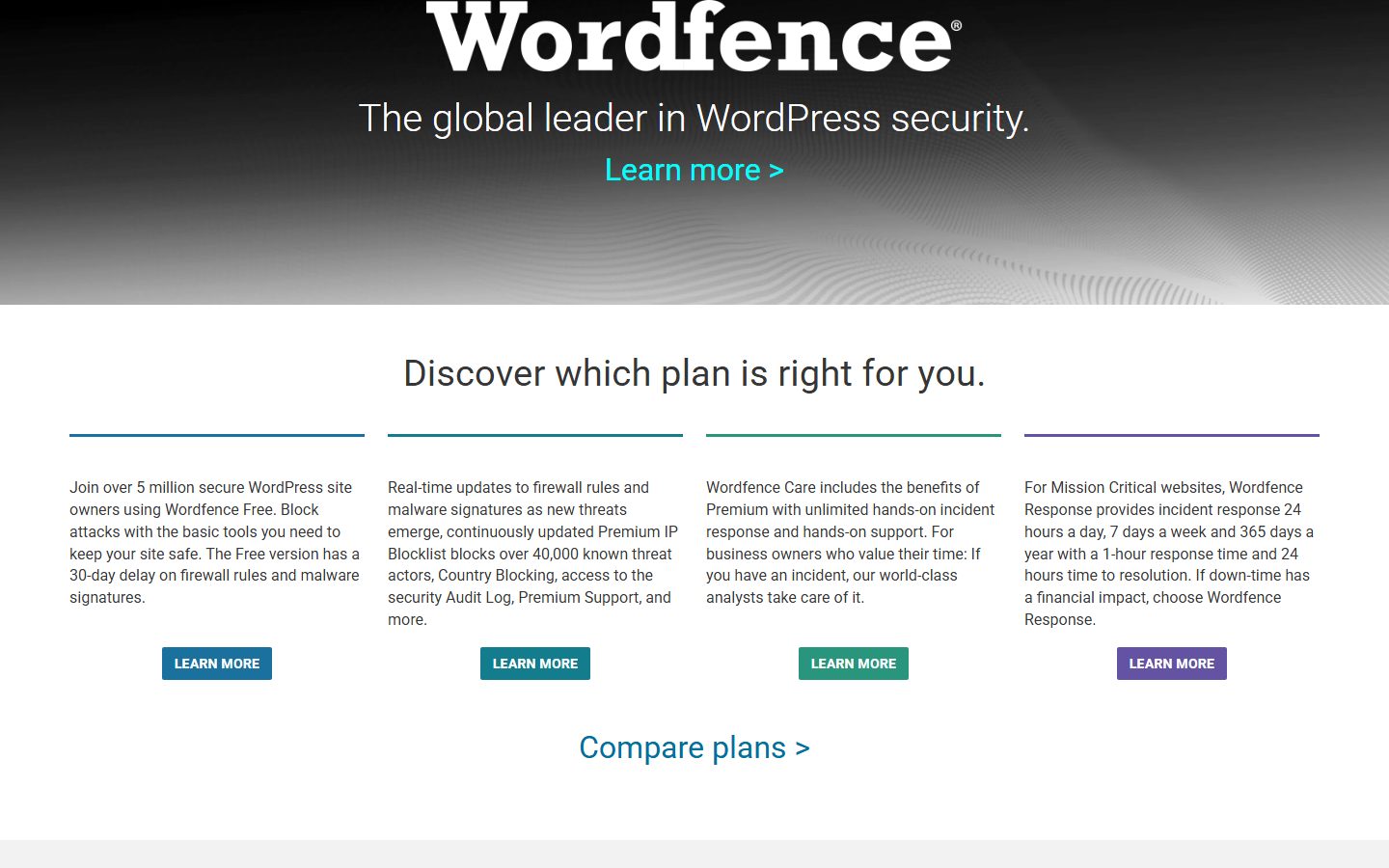
Ask how rules are updated and when. Wordfence’s listing says free users receive firewall rules and malware signatures delayed by 30 days, while Premium gets real-time updates. That is a vendor-documented tier difference worth weighing against your risk. Also ask whether you can put the firewall into a learning or test mode before enforcing it.
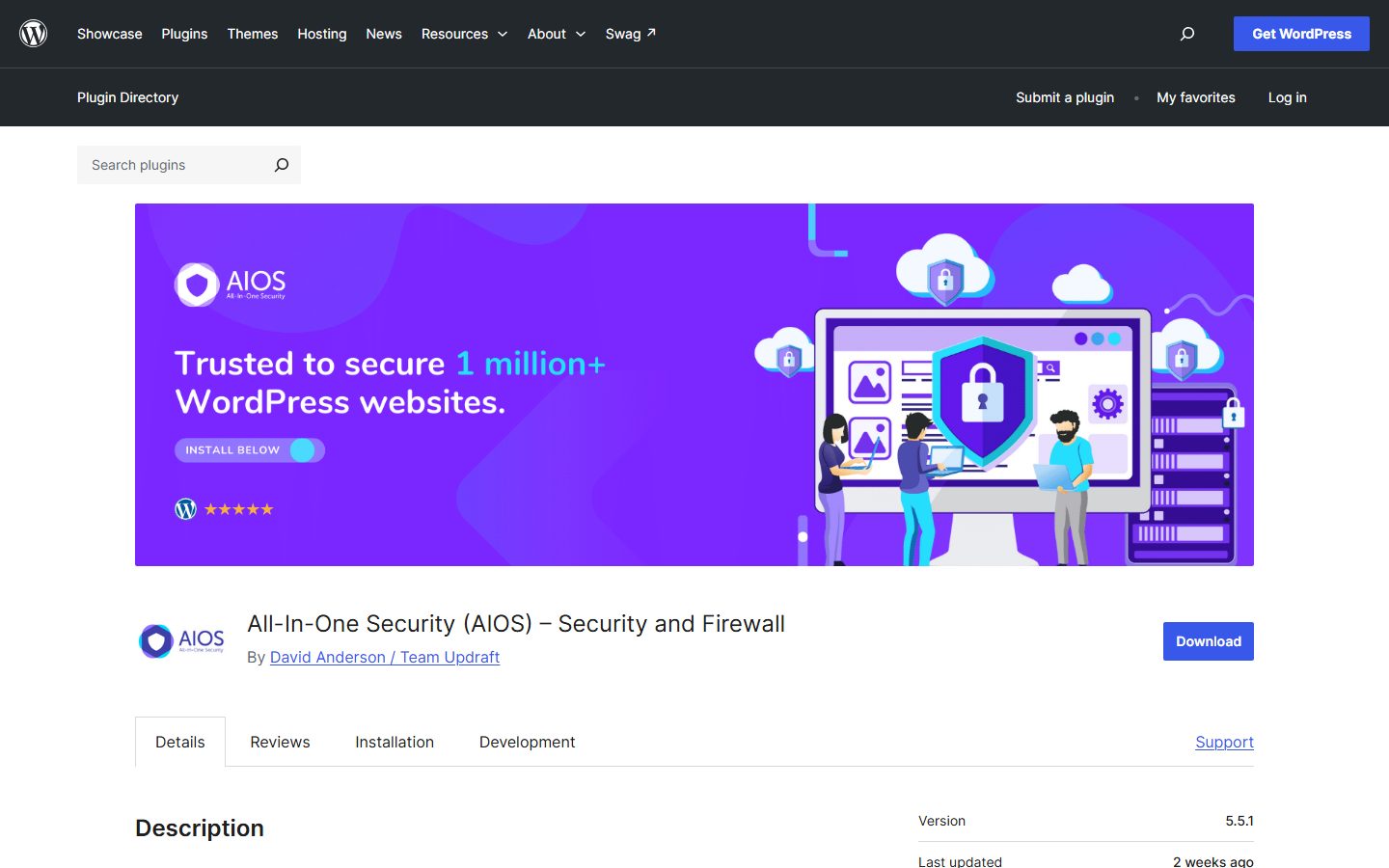
Look for attempt limits, lockouts, two-factor authentication through authenticator apps, protection against user enumeration and the option to require two-factor for chosen roles. AIOS’s listing describes two-factor for selected roles and login attempt limits in the free version. Kadence Security’s describes two-factor with app codes, email and backup codes. Check recovery paths so you cannot lock yourself out.
Know what gets scanned and how often. Compare core, plugins, themes and uploads, and see whether the tool can repair or only report. Check how the tool reduces noise from legitimate changes, such as exclusions for expected file changes.
An alert nobody sees is useless. Look for email or messaging alerts, a readable log and exports. Some security plugins include an audit log. Sucuri’s listing says its audit logs are not stored in the database. For a dedicated trail, see the activity log guide on this site.
Aggressive blocking can lock out customers, break checkout or block your own IP. Check how to allowlist IPs, how to disable the firewall without admin access and how to review blocked requests.
Security incidents are stressful, so look at support terms before you need them. AIOS’s listing says free users get forum support and premium users get ticketed email support. Some vendors include malware removal help in paid plans. Compare what you would pay for cleanup elsewhere, and read what the plan includes.
These are examples, not rankings. Descriptions come from wordpress.org listings. Check each vendor for current tiers and prices.
The screenshots below show the homepage of two of these examples as captured in November 2026, so you can see how each vendor presents the product.
Also see the security plugin roundup.
| Question | Why it matters | Your answer |
|---|---|---|
| Does your host already provide a firewall? | Avoid duplicate layers | |
| Where does the firewall run? | What it can block | |
| How fresh are free rules? | Protection gap | |
| Is two-factor included, with recovery? | Account takeover | |
| Does it scan for known vulnerabilities? | Patch priorities | |
| Can it repair files or only report? | Incident response | |
| How do you allowlist an IP? | Lockouts | |
| Can you disable it without admin? | Recovery | |
| What alerts do you get? | Awareness | |
| Does it write to .htaccess or wp-config.php? | Cleanup on removal | |
| What does support cover? | Incident help |
Red flags in a vendor: promises of complete protection, fear-based marketing without detail, no description of what free tiers omit and no clear way to remove the product cleanly. If a site is already compromised, install nothing new first. Follow the hacked site recovery guide.
Switching is riskier than it looks. Security plugins write rules to server files, create database tables and set constants, and may leave them behind. A leftover rule can block a legitimate request or break a login long after the plugin is gone. Check after removal.
The other risk is a gap. Between removing one tool and configuring the next, the site is less protected. Do the switch in one session, on staging first. For paid products, firewall rule updates, scans and support usually depend on an active licence, so check what changes if you do not renew. Prices vary by plan and number of sites, so read the pricing page on the day you buy.
WPMusk has not run hands-on tests of security plugins yet. This page is a decision guide built from vendor listings and documentation. This page carries no score: it is guidance for choosing, not a measured result. We also cannot claim any product stops any specific attack.
When we publish a full review we plan to follow the plan above on a staging site and report what we did. Scores will use our plugin weights: speed impact 30%, reliability 25%, support 20%, value 15% and ease of use 10%. If you use AI agents on your site, also read the AI agent security risks guide.
Not always. Ask what the host covers. Add a plugin for what it does not, such as two-factor, activity visibility or file monitoring.
For many small sites it is a reasonable start. Read what the free tier delays or omits, such as rule updates.
Yes, especially during scans and with heavy logging. Schedule scans off-peak and watch your resource usage.
Avoid overlapping firewalls and login rules. If you combine tools, give each a distinct job.
No. Scanners find known patterns and changes. Keep software updated and backups tested.
Restore from a clean backup if you have one, change all credentials, and follow a recovery checklist. A plugin helps with cleanup but does not replace it.