A store-ready theme is a WordPress theme designed to display an online shop. It styles the shop page, product pages, cart, checkout and account area, and it usually adds layouts for product grids, category banners, sale badges and a mini cart in the header. A regular theme can run a store, but it may leave these screens looking like an afterthought.
The theme does not sell anything on its own. A separate e-commerce plugin (WooCommerce is the most common) handles products, carts, payments, tax and orders. The theme decides how all of that looks and how fast it loads. Choosing well means checking that the theme and the plugin agree, now and after future updates.
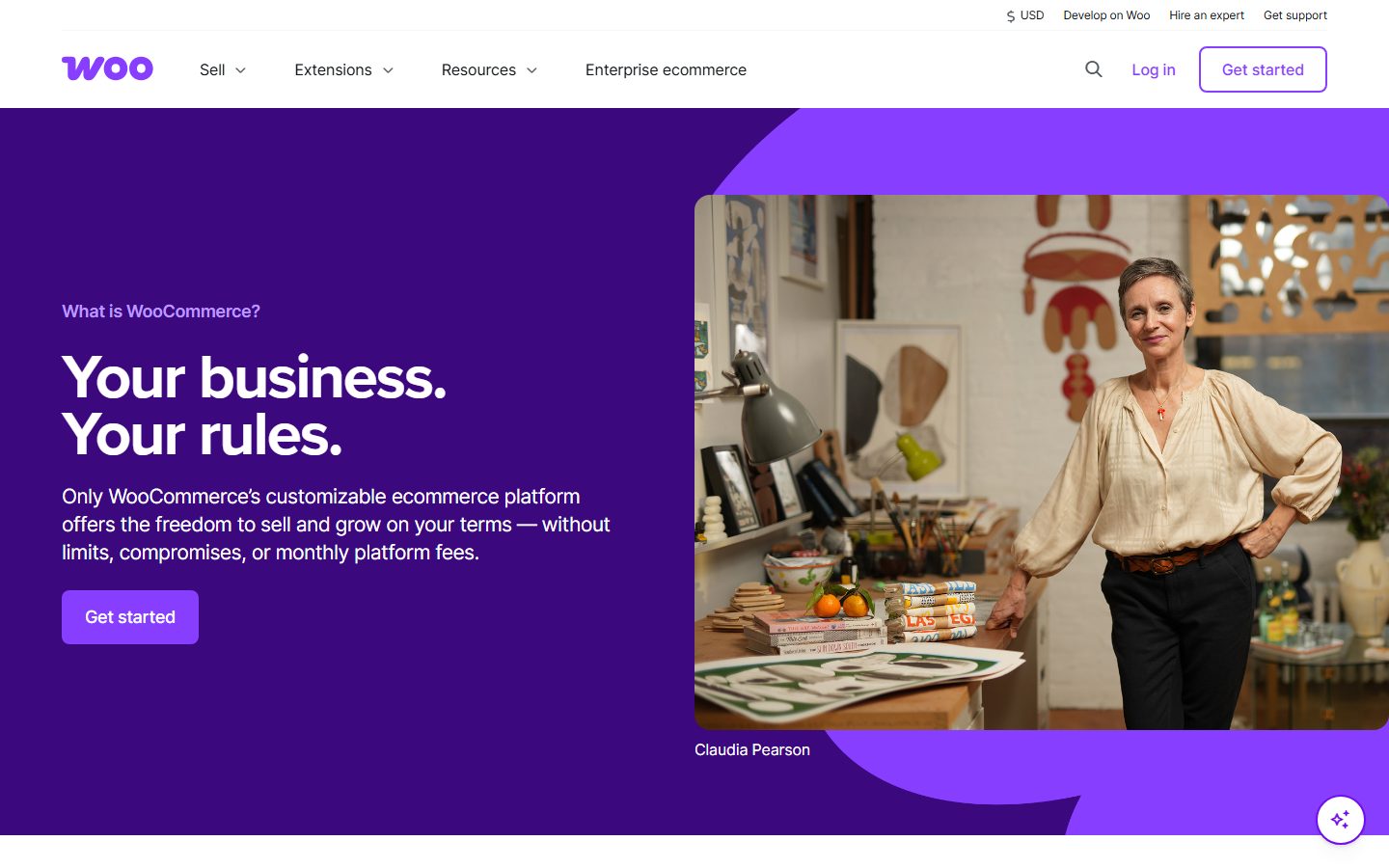
WooCommerce, according to its wordpress.org listing, is developed and supported by Automattic and a wide group of contributors. It provides the shop engine and a set of templates. A theme interacts with it in one of three ways.
Classic template overrides. The theme includes its own copies of WooCommerce template files, so it can change the markup. This gives control but creates a maintenance burden: when WooCommerce updates a template, the theme’s copy can become outdated. WooCommerce flags outdated overrides on its status screen.
Block templates. A block theme can describe the product archive, single product and related pages as block templates and use WooCommerce’s blocks (product collections, add-to-cart, price, gallery and so on). The Cart and Checkout can also be built from blocks. The WooCommerce listing’s changelog mentions fixes for its Cart, Checkout and Mini-Cart blocks, which shows that these blocks are a maintained part of the plugin.
Theme options layered on top. Many commercial themes add their own options: quick view, wishlist, swatches, sticky add-to-cart. These can be convenient, but each is code and scripts that your pages must load.
For a deeper look at the platform choice, see the WordPress ecommerce guide and WooCommerce vs FluentCart vs SureCart. Not all themes work equally with every cart, so confirm which one a theme supports.
You need a store-ready theme if you sell physical or digital products and want the shop pages to look deliberate without custom development. It saves time if the theme ships tested product, cart and checkout styling.
You may not need one if you sell a handful of items on a mostly informational site. A general block theme plus a cart plugin can be enough. If you use a hosted checkout, such as one run from the vendor’s cloud, the theme matters less for the payment step. Our SureCart guide describes that model. If you sell downloads, see selling digital products.
| Approach | How it works | Strength | Trade-off |
|---|---|---|---|
| Official or first-party theme | Built by the cart plugin’s own developers | Closest alignment with plugin updates | Plain design, fewer extras |
| Block theme with cart blocks | Product and checkout pages built from core and WooCommerce blocks in the Site Editor | Editable, modern, minimal code | Fewer ready-made shop features |
| Commercial store theme | Theme adds quick view, swatches, wishlists, mega menus | Many shop features in one | Heavier, more lock-in |
| General theme with shop support | Standard theme that also styles the shop | One theme for the whole site | Shop-specific features may be thin |
| Theme for a non-WooCommerce cart | Designed for another cart plugin | Matches that plugin | Not usable with others |
Our theme weights are speed impact 30%, reliability 25%, support 20%, value 15%, ease of use 10%.
Shops are heavier than blogs: product images, variation scripts, cart fragments. The theme should not add to it. web.dev’s thresholds for a “good” rating at the 75th percentile are LCP 2.5 seconds or less, INP 200 milliseconds or less and CLS 0.1 or less. Product pages with image galleries are where LCP and CLS go wrong, and INP suffers when add-to-cart and variation scripts are heavy. Our WooCommerce speed checklist lists the common causes.
Check that the theme states compatibility with the current WooCommerce version, and look at how fast it has followed major changes. A theme that overrides many templates needs frequent updates. A block-based theme that uses plugin blocks tends to track the plugin automatically.
A store is revenue, so a vague support forum is a risk. Look for documentation on shop customisation, a changelog that mentions WooCommerce changes and a record of replies.
Separate what you need from what is bundled. Quick view, wishlists and swatches are sometimes available as separate plugins, sometimes in the paid tier. Check current prices on the vendor’s page, and consider the yearly renewal, not only the first purchase.
You will change banners, collections and menus around sales. Check that you can do so in the Site Editor or a clear settings panel without code.
Check the gallery, price, variation selectors, stock messages, shipping notes and related products. See product page conversion for what to include.
Test the full path: add to cart, mini cart, cart, checkout, thank-you page, account area. Our checkout optimisation guide covers what to review. Check that the theme works with the Cart and Checkout blocks if you use them, and with your payment methods.
Most shop traffic is on phones. Check tap targets, sticky add-to-cart bars and form fields. Check colour contrast on sale badges and out-of-stock labels.
These are examples, not a ranking. Descriptions come from wordpress.org listings and may have changed.
Storefront. Published by Automattic and described on its listing as designed and developed by WooCommerce core developers, with built-in WooCommerce integration and support for popular WooCommerce extensions. The listing does not state whether it is a block theme, so check that yourself. The WooCommerce plugin’s FAQ recommends it for deep WooCommerce integration.
Blocksy. A free theme by Creative Themes, with paid upgrades. Its listing describes it as a fast, modern theme with advanced WooCommerce support and claims block editor compatibility. Check which shop features are free and which are paid.
Kadence. A free theme with paid upgrades. Its listing says it is lightweight and full-featured, includes starter templates and integrates with popular third-party plugins, and it carries an e-commerce tag. It does not name WooCommerce on the page, so confirm compatibility in its documentation.
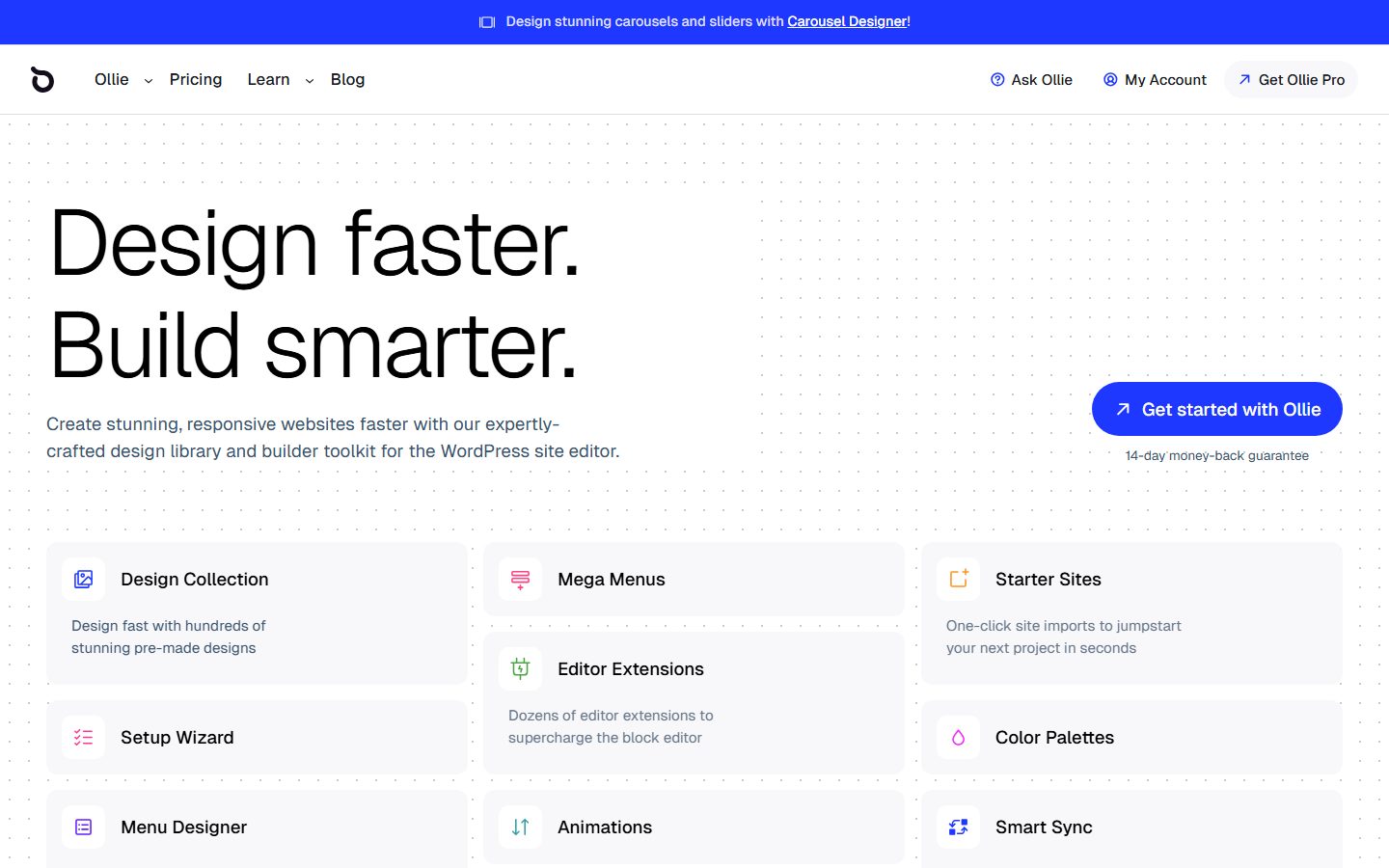
Ollie and Twenty Twenty-Five. Ollie is a block theme by Mike McAlister, and Twenty Twenty-Five is the WordPress default. Their listings do not highlight shop features, so treat them as general block themes to test with WooCommerce’s blocks rather than as shop-specific choices.
For broader theme lists, see best block themes and fastest WordPress themes.
| Check | Theme A | Theme B | Theme C |
|---|---|---|---|
| States compatibility with current WooCommerce | |||
| Shop and product templates editable in Site Editor | |||
| Cart and Checkout blocks styled | |||
| Template overrides flagged outdated on status screen | |||
| Features I need: quick view, swatches, wishlist | |||
| Which of those are paid | |||
| LCP, INP, CLS on product page (mobile) | |||
| Sticky add-to-cart and tap targets | |||
| Works with my payment methods and tax plugin | |||
| Update history |
Never change a live shop theme without a plan. Take a full backup of files and database, and create a staging copy (see the staging guide). List the shop features you rely on: custom fields, filters, variation swatches, and any code in your current theme’s functions file. Place a few test orders in staging with a test payment mode so you know what normal looks like.
Switch on a quiet day, not during a sale. Watch orders, abandoned carts and error logs for the first days. Keep the old theme installed (inactive) until you are sure. Our Black Friday prep plan shows how to time changes around peak periods.
Shop themes are harder to leave than blog themes because checkout, product templates and custom fields are tied into the design. The product data is stored by the cart plugin, so products, orders and customers survive a theme change. What you lose is the shop’s layout, theme-specific product options (swatches, badges, extra tabs) and any customised templates.
The costs show up as time and revenue risk. A broken checkout for a day costs sales, which is why staging and test orders are not optional. If a commercial theme’s features hold your catalogue together, such as variation swatches stored in theme settings, export or document them before you start. Money cost: check the vendor’s current pricing and renewal terms, and compare with building the same features from plugins. Also consider whether you might change cart plugins later; a cart switch is a bigger project than a theme switch, and the WooCommerce alternatives guide lays out the stakes.
WPMusk has not run hands-on tests of any shop theme yet. This page carries no score: it is guidance for choosing, not a measured result. In a full review we plan to install each theme with the same WooCommerce setup and demo products, place test orders, measure speed on the shop, product and checkout pages, and check template override warnings. Scores will follow the weights above.
No, but a theme that styles shop pages saves work. Test it with your own products.
WooCommerce provides blocks for products, cart and checkout, and the plugin’s changelog shows ongoing work on them. Check the specific blocks you need and test them in staging.
No. They are stored by the plugin. The layout and theme-specific options are what change.
Only if you will use them. Every feature is code that loads. Compare against plugins that do one thing.
Layout, clarity and speed play a part, but the theme is one factor among payment options, shipping costs and trust. See the checkout guide linked above.
Confirm the theme supports it. A theme built for one plugin may not style another.
On the vendors’ own pricing pages. We do not list them.