A backup plugin makes a copy of your site that you can restore when something goes wrong. That could be a failed update, a hacked site, a deleted page, a bad edit or a server failure. The plugin does three jobs: it collects the data, it stores the copy somewhere, and it helps you put the copy back.
A complete backup has two parts. The WordPress developer documentation says you need both: the database, which holds posts, comments, settings and users, and the files, which include core, themes, plugins, uploads and configuration files such as wp-config.php. Lose either half and a typical site cannot be fully restored.
The third job is the one people forget. A backup is only worth the restore that works. When you compare plugins, spend more time on how they restore than on how they back up.
WordPress runs on PHP and a database. A backup plugin runs inside that same PHP process. It exports the database tables to a file, walks the file system, and packs the result into one or more archives. Archives are then copied to storage: local disk, a cloud service or the vendor’s own servers.
That design has a consequence. The plugin competes with your site for CPU, memory, disk and execution time. Hosts cap all four. A job that takes too long can be killed by a time limit, which is why many plugins split work into chunks and resume. The Duplicator documentation, for example, describes a chunked engine for hosts with strict timeouts.
Schedules usually rely on WP-Cron, WordPress’s built-in task runner. WP-Cron fires when someone visits the site, so a quiet site can run late. Some plugins and hosts let you trigger runs from a real server cron job or from WP-CLI instead. The BackWPup page, for instance, lists WP-CLI support for scripted runs.
Some services work differently. Instead of building archives on your server, a hosted service pulls data from your site and stores it on its own infrastructure. Jetpack’s backup documentation describes this model: copies are kept on WordPress.com servers, with daily full backups and real-time syncs after changes. This moves work off your server, and it adds a dependency on the vendor.
Every site needs backups. Not every site needs a plugin for it.
You do not need a plugin if your host already gives you a tested, off-site, restorable copy and you are happy relying on it. You do need one if you want a second copy, a different storage location, or a way to move the site yourself.
Backup tools fall into a few architectures. Most real products mix them, so use this table to understand the trade-offs, not to sort products into boxes.
| Approach | How it works | Strengths | Watch out for |
|---|---|---|---|
| Full archive plugin | Packs files and database into archives on a schedule | Simple, portable files you hold yourself | Heavy on small hosts; large sites can time out |
| Incremental plugin | Copies only what changed since the last run | Lighter jobs, shorter runs | Restore may need several pieces; check what is premium |
| Hosted backup service | A vendor pulls data and stores it on its servers | Less load on your server; restore from a vendor dashboard | Subscription dependency; storage location is the vendor’s choice |
| Real-time or change-based | Records changes as they happen | Suits shops and busy sites | Check what is captured, and how orders are handled on restore |
| Migration-first plugin | Builds a package meant to be installed elsewhere | Good for moving or cloning sites | Scheduling and storage options may be limited in free tiers |
| Host-level snapshot | The host copies the whole server or account | No plugin needed | One copy under the host’s control; check retention |
On WPMusk, plugins are scored on speed impact (30%), reliability (25%), support (20%), value (15%) and ease of use (10%). The criteria below are ordered roughly by that weighting.
Backups consume CPU, memory and disk input and output. On shared hosting a heavy job can slow the site for visitors or hit a limit and fail. Look for adjustable chunk sizes, the choice of archive and database engines, incremental modes and off-peak scheduling. A tool that tells you when your server is the bottleneck, as Duplicator says its AutoTune feature does, is useful.
A backup that silently fails is worse than none, because you believe you are covered. Check for completion emails, a log you can read, and alerts when a run does not finish. Ask how the tool resumes after a timeout and what happens when the destination is full or the credentials expire.
A copy on the same server dies with the server. Confirm which destinations are supported and which sit behind a paid tier. Vendor pages show real differences here. BackWPup’s page lists several destinations in the free version and says restoring from a remote destination needs Pro. UpdraftPlus’s page lists a core set of free destinations and puts others in Premium. Read the tier table for the destination you actually use.
Ask three questions. Can you restore from the dashboard? Can you restore when WordPress itself is broken? Can you restore parts, such as only the database, a single plugin or one table? Jetpack’s documentation describes restoring individual items, including database tables. BlogVault’s describes restoring when the site is offline. Duplicator documents a recovery-point feature in its Pro tier. These are the vendors’ claims, so test the one you care about.
Match frequency to how much content you can afford to lose. Keep several generations. The WordPress documentation suggests keeping at least three to five recent backups in different locations, so a problem that goes unnoticed for a few days does not overwrite your last good copy.
Your backup contains user data and, often, secrets in wp-config.php. Check whether archives can be encrypted and where the vendor stores them. Jetpack’s page states that its backups are stored in data centers around the world and that you cannot restrict storage to a region. If you have data-residency obligations, that kind of detail matters.
You will need support during an incident, when you are least patient. Check how help is offered: forum only, ticket, chat. Free tiers on wordpress.org are usually forum-supported. Read how a vendor describes restore help before you need it.
Many backup tools double as migration tools. Check that restores can target a different domain, handle serialized data in the database safely and work on a new server with different paths. Duplicator describes a wizard for moving a site to a new domain or host. UpdraftPlus describes a search-and-replace engine for URLs. BlogVault describes one-click staging. A restore that works on a different domain proves your backups are portable, not just present.
These are examples, not rankings. Descriptions come from each product’s own documentation or its wordpress.org listing. Features and tiers change, so confirm on the vendor page before you buy. We list no prices; check the current pricing page.
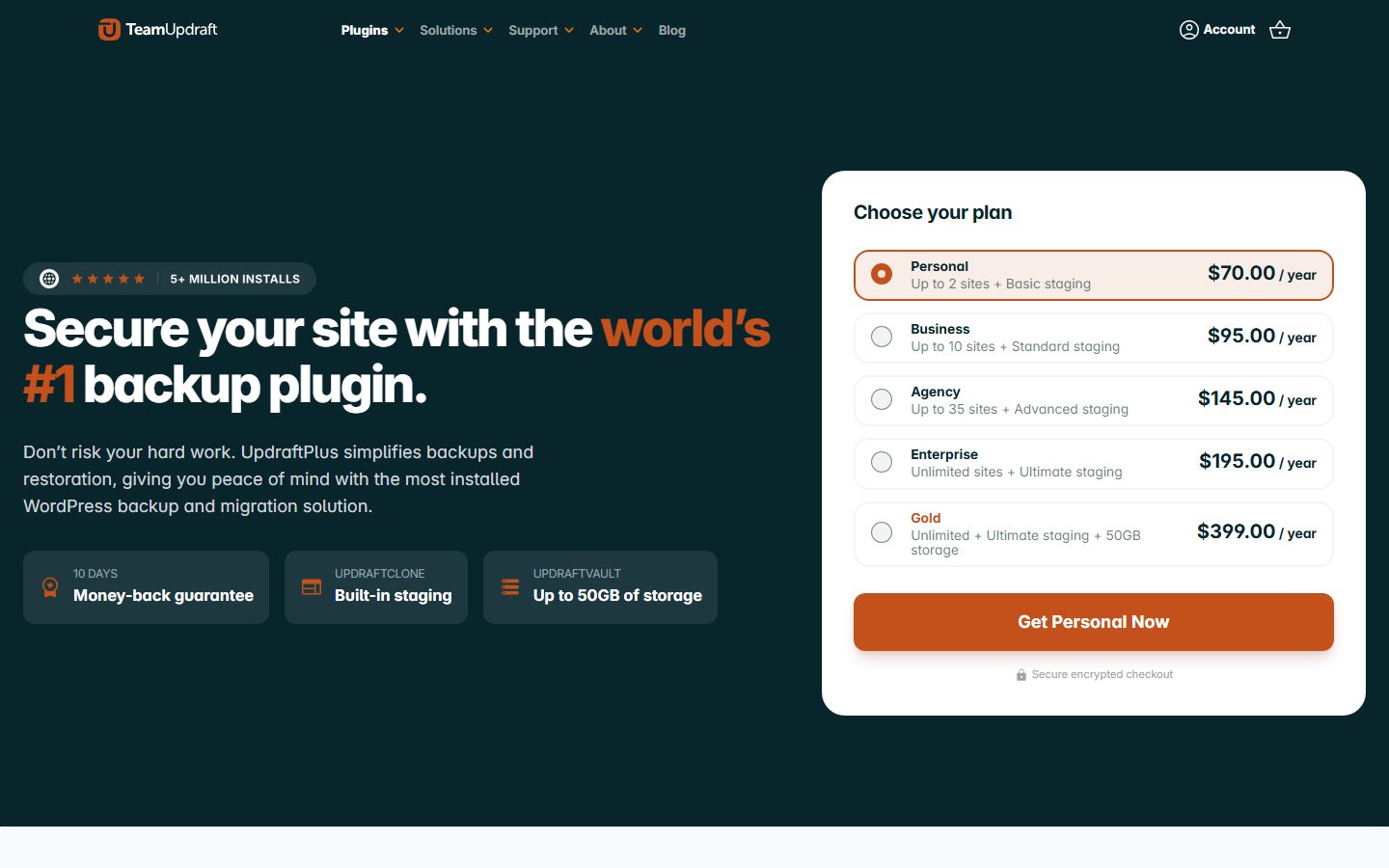
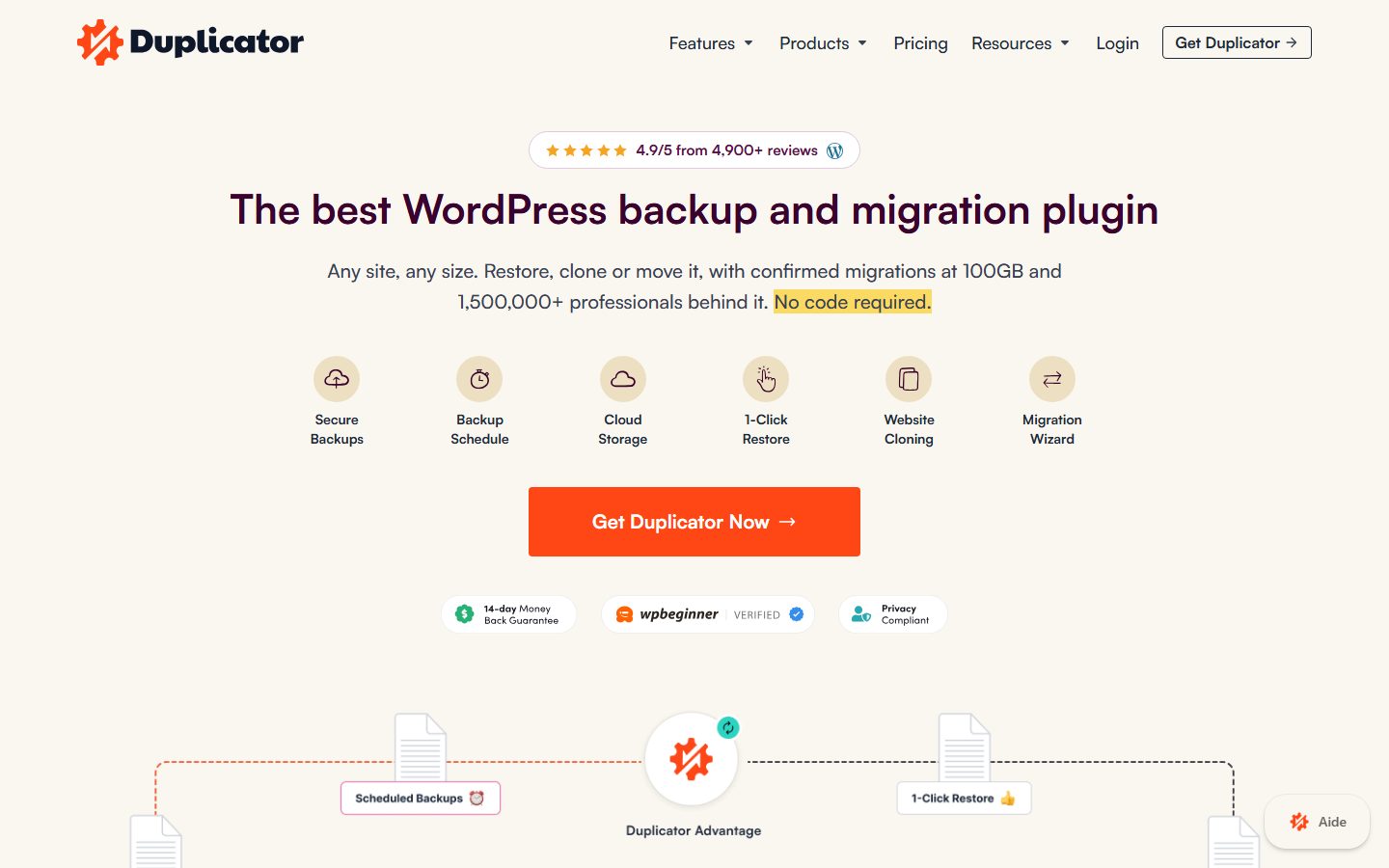
The screenshots below show the homepage of two of these examples as captured in November 2026, so you can see how each vendor presents the product.
Copy this table, add your shortlist as columns and fill each row from the vendor documentation, not from reviews.
| Question | Why it matters | Your answer |
|---|---|---|
| Is the destination you use included in the plan you will buy? | Tiers differ by destination | |
| Can you restore from remote storage without downloading first? | Speed in an emergency | |
| Can you restore with WordPress broken? | Hacked or crashed sites | |
| Is incremental backup included? | Load on small hosts | |
| Does it back up before updates? | Safe rollback | |
| Are archives encrypted? | Privacy, secrets | |
| How many restore points are kept? | Late-found problems | |
| What alerts fire on failure? | Silent failures | |
| Can you migrate to another domain? | Staging and moves | |
| What does support cover? | Help during an incident | |
| What happens to backups if you cancel? | Lock-in |
Red flags in a product: documentation that never mentions restore, no way to see logs, no description of where data is stored and silence about what happens to your backups when you cancel.
Switching backup tools is low risk if you move deliberately. The data lives in archives or in a vendor’s storage. With archive plugins, your existing backups remain readable only by the tool that made them, or by manual extraction. Keep the old plugin’s archives and a plain database export. Do not delete them the day you switch.
With hosted services, ask whether you can download full copies before you cancel and how long the vendor keeps data after cancellation. Prices and storage allowances change between plans and over time, so check the pricing page on the day you buy and again on each renewal.
The real cost is time: re-creating schedules, re-authorizing destinations and re-testing a restore. That is a few hours, and it is why choosing well the first time pays off.
Do this on a staging copy, never on the live site. If you have no staging site, see the migration guide for how to clone one safely.
If any step marked as a pass condition fails, treat that as a reason to look at the next candidate, not as a reason to lower the bar.
WPMusk has not run hands-on tests of backup plugins yet. This page is a decision guide built from vendor documentation and WordPress developer documentation. This page carries no score: it is guidance for choosing, not a measured result.
When we do review a backup plugin, we plan to follow the afternoon plan above on a staging site, record what happened and publish the steps so you can repeat them. Scores will follow our plugin weights: speed impact 30%, reliability 25%, support 20%, value 15% and ease of use 10%. Until then, use this guide to build your own shortlist, and see the backup plugin roundup, UpdraftPlus alternatives and the hacked site recovery guide for related reading.
They are a good first layer. They are also one copy under someone else’s control. Keep a second copy elsewhere, and check how your host restores and how long it keeps backups.
As often as you can afford to lose content. The WordPress documentation suggests roughly weekly for small sites and daily for busy ones. Shops may want more frequent or change-based backups.
Restore it to a staging site or fresh install and check the result. Nothing else proves it.
It is wise, especially for plugin and core updates. Some tools offer this automatically in a paid tier. See the auto-updates risk guide before enabling automatic updates.
It can while it runs, because it uses the same server resources. Choose incremental or off-peak runs, and watch your host’s resource limits.
Yes, but avoid running two heavy jobs at the same time. A common pattern is one scheduled plugin plus the host’s own snapshots.